7tsp Coloration Icon Pack
7tsp Coloration Icon Pack : The 7tsp Coloration Icon Pack for Windows is a vibrant and stylish customization set designed to completely transform the look of your desktop

7TSP Coloration Icon Pack For Windows
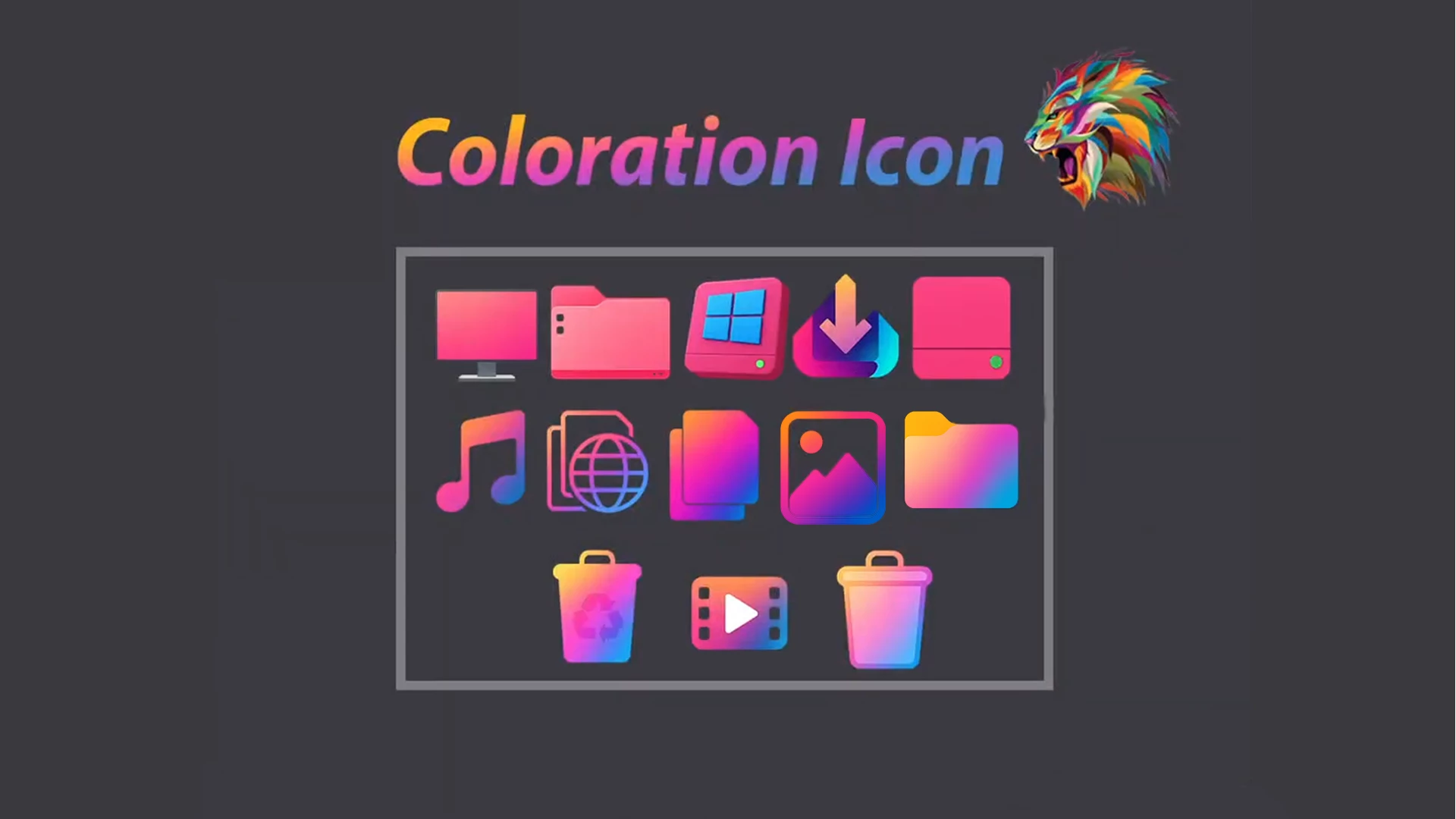
7TSP Coloration Icon Pack is a colorful Windows icon set built around bright gradients rather than a single fixed accent color. Pink, magenta, purple, orange, cyan, and blue tones are mixed across folders and supported system icons, giving File Explorer a much more expressive look than the standard Windows icon set.
The designs keep their shapes fairly simple, but the color treatment gives each icon more personality. Folder, media, image, network, and other system-style icons follow the same gradient direction, so the pack feels connected even though several colors are used throughout the set.
Coloration is made for icon customization through a compatible version of 7TSP GUI. It changes supported Windows icon resources only. Wallpapers, taskbar styles, Start menu changes, and Windows themes are separate customizations and are not required to use this pack.
Bright Gradient Icon Style
The main attraction is the mix of warm and cool colors within the same icon family. Some icons lean toward hot pink and orange, while others move through violet, blue, and cyan. That variation keeps the set lively without making the icons look unrelated.
The pack also works nicely against darker File Explorer backgrounds because the brighter gradients remain easy to see. You can still use the icons with a lighter Windows theme if you prefer, since the icon pack is independent from your desktop theme.
Features
- Multi-color gradient icon design using pink, purple, orange, blue, and cyan tones
- Matching folder, media, image, network, and system-style icons where supported
- Bright colors that remain easy to notice against darker Explorer backgrounds
- Designed for use with a compatible version of 7TSP GUI
- Can be used without changing your Windows theme or wallpaper
- Individual Windows resources may vary depending on the pack and system build
What Is Included?
- 7TSP Coloration Icon Pack: The icon resources used to replace supported Windows folder, system, and related icons through 7TSP GUI.
Compatibility
Supported Windows Versions
- Windows 11: Use with a compatible 7TSP release
- Windows 10: Use with a compatible 7TSP release
- Windows 8.1: Use with a compatible 7TSP release
- Windows 8: Use with a compatible 7TSP release
Compatibility depends on both the icon pack and the version of 7TSP GUI you use. Windows system resources can change between builds, so check the included notes and your 7TSP release before applying the pack.
Requirements
Requirements
- A Windows version supported by your selected 7TSP release
- A compatible copy of 7TSP GUI
- Administrator access for patching system icon resources
- A System Restore Point created before installation
- Enough free storage space for the backup files created by 7TSP
To check your Windows build, press Windows + R, type winver, and press Enter. Compare the displayed version with the compatibility information for the 7TSP release you plan to use.
Before You Install
Save any open work and finish pending Windows restarts before patching icons. Keep the backup option enabled inside 7TSP, since that backup is the simplest way to return to your previous icon resources later.
If another 7TSP pack is already active, restore it first before installing Coloration. Mixing several patched icon sets together tends to make troubleshooting considerably less entertaining than the icons themselves.
How to Install 7TSP Coloration Icon Pack
Installation Steps
- Create a Restore Point: Make a Windows System Restore Point before changing icon resources.
- Download the Pack: Download the Coloration archive using the button below and extract the outer ZIP file.
- Check the Included Files: Read any included instructions and locate the actual 7TSP pack file. If the pack is supplied as an inner archive, keep it intact unless the instructions tell you otherwise.
- Prepare 7TSP GUI: Download a compatible version of 7TSP GUI from its developer page and extract the application.
- Run as Administrator: Right-click 7TSP GUI and choose Run as administrator.
- Add the Pack: Choose Add a Custom Pack and select the Coloration 7TSP pack file.
- Begin Patching: Review the selected pack, keep the available backup options enabled, and start the patching process.
- Restart Windows: Wait until 7TSP finishes completely, then restart your computer when prompted and check the updated icons in File Explorer.
Download 7TSP Coloration Icon Pack
7TSP Coloration Icon Pack 40MB
DownloadHow to Restore the Default Windows Icons
How to Remove
- Open 7TSP GUI: Run the same 7TSP application as administrator.
- Choose Restore: Open the available Restore option.
- Select the Saved Backup: Choose the option that restores modified system files to their state before 7TSP was used.
- Confirm the Process: Let 7TSP finish restoring the backed-up resources without closing the application midway.
- Restart Windows: Reboot the PC and check File Explorer to make sure the previous icons have returned.
Some versions of 7TSP may place the restore command under Program > Restore Backup. Menu wording can differ slightly, so choose the option that restores the backup created before patching.
More Resources
Coloration can be used as a standalone icon pack, but you can also pair it with a separate Windows theme or wallpaper if you want a more colorful desktop. Those changes are independent from the 7TSP icon pack itself.
Credits
Source and artwork credit provided for this icon pack goes to Store KDE. Link Vegas Theme does not claim ownership of third-party artwork, names, or trademarks referenced in this post.
Disclaimer
7TSP Coloration Icon Pack is a third-party Windows customization resource intended for desktop personalization. It is not affiliated with, endorsed by, sponsored by, or officially connected to Microsoft, KDE, or the developers of 7TSP GUI. Windows and other trademarks belong to their respective owners. Because 7TSP modifies Windows icon resources, creating a System Restore Point and keeping the generated backup files before patching is recommended.
Final Word
Coloration is built for people who want more than a single accent color in File Explorer. Its mix of pink, violet, orange, cyan, and blue gives folders and supported system icons a lively gradient look while keeping the basic icon shapes easy to recognize.
The pack is also flexible enough to use on its own. A matching theme or wallpaper can be added later, but the icon set does not depend on either one.
Frequently Asked Questions
Do all Coloration icons use exactly the same gradient?
No. Different icons use slightly different combinations of pink, purple, orange, blue, and cyan, while still following the same overall colorful style.
Can I use Coloration with a dark Windows theme?
Yes. The bright gradients stand out clearly against darker Explorer backgrounds, although the icon pack can also be used with lighter themes.
Why might some Windows icons stay unchanged?
The pack can only replace resources that are included in it. Windows-build differences and application-specific icons can also leave some items unchanged.
Can I switch from Coloration to another 7TSP pack later?
Yes. Restore the current 7TSP backup first, restart Windows, and then apply the next compatible icon pack.
Does Coloration change my wallpaper or taskbar?
No. It is an icon pack. Wallpaper, taskbar styling, Start menu changes, and Windows themes are separate customizations.