

7tsp macOS Ventura inspired Icon Pack for Windows 10 & 11
7tsp macOS Ventura Icon Pack for Windows 10 & 11 : Install 7tsp macOS Ventura Icon Pack on Windows 10 & 11 to get clean, modern macOS-style system icons. Easily replace default Windows icons using 7tsp and enjoy a smooth, premium macOS Ventura look on your desktop.

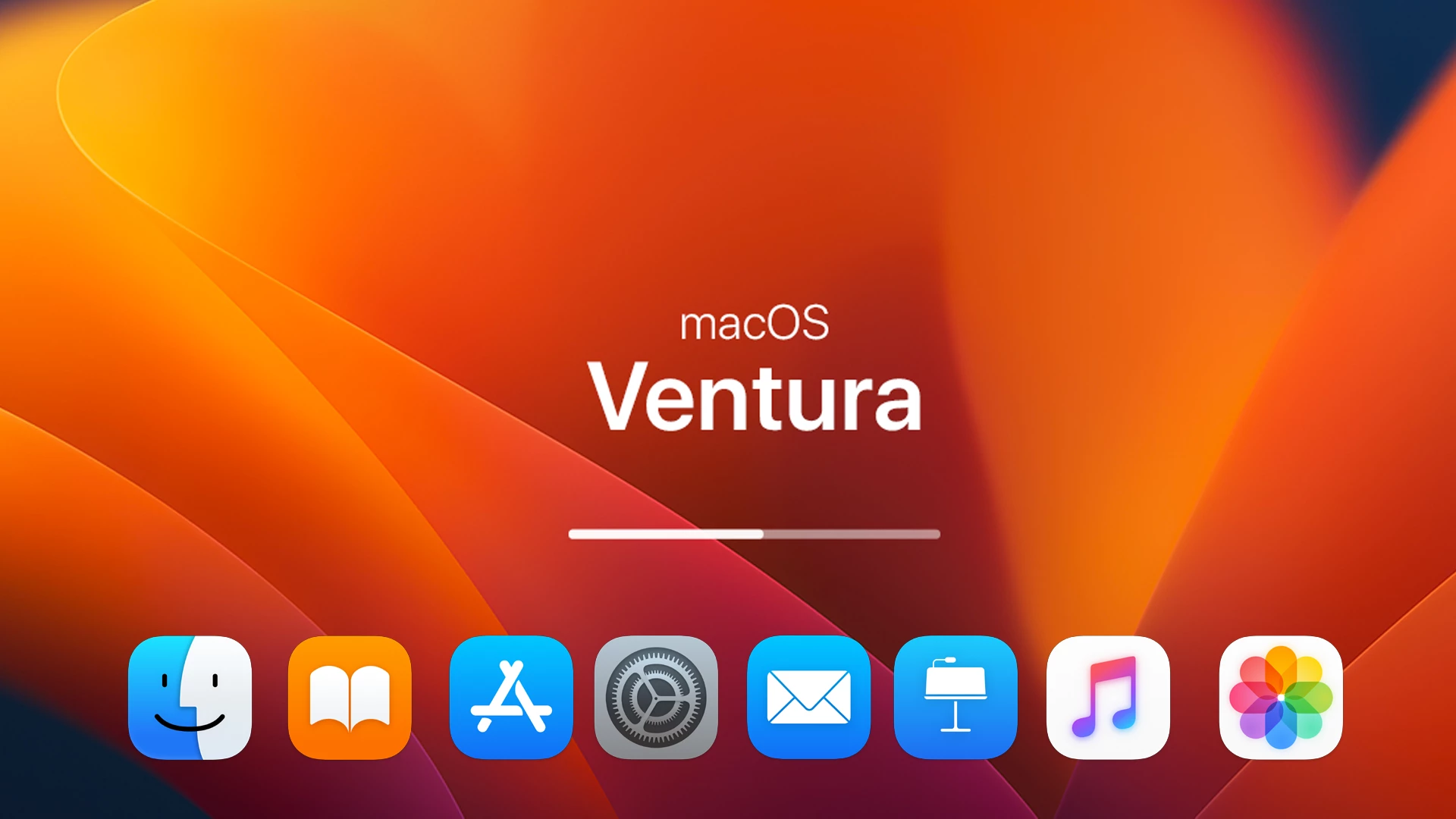
7TSP macOS Ventura Inspired Icon Pack for Windows 10 & 11
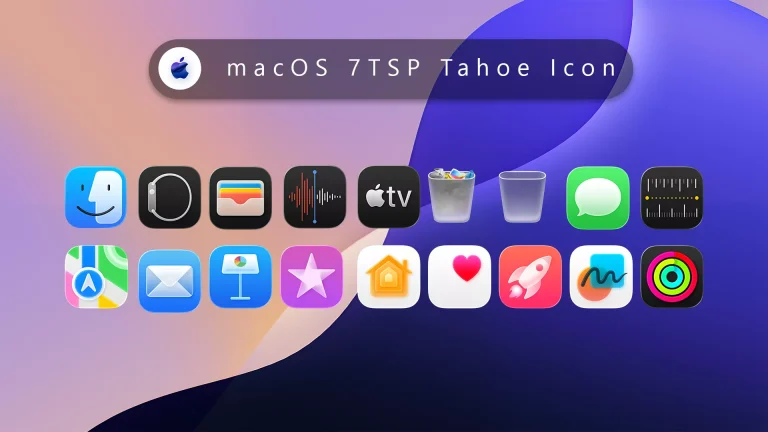
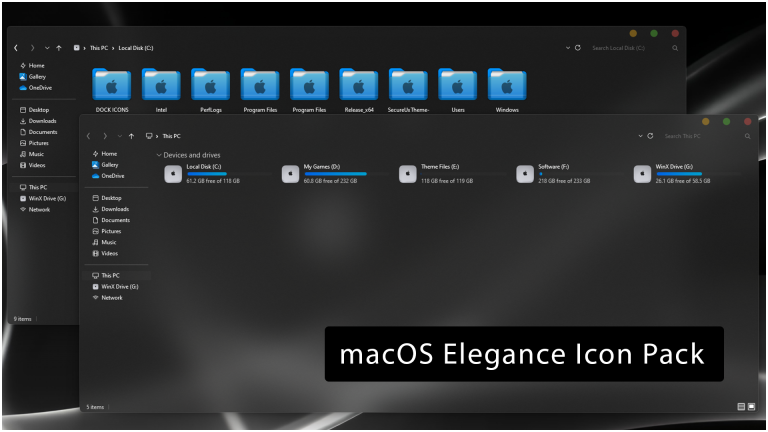
The 7TSP macOS Ventura Inspired Icon Pack for Windows 10 & 11 is designed for users who want to bring a clean and modern macOS Ventura-inspired look to their Windows desktop. This icon pack features smooth shapes, balanced colors, and a minimal design style that works well with modern Windows customization setups.
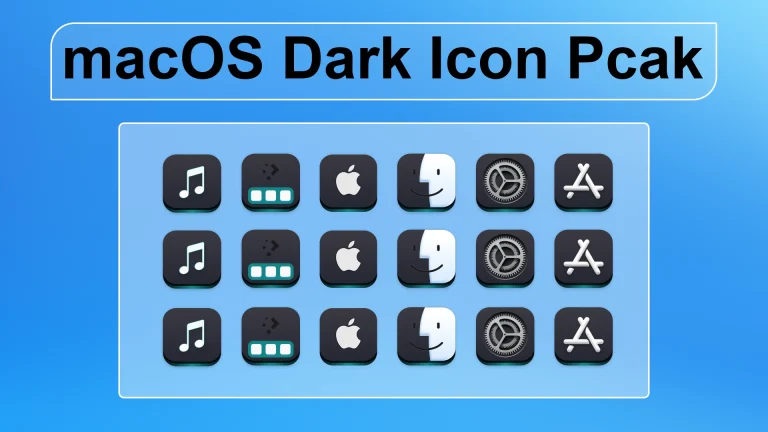
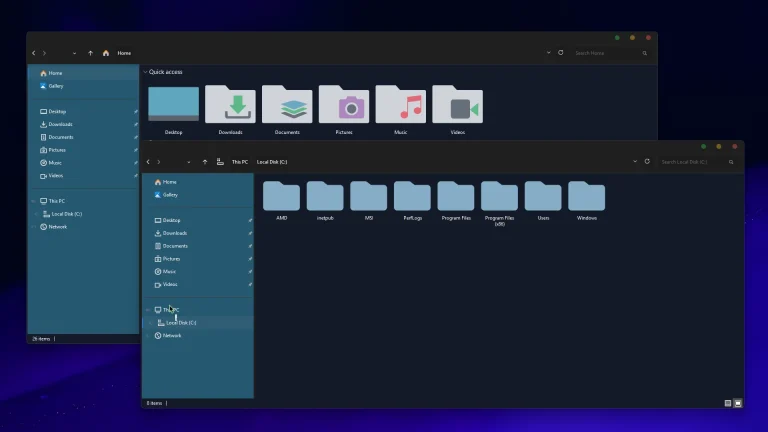
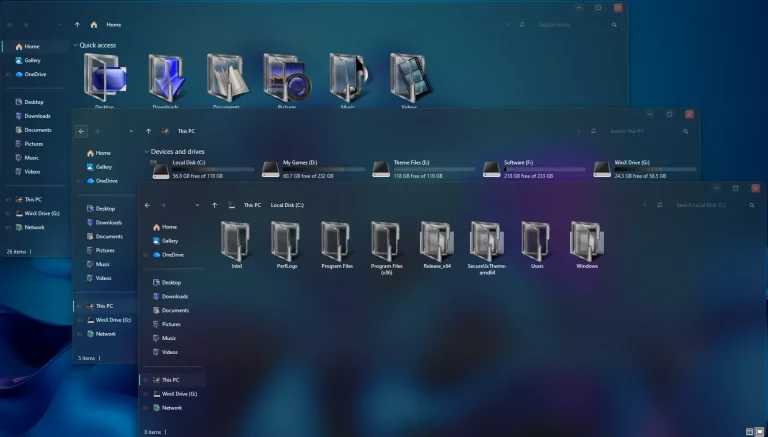
With the help of the 7TSP GUI tool, users can replace the default Windows system icons with a fresh visual style. The pack includes redesigned icons for different folders, drives, and system elements to create a more consistent desktop appearance.
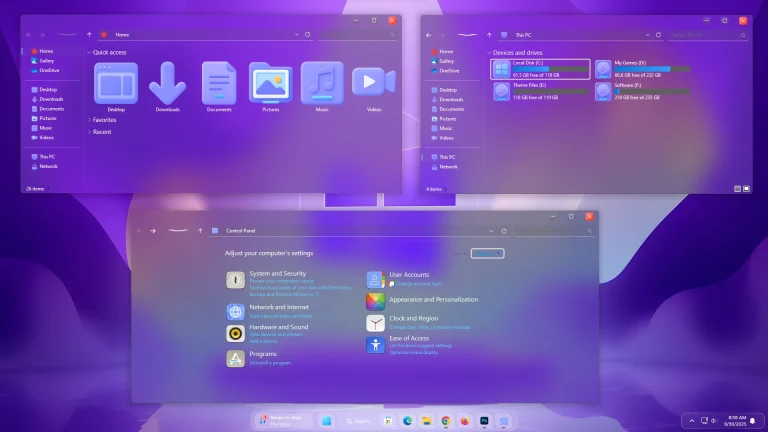
This icon pack is suitable for Windows 10 and Windows 11 users who enjoy minimal desktop designs, glass-style interfaces, dark themes, and macOS-inspired customization layouts.
Key Features
- macOS Ventura-inspired icon design
- Modern and minimal visual appearance
- Soft colors with smooth rounded shapes
- Designed for Windows 10 and Windows 11 customization
- Compatible with the 7TSP GUI customization tool
- Works well with macOS-inspired Windows themes
- Suitable for folders, drives, and system icons
- Helps create a cleaner and more personalized desktop setup
About This Icon Pack
The 7TSP macOS Ventura Inspired Icon Pack is created for Windows users who enjoy customizing their desktop environment. It provides an alternative to the default Windows icon style by adding a cleaner and more refined appearance inspired by the visual direction of macOS Ventura.
This icon pack works well with different customization styles, including dark wallpapers, glass effects, modern taskbar layouts, and minimal productivity-focused desktops.
Before Installing
Before applying any third-party Windows customization, it is recommended to create a system restore point or backup. System updates, Windows settings, and other installed customization tools may affect how icon modifications work on different devices.
Always download customization tools and resources from trusted sources. Results may vary depending on your Windows version, system configuration, and installed software.
Installation Steps
- Create a system restore point before applying the icon pack.
- Download the 7TSP macOS Ventura Inspired Icon Pack for Windows 10 & 11 from the download section below.
- Extract the downloaded ZIP file using WinRAR, 7-Zip, or Windows built-in extraction.
- Download and open the 7TSP GUI tool.
- Add the custom icon pack file inside the 7TSP application.
- Select the extracted macOS Ventura inspired icon pack.
- Apply the customization process and wait until 7TSP completes the changes.
- Restart your computer to apply the updated icons.
- Check your folders, drives, and system icons after restarting.
Compatibility
- Windows 10
- Windows 11
What is Included?
- 7TSP macOS Ventura Inspired Icon Pack
7TSP macOS Ventura Inspired Icon Pack 9MB
Download Uninstall Steps
- Open the 7TSP GUI tool.
- Use the restore option if a backup was created before applying the icon pack.
- Restart your computer after restoring the previous icon settings.
- If restoration is unavailable, use the system restore point created before installation.
- You can also return to the default Windows appearance through Windows personalization settings.
Important Information
This icon pack is a third-party Windows customization resource created for personalization purposes. It is not an official Apple product and is not developed, endorsed, or affiliated with Apple Inc.
macOS and Ventura are trademarks of Apple Inc. This customization only provides a visual style inspired by macOS design elements for Windows users.
Disclaimer
The content on this website is provided for educational and Windows customization purposes only. We share guides and resources to help users personalize their desktop experience.
We do not develop, own, or distribute third-party tools mentioned in this article unless specifically stated. Users should always download software and customization tools from trusted sources.
Applying third-party customization tools can modify Windows appearance settings. Creating a system restore point or backup before making changes is recommended.
Compatibility and results may vary depending on Windows version, updates, installed applications, and individual system configurations.
Final Word
The 7TSP macOS Ventura Inspired Icon Pack for Windows 10 & 11 is a simple way to refresh the appearance of your Windows desktop with a clean and modern icon style. It works well with macOS-inspired themes, minimal wallpapers, and other customization tools.
For users who enjoy creating unique desktop setups, this icon pack can add a more refined and organized look to the Windows interface.
Disclaimer: All themes, visual styles, and concepts shared on this website are unofficial, fan-made creations built from imagination for customization purposes. We are not affiliated with, endorsed by, or sponsored by Microsoft or any other official brand.