

Aero 7tsp Glass Icon Pack
Aero 7tsp Glass Icon Pack : The 7TSP Aero Glass Icon Pack brings the timeless elegance of Windows Aero to modern desktops, combining transparency, soft reflections, and glossy detailing for a stunning visual refresh

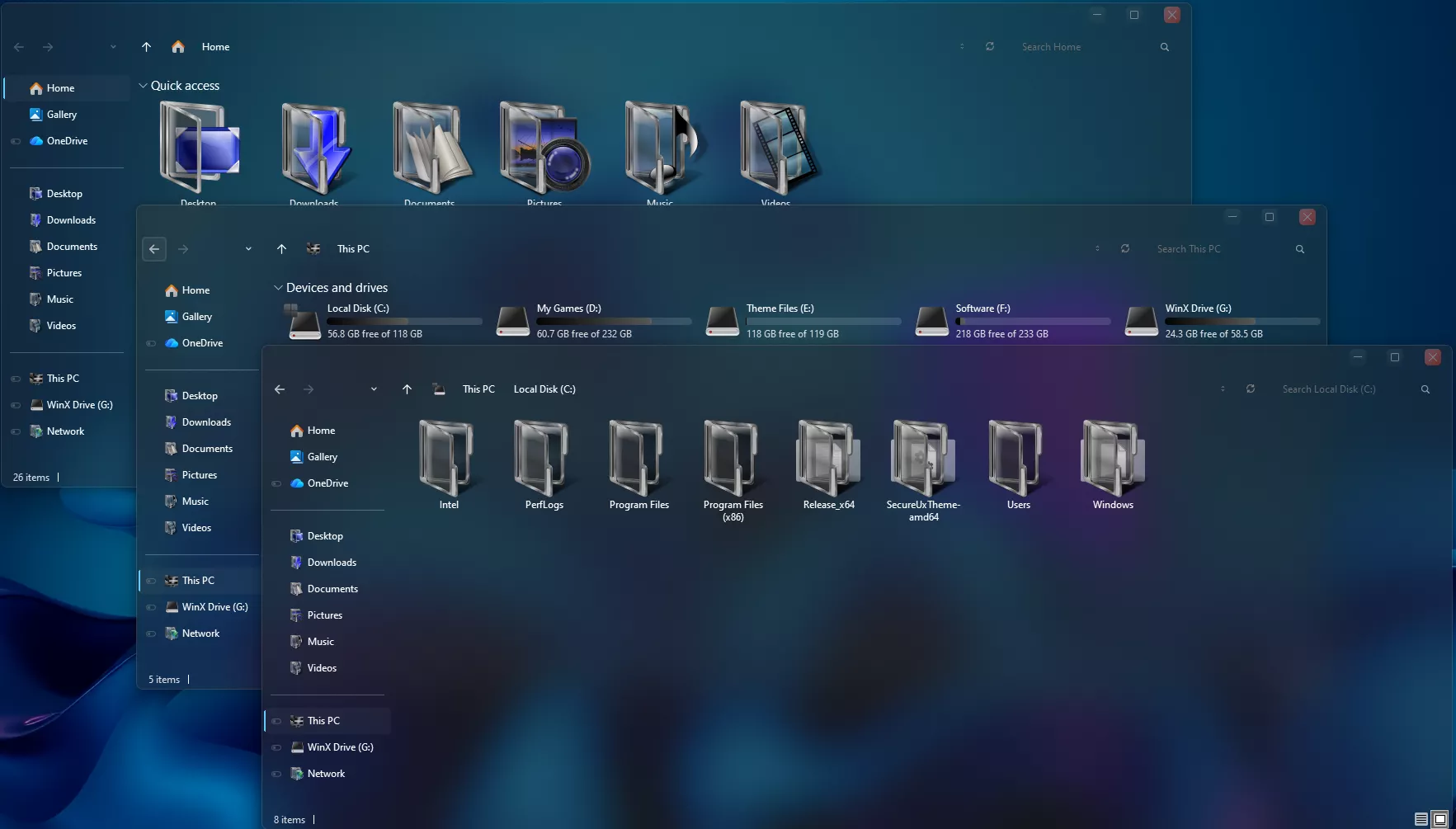
Aero 7TSP Glass Icon Pack For Windows
The Aero 7TSP Glass Icon Pack For Windows brings a classic Aero-inspired appearance to Windows with glossy surfaces, soft blue tones, transparent details, and subtle gradient effects. The icons use smooth shapes and reflective highlights to create a glass-like visual style while keeping folders and supported system elements easy to recognize.
The design combines cool blue shades with translucent surfaces, bright highlights, and polished details that reflect the visual character associated with classic Aero-style interfaces. The overall appearance feels light and layered rather than flat, making the icons a natural match for transparent Windows themes and glass-inspired desktop setups.
This icon pack works especially well with dark or blue-toned wallpapers, transparent interfaces, Aero-style themes, and other Windows customization elements. Its consistent visual language makes it suitable for users who want to give the desktop a more coordinated glass-inspired appearance without changing the familiar Windows workflow.
What Is Aero 7TSP Glass Icon Pack?
Aero 7TSP Glass Icon Pack is a third-party Windows icon customization pack designed for use with a compatible 7TSP GUI tool. It replaces supported Windows icon resources with a coordinated set of Aero-inspired icons featuring glossy details, soft gradients, blue tones, and transparent visual elements.
The pack is intended for users who prefer the classic Aero design language and want an alternative appearance to the default Windows icons while keeping the normal Windows interface and functionality.
Key Features
- Aero-inspired glass icon design
- Glossy reflections and soft gradient details
- Blue and translucent color palette
- Clean folder and supported system icon styling
- Coordinated design across supported Windows resources
- Designed for use with compatible 7TSP GUI tools
- Works well with transparent and glass-style Windows setups
Requirements
- A compatible Windows PC
- A compatible 7TSP GUI application
- The Aero 7TSP Glass Icon Pack file
- A Windows System Restore Point before applying system icon changes
How to Install Aero 7TSP Glass Icon Pack
- Create a Windows System Restore Point before making any icon changes.
- Download the Aero 7TSP Glass Icon Pack.
- Open a compatible 7TSP GUI application as administrator.
- Add or select the Aero Glass icon pack file inside the 7TSP tool.
- Apply the icon pack and allow the tool to finish patching the supported Windows resources.
- Restart Windows if the tool asks you to, or if some icons do not refresh immediately.
For the 7TSP GUI tool and a matching Aero-style Windows setup, you can also check the resources below:
Compatibility
- Windows 10: Compatibility may vary
- Windows 11: Compatibility may vary by Windows build and 7TSP version
Because 7TSP modifies Windows icon resources, compatibility can change after Windows updates. Keeping a System Restore Point available before applying or replacing the icon pack is recommended.
What Is Included?
- Aero 7TSP Glass Icon Pack
Aero 7TSP Glass Icon Pack9.3MB
Download How to Remove Aero 7TSP Glass Icon Pack
- Save your work and open the same 7TSP GUI application as administrator.
- Open the Restore option.
- Select Restore modified system files to before 7tsp was used if that option is available.
- Confirm the restoration process.
- Wait until the tool finishes restoring the modified Windows resources.
- Restart Windows if prompted, then check that the original icons have returned.
Credits & Rights
Credit for the original icon artwork belongs to its respective creator or listing source on GNOME-Look. This website does not claim ownership of third-party artwork, product names, trademarks, or other protected materials referenced in this post.
Disclaimer
This icon pack is an unofficial third-party Windows customization resource. It is not affiliated with, endorsed by, or sponsored by Microsoft. Applying a 7TSP icon pack can modify Windows system icon resources, and compatibility may vary after Windows updates. Create a System Restore Point before applying the pack and keep a backup or restore option available.
Final Thoughts
Aero 7TSP Glass Icon Pack gives Windows a glossy and coordinated icon style inspired by the classic Aero visual language. Its blue tones, transparent details, reflections, and soft gradients work well for users who prefer a layered glass appearance instead of flat modern icons.
For a more consistent desktop, pair the icon pack with an Aero-style Windows theme, a dark or blue-toned wallpaper, and other transparent interface elements. Keeping a System Restore Point available also makes it easier to return to the default Windows icons when needed.
Frequently Asked Questions
What is Aero 7TSP Glass Icon Pack?
It is a custom Windows icon pack designed to be applied through a compatible 7TSP GUI tool. It replaces supported Windows icon resources with an Aero-inspired glass design.
Do I need 7TSP to use this icon pack?
Yes. A compatible 7TSP GUI application is required to apply the pack to supported Windows resources.
Does the icon pack change every Windows icon?
Not necessarily. Only the Windows resources included in the icon pack and supported by the 7TSP tool will be changed.
Does this icon pack require an Aero theme?
No. An Aero-style theme is not required, although pairing the icon pack with a matching theme or wallpaper can create a more consistent desktop appearance.
Can Windows updates affect the icon pack?
Yes. Windows updates can replace or change system resources, so some customized icons may return to their default appearance or need to be applied again.
Can I restore the default Windows icons?
Yes. Use the restore option in the same 7TSP GUI tool to restore previously modified resources. A System Restore Point provides an additional recovery option.
You may also like
Disclaimer: All themes, visual styles, and concepts shared on this website are unofficial, fan-made creations built from imagination for customization purposes. We are not affiliated with, endorsed by, or sponsored by Microsoft or any other official brand.