MacOS 7tsp Icon Pack For Windows 10/11
MacOS 7tsp Icon Pack For Windows 10/11:macOS Icons are renowned for their sleek, modern, and minimal design that blends functionality with aesthetic appeal. Inspired by Apple’s clean user interface, these icons feature soft gradients, smooth edges, and a polished, consistent visual style across apps and system element

macOS 7TSP Icon Pack for Windows 10/11
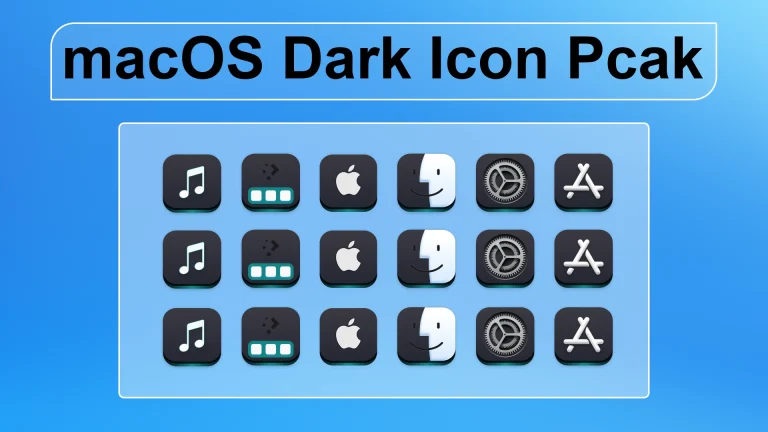
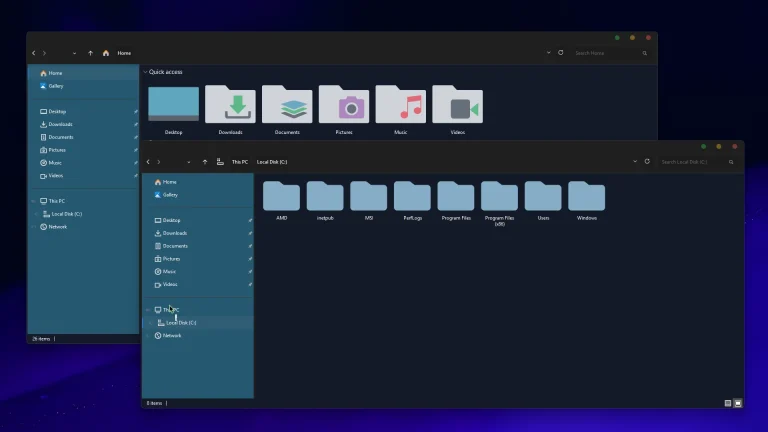
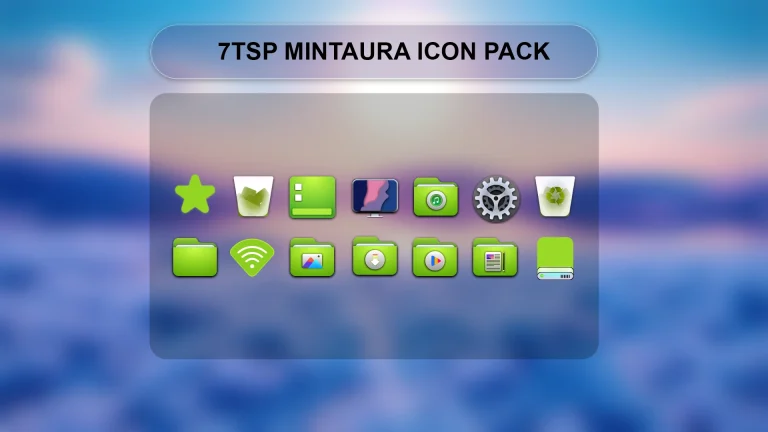
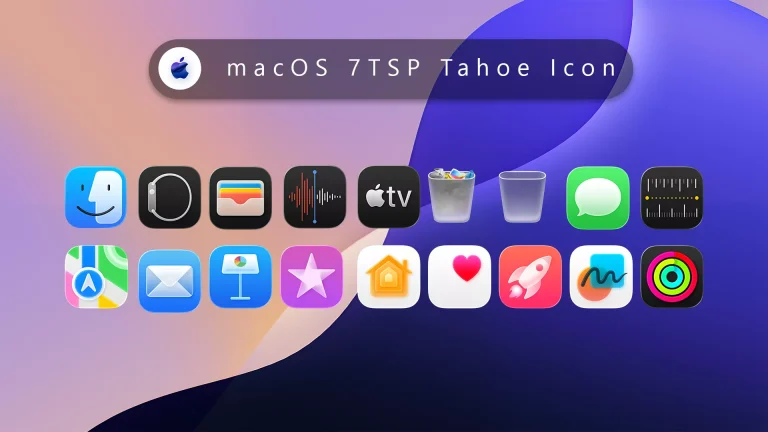
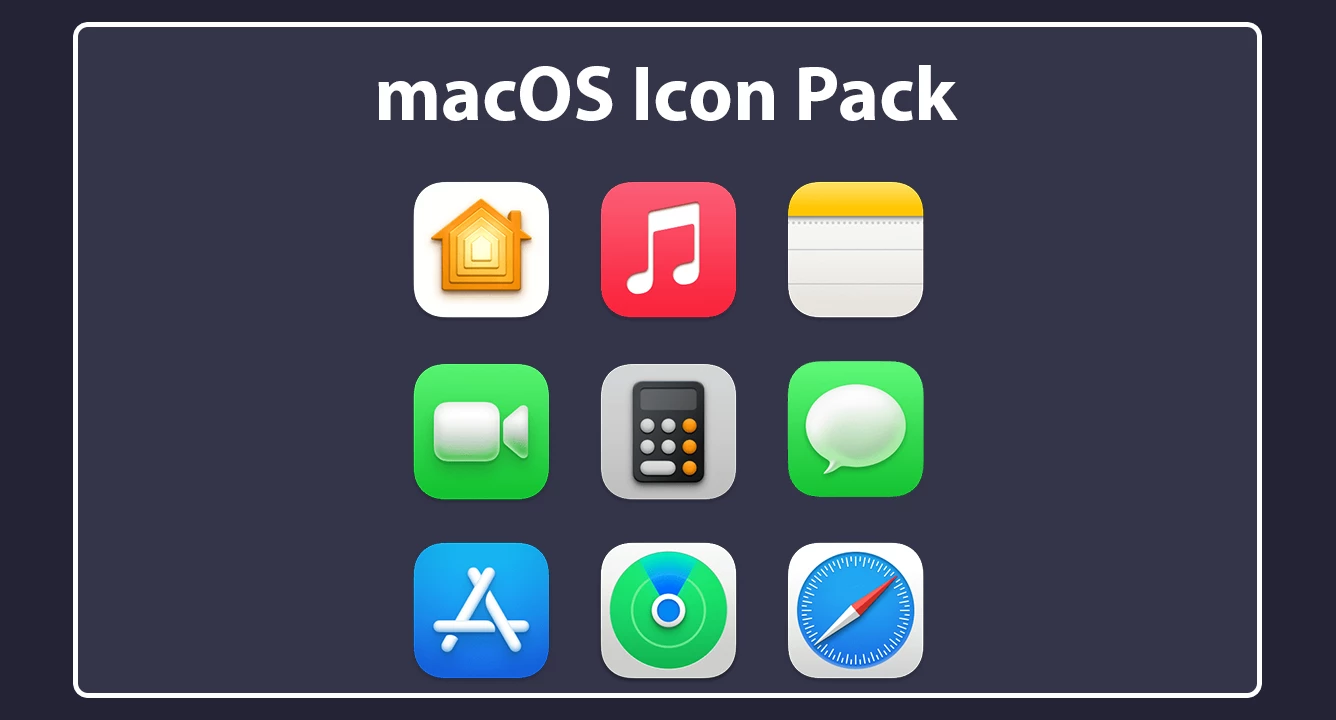
The macOS 7TSP Icon Pack gives supported Windows icons a softer appearance with rounded shapes, gentle gradients, and familiar macOS-inspired details. It is made for users who want to change the look of folders and other supported system icons without replacing the Windows interface itself.
The icon style works nicely with simple wallpapers, docks, and other desktop customization elements. Depending on the wallpaper and Windows theme you use, it can fit both light and dark desktop setups.
Features
- macOS-inspired styling for supported system and folder icons
- Rounded shapes with soft colors and subtle shading
- Coordinated appearance across the icons included in the pack
- Designed to be applied with a compatible version of 7TSP GUI
Compatibility
- Intended for Windows 10 and Windows 11 customization.
- Compatibility may vary depending on your Windows build, installed updates, and 7TSP version.
- Check the included instructions before applying the pack, especially after a major Windows update.
Required Customization Tool
- 7TSP GUI — check the tool instructions and compatibility with your Windows build before applying the icon pack.
Installation Steps
- Create a System Restore Point before making changes to Windows icon resources.
- Extract the downloaded ZIP file and check any instructions included with the pack.
- Open a compatible version of 7TSP GUI.
- Use the tool’s option for selecting or adding a custom 7TSP pack.
- Browse to the extracted macOS 7TSP icon-pack file and select it.
- Start the patching process and let 7TSP finish without interruption.
- Restart your computer when the process is complete.
- Open File Explorer and check the supported folders and system locations.
Troubleshooting
- Some icons have not changed: Restart your computer and check again. The pack only changes icons included in its supported resources.
- Some icons still show the previous design: Restart Explorer or rebuild the Windows icon cache.
- The pack does not apply correctly: Check whether your current Windows build is supported by the 7TSP version you are using.
- Icons changed after a Windows update: A major update can replace patched resources. Check compatibility before applying the pack again.
Download the macOS 7TSP Icon Pack
The ZIP archive contains the macOS 7TSP icon pack and the files needed for applying it through 7TSP GUI. Extract the archive before selecting the pack in the tool.
macOS 7TSP Icon Pack 9.6MB
DownloadHow to Remove the macOS 7TSP Icon Pack
If you want to return to the standard Windows icons, use the backup or restore option provided by 7TSP GUI. A backup created before or during the patching process can help restore the original icon resources.
- Open the same version of 7TSP GUI that you used to apply the icon pack.
- Choose the available restore or backup option.
- Select the backup created before the macOS icon pack was applied.
- Allow the restoration process to finish without closing the program.
- Restart Windows after the original icon resources have been restored.
If the original icons do not return correctly, you can use the System Restore Point created before installation. Some cached icons may also require an Explorer restart or icon-cache refresh before the default appearance is shown again.
Credits
Credit for the original icon-pack artwork and design goes to Niivu. Link Vegas Theme does not claim ownership of the original artwork. All artwork and related rights remain with their respective creator or owner.
Disclaimer
This is a third-party Windows customization resource intended for personal desktop customization. It is not an official Apple or Microsoft product and is not affiliated with, sponsored by, approved by, or endorsed by Apple Inc., Microsoft Corporation, or the 7TSP GUI project.
Applying a 7TSP icon pack modifies supported Windows icon resources. Create a System Restore Point and keep a backup before making changes. Compatibility may differ between Windows builds, particularly after major system updates.
macOS is a trademark of Apple Inc. Microsoft and Windows are trademarks of the Microsoft group of companies. All trademarks, artwork, and other rights belong to their respective owners.
Final Word
The macOS 7TSP Icon Pack is aimed at users who prefer rounded icons, softer colors, and a macOS-inspired folder style on Windows. It changes supported icon resources while leaving Windows itself in place, so you can combine it with your existing wallpaper, dock, taskbar, or other customization choices.
Before applying the pack, keep a restore option ready. That small precaution makes it much easier to return to the standard Windows icons if an update causes problems or you simply decide to change your setup again.
Frequently Asked Questions
Does this icon pack install macOS on Windows?
No. It only changes supported Windows icons to a macOS-inspired design. Your operating system remains Windows.
Can I install this pack over another 7TSP icon pack?
It is better to restore your previous icons first. Applying one pack over another can sometimes leave a mixture of old and new icons.
Can I restore the original Windows icons later?
Yes. Use the backup or restore feature available in your 7TSP setup. A System Restore Point created before installation provides another recovery option.
Why did some icons return to default after a Windows update?
Major Windows updates can replace system resources that were previously patched. Check your current Windows and 7TSP compatibility before applying the icon pack again.