

WinOS v2 Modern Theme for Windows 11
WinOS v2 Theme For Windows 11 : The WinOS v2 Theme for Windows 11 is a next-generation customization experience that redefines the look and feel of your desktop.

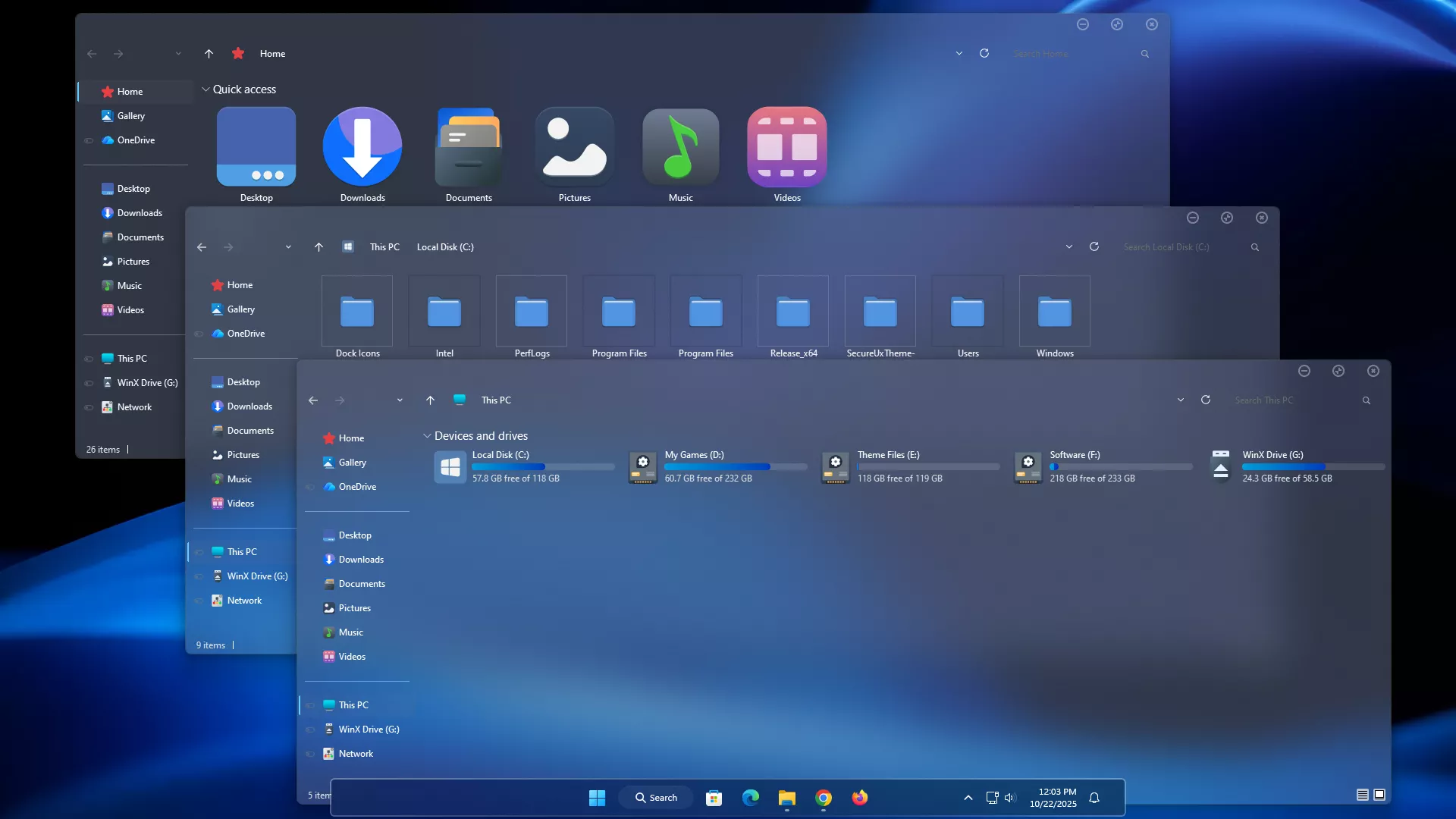
WinOS v2 Modern Theme for Windows 11
The WinOS v2 Modern Theme for Windows 11 gives your desktop a fresh look with a dark blue-gray interface, translucent surfaces, and subtle glass effects. It focuses on improving the appearance of File Explorer while keeping the familiar Windows 11 layout. The result is a modern design that feels different from the default Windows theme without changing how you normally use your computer.
File Explorer features a cool slate-blue background with a slightly darker navigation panel, making folders, drives, and shortcuts easier to distinguish. Soft blur effects, subtle borders, and clean separators give the interface a more refined appearance without adding unnecessary visual elements.
One interesting detail is how the theme works with your desktop wallpaper. Since some interface elements are semi-transparent, the colors behind the windows can influence their appearance. A dark blue wallpaper, for example, can make the glass effect more noticeable, while other backgrounds may give the interface a different feel.
A Closer Look at the Visual Style
WinOS v2 uses a combination of dark colors and glass-inspired effects to create a modern Windows 11 desktop experience. Rather than making every window completely transparent, it applies a softer translucent finish that allows background colors to blend naturally with the interface.
The upper section of File Explorer follows the same dark blue-gray color scheme. Compact circular window controls add a distinctive touch, while the lighter text and navigation elements remain visible against the darker surfaces.
The drive section also features blue and cyan storage indicators that complement the overall design. These small details bring a little more color to File Explorer without making the interface look overly bright or distracting.
Visual Highlights
- Modern dark blue-gray interface for Windows 11
- Semi-transparent File Explorer design
- Soft background blur and glass-inspired surfaces
- Darker navigation panel for better visual separation
- Subtle window borders and clean interface details
- Compact circular window controls
- Blue and cyan drive storage indicators
- Designed for a modern Windows 11 desktop appearance
What Does the Theme Change?
The theme mainly changes the appearance of supported Windows 11 interface elements, including File Explorer backgrounds, navigation panels, window borders, and title areas. These adjustments give Windows a different visual style while keeping the usual applications, files, and system functions in place.
Some desktop setups may also feature custom folder icons, modified Start Menus, or floating taskbars. These are separate customizations and should not be considered part of the main theme unless they are specifically included in the downloaded package.
Compatibility
The theme is intended for Windows 11. The following versions are listed for this theme, but compatibility should be confirmed with the included files and the theme patcher before installation.
- Windows 11 21H2
- Windows 11 22H2
- Windows 11 23H2
- Windows 11 24H2
- Windows 11 25H2
Keep in mind that custom visual styles may not work correctly with every Windows update. Always check whether your theme patcher supports your current Windows build before making changes.
Included Files
- Windows 11 Theme
- Extras
How to Install WinOS v2 Modern Theme
- Before installing, create a System Restore Point so you can restore your previous Windows appearance if needed.
- Make sure you have a compatible theme patcher that supports your current Windows 11 version.
- Download the theme package using the button below and extract the files.
- Copy the required theme files to
C:\Windows\Resources\Themes. - Open Settings > Personalization > Themes and select the installed theme.
- Open File Explorer to check the new visual style. You can also apply separate icon packs, Start Menu modifications, or taskbar customizations if you want to customize your desktop further.
- For more detailed instructions, follow our Windows 11 custom theme installation guide.
Theme Files 83MB
Download How to Remove the Theme
- Open Settings > Personalization > Themes on your Windows 11 computer.
- Select one of the default Windows themes to restore the original appearance.
- If you installed additional icon packs, StartAllBack, or taskbar customizations, disable or remove them separately.
- Restart File Explorer or reboot your computer if some interface changes remain visible.
- If you experience problems after removing the theme, you can use the System Restore Point created before installation.
- For additional help, follow our Windows 11 custom theme removal guide.
Optional Desktop Customizations
The WinOS v2 visual style can be combined with other Windows customization tools if you want to change more than just File Explorer. A matching icon pack, a customized Start Menu, or a different taskbar layout can help create a more consistent desktop appearance.
These additional modifications are optional and may require separate tools or downloads. You can also keep the setup simple and use the main theme on its own.
Choosing the right wallpaper can make a noticeable difference as well. Dark blue, black, and gradient backgrounds work nicely with the translucent panels, but you can experiment with different wallpapers to find a combination that suits your preference.
Who Should Use This Theme?
This theme is worth considering if you like darker Windows interfaces but want something different from the standard dark mode. Its blue-gray colors and subtle transparency effects are a good match for users who prefer a modern desktop without too many bright accents or unnecessary decorations.
It may also appeal to people who enjoy personalizing File Explorer while keeping the familiar Windows 11 layout and navigation.
Disclaimer
WinOS v2 Modern Theme for Windows 11 is a third-party desktop customization resource intended for personal use. It is not an official Microsoft product and is not affiliated with, sponsored by, or endorsed by Microsoft. Windows and related trademarks belong to their respective owners.
Installing third-party visual styles may require changes to Windows theme-related system files. Compatibility can vary depending on your Windows version, installed updates, and customization tools. Always create a System Restore Point and check compatibility before installing.
Conclusion
WinOS v2 Modern Theme offers a different take on the Windows 11 interface with its dark blue-gray colors, translucent Explorer panels, and soft background blur. The circular window controls and blue storage indicators add a few distinctive details while keeping the overall design simple.
You can use the theme by itself or combine it with other desktop customizations for a more personalized setup. If you’re looking for a darker Windows 11 appearance with a subtle glass effect, WinOS v2 is an option worth exploring.







Disclaimer: All themes, visual styles, and concepts shared on this website are unofficial, fan-made creations built from imagination for customization purposes. We are not affiliated with, endorsed by, or sponsored by Microsoft or any other official brand.