

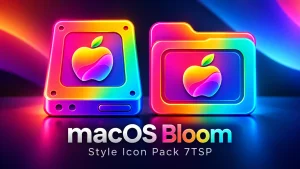
macOS Inspired Bloom Icon Pack 7TSP
macOS Bloom Icon Pack 7TSP:Give your Windows 11 desktop a complete visual overhaul with the macOS Bloom Icon Pack for 7TSP. This stunning icon set is inspired by the vibrant and refined design of macOS Monterey

macOS Inspired Bloom Icon Pack 7TSP
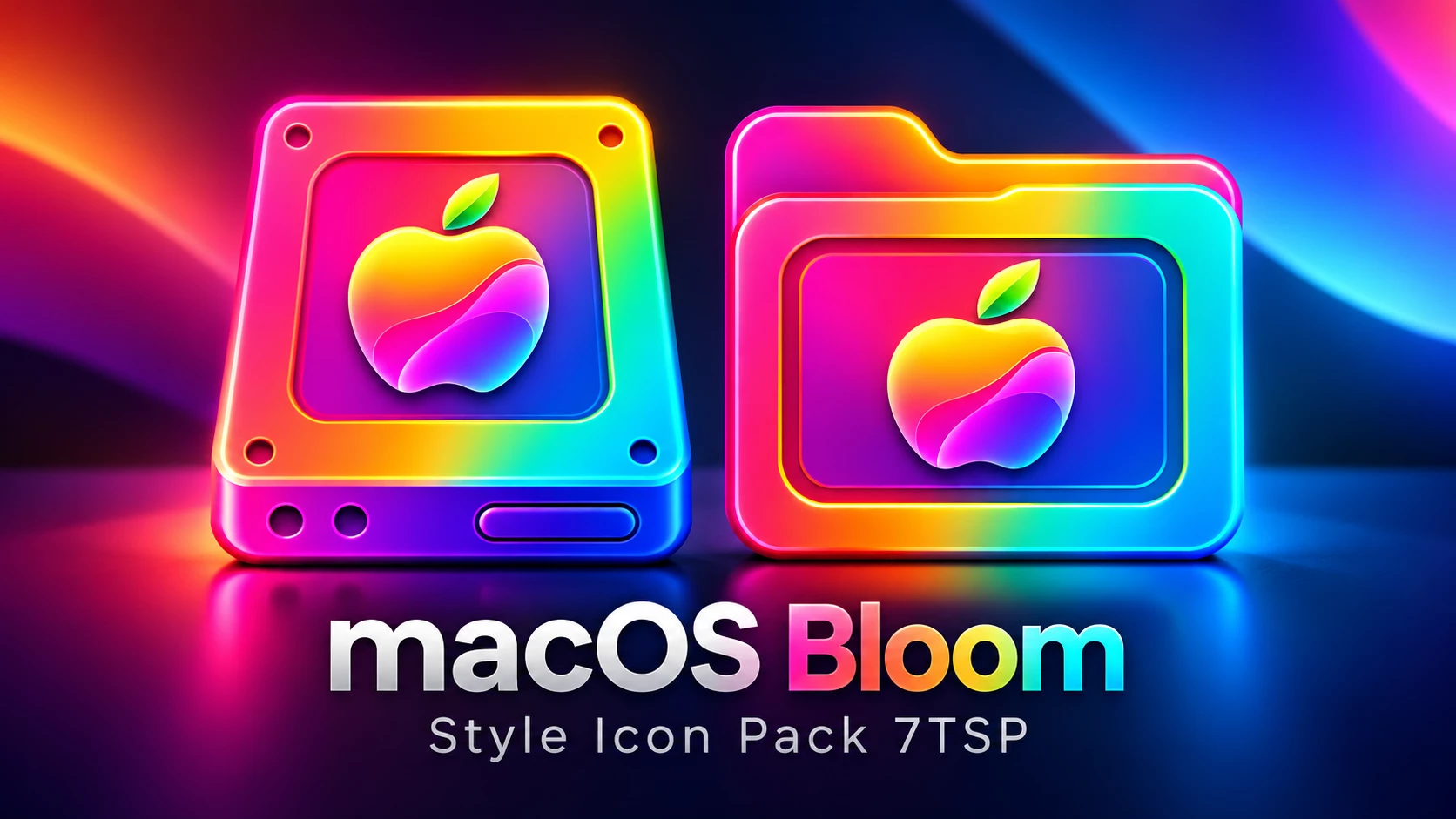
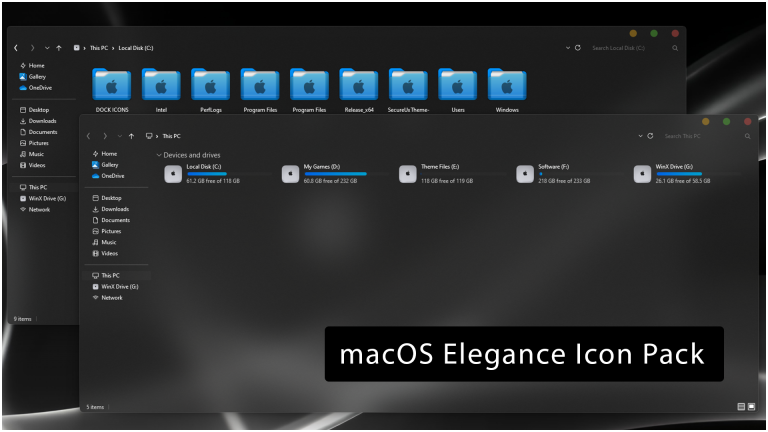
The macOS Inspired Bloom Icon Pack 7TSP brings a colorful Mac-inspired visual style to supported Windows system icons. The pack combines bright pink, orange, purple, blue, green, and yellow gradients to give folders, drives, devices, and system locations a fresh and vibrant appearance.
The collection includes colorful folder designs, storage drive icons, system location icons, device graphics, Recycle Bin variations, and other supported Windows resources. Each icon follows the same Bloom-inspired color language, helping the desktop and File Explorer maintain a consistent appearance.
This icon pack is designed for use with 7TSP GUI and only changes supported Windows icon resources. It does not install macOS or replace the Windows operating system. Since 7TSP modifies system resources, creating a Windows System Restore Point before installation is strongly recommended.
About macOS Inspired Bloom Icon Pack 7TSP
The macOS Inspired Bloom Icon Pack uses smooth multi-color gradients instead of the standard Windows icon appearance. Pink and purple tones form the main visual identity, while orange, yellow, green, and blue accents add variety across folders, drives, and system icons.
The design is inspired by the colorful and polished visual language commonly associated with macOS-style customization, while still being created for Windows desktop personalization. Clear shapes and recognizable symbols also help keep important folders and system locations easy to identify.
The exact number of icons replaced can vary depending on your Windows build and the system resources supported by 7TSP. Third-party applications and some modern Windows components may continue using their original icons.
Key Features
- Colorful macOS-inspired Bloom icon design.
- Bright pink, purple, orange, blue, green, and yellow gradients.
- Matching folder, drive, device, and system location icons.
- Custom File Explorer and Recycle Bin icon designs.
- Consistent visual style across supported Windows resources.
- Designed for use with compatible versions of 7TSP GUI.
- Suitable for colorful and personalized Windows desktop setups.
System Requirements
- Windows 10 or Windows 11.
- A compatible version of 7TSP GUI.
- Administrator privileges.
- 7-Zip, WinRAR, or another archive extraction tool.
- A Windows System Restore Point created before installation.
You can check your current Windows version by pressing Windows + R, typing winver, and pressing Enter. Checking compatibility before modifying system resources is recommended, especially after a major Windows update.
Before You Install
Save any open work and create a Windows System Restore Point before applying the macOS Inspired Bloom Icon Pack 7TSP. When 7TSP offers to create a backup of the original system resources, keep that backup for future restoration.
Avoid applying the icon pack while Windows Update is actively installing updates. Major Windows updates can replace modified system resources, so compatibility should be checked again after a feature update.
How to Install macOS Inspired Bloom Icon Pack 7TSP
- Create a Windows System Restore Point before changing system icon resources.
- Download the macOS Inspired Bloom Icon Pack 7TSP using the button below.
- Extract the downloaded archive using 7-Zip or WinRAR.
- Download and open a compatible version of 7TSP GUI.
- Run 7TSP GUI with Administrator privileges.
- Click Add a Custom Pack and select the extracted icon pack file.
- Allow 7TSP to create a backup when prompted.
- Click Start Process to begin patching the supported Windows icon resources.
- Do not close 7TSP while the process is running.
- Restart your computer after the patching process is complete.
- Open File Explorer to view the updated icons.
Download macOS Inspired Bloom Icon Pack 7TSP
Download the icon pack below and extract the archive before loading it into 7TSP. Keep your original backup and Windows System Restore Point available in case you want to return to the default system icons later.
macOS Inspired Bloom Icon Pack 7TSP 15 MB
Download How to Remove macOS Inspired Bloom Icon Pack 7TSP
Deleting the downloaded archive will not restore the original Windows icons because 7TSP modifies supported system resources during installation. Use the 7TSP backup or a Windows System Restore Point to return to the default icon set.
Method 1: Restore Original Icons with 7TSP
- Open the same 7TSP GUI used during installation.
- Run the program as Administrator.
- Open the available restore or backup option.
- Select the backup created before applying the icon pack.
- Confirm the restoration process.
- Allow 7TSP to restore the original Windows resources.
- Restart Windows after the restoration is complete.
Method 2: Use a Windows System Restore Point
If the 7TSP backup is unavailable or the original icons are not restored correctly, use the Windows System Restore Point created before installing the icon pack.
- Press Windows + R.
- Type
rstrui.exeand press Enter. - Select the restore point created before applying the macOS Inspired Bloom Icon Pack 7TSP.
- Follow the Windows System Restore instructions.
- Allow Windows to restart and complete the restoration process.
Troubleshooting Common Issues
- Only some icons changed: 7TSP replaces only the supported Windows resources included in the icon pack. Third-party applications and some modern Windows components may keep their original icons.
- Old icons are still visible: Restart Windows first. If needed, rebuild the Windows icon cache so File Explorer can reload the updated icon resources.
- Icons returned to default after Windows Update: Windows updates can replace modified system files with newer default versions. Check compatibility before applying the icon pack again.
- The icon pack does not apply correctly: Make sure the archive is extracted properly, 7TSP is compatible with your Windows build, and the program is running with Administrator privileges.
Who Should Use This Icon Pack?
The macOS Inspired Bloom Icon Pack 7TSP is suitable for users who enjoy colorful Windows customization and want folders, drives, devices, and supported system locations to share a unified visual style.
Its bright gradient design works well with colorful wallpapers, clean desktop layouts, and modern Windows customization setups.
Disclaimer
The macOS Inspired Bloom Icon Pack 7TSP is an independent third-party Windows customization package intended for personal desktop personalization. It is not an official Apple or Microsoft product and is not affiliated with, endorsed by, sponsored by, or associated with Apple Inc. or Microsoft Corporation. The term “macOS” is used only to describe the visual inspiration of the icon design. All trademarks, logos, and brand names belong to their respective owners. Create a System Restore Point and keep the original 7TSP backup before modifying Windows system resources.
Final Word
The macOS Inspired Bloom Icon Pack 7TSP gives supported Windows folders, drives, devices, and system locations a colorful new appearance. Its combination of pink, purple, orange, blue, green, and yellow gradients creates a consistent Bloom-inspired style that can completely refresh
You may also like

Disclaimer: All themes, visual styles, and concepts shared on this website are unofficial, fan-made creations built from imagination for customization purposes. We are not affiliated with, endorsed by, or sponsored by Microsoft or any other official brand.