

7tsp liquid Glass Ultimate Icon Pack
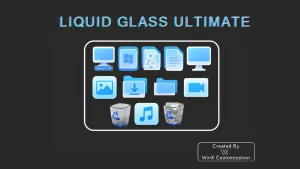
7tsp liquid Glass Ultimate Icon Pack:The 7TSP Liquid Glass Ultimate Icon Pack is a premium icon collection designed to match the sleek, translucent style of the Liquid Glass Ultimate Windows 11 theme

7TSP Liquid Glass Ultimate Icon Pack For Windows
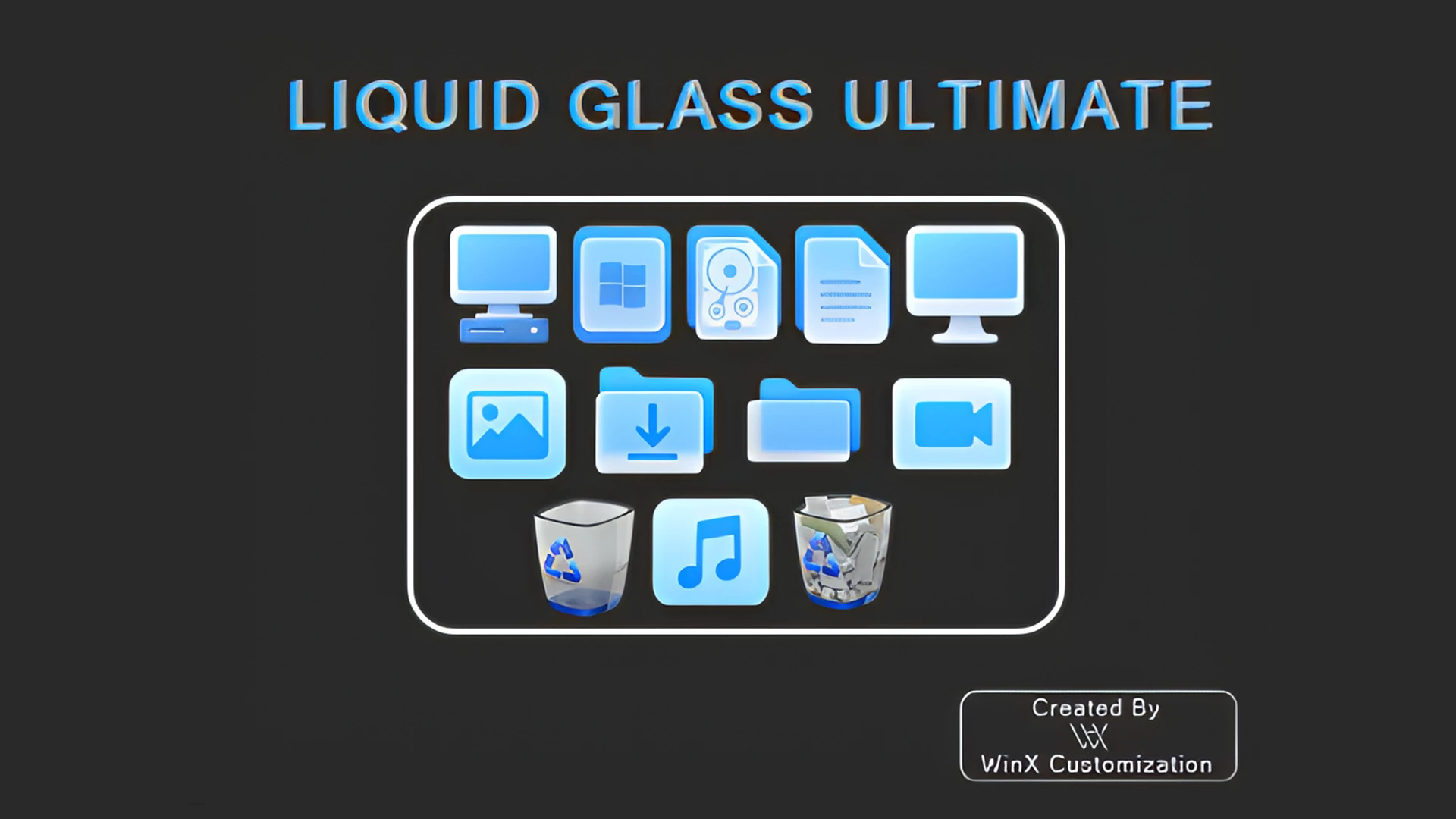
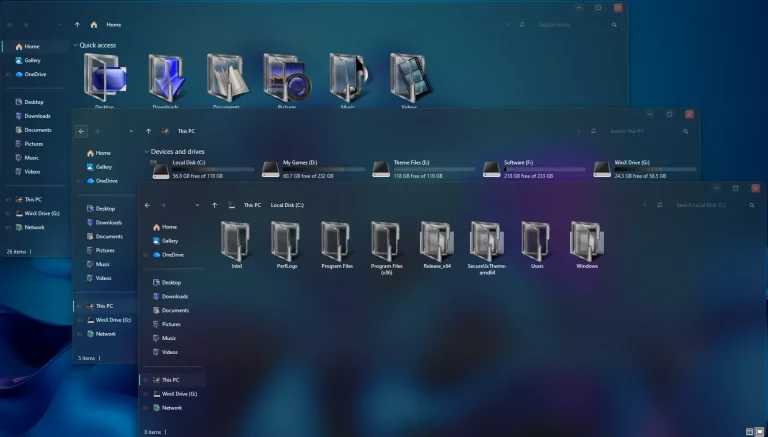
7TSP Liquid Glass Ultimate Icon Pack is a Windows icon customization pack built around glossy blue and cyan tones, rounded shapes, and clean white symbols. It gives supported Windows icons a softer glass-inspired appearance while keeping familiar items such as folders, documents, music, pictures, drives, and the Recycle Bin easy to recognize.
The design uses several shades of blue rather than one flat color. Cyan highlights, pale blue surfaces, and white details add depth to the icons without making them overly complicated. The rounded tile-style shapes also help different icon types feel like part of the same set.
This pack is intended for use with a compatible version of 7TSP GUI. It changes supported Windows icon resources only. Your wallpaper, taskbar, Start menu, File Explorer effects, and Windows visual theme remain separate customizations.
Blue Glass Icon Style
The Liquid Glass Ultimate set has a bright, polished look with blue and cyan surfaces layered around simple white symbols. Some icons use lighter highlights around the edges, while others have stronger blue centers, giving the collection a little variation without breaking the overall style.
Folder, media, document, monitor, picture, music, and Recycle Bin icons follow the same rounded design language. That consistency helps File Explorer and other supported Windows locations feel more coordinated after the pack is applied.
Features
- Blue and cyan glass-inspired icon design
- Rounded tile shapes with soft glossy highlights
- Clean white symbols for clear visual contrast
- Matching folder, media, document, monitor, picture, and system-style icons where supported
- Designed for use with a compatible version of 7TSP GUI
- Can be used without changing your Windows theme or wallpaper
What Is Included?
- 7TSP Liquid Glass Ultimate Icon Pack: Contains the icon resources used to replace supported Windows folder, system, media, and related icons through 7TSP GUI.
Compatibility
- Windows 11: Use with a compatible 7TSP release
- Windows 10: Use with a compatible 7TSP release
Compatibility can vary between Windows builds because system icon resources may change after updates. Check the included pack notes and the version of 7TSP GUI you plan to use before patching.
Requirements
- A Windows build supported by your selected 7TSP release
- A compatible version of 7TSP GUI
- Administrator access
- A System Restore Point created before installation
- Enough free storage space for the backup files created by 7TSP
To check your Windows build, press Windows + R, type winver, and press Enter. Compare the displayed version with the compatibility information for the 7TSP release you plan to use.
Before You Install
Save any open work and make sure Windows is not waiting for a restart. Keep the backup option enabled inside 7TSP, because that backup gives you the simplest route back to your previous Windows icons later.
If another 7TSP pack is already active, restoring it first is the cleaner approach. Stacking several patched icon sets on top of each other tends to turn a simple customization into unnecessary detective work.
How to Install 7TSP Liquid Glass Ultimate Icon Pack
- Create a Restore Point: Make a Windows System Restore Point before changing icon resources.
- Download the Pack: Download the Liquid Glass Ultimate archive using the button below and extract the outer ZIP file.
- Check the Included Files: Read any included instructions and locate the actual 7TSP pack file. If it is supplied as an inner archive, keep it intact unless the instructions say otherwise.
- Prepare 7TSP GUI: Download and extract a compatible version of 7TSP GUI.
- Run as Administrator: Right-click 7TSP GUI and choose Run as administrator.
- Add the Custom Pack: Choose Add a Custom Pack and select the Liquid Glass Ultimate pack file.
- Start Patching: Review the selected pack, keep the available backup options enabled, and begin the patching process.
- Restart Windows: Wait for 7TSP to finish completely, then restart your PC and check the updated icons.
Download 7TSP Liquid Glass Ultimate Icon Pack
7TSP Liquid Glass Ultimate Icon Pack 9MB
DownloadHow to Remove
- Open 7TSP GUI: Run the same 7TSP application as administrator.
- Choose Restore: Open the available Restore option.
- Select the Backup: Choose the option that restores modified system files to their state before 7TSP was used.
- Confirm the Restore: Let the restoration finish without closing 7TSP or shutting down Windows.
- Restart the PC: Reboot Windows and check File Explorer to make sure the previous icons are back.
Some 7TSP releases may place the restore command under Program > Restore Backup. Menu wording can vary slightly, so use the option that restores the backup created before patching.
More Resources
Liquid Glass Ultimate can be used as a standalone icon pack. If you want to build a broader desktop style around it, you can add a separate Windows theme or wallpaper later without changing how the 7TSP pack itself works.
Disclaimer
7TSP Liquid Glass Ultimate Icon Pack is a third-party Windows customization resource intended for desktop personalization. It is not affiliated with, endorsed by, sponsored by, or officially connected to Microsoft or the developers of 7TSP GUI. Windows and other trademarks belong to their respective owners. Because 7TSP modifies Windows icon resources, creating a System Restore Point and keeping the generated backup files before patching is recommended.
Final Word
Liquid Glass Ultimate keeps its design focused: rounded blue tiles, cyan highlights, white symbols, and a consistent glossy finish across supported icons. The result is colorful enough to feel different from the default Windows set without making individual icons difficult to identify.
You can use the pack by itself or combine it with another desktop style later. The icon set does not need a full glass-themed Windows setup to make an obvious difference.
Frequently Asked Questions
Are all Liquid Glass Ultimate icons the same shade of blue?
No. The set mixes lighter cyan, medium blue, and deeper blue tones while keeping the same overall glass-inspired direction.
Why are white symbols used on many of the icons?
The white details create clear contrast against the blue backgrounds and help folders, media icons, and system resources remain easy to recognize.
Can I use this pack with a dark Windows theme?
Yes. The brighter blue and cyan icons can stand out well against darker themes, but the icon pack is independent from your Windows visual style.
Can I change to another 7TSP pack later?
Yes. Restore the current 7TSP backup first, restart Windows, and then apply the next compatible icon pack.
You may also like
Disclaimer: All themes, visual styles, and concepts shared on this website are unofficial, fan-made creations built from imagination for customization purposes. We are not affiliated with, endorsed by, or sponsored by Microsoft or any other official brand.