

Bloom macOS-Inspired Theme for Windows 11
macOS Bloom Theme For Windows 11:Transform your Windows 11 desktop into a stunning, vibrant macOS experience with the macOS Bloom Theme.

Bloom macOS-Inspired Theme for Windows 11
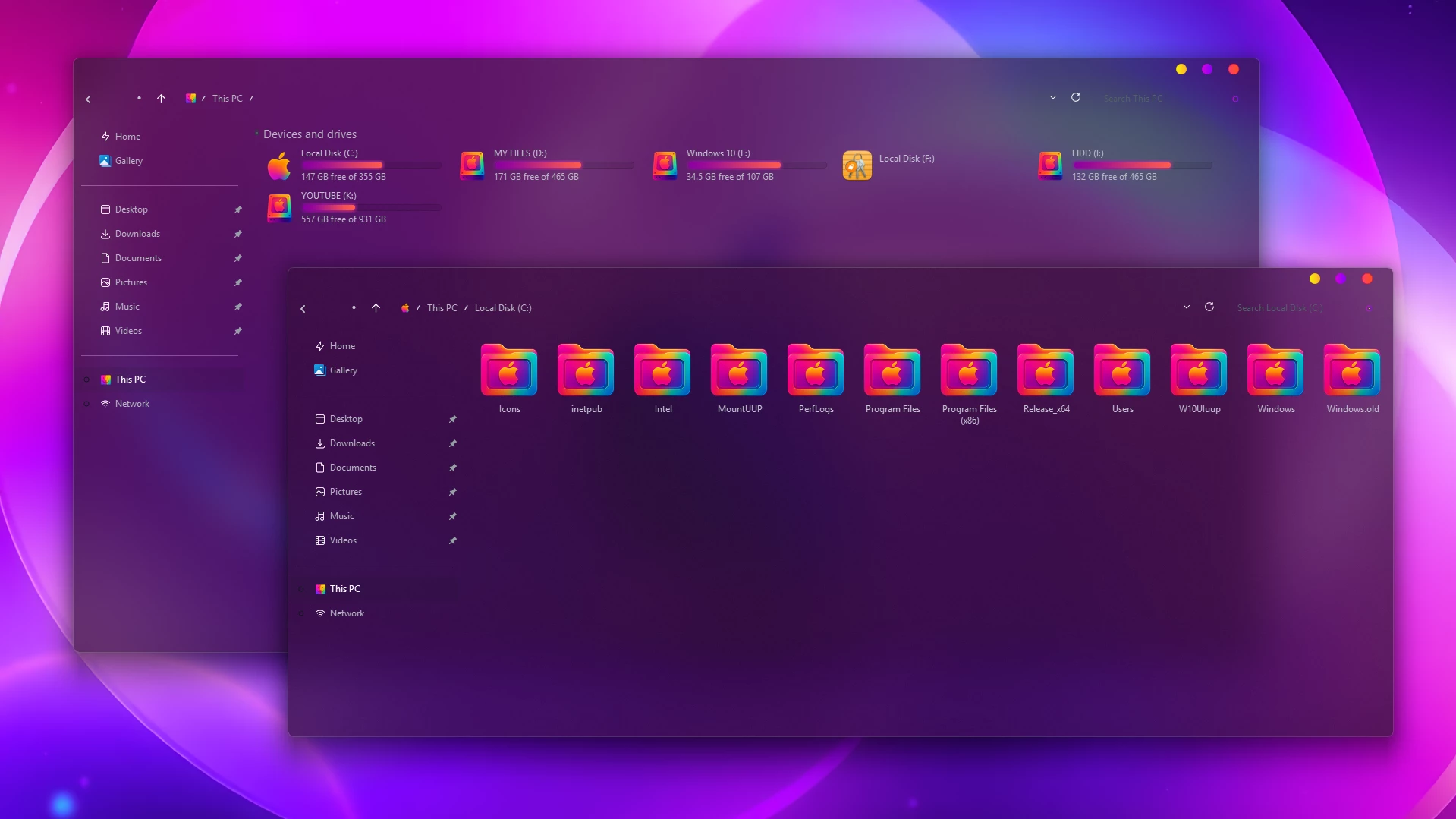
The Bloom macOS-Inspired Theme for Windows 11 gives File Explorer a dark, semi-transparent glass appearance with softer window surfaces and macOS-inspired visual details. The interface keeps the familiar Windows 11 structure while adding translucent panels, rounded styling, colorful accents, and compact window controls.
File Explorer uses a deep tinted glass surface that allows parts of the wallpaper to remain visible through the window. The brighter pink, violet, and blue tones seen through the interface come largely from the wallpaper behind the transparent panels rather than from a fixed Explorer color.
The setup can also be paired with colorful gradient folder resources using orange, pink, yellow, blue, and violet tones. Drive sections follow the same bright direction, with pink-red usage indicators adding contrast against the darker Explorer background.
Bloom Glass Design
The main character of Bloom comes from its translucent Explorer styling. Large window areas remain dark enough for text and icons to stay readable, while the glass effect keeps the desktop background partially visible underneath.
The navigation pane uses a darker transparent treatment, helping it stay separate from the main Explorer area without breaking the overall glass look. Small colored window controls add a macOS-inspired detail to the upper area of supported windows.
When matching folder resources are used, warm orange and pink surfaces mix with blue and violet accents instead of the standard Windows folder color. This gives the desktop a brighter contrast against the dark glass interface.
Features
- Dark semi-transparent File Explorer appearance
- Glass-style surfaces with visible background blur
- Darker translucent navigation panel
- Works with colorful gradient folder resources
- macOS-inspired colored window controls
- Pink-red drive usage indicators
- Rounded and softly tinted interface styling
- Designed for Windows 11 desktop customization
Compatibility
- Windows 11
- Compatibility may vary depending on the Windows build and customization tools used
Package Contents
- Windows 11 Theme Files
- Wallpapers
Installation Steps
- Download the Bloom macOS-Inspired Theme package and extract the ZIP file.
- Copy the extracted theme files and theme folder to
C:\Windows\Resources\Themes. - Right-click on the desktop, select Personalize, open the Themes section, and choose the Bloom theme to apply it.
- After the main theme is active, you can apply the included wallpaper and add any separate icon or interface customizations if you want to extend the setup.
- For the complete installation process and additional setup details, follow this Windows 11 custom theme installation guide.
Bloom macOS-Inspired Theme 31 MB
Download Removal Steps
- Right-click on the desktop, open Personalize, and switch back to one of the default Windows 11 themes.
- If you applied separate icons, wallpaper changes, Explorer effects, or other interface customizations, restore or disable those changes individually.
- Restart Windows Explorer or reboot the PC if the original Windows appearance does not return immediately.
- For the complete restoration process, follow this Windows 11 custom theme removal guide.
Completing the Bloom Desktop Look
The Bloom theme already gives File Explorer its dark glass character, but the rest of the desktop can be styled to follow the same direction. A matching icon pack, compact taskbar layout, or macOS-inspired Start Menu can help the surrounding interface feel more consistent with Bloom’s translucent design.
It works best when these extra elements stay close to the theme’s darker glass surfaces and colorful accents. Keeping the overall styling coordinated prevents the desktop from feeling like several unrelated customization packs were applied at once.
Disclaimer
Bloom macOS-Inspired Theme for Windows 11 is an independent third-party Windows customization resource intended for personal desktop styling. It is not an official Apple or Microsoft product and is not affiliated with, sponsored by, approved by, or endorsed by Apple Inc. or Microsoft.
The term macOS-inspired refers only to visual design influences such as the glass-style interface and colored window controls. It does not install macOS or replace Windows 11. macOS and Apple-related trademarks belong to Apple Inc., while Windows and related trademarks belong to Microsoft.
Third-party themes and optional customization tools can behave differently across Windows builds or after major system updates. Check compatibility before applying additional visual modifications.
Final Word
Bloom combines dark translucent Explorer surfaces with small macOS-inspired interface details and brighter accent colors. The glass treatment keeps the desktop background visible through the windows, while the pink-red drive indicators add contrast against the darker interface.
The included wallpapers can be used with the main theme, while separate icons and additional interface customizations can be added if you want to extend the overall design. Since the Explorer surfaces are translucent, different wallpapers can also give the same theme a noticeably different appearance.
Frequently Asked Questions
Is Bloom a macOS replacement for Windows 11?
No. Bloom is a Windows 11 customization theme with macOS-inspired visual details. It does not install macOS or replace Windows.
Are the purple and pink colors fixed into File Explorer?
Not entirely. The Explorer surfaces are translucent, so much of the stronger purple and pink color can come from the wallpaper visible behind the glass interface.
Are the colorful folder icons included?
The supplied package information lists the Windows 11 theme files and wallpapers. Colorful folder resources should therefore be treated as a separate customization unless they are included with your downloaded files.
What color are the drive usage indicators?
The drive usage bars use a bright pink-red tone that stands out against the darker Explorer surface.
Are the colored window buttons part of the macOS-inspired design?
Yes. The small colored window controls add a macOS-inspired visual detail while the rest of the interface remains based on Windows 11.
Are wallpapers included with the theme?
Yes. Wallpapers are listed as part of the downloaded package along with the Windows 11 theme files.
Can I use a different wallpaper with Bloom?
Yes. Because the Explorer windows are translucent, changing the wallpaper can also change the colors visible through the glass surfaces.







Disclaimer: All themes, visual styles, and concepts shared on this website are unofficial, fan-made creations built from imagination for customization purposes. We are not affiliated with, endorsed by, or sponsored by Microsoft or any other official brand.