

macOS-Inspired Dock for Windows
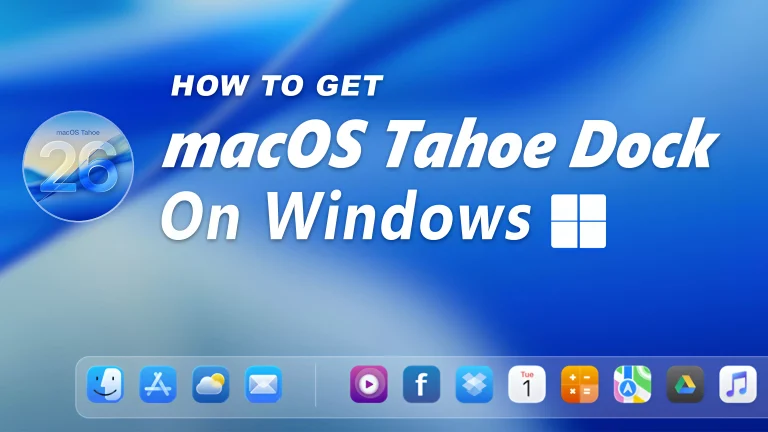
MacOS Style Dock For Windows:The macOS Dock for Windows is a powerful customization tool that brings the elegant and minimalist look of macOS to your Windows desktop.

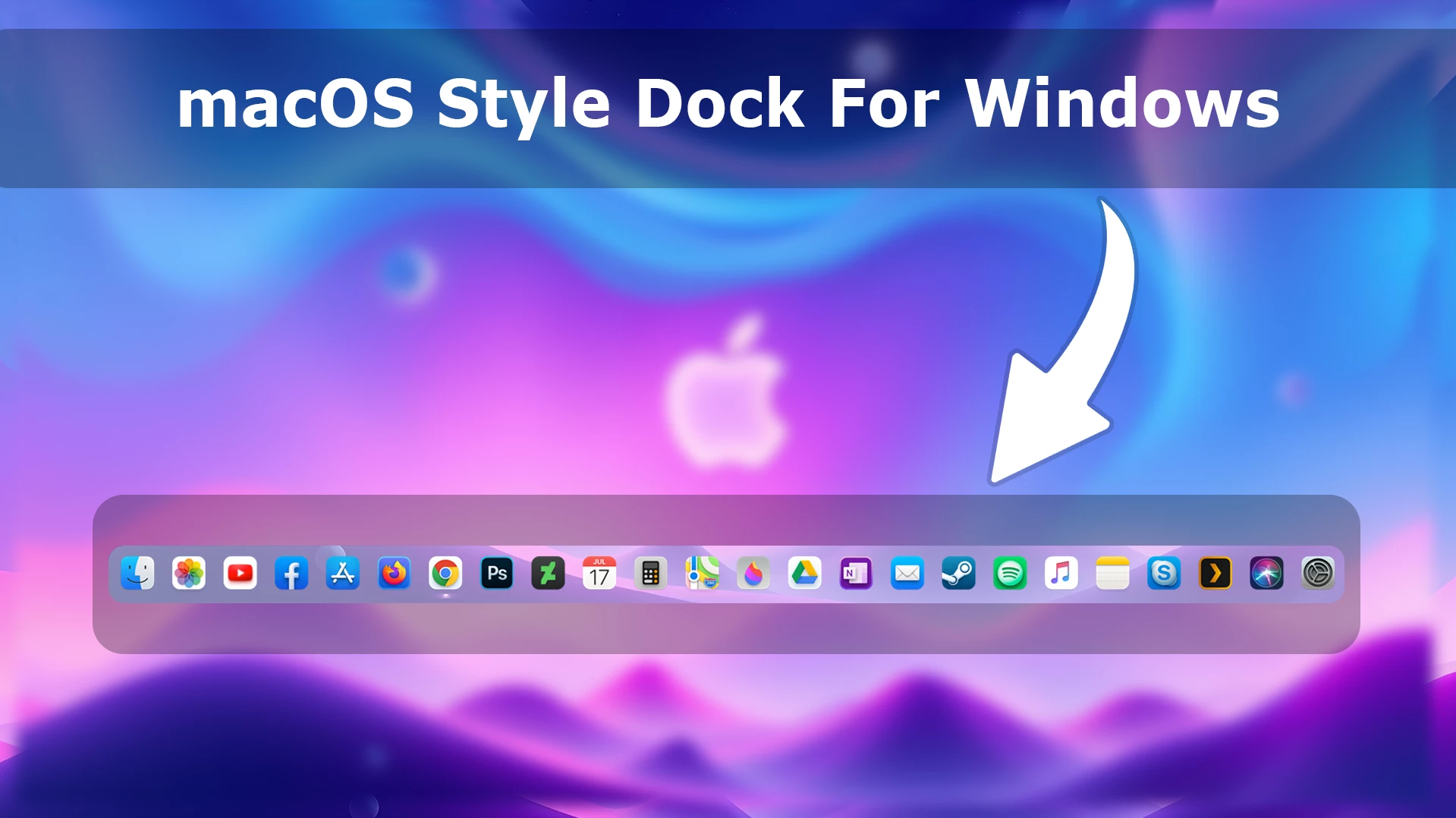
macOS-Inspired Dock for Windows Using Nexus Dock
The macOS-Inspired Dock for Windows is a simple way to give your desktop a cleaner launcher without changing the way Windows works. Made for Winstep Nexus, this setup uses a glass-style dock background, balanced icon spacing, and a familiar macOS-inspired visual direction for quick access to the apps and folders you use most.
The included files are designed to change the appearance of your Nexus dock, not your whole operating system. You can keep using your normal Windows workflow while adjusting the dock position, icon size, zoom effect, transparency, and other visual preferences to suit your screen.
For the best result, restore the included dock backup first, then make small adjustments after you see it on your desktop. A simple wallpaper and a tidy set of dock shortcuts usually look better than adding too many effects at once.
Features
- macOS-inspired dock layout for Winstep Nexus
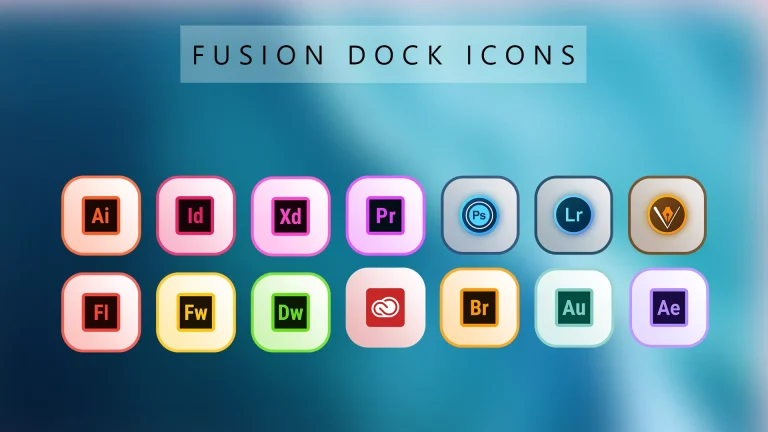
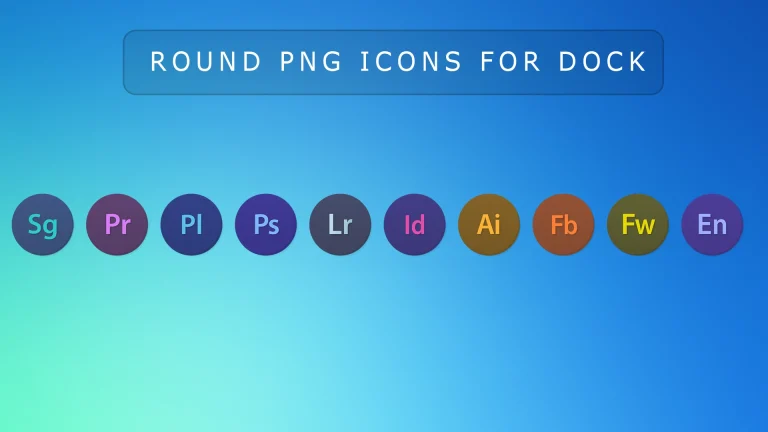
- Custom dock icons and matching dock-theme resources
- Ready-to-use Nexus dock backup for a quicker setup
- Adjustable icon size, position, transparency, and zoom effect
- Useful for keeping frequently used apps and folders within easy reach
- Works well with minimal wallpapers and matching Windows themes
What is included in this?
- Dock icons
- Dock backup
- Dock-theme resources
Compatibility
- Designed for use with Winstep Nexus Dock on Windows 7, 8/8.1, 10, and 11.
- Check the current Nexus system requirements before installing on an updated or new PC.
- Visual results can vary with your display scaling, Nexus version, wallpaper, and Windows build.
Before You Start
- Install Winstep Nexus Dock from its original website first.
- Save a backup of your current Nexus settings before restoring a new configuration.
- Keep a copy of the downloaded ZIP file and extract it to a folder you can find easily.
- Close any important work before changing multiple desktop-customization tools.
- Create a System Restore Point if you are combining the dock with other visual customizations.
Step-by-Step Installation Guide
- Download and install Winstep Nexus from its original website.
- Download the ZIP file below and extract it on your computer.
- Open the extracted folder to find the dock backup file, icons, and theme resources.
- Open Nexus, then go to Preferences or Advanced Preferences.
- Open the Backup/Restore section, make a backup of your current dock settings, then choose the included backup file and select Restore.
- Check the dock on your desktop, then adjust its position, icon size, zoom, or transparency in Nexus preferences if needed.
- If you prefer your previous setup, restore the backup you saved before applying this dock configuration.
ZIP File 12 MB
DownloadFrequently Asked Questions
Does this install macOS on my Windows PC?
No. This package changes the appearance of a Winstep Nexus dock only. It does not install macOS or add Apple software to Windows.
Is Winstep Nexus included in the download?
No. Download Nexus separately from its original website, then use the included backup file and resources with the installed dock.
Can I keep my current Nexus layout?
Yes. Save your current Nexus backup before restoring this configuration. You can restore your previous layout whenever you want.
Why does the dock look different on my screen?
Screen resolution, display scaling, wallpaper contrast, and Nexus preferences can all affect the final appearance. Adjust one setting at a time until the dock feels right for your desktop.
Disclaimer
This independently created dock package is intended for personal Windows desktop customization. The term “macOS” is used only as a visual-style reference. This package is not an official Apple product, macOS release, update, or Apple-developed dock, and it is not affiliated with, endorsed by, or sponsored by Apple Inc. All trademarks and brand names belong to their respective owners.
Final Thoughts
The macOS-Inspired Dock for Windows is a practical option if you want a cleaner way to launch everyday apps and folders. Start with the included backup, keep the dock focused on the shortcuts you actually use, and make a few small visual adjustments until it fits naturally into your workspace.


Disclaimer: All themes, visual styles, and concepts shared on this website are unofficial, fan-made creations built from imagination for customization purposes. We are not affiliated with, endorsed by, or sponsored by Microsoft or any other official brand.