

macOS Tahoe-Inspired Dock for Windows 10 & 11 Using Nexus Dock
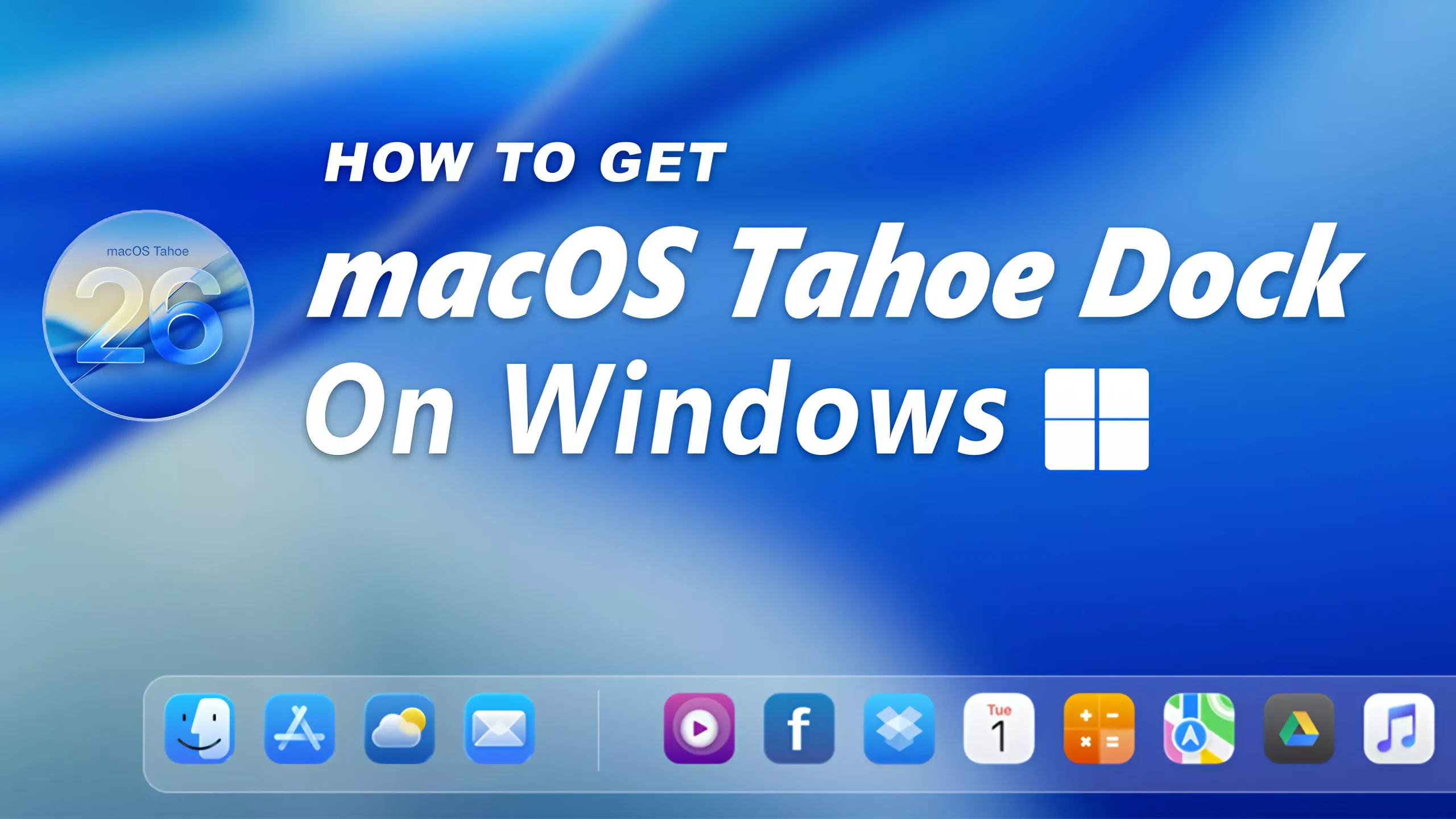
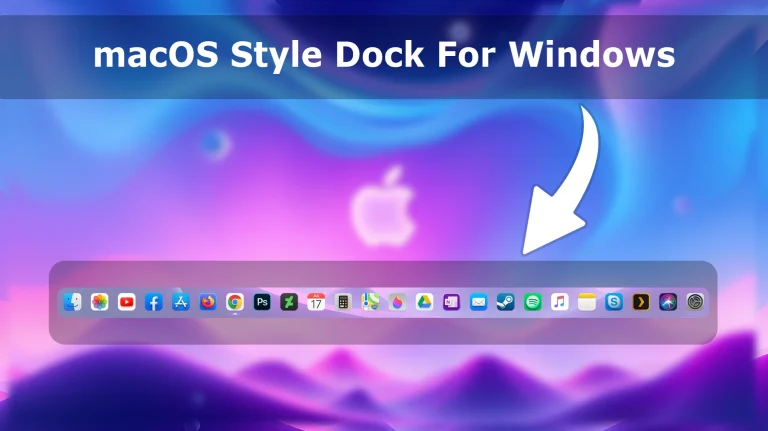
macOS Tahoe Dock For Windows : The macOS Tahoe Dock for Windows brings the stunning elegance of Apple’s next-gen macOS design directly to your Windows desktop. Inspired by the sleek visuals of macOS 13+ “Tahoe,” this dock combines glass-like transparency, smooth reflections, and soft glow effects to give your desktop a modern, premium appearance.

macOS Tahoe-Inspired Dock for Windows 10 & 11 Using Nexus Dock
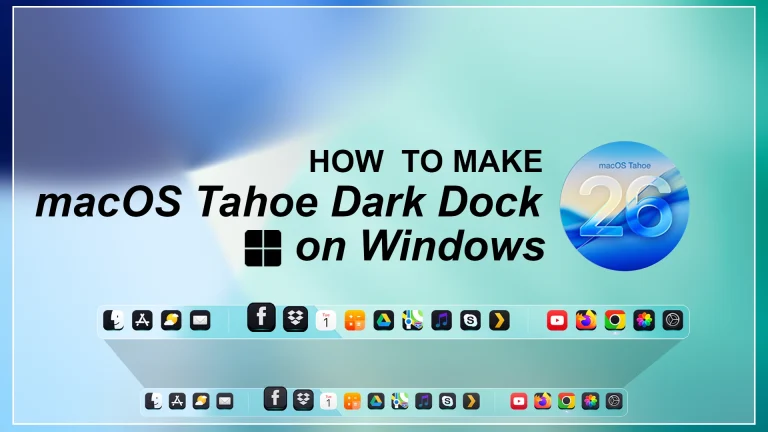
If you want to give your desktop a cleaner, Mac-inspired look, the macOS Tahoe-Inspired Dock for Windows is a simple way to refresh the space around your everyday apps. It is made for Winstep Nexus and uses a soft glass-style background, balanced icon spacing, and a modern dock layout.
The setup does not turn Windows into macOS or add Apple software to your computer. It changes the appearance of your Nexus dock so you can enjoy a smooth, minimal launcher while keeping your normal Windows workflow unchanged.
Nexus lets you adjust the dock position, icon size, zoom effect, transparency, and other visual settings, so you can fine-tune the layout for your own screen. Start with the included backup file, then make small adjustments until the dock feels right for your desktop.
The dock works best as a quick launcher for the apps, folders, and shortcuts you use most often. Once the theme is restored, you can keep the design minimal or personalize it with your own shortcuts and preferred icon arrangement.
What is included in this?
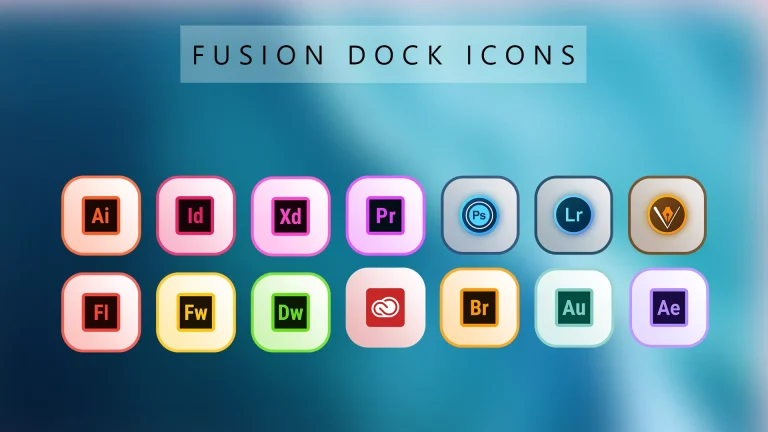
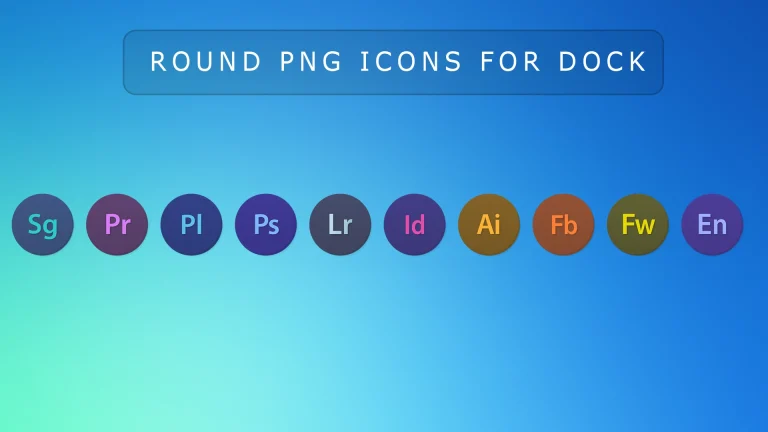
- Custom macOS Tahoe-inspired dock icons
- Ready-to-use Nexus dock backup and theme file
- Quick setup guide
Compatibility
- Designed for Windows 10 and 11 with Winstep Nexus Dock.
- Winstep Nexus also supports Windows 7 and 8; visual results may vary on older Windows versions.
- Check the official Nexus requirements before installing on a new or updated system.
How to Install macOS Tahoe Dock Using Winstep Nexus
Setting up the dock is straightforward. Install Winstep Nexus first, then restore the included backup file from Nexus preferences.
Step-by-Step Installation Guide
- Download and install Winstep Nexus Dock from the official website.
- Download the ZIP file using the button below and extract it to a folder on your computer.
- Open the extracted folder to find the Nexus backup file, theme resources, and custom icons.
- Open Nexus Dock, then go to Preferences or Advanced Preferences.
- Open the Backup/Restore section, choose the included backup file, and select Restore.
- Check the dock on your desktop, then adjust its size, position, icon zoom, or transparency from Nexus preferences if needed.
Before restoring any backup file, keep a copy of your current Nexus settings. If you do not like the new layout, you can restore your previous dock setup at any time.
How to Use Nexus Dock After Installation
After the backup has been restored, use Nexus preferences to place the dock where it feels most comfortable on your screen. A bottom-centered position usually gives the setup a familiar macOS-style look, but you can choose any screen edge or position that suits your workflow.
Using Your Dock
- Drag an app shortcut, folder, or file from the Desktop or File Explorer onto the dock to add it.
- Right-click a dock icon when you want to change its label, icon, command, or shortcut target.
- Open Nexus preferences to adjust icon size, magnification, transparency, screen position, and auto-hide behavior.
- Keep only your most-used items on the main dock so the layout remains clean and easy to use.
- Save or back up your Nexus layout after making changes you want to keep.
If the dock feels too large or covers part of your workspace, reduce the icon size or enable auto-hide from the Nexus settings. Small adjustments usually make a bigger difference than adding too many effects at once.
Zip File 1 MB
DownloadDisclaimer: This independently created custom dock theme and package is intended for personal Windows desktop customization. The term “macOS Tahoe” is used only as a visual-style reference. This package is not an official Apple product, macOS release, update, or Apple-developed theme, and it is not affiliated with, endorsed by, or sponsored by Apple Inc. All trademarks and brand names belong to their respective owners.
Final Words
The macOS Tahoe-Inspired Dock for Windows is a simple way to make a Windows desktop feel cleaner without changing the way you work. Restore the included Nexus backup, arrange your favourite shortcuts, and adjust the size or transparency until the dock fits naturally into your setup.
For the best experience, use the official Nexus download, keep a backup of your original layout, and make changes one at a time. This makes it easy to enjoy the new dock style while still being able to return to your previous settings whenever you want.


Disclaimer: All themes, visual styles, and concepts shared on this website are unofficial, fan-made creations built from imagination for customization purposes. We are not affiliated with, endorsed by, or sponsored by Microsoft or any other official brand.