EVO Theme For Windows 11
Download EVO Theme For Windows 11 and transform your desktop with a modern UI, custom icons, Windhawk mods, wallpapers, and clean futuristic styling.

EVO Theme For Windows 11
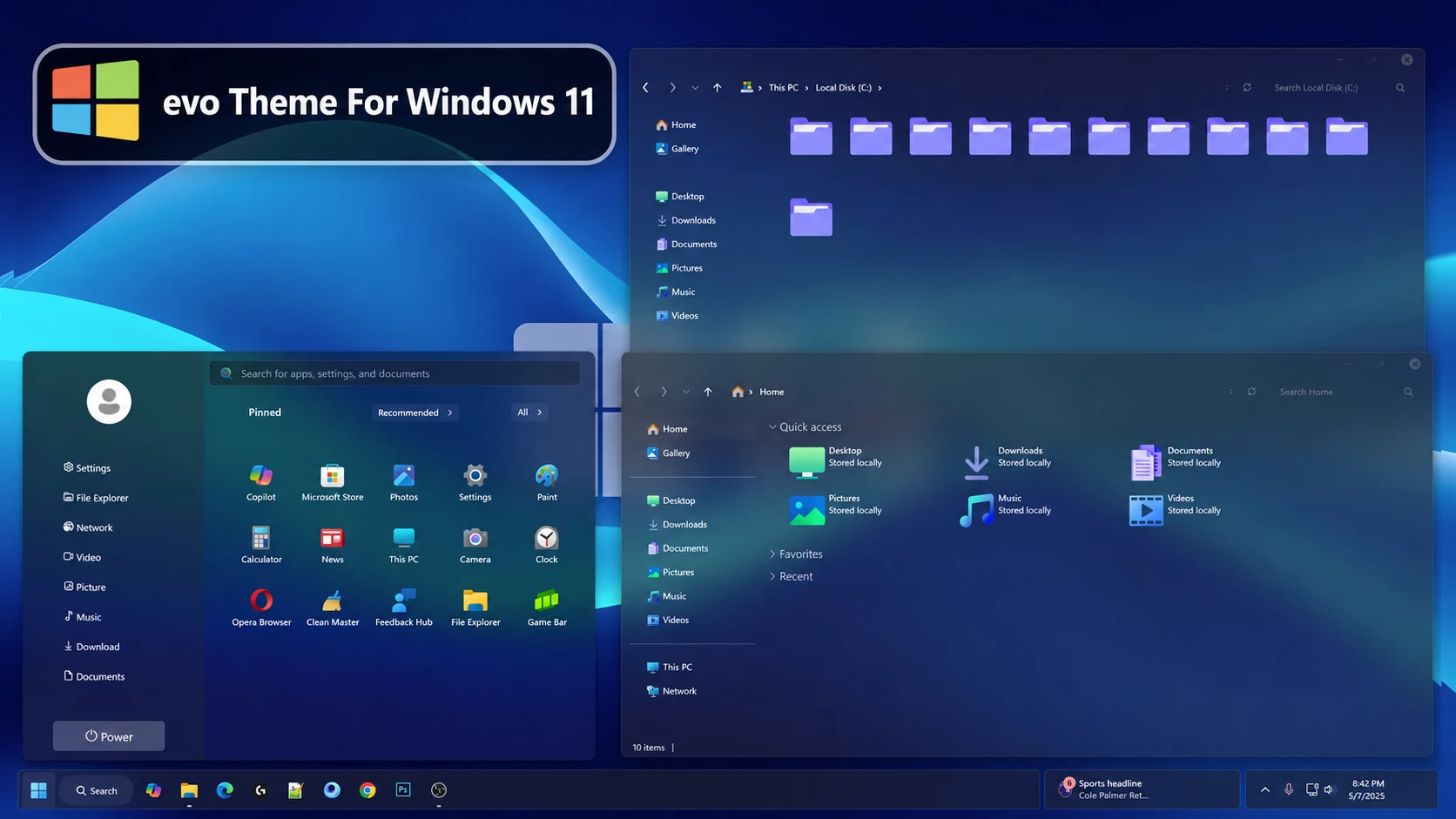
EVO Theme For Windows 11 is a dark purple desktop customization built around glass-style surfaces, deep violet tones, matching icons, and a coordinated wallpaper. It gives Windows 11 a richer appearance while keeping the interface modern, clean, and easy to recognize.
The darker purple color direction is visible across the interface, while transparent and glass-inspired surfaces allow the desktop background to remain part of the overall look. Matching purple folder icons add another layer of consistency, especially inside File Explorer.
This is an independently created third-party customization package intended only for Windows desktop personalization. It does not replace Windows 11, install another operating system, or add official Microsoft features. The changes are limited to supported visual elements of your existing Windows installation.
A Dark Purple Glass Look
EVO works especially well if you like deeper purple tones rather than bright or highly colorful desktop themes. The glass effect keeps parts of the interface slightly transparent, while the darker violet shades give the setup a more defined and coordinated appearance.
File Explorer follows the same direction with matching purple folders and subtle transparency. When the icon pack is used together with the main theme, the desktop gets a much more complete purple look instead of feeling like several unrelated customizations placed together.
EVO Theme Highlights
- Dark purple and violet Windows 11 visual style
- Glass-inspired interface with subtle transparency
- Customized File Explorer that follows the same purple color direction
- Matching purple folder and system icon appearance
- Using the matching icon pack creates a more complete purple desktop look
- Coordinated wallpaper that blends naturally with the darker interface
- Optional Windhawk, Start menu, taskbar, and Explorer tweaks for further customization
My Thoughts on the EVO Theme
In my opinion, EVO is a great choice for anyone who enjoys dark purple tones and wants a glass-style Windows 11 desktop. The combination of deeper purple colors and transparent interface elements gives the setup a modern look without making everything overly bright or distracting.
I especially like the theme when it is paired with the matching icon pack. The purple folders and system icons connect much better with the glass interface, giving the desktop a more complete purple appearance. If you already like violet, deep purple, or darker glass themes, EVO should fit that style very naturally.
I would mainly use this setup for personal customization, where the visual appearance of the desktop is part of the experience. You can also keep it simple with the main theme alone, but the matching icons make a noticeable difference if you want the full EVO look.
Inside the EVO Package
- Windows 11 Custom Theme: Applies the main dark purple visual style to supported Windows interface elements.
- Icon Pack: Gives compatible folders and system icons a matching purple appearance for a more unified setup.
- Windhawk Mods: Optional tweaks for changing additional supported areas of the Windows interface.
- Wallpaper: Completes the desktop with a background that fits the darker purple theme direction.
- UI Tweaks: Additional visual adjustments for users who want to recreate more of the complete EVO desktop style.
Useful Customization Tools
- SecureUxTheme – can be used to apply compatible third-party Windows visual styles.
- 7TSP GUI – useful for applying compatible icon packs.
- StartAllBack – provides extra options for changing the Start menu and taskbar.
- ExplorerBlurMica – can add supported blur and transparency effects to File Explorer.
- Windhawk – allows additional Windows interface customization through compatible mods.
You do not need every tool above to use EVO. Start with the main theme and see how it looks on your system first. If you want a stronger purple theme across the desktop, add the matching icon pack next, followed by any Start menu, Explorer, taskbar, or Windhawk changes you actually want. Applying the components separately also makes troubleshooting much easier.
Before Starting the Setup
- Create a System Restore Point before applying third-party themes or visual changes.
- Make sure each customization tool supports your current Windows 11 build.
- Keep one of the default Windows themes available for easy restoration.
- Back up your original Windows icons before applying the custom icon pack.
- Download third-party utilities only from trusted or original project pages.
- Apply larger customization changes one at a time rather than everything together.
EVO Installation Steps
- Create a System Restore Point before starting so you can easily revert if anything goes wrong.
- Download and run UltraUXThemePatcher as Administrator, then restart your computer to patch core system files.
- Download the theme package using the button below and extract the
.zipor.rarfile. - Copy both the
.themefile and the theme folder toC:\Windows\Resources\Themes. - Right-click your desktop, go to Settings > Personalization > Themes, and select your new custom theme to apply it.
- If you are new to Windows customization, follow this detailed guide first: How to Install Custom Themes on Windows 11.
- Once the main theme looks right, try optional icons, Start menu styling, or Explorer effects one at a time.
EVO Theme 19 MB
Download EVO ThemeRemove EVO Theme
- Switch the Theme: Open Settings > Personalization > Themes and choose one of the default Windows 11 themes.
- Undo the Extra Styling: Restore the original icons and disable any Windhawk, Start menu, taskbar, File Explorer, or wallpaper changes added with EVO.
- Restart and Recover: Restart Windows Explorer or reboot your PC. If any visual changes remain, use your System Restore Point or follow this Windows 11 theme removal guide.
Disclaimer
EVO Theme is an independently created third-party customization package intended for Windows desktop personalization. It is not an official Microsoft product and is not affiliated with or endorsed by Microsoft or any of the independent customization tools and projects referenced in this post. All trademarks and brand names remain the property of their respective owners.
Compatibility can vary between Windows builds and tool versions. Creating a System Restore Point before applying third-party themes, icon packs, or interface modifications is recommended so you have an easier way to return to your previous setup if needed.
Final Word
EVO makes the most sense for users who already enjoy dark purple desktop setups. The deeper violet tones, glass-inspired interface, matching wallpaper, and purple icon style work together to give Windows 11 a more unified appearance without relying on overly bright effects.
The icon pack is an important part of the overall look for me. You can certainly use the main theme by itself, but combining it with the matching purple icons gives the setup a much more complete identity.
Frequently Asked Questions
Is EVO an official Microsoft theme?
No. EVO is an independently created third-party Windows customization package and is not an official Microsoft release.
Is EVO mainly a purple theme?
Yes. The setup is built around darker purple and violet tones with glass-inspired interface elements and matching visual resources.
Do I need the matching icon pack?
No. The main theme can be used on its own, but the matching icon pack helps create a more complete purple look across File Explorer and other supported areas.
Are Windhawk mods required for EVO?
No. They are optional and are only needed if you want to customize additional supported parts of the Windows interface.
Can I apply only the EVO icon pack?
Yes. The icon pack can be used separately as long as the icon tool supports your installed Windows build.
Can a Windows update affect the theme?
Yes. Major Windows updates can affect third-party themes, icon tools, and interface mods, so compatibility should be checked again after a feature update.