

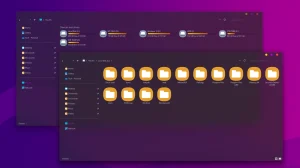
Windroid 7tsp Icon pack
Windroid 7tsp Icon pack: Windroid 7TSP Icon Pack for Windows is a unique hybrid icon customization pack that blends the smooth, flat design of Android-inspired icons with the desktop-friendly structure of Windows

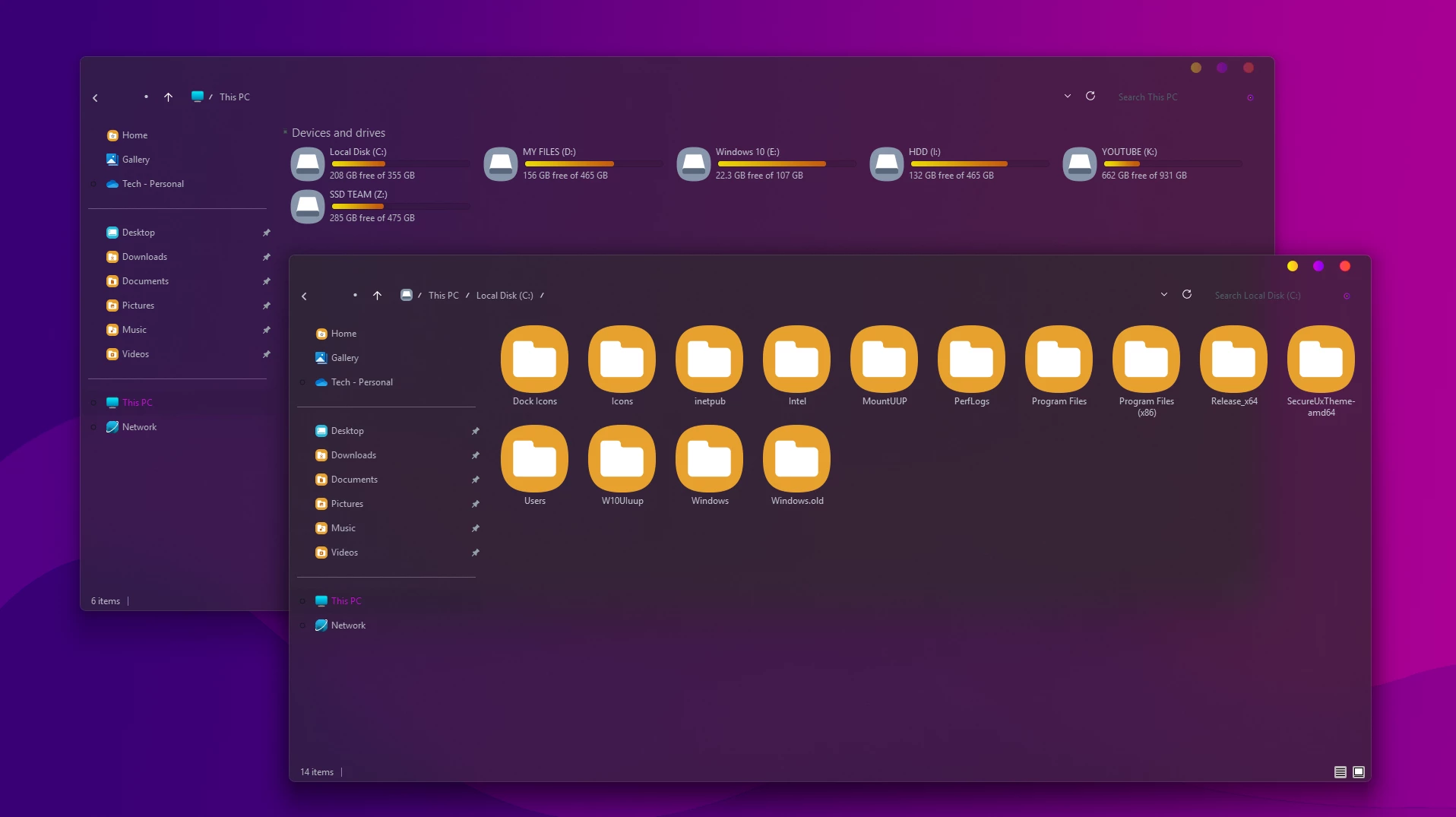
Windroid 7TSP Icon Pack for Windows
Windroid 7TSP Icon Pack is a Windows icon customization pack built around warm yellow-gold folder backgrounds and simple white folder symbols. It gives File Explorer a noticeably different look while keeping the familiar Windows folder layout easy to recognize.
The rounded icon shapes and repeated gold-and-white styling help folders feel more consistent across Explorer. The brighter accents work especially well on darker desktop setups, but the icon pack itself is separate from any wallpaper, taskbar style, transparency effect, or Windows theme you may choose to use alongside it.
This pack is intended for use with a compatible version of 7TSP GUI. It changes supported Windows icon resources only and does not install a new operating system or alter the normal function of File Explorer.
Windroid Icon Style
The main folder design uses a warm yellow-gold background with a white folder symbol placed in the center. Rounded shapes give the icons a softer appearance than the standard Windows folder set, while the repeated color treatment keeps different folder locations visually connected.
Because the icons use strong warm tones, they remain easy to notice against darker Explorer backgrounds. You can combine them with your own wallpaper or Windows visual style without needing to recreate the rest of the desktop shown with the pack.
Features
- Warm yellow-gold folder backgrounds with clean white symbols
- Rounded icon shapes for a softer File Explorer appearance
- Consistent folder styling across supported Windows locations
- Designed for use with a compatible version of 7TSP GUI
- Can be paired with dark or colorful Windows themes separately
- Does not require you to change your wallpaper or taskbar style
Supported Windows Versions
- Windows 11: 21H2, 22H2, 23H2, 24H2, and 25H2
- Windows 10: Supported by compatible 7TSP builds
- Windows 8.1: Supported by compatible 7TSP builds
- Windows 8: Supported by compatible 7TSP builds
7TSP support can vary between Windows builds, so check that the version of 7TSP GUI you plan to use is compatible with your current system before patching icon resources.
Requirements
- A Windows build supported by both the icon pack and 7TSP GUI
- A compatible release of 7TSP GUI
- Administrator access for applying system icon changes
- A System Restore Point created before patching
- Enough free storage space for backup files created during the process
You can check your Windows version by pressing Windows + R, typing winver, and pressing Enter. Compare the displayed build with the compatibility notes for the 7TSP version you are using.
How to Install the Windroid 7TSP Icon Pack
7TSP changes Windows icon resources, so it is worth preparing a backup before starting. Keep the automatic backup options enabled during patching rather than treating them as decorative buttons Windows included for amusement.
Installation Steps
- Create a Restore Point: Make a Windows System Restore Point before modifying icon resources.
- Download the Pack: Download the Windroid ZIP file using the button below and extract the outer archive.
- Check the Included Files: Read any included notes and identify the 7TSP pack file. If the actual pack is supplied as an inner archive, keep that file intact for loading into 7TSP.
- Prepare 7TSP GUI: Download a compatible release from the 7TSP GUI developer page and extract the application.
- Run as Administrator: Right-click 7TSP GUI and choose Run as administrator.
- Load the Pack: Choose Add a Custom Pack and select the Windroid 7TSP pack file.
- Start Patching: Review the selected pack, keep the available backup options enabled, and click Start Patching.
- Restart Windows: Wait for 7TSP to finish and restart the computer when prompted. Do not close the tool or shut down Windows while patching is in progress.
Download Windroid 7TSP Icon Pack
Windroid 7TSP Icon Pack ZIP Archive
Download Icon PackHow to Remove
- Open 7TSP GUI: Run the same 7TSP application as administrator.
- Open the Restore Option: Choose Restore or the available backup restore command in your version of 7TSP.
- Select the Original Backup: Choose the option that restores modified system files to the state before 7TSP was used.
- Confirm the Restore: Allow the restoration process to finish without closing the application.
- Restart the PC: Reboot Windows and check File Explorer to confirm that the original folder and system icons are back.
Some releases may show the restore command under Program > Restore Backup. The wording can differ slightly between versions, so use the option that restores the backup created before patching.
Credits
Credit for the original icon artwork and design goes to Store KDE. Link Vegas Theme does not claim ownership of third-party artwork, names, or trademarks referenced in this post.
Disclaimer
Windroid 7TSP Icon Pack is a third-party Windows customization resource shared for desktop personalization. It is not affiliated with, endorsed by, or officially connected to Microsoft, Google, KDE, or the developers of 7TSP GUI. Windows and other trademarks belong to their respective owners. Because 7TSP modifies Windows icon resources, creating a System Restore Point and keeping the tool’s backup files before patching is recommended.
Final Word
Windroid has a very recognizable folder style. The combination of rounded yellow-gold backgrounds and white folder symbols gives File Explorer a warmer look without requiring you to change the rest of your Windows setup.
You can keep the icon pack as the only customization or pair it with a darker theme and your own wallpaper. Either way, the icon design is strong enough to stand on its own.
Frequently Asked Questions
Why do some folders change while a few icons stay the same?
7TSP only replaces resources included in the pack. If Windroid does not contain a replacement for a particular Windows resource, that icon may keep its original appearance.
Can I use Windroid icons with another Windows theme?
Yes. The icon pack is separate from your Windows visual theme, so you can pair it with another compatible theme, wallpaper, or Explorer style.
Do I need to keep the purple wallpaper shown with the icons?
No. The wallpaper is not part of the 7TSP icon change. You can use any desktop background you prefer.
What should I keep after applying the pack?
Keep the 7TSP backup files until you are sure you are happy with the new icons. Those backups make it much easier to restore the original Windows resources later.
Can restoring a 7TSP backup undo other icon changes too?
It can. Restoring an earlier 7TSP backup may return several patched resources to their previous state, not only the Windroid folders, so check what was changed before restoring.
You may also like
Disclaimer: All themes, visual styles, and concepts shared on this website are unofficial, fan-made creations built from imagination for customization purposes. We are not affiliated with, endorsed by, or sponsored by Microsoft or any other official brand.