

Goruda Theme v2 for Windows 11
Goruda Theme v2 for Windows 11 : Goruda Theme v2 for Windows 11 brings a refined, futuristic, and highly customizable desktop experience designed for users who love a modern yet minimal look

Goruda Theme v2 for Windows 11
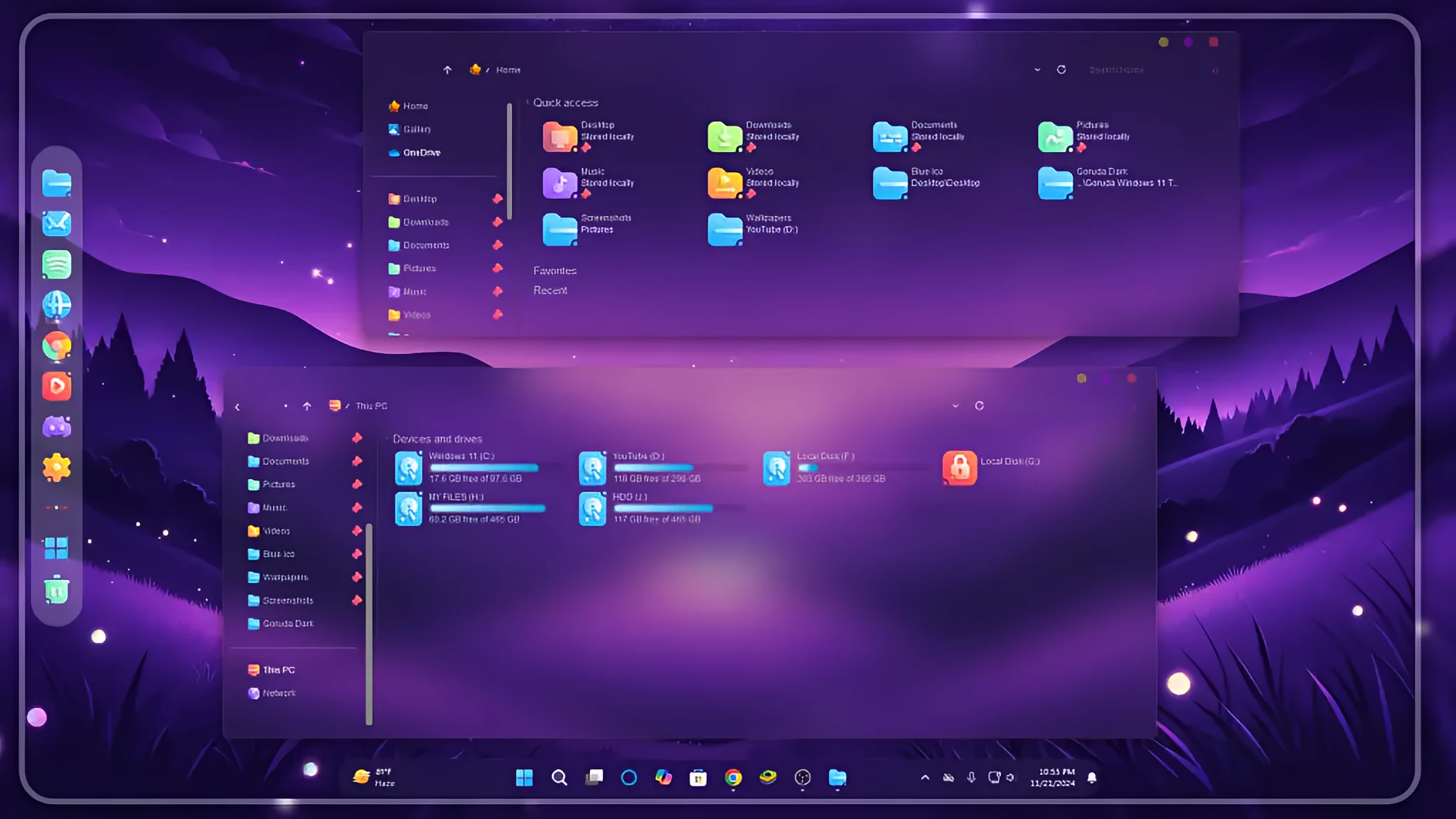
The Goruda Theme v2 for Windows 11 gives File Explorer a dark translucent appearance built around deep violet, purple, and charcoal tones. The interface uses softly transparent surfaces that allow some of the desktop background to remain visible, while the navigation panel stays darker for clearer separation between folders, drives, and other locations.
The drive section uses bright custom resources that stand out against the darker Explorer background. Most drives use cyan and blue icon accents with matching cyan usage indicators, while a drive with very little free space uses a red usage bar. These stronger colors add contrast without covering the entire interface in bright tones.
Small colored window controls appear in the upper corner of File Explorer, adding another distinctive detail to the theme. The surrounding purple and magenta glow can change depending on the wallpaper behind the translucent interface, so the desktop background also influences the final appearance.
Goruda v2 Visual Style
Transparency is an important part of the Goruda v2 design. File Explorer uses a dark glass-like surface rather than a completely solid background, allowing blurred colors from the wallpaper to pass through while keeping text and navigation items readable.
The left navigation area uses a deeper purple treatment with subtle separators between groups. Folder shortcuts and system locations use brighter cyan and pink accents, helping them remain easy to distinguish against the dark panel.
Drive resources follow the same color direction. Cyan and blue dominate most of the storage icons and usage indicators, while warmer orange and red details are used where additional contrast is needed.
Features
- Transparent glass-style File Explorer surfaces
- Wallpaper colors remain visible through the translucent interface
- Colorful icon pack that gives folders and system locations a brighter look
- Dark violet and purple Windows 11 visual styling
- Light blue and sky-blue hard-drive resources and usage indicators
- macOS-style traffic-light window controls
- Small yellow, green, and red minimize, maximize, and close buttons
- Soft glass effect that gives the desktop a more layered appearance
- Designed for Windows 11 desktop customization
Drive and Storage Styling
The storage area is one of the more colorful parts of the setup. Cyan and blue drive resources remain easy to see against the darker Explorer surface, while the usage bars follow the same cool color direction.
A red usage indicator can appear when a drive has very little free space, creating a stronger warning contrast without changing the overall purple and blue character of the interface.
Compatibility
- Windows 11 21H2: Supported
- Windows 11 22H2: Supported
- Windows 11 23H2: Supported
- Windows 11 24H2: Supported
- Windows 11 25H2: Supported
Included Files
- Windows 11 Theme
- Dock Icon & Backup
Optional Customization Tools
How to Install the Theme
- Download the Goruda Theme v2 package and extract the ZIP file.
- Copy the extracted theme files and theme folder to
C:\Windows\Resources\Themes. - Right-click on the desktop, select Personalize, open the Themes section, and choose the Goruda v2 theme to apply it.
- After the main theme is active, you can add the included dock resources or use optional icons, StartAllBack, Blur Mica, and other compatible customizations separately.
- For the complete installation process and additional setup details, follow this Windows 11 custom theme installation guide.
Theme Files 6MB
Download How to Remove the Theme
- Right-click on the desktop, open Personalize, and switch back to one of the default Windows 11 themes.
- If you used a separate icon pack, dock resources, StartAllBack, Blur Mica, or other optional customizations, restore or disable those changes separately.
- Restart Windows Explorer or reboot the PC if the original appearance does not return immediately.
- For the complete restoration process, follow this Windows 11 custom theme removal guide.
Disclaimer
Goruda Theme v2 for Windows 11 is an independent third-party Windows customization resource intended for personal desktop styling. It is not an official Microsoft product and is not affiliated with, sponsored by, or endorsed by Microsoft. Windows and related trademarks belong to their respective owners.
Third-party themes and optional customization tools may behave differently across Windows builds or after major system updates. Check the compatibility of individual tools before applying additional interface modifications.
Final Word
Goruda Theme v2 combines dark translucent Explorer surfaces with deep violet styling and brighter cyan, blue, pink, and red accents. The custom drive resources and contrasting storage indicators add color where it is useful, while the larger interface remains restrained and easy to read.
Its translucent design also allows different wallpapers to influence the final desktop appearance, making the setup adaptable without requiring every part of the Windows interface to use the same fixed color.
Frequently Asked Questions
What colors does Goruda Theme v2 use?
The main interface uses deep violet, purple, and charcoal tones, while icons and drive resources introduce cyan, blue, pink, orange, and red accents.
What color are the drive usage indicators?
Most drive usage bars use cyan or blue tones. A drive with very little available space can use a red indicator for stronger contrast.
Is the bright purple appearance fixed into the theme?
Not entirely. File Explorer uses translucent surfaces, so wallpaper colors can remain visible through the interface and influence the overall appearance.
Are the dock icons included?
Yes. According to the package information, Dock Icon & Backup resources are included along with the Windows 11 theme.
Is the linked icon pack included with the theme?
No. The linked icon pack is listed as an optional customization and can be applied separately if you want to extend the desktop styling.
Do I need StartAllBack or Blur Mica?
No. Both are optional tools and should only be used if you want the additional interface changes they provide.
Can I use another wallpaper with Goruda v2?
Yes. A different wallpaper can change the colors visible through the translucent Explorer surfaces while leaving the main theme files unchanged.







Disclaimer: All themes, visual styles, and concepts shared on this website are unofficial, fan-made creations built from imagination for customization purposes. We are not affiliated with, endorsed by, or sponsored by Microsoft or any other official brand.