

Eclips Theme For Windows 10
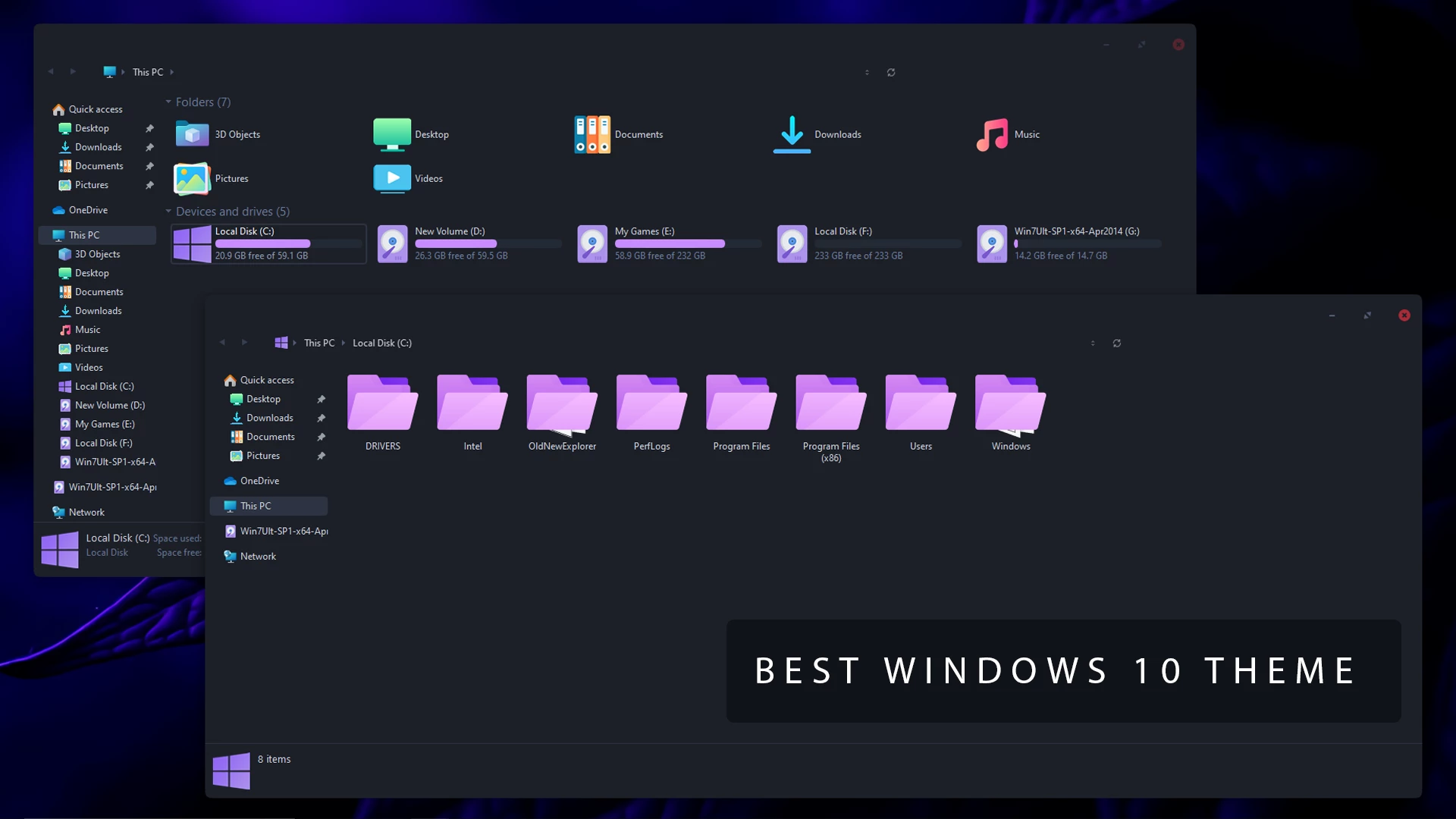
Eclips Theme For Windows 10 : Eclips Theme for Windows 10 is a dark, elegant, and modern customization theme designed to completely transform the default Windows experience into something stylish and immersive.

Eclips Theme For Windows 10
The Eclips Theme For Windows 10 gives the desktop a darker and more minimal appearance built around charcoal, black, and muted gray tones. It changes supported Windows 10 visual elements while keeping the familiar desktop layout, applications, and normal workflow intact.
File Explorer follows the same dark direction with subtle contrast between the main content area, navigation sections, and other interface elements. The overall styling stays restrained, making the theme suitable for users who prefer a darker desktop without bright colors or excessive visual effects.
Eclips is a third-party Windows customization theme intended for personal desktop styling. It does not replace Windows 10, install another operating system, or add official Microsoft features.
Dark and Minimal Interface Style
The theme focuses on darker Windows surfaces rather than colorful accents. Charcoal and near-black areas form the main interface, while lighter gray details help separate folders, controls, and navigation elements.
This simpler approach also makes it easy to pair the theme with different wallpapers or optional icon resources. You can keep the setup close to the main visual style or add extra customization later if you want more changes across the desktop.
Features
- Dark Windows 10 visual style
- Charcoal and near-black interface surfaces
- Cleaner File Explorer appearance
- Muted contrast without bright accent colors
- Minimal desktop direction
- Can be paired with optional wallpapers and icon packs
- Works with compatible Windows 10 customization tools
Compatibility
- Windows 10: Supported
- Windows 11: Not Supported
What Is Included?
- Windows 10 Theme
Optional Tools
Quick Preparation
- Create a System Restore Point before applying the theme.
- Save your current wallpaper and icon settings so they can be restored later.
- Download any required customization tools only from trusted sources.
- Make sure the theme and required tools support your Windows 10 version.
Installation Steps
- Download the Eclips Theme package and extract the downloaded files.
- Install a compatible theme patcher if required for your Windows 10 version.
- Copy the extracted theme files and theme folder to
C:\Windows\Resources\Themes. - Right-click on the desktop, open Personalize, go to the Themes section, and select the Eclips theme to apply it.
- After the main theme is active, apply any optional icon or Explorer customization separately if needed.
Theme Files 1MB
Download Removal Steps
- Right-click on the desktop, open Personalize, and switch back to one of the default Windows 10 themes.
- If you applied an optional icon pack, use your icon customization tool to restore the default Windows icons.
- Disable OldNewExplorer or any other optional interface changes you added with the setup.
- Remove the Eclips theme files from
C:\Windows\Resources\Themesif you no longer want to keep them installed. - Restart Windows Explorer or reboot the PC if the original appearance does not return immediately.
Keeping the Dark Look Consistent
Eclips works best when the rest of the desktop follows the same restrained direction. Dark gray, black, muted blue, or low-contrast wallpapers can complement the theme without competing with the darker Explorer surfaces.
Optional icon resources can also be added if you want more of the desktop to follow the same style. They are not required, though, so the main Windows theme can remain the only visual change if you prefer a simpler setup.
Disclaimer
Eclips Theme For Windows 10 is an independent third-party customization resource intended for personal desktop styling. It is not an official Microsoft product and is not affiliated with, sponsored by, or endorsed by Microsoft.
Windows, OldNewExplorer, and other product or project names belong to their respective owners. Third-party themes and customization tools can behave differently across Windows 10 builds or after system updates.
Final Word
Eclips gives Windows 10 a darker and more restrained desktop appearance without relying on bright colors or complicated visual effects. Its charcoal interface and simpler styling make the main theme easy to use on its own.
Optional icons, Explorer adjustments, and matching wallpapers can extend the look further, but they are not necessary for keeping the core Eclips style.
Frequently Asked Questions
Is Eclips Theme made for Windows 11?
No. The supplied compatibility information lists Eclips as a Windows 10 theme, and Windows 11 is not supported.
Is an icon pack included?
No. The main package contains the Windows 10 theme. The linked PinkPulse icon pack is an optional separate resource.
Do I need OldNewExplorer?
No. OldNewExplorer is optional and is only relevant if you want additional compatible File Explorer changes.
Can I use the theme without changing my icons?
Yes. You can apply the main Eclips theme while keeping the standard Windows 10 icons.
Can I use another wallpaper?
Yes. Dark gray, black, muted blue, and other restrained backgrounds can work naturally with the Eclips interface.
Disclaimer: All themes, visual styles, and concepts shared on this website are unofficial, fan-made creations built from imagination for customization purposes. We are not affiliated with, endorsed by, or sponsored by Microsoft or any other official brand.