

Crystal Glass Theme For Windows 10
Crystal Glass Theme For Windows 10 : The Crystal Glass Theme for Windows 10 is a sophisticated custom desktop design that brings a luminous, translucent aesthetic to your PC

Crystal Glass Theme For Windows 10
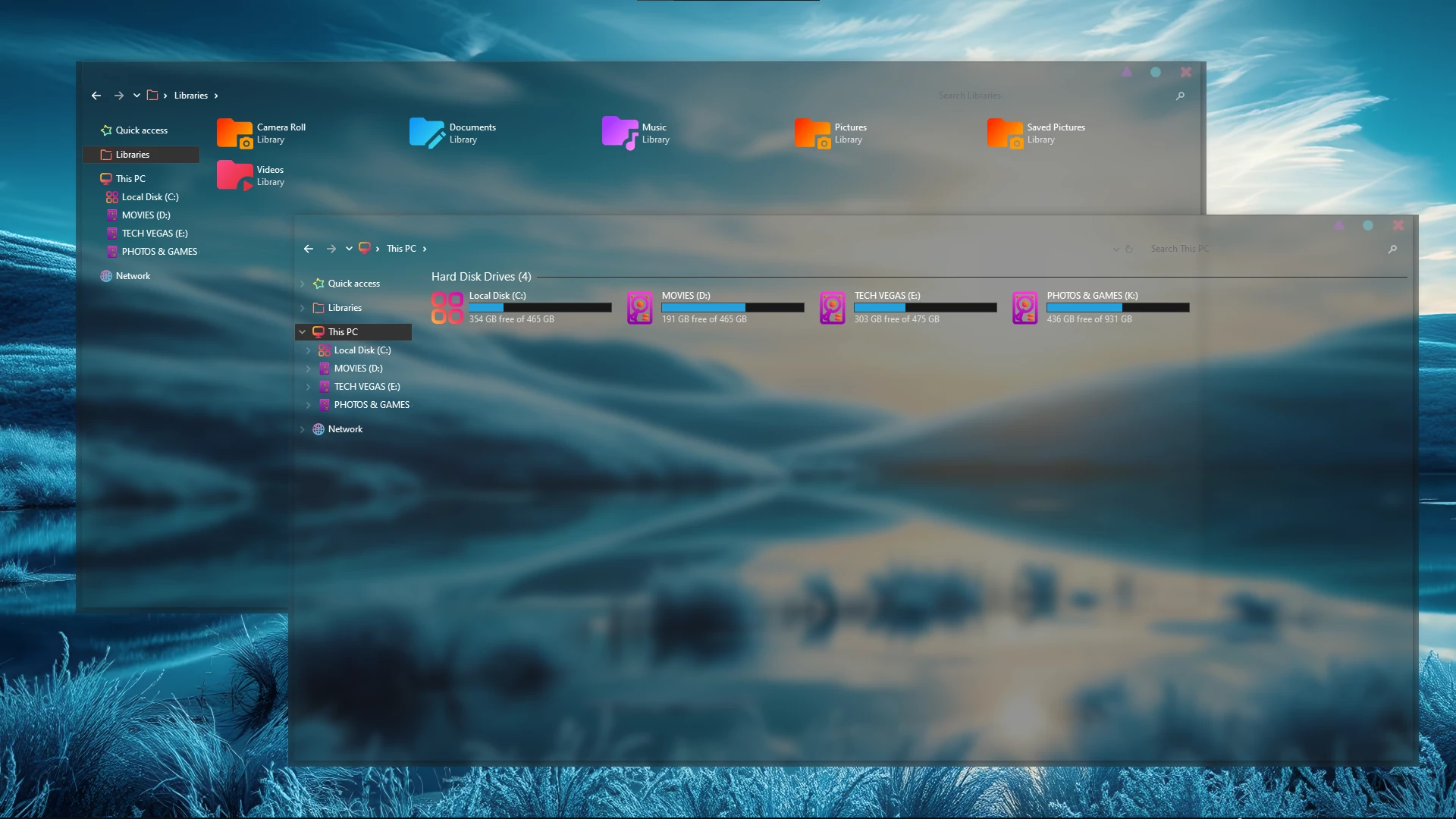
The Crystal Glass Theme For Windows 10 gives File Explorer a highly translucent, glass-like appearance while keeping the familiar Windows 10 layout in place. Explorer windows use semi-transparent surfaces with a noticeable background blur, allowing the desktop behind them to remain visible without making text and controls disappear into the wallpaper.
The navigation area uses a darker translucent treatment, while the larger Explorer surfaces remain lighter and more transparent. This contrast helps separate the sidebar from the main content area while preserving the overall glass effect. Drive usage indicators use bright cyan bars, adding a small amount of color to the otherwise restrained interface.
The blue tones visible through the windows come mainly from the wallpaper behind the transparent Explorer surfaces rather than from a fixed blue theme color. Colorful folder and drive icons can be added separately with a compatible icon pack, so the core Crystal Glass theme can be used with different wallpapers and icon setups.
Crystal Glass Design
Transparency is the main feature of this theme. Instead of using solid Explorer backgrounds, the interface allows large portions of the desktop to remain visible through the window while applying enough blur to keep the content readable.
The result is a softer Windows 10 interface with fewer heavy solid panels. The dark navigation pane, translucent content area, subtle window borders, and blurred background work together without changing the basic structure of File Explorer.
Features
- Semi-transparent glass-style File Explorer surfaces
- Blurred desktop background visible through Explorer windows
- Darker translucent navigation panel
- Light and restrained window borders
- Cyan drive usage indicators
- Works with different wallpapers and separate icon customizations
- Keeps the familiar Windows 10 File Explorer layout
Compatibility
- Windows 10 only
- Windows 11 is not supported
What is included in this?
- Windows 10 Theme
- Extras
System Requirements
- Windows 10 operating system
- A compatible theme patcher may be required for third-party Windows themes
Optional Customization Tools
Quick Preparation
- Create a System Restore Point before applying the theme.
- Save your current wallpaper and icon settings so they can be restored later.
- Download any required customization tools only from trusted sources.
- Make sure the theme and required tools support your Windows 10 version.
Installation Steps
- Download the Eclips Theme package and extract the downloaded files.
- Install a compatible theme tool such as SecureUxTheme if required for your Windows 10 version.
- Copy the extracted theme files and theme folder to
C:\Windows\Resources\Themes. - Right-click on the desktop, open Personalize, go to the Themes section, and select the Eclips theme to apply it.
- After the main theme is active, apply any optional icon or Explorer customization separately if needed.
Theme Files 26MB
Download How to Remove
- Open Windows Personalization settings.
- Select the default Windows theme or another theme you previously used.
- Remove the Crystal Glass theme files from the Windows theme folder if they are no longer needed.
- Restore or disable any optional customization tools that were added separately.
- Restart Windows Explorer or your PC to refresh the interface.
Using Crystal Glass With Other Customizations
Crystal Glass can be paired with a separate icon pack, wallpaper, or Explorer customization, but those additions are not automatically part of the theme itself. This gives you room to change the surrounding desktop style without having to replace the Crystal Glass theme.
Because the Explorer windows are translucent, different wallpapers can noticeably change the overall appearance behind the glass surface. Darker backgrounds create stronger contrast, while brighter wallpapers make the transparent areas appear lighter.
Disclaimer
Crystal Glass Theme is an independent third-party Windows customization resource intended for personal desktop customization. It is not an official Microsoft product and is not affiliated with, sponsored by, or endorsed by Microsoft. Windows and related trademarks belong to their respective owners. Third-party themes can behave differently across Windows 10 builds, so create a System Restore Point before modifying Windows visual components.
Final Word
Crystal Glass changes the character of Windows 10 mainly through transparency rather than heavy colors or decorative panels. Its semi-transparent Explorer windows, blurred background, darker navigation area, and restrained interface details give the desktop a lighter glass-style appearance while leaving the familiar Windows 10 structure intact.
You can keep the setup simple with only the theme or add separate icons and other visual elements afterward. The glass effect remains the central part of the design, while the surrounding desktop can be adjusted to suit your own setup.
Frequently Asked Questions
Is Crystal Glass fully transparent?
No. The Explorer surfaces are semi-transparent and use background blur, so the desktop remains visible while the window still has enough separation for its contents.
Is the blue color part of the Crystal Glass theme?
The strong blue appearance mainly comes from the wallpaper showing through the translucent Explorer windows. Changing the wallpaper can therefore change the overall color impression of the glass surface.
Are the colorful folder and drive icons included with the theme?
The icon styling can be handled separately with a compatible icon pack. The Crystal Glass theme itself is focused on the Windows interface and Explorer appearance.
What color are the drive usage indicators?
The drive usage bars use a bright cyan tone that remains easy to distinguish against the translucent Explorer background.
Can I use a different wallpaper with Crystal Glass?
Yes. Because the theme uses translucent surfaces, a different wallpaper will naturally change what is visible through File Explorer without changing the theme files themselves.
Disclaimer: All themes, visual styles, and concepts shared on this website are unofficial, fan-made creations built from imagination for customization purposes. We are not affiliated with, endorsed by, or sponsored by Microsoft or any other official brand.