

Windows 11 Theme For Windows 10
Windows 11 Theme For Windows 10:ransform your Windows 10 experience with the Windows 11 Theme for Windows 10, a sleek and modern customization pack that brings the refined aesthetics of Windows 11 to your current system.

Windows 11 Theme For Windows 10
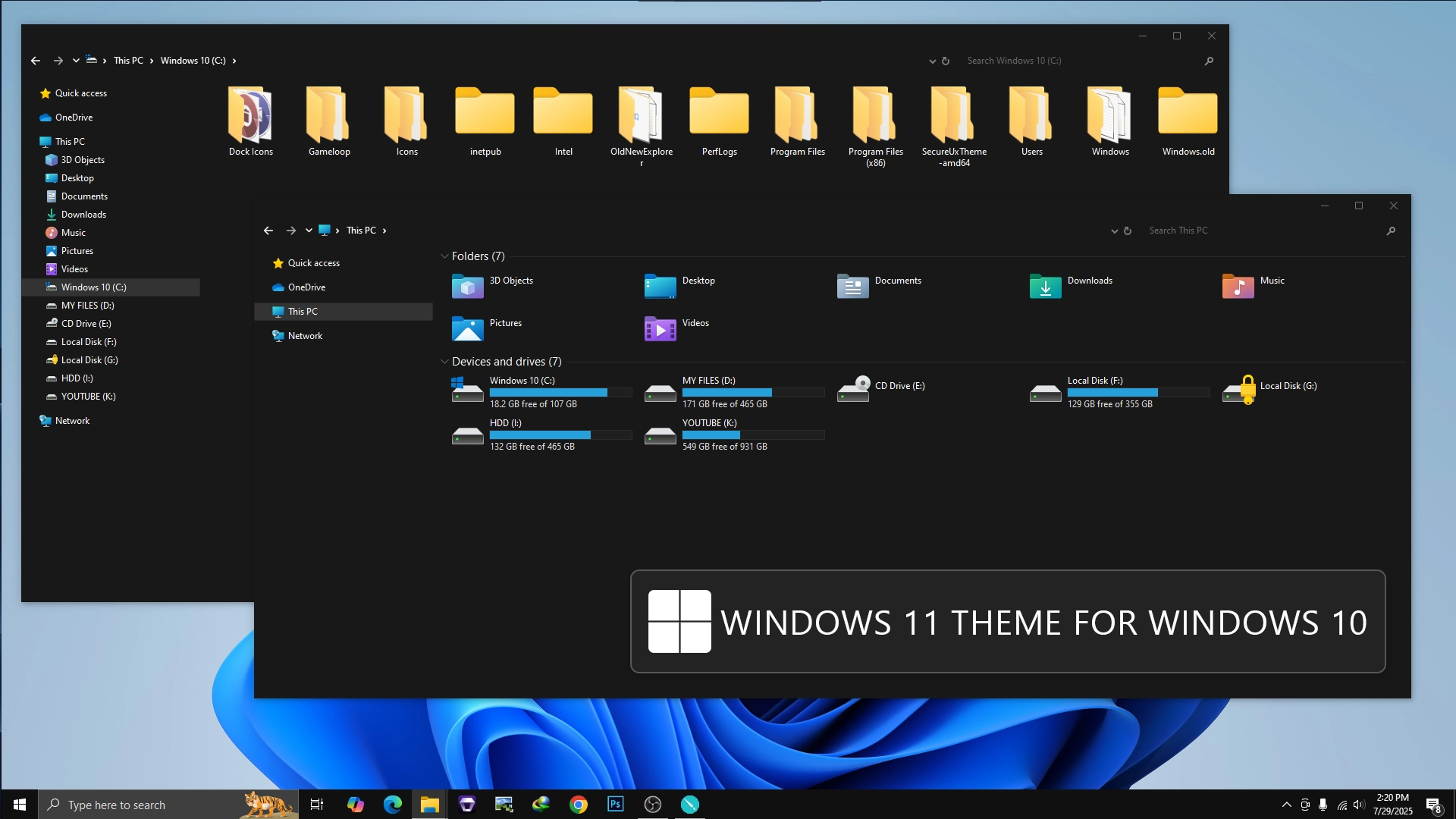
Windows 11 Theme For Windows 10 is a custom desktop theme created for users who like the modern appearance of Windows 11 but want to continue using Windows 10. This theme brings a cleaner interface style with rounded elements, updated visual details, and a more refreshed desktop appearance while keeping the original Windows 10 system unchanged.
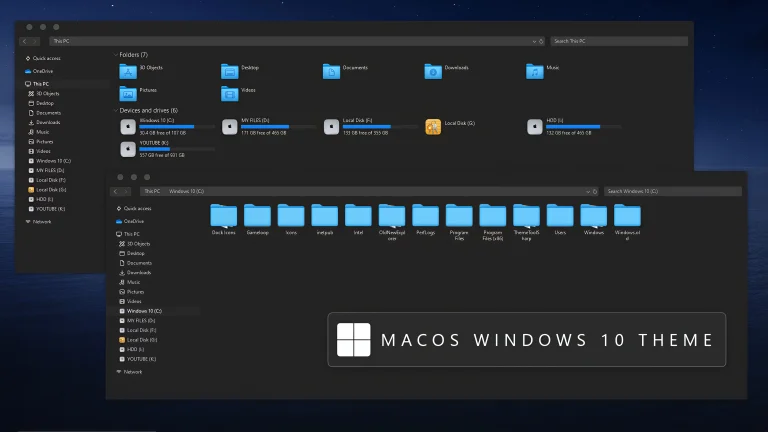
The theme gives Windows 10 a Windows 11-inspired appearance with dark File Explorer styling, refreshed system icons, colorful folder resources, and a cleaner overall interface. Deep black and charcoal surfaces are combined with bright icon accents and blue drive indicators to create a more updated and coordinated desktop look.
This customization package is designed for users who enjoy experimenting with Windows appearance and want a Windows 11-style look without upgrading their operating system. It changes visual elements only and does not replace Windows 10 features or applications.
Features
- Windows 11 inspired visual style for Windows 10
- Modern rounded interface appearance
- Clean and minimal desktop design
- Windows 11 style icons and visual elements
- Works well with matching wallpapers and icon packs
- Keeps the original Windows 10 functionality
Compatibility
- Only Windows 10
- Windows 11 is not supported
What is included in this?
- Windows 10 Theme
System Requirements
- Windows 10 operating system
- Create a System Restore Point before applying customization
- A compatible theme patcher may be required
- Enough storage space to extract the theme files
Optional Customization Tools
Installation Steps
- Install a compatible theme patcher required for applying third-party Windows themes.
- Download the theme package using the button below and extract the files.
- Copy the theme files to the Windows theme folder if required.
- Open Windows Personalization settings and apply the new theme.
- Restart Windows Explorer or your computer if needed.
- Apply optional icon packs or additional customization tools only after the main theme is working correctly.
If you are new to Windows customization, follow the installation steps carefully and avoid applying multiple system modifications at the same time.
Theme Files4MB
Download How to Remove
- Open Windows Personalization settings.
- Select the default Windows theme or another installed theme.
- Remove the custom theme files from the Windows theme folder if required.
- Disable or uninstall optional customization tools that are no longer needed.
- Restart Windows Explorer or your PC to restore the previous appearance.
Disclaimer
This is a third-party Windows customization theme created for personal desktop personalization purposes. It is not an official Microsoft Windows 11 theme and is not affiliated with, endorsed by, or sponsored by Microsoft. Windows and other related trademarks belong to their respective owners. Always create a System Restore Point before applying third-party themes or modifying Windows visual elements.
Conclusion
Windows 11 Theme For Windows 10 is a simple way to bring a more modern visual style to an existing Windows 10 system. With cleaner elements, updated styling, and a Windows 11-inspired appearance, it gives users a fresh desktop experience without changing their operating system.
For the best result, apply the main theme first and add optional icons or customization tools gradually. A simple and balanced setup usually provides the most consistent desktop experience.
Disclaimer: All themes, visual styles, and concepts shared on this website are unofficial, fan-made creations built from imagination for customization purposes. We are not affiliated with, endorsed by, or sponsored by Microsoft or any other official brand.