Harmony Theme For Windows 11
Download Harmony Theme For Windows 11 and transform your desktop with Huawei-inspired icons, transparent effects, modern UI, and premium visuals.

Harmony Theme For Windows 11 – Clean Blue Glass Customization
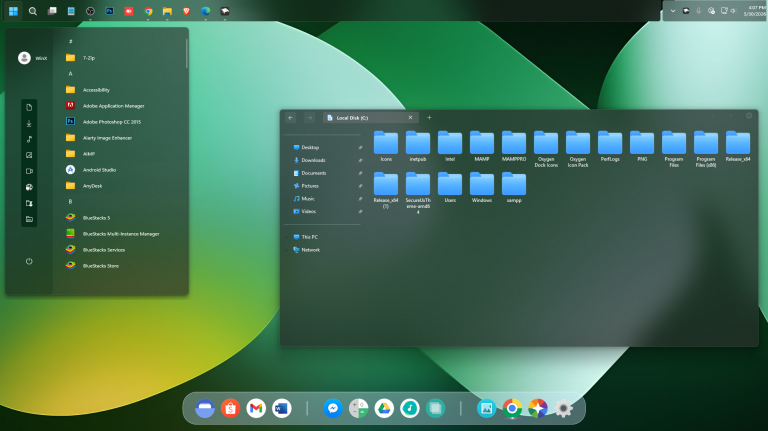
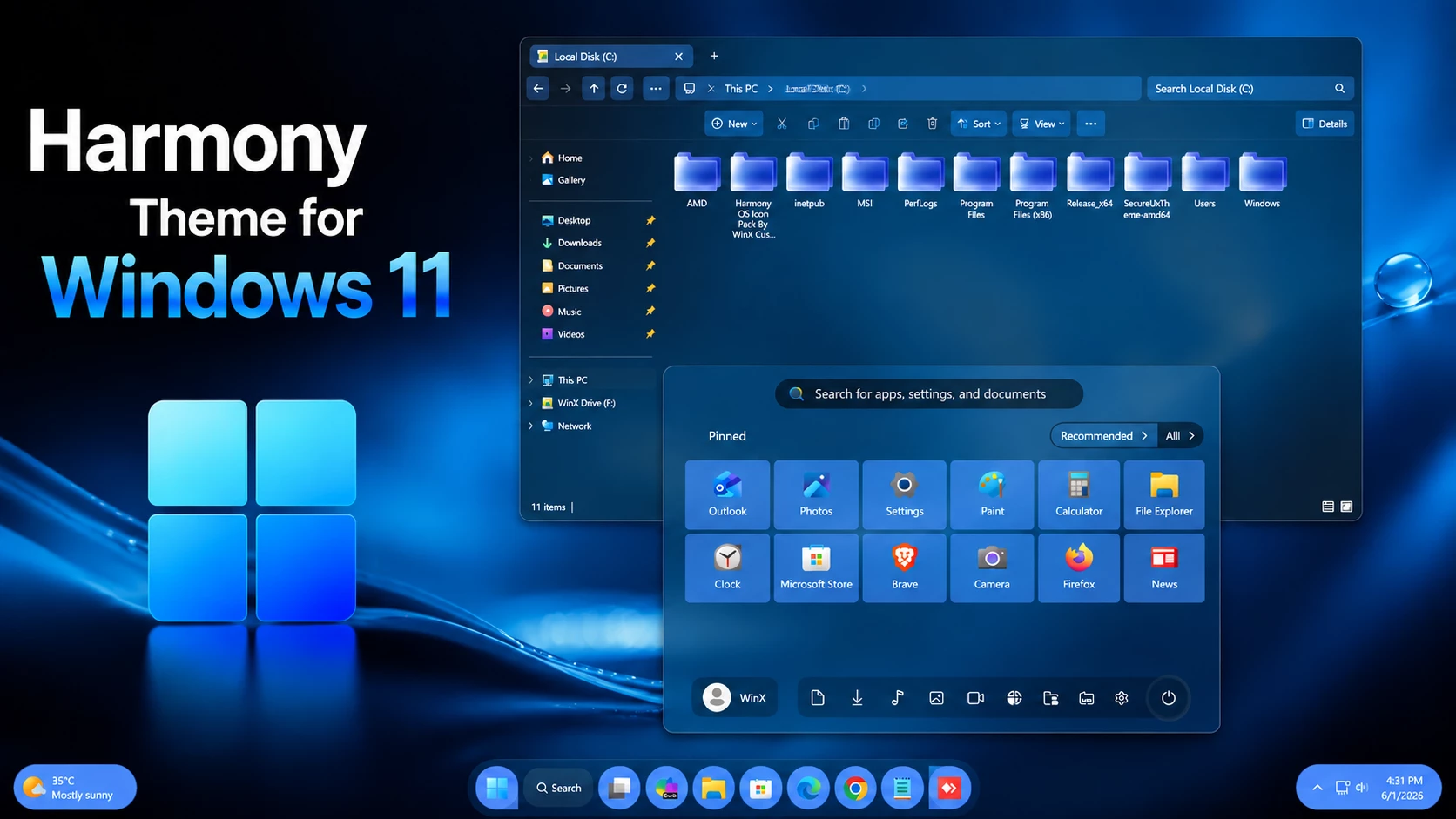
The Harmony Theme For Windows 11 gives the desktop a clean and modern appearance built around a coordinated blue and cyan color palette. Light cyan, soft blue, and deeper blue tones are used across supported interface elements, creating a consistent visual direction without making the desktop feel overly bright.
File Explorer uses a slightly transparent glass-style surface, allowing a small amount of the wallpaper to remain visible behind the interface. The transparency is kept restrained, so folders, navigation items, text, and controls remain clear while the background still adds some depth to the overall setup.
One of the most noticeable details is the consistent color treatment used across the folder styling and storage indicators. The hard-drive level bars use the same cyan and blue color family seen throughout the folder design, helping the different parts of File Explorer feel visually connected rather than using unrelated accent colors.
Why Choose Harmony Theme For Windows 11?
The Harmony Theme For Windows 11 is suited to users who prefer a cleaner Windows setup with coordinated colors, light transparency, and simple interface styling. The blue and cyan palette gives File Explorer a distinct identity while keeping the familiar Windows 11 navigation and layout intact.
The theme focuses on visual consistency rather than filling every area with strong effects. Slight transparency, balanced spacing, and repeated accent colors help the interface stay organized and comfortable for everyday use.
Harmony Design Details
- Coordinated cyan, light-blue, and deeper-blue color palette
- Slightly transparent File Explorer surfaces
- Clean glass-style interface treatment
- Hard-drive level indicators matching the folder color palette
- Cyan and blue storage progress bars
- Clean navigation and content areas
- Compact Windows 11 interface controls
- Balanced borders and separators
- Keeps the familiar Windows 11 Explorer structure
Blue and Cyan Visual Style
The Harmony Theme uses the same general color family across its main visual elements. Folder styling follows a cyan-to-blue direction, and the hard-drive level indicators repeat those tones instead of introducing a completely different accent color.
This repeated palette gives the setup a more unified appearance. Light cyan provides the brighter highlights, while medium and deeper blues add contrast around darker interface areas.
Enhanced File Explorer Experience
File Explorer uses a slightly transparent surface rather than a completely solid background. The effect is subtle enough to keep files and navigation elements readable while still allowing the desktop background to contribute some depth behind the window.
The sidebar, content area, tabs, and toolbar follow the same clean direction. The result is a Windows 11 interface that looks customized without changing the normal way File Explorer works.
Matching Hard-Drive Level Colors
The storage section follows the same visual language used elsewhere in the setup. The hard-drive level indicators use cyan and blue tones that match the folder color palette, keeping the Devices and Drives area consistent with the rest of File Explorer.
Using the same color family for folders and storage information helps the interface feel more connected, especially when several drives are displayed together.
Clean Windows 11 Layout
The theme keeps the overall Windows 11 structure familiar. Rather than rebuilding the interface around an unusual layout, it focuses on color, transparency, spacing, and supported visual details.
Optional dock and Windhawk configurations included with the package can be used if you want to extend the same design direction across more of the desktop.
Installation Steps
- Create a System Restore Point before making changes.
- Patch Windows using SecureUxTheme or UltraUXThemePatcher.
- Download and extract the theme package.
- Copy the theme folder and
.themefile toC:\Windows\Resources\Themes. - Double-click the
.themefile, or go to Personalization > Themes and select the installed theme. - For more details, follow this Windows 11 custom theme installation guide.
Removal Steps
- Switch back to one of the default Windows 11 themes from Settings > Personalization > Themes.
- Disable any optional mods and restore changed icons or other customization resources.
- Restart Windows Explorer or reboot your PC. If needed, use the System Restore Point created before installation.
- For a complete walkthrough, follow this Windows 11 custom theme removal guide.
Compatibility
- Windows 11 24H2: Recommended. Windhawk mods such as Start Menu Styler and Taskbar customization mods are expected to work properly.
- Windows 11 25H2: The theme itself may work, but Windhawk-based modifications may not work correctly due to compatibility changes in the new Windows version.
For the best experience, Windows 11 24H2 is recommended when using this theme with Windhawk customization mods. On Windows 11 25H2, the visual theme may still work, but Start Menu styles, Taskbar styles, and other Windhawk modifications may not function as expected.
What’s Included in This?
- Windows 11 Theme
- Wallpapers
- Dock
- Windhawk Config
Harmony Theme 17MB
DownloadDisclaimer
Harmony Theme for Windows 11 is an independent third-party customization resource intended for personal desktop customization. It is not an official Microsoft, Huawei, or HarmonyOS product and is not affiliated with, sponsored by, approved by, or endorsed by those companies or projects. Windows, HarmonyOS, Huawei, and other related names and trademarks belong to their respective owners. Third-party themes and Windhawk configurations may behave differently across Windows builds, so create a System Restore Point before applying theme files or modifying Windows visual resources.
Final Words
The Harmony Theme For Windows 11 brings together a coordinated cyan-and-blue palette, slightly transparent Explorer surfaces, and matching storage indicators. Using the same color family across the folders and hard-drive level bars gives the setup a more consistent identity without changing the familiar Windows 11 layout.
The included wallpaper, dock, and Windhawk configuration can be added alongside the main theme if you want to recreate the complete desktop setup.