Tron Explorer Style For Windows 11
Get a futuristic Tron Explorer Style for Windows 11 using Windhawk. Customize File Explorer with neon glow, dark glass effects, and a clean cyber-style look.

Tron Explorer Style For Windows 11 Using Windhawk – Futuristic Windows 11 Look
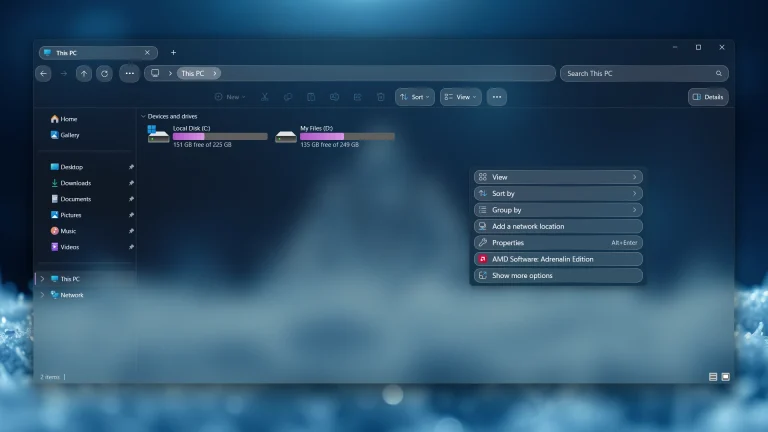
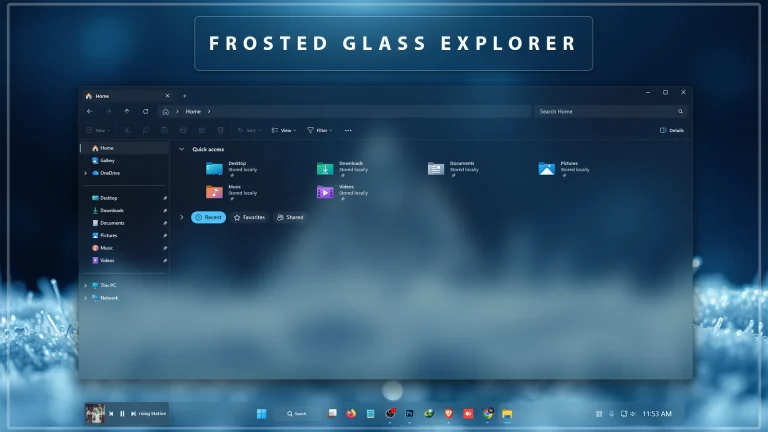
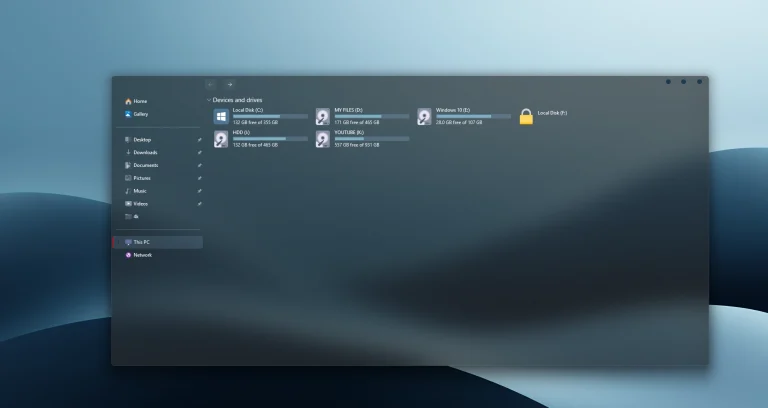
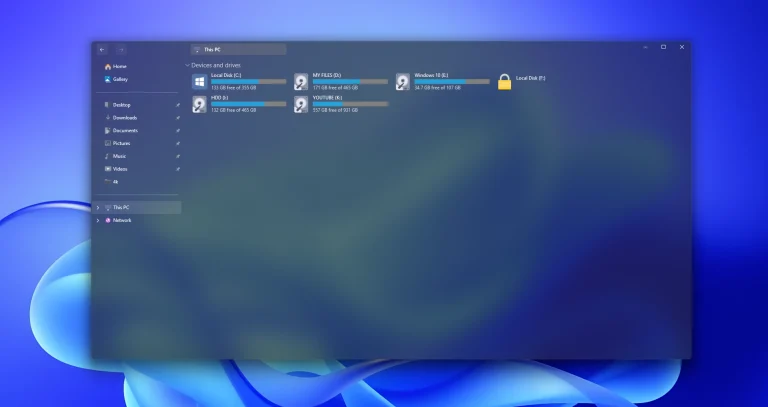
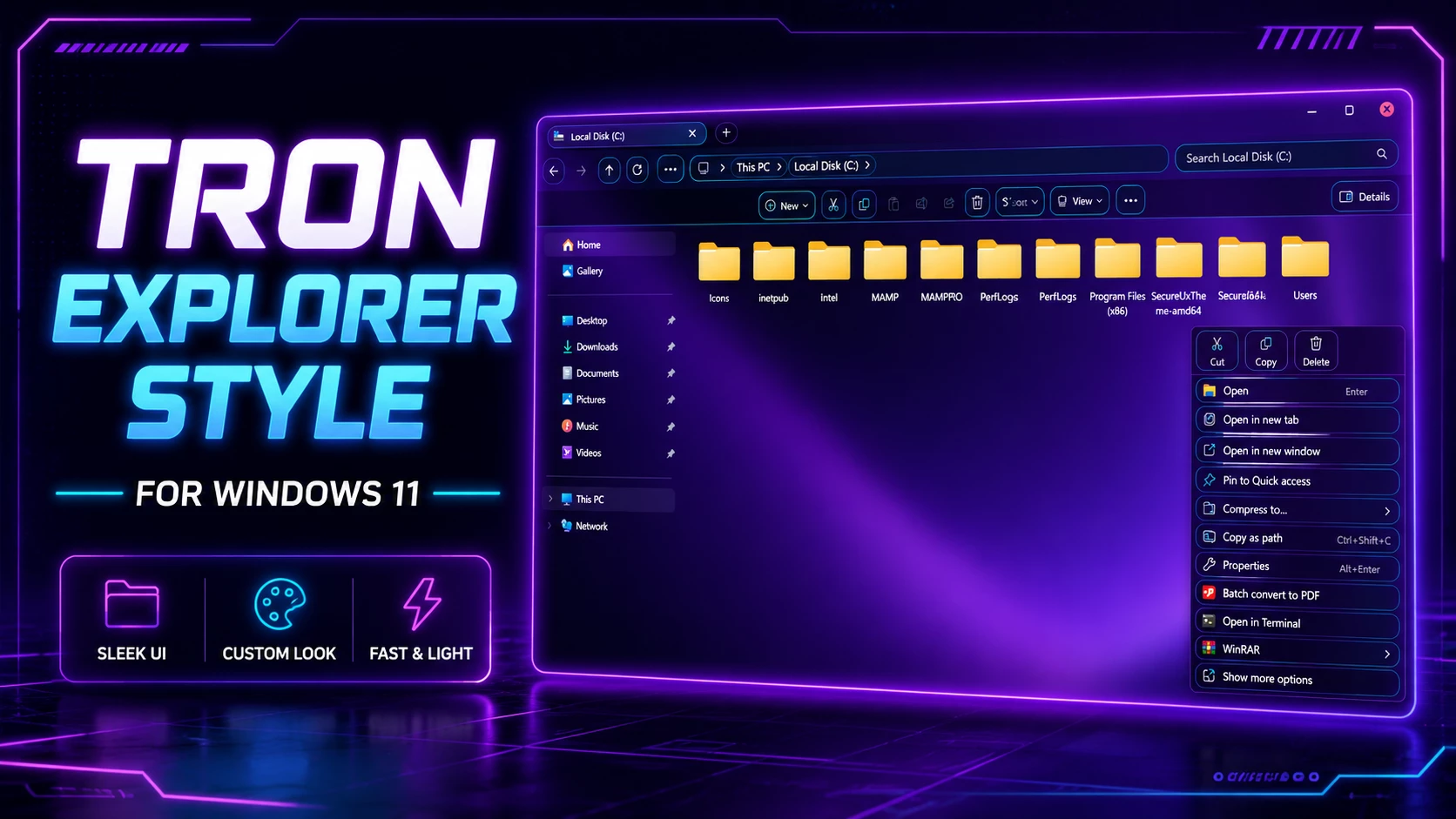
The main focus of this customization is the Windows 11 File Explorer. With the help of Windhawk, File Explorer gets a transparent dark background, glowing borders and a stylish purple-blue color combination. The folder area stays clean and readable, while the overall window looks much more modern than the default Windows 11 Explorer.
This Tron Explorer style is designed to keep the Windows experience simple but visually attractive. Tron Explorer Style For Windows 11 interface does not look too crowded, and the dark background helps the icons and folders stand out clearly. It is a good choice for people who want a unique desktop setup without losing normal usability.
Why This Windows 11 Style Looks Special
Many Windows themes only focus on wallpapers or icon packs, but this Tron Explorer Style For Windows 11 creates a more complete visual experience. The glowing line effects, dark transparent panels and futuristic color tone make the desktop look like a sci-fi control panel. At the same time, the design remains practical for daily work, browsing files, watching videos or creating content.
The combination of Tron-style neon borders and Windows 11’s modern layout makes this customization feel smooth and professional. Tron Explorer Style For Windows 11 is especially suitable for users who like cyberpunk themes, gaming desktops, tech-style setups and futuristic UI designs.
Key Features
- Futuristic Tron-inspired Windows 11 Explorer style
- Dark glass background with neon blue outline
- Purple glow effect for a cyber-style desktop
- Clean and readable File Explorer layout
- Matching taskbar, notification and calendar style
- Modern Windows 11 customization using Windhawk
- Best for gaming, productivity and aesthetic desktop setups
Windhawk Customization Experience
Windhawk is a useful customization tool for Windows users who want to modify the look and behavior of different system elements. With the right style configuration, users can customize File Explorer, taskbar, Start Menu and other Windows interface parts without replacing the full operating system.
This Tron Explorer style works as a visual enhancement for Windows 11. Tron Explorer Style For Windows 11 gives your desktop a fresh look while keeping the familiar Windows layout. That means you can enjoy a futuristic design and still use your PC normally for everyday tasks.
Best Setup Recommendation
For the best result, use this style with a dark purple or blue futuristic wallpaper. A clean desktop with fewer shortcuts will make the neon Explorer design look more premium. You can also use matching icons, a minimal Rainmeter widget or a simple dock to complete the full Tron-style desktop setup.
Try to keep the design balanced. Too many widgets or colorful elements can make the desktop look messy. A simple wallpaper, glowing Explorer style and clean taskbar are enough to create a beautiful futuristic Windows 11 look
Important Safety Note
Before applying any Windows customization, it is recommended to create a system restore point. Windhawk styles are mainly used for visual customization, but results may vary depending on your Windows version, system update and installed customization tools.
Apply only the styles you understand. If any customization does not work properly, you can disable that specific style from Windhawk and restart Windows Explorer or your PC.
Who Is This Style For?
This style is perfect for Windows 11 users who want a futuristic and eye-catching desktop. It is also useful for YouTubers, designers, gamers and customization lovers who want to make their desktop look different from the default Windows interface.
The Tron-inspired color theme gives the desktop a premium visual feel, especially when used with a matching wallpaper and clean icon layout. It can make your PC look more modern, stylish and personal.
- Windows 11 21H2: May work, but not recommended for the best experience
- Windows 11 22H2: May work, but compatibility can vary
- Windows 11 23H2: Recommended
- Windows 11 24H2: Recommended
- Windows 11 25H2: YES work, but test carefully after Windows updates
Requirements
- Download & Install windhawk.
- install & Open Windows 11 File Explorer Styler
- Go to the “Advanced” tab.
- Copy the content below to the text box under “Mod settings” and click “Save”.
{ "Theme": "Tron Explorer Style Created By Link Vegas Theme", "backgroundTranslucentEffect": "", "backgroundTranslucentEffectRegion": "", "styleConstants[0]": "", "controlStyles[0].target": "CommandBar#FileExplorerCommandBar ", "controlStyles[0].styles[0]": "Background=Transparent", "controlStyles[0].styles[1]": "HorizontalAlignment = 1", "controlStyles[1].target": "CommandBar#FileExplorerSecondaryCommandBar", "controlStyles[1].styles[0]": "Background=Transparent", "controlStyles[1].styles[1]": "MinHeight=60", "controlStyles[2].target": "Grid#TabContainerGrid > Border#LeftBottomBorderLine", "controlStyles[2].styles[0]": "Visibility=Collapsed", "controlStyles[3].target": "Grid#TabContainerGrid > Border#RightBottomBorderLine", "controlStyles[3].styles[0]": "Visibility=Collapsed", "controlStyles[4].target": "TabViewItem", "controlStyles[4].styles[0]": "Margin=0,0,8,0", "controlStyles[5].target": "TabViewItem > Grid#LayoutRoot", "controlStyles[5].styles[0]": "CornerRadius=12", "controlStyles[5].styles[1]": "Margin=2,4,0,4", "controlStyles[5].styles[2]": "Height=27", "controlStyles[5].styles[3]": "BorderThickness=1.2", "controlStyles[5].styles[4]": "BorderBrush:=<LinearGradientBrush StartPoint=\"0,0\" EndPoint=\"1,1\"><GradientStop Color=\"#DD00E5FF\" Offset=\"0.0\" /><GradientStop Color=\"#CC7C3AED\" Offset=\"0.55\" /><GradientStop Color=\"#DD00FFA3\" Offset=\"1\" /></LinearGradientBrush>", "controlStyles[6].target": "TabViewItem > Grid#LayoutRoot > Canvas", "controlStyles[6].styles[0]": "Visibility=Collapsed", "controlStyles[7].target": "TabViewItem > Grid#LayoutRoot > Grid#TabContainer", "controlStyles[7].styles[0]": "Background=Transparent", "controlStyles[7].styles[1]": "BorderThickness=0", "controlStyles[8].target": "TabViewItem > Grid#LayoutRoot@CommonStates", "controlStyles[8].styles[0]": "Background@Selected:=<WindhawkBlur BlurAmount=\"28\" TintColor=\"#3300E5FF\" />", "controlStyles[8].styles[1]": "Background@PointerOverSelected:=<WindhawkBlur BlurAmount=\"30\" TintColor=\"#447C3AED\" />", "controlStyles[8].styles[2]": "Background@Normal:=<WindhawkBlur BlurAmount=\"24\" TintColor=\"#18101827\" />", "controlStyles[8].styles[3]": "Background@PointerOver:=<WindhawkBlur BlurAmount=\"30\" TintColor=\"#3000D9FF\" />", "controlStyles[8].styles[4]": "Background@Pressed:=<WindhawkBlur BlurAmount=\"30\" TintColor=\"#407C3AED\" />", "controlStyles[9].target": "Grid#TabContainerGrid > Border > Button#AddButton", "controlStyles[9].styles[0]": "Visibility=0", "controlStyles[9].styles[1]": "Margin=0,0,0,3", "controlStyles[9].styles[2]": "Background:=<WindhawkBlur BlurAmount=\"24\" TintColor=\"#25101827\" />", "controlStyles[9].styles[3]": "BorderBrush:=<LinearGradientBrush StartPoint=\"0,0\" EndPoint=\"1,1\"><GradientStop Color=\"#BB00E5FF\" Offset=\"0\" /><GradientStop Color=\"#BB7C3AED\" Offset=\"0.55\" /><GradientStop Color=\"#BB00FFA3\" Offset=\"1\" /></LinearGradientBrush>", "controlStyles[9].styles[4]": "BorderThickness=1", "controlStyles[9].styles[5]": "CornerRadius=12", "controlStyles[10].target": "Grid#CommandBarControlRootGrid", "controlStyles[10].styles[0]": "Background:=<WindhawkBlur BlurAmount=\"30\" TintColor=\"#70101827\" />", "controlStyles[10].styles[1]": "BorderBrush:=<LinearGradientBrush StartPoint=\"0,0\" EndPoint=\"1,0\"><GradientStop Color=\"#AA00E5FF\" Offset=\"0\" /><GradientStop Color=\"#AA7C3AED\" Offset=\"0.55\" /><GradientStop Color=\"#AA00FFA3\" Offset=\"1\" /></LinearGradientBrush>", "controlStyles[10].styles[2]": "BorderThickness=0,0,0,1", "controlStyles[11].target": "Grid#NavigationBarControlGrid", "controlStyles[11].styles[0]": "Background:=<WindhawkBlur BlurAmount=\"30\" TintColor=\"#6614213D\" />", "controlStyles[11].styles[1]": "BorderBrush:=<LinearGradientBrush StartPoint=\"0,0\" EndPoint=\"1,0\"><GradientStop Color=\"#AA00E5FF\" Offset=\"0\" /><GradientStop Color=\"#AA7C3AED\" Offset=\"0.55\" /><GradientStop Color=\"#AA00FFA3\" Offset=\"1\" /></LinearGradientBrush>", "controlStyles[11].styles[2]": "BorderThickness=0,0,0,1", "controlStyles[12].target": "Grid#PART_LayoutRoot", "controlStyles[12].styles[0]": "Background:=<WindhawkBlur BlurAmount=\"26\" TintColor=\"#5014213D\" />", "controlStyles[12].styles[1]": "CornerRadius=14", "controlStyles[12].styles[2]": "BorderThickness=1.2", "controlStyles[12].styles[3]": "BorderBrush:=<LinearGradientBrush StartPoint=\"0,0\" EndPoint=\"1,1\"><GradientStop Color=\"#DD00E5FF\" Offset=\"0.0\" /><GradientStop Color=\"#CC7C3AED\" Offset=\"0.55\" /><GradientStop Color=\"#DD00FFA3\" Offset=\"1\" /></LinearGradientBrush>", "controlStyles[13].target": "FileExplorerExtensions.CommandBarControl", "controlStyles[13].styles[0]": "Margin=0,0,0,0", "controlStyles[14].target": "AutoSuggestBox#FileExplorerSearchBox > Grid#LayoutRoot > TextBox > Grid@CommonStates > Border#BorderElement", "controlStyles[14].styles[0]": "Background:=<WindhawkBlur BlurAmount=\"28\" TintColor=\"#5014213D\" />", "controlStyles[14].styles[1]": "CornerRadius=14", "controlStyles[14].styles[2]": "BorderThickness=1.2", "controlStyles[14].styles[3]": "BorderBrush:=<LinearGradientBrush StartPoint=\"0,0\" EndPoint=\"1,1\"><GradientStop Color=\"#DD00E5FF\" Offset=\"0.0\" /><GradientStop Color=\"#CC7C3AED\" Offset=\"0.55\" /><GradientStop Color=\"#DD00FFA3\" Offset=\"1\" /></LinearGradientBrush>", "controlStyles[14].styles[4]": "Background@PointerOver:=<WindhawkBlur BlurAmount=\"30\" TintColor=\"#3300D9FF\" />", "controlStyles[14].styles[5]": "Background@Focused:=<WindhawkBlur BlurAmount=\"32\" TintColor=\"#407C3AED\" />", "controlStyles[15].target": "Microsoft.UI.Xaml.Controls.AppBarButton", "controlStyles[15].styles[0]": "Background:=<WindhawkBlur BlurAmount=\"24\" TintColor=\"#3514213D\" />", "controlStyles[15].styles[1]": "CornerRadius=12", "controlStyles[15].styles[2]": "BorderThickness=1", "controlStyles[15].styles[3]": "Margin=3,0,3,1", "controlStyles[15].styles[4]": "BorderBrush:=<LinearGradientBrush StartPoint=\"0,0\" EndPoint=\"1,1\"><GradientStop Color=\"#AA00E5FF\" Offset=\"0.0\" /><GradientStop Color=\"#AA7C3AED\" Offset=\"0.55\" /><GradientStop Color=\"#AA00FFA3\" Offset=\"1\" /></LinearGradientBrush>", "controlStyles[16].target": "Microsoft.UI.Xaml.Controls.AppBarToggleButton", "controlStyles[16].styles[0]": "Background:=<WindhawkBlur BlurAmount=\"24\" TintColor=\"#3514213D\" />", "controlStyles[16].styles[1]": "CornerRadius=12", "controlStyles[16].styles[2]": "BorderThickness=1", "controlStyles[16].styles[3]": "Margin=3,0,3,1", "controlStyles[16].styles[4]": "BorderBrush:=<LinearGradientBrush StartPoint=\"0,0\" EndPoint=\"1,1\"><GradientStop Color=\"#AA00E5FF\" Offset=\"0.0\" /><GradientStop Color=\"#AA7C3AED\" Offset=\"0.55\" /><GradientStop Color=\"#AA00FFA3\" Offset=\"1\" /></LinearGradientBrush>", "controlStyles[17].target": "Button#MoreButton", "controlStyles[17].styles[0]": "Background:=<WindhawkBlur BlurAmount=\"24\" TintColor=\"#3514213D\" />", "controlStyles[17].styles[1]": "CornerRadius=12", "controlStyles[17].styles[2]": "BorderThickness=1", "controlStyles[17].styles[3]": "Margin=3,0,3,1", "controlStyles[17].styles[4]": "BorderBrush:=<LinearGradientBrush StartPoint=\"0,0\" EndPoint=\"1,1\"><GradientStop Color=\"#AA00E5FF\" Offset=\"0.0\" /><GradientStop Color=\"#AA7C3AED\" Offset=\"0.55\" /><GradientStop Color=\"#AA00FFA3\" Offset=\"1\" /></LinearGradientBrush>", "controlStyles[18].target": "Microsoft.UI.Xaml.Controls.AppBarSeparator", "controlStyles[18].styles[0]": "Visibility=Collapsed", "controlStyles[19].target": "Microsoft.UI.Xaml.Controls.AppBarButton#backButton", "controlStyles[19].styles[0]": "Margin=0,9,9,0", "controlStyles[20].target": "Microsoft.UI.Xaml.Controls.AppBarButton#forwardButton", "controlStyles[20].styles[0]": "Margin=0,9,9,0", "controlStyles[21].target": "Microsoft.UI.Xaml.Controls.AppBarButton#upButton", "controlStyles[21].styles[0]": "Margin=0,9,9,0", "controlStyles[22].target": "Microsoft.UI.Xaml.Controls.AppBarButton#refreshButton", "controlStyles[22].styles[0]": "Margin=0,9,9,0", "themeResourceVariables[0]": "", "explorerFrameContainerHeight": 0, "xamlDiagnosticsHandling": ""}- Is Windhawk safe for Windows 11?
- Does this work on Windows 10? Ans: Not Yet
- Will this slow down my PC?
Yes, Windhawk is an open-source project that uses a modular approach, meaning it doesn’t modify system files permanently. You can disable the Liquid Glass Explorer style instantly by clicking “Uninstall” in the app.
On modern hardware (2024+), the impact is negligible (usually less than 1% GPU usage).
Final Thoughts
Tron Explorer Style For Windows 11 Using Windhawk is a great choice for anyone who wants to transform the normal Windows 11 interface into a futuristic neon desktop. The dark glass effect, glowing border, purple tone and clean Explorer layout create a powerful cyber-style appearance.
Overall, this Windows 11 customization is stylish, modern and easy to enjoy for daily use. It gives your desktop a fresh futuristic identity while keeping the original Windows 11 workflow simple and familiar.
FAQ
Is Tron Explorer Style safe for Windows 11?
This is a visual customization style. For safety, create a restore point before applying any system customization and disable the style if it does not work properly.
Do I need Windhawk for this customization?
Yes, this style is designed for Windows 11 customization using Windhawk. Windhawk helps apply UI style changes to different Windows elements.
Does this style permanently change Windows?
No, this type of customization can usually be disabled from Windhawk. It does not require reinstalling Windows or permanently changing your system files.