

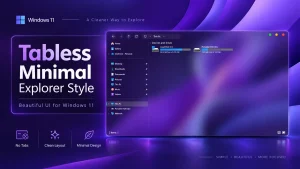
Tabless Minimal Explorer Style for Windows 11
Tabless Minimal Explorer Style is a clean Windhawk Explorer customization for Windows users who prefer a simple File Explorer look without extra visual clutter. Learn its features, compatibility, installation steps, uninstall method, safety notes, and common troubleshooting tips.

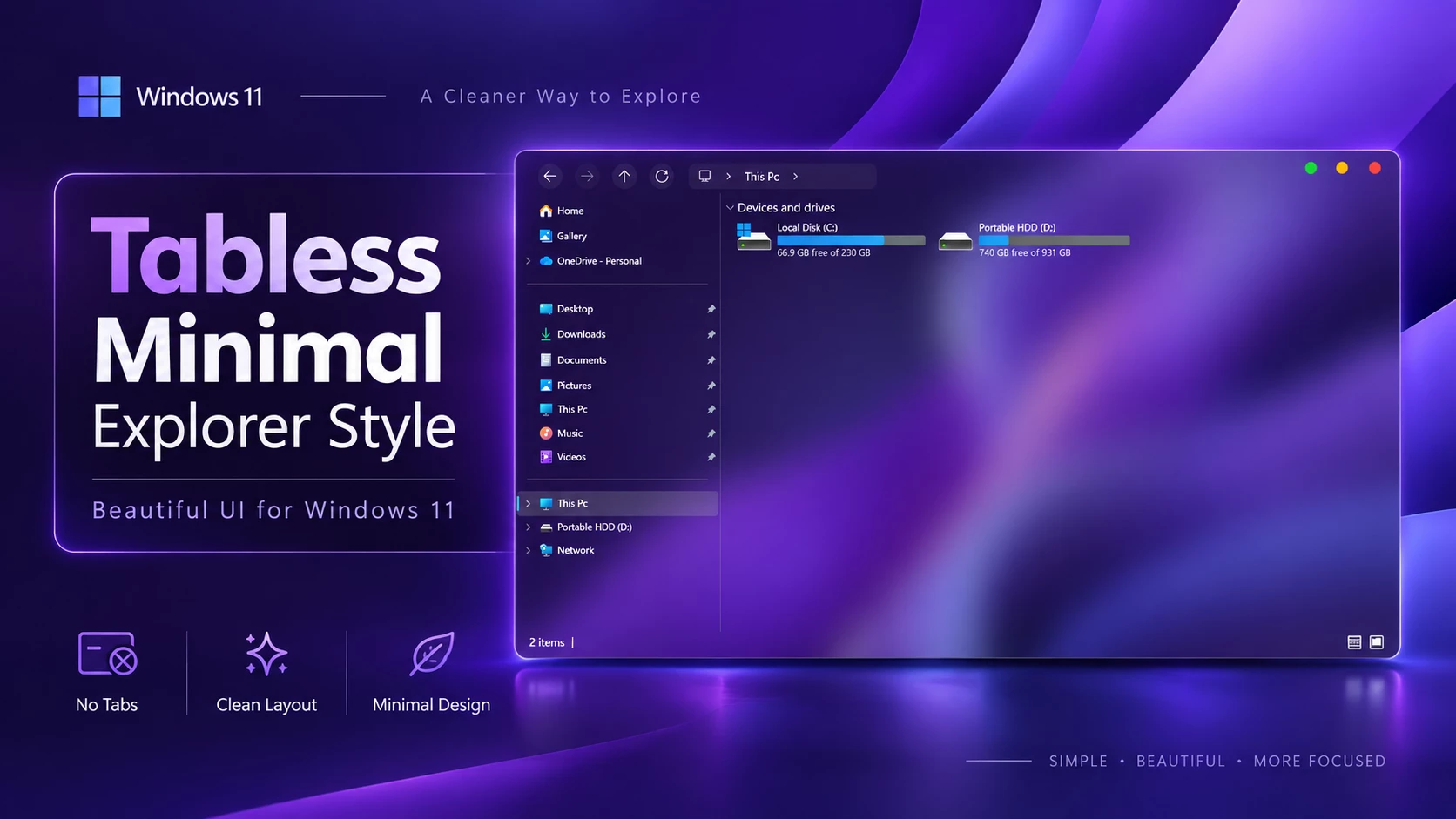
Tabless Minimal Explorer Style Windhawk
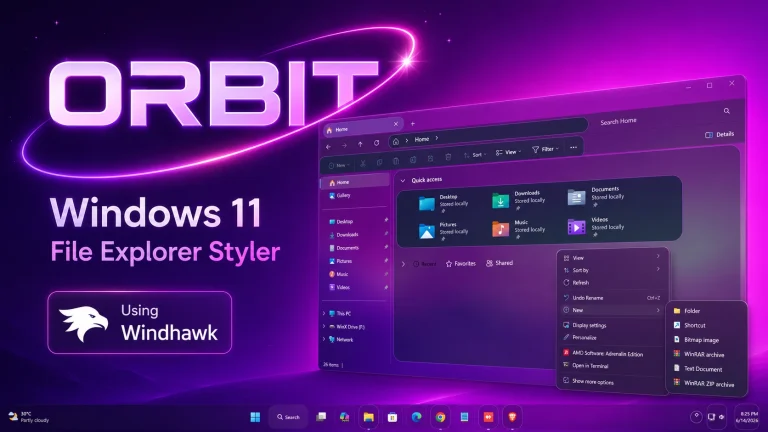
The Tabless Minimal Explorer Style is a clean and simple Explorer Style made for users who want Windows File Explorer to look lighter, calmer, and less crowded. It is designed for Windhawk customization and focuses on giving File Explorer a more minimal appearance by reducing the visual weight of the tab area and keeping the interface neat for everyday use.
Many Windows users like customization, but not everyone wants a heavy theme with too many effects. Some people simply want File Explorer to feel cleaner while still looking familiar. That is where this style can be useful. It does not try to turn Windows into a completely different operating system. Instead, it improves one of the most used parts of Windows in a subtle and practical way.
If you open File Explorer many times a day for work, study, file management, downloads, projects, or content creation, a minimal layout can make the experience feel more comfortable. The Tabless Minimal Explorer Style is especially suitable for users who prefer a clean desktop setup, soft wallpapers, simple icon packs, and modern Windows 11 customization.
What Is Tabless Minimal Explorer Style?
Tabless Minimal Explorer Style is a Windhawk Explorer customization that changes how File Explorer looks. The main idea is to create a smoother and less distracting Explorer interface. As the name suggests, the style is focused on a tabless or reduced-tab appearance, giving the top area of File Explorer a cleaner look.
This style is not an official Microsoft design and it is not a full Windows theme. It is a third-party customization style that works through Windhawk. The purpose is visual improvement, not system performance boosting or feature unlocking.
For users who like minimal design, this style can help File Explorer match the rest of a clean desktop setup. It works well with modern taskbar styles, soft icon packs, neutral wallpapers, Rainmeter widgets, and other simple Windows customization elements.
Main Features
The Tabless Minimal Explorer Style is made for users who want File Explorer to feel simple and organized. It does not overload the interface with unnecessary decoration. Instead, it keeps the design focused on clarity.
- Creates a cleaner File Explorer appearance
- Reduces the visual impact of the tab area
- Works through Windhawk customization
- Fits well with minimal Windows 11 desktop setups
- Helps File Explorer look more modern and less cluttered
- Pairs nicely with custom icon packs and simple wallpapers
- Useful for users who prefer a calm, distraction-free layout
The final look may depend on your Windows version, display scaling, active Windhawk mods, and other customization tools installed on your PC. If you already use a different File Explorer mod, the result may vary.
Compatibility
- Windows 11 21H2: May work, but not recommended for the best experience
- Windows 11 22H2: May work, but compatibility can vary
- Windows 11 23H2: Recommended
- Windows 11 24H2: Recommended
- Windows 11 25H2: YES work, but test carefully after Windows updates
Installation steps:
- Download & Install windhawk.
- install & Open Windows 11 File Explorer Styler
- Go to the Settings tab and select Textual mode.
- Copy the content below and paste it into the text box and click “Save”.
- For more details, visit this GitHub guide
{ "theme": "Tabless Minimal By link Vegas", "backgroundTranslucentEffect": "mica", "backgroundTranslucentEffectRegion": "", "styleConstants[0]": "lvButton=<SolidColorBrush Color=\"{ThemeResource SystemBaseHighColor}\" Opacity=\"0.06\" />", "styleConstants[1]": "lvHover=<SolidColorBrush Color=\"{ThemeResource SystemBaseHighColor}\" Opacity=\"0.10\" />", "styleConstants[2]": "lvPressed=<SolidColorBrush Color=\"{ThemeResource SystemBaseHighColor}\" Opacity=\"0.15\" />", "styleConstants[3]": "lvDisabled=<SolidColorBrush Color=\"{ThemeResource SystemBaseHighColor}\" Opacity=\"0.025\" />", "styleConstants[4]": "lvField=<SolidColorBrush Color=\"{ThemeResource SystemBaseHighColor}\" Opacity=\"0.045\" />", "styleConstants[5]": "lvFocus=<SolidColorBrush Color=\"{ThemeResource SystemAccentColor}\" Opacity=\"0.12\" />", "styleConstants[6]": "lvAddressWidth={{lvHeaderWidth == `` ? 240 : max(140, min(240, (lvHeaderWidth - 492) * 0.52))}}", "styleConstants[7]": "lvSearchWidth={{lvHeaderWidth == `` ? 220 : max(112, min(220, (lvHeaderWidth - 492) - (max(140, min(240, (lvHeaderWidth - 492) * 0.52)))))}}", "styleConstants[8]": "lvAddressColumn={{lvHeaderWidth == `` ? 242 : (max(140, min(240, (lvHeaderWidth - 492) * 0.52))) + 2}}", "styleConstants[9]": "lvSearchColumn={{lvHeaderWidth == `` ? 236 : (max(112, min(220, (lvHeaderWidth - 492) - (max(140, min(240, (lvHeaderWidth - 492) * 0.52)))))) + 16}}", "styleConstants[10]": "lvGroupStart={{lvHeaderWidth == `` ? 440 : max(240, min(lvHeaderWidth - 252 - (max(140, min(240, (lvHeaderWidth - 492) * 0.52))) - (max(112, min(220, (lvHeaderWidth - 492) - (max(140, min(240, (lvHeaderWidth - 492) * 0.52)))))), lvHeaderWidth * 0.60 - ((max(140, min(240, (lvHeaderWidth - 492) * 0.52))) + (max(112, min(220, (lvHeaderWidth - 492) - (max(140, min(240, (lvHeaderWidth - 492) * 0.52)))))) + 72) * 0.5))}}", "styleConstants[11]": "lvMenuLeft={{lvHeaderWidth == `` ? 930 : (max(240, min(lvHeaderWidth - 252 - (max(140, min(240, (lvHeaderWidth - 492) * 0.52))) - (max(112, min(220, (lvHeaderWidth - 492) - (max(140, min(240, (lvHeaderWidth - 492) * 0.52)))))), lvHeaderWidth * 0.60 - ((max(140, min(240, (lvHeaderWidth - 492) * 0.52))) + (max(112, min(220, (lvHeaderWidth - 492) - (max(140, min(240, (lvHeaderWidth - 492) * 0.52)))))) + 72) * 0.5))) + (max(140, min(240, (lvHeaderWidth - 492) * 0.52))) + (max(112, min(220, (lvHeaderWidth - 492) - (max(140, min(240, (lvHeaderWidth - 492) * 0.52)))))) + 30}}", "styleConstants[12]": "lvAddressSearchSpacer={{lvHeaderWidth == `` ? 200 : (max(240, min(lvHeaderWidth - 252 - (max(140, min(240, (lvHeaderWidth - 492) * 0.52))) - (max(112, min(220, (lvHeaderWidth - 492) - (max(140, min(240, (lvHeaderWidth - 492) * 0.52)))))), lvHeaderWidth * 0.60 - ((max(140, min(240, (lvHeaderWidth - 492) * 0.52))) + (max(112, min(220, (lvHeaderWidth - 492) - (max(140, min(240, (lvHeaderWidth - 492) * 0.52)))))) + 72) * 0.5))) - 240}}", "controlStyles[0].target": "FileExplorerExtensions.CommandBarControl_Wave1, FileExplorerExtensions.CommandBarControl", "controlStyles[0].styles[0]": "Background=Transparent", "controlStyles[0].styles[1]": "Visibility=Visible", "controlStyles[0].styles[2]": "Opacity=1", "controlStyles[0].styles[3]": "IsHitTestVisible=True", "controlStyles[0].styles[4]": "Grid.Row=0", "controlStyles[0].styles[5]": "Grid.RowSpan=1", "controlStyles[0].styles[6]": "Canvas.ZIndex=10", "controlStyles[0].styles[7]": "HorizontalAlignment=Left", "controlStyles[0].styles[8]": "VerticalAlignment=Top", "controlStyles[0].styles[9]": "MinWidth=0", "controlStyles[0].styles[10]": "Width=42", "controlStyles[0].styles[11]": "MaxWidth=42", "controlStyles[0].styles[12]": "MinHeight=0", "controlStyles[0].styles[13]": "Height=48", "controlStyles[0].styles[14]": "Padding=0", "controlStyles[0].styles[15]": "Margin=$lvMenuLeft,2,0,2", "controlStyles[0].styles[16]": "UseLayoutRounding=True", "controlStyles[1].target": "FileExplorerExtensions.CommandBarControl_Wave1 > Grid, Grid#CommandBarControlRootGrid", "controlStyles[1].styles[0]": "Background=Transparent", "controlStyles[1].styles[1]": "Visibility=Visible", "controlStyles[1].styles[2]": "Opacity=1", "controlStyles[1].styles[3]": "IsHitTestVisible=True", "controlStyles[1].styles[4]": "BorderBrush=Transparent", "controlStyles[1].styles[5]": "BorderThickness=0", "controlStyles[1].styles[6]": "Grid.Row=0", "controlStyles[1].styles[7]": "Grid.RowSpan=1", "controlStyles[1].styles[8]": "HorizontalAlignment=Left", "controlStyles[1].styles[9]": "VerticalAlignment=Top", "controlStyles[1].styles[10]": "MinWidth=0", "controlStyles[1].styles[11]": "Width=42", "controlStyles[1].styles[12]": "MaxWidth=42", "controlStyles[1].styles[13]": "MinHeight=0", "controlStyles[1].styles[14]": "Height=48", "controlStyles[1].styles[15]": "Margin=0", "controlStyles[1].styles[16]": "Padding=0", "controlStyles[1].styles[17]": "ColumnDefinitions:=<ColumnDefinitionCollection><ColumnDefinition Width=\"42\"/><ColumnDefinition Width=\"0\"/></ColumnDefinitionCollection>", "controlStyles[2].target": "Microsoft.UI.Xaml.Controls.CommandBar#FileExplorerCommandBar", "controlStyles[2].styles[0]": "Grid.Column=0", "controlStyles[2].styles[1]": "Grid.ColumnSpan=1", "controlStyles[2].styles[2]": "Background=Transparent", "controlStyles[2].styles[3]": "Visibility=Visible", "controlStyles[2].styles[4]": "Opacity=1", "controlStyles[2].styles[5]": "IsHitTestVisible=True", "controlStyles[2].styles[6]": "HorizontalAlignment=Left", "controlStyles[2].styles[7]": "VerticalAlignment=Center", "controlStyles[2].styles[8]": "MinWidth=0", "controlStyles[2].styles[9]": "Width=42", "controlStyles[2].styles[10]": "MaxWidth=42", "controlStyles[2].styles[11]": "MinHeight=0", "controlStyles[2].styles[12]": "Height=48", "controlStyles[2].styles[13]": "Margin=0", "controlStyles[2].styles[14]": "Padding=0", "controlStyles[2].styles[15]": "IsDynamicOverflowEnabled=True", "controlStyles[2].styles[16]": "OverflowButtonVisibility=Visible", "controlStyles[2].styles[17]": "ClosedDisplayMode=Compact", "controlStyles[2].styles[18]": "CommandBarOverflowPresenterStyle:=<Style TargetType=\"CommandBarOverflowPresenter\"><Setter Property=\"MaxHeight\" Value=\"384\"/><Setter Property=\"MinWidth\" Value=\"232\"/><Setter Property=\"Padding\" Value=\"0,6,0,6\"/></Style>", "controlStyles[3].target": "CommandBar#FileExplorerSecondaryCommandBar", "controlStyles[3].styles[0]": "Visibility=Collapsed", "controlStyles[4].target": "AppBarToggleButton[Label=Details], AppBarButton[Label=Details]", "controlStyles[4].styles[0]": "Visibility=Collapsed", "controlStyles[5].target": "Microsoft.UI.Xaml.Controls.Border#BottomBorderLine", "controlStyles[5].styles[0]": "Visibility=Collapsed", "controlStyles[6].target": "FileExplorerExtensions.NavigationBarControl", "controlStyles[6].styles[0]": "Grid.Row=0", "controlStyles[6].styles[1]": "Grid.RowSpan=1", "controlStyles[6].styles[2]": "HorizontalAlignment=Stretch", "controlStyles[6].styles[3]": "VerticalAlignment=Top", "controlStyles[6].styles[4]": "MinHeight=0", "controlStyles[6].styles[5]": "Height=48", "controlStyles[6].styles[6]": "Padding=0", "controlStyles[6].styles[7]": "ActualWidth=>lvHeaderWidth", "controlStyles[6].styles[8]": "MinWidth=0", "controlStyles[6].styles[9]": "Margin=0,2,0,2", "controlStyles[6].styles[10]": "UseLayoutRounding=True", "controlStyles[7].target": "Microsoft.UI.Xaml.Controls.Grid#NavigationBarControlGrid", "controlStyles[7].styles[0]": "Background:=", "controlStyles[7].styles[1]": "BorderBrush=Transparent", "controlStyles[7].styles[2]": "MinHeight=0", "controlStyles[7].styles[3]": "Height=48", "controlStyles[7].styles[4]": "ColumnDefinitions:=<ColumnDefinitionCollection><ColumnDefinition Width=\"240\"/><ColumnDefinition Width=\"$lvAddressColumn\"/><ColumnDefinition Width=\"$lvAddressSearchSpacer\"/><ColumnDefinition Width=\"$lvSearchColumn\"/><ColumnDefinition Width=\"54\"/><ColumnDefinition Width=\"*\" MinWidth=\"0\"/></ColumnDefinitionCollection>", "controlStyles[7].styles[5]": "Margin=0,0,180,0", "controlStyles[7].styles[6]": "UseLayoutRounding=True", "controlStyles[8].target": "Grid#TabContainerGrid", "controlStyles[8].styles[0]": "Grid.Row=0", "controlStyles[8].styles[1]": "HorizontalAlignment=Left", "controlStyles[8].styles[2]": "Margin=100,0,0,0", "controlStyles[8].styles[3]": "Width=1", "controlStyles[8].styles[4]": "MaxWidth=1", "controlStyles[8].styles[5]": "MinWidth=0", "controlStyles[8].styles[6]": "Background:=", "controlStyles[8].styles[7]": "IsHitTestVisible=False", "controlStyles[9].target": "FileExplorerExtensions.FileExplorerTabControl", "controlStyles[9].styles[0]": "HorizontalAlignment=Left", "controlStyles[9].styles[1]": "Margin=100,0,0,0", "controlStyles[9].styles[2]": "Width=1", "controlStyles[9].styles[3]": "MaxWidth=1", "controlStyles[9].styles[4]": "MinWidth=0", "controlStyles[9].styles[5]": "Background:=", "controlStyles[9].styles[6]": "IsHitTestVisible=False", "controlStyles[10].target": "TabViewItem", "controlStyles[10].styles[0]": "Width=0", "controlStyles[10].styles[1]": "Visibility=Collapsed", "controlStyles[11].target": "Grid#TabContainerGrid > Border > Button#AddButton", "controlStyles[11].styles[0]": "Visibility=Collapsed", "controlStyles[12].target": "AutoSuggestBox#FileExplorerSearchBox > Grid#LayoutRoot > TextBox > Grid@CommonStates > Border#BorderElement", "controlStyles[12].styles[0]": "Background:=$lvField", "controlStyles[12].styles[1]": "Background@Normal:=$lvField", "controlStyles[12].styles[2]": "Background@PointerOver:=$lvHover", "controlStyles[12].styles[3]": "Background@Focused:=$lvFocus", "controlStyles[12].styles[4]": "Background@Disabled:=$lvDisabled", "controlStyles[12].styles[5]": "BorderThickness=0", "controlStyles[12].styles[6]": "BorderBrush=Transparent", "controlStyles[12].styles[7]": "CornerRadius=8", "controlStyles[13].target": "Microsoft.UI.Xaml.Controls.Grid#FileExplorerAddressBarGrid > Grid#LayoutRoot > TextBox > Grid@CommonStates > Border#BorderElement", "controlStyles[13].styles[0]": "Background=Transparent", "controlStyles[13].styles[1]": "BorderThickness=0", "controlStyles[13].styles[2]": "CornerRadius=8", "controlStyles[14].target": "Microsoft.UI.Xaml.Controls.AutoSuggestBox#FileExplorerSearchBox > Microsoft.UI.Xaml.Controls.Grid#LayoutRoot > Microsoft.UI.Xaml.Controls.TextBox#TextBox", "controlStyles[14].styles[0]": "Margin=0", "controlStyles[14].styles[1]": "MinWidth=0", "controlStyles[14].styles[2]": "Background=Transparent", "controlStyles[14].styles[3]": "BorderBrush=Transparent", "controlStyles[14].styles[4]": "HorizontalAlignment=Stretch", "controlStyles[14].styles[5]": "TextAlignment=Left", "controlStyles[14].styles[6]": "HorizontalContentAlignment=Left", "controlStyles[14].styles[7]": "CornerRadius=8", "controlStyles[14].styles[8]": "Width=$lvSearchWidth", "controlStyles[14].styles[9]": "Height=32", "controlStyles[14].styles[10]": "MinHeight=32", "controlStyles[14].styles[11]": "Padding=12,0,32,0", "controlStyles[14].styles[12]": "VerticalContentAlignment=Center", "controlStyles[15].target": "Microsoft.UI.Xaml.Controls.Grid#FileExplorerAddressBarGrid", "controlStyles[15].styles[0]": "Grid.Column=1", "controlStyles[15].styles[1]": "Grid.ColumnSpan=1", "controlStyles[15].styles[2]": "HorizontalAlignment=Left", "controlStyles[15].styles[3]": "VerticalAlignment=Center", "controlStyles[15].styles[4]": "MinWidth=0", "controlStyles[15].styles[5]": "Height=32", "controlStyles[15].styles[6]": "Margin=-16,0,0,0", "controlStyles[15].styles[7]": "Background:=", "controlStyles[15].styles[8]": "CornerRadius=8", "controlStyles[15].styles[9]": "Width=$lvAddressWidth", "controlStyles[15].styles[10]": "MaxWidth=$lvAddressWidth", "controlStyles[15].styles[11]": "MinHeight=32", "controlStyles[16].target": "AutoSuggestBox#FileExplorerSearchBox", "controlStyles[16].styles[0]": "Visibility=Collapsed", "controlStyles[16].styles[1]": "Grid.Column=3", "controlStyles[16].styles[2]": "Grid.ColumnSpan=1", "controlStyles[16].styles[3]": "HorizontalAlignment=Left", "controlStyles[16].styles[4]": "VerticalAlignment=Center", "controlStyles[16].styles[5]": "MinWidth=0", "controlStyles[16].styles[6]": "Height=0", "controlStyles[16].styles[7]": "Margin=0", "controlStyles[16].styles[8]": "Background:=", "controlStyles[16].styles[9]": "Width=0", "controlStyles[16].styles[10]": "MaxWidth=0", "controlStyles[16].styles[11]": "MinHeight=0", "controlStyles[17].target": "AutoSuggestBox#FileExplorerSearchBox > Grid#LayoutRoot", "controlStyles[17].styles[0]": "Background:=", "controlStyles[17].styles[1]": "Margin=0", "controlStyles[17].styles[2]": "MinWidth=0", "controlStyles[17].styles[3]": "Width=$lvSearchWidth", "controlStyles[17].styles[4]": "Height=32", "controlStyles[17].styles[5]": "MinHeight=32", "controlStyles[18].target": "CommandBar#FileExplorerCommandBar > * > Button", "controlStyles[18].styles[0]": "FontSize=14", "controlStyles[18].styles[1]": "Background:=$lvButton", "controlStyles[18].styles[2]": "CornerRadius=16", "controlStyles[19].target": "CommandBar#FileExplorerCommandBar > * > AppBarButton", "controlStyles[19].styles[0]": "CornerRadius=16", "controlStyles[20].target": "AppBarButton#backButton > Grid#Root@CommonStates > Border#AppBarButtonInnerBorder, AppBarButton#forwardButton > Grid#Root@CommonStates > Border#AppBarButtonInnerBorder, AppBarButton#upButton > Grid#Root@CommonStates > Border#AppBarButtonInnerBorder, AppBarButton#refreshButton > Grid#Root@CommonStates > Border#AppBarButtonInnerBorder, CommandBar#FileExplorerCommandBar > * > AppBarButton > Grid#Root@CommonStates > Border#AppBarButtonInnerBorder", "controlStyles[20].styles[0]": "CornerRadius=16", "controlStyles[20].styles[1]": "Background:=$lvButton", "controlStyles[20].styles[2]": "Background@Normal:=$lvButton", "controlStyles[20].styles[3]": "Background@PointerOver:=$lvHover", "controlStyles[20].styles[4]": "Background@Pressed:=$lvPressed", "controlStyles[20].styles[5]": "Background@Disabled:=$lvDisabled", "controlStyles[21].target": "CommandBar#FileExplorerCommandBar > * > Button > ContentPresenter#ContentPresenter@CommonStates", "controlStyles[21].styles[0]": "CornerRadius=16", "controlStyles[21].styles[1]": "Background:=$lvButton", "controlStyles[21].styles[2]": "Background@Normal:=$lvButton", "controlStyles[21].styles[3]": "Background@PointerOver:=$lvHover", "controlStyles[21].styles[4]": "Background@Pressed:=$lvPressed", "controlStyles[21].styles[5]": "Background@Disabled:=$lvDisabled", "controlStyles[22].target": "FileExplorerExtensions.AddressBarControl > Grid#PART_LayoutRoot", "controlStyles[22].styles[0]": "Background:=$lvField", "controlStyles[22].styles[1]": "MinWidth=0", "controlStyles[22].styles[2]": "Margin=0", "controlStyles[22].styles[3]": "CornerRadius=8", "controlStyles[23].target": "FileExplorerExtensions.AddressBarControl > Grid#PART_LayoutRoot > Grid#NormalModeGrid", "controlStyles[23].styles[0]": "Background=Transparent", "controlStyles[23].styles[1]": "CornerRadius=8", "controlStyles[24].target": "CommandBar#FileExplorerCommandBar > Grid#LayoutRoot, CommandBar#FileExplorerCommandBar > Grid#LayoutRoot > Grid#ContentRoot", "controlStyles[24].styles[0]": "Background=Transparent", "controlStyles[24].styles[1]": "Visibility=Visible", "controlStyles[24].styles[2]": "Opacity=1", "controlStyles[24].styles[3]": "MinHeight=0", "controlStyles[24].styles[4]": "Height=48", "controlStyles[24].styles[5]": "Margin=0", "controlStyles[24].styles[6]": "Padding=0", "controlStyles[25].target": "CommandBar#FileExplorerCommandBar > Grid#LayoutRoot > Grid#ContentRoot > ItemsControl#PrimaryItemsControl, CommandBar#FileExplorerCommandBar > Grid#LayoutRoot > Grid#ContentRoot > Grid > ItemsControl#PrimaryItemsControl", "controlStyles[25].styles[0]": "MinHeight=0", "controlStyles[25].styles[1]": "Height=48", "controlStyles[25].styles[2]": "Margin=0", "controlStyles[26].target": "CommandBar#FileExplorerCommandBar > Grid#LayoutRoot > Grid#ContentRoot > Grid#OverflowSeparator", "controlStyles[26].styles[0]": "Visibility=Collapsed", "controlStyles[27].target": "CommandBar#FileExplorerCommandBar > Grid#LayoutRoot > Grid#ContentRoot > Button#MoreButton", "controlStyles[27].styles[0]": "Visibility=Collapsed", "controlStyles[27].styles[1]": "Opacity=0", "controlStyles[27].styles[2]": "IsHitTestVisible=False", "controlStyles[27].styles[3]": "Width=0", "controlStyles[27].styles[4]": "MinWidth=0", "controlStyles[27].styles[5]": "MaxWidth=0", "controlStyles[27].styles[6]": "Height=0", "controlStyles[27].styles[7]": "MinHeight=0", "controlStyles[27].styles[8]": "MaxHeight=0", "controlStyles[27].styles[9]": "Margin=0", "controlStyles[27].styles[10]": "Padding=0", "controlStyles[27].styles[11]": "HorizontalAlignment=Left", "controlStyles[27].styles[12]": "VerticalAlignment=Center", "controlStyles[27].styles[13]": "HorizontalContentAlignment=Center", "controlStyles[27].styles[14]": "VerticalContentAlignment=Center", "controlStyles[27].styles[15]": "CornerRadius=16", "controlStyles[27].styles[16]": "Background:=$lvButton", "controlStyles[27].styles[17]": "Foreground:=<SolidColorBrush Color=\"{ThemeResource SystemBaseHighColor}\" />", "controlStyles[27].styles[18]": "BorderBrush=Transparent", "controlStyles[27].styles[19]": "BorderThickness=0", "controlStyles[27].styles[20]": "UseLayoutRounding=True", "controlStyles[28].target": "CommandBar#FileExplorerCommandBar > Grid#LayoutRoot > Grid#ContentRoot > Button#MoreButton > Grid", "controlStyles[28].styles[0]": "Width=32", "controlStyles[28].styles[1]": "Height=32", "controlStyles[28].styles[2]": "MinWidth=0", "controlStyles[28].styles[3]": "MinHeight=0", "controlStyles[28].styles[4]": "Margin=0", "controlStyles[28].styles[5]": "Padding=0", "controlStyles[28].styles[6]": "CornerRadius=16", "controlStyles[28].styles[7]": "Background=Transparent", "controlStyles[29].target": "CommandBar#FileExplorerCommandBar > Grid#LayoutRoot > Grid#ContentRoot > Button#MoreButton > Grid@CommonStates > ContentPresenter#ContentPresenter", "controlStyles[29].styles[0]": "Margin=0", "controlStyles[29].styles[1]": "Padding=0", "controlStyles[29].styles[2]": "CornerRadius=16", "controlStyles[29].styles[3]": "BorderThickness=0", "controlStyles[29].styles[4]": "HorizontalContentAlignment=Center", "controlStyles[29].styles[5]": "VerticalContentAlignment=Center", "controlStyles[29].styles[6]": "Background:=$lvButton", "controlStyles[29].styles[7]": "Background@Normal:=$lvButton", "controlStyles[29].styles[8]": "Background@PointerOver:=$lvHover", "controlStyles[29].styles[9]": "Background@Pressed:=$lvPressed", "controlStyles[29].styles[10]": "Background@Disabled:=$lvDisabled", "controlStyles[30].target": "CommandBar#FileExplorerCommandBar > Grid#LayoutRoot > Grid#ContentRoot > Button#MoreButton > * > FontIcon#EllipsisIcon", "controlStyles[30].styles[0]": "Visibility=Visible", "controlStyles[30].styles[1]": "Opacity=1", "controlStyles[30].styles[2]": "Foreground:=<SolidColorBrush Color=\"{ThemeResource SystemBaseHighColor}\" />", "controlStyles[30].styles[3]": "FontFamily=Segoe Fluent Icons", "controlStyles[30].styles[4]": "Width=16", "controlStyles[30].styles[5]": "Height=16", "controlStyles[30].styles[6]": "Margin=0", "controlStyles[30].styles[7]": "HorizontalAlignment=Center", "controlStyles[30].styles[8]": "VerticalAlignment=Center", "controlStyles[30].styles[9]": "Glyph=", "controlStyles[30].styles[10]": "FontSize=16", "controlStyles[30].styles[11]": "UseLayoutRounding=True", "controlStyles[31].target": "AppBarButton#backButton, AppBarButton#forwardButton, AppBarButton#upButton, AppBarButton#refreshButton", "controlStyles[31].styles[0]": "Width=32", "controlStyles[31].styles[1]": "MinWidth=32", "controlStyles[31].styles[2]": "MaxWidth=32", "controlStyles[31].styles[3]": "Height=32", "controlStyles[31].styles[4]": "MinHeight=32", "controlStyles[31].styles[5]": "MaxHeight=32", "controlStyles[31].styles[6]": "Margin=8,0,8,0", "controlStyles[31].styles[7]": "Padding=0", "controlStyles[31].styles[8]": "VerticalAlignment=Center", "controlStyles[31].styles[9]": "HorizontalContentAlignment=Center", "controlStyles[31].styles[10]": "VerticalContentAlignment=Center", "controlStyles[31].styles[11]": "LabelPosition=Collapsed", "controlStyles[31].styles[12]": "UseLayoutRounding=True", "controlStyles[32].target": "AppBarButton#backButton > Grid#Root, AppBarButton#forwardButton > Grid#Root, AppBarButton#upButton > Grid#Root, AppBarButton#refreshButton > Grid#Root", "controlStyles[32].styles[0]": "Width=32", "controlStyles[32].styles[1]": "MinWidth=0", "controlStyles[32].styles[2]": "Height=32", "controlStyles[32].styles[3]": "MinHeight=0", "controlStyles[32].styles[4]": "Margin=0", "controlStyles[32].styles[5]": "Padding=0", "controlStyles[32].styles[6]": "CornerRadius=16", "controlStyles[33].target": "AppBarButton#backButton > Grid#Root > Grid#ContentRoot, AppBarButton#forwardButton > Grid#Root > Grid#ContentRoot, AppBarButton#upButton > Grid#Root > Grid#ContentRoot, AppBarButton#refreshButton > Grid#Root > Grid#ContentRoot", "controlStyles[33].styles[0]": "MinHeight=0", "controlStyles[33].styles[1]": "Height=32", "controlStyles[33].styles[2]": "Margin=0", "controlStyles[33].styles[3]": "Padding=0", "controlStyles[33].styles[4]": "VerticalAlignment=Center", "controlStyles[33].styles[5]": "RowDefinitions:=<RowDefinitionCollection><RowDefinition Height=\"*\"/></RowDefinitionCollection>", "controlStyles[34].target": "AppBarButton#backButton > Grid#Root > Grid#ContentRoot > Viewbox#ContentViewbox, AppBarButton#forwardButton > Grid#Root > Grid#ContentRoot > Viewbox#ContentViewbox, AppBarButton#upButton > Grid#Root > Grid#ContentRoot > Viewbox#ContentViewbox, AppBarButton#refreshButton > Grid#Root > Grid#ContentRoot > Viewbox#ContentViewbox", "controlStyles[34].styles[0]": "Width=16", "controlStyles[34].styles[1]": "Height=16", "controlStyles[34].styles[2]": "Margin=0", "controlStyles[34].styles[3]": "HorizontalAlignment=Center", "controlStyles[34].styles[4]": "VerticalAlignment=Center", "controlStyles[35].target": "FileExplorerExtensions.AddressBarControl > Grid#PART_LayoutRoot, FileExplorerExtensions.AddressBarControl > Grid#PART_LayoutRoot > Grid#NormalModeGrid", "controlStyles[35].styles[0]": "MinHeight=32", "controlStyles[35].styles[1]": "Height=32", "controlStyles[35].styles[2]": "Margin=0", "controlStyles[35].styles[3]": "VerticalAlignment=Center", "controlStyles[35].styles[4]": "UseLayoutRounding=True", "controlStyles[36].target": "Grid#FileExplorerAddressBarGrid > FileExplorerExtensions.AddressBarControl", "controlStyles[36].styles[0]": "MinHeight=32", "controlStyles[36].styles[1]": "Height=32", "controlStyles[36].styles[2]": "MinWidth=0", "controlStyles[36].styles[3]": "Margin=0", "controlStyles[36].styles[4]": "VerticalAlignment=Center", "controlStyles[37].target": "CommandBar#FileExplorerCommandBar > * > Popup#OverflowPopup", "controlStyles[37].styles[0]": "DesiredPlacement=BottomEdgeAlignedRight", "controlStyles[37].styles[1]": "VerticalOffset=48", "controlStyles[38].target": "CommandBar#FileExplorerCommandBar > * > Grid#OverflowContentRoot, CommandBar#FileExplorerCommandBar > * > Border#OverflowContentRoot", "controlStyles[38].styles[0]": "Margin=0", "controlStyles[38].styles[1]": "VerticalAlignment=Top", "controlStyles[38].styles[2]": "MinHeight=0", "controlStyles[38].styles[3]": "MaxHeight=384", "controlStyles[38].styles[4]": "RenderTransform:=<TranslateTransform X=\"0\" Y=\"0\"/>", "controlStyles[38].styles[5]": "Clip:=", "controlStyles[39].target": "CommandBarOverflowPresenter > * > ScrollViewer", "controlStyles[39].styles[0]": "VerticalScrollBarVisibility=Auto", "controlStyles[39].styles[1]": "HorizontalScrollBarVisibility=Disabled", "controlStyles[39].styles[2]": "HorizontalScrollMode=Disabled", "explorerFrameContainerHeight": 52}Disclaimer
This is a third-party Windows 11 customization made for visual purposes only. It is not affiliated with or endorsed by Microsoft or Windhawk. Compatibility may vary depending on your Windows version and system configuration. Use third-party tools at your own discretion.
Final Thoughts
Tabless Minimal Explorer Style is a nice choice for users who want File Explorer to look cleaner without making Windows feel unfamiliar. It keeps the focus on simplicity, readability, and daily usability.
If you enjoy Windows customization and prefer a calm desktop setup, this Windhawk Explorer Style can be a useful addition. Apply it carefully, keep a restore point when needed, and combine it with matching wallpapers, icons, and taskbar styles for the best overall look.
You may also like

3 Comments
Leave a Reply
Disclaimer: All themes, visual styles, and concepts shared on this website are unofficial, fan-made creations built from imagination for customization purposes. We are not affiliated with, endorsed by, or sponsored by Microsoft or any other official brand.
invalid json data…..this error message popup while applying
Bro Link Updated . Download The Zip File And Use It .
i Fixed it . Download and Copy The Code From The Text File