

Voxel Craft Inspired Settings Style for Windows 11
Voxel Craft Inspired Settings Style for Windows 11 : Customize Your Windows 11 Settings app with a dark Voxel Craft-inspired design using the Windhawk Windows 11 Settings Styler mod.

Voxel Craft Inspired Settings Style for Windows 11
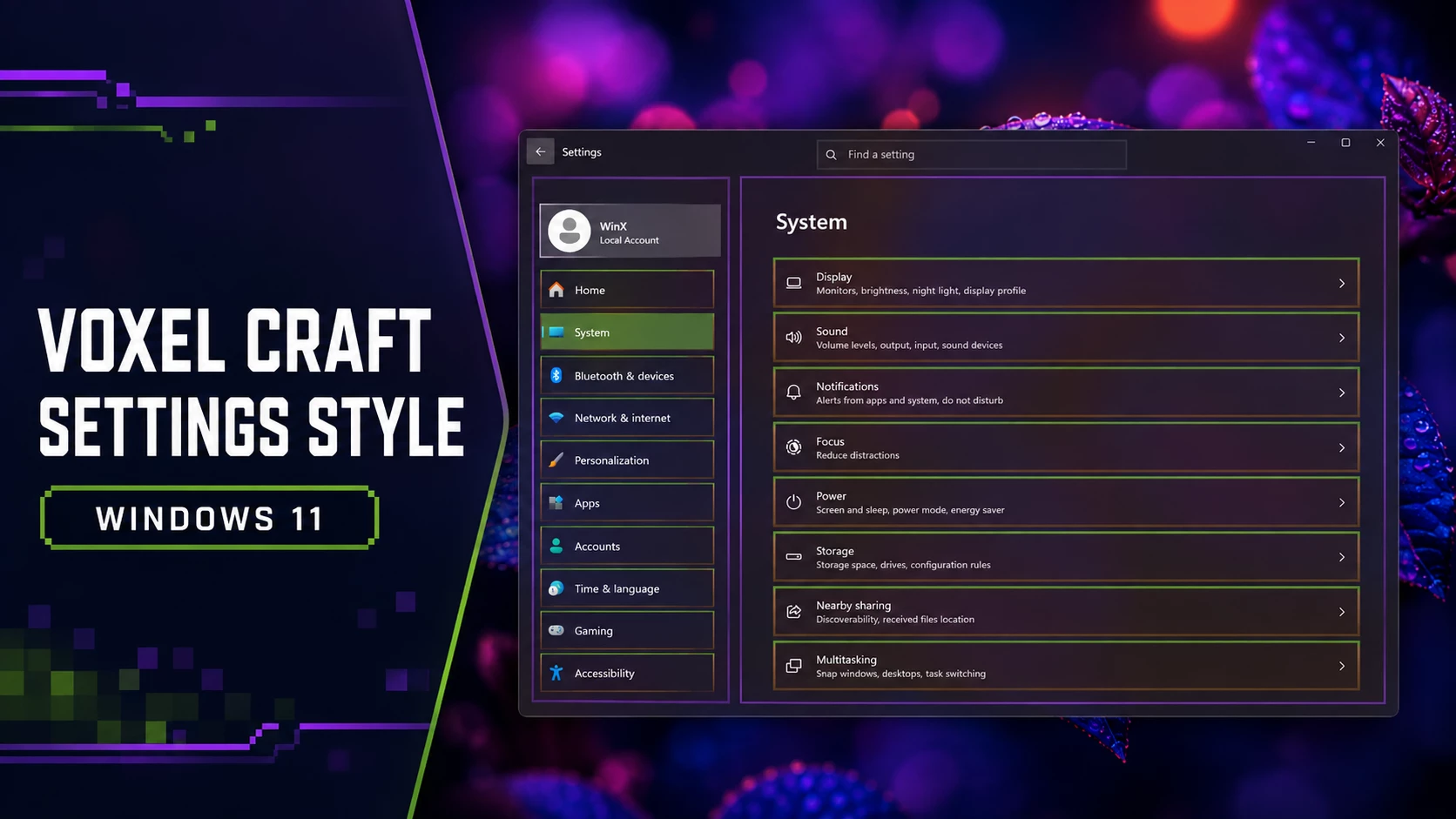
Voxel Craft Inspired Settings Style for Windows 11 is a dark and creative customization style for users who want to give the Windows Settings app a more distinctive appearance. Instead of changing the entire operating system, this style focuses on the Settings interface and gives it a block-inspired visual look with dark panels, thin green outlines, soft transparency, and a clean modern layout.
The design shown here keeps the familiar Windows 11 Settings structure easy to use while making the interface feel more personalized. It is designed for the Windows 11 Settings Styler mod in Windhawk, which allows users to apply custom visual rules to supported Settings app elements.
What Is This Windhawk Style?
This is a custom Windows 11 Settings style made for Windhawk users. It changes the appearance of Settings categories, navigation areas, borders, and content cards without replacing the normal Windows Settings functions. You can still open System, Bluetooth & devices, Personalization, Apps, and other familiar sections as usual.
The Voxel Craft-inspired look uses strong rectangular shapes and carefully placed color accents to create a clean block-style interface. It is a visual customization only and should not be described as an official Microsoft theme.
Design Overview
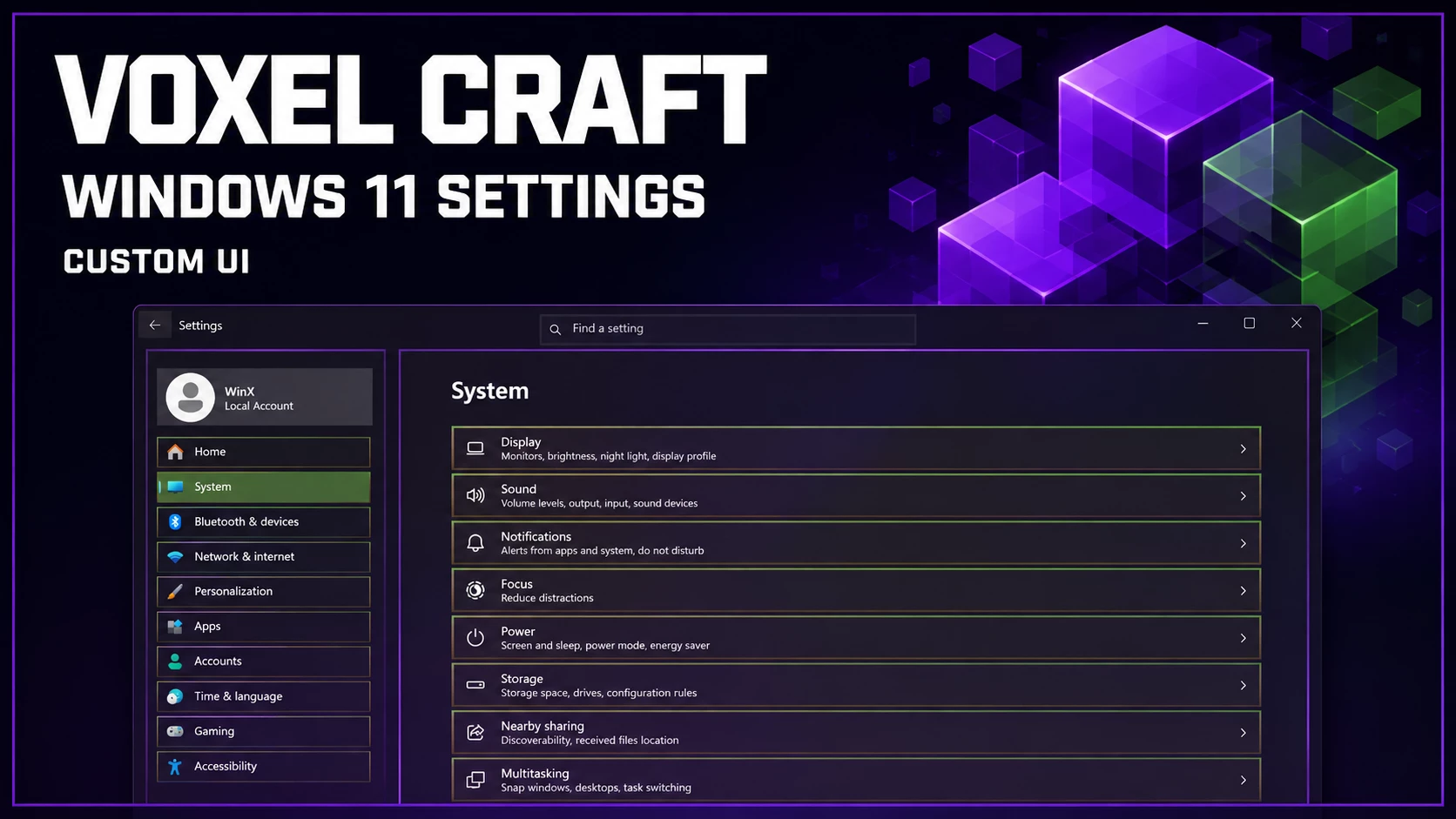
This style uses a dark charcoal interface with subtle transparency that blends nicely with a colorful desktop wallpaper. The Settings window remains easy to read, while the category cards receive thin olive-green borders that create the main Voxel Craft-inspired effect.
The left navigation area uses the same dark visual treatment, with the active selection highlighted in green. Purple details around the window and wallpaper create contrast without making the interface look too busy. The overall result is dark, clean, structured, and suitable for users who prefer a game-inspired desktop style with a professional feel.
Features
- Custom Windows 11 Settings app appearance
- Designed for Windhawk Settings Styler customization
- Dark Voxel Craft-inspired interface design
- Thin green outlines for Settings cards and panels
- Subtle translucent dark navigation and content areas
- Clear highlighting for the selected Settings category
- Modern block-style desktop personalization
- Works well with matching wallpapers, themes, and icon packs
Before You Install
- Create a system restore point before applying any Windows customization.
- Read the installation instructions carefully before making changes.
- Use trusted customization tools only.
- Keep a backup of important files and personal data.
- Check your Windows build before applying the style.
Compatibility
- Windows 11 21H2: May work Not tested
- Windows 11 22H2: May work Not Tested
- Windows 11 23H2: Recommended
- Windows 11 24H2: Recommended
- Windows 11 25H2: YES but test carefully after Windows updates
Installation steps:
- Download & Install windhawk.
- install & Open Windows 11 Settings Styler
- Go to the Advanced tab
- Copy the content below and paste it into the text box and click “Save”.
- For more details, visit this GitHub guide
- For more Windhawk Styler, visit Check My Windhawk Category
{ "theme": "Voxel Craft By Link Vegas", "styleConstants[0]": "OutRadius=0", "styleConstants[1]": "InRadius=0", "styleConstants[2]": "NetherPortalBorder=<LinearGradientBrush StartPoint=\"0,0\" EndPoint=\"1,1\"><GradientStop Color=\"#551A8B\" Offset=\"0\"/><GradientStop Color=\"#8A2BE2\" Offset=\"0.5\"/><GradientStop Color=\"#4B0082\" Offset=\"1\"/></LinearGradientBrush>", "styleConstants[3]": "GrassBlockBorder=<LinearGradientBrush StartPoint=\"0,0\" EndPoint=\"0,1\"><GradientStop Color=\"#5B8731\" Offset=\"0\"/><GradientStop Color=\"#5B8731\" Offset=\"0.12\"/><GradientStop Color=\"#866043\" Offset=\"0.13\"/><GradientStop Color=\"#5C3A21\" Offset=\"1\"/></LinearGradientBrush>", "styleConstants[4]": "StoneUIBorder=<LinearGradientBrush StartPoint=\"0,0\" EndPoint=\"1,1\"><GradientStop Color=\"#9E9E9E\" Offset=\"0\"/><GradientStop Color=\"#545454\" Offset=\"0.5\"/><GradientStop Color=\"#212121\" Offset=\"1\"/></LinearGradientBrush>", "controlStyles[0].target": "SystemSettings.View.RootPage > Grid#RootPageGrid", "controlStyles[0].styles[0]": "Background:=<AcrylicBrush BackgroundSource=\"HostBackdrop\" TintColor=\"#121212\" FallbackColor=\"#F5121212\" TintOpacity=\"0.95\" />", "controlStyles[1].target": "SplitView#RootSplitView", "controlStyles[1].styles[0]": "FlowDirection=LeftToRight", "controlStyles[2].target": "SplitView#RootSplitView > Grid > Grid#PaneRoot", "controlStyles[2].styles[0]": "HorizontalAlignment=Left", "controlStyles[2].styles[1]": "Margin=16,64,16,20", "controlStyles[2].styles[2]": "Width=265", "controlStyles[2].styles[3]": "CornerRadius=$OutRadius", "controlStyles[2].styles[4]": "Background:=<ImageBrush ImageSource=\"C:\\YourPath\\minecraft_dirt.png\" Stretch=\"UniformToFill\"/>", "controlStyles[2].styles[5]": "BorderBrush:=$NetherPortalBorder", "controlStyles[2].styles[6]": "BorderThickness=4", "controlStyles[3].target": "SplitView#RootSplitView > Grid > Grid#ContentRoot", "controlStyles[3].styles[0]": "FlowDirection=LeftToRight", "controlStyles[3].styles[1]": "Margin=0,64,16,20", "controlStyles[3].styles[2]": "CornerRadius=$OutRadius", "controlStyles[3].styles[3]": "Background:=<ImageBrush ImageSource=\"C:\\YourPath\\minecraft_dirt.png\" Stretch=\"UniformToFill\"/>", "controlStyles[3].styles[4]": "BorderBrush:=$NetherPortalBorder", "controlStyles[3].styles[5]": "BorderThickness=4", "controlStyles[4].target": "SystemSettings.View.SettingsNavigationViewItem", "controlStyles[4].styles[0]": "MinHeight=48", "controlStyles[4].styles[1]": "Margin=8,4,8,4", "controlStyles[4].styles[2]": "CornerRadius=$InRadius", "controlStyles[5].target": "SystemSettings.View.SettingsNavigationViewItem > Grid#NVIRootGrid", "controlStyles[5].styles[0]": "Margin=0,0,10,0", "controlStyles[6].target": "SystemSettings.View.SettingsNavigationViewItem > Grid#NVIRootGrid > Microsoft.UI.Xaml.Controls.Primitives.NavigationViewItemPresenter#NavigationViewItemPresenter > Grid#LayoutRoot@PointerStates", "controlStyles[6].styles[0]": "CornerRadius=$InRadius", "controlStyles[6].styles[1]": "HorizontalAlignment=Stretch", "controlStyles[6].styles[2]": "Margin=0,0,0,0", "controlStyles[6].styles[3]": "Background@Normal:=<SolidColorBrush Color=\"#00000000\"/>", "controlStyles[6].styles[4]": "Background@PointerOver:=<AcrylicBrush BackgroundSource=\"HostBackdrop\" TintColor=\"#5C3A21\" FallbackColor=\"#665C3A21\" TintOpacity=\"0.60\" />", "controlStyles[6].styles[5]": "Background@Selected:=<AcrylicBrush BackgroundSource=\"HostBackdrop\" TintColor=\"#5B8731\" FallbackColor=\"#AA5B8731\" TintOpacity=\"0.85\" />", "controlStyles[6].styles[6]": "BorderBrush:=$GrassBlockBorder", "controlStyles[6].styles[7]": "BorderThickness=2", "controlStyles[7].target": "TextBox#CommandSearchTextBox", "controlStyles[7].styles[0]": "Height=44", "controlStyles[7].styles[1]": "CornerRadius=$InRadius", "controlStyles[7].styles[2]": "Margin=10,10,10,10", "controlStyles[7].styles[3]": "Background:=<AcrylicBrush BackgroundSource=\"HostBackdrop\" TintColor=\"#242424\" FallbackColor=\"#E6242424\" TintOpacity=\"0.95\" />", "controlStyles[7].styles[4]": "BorderBrush:=$GrassBlockBorder", "controlStyles[7].styles[5]": "BorderThickness=3", "controlStyles[8].target": "Button", "controlStyles[8].styles[0]": "CornerRadius=$InRadius", "controlStyles[8].styles[1]": "Background:=<AcrylicBrush BackgroundSource=\"HostBackdrop\" TintColor=\"#4D4D4D\" FallbackColor=\"#DD4D4D4D\" TintOpacity=\"0.95\" />", "controlStyles[8].styles[2]": "BorderBrush:=$StoneUIBorder", "controlStyles[8].styles[3]": "BorderThickness=2", "controlStyles[9].target": "ComboBox", "controlStyles[9].styles[0]": "CornerRadius=$InRadius", "controlStyles[9].styles[1]": "BorderBrush:=$StoneUIBorder", "controlStyles[9].styles[2]": "BorderThickness=2", "controlStyles[10].target": "ToggleSwitch", "controlStyles[10].styles[0]": "CornerRadius=$InRadius", "controlStyles[11].target": "SystemSettings.View.SettingsListViewItem > Windows.UI.Xaml.Controls.Primitives.ListViewItemPresenter > Border", "controlStyles[11].styles[0]": "CornerRadius=$InRadius", "controlStyles[11].styles[1]": "Background:=<ImageBrush ImageSource=\"C:\\YourPath\\minecraft_dirt.png\" Stretch=\"UniformToFill\"/>", "controlStyles[11].styles[2]": "BorderBrush:=$GrassBlockBorder", "controlStyles[11].styles[3]": "BorderThickness=3.5", "controlStyles[12].target": "SystemSettings.View.SettingsListViewItem > Windows.UI.Xaml.Controls.Primitives.ListViewItemPresenter", "controlStyles[12].styles[0]": "CornerRadius=$InRadius", "controlStyles[13].target": "SystemSettings.View.SettingsListViewItem", "controlStyles[13].styles[0]": "CornerRadius=$InRadius", "themeResourceVariables[0]": "Accent@Dark=#5B8731", "themeResourceVariables[1]": "Accent@Light=#866043", "themeResourceVariables[2]": "ApplicationPageBackgroundThemeBrush@Dark=#00000000", "themeResourceVariables[3]": "ApplicationPageBackgroundThemeBrush@Light=#00000000"}Troubleshooting
If the style does not apply, first make sure that the Windows 11 Settings Styler mod is enabled in Windhawk. Also check that the style code was copied completely and saved correctly. A missing line or incorrect target can prevent part of the design from appearing as expected.
If the Settings app looks unusual after a Windows update, close the app and restart Explorer or restart your computer. If the issue continues, disable the current style configuration and restore your previously saved settings. Some Windows builds may use different interface targets, so an older configuration may need an update.
If Settings becomes unstable after applying a customization, disable the mod from Windhawk, reopen Settings, and add the style back gradually. Keeping a backup of your working configuration is the easiest way to return to a stable setup.
Disclaimer
This post is for educational and customization purposes only. Voxel Craft Inspired Settings Style for Windows 11 is not an official Microsoft theme. Windhawk and its mods are third-party customization tools, so use them carefully and download them only from trusted sources. Create a system restore point and back up your current settings before applying any custom style. You are responsible for any changes made to your Windows system.
Final Thoughts
Voxel Craft Inspired Settings Style for Windows 11 is a great option for users who want a darker, more structured, and more creative Settings experience. The green borders, translucent dark panels, and block-inspired details give the familiar Windows 11 interface a fresh identity without removing its normal usability.
For the best visual result, combine this Settings style with a dark purple wallpaper, matching icons, and a simple taskbar customization. Apply it carefully, keep a backup of your current settings, and test it after Windows updates for a smooth customization experience.
FAQs
Do I need Windhawk for this style?
Yes. This style is designed for the Windows 11 Settings Styler mod, which runs through Windhawk. It will not apply as a normal Windows theme file.
Why is the style not working?
Make sure Windhawk and the Windows 11 Settings Styler mod are installed and enabled. Check that the full style configuration was pasted correctly, then reopen Settings or restart Explorer. Windows version changes and outdated style targets can also affect compatibility.
Will this change my entire Windows 11 theme?
No. This customization focuses mainly on the Windows Settings app. Your desktop, files, apps, and standard Windows features will continue to work normally.
You may also like
Disclaimer: All themes, visual styles, and concepts shared on this website are unofficial, fan-made creations built from imagination for customization purposes. We are not affiliated with, endorsed by, or sponsored by Microsoft or any other official brand.