

Aurora Prism Glass Settings Styler
Aurora Prism Glass Settings Styler transforms the Windows 11 Settings app with translucent purple panels, soft blur, rounded elements, and a modern prism-inspired appearance.

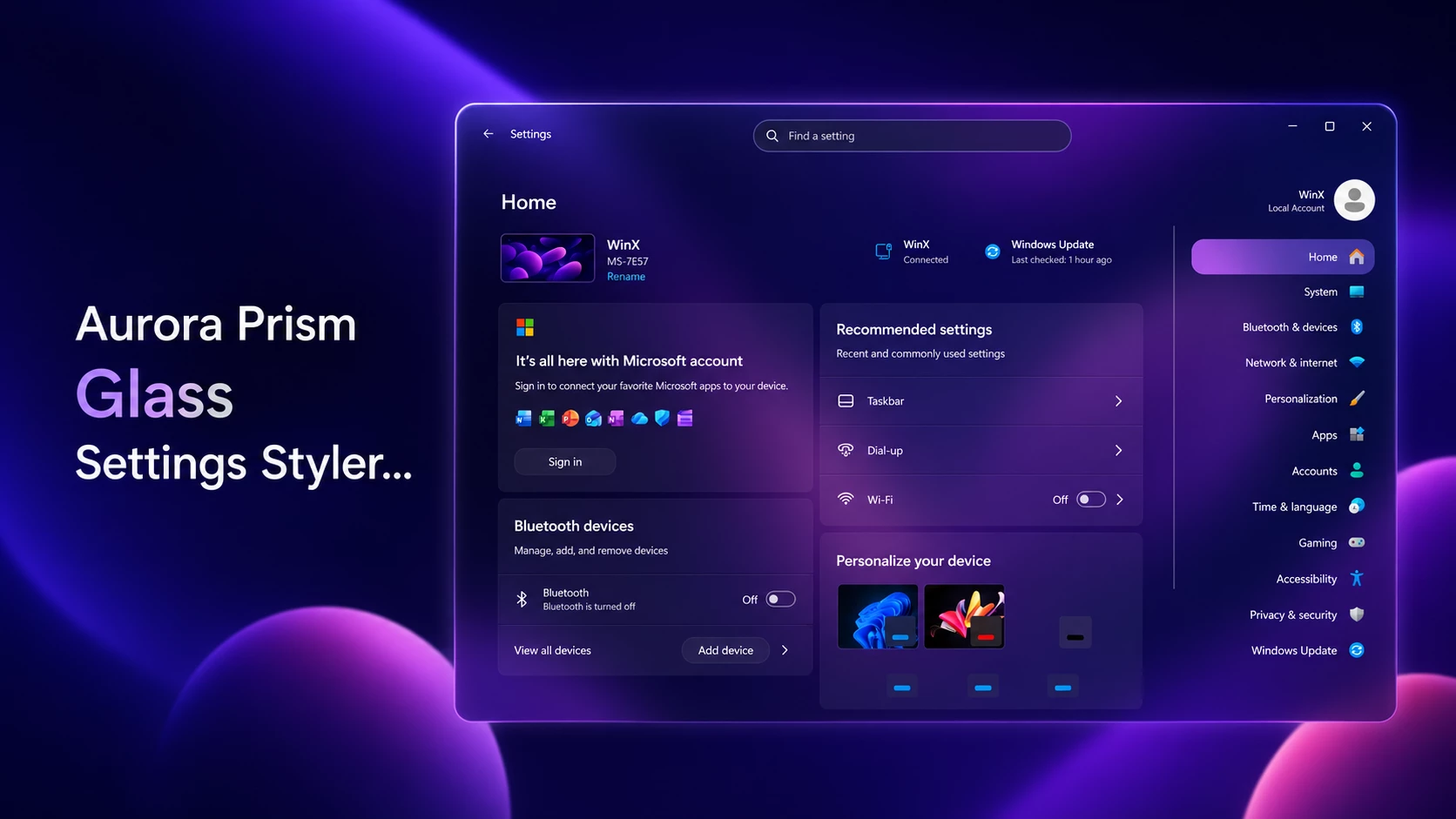
Aurora Prism Glass Settings Styler for Windows
Aurora Prism Glass Settings Styler gives the Windows 11 Settings app a polished, translucent appearance inspired by colorful prism glass. It changes the visual presentation of the Settings window while keeping its familiar categories and controls accessible.
The style is designed for Windows users who enjoy building a coordinated desktop setup with Windhawk mods, matching wallpapers, custom icons, and transparent interface elements.
What Is This Windhawk Style?
Aurora Prism Glass Settings Styler is a visual configuration created for a compatible Windhawk Settings customization mod. It adjusts the appearance of the Windows 11 Settings app without replacing the entire application.
The main purpose of the style is to create a softer and more modern Settings interface. Depending on the style configuration and Windows build, it may change panel backgrounds, navigation areas, spacing, transparency, borders, and accent effects.
This is a cosmetic customization. The available Settings pages and Windows features should remain familiar, although the exact appearance may vary between Windows versions.
Design Overview
The design uses a deep purple and blue color palette with bright violet highlights. Semi-transparent panels allow parts of the desktop wallpaper to remain visible behind the Settings interface, creating a layered glass effect.
Soft blur helps separate text and controls from the wallpaper. Rounded cards, subtle borders, gentle shadows, and illuminated accent areas give the window a cleaner and more dimensional appearance.
The navigation panel can blend into the glass background while the selected category receives a brighter purple highlight. Content cards use darker translucent surfaces to maintain readability without losing the transparent design.
Aurora Prism Glass Settings Styler works especially well with dark wallpapers containing purple, blue, magenta, or black tones. The final layout may look slightly different depending on the Windows build, display scaling, wallpaper, and installed Windhawk mod version.
Features
- Custom Windows 11 Settings app appearance
- Designed for Windhawk mod customization
- Purple prism-inspired glass and blur effects
- Translucent navigation and content panels
- Rounded interface elements and modern spacing
- Clear highlighting for the selected Settings category
- Modern desktop personalization
- Works well with matching themes, wallpapers, and icons
Before applying the style, check that your Windows 11 build is supported by the required Windhawk mod. Windows interface components can change after major or cumulative updates, which may affect custom selectors and styling rules.
You should also confirm that Windhawk and the required Settings customization mod are updated to compatible versions. A configuration created for one mod version may not work correctly with an older or significantly newer release.
Display scaling can also affect spacing and alignment. Users with 125%, 150%, or higher scaling may need to adjust certain size, margin, or width values if the style code provides those options.
This style should not be described as an official Microsoft theme. It is a third-party visual customization intended for users who understand how to manage Windhawk mods and restore default settings when necessary.
Compatibility
- Windows 11 21H2: May work Not tested
- Windows 11 22H2: May work Not Tested
- Windows 11 23H2: Recommended
- Windows 11 24H2: Recommended
- Windows 11 25H2: YES but test carefully after Windows updates
Installation steps:
- Download & Install windhawk.
- install & Open Windows 11 Settings Styler
- Go to the Advanced tab
- Copy the content below and paste it into the text box and click “Save”.
- For more details, visit this GitHub guide
- For more Windhawk Styler, visit Check My Windhawk Category
{ "theme": "Aurora Prism Glass Right Nav by link Vegas", "styleConstants[0]": "OutRadius=28", "styleConstants[1]": "InRadius=18", "styleConstants[2]": "AuroraBorder=<SolidColorBrush Color=\"#665EEAD4\" />", "themeResourceVariables[0]": "Accent@Dark=#5EEAD4", "themeResourceVariables[1]": "Accent@Light=#8B5CF6", "themeResourceVariables[2]": "ApplicationPageBackgroundThemeBrush@Dark=#00000000", "themeResourceVariables[3]": "ApplicationPageBackgroundThemeBrush@Light=#00000000", "controlStyles[0].target": "SystemSettings.View.RootPage > Grid#RootPageGrid", "controlStyles[0].styles[0]": "Background:=<AcrylicBrush BackgroundSource=\"HostBackdrop\" TintColor=\"#070B18\" FallbackColor=\"#F2070B18\" TintOpacity=\"0.40\" />", "controlStyles[1].target": "SplitView#RootSplitView", "controlStyles[1].styles[0]": "FlowDirection=RightToLeft", "controlStyles[2].target": "SplitView#RootSplitView > Grid > Grid#PaneRoot", "controlStyles[2].styles[0]": "HorizontalAlignment=Right", "controlStyles[2].styles[1]": "Margin=8,60,12,20", "controlStyles[2].styles[2]": "CornerRadius=$OutRadius", "controlStyles[2].styles[3]": "Background:=<AcrylicBrush BackgroundSource=\"HostBackdrop\" TintColor=\"#101827\" FallbackColor=\"#DD101827\" TintOpacity=\"0.45\" />", "controlStyles[2].styles[4]": "BorderBrush=$AuroraBorder", "controlStyles[2].styles[5]": "BorderThickness=1", "controlStyles[3].target": "SplitView#RootSplitView > Grid > Grid#ContentRoot", "controlStyles[3].styles[0]": "FlowDirection=LeftToRight", "controlStyles[3].styles[1]": "Margin=20,60,8,20", "controlStyles[3].styles[2]": "CornerRadius=$OutRadius", "controlStyles[3].styles[3]": "Background:=<AcrylicBrush BackgroundSource=\"HostBackdrop\" TintColor=\"#111827\" FallbackColor=\"#DD111827\" TintOpacity=\"0.42\" />", "controlStyles[3].styles[4]": "BorderBrush=$AuroraBorder", "controlStyles[3].styles[5]": "BorderThickness=1", "controlStyles[4].target": "SystemSettings.View.SettingsNavigationViewItem", "controlStyles[4].styles[0]": "MinHeight=50", "controlStyles[4].styles[1]": "Margin=20,-1", "controlStyles[4].styles[2]": "CornerRadius=18", "controlStyles[5].target": "SystemSettings.View.SettingsNavigationViewItem > Grid#NVIRootGrid > Microsoft.UI.Xaml.Controls.Primitives.NavigationViewItemPresenter#NavigationViewItemPresenter > Grid#LayoutRoot@PointerStates", "controlStyles[5].styles[0]": "CornerRadius=18", "controlStyles[5].styles[1]": "Background@Normal:=<SolidColorBrush Color=\"#00000000\"/>", "controlStyles[5].styles[2]": "Background@PointerOver:=<SolidColorBrush Color=\"#22FFFFFF\"/>", "controlStyles[5].styles[3]": "Background@Selected:=<AcrylicBrush BackgroundSource=\"HostBackdrop\" TintColor=\"#8B5CF6\" FallbackColor=\"#668B5CF6\" TintOpacity=\"0.5\" />", "controlStyles[6].target": "TextBox#CommandSearchTextBox", "controlStyles[6].styles[0]": "Height=44", "controlStyles[6].styles[1]": "CornerRadius=22", "controlStyles[6].styles[2]": "Background:=<AcrylicBrush BackgroundSource=\"HostBackdrop\" TintColor=\"#1E293B\" FallbackColor=\"#DD1E293B\" TintOpacity=\"0.75\" />", "controlStyles[6].styles[3]": "BorderBrush:=<SolidColorBrush Color=\"#665EEAD4\" />", "controlStyles[6].styles[4]": "BorderThickness=1", "controlStyles[7].target": "Button", "controlStyles[7].styles[0]": "CornerRadius=16", "controlStyles[8].target": "ComboBox", "controlStyles[8].styles[0]": "CornerRadius=16", "controlStyles[9].target": "ToggleSwitch", "controlStyles[9].styles[0]": "CornerRadius=16"}settings styler with left navigation panel
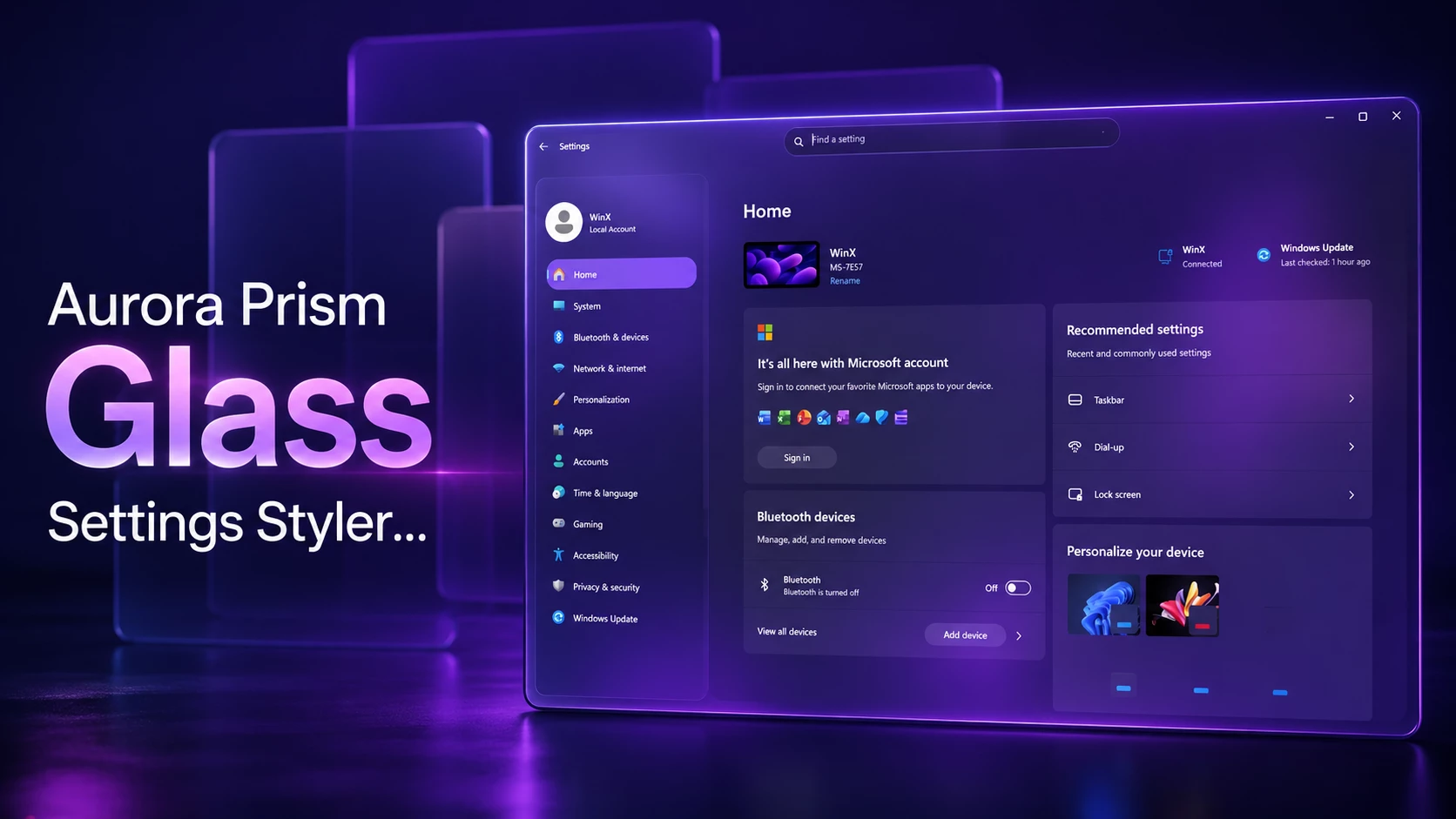
{ "theme": "Aurora Prism Glass Left Nav by link vegas", "styleConstants[0]": "OutRadius=28", "styleConstants[1]": "InRadius=18", "styleConstants[2]": "AuroraBorder=<SolidColorBrush Color=\"#665EEAD4\" />", "themeResourceVariables[0]": "Accent@Dark=#5EEAD4", "themeResourceVariables[1]": "Accent@Light=#8B5CF6", "themeResourceVariables[2]": "ApplicationPageBackgroundThemeBrush@Dark=#00000000", "themeResourceVariables[3]": "ApplicationPageBackgroundThemeBrush@Light=#00000000", "controlStyles[0].target": "SystemSettings.View.RootPage > Grid#RootPageGrid", "controlStyles[0].styles[0]": "Background:=<AcrylicBrush BackgroundSource=\"HostBackdrop\" TintColor=\"#070B18\" FallbackColor=\"#F2070B18\" TintOpacity=\"0.52\" />", "controlStyles[1].target": "SplitView#RootSplitView", "controlStyles[1].styles[0]": "FlowDirection=LeftToRight", "controlStyles[2].target": "SplitView#RootSplitView > Grid > Grid#PaneRoot", "controlStyles[2].styles[0]": "HorizontalAlignment=Left", "controlStyles[2].styles[1]": "Margin=12,60,8,20", "controlStyles[2].styles[2]": "CornerRadius=$OutRadius", "controlStyles[2].styles[3]": "Background:=<AcrylicBrush BackgroundSource=\"HostBackdrop\" TintColor=\"#101827\" FallbackColor=\"#DD101827\" TintOpacity=\"0.45\" />", "controlStyles[2].styles[4]": "BorderBrush=$AuroraBorder", "controlStyles[2].styles[5]": "BorderThickness=1", "controlStyles[3].target": "SplitView#RootSplitView > Grid > Grid#ContentRoot", "controlStyles[3].styles[0]": "FlowDirection=LeftToRight", "controlStyles[3].styles[1]": "Margin=8,60,20,20", "controlStyles[3].styles[2]": "CornerRadius=$OutRadius", "controlStyles[3].styles[3]": "Background:=<AcrylicBrush BackgroundSource=\"HostBackdrop\" TintColor=\"#111827\" FallbackColor=\"#DD111827\" TintOpacity=\"0.42\" />", "controlStyles[3].styles[4]": "BorderBrush=$AuroraBorder", "controlStyles[3].styles[5]": "BorderThickness=1", "controlStyles[4].target": "SystemSettings.View.SettingsNavigationViewItem", "controlStyles[4].styles[0]": "MinHeight=50", "controlStyles[4].styles[1]": "Margin=20,-1", "controlStyles[4].styles[2]": "CornerRadius=18", "controlStyles[5].target": "SystemSettings.View.SettingsNavigationViewItem > Grid#NVIRootGrid > Microsoft.UI.Xaml.Controls.Primitives.NavigationViewItemPresenter#NavigationViewItemPresenter > Grid#LayoutRoot@PointerStates", "controlStyles[5].styles[0]": "CornerRadius=18", "controlStyles[5].styles[1]": "Background@Normal:=<SolidColorBrush Color=\"#00000000\"/>", "controlStyles[5].styles[2]": "Background@PointerOver:=<SolidColorBrush Color=\"#22FFFFFF\"/>", "controlStyles[5].styles[3]": "Background@Selected:=<AcrylicBrush BackgroundSource=\"HostBackdrop\" TintColor=\"#8B5CF6\" FallbackColor=\"#668B5CF6\" TintOpacity=\"0.5\" />", "controlStyles[6].target": "TextBox#CommandSearchTextBox", "controlStyles[6].styles[0]": "Height=44", "controlStyles[6].styles[1]": "CornerRadius=22", "controlStyles[6].styles[2]": "Background:=<AcrylicBrush BackgroundSource=\"HostBackdrop\" TintColor=\"#1E293B\" FallbackColor=\"#DD1E293B\" TintOpacity=\"0.75\" />", "controlStyles[6].styles[3]": "BorderBrush:=<SolidColorBrush Color=\"#665EEAD4\" />", "controlStyles[6].styles[4]": "BorderThickness=1", "controlStyles[7].target": "Button", "controlStyles[7].styles[0]": "CornerRadius=16", "controlStyles[8].target": "ComboBox", "controlStyles[8].styles[0]": "CornerRadius=16", "controlStyles[9].target": "ToggleSwitch", "controlStyles[9].styles[0]": "CornerRadius=16"}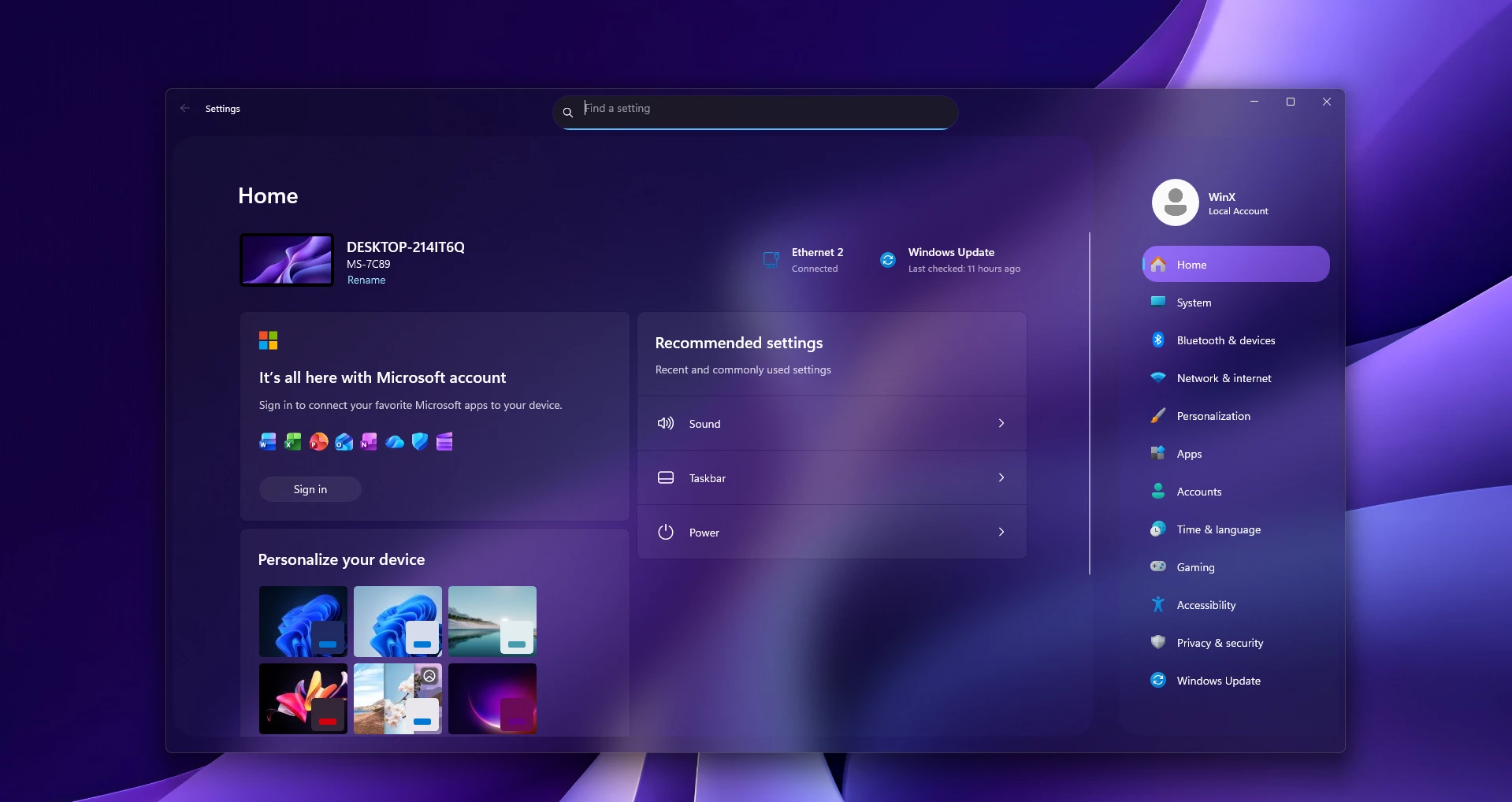
{ "theme": "Aurora Prism Glass Right Nav by link Vegas - Fixed V3", "styleConstants[0]": "OutRadius=28", "styleConstants[1]": "InRadius=18", "styleConstants[2]": "AuroraBorder=<SolidColorBrush Color=\"#665EEAD4\" />", "themeResourceVariables[0]": "Accent@Dark=#5EEAD4", "themeResourceVariables[1]": "Accent@Light=#8B5CF6", "themeResourceVariables[2]": "ApplicationPageBackgroundThemeBrush@Dark=#00000000", "themeResourceVariables[3]": "ApplicationPageBackgroundThemeBrush@Light=#00000000", "controlStyles[0].target": "SystemSettings.View.RootPage > Grid#RootPageGrid", "controlStyles[0].styles[0]": "Background:=<AcrylicBrush BackgroundSource=\"HostBackdrop\" TintColor=\"#070B18\" FallbackColor=\"#F2070B18\" TintOpacity=\"0.40\" />", "controlStyles[1].target": "SplitView#RootSplitView", "controlStyles[1].styles[0]": "FlowDirection=RightToLeft", "controlStyles[2].target": "SplitView#RootSplitView > Grid > Grid#PaneRoot", "controlStyles[2].styles[0]": "FlowDirection=RightToLeft", "controlStyles[2].styles[1]": "HorizontalAlignment=Right", "controlStyles[2].styles[2]": "Margin=8,60,12,20", "controlStyles[2].styles[3]": "CornerRadius=$OutRadius", "controlStyles[2].styles[4]": "Background:=<AcrylicBrush BackgroundSource=\"HostBackdrop\" TintColor=\"#101827\" FallbackColor=\"#DD101827\" TintOpacity=\"0.45\" />", "controlStyles[2].styles[5]": "BorderBrush=$AuroraBorder", "controlStyles[2].styles[6]": "BorderThickness=1", "controlStyles[3].target": "Grid#PaneContentGrid", "controlStyles[3].styles[0]": "FlowDirection=LeftToRight", "controlStyles[3].styles[1]": "Margin=26,0,26,0", "controlStyles[3].styles[2]": "HorizontalAlignment=Stretch", "controlStyles[4].target": "Grid#ItemsContainerGrid", "controlStyles[4].styles[0]": "FlowDirection=LeftToRight", "controlStyles[4].styles[1]": "Margin=0,0,0,0", "controlStyles[4].styles[2]": "HorizontalAlignment=Stretch", "controlStyles[5].target": "SplitView#RootSplitView > Grid > Grid#ContentRoot", "controlStyles[5].styles[0]": "FlowDirection=LeftToRight", "controlStyles[5].styles[1]": "Margin=20,60,8,20", "controlStyles[5].styles[2]": "CornerRadius=$OutRadius", "controlStyles[5].styles[3]": "Background:=<AcrylicBrush BackgroundSource=\"HostBackdrop\" TintColor=\"#111827\" FallbackColor=\"#DD111827\" TintOpacity=\"0.42\" />", "controlStyles[5].styles[4]": "BorderBrush=$AuroraBorder", "controlStyles[5].styles[5]": "BorderThickness=1", "controlStyles[6].target": "SystemSettings.View.SettingsNavigationViewItem", "controlStyles[6].styles[0]": "FlowDirection=LeftToRight", "controlStyles[6].styles[1]": "MinHeight=50", "controlStyles[6].styles[2]": "Margin=0,-1,0,-1", "controlStyles[6].styles[3]": "CornerRadius=18", "controlStyles[7].target": "SystemSettings.View.SettingsNavigationViewItem > Grid#NVIRootGrid", "controlStyles[7].styles[0]": "FlowDirection=LeftToRight", "controlStyles[7].styles[1]": "HorizontalAlignment=Stretch", "controlStyles[8].target": "SystemSettings.View.SettingsNavigationViewItem > Grid#NVIRootGrid > Microsoft.UI.Xaml.Controls.Primitives.NavigationViewItemPresenter#NavigationViewItemPresenter", "controlStyles[8].styles[0]": "FlowDirection=LeftToRight", "controlStyles[8].styles[1]": "HorizontalAlignment=Stretch", "controlStyles[8].styles[2]": "Margin=0,0,0,0", "controlStyles[9].target": "SystemSettings.View.SettingsNavigationViewItem > Grid#NVIRootGrid > Microsoft.UI.Xaml.Controls.Primitives.NavigationViewItemPresenter#NavigationViewItemPresenter > Grid#LayoutRoot@PointerStates", "controlStyles[9].styles[0]": "FlowDirection=LeftToRight", "controlStyles[9].styles[1]": "CornerRadius=18", "controlStyles[9].styles[2]": "Background@Normal:=<SolidColorBrush Color=\"#00000000\"/>", "controlStyles[9].styles[3]": "Background@PointerOver:=<SolidColorBrush Color=\"#22FFFFFF\"/>", "controlStyles[9].styles[4]": "Background@Selected:=<AcrylicBrush BackgroundSource=\"HostBackdrop\" TintColor=\"#8B5CF6\" FallbackColor=\"#668B5CF6\" TintOpacity=\"0.5\" />", "controlStyles[10].target": "TextBox#CommandSearchTextBox", "controlStyles[10].styles[0]": "FlowDirection=LeftToRight", "controlStyles[10].styles[1]": "Height=44", "controlStyles[10].styles[2]": "CornerRadius=22", "controlStyles[10].styles[3]": "Background:=<AcrylicBrush BackgroundSource=\"HostBackdrop\" TintColor=\"#1E293B\" FallbackColor=\"#DD1E293B\" TintOpacity=\"0.75\" />", "controlStyles[10].styles[4]": "BorderBrush:=<SolidColorBrush Color=\"#665EEAD4\" />", "controlStyles[10].styles[5]": "BorderThickness=1", "controlStyles[11].target": "Button", "controlStyles[11].styles[0]": "CornerRadius=16", "controlStyles[12].target": "ComboBox", "controlStyles[12].styles[0]": "CornerRadius=16", "controlStyles[13].target": "ToggleSwitch", "controlStyles[13].styles[0]": "CornerRadius=16"}Disclaimer
This Windows 11 customization style is provided for personalization and educational purposes only. Link Vegas Theme is not affiliated with Microsoft or any third-party software developers. Always create a system restore point before making system changes and use customization tools from trusted sources.
Final Thoughts
Aurora Prism Glass Settings Styler is a strong choice for users who want the Windows 11 Settings app to match a modern purple desktop setup. Its translucent surfaces, soft blur, rounded cards, and illuminated accents create a distinctive appearance without making the interface unfamiliar.
The best results come from using a compatible Windows build, an updated Windhawk installation, and a wallpaper that provides enough contrast. Keep a backup of the original configuration and create a restore point before applying custom Windows interface styles.
FAQs Do I need Windhawk for this style?
Yes. This style is intended to be applied through a compatible
Windhawk mod that supports customization of the Windows 11
Settings interface. The style code will not work by itself
without the required mod.
Why is the style not working?
Common causes include using the wrong Windhawk mod, pasting the
code into the wrong settings section, running an unsupported
Windows build, or using an outdated mod version. Save the
configuration again, reopen Settings, restart File Explorer,
and check for compatibility updates.
Can I remove the Aurora Prism Glass Settings Styler?
Yes. Open Windhawk, enter the installed mod settings, and remove
or disable the custom style configuration. You can also disable
the mod completely to return the Settings app to its standard
appearance.
Will it continue working after a Windows update?
It may continue working, but Windows updates can change
interface components and styling selectors. Keep Windhawk and
the required mod updated, and retain a copy of the original
style code in case you need to reapply or revise it.
Does the style change Windows system functions?
The configuration is intended to change the visual appearance
of the Settings app. It should not add new Windows features or
replace the normal Settings controls. However, compatibility
issues can temporarily affect layout or readability.
Can I use a different accent color?
Some versions of the style may allow color values to be edited.
Change only supported values and keep a backup of the working
configuration so you can restore it if the new colors reduce
readability or cause visual inconsistencies.
Do I need Windhawk for this style?
Yes. This style is intended to be applied through a compatible Windhawk mod that supports customization of the Windows 11 Settings interface. The style code will not work by itself without the required mod.
Why is the style not working?
Common causes include using the wrong Windhawk mod, pasting the code into the wrong settings section, running an unsupported Windows build, or using an outdated mod version. Save the configuration again, reopen Settings, restart File Explorer, and check for compatibility updates.
Can I remove the Aurora Prism Glass Settings Styler?
Yes. Open Windhawk, enter the installed mod settings, and remove or disable the custom style configuration. You can also disable the mod completely to return the Settings app to its standard appearance.
Will it continue working after a Windows update?
It may continue working, but Windows updates can change interface components and styling selectors. Keep Windhawk and the required mod updated, and retain a copy of the original style code in case you need to reapply or revise it.
Does the style change Windows system functions?
The configuration is intended to change the visual appearance of the Settings app. It should not add new Windows features or replace the normal Settings controls. However, compatibility issues can temporarily affect layout or readability.
Can I use a different accent color?
Some versions of the style may allow color values to be edited. Change only supported values and keep a backup of the working configuration so you can restore it if the new colors reduce readability or cause visual inconsistencies.
You may also like
Disclaimer: All themes, visual styles, and concepts shared on this website are unofficial, fan-made creations built from imagination for customization purposes. We are not affiliated with, endorsed by, or sponsored by Microsoft or any other official brand.