

Fluent Glass Settings Style For Windows 11
Fluent Glass Settings Style For Windows 11 : Transform the Windows 11 Settings experience with a modern Fluent Glass style featuring transparent panels, custom navigation icons, and a clean glass-inspired interface.

Fluent Glass Settings Style For Windows 11
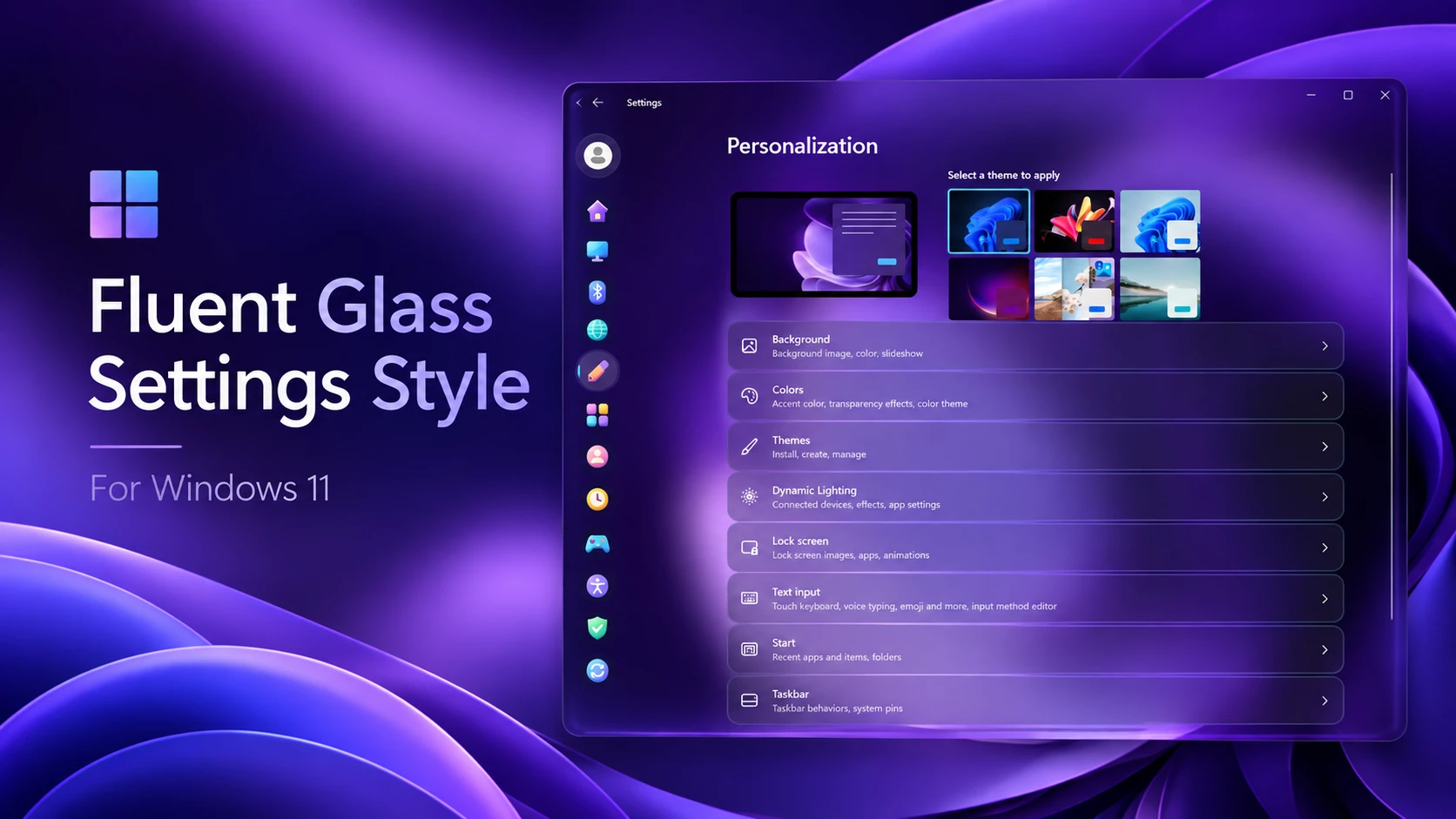
The Fluent Glass Settings Style gives the Windows 11 Settings app a much cleaner and more modern appearance without changing the way the app normally works. The familiar Settings layout remains the same, but the visual style feels more polished thanks to the transparent background, softer panels, and redesigned navigation icons.
One of the most noticeable changes is how the Settings window blends with the desktop. Instead of using a heavy solid background, the interface becomes highly transparent, allowing the desktop wallpaper to remain visible behind the app. This creates a glass-style effect that feels much more integrated with the rest of the desktop.
Transparent Settings Background
The main Settings background uses a high level of transparency, so the wallpaper underneath becomes part of the overall appearance. This means the final look is not tied to one specific color or theme.
If you use a dark wallpaper, the Settings app will naturally take on a darker look. A brighter or more colorful wallpaper will create a completely different feel. The transparency allows the interface to adapt visually without adding a fixed color on top of the desktop.
Even with the transparent background, the Settings content remains easy to read. Headings, descriptions, buttons, toggles, and other controls stay clearly separated from the wallpaper behind them.
Redesigned Fluent-Style Navigation Icons
The left navigation panel has been given a completely different look with a new set of colorful Fluent-style icons. These replace the standard monochrome Settings icons and make the sidebar feel more modern and visually interesting.
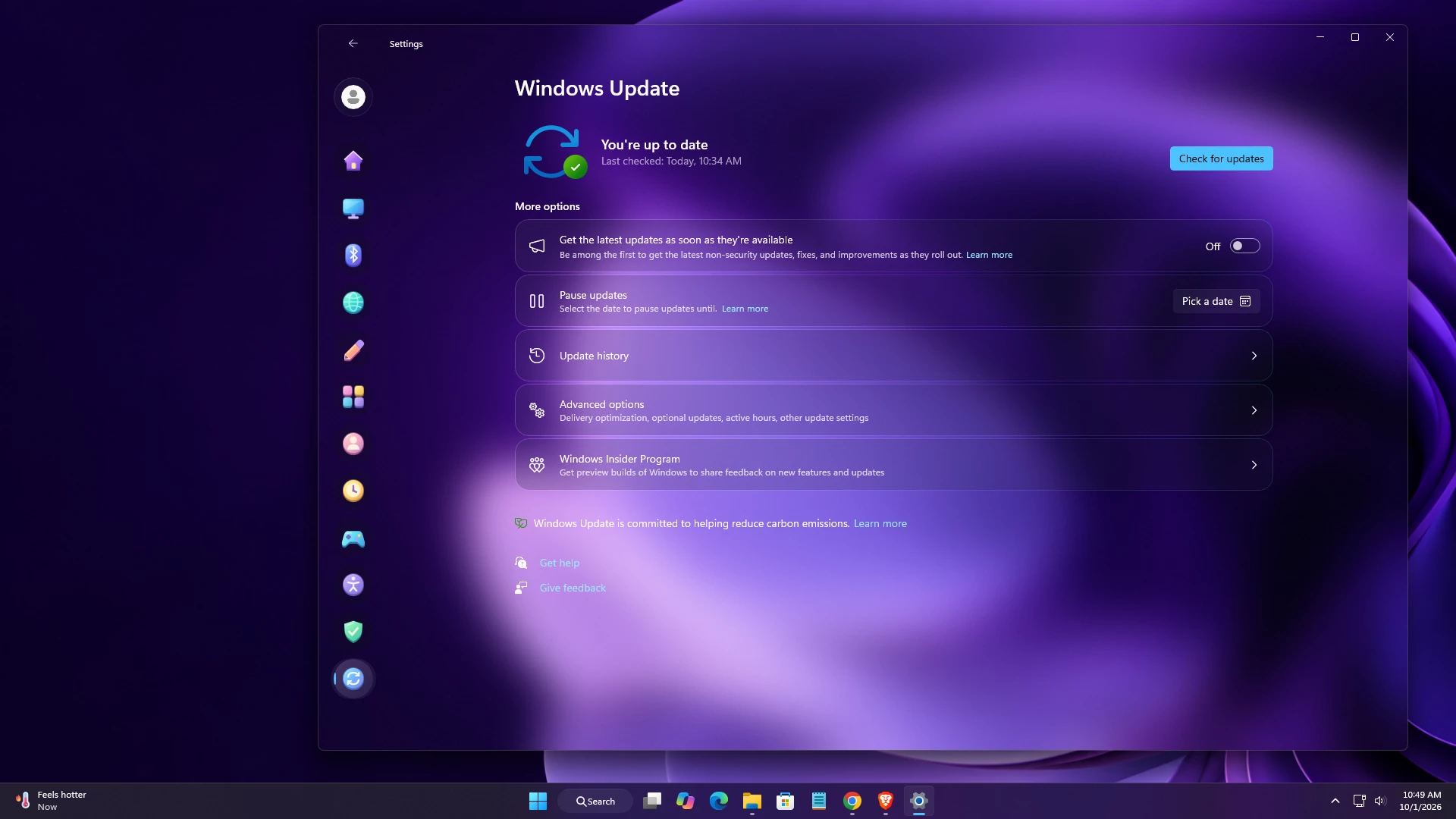
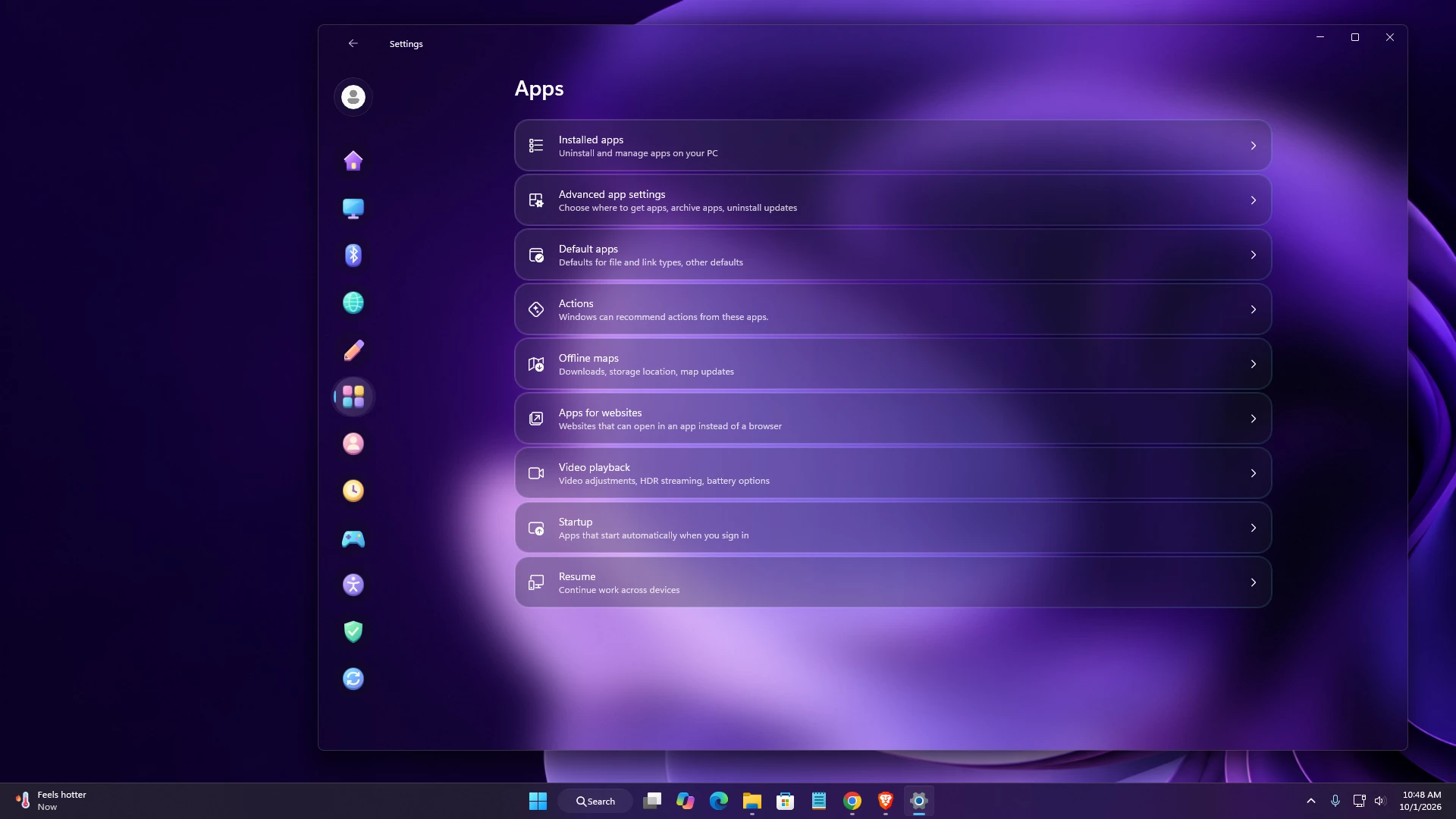
Each main Settings category uses its own custom icon, including Home, System, Bluetooth & devices, Network & internet, Personalization, Apps, Accounts, Time & language, Gaming, Accessibility, Privacy & security, and Windows Update.
The active section is highlighted with a soft rounded background around the icon. This small detail makes it easy to see which Settings page is currently selected while also matching the rest of the glass-style interface.
Rounded Transparent Settings Cards
The individual Settings options are placed inside rounded transparent and semi-transparent cards. These panels use thin borders and soft edges, giving the interface a cleaner and more consistent appearance.
Instead of looking like completely separate solid blocks, the cards blend with the main Settings background while still providing enough contrast to keep each option easy to identify.
This design works especially well on pages with many options, such as System, Network & internet, Personalization, Apps, Time & language, and Windows Update. The interface stays organized without feeling too heavy or crowded.
Clean and Compact Navigation Layout
The navigation area is much more compact than the traditional Settings sidebar. By focusing mainly on icons, it leaves more room for the actual Settings content while keeping all major categories easy to access.
The icon-based layout also gives the Settings app a more customized appearance without making navigation confusing. Every category remains in its usual position, so the interface still feels familiar to anyone who already uses Windows 11.
Features
- Highly transparent Windows 11 Settings background
- Desktop wallpaper remains visible behind the interface
- Redesigned colorful Fluent-style icons for the left navigation panel
- Custom icons for all major Settings categories
- Rounded highlight for the currently selected navigation item
- Transparent and semi-transparent Settings cards
- Thin borders and smooth rounded corners across Settings panels
- Compact icon-based navigation layout
- Original Windows 11 Settings structure remains unchanged
- Works naturally with different wallpapers and desktop themes
- Consistent styling across System, Network & internet, Personalization, Apps, Time & language, and Windows Update
Before You Install
- Create a system restore point before applying any Windows customization.
- Read the installation instructions carefully before making changes.
- Use trusted customization tools only.
- Keep a backup of important files and personal data.
- Check your Windows build before applying the style.
The final colors can look slightly different depending on your wallpaper, Windows accent color, display calibration, and operating system build. Purple, blue, and pink wallpapers usually complement this design particularly well.
What You Need Before Applying the Style
Prepare the following items before starting:
- A Windows 11 computer
- The latest compatible version of Windhawk
- The Windows 11 Settings Styler mod
- The Mid Aero preset or configuration supplied with this post
- Permission to install and configure desktop customization software
- A backup of your current Windhawk Settings Styler configuration
Compatibility
- Windows 11 21H2: May work Not tested
- Windows 11 22H2: May work Not Tested
- Windows 11 23H2: Recommended
- Windows 11 24H2: Recommended
- Windows 11 25H2: YES
- Windows 11 26H2: Build 26300.9550 YES
Installation steps:
- Download and install Windhawk.
- Install and open the Windows 11 Settings Styler mod from Windhawk.
- Open the mod settings and go to the Advanced tab.
- Copy the style code provided below, paste it into the styling editor, and click “Save”.
- For more details, visit the official GitHub styling guide.
- For more Windhawk customization styles, visit My Windhawk Category.
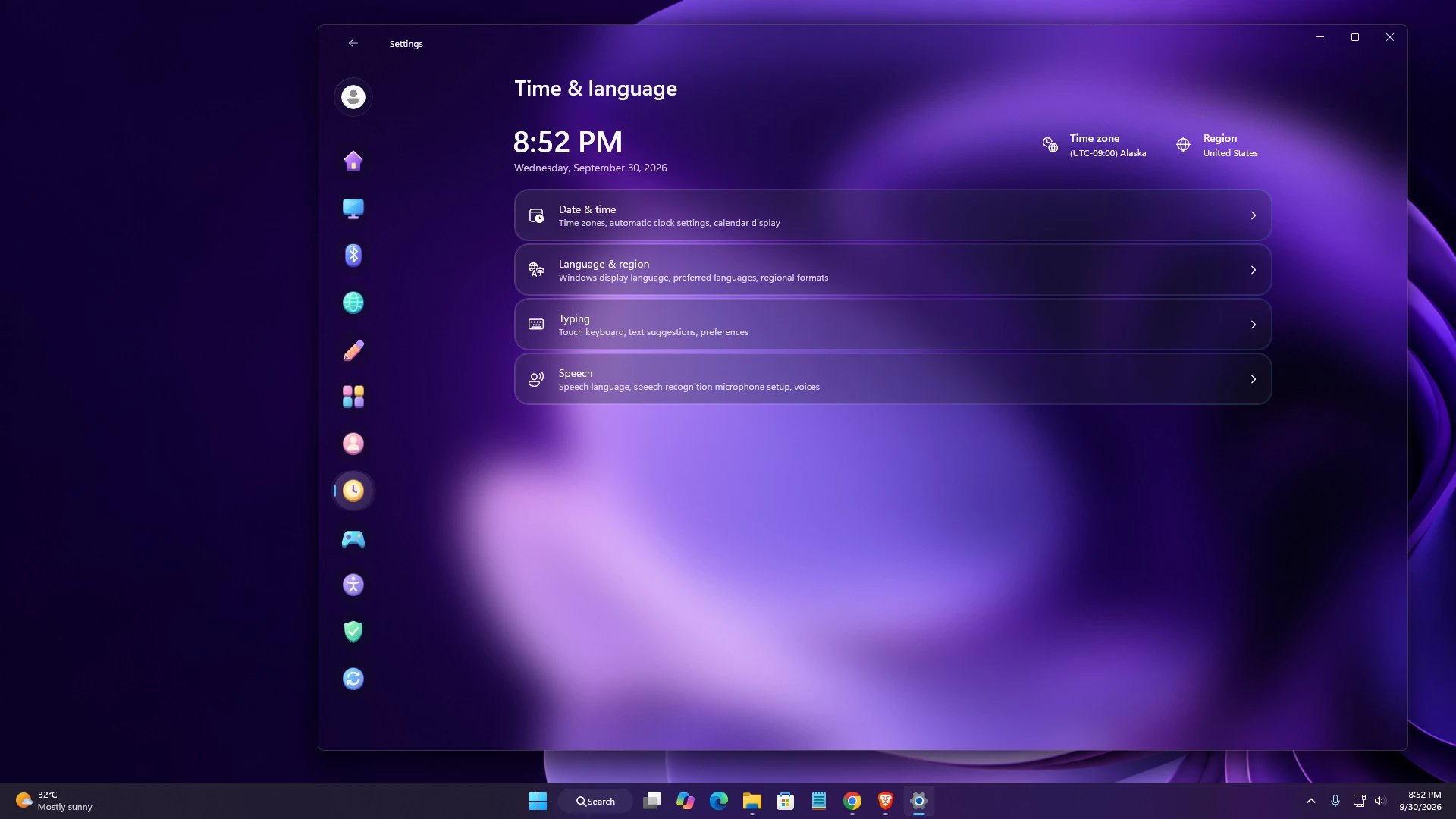
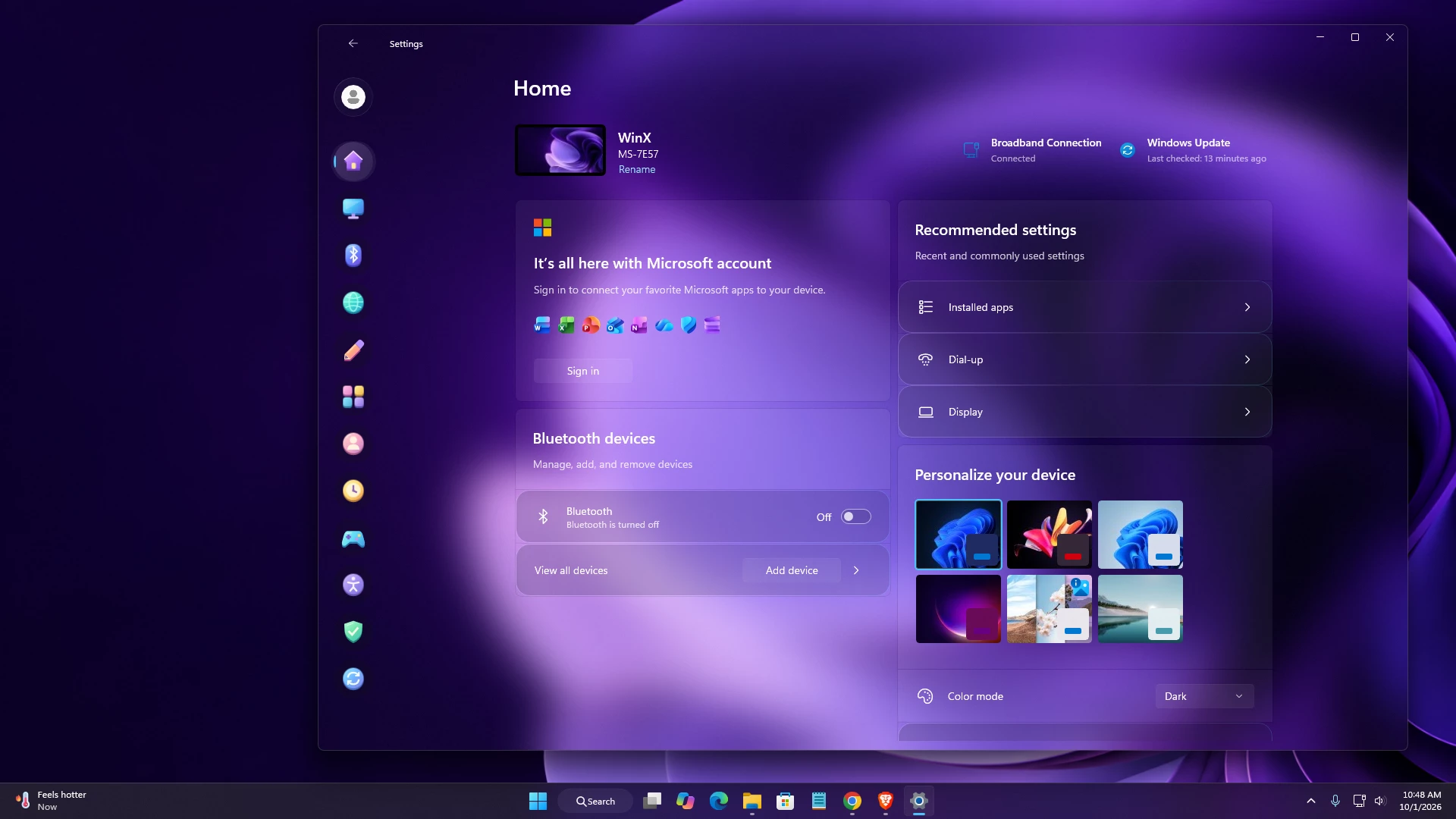
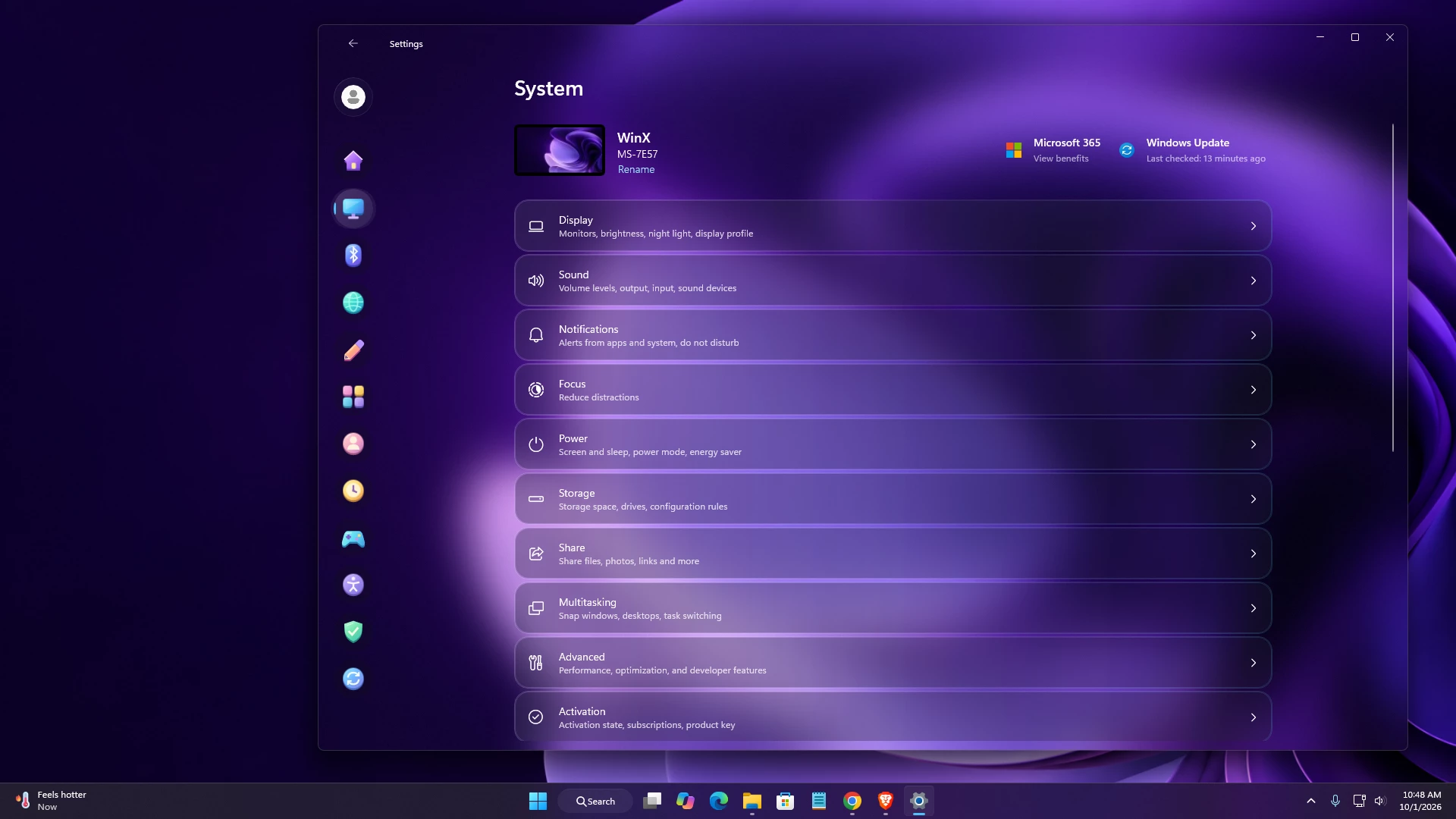
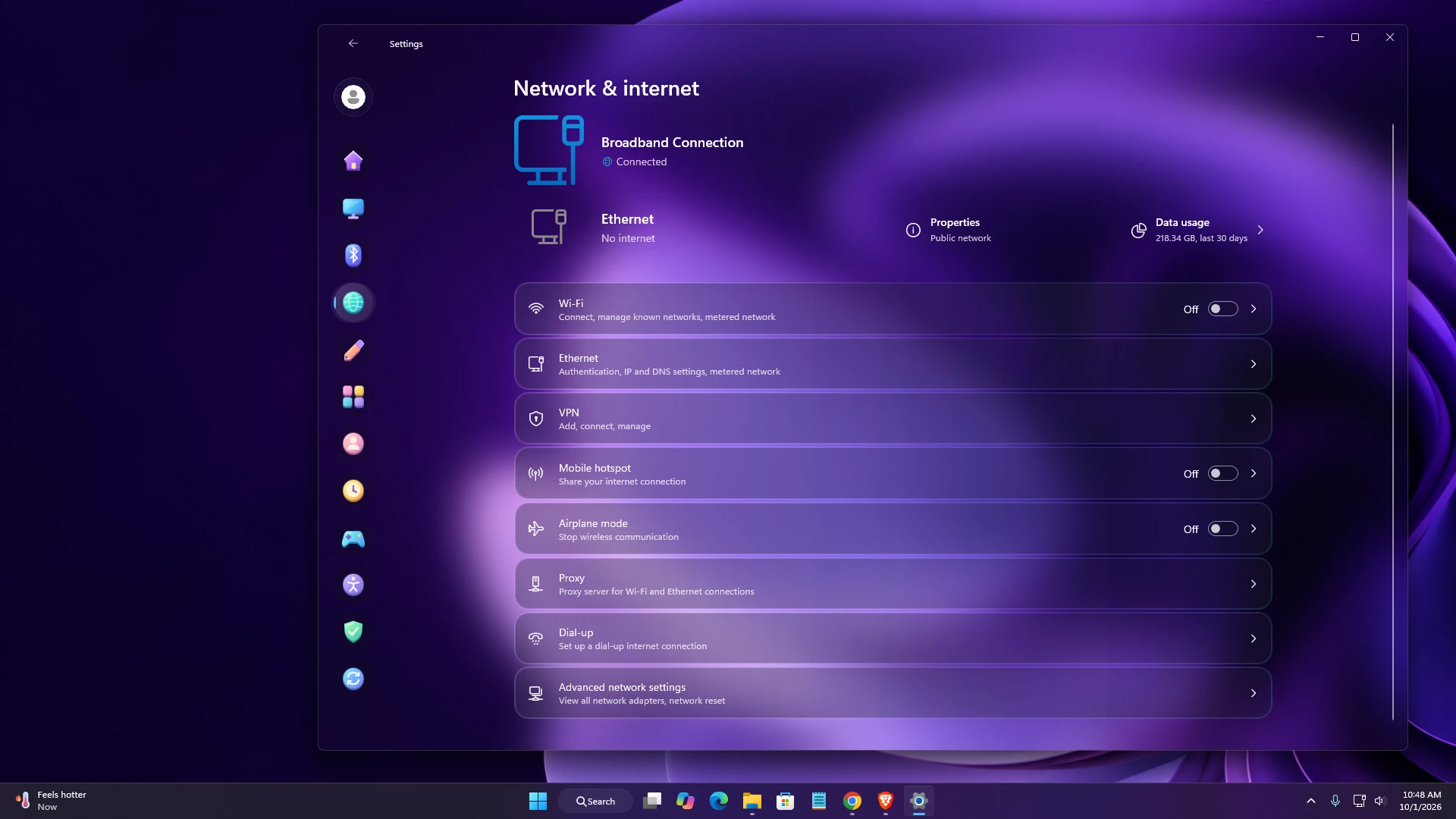
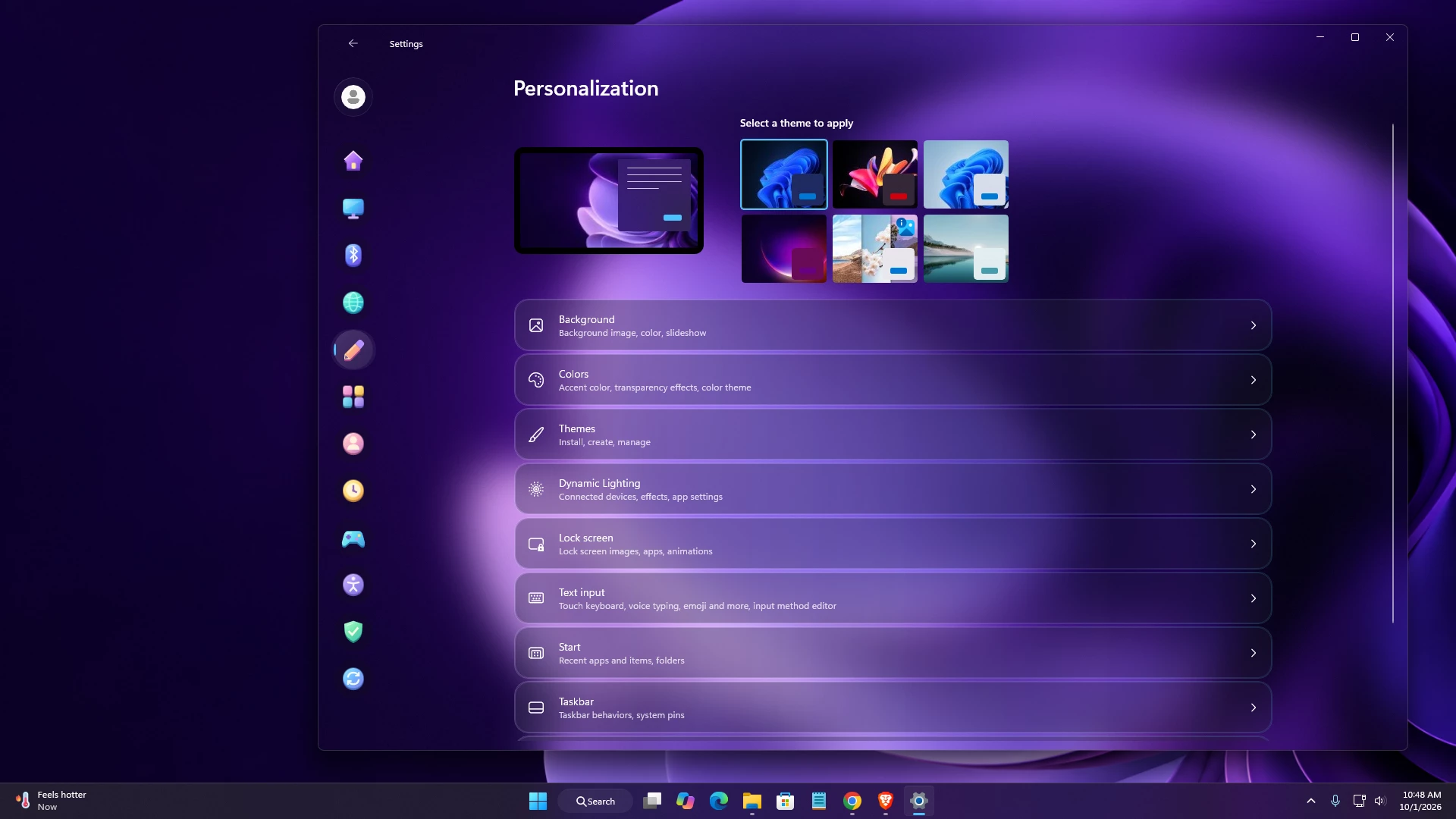
Preview
{ "theme": "Fluent Glass By Link vegas", "styleConstants[0]": "ShellGlass=<AcrylicBrush BackgroundSource=\"HostBackdrop\" TintColor=\"#00000000\" FallbackColor=\"#00000000\" TintOpacity=\"0\" TintLuminosityOpacity=\"0\" Opacity=\"1\"/>", "styleConstants[1]": "RailGlass=<WindhawkBlur BlurAmount=\"26\" TintColor=\"#171321\" TintOpacity=\"0.64\" />", "styleConstants[2]": "PopupGlass=<WindhawkBlur BlurAmount=\"30\" TintColor=\"#171321\" TintOpacity=\"0.85\" />", "styleConstants[3]": "GlassEdge=<LinearGradientBrush StartPoint=\"0,0\" EndPoint=\"1,1\"><GradientStop Color=\"#60CBB9FF\" Offset=\"0\" /><GradientStop Color=\"#15FFFFFF\" Offset=\"0.5\" /><GradientStop Color=\"#4558CBE5\" Offset=\"1\" /></LinearGradientBrush>", "styleConstants[4]": "CardGlass=<LinearGradientBrush StartPoint=\"0,0\" EndPoint=\"1,1\"><GradientStop Color=\"#403E3459\" Offset=\"0\" /><GradientStop Color=\"#25202335\" Offset=\"1\" /></LinearGradientBrush>", "styleConstants[5]": "CardEdge=<LinearGradientBrush StartPoint=\"0,0\" EndPoint=\"1,1\"><GradientStop Color=\"#40D6C7FF\" Offset=\"0\" /><GradientStop Color=\"#12FFFFFF\" Offset=\"0.55\" /><GradientStop Color=\"#305CD4E8\" Offset=\"1\" /></LinearGradientBrush>", "styleConstants[6]": "HomeIcon=<Viewbox Width=\"32\" Height=\"32\"><Canvas Width=\"40\" Height=\"40\"><Path Data=\"M5,20 L20,6 L35,20 L31,24 L31,35 L9,35 L9,24 Z\" Fill=\"#733CC2\" /><Path Data=\"M5,17 L20,3 L35,17 L31,21 L31,32 L9,32 L9,21 Z\"><Path.Fill><LinearGradientBrush StartPoint=\"0,0\" EndPoint=\"1,1\"><GradientStop Color=\"#EDB9FF\" Offset=\"0\" /><GradientStop Color=\"#A868F5\" Offset=\"0.55\" /><GradientStop Color=\"#7444D7\" Offset=\"1\" /></LinearGradientBrush></Path.Fill></Path><Path Data=\"M5,17 L20,3 L35,17\" Stroke=\"#F4D5FF\" StrokeThickness=\"2\" /><Rectangle Canvas.Left=\"17\" Canvas.Top=\"22\" Width=\"7\" Height=\"10\" RadiusX=\"2\" RadiusY=\"2\" Fill=\"#FFE89A\" /></Canvas></Viewbox>", "styleConstants[7]": "SystemIcon=<Viewbox Width=\"32\" Height=\"32\"><Canvas Width=\"40\" Height=\"40\"><Rectangle Canvas.Left=\"3\" Canvas.Top=\"7\" Width=\"34\" Height=\"24\" RadiusX=\"5\" RadiusY=\"5\" Fill=\"#236AAF\" /><Rectangle Canvas.Left=\"3\" Canvas.Top=\"4\" Width=\"34\" Height=\"24\" RadiusX=\"5\" RadiusY=\"5\"><Rectangle.Fill><LinearGradientBrush StartPoint=\"0,0\" EndPoint=\"1,1\"><GradientStop Color=\"#9DF7FF\" Offset=\"0\" /><GradientStop Color=\"#47BDF7\" Offset=\"0.55\" /><GradientStop Color=\"#5076EA\" Offset=\"1\" /></LinearGradientBrush></Rectangle.Fill></Rectangle><Path Data=\"M7,8 L32,8 L7,22 Z\" Fill=\"#38FFFFFF\" /><Rectangle Canvas.Left=\"17\" Canvas.Top=\"28\" Width=\"6\" Height=\"6\" Fill=\"#A999EE\" /><Rectangle Canvas.Left=\"11\" Canvas.Top=\"33\" Width=\"18\" Height=\"4\" RadiusX=\"2\" RadiusY=\"2\" Fill=\"#D2BDFF\" /></Canvas></Viewbox>", "styleConstants[8]": "BluetoothIcon=<Viewbox Width=\"32\" Height=\"32\"><Canvas Width=\"40\" Height=\"40\"><Rectangle Canvas.Left=\"7\" Canvas.Top=\"4\" Width=\"26\" Height=\"35\" RadiusX=\"11\" RadiusY=\"11\" Fill=\"#3D42B8\" /><Rectangle Canvas.Left=\"7\" Canvas.Top=\"1\" Width=\"26\" Height=\"35\" RadiusX=\"11\" RadiusY=\"11\"><Rectangle.Fill><LinearGradientBrush StartPoint=\"0,0\" EndPoint=\"1,1\"><GradientStop Color=\"#9FDBFF\" Offset=\"0\" /><GradientStop Color=\"#667DFF\" Offset=\"0.55\" /><GradientStop Color=\"#794ADD\" Offset=\"1\" /></LinearGradientBrush></Rectangle.Fill></Rectangle><Path Data=\"M15,12 L26,24 L20,30 L20,7 L26,13 L15,25\" Stroke=\"#F1F5FF\" StrokeThickness=\"2.6\" /><Path Data=\"M12,8 Q15,4 24,5\" Stroke=\"#70FFFFFF\" StrokeThickness=\"2\" /></Canvas></Viewbox>", "styleConstants[9]": "NetworkIcon=<Viewbox Width=\"32\" Height=\"32\"><Canvas Width=\"40\" Height=\"40\"><Ellipse Canvas.Left=\"3\" Canvas.Top=\"5\" Width=\"34\" Height=\"34\" Fill=\"#157993\" /><Ellipse Canvas.Left=\"3\" Canvas.Top=\"2\" Width=\"34\" Height=\"34\"><Ellipse.Fill><LinearGradientBrush StartPoint=\"0,0\" EndPoint=\"1,1\"><GradientStop Color=\"#A8FFE5\" Offset=\"0\" /><GradientStop Color=\"#40DCCD\" Offset=\"0.5\" /><GradientStop Color=\"#259DD0\" Offset=\"1\" /></LinearGradientBrush></Ellipse.Fill></Ellipse><Ellipse Canvas.Left=\"12\" Canvas.Top=\"3\" Width=\"16\" Height=\"32\" Stroke=\"#B5FFF0\" StrokeThickness=\"1.7\" /><Path Data=\"M4,19 L36,19 M7,10 Q20,16 33,10 M7,28 Q20,22 33,28\" Stroke=\"#A7FFF0\" StrokeThickness=\"1.7\" /><Ellipse Canvas.Left=\"9\" Canvas.Top=\"6\" Width=\"8\" Height=\"4\" Fill=\"#60FFFFFF\" /></Canvas></Viewbox>", "styleConstants[10]": "PersonalIcon=<Viewbox Width=\"32\" Height=\"32\"><Canvas Width=\"40\" Height=\"40\"><Path Data=\"M6,30 L23,13 L32,22 L15,39 L5,39 Z\" Fill=\"#A64182\" /><Path Data=\"M6,27 L23,10 L32,19 L15,36 L5,36 Z\"><Path.Fill><LinearGradientBrush StartPoint=\"0,0\" EndPoint=\"1,1\"><GradientStop Color=\"#FFE091\" Offset=\"0\" /><GradientStop Color=\"#FFAD7D\" Offset=\"0.45\" /><GradientStop Color=\"#F279BC\" Offset=\"1\" /></LinearGradientBrush></Path.Fill></Path><Path Data=\"M23,10 L28,5 Q31,2 34,5 L37,8 Q39,11 36,14 L32,19 Z\" Fill=\"#BB91FF\" /><Path Data=\"M6,27 L15,36 L5,36 Z\" Fill=\"#FFF0C9\" /><Path Data=\"M7,29 L12,34 L6,35 Z\" Fill=\"#815697\" /><Path Data=\"M10,26 L24,12\" Stroke=\"#70FFFFFF\" StrokeThickness=\"2\" /></Canvas></Viewbox>", "styleConstants[11]": "AppsIcon=<Viewbox Width=\"32\" Height=\"32\"><Canvas Width=\"40\" Height=\"40\"><Rectangle Canvas.Left=\"3\" Canvas.Top=\"5\" Width=\"15\" Height=\"15\" RadiusX=\"4\" RadiusY=\"4\" Fill=\"#9A5193\" /><Rectangle Canvas.Left=\"22\" Canvas.Top=\"5\" Width=\"15\" Height=\"15\" RadiusX=\"4\" RadiusY=\"4\" Fill=\"#AA8138\" /><Rectangle Canvas.Left=\"3\" Canvas.Top=\"24\" Width=\"15\" Height=\"15\" RadiusX=\"4\" RadiusY=\"4\" Fill=\"#34799E\" /><Rectangle Canvas.Left=\"22\" Canvas.Top=\"24\" Width=\"15\" Height=\"15\" RadiusX=\"4\" RadiusY=\"4\" Fill=\"#5550A7\" /><Rectangle Canvas.Left=\"3\" Canvas.Top=\"2\" Width=\"15\" Height=\"15\" RadiusX=\"4\" RadiusY=\"4\"><Rectangle.Fill><LinearGradientBrush StartPoint=\"0,0\" EndPoint=\"1,1\"><GradientStop Color=\"#FFC2E4\" Offset=\"0\" /><GradientStop Color=\"#E681C6\" Offset=\"1\" /></LinearGradientBrush></Rectangle.Fill></Rectangle><Rectangle Canvas.Left=\"22\" Canvas.Top=\"2\" Width=\"15\" Height=\"15\" RadiusX=\"4\" RadiusY=\"4\"><Rectangle.Fill><LinearGradientBrush StartPoint=\"0,0\" EndPoint=\"1,1\"><GradientStop Color=\"#FFF39B\" Offset=\"0\" /><GradientStop Color=\"#F4B94D\" Offset=\"1\" /></LinearGradientBrush></Rectangle.Fill></Rectangle><Rectangle Canvas.Left=\"3\" Canvas.Top=\"21\" Width=\"15\" Height=\"15\" RadiusX=\"4\" RadiusY=\"4\"><Rectangle.Fill><LinearGradientBrush StartPoint=\"0,0\" EndPoint=\"1,1\"><GradientStop Color=\"#9AEEFF\" Offset=\"0\" /><GradientStop Color=\"#4FAEDB\" Offset=\"1\" /></LinearGradientBrush></Rectangle.Fill></Rectangle><Rectangle Canvas.Left=\"22\" Canvas.Top=\"21\" Width=\"15\" Height=\"15\" RadiusX=\"4\" RadiusY=\"4\"><Rectangle.Fill><LinearGradientBrush StartPoint=\"0,0\" EndPoint=\"1,1\"><GradientStop Color=\"#D5BEFF\" Offset=\"0\" /><GradientStop Color=\"#9273E5\" Offset=\"1\" /></LinearGradientBrush></Rectangle.Fill></Rectangle></Canvas></Viewbox>", "styleConstants[12]": "AccountIcon=<Viewbox Width=\"32\" Height=\"32\"><Canvas Width=\"40\" Height=\"40\"><Ellipse Canvas.Left=\"3\" Canvas.Top=\"5\" Width=\"34\" Height=\"34\" Fill=\"#965279\" /><Ellipse Canvas.Left=\"3\" Canvas.Top=\"2\" Width=\"34\" Height=\"34\"><Ellipse.Fill><LinearGradientBrush StartPoint=\"0,0\" EndPoint=\"1,1\"><GradientStop Color=\"#FFD7D1\" Offset=\"0\" /><GradientStop Color=\"#F5A5C6\" Offset=\"0.55\" /><GradientStop Color=\"#C37CC8\" Offset=\"1\" /></LinearGradientBrush></Ellipse.Fill></Ellipse><Ellipse Canvas.Left=\"14\" Canvas.Top=\"8\" Width=\"12\" Height=\"12\" Fill=\"#FFF1DE\" /><Path Data=\"M10,30 Q10,21 20,21 Q30,21 30,30 Z\" Fill=\"#FFF1DE\" /><Path Data=\"M8,11 Q11,6 16,5\" Stroke=\"#70FFFFFF\" StrokeThickness=\"2\" /></Canvas></Viewbox>", "styleConstants[13]": "TimeIcon=<Viewbox Width=\"32\" Height=\"32\"><Canvas Width=\"40\" Height=\"40\"><Ellipse Canvas.Left=\"3\" Canvas.Top=\"5\" Width=\"34\" Height=\"34\" Fill=\"#AE7438\" /><Ellipse Canvas.Left=\"3\" Canvas.Top=\"2\" Width=\"34\" Height=\"34\"><Ellipse.Fill><LinearGradientBrush StartPoint=\"0,0\" EndPoint=\"1,1\"><GradientStop Color=\"#FFF3A2\" Offset=\"0\" /><GradientStop Color=\"#FFD269\" Offset=\"0.55\" /><GradientStop Color=\"#EF9E58\" Offset=\"1\" /></LinearGradientBrush></Ellipse.Fill></Ellipse><Ellipse Canvas.Left=\"8\" Canvas.Top=\"7\" Width=\"24\" Height=\"24\" Fill=\"#FFF4D1\" /><Path Data=\"M20,11 L20,20 L26,23\" Stroke=\"#936AB9\" StrokeThickness=\"3\" /><Ellipse Canvas.Left=\"18\" Canvas.Top=\"18\" Width=\"4\" Height=\"4\" Fill=\"#936AB9\" /></Canvas></Viewbox>", "styleConstants[14]": "GamingIcon=<Viewbox Width=\"32\" Height=\"32\"><Canvas Width=\"40\" Height=\"40\"><Path Data=\"M11,12 L29,12 Q34,12 36,20 L39,31 Q39,38 33,36 L26,30 L14,30 L7,36 Q1,38 1,31 L4,20 Q6,12 11,12 Z\" Fill=\"#267AAE\" /><Path Data=\"M11,9 L29,9 Q34,9 36,17 L39,28 Q39,35 33,33 L26,27 L14,27 L7,33 Q1,35 1,28 L4,17 Q6,9 11,9 Z\"><Path.Fill><LinearGradientBrush StartPoint=\"0,0\" EndPoint=\"1,1\"><GradientStop Color=\"#9BF7EE\" Offset=\"0\" /><GradientStop Color=\"#5DDAF5\" Offset=\"0.5\" /><GradientStop Color=\"#439FE3\" Offset=\"1\" /></LinearGradientBrush></Path.Fill></Path><Path Data=\"M12,15 L12,23 M8,19 L16,19\" Stroke=\"#7F5CC9\" StrokeThickness=\"3.5\" /><Ellipse Canvas.Left=\"27\" Canvas.Top=\"14\" Width=\"5\" Height=\"5\" Fill=\"#FFDE77\" /><Ellipse Canvas.Left=\"23\" Canvas.Top=\"20\" Width=\"5\" Height=\"5\" Fill=\"#D887F3\" /><Path Data=\"M8,13 L17,12\" Stroke=\"#75FFFFFF\" StrokeThickness=\"2\" /></Canvas></Viewbox>", "styleConstants[15]": "AccessIcon=<Viewbox Width=\"32\" Height=\"32\"><Canvas Width=\"40\" Height=\"40\"><Ellipse Canvas.Left=\"3\" Canvas.Top=\"5\" Width=\"34\" Height=\"34\" Fill=\"#6650AB\" /><Ellipse Canvas.Left=\"3\" Canvas.Top=\"2\" Width=\"34\" Height=\"34\"><Ellipse.Fill><LinearGradientBrush StartPoint=\"0,0\" EndPoint=\"1,1\"><GradientStop Color=\"#D4BFFF\" Offset=\"0\" /><GradientStop Color=\"#A48CF0\" Offset=\"0.5\" /><GradientStop Color=\"#7774DE\" Offset=\"1\" /></LinearGradientBrush></Ellipse.Fill></Ellipse><Ellipse Canvas.Left=\"17\" Canvas.Top=\"7\" Width=\"6\" Height=\"6\" Fill=\"#F4F2FF\" /><Path Data=\"M10,16 L20,18 L30,16 M20,18 L20,24 M20,24 L14,31 M20,24 L26,31\" Stroke=\"#F4F2FF\" StrokeThickness=\"3\" /></Canvas></Viewbox>", "styleConstants[16]": "PrivacyIcon=<Viewbox Width=\"32\" Height=\"32\"><Canvas Width=\"40\" Height=\"40\"><Path Data=\"M20,5 L35,10 L34,24 Q31,34 20,39 Q9,34 6,24 L5,10 Z\" Fill=\"#208777\" /><Path Data=\"M20,2 L35,7 L34,21 Q31,31 20,36 Q9,31 6,21 L5,7 Z\"><Path.Fill><LinearGradientBrush StartPoint=\"0,0\" EndPoint=\"1,1\"><GradientStop Color=\"#B7FFD4\" Offset=\"0\" /><GradientStop Color=\"#6DE3AC\" Offset=\"0.5\" /><GradientStop Color=\"#35BEB6\" Offset=\"1\" /></LinearGradientBrush></Path.Fill></Path><Path Data=\"M12,19 L18,25 L28,13\" Stroke=\"#F2FFE7\" StrokeThickness=\"3.5\" /><Path Data=\"M9,10 L20,6\" Stroke=\"#70FFFFFF\" StrokeThickness=\"2\" /></Canvas></Viewbox>", "styleConstants[17]": "UpdateIcon=<Viewbox Width=\"32\" Height=\"32\"><Canvas Width=\"40\" Height=\"40\"><Ellipse Canvas.Left=\"3\" Canvas.Top=\"5\" Width=\"34\" Height=\"34\" Fill=\"#4168B7\" /><Ellipse Canvas.Left=\"3\" Canvas.Top=\"2\" Width=\"34\" Height=\"34\"><Ellipse.Fill><LinearGradientBrush StartPoint=\"0,0\" EndPoint=\"1,1\"><GradientStop Color=\"#9AEAFF\" Offset=\"0\" /><GradientStop Color=\"#70B5FF\" Offset=\"0.5\" /><GradientStop Color=\"#8B7EE9\" Offset=\"1\" /></LinearGradientBrush></Ellipse.Fill></Ellipse><Path Data=\"M11,18 Q12,10 20,10 Q25,10 28,14 M29,21 Q28,29 20,29 Q15,29 12,25\" Stroke=\"#F1FAFF\" StrokeThickness=\"3\" /><Path Data=\"M23,15 L29,15 L29,9 M17,24 L11,24 L11,30\" Stroke=\"#F1FAFF\" StrokeThickness=\"2.7\" /></Canvas></Viewbox>", "controlStyles[0].target": "Microsoft.UI.Xaml.Controls.ItemsRepeater#MenuItemsHost", "controlStyles[0].styles[0]": "Layout:=<mux:StackLayout xmlns:mux=\"using:Microsoft.UI.Xaml.Controls\" Orientation=\"Vertical\" Spacing=\"0\" />", "controlStyles[1].target": "ScrollViewer#MenuItemsScrollViewer", "controlStyles[1].styles[0]": "VerticalAnchorRatio=0", "controlStyles[1].styles[1]": "HorizontalAnchorRatio=0", "controlStyles[2].target": "SystemSettings.View.RootPage > Grid#RootPageGrid", "controlStyles[2].styles[0]": "Background:=$ShellGlass", "controlStyles[3].target": "Microsoft.UI.Xaml.Controls.NavigationView#PermanentNavigationView", "controlStyles[3].styles[0]": "OpenPaneLength=92", "controlStyles[3].styles[1]": "CompactPaneLength=92", "controlStyles[4].target": "Microsoft.UI.Xaml.Controls.NavigationView#PermanentNavigationView > Grid#RootGrid", "controlStyles[4].styles[0]": "Background:=$ShellGlass", "controlStyles[5].target": "Microsoft.UI.Xaml.Controls.NavigationView#PermanentNavigationView > Grid#RootGrid > Grid", "controlStyles[5].styles[0]": "Background:=$ShellGlass", "controlStyles[6].target": "SplitView#RootSplitView", "controlStyles[6].styles[0]": "Background=Transparent", "controlStyles[6].styles[1]": "PaneBackground=Transparent", "controlStyles[6].styles[2]": "OpenPaneLength=92", "controlStyles[6].styles[3]": "CompactPaneLength=92", "controlStyles[7].target": "SplitView#RootSplitView > Grid > Grid#PaneRoot", "controlStyles[7].styles[0]": "Background:=$ShellGlass", "controlStyles[8].target": "SplitView#RootSplitView > Grid > Grid#PaneRoot > Border", "controlStyles[8].styles[0]": "Background=Transparent", "controlStyles[8].styles[1]": "BorderBrush=Transparent", "controlStyles[8].styles[2]": "BorderThickness=0", "controlStyles[8].styles[3]": "CornerRadius=26", "controlStyles[8].styles[4]": "Margin=6,8,6,12", "controlStyles[9].target": "SplitView#RootSplitView > Grid > Grid#ContentRoot", "controlStyles[9].styles[0]": "Background:=$ShellGlass", "controlStyles[10].target": "Grid#ContentRoot > Border", "controlStyles[10].styles[0]": "Background=Transparent", "controlStyles[10].styles[1]": "BorderBrush=Transparent", "controlStyles[10].styles[2]": "BorderThickness=0", "controlStyles[11].target": "Grid#ContentRoot > Border > Grid#ContentGrid", "controlStyles[11].styles[0]": "Background:=$ShellGlass", "controlStyles[11].styles[1]": "BorderBrush=Transparent", "controlStyles[11].styles[2]": "BorderThickness=0", "controlStyles[11].styles[3]": "CornerRadius=0", "controlStyles[11].styles[4]": "Margin=2,8,14,12", "controlStyles[12].target": "Frame#PermanentNavRootFrame", "controlStyles[12].styles[0]": "Background:=$ShellGlass", "controlStyles[13].target": "Grid#ContentRoot > Border > Grid#ContentGrid > ContentControl#HeaderContent", "controlStyles[13].styles[0]": "Background:=$ShellGlass", "controlStyles[14].target": "Grid#AppTitleBar", "controlStyles[14].styles[0]": "Background:=$ShellGlass", "controlStyles[15].target": "Border#AppTitleBarBackground", "controlStyles[15].styles[0]": "Background:=$ShellGlass", "controlStyles[16].target": "Grid#TitleBar", "controlStyles[16].styles[0]": "Background:=$ShellGlass", "controlStyles[17].target": "Border#TitleBarBackground", "controlStyles[17].styles[0]": "Background:=$ShellGlass", "controlStyles[18].target": "StackPanel#SettingsCommandSearchBoxBackground", "controlStyles[18].styles[0]": "Visibility=Collapsed", "controlStyles[19].target": "TextBox#CommandSearchTextBox", "controlStyles[19].styles[0]": "Visibility=Collapsed", "controlStyles[19].styles[1]": "Background:=$ShellGlass", "controlStyles[20].target": "SystemSettings.View.UserProfileControl#UserProfileControl > Button#UserProfileButton", "controlStyles[20].styles[0]": "MinWidth=52", "controlStyles[20].styles[1]": "MaxWidth=52", "controlStyles[20].styles[2]": "MinHeight=52", "controlStyles[20].styles[3]": "HorizontalAlignment=Center", "controlStyles[20].styles[4]": "Padding=0", "controlStyles[20].styles[5]": "ToolTipService.ToolTip=Account", "controlStyles[20].styles[6]": "ToolTipService.Placement=5", "controlStyles[20].styles[7]": "Width=52", "controlStyles[20].styles[8]": "Height=52", "controlStyles[20].styles[9]": "MaxHeight=52", "controlStyles[20].styles[10]": "CornerRadius=26", "controlStyles[20].styles[11]": "VerticalAlignment=Center", "controlStyles[20].styles[12]": "HorizontalContentAlignment=Center", "controlStyles[20].styles[13]": "VerticalContentAlignment=Center", "controlStyles[21].target": "SystemSettings.View.UserProfileControl#UserProfileControl > Button#UserProfileButton > ContentPresenter#ContentPresenter", "controlStyles[21].styles[0]": "Background:=$CardGlass", "controlStyles[21].styles[1]": "BorderBrush:=$CardEdge", "controlStyles[21].styles[2]": "BorderThickness=1", "controlStyles[21].styles[3]": "CornerRadius=26", "controlStyles[21].styles[4]": "Padding=0", "controlStyles[21].styles[5]": "Width=52", "controlStyles[21].styles[6]": "MinWidth=52", "controlStyles[21].styles[7]": "MaxWidth=52", "controlStyles[21].styles[8]": "Height=52", "controlStyles[21].styles[9]": "MinHeight=52", "controlStyles[21].styles[10]": "MaxHeight=52", "controlStyles[21].styles[11]": "HorizontalAlignment=Center", "controlStyles[21].styles[12]": "VerticalAlignment=Center", "controlStyles[21].styles[13]": "HorizontalContentAlignment=Center", "controlStyles[21].styles[14]": "VerticalContentAlignment=Center", "controlStyles[22].target": "Grid#UserProfileLayout > Grid[2]", "controlStyles[22].styles[0]": "Visibility=Collapsed", "controlStyles[23].target": "Grid#UserProfileLayout > Grid#UserImageGrid", "controlStyles[23].styles[0]": "HorizontalAlignment=Center", "controlStyles[23].styles[1]": "Margin=0", "controlStyles[23].styles[2]": "Grid.Column=0", "controlStyles[23].styles[3]": "Grid.ColumnSpan=3", "controlStyles[23].styles[4]": "VerticalAlignment=Center", "controlStyles[23].styles[5]": "Width=32", "controlStyles[23].styles[6]": "Height=32", "controlStyles[24].target": "Grid#UserProfileLayout > Grid#UserImageGrid > Image", "controlStyles[24].styles[0]": "Width=32", "controlStyles[24].styles[1]": "Height=32", "controlStyles[25].target": "SystemSettings.View.SettingsNavigationViewItem", "controlStyles[25].styles[0]": "Width=60", "controlStyles[25].styles[1]": "MinWidth=60", "controlStyles[25].styles[2]": "MaxWidth=60", "controlStyles[25].styles[3]": "Height=54", "controlStyles[25].styles[4]": "MinHeight=54", "controlStyles[25].styles[5]": "Padding=0", "controlStyles[25].styles[6]": "Margin=2,4,2,4", "controlStyles[25].styles[7]": "HorizontalAlignment=Center", "controlStyles[25].styles[8]": "HorizontalContentAlignment=Stretch", "controlStyles[25].styles[9]": "CornerRadius=26", "controlStyles[25].styles[10]": "ToolTipService.Placement=5", "controlStyles[26].target": "SystemSettings.View.SettingsNavigationViewItem > Grid#NVIRootGrid", "controlStyles[26].styles[0]": "MinWidth=60", "controlStyles[26].styles[1]": "Margin=0", "controlStyles[26].styles[2]": "Width=60", "controlStyles[26].styles[3]": "HorizontalAlignment=Stretch", "controlStyles[27].target": "SystemSettings.View.SettingsNavigationViewItem > Grid#NVIRootGrid > Microsoft.UI.Xaml.Controls.Primitives.NavigationViewItemPresenter#NavigationViewItemPresenter", "controlStyles[27].styles[0]": "MinWidth=60", "controlStyles[27].styles[1]": "Padding=0", "controlStyles[27].styles[2]": "Margin=0", "controlStyles[27].styles[3]": "HorizontalContentAlignment=Stretch", "controlStyles[27].styles[4]": "Width=60", "controlStyles[27].styles[5]": "HorizontalAlignment=Stretch", "controlStyles[28].target": "Microsoft.UI.Xaml.Controls.Primitives.NavigationViewItemPresenter#NavigationViewItemPresenter > Grid#LayoutRoot", "controlStyles[28].styles[0]": "MinWidth=60", "controlStyles[28].styles[1]": "Margin=0", "controlStyles[28].styles[2]": "Width=60", "controlStyles[28].styles[3]": "HorizontalAlignment=Stretch", "controlStyles[29].target": "Microsoft.UI.Xaml.Controls.Primitives.NavigationViewItemPresenter#NavigationViewItemPresenter > Grid#LayoutRoot@PointerStates > Grid#PresenterContentRootGrid", "controlStyles[29].styles[0]": "MinWidth=52", "controlStyles[29].styles[1]": "Margin=0", "controlStyles[29].styles[2]": "Padding=0", "controlStyles[29].styles[3]": "CornerRadius=26", "controlStyles[29].styles[4]": "Background@Normal=#40101018", "controlStyles[29].styles[5]": "Background@PointerOver=#70433858", "controlStyles[29].styles[6]": "Background@Pressed=#8052476A", "controlStyles[29].styles[7]": "Background@Selected:=<LinearGradientBrush StartPoint=\"0,0\" EndPoint=\"1,1\"><GradientStop Color=\"#806D538D\" Offset=\"0\" /><GradientStop Color=\"#60403962\" Offset=\"1\" /></LinearGradientBrush>", "controlStyles[29].styles[8]": "Background@PointerOverSelected=#906B5687", "controlStyles[29].styles[9]": "Background@PressedSelected=#A05C4975", "controlStyles[29].styles[10]": "Width=52", "controlStyles[29].styles[11]": "MaxWidth=52", "controlStyles[29].styles[12]": "Height=52", "controlStyles[29].styles[13]": "MinHeight=52", "controlStyles[29].styles[14]": "MaxHeight=52", "controlStyles[29].styles[15]": "HorizontalAlignment=Center", "controlStyles[29].styles[16]": "VerticalAlignment=Center", "controlStyles[30].target": "Microsoft.UI.Xaml.Controls.Primitives.NavigationViewItemPresenter#NavigationViewItemPresenter > Grid#LayoutRoot > Grid#PresenterContentRootGrid > Grid#ContentGrid", "controlStyles[30].styles[0]": "MinWidth=0", "controlStyles[30].styles[1]": "Margin=0", "controlStyles[30].styles[2]": "Padding=0", "controlStyles[30].styles[3]": "Width=52", "controlStyles[30].styles[4]": "Height=52", "controlStyles[30].styles[5]": "Grid.Column=0", "controlStyles[30].styles[6]": "Grid.ColumnSpan=3", "controlStyles[30].styles[7]": "HorizontalAlignment=Center", "controlStyles[30].styles[8]": "VerticalAlignment=Center", "controlStyles[31].target": "Microsoft.UI.Xaml.Controls.Primitives.NavigationViewItemPresenter#NavigationViewItemPresenter > Grid#LayoutRoot > Grid#PresenterContentRootGrid > Grid#ContentGrid > ContentPresenter#ContentPresenter", "controlStyles[31].styles[0]": "Visibility=Visible", "controlStyles[31].styles[1]": "Grid.Column=0", "controlStyles[31].styles[2]": "Grid.ColumnSpan=3", "controlStyles[31].styles[3]": "MinWidth=0", "controlStyles[31].styles[4]": "Margin=0", "controlStyles[31].styles[5]": "Padding=0", "controlStyles[31].styles[6]": "HorizontalAlignment=Stretch", "controlStyles[31].styles[7]": "VerticalAlignment=Stretch", "controlStyles[31].styles[8]": "HorizontalContentAlignment=Center", "controlStyles[31].styles[9]": "VerticalContentAlignment=Center", "controlStyles[32].target": "Microsoft.UI.Xaml.Controls.Primitives.NavigationViewItemPresenter#NavigationViewItemPresenter > Grid#LayoutRoot > Grid#PresenterContentRootGrid > Grid#ContentGrid > Border#IconColumn", "controlStyles[32].styles[0]": "Visibility=Collapsed", "controlStyles[33].target": "SystemSettings.View.SettingsNavigationViewItem[Content=Home]", "controlStyles[33].styles[0]": "ContentTemplate:=<DataTemplate><Viewbox Width=\"32\" Height=\"32\"><Canvas Width=\"40\" Height=\"40\"><Path Data=\"M5,20 L20,6 L35,20 L31,24 L31,35 L9,35 L9,24 Z\" Fill=\"#733CC2\" /><Path Data=\"M5,17 L20,3 L35,17 L31,21 L31,32 L9,32 L9,21 Z\"><Path.Fill><LinearGradientBrush StartPoint=\"0,0\" EndPoint=\"1,1\"><GradientStop Color=\"#EDB9FF\" Offset=\"0\" /><GradientStop Color=\"#A868F5\" Offset=\"0.55\" /><GradientStop Color=\"#7444D7\" Offset=\"1\" /></LinearGradientBrush></Path.Fill></Path><Path Data=\"M5,17 L20,3 L35,17\" Stroke=\"#F4D5FF\" StrokeThickness=\"2\" /><Rectangle Canvas.Left=\"17\" Canvas.Top=\"22\" Width=\"7\" Height=\"10\" RadiusX=\"2\" RadiusY=\"2\" Fill=\"#FFE89A\" /></Canvas></Viewbox></DataTemplate>", "controlStyles[34].target": "SystemSettings.View.SettingsNavigationViewItem[Content=System]", "controlStyles[34].styles[0]": "ContentTemplate:=<DataTemplate><Viewbox Width=\"32\" Height=\"32\"><Canvas Width=\"40\" Height=\"40\"><Rectangle Canvas.Left=\"3\" Canvas.Top=\"7\" Width=\"34\" Height=\"24\" RadiusX=\"5\" RadiusY=\"5\" Fill=\"#236AAF\" /><Rectangle Canvas.Left=\"3\" Canvas.Top=\"4\" Width=\"34\" Height=\"24\" RadiusX=\"5\" RadiusY=\"5\"><Rectangle.Fill><LinearGradientBrush StartPoint=\"0,0\" EndPoint=\"1,1\"><GradientStop Color=\"#9DF7FF\" Offset=\"0\" /><GradientStop Color=\"#47BDF7\" Offset=\"0.55\" /><GradientStop Color=\"#5076EA\" Offset=\"1\" /></LinearGradientBrush></Rectangle.Fill></Rectangle><Path Data=\"M7,8 L32,8 L7,22 Z\" Fill=\"#38FFFFFF\" /><Rectangle Canvas.Left=\"17\" Canvas.Top=\"28\" Width=\"6\" Height=\"6\" Fill=\"#A999EE\" /><Rectangle Canvas.Left=\"11\" Canvas.Top=\"33\" Width=\"18\" Height=\"4\" RadiusX=\"2\" RadiusY=\"2\" Fill=\"#D2BDFF\" /></Canvas></Viewbox></DataTemplate>", "controlStyles[35].target": "SystemSettings.View.SettingsNavigationViewItem[Content=Bluetooth & devices]", "controlStyles[35].styles[0]": "ContentTemplate:=<DataTemplate><Viewbox Width=\"32\" Height=\"32\"><Canvas Width=\"40\" Height=\"40\"><Rectangle Canvas.Left=\"7\" Canvas.Top=\"4\" Width=\"26\" Height=\"35\" RadiusX=\"11\" RadiusY=\"11\" Fill=\"#3D42B8\" /><Rectangle Canvas.Left=\"7\" Canvas.Top=\"1\" Width=\"26\" Height=\"35\" RadiusX=\"11\" RadiusY=\"11\"><Rectangle.Fill><LinearGradientBrush StartPoint=\"0,0\" EndPoint=\"1,1\"><GradientStop Color=\"#9FDBFF\" Offset=\"0\" /><GradientStop Color=\"#667DFF\" Offset=\"0.55\" /><GradientStop Color=\"#794ADD\" Offset=\"1\" /></LinearGradientBrush></Rectangle.Fill></Rectangle><Path Data=\"M15,12 L26,24 L20,30 L20,7 L26,13 L15,25\" Stroke=\"#F1F5FF\" StrokeThickness=\"2.6\" /><Path Data=\"M12,8 Q15,4 24,5\" Stroke=\"#70FFFFFF\" StrokeThickness=\"2\" /></Canvas></Viewbox></DataTemplate>", "controlStyles[36].target": "SystemSettings.View.SettingsNavigationViewItem[Content=Network & internet]", "controlStyles[36].styles[0]": "ContentTemplate:=<DataTemplate><Viewbox Width=\"32\" Height=\"32\"><Canvas Width=\"40\" Height=\"40\"><Ellipse Canvas.Left=\"3\" Canvas.Top=\"5\" Width=\"34\" Height=\"34\" Fill=\"#157993\" /><Ellipse Canvas.Left=\"3\" Canvas.Top=\"2\" Width=\"34\" Height=\"34\"><Ellipse.Fill><LinearGradientBrush StartPoint=\"0,0\" EndPoint=\"1,1\"><GradientStop Color=\"#A8FFE5\" Offset=\"0\" /><GradientStop Color=\"#40DCCD\" Offset=\"0.5\" /><GradientStop Color=\"#259DD0\" Offset=\"1\" /></LinearGradientBrush></Ellipse.Fill></Ellipse><Ellipse Canvas.Left=\"12\" Canvas.Top=\"3\" Width=\"16\" Height=\"32\" Stroke=\"#B5FFF0\" StrokeThickness=\"1.7\" /><Path Data=\"M4,19 L36,19 M7,10 Q20,16 33,10 M7,28 Q20,22 33,28\" Stroke=\"#A7FFF0\" StrokeThickness=\"1.7\" /><Ellipse Canvas.Left=\"9\" Canvas.Top=\"6\" Width=\"8\" Height=\"4\" Fill=\"#60FFFFFF\" /></Canvas></Viewbox></DataTemplate>", "controlStyles[37].target": "SystemSettings.View.SettingsNavigationViewItem[Content=Personalization]", "controlStyles[37].styles[0]": "ContentTemplate:=<DataTemplate><Viewbox Width=\"32\" Height=\"32\"><Canvas Width=\"40\" Height=\"40\"><Path Data=\"M6,30 L23,13 L32,22 L15,39 L5,39 Z\" Fill=\"#A64182\" /><Path Data=\"M6,27 L23,10 L32,19 L15,36 L5,36 Z\"><Path.Fill><LinearGradientBrush StartPoint=\"0,0\" EndPoint=\"1,1\"><GradientStop Color=\"#FFE091\" Offset=\"0\" /><GradientStop Color=\"#FFAD7D\" Offset=\"0.45\" /><GradientStop Color=\"#F279BC\" Offset=\"1\" /></LinearGradientBrush></Path.Fill></Path><Path Data=\"M23,10 L28,5 Q31,2 34,5 L37,8 Q39,11 36,14 L32,19 Z\" Fill=\"#BB91FF\" /><Path Data=\"M6,27 L15,36 L5,36 Z\" Fill=\"#FFF0C9\" /><Path Data=\"M7,29 L12,34 L6,35 Z\" Fill=\"#815697\" /><Path Data=\"M10,26 L24,12\" Stroke=\"#70FFFFFF\" StrokeThickness=\"2\" /></Canvas></Viewbox></DataTemplate>", "controlStyles[38].target": "SystemSettings.View.SettingsNavigationViewItem[Content=Apps]", "controlStyles[38].styles[0]": "ContentTemplate:=<DataTemplate><Viewbox Width=\"32\" Height=\"32\"><Canvas Width=\"40\" Height=\"40\"><Rectangle Canvas.Left=\"3\" Canvas.Top=\"5\" Width=\"15\" Height=\"15\" RadiusX=\"4\" RadiusY=\"4\" Fill=\"#9A5193\" /><Rectangle Canvas.Left=\"22\" Canvas.Top=\"5\" Width=\"15\" Height=\"15\" RadiusX=\"4\" RadiusY=\"4\" Fill=\"#AA8138\" /><Rectangle Canvas.Left=\"3\" Canvas.Top=\"24\" Width=\"15\" Height=\"15\" RadiusX=\"4\" RadiusY=\"4\" Fill=\"#34799E\" /><Rectangle Canvas.Left=\"22\" Canvas.Top=\"24\" Width=\"15\" Height=\"15\" RadiusX=\"4\" RadiusY=\"4\" Fill=\"#5550A7\" /><Rectangle Canvas.Left=\"3\" Canvas.Top=\"2\" Width=\"15\" Height=\"15\" RadiusX=\"4\" RadiusY=\"4\"><Rectangle.Fill><LinearGradientBrush StartPoint=\"0,0\" EndPoint=\"1,1\"><GradientStop Color=\"#FFC2E4\" Offset=\"0\" /><GradientStop Color=\"#E681C6\" Offset=\"1\" /></LinearGradientBrush></Rectangle.Fill></Rectangle><Rectangle Canvas.Left=\"22\" Canvas.Top=\"2\" Width=\"15\" Height=\"15\" RadiusX=\"4\" RadiusY=\"4\"><Rectangle.Fill><LinearGradientBrush StartPoint=\"0,0\" EndPoint=\"1,1\"><GradientStop Color=\"#FFF39B\" Offset=\"0\" /><GradientStop Color=\"#F4B94D\" Offset=\"1\" /></LinearGradientBrush></Rectangle.Fill></Rectangle><Rectangle Canvas.Left=\"3\" Canvas.Top=\"21\" Width=\"15\" Height=\"15\" RadiusX=\"4\" RadiusY=\"4\"><Rectangle.Fill><LinearGradientBrush StartPoint=\"0,0\" EndPoint=\"1,1\"><GradientStop Color=\"#9AEEFF\" Offset=\"0\" /><GradientStop Color=\"#4FAEDB\" Offset=\"1\" /></LinearGradientBrush></Rectangle.Fill></Rectangle><Rectangle Canvas.Left=\"22\" Canvas.Top=\"21\" Width=\"15\" Height=\"15\" RadiusX=\"4\" RadiusY=\"4\"><Rectangle.Fill><LinearGradientBrush StartPoint=\"0,0\" EndPoint=\"1,1\"><GradientStop Color=\"#D5BEFF\" Offset=\"0\" /><GradientStop Color=\"#9273E5\" Offset=\"1\" /></LinearGradientBrush></Rectangle.Fill></Rectangle></Canvas></Viewbox></DataTemplate>", "controlStyles[39].target": "SystemSettings.View.SettingsNavigationViewItem[Content=Accounts]", "controlStyles[39].styles[0]": "ContentTemplate:=<DataTemplate><Viewbox Width=\"32\" Height=\"32\"><Canvas Width=\"40\" Height=\"40\"><Ellipse Canvas.Left=\"3\" Canvas.Top=\"5\" Width=\"34\" Height=\"34\" Fill=\"#965279\" /><Ellipse Canvas.Left=\"3\" Canvas.Top=\"2\" Width=\"34\" Height=\"34\"><Ellipse.Fill><LinearGradientBrush StartPoint=\"0,0\" EndPoint=\"1,1\"><GradientStop Color=\"#FFD7D1\" Offset=\"0\" /><GradientStop Color=\"#F5A5C6\" Offset=\"0.55\" /><GradientStop Color=\"#C37CC8\" Offset=\"1\" /></LinearGradientBrush></Ellipse.Fill></Ellipse><Ellipse Canvas.Left=\"14\" Canvas.Top=\"8\" Width=\"12\" Height=\"12\" Fill=\"#FFF1DE\" /><Path Data=\"M10,30 Q10,21 20,21 Q30,21 30,30 Z\" Fill=\"#FFF1DE\" /><Path Data=\"M8,11 Q11,6 16,5\" Stroke=\"#70FFFFFF\" StrokeThickness=\"2\" /></Canvas></Viewbox></DataTemplate>", "controlStyles[40].target": "SystemSettings.View.SettingsNavigationViewItem[Content=Time & language]", "controlStyles[40].styles[0]": "ContentTemplate:=<DataTemplate><Viewbox Width=\"32\" Height=\"32\"><Canvas Width=\"40\" Height=\"40\"><Ellipse Canvas.Left=\"3\" Canvas.Top=\"5\" Width=\"34\" Height=\"34\" Fill=\"#AE7438\" /><Ellipse Canvas.Left=\"3\" Canvas.Top=\"2\" Width=\"34\" Height=\"34\"><Ellipse.Fill><LinearGradientBrush StartPoint=\"0,0\" EndPoint=\"1,1\"><GradientStop Color=\"#FFF3A2\" Offset=\"0\" /><GradientStop Color=\"#FFD269\" Offset=\"0.55\" /><GradientStop Color=\"#EF9E58\" Offset=\"1\" /></LinearGradientBrush></Ellipse.Fill></Ellipse><Ellipse Canvas.Left=\"8\" Canvas.Top=\"7\" Width=\"24\" Height=\"24\" Fill=\"#FFF4D1\" /><Path Data=\"M20,11 L20,20 L26,23\" Stroke=\"#936AB9\" StrokeThickness=\"3\" /><Ellipse Canvas.Left=\"18\" Canvas.Top=\"18\" Width=\"4\" Height=\"4\" Fill=\"#936AB9\" /></Canvas></Viewbox></DataTemplate>", "controlStyles[41].target": "SystemSettings.View.SettingsNavigationViewItem[Content=Gaming]", "controlStyles[41].styles[0]": "ContentTemplate:=<DataTemplate><Viewbox Width=\"32\" Height=\"32\"><Canvas Width=\"40\" Height=\"40\"><Path Data=\"M11,12 L29,12 Q34,12 36,20 L39,31 Q39,38 33,36 L26,30 L14,30 L7,36 Q1,38 1,31 L4,20 Q6,12 11,12 Z\" Fill=\"#267AAE\" /><Path Data=\"M11,9 L29,9 Q34,9 36,17 L39,28 Q39,35 33,33 L26,27 L14,27 L7,33 Q1,35 1,28 L4,17 Q6,9 11,9 Z\"><Path.Fill><LinearGradientBrush StartPoint=\"0,0\" EndPoint=\"1,1\"><GradientStop Color=\"#9BF7EE\" Offset=\"0\" /><GradientStop Color=\"#5DDAF5\" Offset=\"0.5\" /><GradientStop Color=\"#439FE3\" Offset=\"1\" /></LinearGradientBrush></Path.Fill></Path><Path Data=\"M12,15 L12,23 M8,19 L16,19\" Stroke=\"#7F5CC9\" StrokeThickness=\"3.5\" /><Ellipse Canvas.Left=\"27\" Canvas.Top=\"14\" Width=\"5\" Height=\"5\" Fill=\"#FFDE77\" /><Ellipse Canvas.Left=\"23\" Canvas.Top=\"20\" Width=\"5\" Height=\"5\" Fill=\"#D887F3\" /><Path Data=\"M8,13 L17,12\" Stroke=\"#75FFFFFF\" StrokeThickness=\"2\" /></Canvas></Viewbox></DataTemplate>", "controlStyles[42].target": "SystemSettings.View.SettingsNavigationViewItem[Content=Accessibility]", "controlStyles[42].styles[0]": "ContentTemplate:=<DataTemplate><Viewbox Width=\"32\" Height=\"32\"><Canvas Width=\"40\" Height=\"40\"><Ellipse Canvas.Left=\"3\" Canvas.Top=\"5\" Width=\"34\" Height=\"34\" Fill=\"#6650AB\" /><Ellipse Canvas.Left=\"3\" Canvas.Top=\"2\" Width=\"34\" Height=\"34\"><Ellipse.Fill><LinearGradientBrush StartPoint=\"0,0\" EndPoint=\"1,1\"><GradientStop Color=\"#D4BFFF\" Offset=\"0\" /><GradientStop Color=\"#A48CF0\" Offset=\"0.5\" /><GradientStop Color=\"#7774DE\" Offset=\"1\" /></LinearGradientBrush></Ellipse.Fill></Ellipse><Ellipse Canvas.Left=\"17\" Canvas.Top=\"7\" Width=\"6\" Height=\"6\" Fill=\"#F4F2FF\" /><Path Data=\"M10,16 L20,18 L30,16 M20,18 L20,24 M20,24 L14,31 M20,24 L26,31\" Stroke=\"#F4F2FF\" StrokeThickness=\"3\" /></Canvas></Viewbox></DataTemplate>", "controlStyles[43].target": "SystemSettings.View.SettingsNavigationViewItem[Content=Privacy & security]", "controlStyles[43].styles[0]": "ContentTemplate:=<DataTemplate><Viewbox Width=\"32\" Height=\"32\"><Canvas Width=\"40\" Height=\"40\"><Path Data=\"M20,5 L35,10 L34,24 Q31,34 20,39 Q9,34 6,24 L5,10 Z\" Fill=\"#208777\" /><Path Data=\"M20,2 L35,7 L34,21 Q31,31 20,36 Q9,31 6,21 L5,7 Z\"><Path.Fill><LinearGradientBrush StartPoint=\"0,0\" EndPoint=\"1,1\"><GradientStop Color=\"#B7FFD4\" Offset=\"0\" /><GradientStop Color=\"#6DE3AC\" Offset=\"0.5\" /><GradientStop Color=\"#35BEB6\" Offset=\"1\" /></LinearGradientBrush></Path.Fill></Path><Path Data=\"M12,19 L18,25 L28,13\" Stroke=\"#F2FFE7\" StrokeThickness=\"3.5\" /><Path Data=\"M9,10 L20,6\" Stroke=\"#70FFFFFF\" StrokeThickness=\"2\" /></Canvas></Viewbox></DataTemplate>", "controlStyles[44].target": "SystemSettings.View.SettingsNavigationViewItem[Content=Windows Update]", "controlStyles[44].styles[0]": "ContentTemplate:=<DataTemplate><Viewbox Width=\"32\" Height=\"32\"><Canvas Width=\"40\" Height=\"40\"><Ellipse Canvas.Left=\"3\" Canvas.Top=\"5\" Width=\"34\" Height=\"34\" Fill=\"#4168B7\" /><Ellipse Canvas.Left=\"3\" Canvas.Top=\"2\" Width=\"34\" Height=\"34\"><Ellipse.Fill><LinearGradientBrush StartPoint=\"0,0\" EndPoint=\"1,1\"><GradientStop Color=\"#9AEAFF\" Offset=\"0\" /><GradientStop Color=\"#70B5FF\" Offset=\"0.5\" /><GradientStop Color=\"#8B7EE9\" Offset=\"1\" /></LinearGradientBrush></Ellipse.Fill></Ellipse><Path Data=\"M11,18 Q12,10 20,10 Q25,10 28,14 M29,21 Q28,29 20,29 Q15,29 12,25\" Stroke=\"#F1FAFF\" StrokeThickness=\"3\" /><Path Data=\"M23,15 L29,15 L29,9 M17,24 L11,24 L11,30\" Stroke=\"#F1FAFF\" StrokeThickness=\"2.7\" /></Canvas></Viewbox></DataTemplate>", "controlStyles[45].target": "SystemSettings.View.SettingsExpander > Grid > SystemSettings.View.ExpanderToggleButton#ContainerButton > ContentPresenter#ContentPresenter", "controlStyles[45].styles[0]": "Background:=$CardGlass", "controlStyles[45].styles[1]": "BorderBrush:=$CardEdge", "controlStyles[45].styles[2]": "BorderThickness=1", "controlStyles[45].styles[3]": "CornerRadius=18", "controlStyles[46].target": "SystemSettings.View.SettingsExpander > Grid > ContentPresenter#RevealedContent", "controlStyles[46].styles[0]": "Background=#30181426", "controlStyles[46].styles[1]": "BorderBrush:=$CardEdge", "controlStyles[46].styles[2]": "BorderThickness=1", "controlStyles[46].styles[3]": "CornerRadius=0,0,18,18", "controlStyles[47].target": "Windows.UI.Xaml.Controls.Primitives.ListViewItemPresenter > SystemSettings.View.EntityItem > Grid", "controlStyles[47].styles[0]": "Background:=$CardGlass", "controlStyles[47].styles[1]": "BorderBrush:=$CardEdge", "controlStyles[47].styles[2]": "BorderThickness=1", "controlStyles[47].styles[3]": "CornerRadius=18", "controlStyles[48].target": "SystemSettings.View.SettingsListViewItem > Windows.UI.Xaml.Controls.Primitives.ListViewItemPresenter > Border", "controlStyles[48].styles[0]": "Background:=$CardGlass", "controlStyles[48].styles[1]": "BorderBrush:=$CardEdge", "controlStyles[48].styles[2]": "BorderThickness=1", "controlStyles[48].styles[3]": "CornerRadius=18", "controlStyles[49].target": "SystemSettings.View.ButtonEntityItem > Button#ContainerButton > ContentPresenter#ContentPresenter", "controlStyles[49].styles[0]": "Background:=$CardGlass", "controlStyles[49].styles[1]": "BorderBrush:=$CardEdge", "controlStyles[49].styles[2]": "BorderThickness=1", "controlStyles[49].styles[3]": "CornerRadius=18", "controlStyles[50].target": "SystemSettings.View.SpacingStackPanel > ContentPresenter > SystemSettings.View.EntityItem > Grid", "controlStyles[50].styles[0]": "Background:=$CardGlass", "controlStyles[50].styles[1]": "BorderBrush:=$CardEdge", "controlStyles[50].styles[2]": "BorderThickness=1", "controlStyles[50].styles[3]": "CornerRadius=18", "controlStyles[51].target": "SystemSettings.View.EntityItem#BluetoothRadioToggleEntityItem > Grid", "controlStyles[51].styles[0]": "Background:=$CardGlass", "controlStyles[51].styles[1]": "BorderBrush:=$CardEdge", "controlStyles[51].styles[2]": "BorderThickness=1", "controlStyles[51].styles[3]": "CornerRadius=18", "controlStyles[52].target": "Windows.UI.Xaml.Controls.FlyoutPresenter", "controlStyles[52].styles[0]": "Background:=$PopupGlass", "controlStyles[52].styles[1]": "BorderBrush:=$GlassEdge", "controlStyles[52].styles[2]": "BorderThickness=1", "controlStyles[52].styles[3]": "CornerRadius=20", "controlStyles[53].target": "Windows.UI.Xaml.Controls.MenuFlyoutPresenter > Border", "controlStyles[53].styles[0]": "Background:=$PopupGlass", "controlStyles[53].styles[1]": "BorderBrush:=$GlassEdge", "controlStyles[53].styles[2]": "BorderThickness=1", "controlStyles[53].styles[3]": "CornerRadius=18", "controlStyles[54].target": "SystemSettings.View.SettingsNavigationViewItem[Content=Home]", "controlStyles[54].styles[0]": "ToolTipService.ToolTip=Home", "controlStyles[55].target": "SystemSettings.View.SettingsNavigationViewItem[Content=System]", "controlStyles[55].styles[0]": "ToolTipService.ToolTip=System", "controlStyles[56].target": "SystemSettings.View.SettingsNavigationViewItem[Content=Bluetooth & devices]", "controlStyles[56].styles[0]": "ToolTipService.ToolTip=Bluetooth & devices", "controlStyles[57].target": "SystemSettings.View.SettingsNavigationViewItem[Content=Network & internet]", "controlStyles[57].styles[0]": "ToolTipService.ToolTip=Network & internet", "controlStyles[58].target": "SystemSettings.View.SettingsNavigationViewItem[Content=Personalization]", "controlStyles[58].styles[0]": "ToolTipService.ToolTip=Personalization", "controlStyles[59].target": "SystemSettings.View.SettingsNavigationViewItem[Content=Apps]", "controlStyles[59].styles[0]": "ToolTipService.ToolTip=Apps", "controlStyles[60].target": "SystemSettings.View.SettingsNavigationViewItem[Content=Accounts]", "controlStyles[60].styles[0]": "ToolTipService.ToolTip=Accounts", "controlStyles[61].target": "SystemSettings.View.SettingsNavigationViewItem[Content=Time & language]", "controlStyles[61].styles[0]": "ToolTipService.ToolTip=Time & language", "controlStyles[62].target": "SystemSettings.View.SettingsNavigationViewItem[Content=Gaming]", "controlStyles[62].styles[0]": "ToolTipService.ToolTip=Gaming", "controlStyles[63].target": "SystemSettings.View.SettingsNavigationViewItem[Content=Accessibility]", "controlStyles[63].styles[0]": "ToolTipService.ToolTip=Accessibility", "controlStyles[64].target": "SystemSettings.View.SettingsNavigationViewItem[Content=Privacy & security]", "controlStyles[64].styles[0]": "ToolTipService.ToolTip=Privacy & security", "controlStyles[65].target": "SystemSettings.View.SettingsNavigationViewItem[Content=Windows Update]", "controlStyles[65].styles[0]": "ToolTipService.ToolTip=Windows Update", "controlStyles[66].target": "Grid#RootGrid", "controlStyles[66].styles[0]": "Background:=$ShellGlass", "controlStyles[67].target": "Grid#ContentRoot", "controlStyles[67].styles[0]": "Background:=$ShellGlass", "themeResourceVariables[0]": "WindowCaptionBackground@Dark=#00000000", "themeResourceVariables[1]": "WindowCaptionBackgroundDisabled@Dark=#00000000", "themeResourceVariables[2]": "SolidBackgroundFillColorBase@Dark=#00000000", "themeResourceVariables[3]": "SolidBackgroundFillColorSecondary@Dark=#00000000", "themeResourceVariables[4]": "ApplicationPageBackgroundThemeBrush@Dark=#00000000", "themeResourceVariables[5]": "WindowCaptionBackground@Light=#00000000", "themeResourceVariables[6]": "WindowCaptionBackgroundDisabled@Light=#00000000", "themeResourceVariables[7]": "SolidBackgroundFillColorBase@Light=#00000000", "themeResourceVariables[8]": "SolidBackgroundFillColorSecondary@Light=#00000000", "themeResourceVariables[9]": "LayerFillColorDefault@Dark=#00000000", "themeResourceVariables[10]": "LayerFillColorDefault@Light=#00000000", "themeResourceVariables[11]": "ApplicationPageBackgroundThemeBrush@Light=#00000000"}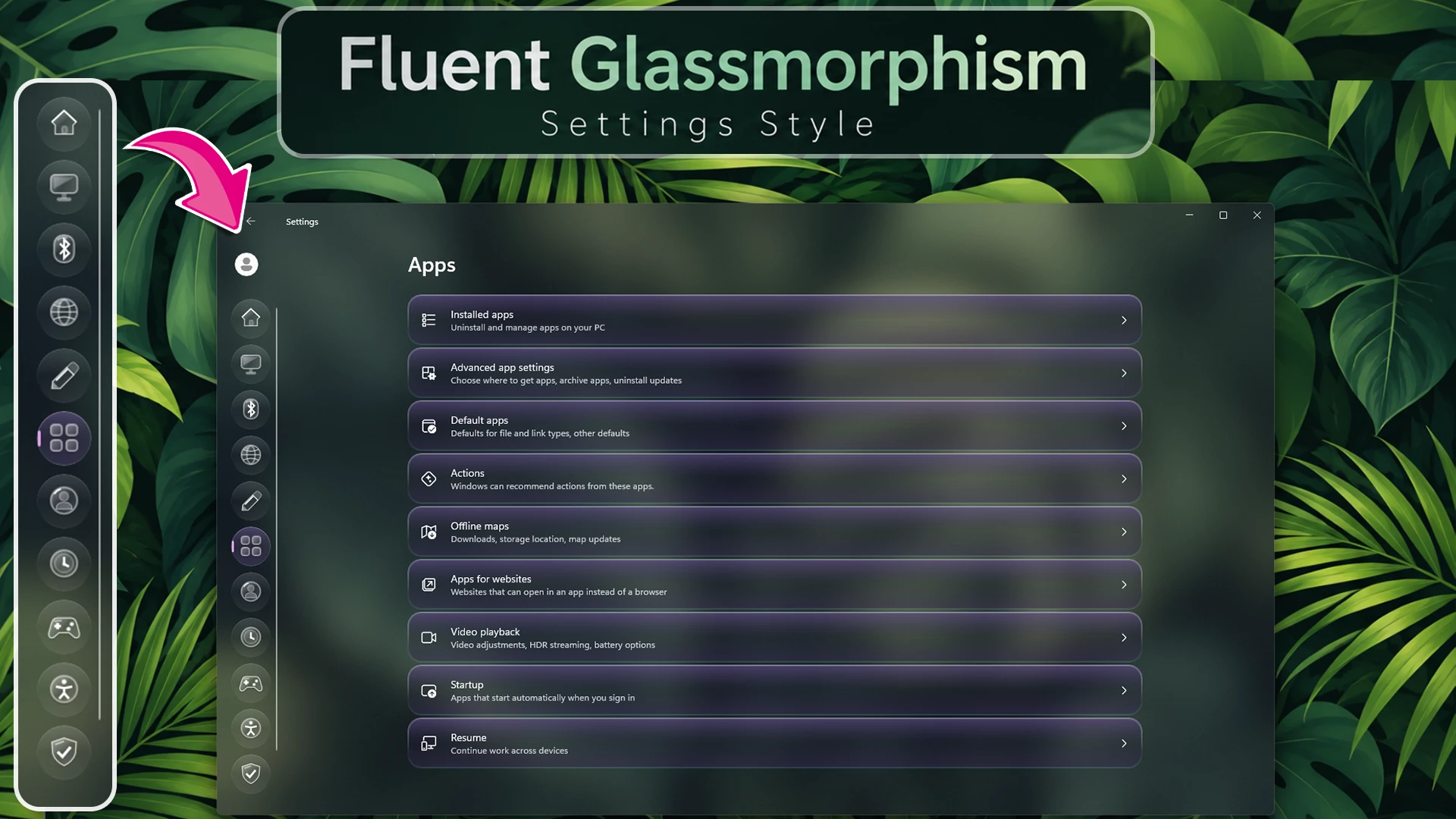
Dark Tinted Fluent Glass Style
This style gives the Windows 11 Settings app a darker, cleaner glass appearance with a soft tinted background. The dark glass effect improves contrast while still keeping the interface transparent and visually connected to the desktop.
The left navigation panel also gets a fresh look with custom glassmorphism-style Fluent icons. Their rounded shapes, soft transparency, and subtle highlights match the dark glass background nicely and make the navigation area feel more polished.
Features
- Dark tinted glass background for the Windows 11 Settings app
- Transparent interface with improved contrast and readability
- Custom Fluent glassmorphism-style icons in the left navigation panel
- Rounded navigation icons with soft glass highlights
- Clean and consistent styling across the Settings interface
- Modern glass cards with smooth borders and rounded corners
- Selected navigation items remain easy to identify
{ "theme": " Fluent Settings By Link Vegas ", "styleConstants[0]": "ShellGlass=<AcrylicBrush BackgroundSource=\"HostBackdrop\" TintColor=\"#100D20\" TintOpacity=\"0.52\" TintLuminosityOpacity=\"0.25\" FallbackColor=\"#151222\" />", "styleConstants[1]": "RailGlass=<WindhawkBlur BlurAmount=\"26\" TintColor=\"#171321\" TintOpacity=\"0.64\" />", "styleConstants[2]": "PopupGlass=<WindhawkBlur BlurAmount=\"30\" TintColor=\"#171321\" TintOpacity=\"0.85\" />", "styleConstants[3]": "GlassEdge=<LinearGradientBrush StartPoint=\"0,0\" EndPoint=\"1,1\"><GradientStop Color=\"#60CBB9FF\" Offset=\"0\" /><GradientStop Color=\"#15FFFFFF\" Offset=\"0.5\" /><GradientStop Color=\"#4558CBE5\" Offset=\"1\" /></LinearGradientBrush>", "styleConstants[4]": "CardGlass=<LinearGradientBrush StartPoint=\"0,0\" EndPoint=\"0,1\"><GradientStop Color=\"#60624E8A\" Offset=\"0\" /><GradientStop Color=\"#20251C3B\" Offset=\"0.5\" /><GradientStop Color=\"#403B2C59\" Offset=\"1\" /></LinearGradientBrush>", "styleConstants[5]": "CardEdge=<LinearGradientBrush StartPoint=\"0,0\" EndPoint=\"0,1\"><GradientStop Color=\"#80E3D1FF\" Offset=\"0\" /><GradientStop Color=\"#08FFFFFF\" Offset=\"0.7\" /><GradientStop Color=\"#3087D7EB\" Offset=\"1\" /></LinearGradientBrush>", "styleConstants[6]": "HomeIcon=<Viewbox Width=\"40\" Height=\"40\"><Canvas Width=\"40\" Height=\"40\"><Path Data=\"M5,20 L20,6 L35,20 L31,24 L31,35 L9,35 L9,24 Z\" Fill=\"#15000000\" /><Path Data=\"M5,17 L20,3 L35,17 L31,21 L31,32 L9,32 L9,21 Z\" Stroke=\"#C0FFFFFF\" StrokeThickness=\"1.5\"><Path.Fill><LinearGradientBrush StartPoint=\"0,0\" EndPoint=\"1,1\"><GradientStop Color=\"#70FFFFFF\" Offset=\"0\" /><GradientStop Color=\"#10FFFFFF\" Offset=\"0.5\" /><GradientStop Color=\"#30FFFFFF\" Offset=\"1\" /></LinearGradientBrush></Path.Fill></Path><Path Data=\"M5,17 L20,3 L35,17\" Stroke=\"#FFFFFF\" StrokeThickness=\"2\" /><Rectangle Canvas.Left=\"17\" Canvas.Top=\"22\" Width=\"7\" Height=\"10\" RadiusX=\"2\" RadiusY=\"2\" Fill=\"#30FFFFFF\" Stroke=\"#90FFFFFF\" StrokeThickness=\"1\" /></Canvas></Viewbox>", "styleConstants[7]": "SystemIcon=<Viewbox Width=\"40\" Height=\"40\"><Canvas Width=\"40\" Height=\"40\"><Rectangle Canvas.Left=\"3\" Canvas.Top=\"7\" Width=\"34\" Height=\"24\" RadiusX=\"5\" RadiusY=\"5\" Fill=\"#15000000\" /><Rectangle Canvas.Left=\"3\" Canvas.Top=\"4\" Width=\"34\" Height=\"24\" RadiusX=\"5\" RadiusY=\"5\" Stroke=\"#C0FFFFFF\" StrokeThickness=\"1.5\"><Rectangle.Fill><LinearGradientBrush StartPoint=\"0,0\" EndPoint=\"1,1\"><GradientStop Color=\"#70FFFFFF\" Offset=\"0\" /><GradientStop Color=\"#10FFFFFF\" Offset=\"0.5\" /><GradientStop Color=\"#30FFFFFF\" Offset=\"1\" /></LinearGradientBrush></Rectangle.Fill></Rectangle><Path Data=\"M7,8 L32,8 L7,22 Z\" Fill=\"#40FFFFFF\" /><Rectangle Canvas.Left=\"17\" Canvas.Top=\"28\" Width=\"6\" Height=\"6\" Fill=\"#50FFFFFF\" /><Rectangle Canvas.Left=\"11\" Canvas.Top=\"33\" Width=\"18\" Height=\"4\" RadiusX=\"2\" RadiusY=\"2\" Fill=\"#50FFFFFF\" Stroke=\"#90FFFFFF\" StrokeThickness=\"1\" /></Canvas></Viewbox>", "styleConstants[8]": "BluetoothIcon=<Viewbox Width=\"40\" Height=\"40\"><Canvas Width=\"40\" Height=\"40\"><Rectangle Canvas.Left=\"7\" Canvas.Top=\"4\" Width=\"26\" Height=\"35\" RadiusX=\"11\" RadiusY=\"11\" Fill=\"#15000000\" /><Rectangle Canvas.Left=\"7\" Canvas.Top=\"1\" Width=\"26\" Height=\"35\" RadiusX=\"11\" RadiusY=\"11\" Stroke=\"#C0FFFFFF\" StrokeThickness=\"1.5\"><Rectangle.Fill><LinearGradientBrush StartPoint=\"0,0\" EndPoint=\"1,1\"><GradientStop Color=\"#70FFFFFF\" Offset=\"0\" /><GradientStop Color=\"#10FFFFFF\" Offset=\"0.5\" /><GradientStop Color=\"#30FFFFFF\" Offset=\"1\" /></LinearGradientBrush></Rectangle.Fill></Rectangle><Path Data=\"M15,12 L26,24 L20,30 L20,7 L26,13 L15,25\" Stroke=\"#FFFFFF\" StrokeThickness=\"2.6\" /><Path Data=\"M12,8 Q15,4 24,5\" Stroke=\"#80FFFFFF\" StrokeThickness=\"2\" /></Canvas></Viewbox>", "styleConstants[9]": "NetworkIcon=<Viewbox Width=\"40\" Height=\"40\"><Canvas Width=\"40\" Height=\"40\"><Ellipse Canvas.Left=\"3\" Canvas.Top=\"5\" Width=\"34\" Height=\"34\" Fill=\"#15000000\" /><Ellipse Canvas.Left=\"3\" Canvas.Top=\"2\" Width=\"34\" Height=\"34\" Stroke=\"#C0FFFFFF\" StrokeThickness=\"1.5\"><Ellipse.Fill><LinearGradientBrush StartPoint=\"0,0\" EndPoint=\"1,1\"><GradientStop Color=\"#70FFFFFF\" Offset=\"0\" /><GradientStop Color=\"#10FFFFFF\" Offset=\"0.5\" /><GradientStop Color=\"#30FFFFFF\" Offset=\"1\" /></LinearGradientBrush></Ellipse.Fill></Ellipse><Ellipse Canvas.Left=\"12\" Canvas.Top=\"3\" Width=\"16\" Height=\"32\" Stroke=\"#A0FFFFFF\" StrokeThickness=\"1.7\" /><Path Data=\"M4,19 L36,19 M7,10 Q20,16 33,10 M7,28 Q20,22 33,28\" Stroke=\"#A0FFFFFF\" StrokeThickness=\"1.7\" /><Ellipse Canvas.Left=\"9\" Canvas.Top=\"6\" Width=\"8\" Height=\"4\" Fill=\"#50FFFFFF\" /></Canvas></Viewbox>", "styleConstants[10]": "PersonalIcon=<Viewbox Width=\"40\" Height=\"40\"><Canvas Width=\"40\" Height=\"40\"><Path Data=\"M6,30 L23,13 L32,22 L15,39 L5,39 Z\" Fill=\"#15000000\" /><Path Data=\"M6,27 L23,10 L32,19 L15,36 L5,36 Z\" Stroke=\"#C0FFFFFF\" StrokeThickness=\"1.5\"><Path.Fill><LinearGradientBrush StartPoint=\"0,0\" EndPoint=\"1,1\"><GradientStop Color=\"#70FFFFFF\" Offset=\"0\" /><GradientStop Color=\"#10FFFFFF\" Offset=\"0.5\" /><GradientStop Color=\"#30FFFFFF\" Offset=\"1\" /></LinearGradientBrush></Path.Fill></Path><Path Data=\"M23,10 L28,5 Q31,2 34,5 L37,8 Q39,11 36,14 L32,19 Z\" Fill=\"#30FFFFFF\" Stroke=\"#90FFFFFF\" StrokeThickness=\"1\" /><Path Data=\"M6,27 L15,36 L5,36 Z\" Fill=\"#40FFFFFF\" /><Path Data=\"M7,29 L12,34 L6,35 Z\" Fill=\"#50FFFFFF\" /><Path Data=\"M10,26 L24,12\" Stroke=\"#FFFFFF\" StrokeThickness=\"2\" /></Canvas></Viewbox>", "styleConstants[11]": "AppsIcon=<Viewbox Width=\"40\" Height=\"40\"><Canvas Width=\"40\" Height=\"40\"><Rectangle Canvas.Left=\"3\" Canvas.Top=\"5\" Width=\"15\" Height=\"15\" RadiusX=\"4\" RadiusY=\"4\" Fill=\"#15000000\" /><Rectangle Canvas.Left=\"22\" Canvas.Top=\"5\" Width=\"15\" Height=\"15\" RadiusX=\"4\" RadiusY=\"4\" Fill=\"#15000000\" /><Rectangle Canvas.Left=\"3\" Canvas.Top=\"24\" Width=\"15\" Height=\"15\" RadiusX=\"4\" RadiusY=\"4\" Fill=\"#15000000\" /><Rectangle Canvas.Left=\"22\" Canvas.Top=\"24\" Width=\"15\" Height=\"15\" RadiusX=\"4\" RadiusY=\"4\" Fill=\"#15000000\" /><Rectangle Canvas.Left=\"3\" Canvas.Top=\"2\" Width=\"15\" Height=\"15\" RadiusX=\"4\" RadiusY=\"4\" Stroke=\"#C0FFFFFF\" StrokeThickness=\"1.5\"><Rectangle.Fill><LinearGradientBrush StartPoint=\"0,0\" EndPoint=\"1,1\"><GradientStop Color=\"#60FFFFFF\" Offset=\"0\" /><GradientStop Color=\"#10FFFFFF\" Offset=\"1\" /></LinearGradientBrush></Rectangle.Fill></Rectangle><Rectangle Canvas.Left=\"22\" Canvas.Top=\"2\" Width=\"15\" Height=\"15\" RadiusX=\"4\" RadiusY=\"4\" Stroke=\"#C0FFFFFF\" StrokeThickness=\"1.5\"><Rectangle.Fill><LinearGradientBrush StartPoint=\"0,0\" EndPoint=\"1,1\"><GradientStop Color=\"#60FFFFFF\" Offset=\"0\" /><GradientStop Color=\"#10FFFFFF\" Offset=\"1\" /></LinearGradientBrush></Rectangle.Fill></Rectangle><Rectangle Canvas.Left=\"3\" Canvas.Top=\"21\" Width=\"15\" Height=\"15\" RadiusX=\"4\" RadiusY=\"4\" Stroke=\"#C0FFFFFF\" StrokeThickness=\"1.5\"><Rectangle.Fill><LinearGradientBrush StartPoint=\"0,0\" EndPoint=\"1,1\"><GradientStop Color=\"#60FFFFFF\" Offset=\"0\" /><GradientStop Color=\"#10FFFFFF\" Offset=\"1\" /></LinearGradientBrush></Rectangle.Fill></Rectangle><Rectangle Canvas.Left=\"22\" Canvas.Top=\"21\" Width=\"15\" Height=\"15\" RadiusX=\"4\" RadiusY=\"4\" Stroke=\"#C0FFFFFF\" StrokeThickness=\"1.5\"><Rectangle.Fill><LinearGradientBrush StartPoint=\"0,0\" EndPoint=\"1,1\"><GradientStop Color=\"#60FFFFFF\" Offset=\"0\" /><GradientStop Color=\"#10FFFFFF\" Offset=\"1\" /></LinearGradientBrush></Rectangle.Fill></Rectangle></Canvas></Viewbox>", "styleConstants[12]": "AccountIcon=<Viewbox Width=\"40\" Height=\"40\"><Canvas Width=\"40\" Height=\"40\"><Ellipse Canvas.Left=\"3\" Canvas.Top=\"5\" Width=\"34\" Height=\"34\" Fill=\"#15000000\" /><Ellipse Canvas.Left=\"3\" Canvas.Top=\"2\" Width=\"34\" Height=\"34\" Stroke=\"#C0FFFFFF\" StrokeThickness=\"1.5\"><Ellipse.Fill><LinearGradientBrush StartPoint=\"0,0\" EndPoint=\"1,1\"><GradientStop Color=\"#70FFFFFF\" Offset=\"0\" /><GradientStop Color=\"#10FFFFFF\" Offset=\"0.5\" /><GradientStop Color=\"#30FFFFFF\" Offset=\"1\" /></LinearGradientBrush></Ellipse.Fill></Ellipse><Ellipse Canvas.Left=\"14\" Canvas.Top=\"8\" Width=\"12\" Height=\"12\" Fill=\"#40FFFFFF\" Stroke=\"#90FFFFFF\" StrokeThickness=\"1\" /><Path Data=\"M10,30 Q10,21 20,21 Q30,21 30,30 Z\" Fill=\"#40FFFFFF\" Stroke=\"#90FFFFFF\" StrokeThickness=\"1\" /><Path Data=\"M8,11 Q11,6 16,5\" Stroke=\"#FFFFFF\" StrokeThickness=\"2\" /></Canvas></Viewbox>", "styleConstants[13]": "TimeIcon=<Viewbox Width=\"40\" Height=\"40\"><Canvas Width=\"40\" Height=\"40\"><Ellipse Canvas.Left=\"3\" Canvas.Top=\"5\" Width=\"34\" Height=\"34\" Fill=\"#15000000\" /><Ellipse Canvas.Left=\"3\" Canvas.Top=\"2\" Width=\"34\" Height=\"34\" Stroke=\"#C0FFFFFF\" StrokeThickness=\"1.5\"><Ellipse.Fill><LinearGradientBrush StartPoint=\"0,0\" EndPoint=\"1,1\"><GradientStop Color=\"#70FFFFFF\" Offset=\"0\" /><GradientStop Color=\"#10FFFFFF\" Offset=\"0.5\" /><GradientStop Color=\"#30FFFFFF\" Offset=\"1\" /></LinearGradientBrush></Ellipse.Fill></Ellipse><Ellipse Canvas.Left=\"8\" Canvas.Top=\"7\" Width=\"24\" Height=\"24\" Fill=\"#20FFFFFF\" Stroke=\"#80FFFFFF\" StrokeThickness=\"1\" /><Path Data=\"M20,11 L20,20 L26,23\" Stroke=\"#FFFFFF\" StrokeThickness=\"3\" /><Ellipse Canvas.Left=\"18\" Canvas.Top=\"18\" Width=\"4\" Height=\"4\" Fill=\"#FFFFFF\" /></Canvas></Viewbox>", "styleConstants[14]": "GamingIcon=<Viewbox Width=\"40\" Height=\"40\"><Canvas Width=\"40\" Height=\"40\"><Path Data=\"M11,12 L29,12 Q34,12 36,20 L39,31 Q39,38 33,36 L26,30 L14,30 L7,36 Q1,38 1,31 L4,20 Q6,12 11,12 Z\" Fill=\"#15000000\" /><Path Data=\"M11,9 L29,9 Q34,9 36,17 L39,28 Q39,35 33,33 L26,27 L14,27 L7,33 Q1,35 1,28 L4,17 Q6,9 11,9 Z\" Stroke=\"#C0FFFFFF\" StrokeThickness=\"1.5\"><Path.Fill><LinearGradientBrush StartPoint=\"0,0\" EndPoint=\"1,1\"><GradientStop Color=\"#70FFFFFF\" Offset=\"0\" /><GradientStop Color=\"#10FFFFFF\" Offset=\"0.5\" /><GradientStop Color=\"#30FFFFFF\" Offset=\"1\" /></LinearGradientBrush></Path.Fill></Path><Path Data=\"M12,15 L12,23 M8,19 L16,19\" Stroke=\"#FFFFFF\" StrokeThickness=\"3.5\" /><Ellipse Canvas.Left=\"27\" Canvas.Top=\"14\" Width=\"5\" Height=\"5\" Fill=\"#FFFFFF\" /><Ellipse Canvas.Left=\"23\" Canvas.Top=\"20\" Width=\"5\" Height=\"5\" Fill=\"#FFFFFF\" /><Path Data=\"M8,13 L17,12\" Stroke=\"#80FFFFFF\" StrokeThickness=\"2\" /></Canvas></Viewbox>", "styleConstants[15]": "AccessIcon=<Viewbox Width=\"40\" Height=\"40\"><Canvas Width=\"40\" Height=\"40\"><Ellipse Canvas.Left=\"3\" Canvas.Top=\"5\" Width=\"34\" Height=\"34\" Fill=\"#15000000\" /><Ellipse Canvas.Left=\"3\" Canvas.Top=\"2\" Width=\"34\" Height=\"34\" Stroke=\"#C0FFFFFF\" StrokeThickness=\"1.5\"><Ellipse.Fill><LinearGradientBrush StartPoint=\"0,0\" EndPoint=\"1,1\"><GradientStop Color=\"#70FFFFFF\" Offset=\"0\" /><GradientStop Color=\"#10FFFFFF\" Offset=\"0.5\" /><GradientStop Color=\"#30FFFFFF\" Offset=\"1\" /></LinearGradientBrush></Ellipse.Fill></Ellipse><Ellipse Canvas.Left=\"17\" Canvas.Top=\"7\" Width=\"6\" Height=\"6\" Fill=\"#FFFFFF\" /><Path Data=\"M10,16 L20,18 L30,16 M20,18 L20,24 M20,24 L14,31 M20,24 L26,31\" Stroke=\"#FFFFFF\" StrokeThickness=\"3\" /></Canvas></Viewbox>", "styleConstants[16]": "PrivacyIcon=<Viewbox Width=\"40\" Height=\"40\"><Canvas Width=\"40\" Height=\"40\"><Path Data=\"M20,5 L35,10 L34,24 Q31,34 20,39 Q9,34 6,24 L5,10 Z\" Fill=\"#15000000\" /><Path Data=\"M20,2 L35,7 L34,21 Q31,31 20,36 Q9,31 6,21 L5,7 Z\" Stroke=\"#C0FFFFFF\" StrokeThickness=\"1.5\"><Path.Fill><LinearGradientBrush StartPoint=\"0,0\" EndPoint=\"1,1\"><GradientStop Color=\"#70FFFFFF\" Offset=\"0\" /><GradientStop Color=\"#10FFFFFF\" Offset=\"0.5\" /><GradientStop Color=\"#30FFFFFF\" Offset=\"1\" /></LinearGradientBrush></Path.Fill></Path><Path Data=\"M12,19 L18,25 L28,13\" Stroke=\"#FFFFFF\" StrokeThickness=\"3.5\" /><Path Data=\"M9,10 L20,6\" Stroke=\"#90FFFFFF\" StrokeThickness=\"2\" /></Canvas></Viewbox>", "styleConstants[17]": "UpdateIcon=<Viewbox Width=\"40\" Height=\"40\"><Canvas Width=\"40\" Height=\"40\"><Ellipse Canvas.Left=\"3\" Canvas.Top=\"5\" Width=\"34\" Height=\"34\" Fill=\"#15000000\" /><Ellipse Canvas.Left=\"3\" Canvas.Top=\"2\" Width=\"34\" Height=\"34\" Stroke=\"#C0FFFFFF\" StrokeThickness=\"1.5\"><Ellipse.Fill><LinearGradientBrush StartPoint=\"0,0\" EndPoint=\"1,1\"><GradientStop Color=\"#70FFFFFF\" Offset=\"0\" /><GradientStop Color=\"#10FFFFFF\" Offset=\"0.5\" /><GradientStop Color=\"#30FFFFFF\" Offset=\"1\" /></LinearGradientBrush></Ellipse.Fill></Ellipse><Path Data=\"M11,18 Q12,10 20,10 Q25,10 28,14 M29,21 Q28,29 20,29 Q15,29 12,25\" Stroke=\"#FFFFFF\" StrokeThickness=\"3\" /><Path Data=\"M23,15 L29,15 L29,9 M17,24 L11,24 L11,30\" Stroke=\"#FFFFFF\" StrokeThickness=\"2.7\" /></Canvas></Viewbox>", "controlStyles[0].target": "Microsoft.UI.Xaml.Controls.ItemsRepeater#MenuItemsHost", "controlStyles[0].styles[0]": "Layout:=<mux:StackLayout xmlns:mux=\"using:Microsoft.UI.Xaml.Controls\" Orientation=\"Vertical\" Spacing=\"0\" />", "controlStyles[1].target": "ScrollViewer#MenuItemsScrollViewer", "controlStyles[1].styles[0]": "VerticalAnchorRatio=0", "controlStyles[1].styles[1]": "HorizontalAnchorRatio=0", "controlStyles[2].target": "SystemSettings.View.RootPage > Grid#RootPageGrid", "controlStyles[2].styles[0]": "Background:=$ShellGlass", "controlStyles[3].target": "Microsoft.UI.Xaml.Controls.NavigationView#PermanentNavigationView", "controlStyles[3].styles[0]": "OpenPaneLength=92", "controlStyles[3].styles[1]": "CompactPaneLength=92", "controlStyles[4].target": "Microsoft.UI.Xaml.Controls.NavigationView#PermanentNavigationView > Grid#RootGrid", "controlStyles[4].styles[0]": "Background=Transparent", "controlStyles[5].target": "Microsoft.UI.Xaml.Controls.NavigationView#PermanentNavigationView > Grid#RootGrid > Grid", "controlStyles[5].styles[0]": "Background=Transparent", "controlStyles[6].target": "SplitView#RootSplitView", "controlStyles[6].styles[0]": "Background=Transparent", "controlStyles[6].styles[1]": "PaneBackground=Transparent", "controlStyles[6].styles[2]": "OpenPaneLength=92", "controlStyles[6].styles[3]": "CompactPaneLength=92", "controlStyles[7].target": "SplitView#RootSplitView > Grid > Grid#PaneRoot", "controlStyles[7].styles[0]": "Background=Transparent", "controlStyles[8].target": "SplitView#RootSplitView > Grid > Grid#PaneRoot > Border", "controlStyles[8].styles[0]": "Background=Transparent", "controlStyles[8].styles[1]": "BorderBrush=Transparent", "controlStyles[8].styles[2]": "BorderThickness=0", "controlStyles[8].styles[3]": "CornerRadius=26", "controlStyles[8].styles[4]": "Margin=6,8,6,12", "controlStyles[9].target": "SplitView#RootSplitView > Grid > Grid#ContentRoot", "controlStyles[9].styles[0]": "Background=Transparent", "controlStyles[10].target": "Grid#ContentRoot > Border", "controlStyles[10].styles[0]": "Background=Transparent", "controlStyles[10].styles[1]": "BorderBrush=Transparent", "controlStyles[10].styles[2]": "BorderThickness=0", "controlStyles[11].target": "Grid#ContentRoot > Border > Grid#ContentGrid", "controlStyles[11].styles[0]": "Background=Transparent", "controlStyles[11].styles[1]": "BorderBrush=Transparent", "controlStyles[11].styles[2]": "BorderThickness=0", "controlStyles[11].styles[3]": "CornerRadius=0", "controlStyles[11].styles[4]": "Margin=2,8,14,12", "controlStyles[12].target": "Frame#PermanentNavRootFrame", "controlStyles[12].styles[0]": "Background=Transparent", "controlStyles[13].target": "Grid#ContentRoot > Border > Grid#ContentGrid > ContentControl#HeaderContent", "controlStyles[13].styles[0]": "Background=Transparent", "controlStyles[14].target": "Grid#AppTitleBar", "controlStyles[14].styles[0]": "Background=Transparent", "controlStyles[15].target": "Border#AppTitleBarBackground", "controlStyles[15].styles[0]": "Background=Transparent", "controlStyles[16].target": "Grid#TitleBar", "controlStyles[16].styles[0]": "Background=Transparent", "controlStyles[17].target": "Border#TitleBarBackground", "controlStyles[17].styles[0]": "Background=Transparent", "controlStyles[18].target": "StackPanel#SettingsCommandSearchBoxBackground", "controlStyles[18].styles[0]": "Visibility=Collapsed", "controlStyles[19].target": "TextBox#CommandSearchTextBox", "controlStyles[19].styles[0]": "Visibility=Collapsed", "controlStyles[20].target": "SystemSettings.View.UserProfileControl#UserProfileControl > Button#UserProfileButton", "controlStyles[20].styles[0]": "Width=52", "controlStyles[20].styles[1]": "Height=52", "controlStyles[20].styles[2]": "MinWidth=52", "controlStyles[20].styles[3]": "MinHeight=52", "controlStyles[20].styles[4]": "HorizontalAlignment=Center", "controlStyles[20].styles[5]": "HorizontalContentAlignment=Center", "controlStyles[20].styles[6]": "VerticalContentAlignment=Center", "controlStyles[20].styles[7]": "Padding=4", "controlStyles[20].styles[8]": "ToolTipService.ToolTip=Account", "controlStyles[20].styles[9]": "ToolTipService.Placement=5", "controlStyles[21].target": "SystemSettings.View.UserProfileControl#UserProfileControl > Button#UserProfileButton > ContentPresenter#ContentPresenter", "controlStyles[21].styles[0]": "Background=#00000000", "controlStyles[21].styles[1]": "BorderBrush=#00000000", "controlStyles[21].styles[2]": "BorderThickness=0", "controlStyles[21].styles[3]": "CornerRadius=26", "controlStyles[21].styles[4]": "Padding=4", "controlStyles[21].styles[5]": "HorizontalAlignment=Center", "controlStyles[21].styles[6]": "VerticalAlignment=Center", "controlStyles[21].styles[7]": "HorizontalContentAlignment=Center", "controlStyles[21].styles[8]": "VerticalContentAlignment=Center", "controlStyles[22].target": "Grid#UserProfileLayout > Grid[2]", "controlStyles[22].styles[0]": "Visibility=Collapsed", "controlStyles[23].target": "Grid#UserProfileLayout > Grid#UserImageGrid", "controlStyles[23].styles[0]": "Width=32", "controlStyles[23].styles[1]": "Height=32", "controlStyles[23].styles[2]": "CornerRadius=16", "controlStyles[23].styles[3]": "HorizontalAlignment=Center", "controlStyles[23].styles[4]": "VerticalAlignment=Center", "controlStyles[23].styles[5]": "Margin=0", "controlStyles[24].target": "Grid#UserProfileLayout > Grid#UserImageGrid > Image", "controlStyles[24].styles[0]": "Width=32", "controlStyles[24].styles[1]": "Height=32", "controlStyles[24].styles[2]": "HorizontalAlignment=Center", "controlStyles[24].styles[3]": "VerticalAlignment=Center", "controlStyles[24].styles[4]": "Stretch=UniformToFill", "controlStyles[25].target": "SystemSettings.View.SettingsNavigationViewItem", "controlStyles[25].styles[0]": "Width=54", "controlStyles[25].styles[1]": "MinWidth=54", "controlStyles[25].styles[2]": "MaxWidth=54", "controlStyles[25].styles[3]": "Height=54", "controlStyles[25].styles[4]": "MinHeight=54", "controlStyles[25].styles[5]": "Padding=0", "controlStyles[25].styles[6]": "Margin=2,4,2,4", "controlStyles[25].styles[7]": "HorizontalAlignment=Center", "controlStyles[25].styles[8]": "HorizontalContentAlignment=Stretch", "controlStyles[25].styles[9]": "CornerRadius=27", "controlStyles[25].styles[10]": "ToolTipService.Placement=5", "controlStyles[26].target": "SystemSettings.View.SettingsNavigationViewItem > Grid#NVIRootGrid", "controlStyles[26].styles[0]": "MinWidth=0", "controlStyles[26].styles[1]": "Margin=0", "controlStyles[27].target": "SystemSettings.View.SettingsNavigationViewItem > Grid#NVIRootGrid > Microsoft.UI.Xaml.Controls.Primitives.NavigationViewItemPresenter#NavigationViewItemPresenter", "controlStyles[27].styles[0]": "MinWidth=0", "controlStyles[27].styles[1]": "Padding=0", "controlStyles[27].styles[2]": "Margin=0", "controlStyles[27].styles[3]": "HorizontalContentAlignment=Stretch", "controlStyles[28].target": "Microsoft.UI.Xaml.Controls.Primitives.NavigationViewItemPresenter#NavigationViewItemPresenter > Grid#LayoutRoot", "controlStyles[28].styles[0]": "MinWidth=0", "controlStyles[28].styles[1]": "Margin=0", "controlStyles[29].target": "Microsoft.UI.Xaml.Controls.Primitives.NavigationViewItemPresenter#NavigationViewItemPresenter > Grid#LayoutRoot@PointerStates > Grid#PresenterContentRootGrid", "controlStyles[29].styles[0]": "MinWidth=0", "controlStyles[29].styles[1]": "Margin=0", "controlStyles[29].styles[2]": "Padding=0", "controlStyles[29].styles[3]": "CornerRadius=27", "controlStyles[29].styles[4]": "BorderThickness=1", "controlStyles[29].styles[5]": "BorderBrush@Normal:=<LinearGradientBrush StartPoint=\"0,0\" EndPoint=\"0,1\"><GradientStop Color=\"#45FFFFFF\" Offset=\"0\" /><GradientStop Color=\"#00FFFFFF\" Offset=\"0.7\" /><GradientStop Color=\"#20FFFFFF\" Offset=\"1\" /></LinearGradientBrush>", "controlStyles[29].styles[6]": "Background@Normal:=<LinearGradientBrush StartPoint=\"0,0\" EndPoint=\"0,1\"><GradientStop Color=\"#25FFFFFF\" Offset=\"0\" /><GradientStop Color=\"#05FFFFFF\" Offset=\"0.5\" /><GradientStop Color=\"#12FFFFFF\" Offset=\"1\" /></LinearGradientBrush>", "controlStyles[29].styles[7]": "BorderBrush@PointerOver:=<LinearGradientBrush StartPoint=\"0,0\" EndPoint=\"0,1\"><GradientStop Color=\"#50FFFFFF\" Offset=\"0\" /><GradientStop Color=\"#05FFFFFF\" Offset=\"0.8\" /><GradientStop Color=\"#20FFFFFF\" Offset=\"1\" /></LinearGradientBrush>", "controlStyles[29].styles[8]": "Background@PointerOver:=<LinearGradientBrush StartPoint=\"0,0\" EndPoint=\"0,1\"><GradientStop Color=\"#50675294\" Offset=\"0\" /><GradientStop Color=\"#202B1F42\" Offset=\"0.5\" /><GradientStop Color=\"#353F2E5E\" Offset=\"1\" /></LinearGradientBrush>", "controlStyles[29].styles[9]": "BorderBrush@Pressed=#20FFFFFF", "controlStyles[29].styles[10]": "Background@Pressed:=<LinearGradientBrush StartPoint=\"0,0\" EndPoint=\"0,1\"><GradientStop Color=\"#202B1F42\" Offset=\"0\" /><GradientStop Color=\"#50675294\" Offset=\"1\" /></LinearGradientBrush>", "controlStyles[29].styles[11]": "BorderBrush@Selected:=<LinearGradientBrush StartPoint=\"0,0\" EndPoint=\"0,1\"><GradientStop Color=\"#80E3D1FF\" Offset=\"0\" /><GradientStop Color=\"#10FFFFFF\" Offset=\"0.8\" /><GradientStop Color=\"#40FFFFFF\" Offset=\"1\" /></LinearGradientBrush>", "controlStyles[29].styles[12]": "Background@Selected:=<LinearGradientBrush StartPoint=\"0,0\" EndPoint=\"0,1\"><GradientStop Color=\"#707E60AD\" Offset=\"0\" /><GradientStop Color=\"#353A265E\" Offset=\"0.5\" /><GradientStop Color=\"#50543985\" Offset=\"1\" /></LinearGradientBrush>", "controlStyles[29].styles[13]": "BorderBrush@PointerOverSelected:=<LinearGradientBrush StartPoint=\"0,0\" EndPoint=\"0,1\"><GradientStop Color=\"#A0E3D1FF\" Offset=\"0\" /><GradientStop Color=\"#20FFFFFF\" Offset=\"0.8\" /><GradientStop Color=\"#60FFFFFF\" Offset=\"1\" /></LinearGradientBrush>", "controlStyles[29].styles[14]": "Background@PointerOverSelected:=<LinearGradientBrush StartPoint=\"0,0\" EndPoint=\"0,1\"><GradientStop Color=\"#859273C4\" Offset=\"0\" /><GradientStop Color=\"#45432D73\" Offset=\"0.5\" /><GradientStop Color=\"#6064449E\" Offset=\"1\" /></LinearGradientBrush>", "controlStyles[29].styles[15]": "BorderBrush@PressedSelected=#30FFFFFF", "controlStyles[29].styles[16]": "Background@PressedSelected:=<LinearGradientBrush StartPoint=\"0,0\" EndPoint=\"0,1\"><GradientStop Color=\"#353A265E\" Offset=\"0\" /><GradientStop Color=\"#707E60AD\" Offset=\"1\" /></LinearGradientBrush>", "controlStyles[30].target": "Microsoft.UI.Xaml.Controls.Primitives.NavigationViewItemPresenter#NavigationViewItemPresenter > Grid#LayoutRoot > Grid#PresenterContentRootGrid > Grid#ContentGrid", "controlStyles[30].styles[0]": "MinWidth=0", "controlStyles[30].styles[1]": "Margin=0", "controlStyles[30].styles[2]": "Padding=0", "controlStyles[30].styles[3]": "HorizontalAlignment=Stretch", "controlStyles[30].styles[4]": "VerticalAlignment=Stretch", "controlStyles[31].target": "Microsoft.UI.Xaml.Controls.Primitives.NavigationViewItemPresenter#NavigationViewItemPresenter > Grid#LayoutRoot > Grid#PresenterContentRootGrid > Grid#ContentGrid > ContentPresenter#ContentPresenter", "controlStyles[31].styles[0]": "Visibility=Visible", "controlStyles[31].styles[1]": "HorizontalAlignment=Stretch", "controlStyles[31].styles[2]": "VerticalAlignment=Stretch", "controlStyles[32].target": "Microsoft.UI.Xaml.Controls.Primitives.NavigationViewItemPresenter#NavigationViewItemPresenter > Grid#LayoutRoot > Grid#PresenterContentRootGrid > Grid#ContentGrid > Border#IconColumn", "controlStyles[32].styles[0]": "Visibility=Collapsed", "controlStyles[33].target": "SystemSettings.View.SettingsNavigationViewItem[Content=Home]", "controlStyles[33].styles[0]": "ContentTemplate:=<DataTemplate><Viewbox Width=\"40\" Height=\"40\"><Canvas Width=\"40\" Height=\"40\"><Path Data=\"M5,20 L20,6 L35,20 L31,24 L31,35 L9,35 L9,24 Z\" Fill=\"#15000000\" /><Path Data=\"M5,17 L20,3 L35,17 L31,21 L31,32 L9,32 L9,21 Z\" Stroke=\"#C0FFFFFF\" StrokeThickness=\"1.5\"><Path.Fill><LinearGradientBrush StartPoint=\"0,0\" EndPoint=\"1,1\"><GradientStop Color=\"#70FFFFFF\" Offset=\"0\" /><GradientStop Color=\"#10FFFFFF\" Offset=\"0.5\" /><GradientStop Color=\"#30FFFFFF\" Offset=\"1\" /></LinearGradientBrush></Path.Fill></Path><Path Data=\"M5,17 L20,3 L35,17\" Stroke=\"#FFFFFF\" StrokeThickness=\"2\" /><Rectangle Canvas.Left=\"17\" Canvas.Top=\"22\" Width=\"7\" Height=\"10\" RadiusX=\"2\" RadiusY=\"2\" Fill=\"#30FFFFFF\" Stroke=\"#90FFFFFF\" StrokeThickness=\"1\" /></Canvas></Viewbox></DataTemplate>", "controlStyles[34].target": "SystemSettings.View.SettingsNavigationViewItem[Content=System]", "controlStyles[34].styles[0]": "ContentTemplate:=<DataTemplate><Viewbox Width=\"40\" Height=\"40\"><Canvas Width=\"40\" Height=\"40\"><Rectangle Canvas.Left=\"3\" Canvas.Top=\"7\" Width=\"34\" Height=\"24\" RadiusX=\"5\" RadiusY=\"5\" Fill=\"#15000000\" /><Rectangle Canvas.Left=\"3\" Canvas.Top=\"4\" Width=\"34\" Height=\"24\" RadiusX=\"5\" RadiusY=\"5\" Stroke=\"#C0FFFFFF\" StrokeThickness=\"1.5\"><Rectangle.Fill><LinearGradientBrush StartPoint=\"0,0\" EndPoint=\"1,1\"><GradientStop Color=\"#70FFFFFF\" Offset=\"0\" /><GradientStop Color=\"#10FFFFFF\" Offset=\"0.5\" /><GradientStop Color=\"#30FFFFFF\" Offset=\"1\" /></LinearGradientBrush></Rectangle.Fill></Rectangle><Path Data=\"M7,8 L32,8 L7,22 Z\" Fill=\"#40FFFFFF\" /><Rectangle Canvas.Left=\"17\" Canvas.Top=\"28\" Width=\"6\" Height=\"6\" Fill=\"#50FFFFFF\" /><Rectangle Canvas.Left=\"11\" Canvas.Top=\"33\" Width=\"18\" Height=\"4\" RadiusX=\"2\" RadiusY=\"2\" Fill=\"#50FFFFFF\" Stroke=\"#90FFFFFF\" StrokeThickness=\"1\" /></Canvas></Viewbox></DataTemplate>", "controlStyles[35].target": "SystemSettings.View.SettingsNavigationViewItem[Content=Bluetooth & devices]", "controlStyles[35].styles[0]": "ContentTemplate:=<DataTemplate><Viewbox Width=\"40\" Height=\"40\"><Canvas Width=\"40\" Height=\"40\"><Rectangle Canvas.Left=\"7\" Canvas.Top=\"4\" Width=\"26\" Height=\"35\" RadiusX=\"11\" RadiusY=\"11\" Fill=\"#15000000\" /><Rectangle Canvas.Left=\"7\" Canvas.Top=\"1\" Width=\"26\" Height=\"35\" RadiusX=\"11\" RadiusY=\"11\" Stroke=\"#C0FFFFFF\" StrokeThickness=\"1.5\"><Rectangle.Fill><LinearGradientBrush StartPoint=\"0,0\" EndPoint=\"1,1\"><GradientStop Color=\"#70FFFFFF\" Offset=\"0\" /><GradientStop Color=\"#10FFFFFF\" Offset=\"0.5\" /><GradientStop Color=\"#30FFFFFF\" Offset=\"1\" /></LinearGradientBrush></Rectangle.Fill></Rectangle><Path Data=\"M15,12 L26,24 L20,30 L20,7 L26,13 L15,25\" Stroke=\"#FFFFFF\" StrokeThickness=\"2.6\" /><Path Data=\"M12,8 Q15,4 24,5\" Stroke=\"#80FFFFFF\" StrokeThickness=\"2\" /></Canvas></Viewbox></DataTemplate>", "controlStyles[36].target": "SystemSettings.View.SettingsNavigationViewItem[Content=Network & internet]", "controlStyles[36].styles[0]": "ContentTemplate:=<DataTemplate><Viewbox Width=\"40\" Height=\"40\"><Canvas Width=\"40\" Height=\"40\"><Ellipse Canvas.Left=\"3\" Canvas.Top=\"5\" Width=\"34\" Height=\"34\" Fill=\"#15000000\" /><Ellipse Canvas.Left=\"3\" Canvas.Top=\"2\" Width=\"34\" Height=\"34\" Stroke=\"#C0FFFFFF\" StrokeThickness=\"1.5\"><Ellipse.Fill><LinearGradientBrush StartPoint=\"0,0\" EndPoint=\"1,1\"><GradientStop Color=\"#70FFFFFF\" Offset=\"0\" /><GradientStop Color=\"#10FFFFFF\" Offset=\"0.5\" /><GradientStop Color=\"#30FFFFFF\" Offset=\"1\" /></LinearGradientBrush></Ellipse.Fill></Ellipse><Ellipse Canvas.Left=\"12\" Canvas.Top=\"3\" Width=\"16\" Height=\"32\" Stroke=\"#A0FFFFFF\" StrokeThickness=\"1.7\" /><Path Data=\"M4,19 L36,19 M7,10 Q20,16 33,10 M7,28 Q20,22 33,28\" Stroke=\"#A0FFFFFF\" StrokeThickness=\"1.7\" /><Ellipse Canvas.Left=\"9\" Canvas.Top=\"6\" Width=\"8\" Height=\"4\" Fill=\"#50FFFFFF\" /></Canvas></Viewbox></DataTemplate>", "controlStyles[37].target": "SystemSettings.View.SettingsNavigationViewItem[Content=Personalization]", "controlStyles[37].styles[0]": "ContentTemplate:=<DataTemplate><Viewbox Width=\"40\" Height=\"40\"><Canvas Width=\"40\" Height=\"40\"><Path Data=\"M6,30 L23,13 L32,22 L15,39 L5,39 Z\" Fill=\"#15000000\" /><Path Data=\"M6,27 L23,10 L32,19 L15,36 L5,36 Z\" Stroke=\"#C0FFFFFF\" StrokeThickness=\"1.5\"><Path.Fill><LinearGradientBrush StartPoint=\"0,0\" EndPoint=\"1,1\"><GradientStop Color=\"#70FFFFFF\" Offset=\"0\" /><GradientStop Color=\"#10FFFFFF\" Offset=\"0.5\" /><GradientStop Color=\"#30FFFFFF\" Offset=\"1\" /></LinearGradientBrush></Path.Fill></Path><Path Data=\"M23,10 L28,5 Q31,2 34,5 L37,8 Q39,11 36,14 L32,19 Z\" Fill=\"#30FFFFFF\" Stroke=\"#90FFFFFF\" StrokeThickness=\"1\" /><Path Data=\"M6,27 L15,36 L5,36 Z\" Fill=\"#40FFFFFF\" /><Path Data=\"M7,29 L12,34 L6,35 Z\" Fill=\"#50FFFFFF\" /><Path Data=\"M10,26 L24,12\" Stroke=\"#FFFFFF\" StrokeThickness=\"2\" /></Canvas></Viewbox></DataTemplate>", "controlStyles[38].target": "SystemSettings.View.SettingsNavigationViewItem[Content=Apps]", "controlStyles[38].styles[0]": "ContentTemplate:=<DataTemplate><Viewbox Width=\"40\" Height=\"40\"><Canvas Width=\"40\" Height=\"40\"><Rectangle Canvas.Left=\"3\" Canvas.Top=\"5\" Width=\"15\" Height=\"15\" RadiusX=\"4\" RadiusY=\"4\" Fill=\"#15000000\" /><Rectangle Canvas.Left=\"22\" Canvas.Top=\"5\" Width=\"15\" Height=\"15\" RadiusX=\"4\" RadiusY=\"4\" Fill=\"#15000000\" /><Rectangle Canvas.Left=\"3\" Canvas.Top=\"24\" Width=\"15\" Height=\"15\" RadiusX=\"4\" RadiusY=\"4\" Fill=\"#15000000\" /><Rectangle Canvas.Left=\"22\" Canvas.Top=\"24\" Width=\"15\" Height=\"15\" RadiusX=\"4\" RadiusY=\"4\" Fill=\"#15000000\" /><Rectangle Canvas.Left=\"3\" Canvas.Top=\"2\" Width=\"15\" Height=\"15\" RadiusX=\"4\" RadiusY=\"4\" Stroke=\"#C0FFFFFF\" StrokeThickness=\"1.5\"><Rectangle.Fill><LinearGradientBrush StartPoint=\"0,0\" EndPoint=\"1,1\"><GradientStop Color=\"#60FFFFFF\" Offset=\"0\" /><GradientStop Color=\"#10FFFFFF\" Offset=\"1\" /></LinearGradientBrush></Rectangle.Fill></Rectangle><Rectangle Canvas.Left=\"22\" Canvas.Top=\"2\" Width=\"15\" Height=\"15\" RadiusX=\"4\" RadiusY=\"4\" Stroke=\"#C0FFFFFF\" StrokeThickness=\"1.5\"><Rectangle.Fill><LinearGradientBrush StartPoint=\"0,0\" EndPoint=\"1,1\"><GradientStop Color=\"#60FFFFFF\" Offset=\"0\" /><GradientStop Color=\"#10FFFFFF\" Offset=\"1\" /></LinearGradientBrush></Rectangle.Fill></Rectangle><Rectangle Canvas.Left=\"3\" Canvas.Top=\"21\" Width=\"15\" Height=\"15\" RadiusX=\"4\" RadiusY=\"4\" Stroke=\"#C0FFFFFF\" StrokeThickness=\"1.5\"><Rectangle.Fill><LinearGradientBrush StartPoint=\"0,0\" EndPoint=\"1,1\"><GradientStop Color=\"#60FFFFFF\" Offset=\"0\" /><GradientStop Color=\"#10FFFFFF\" Offset=\"1\" /></LinearGradientBrush></Rectangle.Fill></Rectangle><Rectangle Canvas.Left=\"22\" Canvas.Top=\"21\" Width=\"15\" Height=\"15\" RadiusX=\"4\" RadiusY=\"4\" Stroke=\"#C0FFFFFF\" StrokeThickness=\"1.5\"><Rectangle.Fill><LinearGradientBrush StartPoint=\"0,0\" EndPoint=\"1,1\"><GradientStop Color=\"#60FFFFFF\" Offset=\"0\" /><GradientStop Color=\"#10FFFFFF\" Offset=\"1\" /></LinearGradientBrush></Rectangle.Fill></Rectangle></Canvas></Viewbox></DataTemplate>", "controlStyles[39].target": "SystemSettings.View.SettingsNavigationViewItem[Content=Accounts]", "controlStyles[39].styles[0]": "ContentTemplate:=<DataTemplate><Viewbox Width=\"40\" Height=\"40\"><Canvas Width=\"40\" Height=\"40\"><Ellipse Canvas.Left=\"3\" Canvas.Top=\"5\" Width=\"34\" Height=\"34\" Fill=\"#15000000\" /><Ellipse Canvas.Left=\"3\" Canvas.Top=\"2\" Width=\"34\" Height=\"34\" Stroke=\"#C0FFFFFF\" StrokeThickness=\"1.5\"><Ellipse.Fill><LinearGradientBrush StartPoint=\"0,0\" EndPoint=\"1,1\"><GradientStop Color=\"#70FFFFFF\" Offset=\"0\" /><GradientStop Color=\"#10FFFFFF\" Offset=\"0.5\" /><GradientStop Color=\"#30FFFFFF\" Offset=\"1\" /></LinearGradientBrush></Ellipse.Fill></Ellipse><Ellipse Canvas.Left=\"14\" Canvas.Top=\"8\" Width=\"12\" Height=\"12\" Fill=\"#40FFFFFF\" Stroke=\"#90FFFFFF\" StrokeThickness=\"1\" /><Path Data=\"M10,30 Q10,21 20,21 Q30,21 30,30 Z\" Fill=\"#40FFFFFF\" Stroke=\"#90FFFFFF\" StrokeThickness=\"1\" /><Path Data=\"M8,11 Q11,6 16,5\" Stroke=\"#FFFFFF\" StrokeThickness=\"2\" /></Canvas></Viewbox></DataTemplate>", "controlStyles[40].target": "SystemSettings.View.SettingsNavigationViewItem[Content=Time & language]", "controlStyles[40].styles[0]": "ContentTemplate:=<DataTemplate><Viewbox Width=\"40\" Height=\"40\"><Canvas Width=\"40\" Height=\"40\"><Ellipse Canvas.Left=\"3\" Canvas.Top=\"5\" Width=\"34\" Height=\"34\" Fill=\"#15000000\" /><Ellipse Canvas.Left=\"3\" Canvas.Top=\"2\" Width=\"34\" Height=\"34\" Stroke=\"#C0FFFFFF\" StrokeThickness=\"1.5\"><Ellipse.Fill><LinearGradientBrush StartPoint=\"0,0\" EndPoint=\"1,1\"><GradientStop Color=\"#70FFFFFF\" Offset=\"0\" /><GradientStop Color=\"#10FFFFFF\" Offset=\"0.5\" /><GradientStop Color=\"#30FFFFFF\" Offset=\"1\" /></LinearGradientBrush></Ellipse.Fill></Ellipse><Ellipse Canvas.Left=\"8\" Canvas.Top=\"7\" Width=\"24\" Height=\"24\" Fill=\"#20FFFFFF\" Stroke=\"#80FFFFFF\" StrokeThickness=\"1\" /><Path Data=\"M20,11 L20,20 L26,23\" Stroke=\"#FFFFFF\" StrokeThickness=\"3\" /><Ellipse Canvas.Left=\"18\" Canvas.Top=\"18\" Width=\"4\" Height=\"4\" Fill=\"#FFFFFF\" /></Canvas></Viewbox></DataTemplate>", "controlStyles[41].target": "SystemSettings.View.SettingsNavigationViewItem[Content=Gaming]", "controlStyles[41].styles[0]": "ContentTemplate:=<DataTemplate><Viewbox Width=\"40\" Height=\"40\"><Canvas Width=\"40\" Height=\"40\"><Path Data=\"M11,12 L29,12 Q34,12 36,20 L39,31 Q39,38 33,36 L26,30 L14,30 L7,36 Q1,38 1,31 L4,20 Q6,12 11,12 Z\" Fill=\"#15000000\" /><Path Data=\"M11,9 L29,9 Q34,9 36,17 L39,28 Q39,35 33,33 L26,27 L14,27 L7,33 Q1,35 1,28 L4,17 Q6,9 11,9 Z\" Stroke=\"#C0FFFFFF\" StrokeThickness=\"1.5\"><Path.Fill><LinearGradientBrush StartPoint=\"0,0\" EndPoint=\"1,1\"><GradientStop Color=\"#70FFFFFF\" Offset=\"0\" /><GradientStop Color=\"#10FFFFFF\" Offset=\"0.5\" /><GradientStop Color=\"#30FFFFFF\" Offset=\"1\" /></LinearGradientBrush></Path.Fill></Path><Path Data=\"M12,15 L12,23 M8,19 L16,19\" Stroke=\"#FFFFFF\" StrokeThickness=\"3.5\" /><Ellipse Canvas.Left=\"27\" Canvas.Top=\"14\" Width=\"5\" Height=\"5\" Fill=\"#FFFFFF\" /><Ellipse Canvas.Left=\"23\" Canvas.Top=\"20\" Width=\"5\" Height=\"5\" Fill=\"#FFFFFF\" /><Path Data=\"M8,13 L17,12\" Stroke=\"#80FFFFFF\" StrokeThickness=\"2\" /></Canvas></Viewbox></DataTemplate>", "controlStyles[42].target": "SystemSettings.View.SettingsNavigationViewItem[Content=Accessibility]", "controlStyles[42].styles[0]": "ContentTemplate:=<DataTemplate><Viewbox Width=\"40\" Height=\"40\"><Canvas Width=\"40\" Height=\"40\"><Ellipse Canvas.Left=\"3\" Canvas.Top=\"5\" Width=\"34\" Height=\"34\" Fill=\"#15000000\" /><Ellipse Canvas.Left=\"3\" Canvas.Top=\"2\" Width=\"34\" Height=\"34\" Stroke=\"#C0FFFFFF\" StrokeThickness=\"1.5\"><Ellipse.Fill><LinearGradientBrush StartPoint=\"0,0\" EndPoint=\"1,1\"><GradientStop Color=\"#70FFFFFF\" Offset=\"0\" /><GradientStop Color=\"#10FFFFFF\" Offset=\"0.5\" /><GradientStop Color=\"#30FFFFFF\" Offset=\"1\" /></LinearGradientBrush></Ellipse.Fill></Ellipse><Ellipse Canvas.Left=\"17\" Canvas.Top=\"7\" Width=\"6\" Height=\"6\" Fill=\"#FFFFFF\" /><Path Data=\"M10,16 L20,18 L30,16 M20,18 L20,24 M20,24 L14,31 M20,24 L26,31\" Stroke=\"#FFFFFF\" StrokeThickness=\"3\" /></Canvas></Viewbox></DataTemplate>", "controlStyles[43].target": "SystemSettings.View.SettingsNavigationViewItem[Content=Privacy & security]", "controlStyles[43].styles[0]": "ContentTemplate:=<DataTemplate><Viewbox Width=\"40\" Height=\"40\"><Canvas Width=\"40\" Height=\"40\"><Path Data=\"M20,5 L35,10 L34,24 Q31,34 20,39 Q9,34 6,24 L5,10 Z\" Fill=\"#15000000\" /><Path Data=\"M20,2 L35,7 L34,21 Q31,31 20,36 Q9,31 6,21 L5,7 Z\" Stroke=\"#C0FFFFFF\" StrokeThickness=\"1.5\"><Path.Fill><LinearGradientBrush StartPoint=\"0,0\" EndPoint=\"1,1\"><GradientStop Color=\"#70FFFFFF\" Offset=\"0\" /><GradientStop Color=\"#10FFFFFF\" Offset=\"0.5\" /><GradientStop Color=\"#30FFFFFF\" Offset=\"1\" /></LinearGradientBrush></Path.Fill></Path><Path Data=\"M12,19 L18,25 L28,13\" Stroke=\"#FFFFFF\" StrokeThickness=\"3.5\" /><Path Data=\"M9,10 L20,6\" Stroke=\"#90FFFFFF\" StrokeThickness=\"2\" /></Canvas></Viewbox></DataTemplate>", "controlStyles[44].target": "SystemSettings.View.SettingsNavigationViewItem[Content=Windows Update]", "controlStyles[44].styles[0]": "ContentTemplate:=<DataTemplate><Viewbox Width=\"40\" Height=\"40\"><Canvas Width=\"40\" Height=\"40\"><Ellipse Canvas.Left=\"3\" Canvas.Top=\"5\" Width=\"34\" Height=\"34\" Fill=\"#15000000\" /><Ellipse Canvas.Left=\"3\" Canvas.Top=\"2\" Width=\"34\" Height=\"34\" Stroke=\"#C0FFFFFF\" StrokeThickness=\"1.5\"><Ellipse.Fill><LinearGradientBrush StartPoint=\"0,0\" EndPoint=\"1,1\"><GradientStop Color=\"#70FFFFFF\" Offset=\"0\" /><GradientStop Color=\"#10FFFFFF\" Offset=\"0.5\" /><GradientStop Color=\"#30FFFFFF\" Offset=\"1\" /></LinearGradientBrush></Ellipse.Fill></Ellipse><Path Data=\"M11,18 Q12,10 20,10 Q25,10 28,14 M29,21 Q28,29 20,29 Q15,29 12,25\" Stroke=\"#FFFFFF\" StrokeThickness=\"3\" /><Path Data=\"M23,15 L29,15 L29,9 M17,24 L11,24 L11,30\" Stroke=\"#FFFFFF\" StrokeThickness=\"2.7\" /></Canvas></Viewbox></DataTemplate>", "controlStyles[45].target": "SystemSettings.View.SettingsExpander > Grid > SystemSettings.View.ExpanderToggleButton#ContainerButton > ContentPresenter#ContentPresenter", "controlStyles[45].styles[0]": "Background:=$CardGlass", "controlStyles[45].styles[1]": "BorderBrush:=$CardEdge", "controlStyles[45].styles[2]": "BorderThickness=1", "controlStyles[45].styles[3]": "CornerRadius=18", "controlStyles[46].target": "SystemSettings.View.SettingsExpander > Grid > ContentPresenter#RevealedContent", "controlStyles[46].styles[0]": "Background=#30181426", "controlStyles[46].styles[1]": "BorderBrush:=$CardEdge", "controlStyles[46].styles[2]": "BorderThickness=1", "controlStyles[46].styles[3]": "CornerRadius=0,0,18,18", "controlStyles[47].target": "Windows.UI.Xaml.Controls.Primitives.ListViewItemPresenter > SystemSettings.View.EntityItem > Grid", "controlStyles[47].styles[0]": "Background:=$CardGlass", "controlStyles[47].styles[1]": "BorderBrush:=$CardEdge", "controlStyles[47].styles[2]": "BorderThickness=1", "controlStyles[47].styles[3]": "CornerRadius=18", "controlStyles[48].target": "SystemSettings.View.SettingsListViewItem > Windows.UI.Xaml.Controls.Primitives.ListViewItemPresenter > Border", "controlStyles[48].styles[0]": "Background:=$CardGlass", "controlStyles[48].styles[1]": "BorderBrush:=$CardEdge", "controlStyles[48].styles[2]": "BorderThickness=1", "controlStyles[48].styles[3]": "CornerRadius=18", "controlStyles[49].target": "SystemSettings.View.ButtonEntityItem > Button#ContainerButton > ContentPresenter#ContentPresenter", "controlStyles[49].styles[0]": "Background:=$CardGlass", "controlStyles[49].styles[1]": "BorderBrush:=$CardEdge", "controlStyles[49].styles[2]": "BorderThickness=1", "controlStyles[49].styles[3]": "CornerRadius=18", "controlStyles[50].target": "SystemSettings.View.SpacingStackPanel > ContentPresenter > SystemSettings.View.EntityItem > Grid", "controlStyles[50].styles[0]": "Background:=$CardGlass", "controlStyles[50].styles[1]": "BorderBrush:=$CardEdge", "controlStyles[50].styles[2]": "BorderThickness=1", "controlStyles[50].styles[3]": "CornerRadius=18", "controlStyles[51].target": "SystemSettings.View.EntityItem#BluetoothRadioToggleEntityItem > Grid", "controlStyles[51].styles[0]": "Background:=$CardGlass", "controlStyles[51].styles[1]": "BorderBrush:=$CardEdge", "controlStyles[51].styles[2]": "BorderThickness=1", "controlStyles[51].styles[3]": "CornerRadius=18", "controlStyles[52].target": "Windows.UI.Xaml.Controls.FlyoutPresenter", "controlStyles[52].styles[0]": "Background:=$PopupGlass", "controlStyles[52].styles[1]": "BorderBrush:=$GlassEdge", "controlStyles[52].styles[2]": "BorderThickness=1", "controlStyles[52].styles[3]": "CornerRadius=20", "controlStyles[53].target": "Windows.UI.Xaml.Controls.MenuFlyoutPresenter > Border", "controlStyles[53].styles[0]": "Background:=$PopupGlass", "controlStyles[53].styles[1]": "BorderBrush:=$GlassEdge", "controlStyles[53].styles[2]": "BorderThickness=1", "controlStyles[53].styles[3]": "CornerRadius=18", "controlStyles[54].target": "SystemSettings.View.SettingsNavigationViewItem[Content=Home]", "controlStyles[54].styles[0]": "ToolTipService.ToolTip=Home", "controlStyles[55].target": "SystemSettings.View.SettingsNavigationViewItem[Content=System]", "controlStyles[55].styles[0]": "ToolTipService.ToolTip=System", "controlStyles[56].target": "SystemSettings.View.SettingsNavigationViewItem[Content=Bluetooth & devices]", "controlStyles[56].styles[0]": "ToolTipService.ToolTip=Bluetooth & devices", "controlStyles[57].target": "SystemSettings.View.SettingsNavigationViewItem[Content=Network & internet]", "controlStyles[57].styles[0]": "ToolTipService.ToolTip=Network & internet", "controlStyles[58].target": "SystemSettings.View.SettingsNavigationViewItem[Content=Personalization]", "controlStyles[58].styles[0]": "ToolTipService.ToolTip=Personalization", "controlStyles[59].target": "SystemSettings.View.SettingsNavigationViewItem[Content=Apps]", "controlStyles[59].styles[0]": "ToolTipService.ToolTip=Apps", "controlStyles[60].target": "SystemSettings.View.SettingsNavigationViewItem[Content=Accounts]", "controlStyles[60].styles[0]": "ToolTipService.ToolTip=Accounts", "controlStyles[61].target": "SystemSettings.View.SettingsNavigationViewItem[Content=Time & language]", "controlStyles[61].styles[0]": "ToolTipService.ToolTip=Time & language", "controlStyles[62].target": "SystemSettings.View.SettingsNavigationViewItem[Content=Gaming]", "controlStyles[62].styles[0]": "ToolTipService.ToolTip=Gaming", "controlStyles[63].target": "SystemSettings.View.SettingsNavigationViewItem[Content=Accessibility]", "controlStyles[63].styles[0]": "ToolTipService.ToolTip=Accessibility", "controlStyles[64].target": "SystemSettings.View.SettingsNavigationViewItem[Content=Privacy & security]", "controlStyles[64].styles[0]": "ToolTipService.ToolTip=Privacy & security", "controlStyles[65].target": "SystemSettings.View.SettingsNavigationViewItem[Content=Windows Update]", "controlStyles[65].styles[0]": "ToolTipService.ToolTip=Windows Update", "themeResourceVariables[0]": "WindowCaptionBackground@Dark=#00000000", "themeResourceVariables[1]": "WindowCaptionBackgroundDisabled@Dark=#00000000", "themeResourceVariables[2]": "SolidBackgroundFillColorBase@Dark=#00000000", "themeResourceVariables[3]": "SolidBackgroundFillColorSecondary@Dark=#00000000", "themeResourceVariables[4]": "ApplicationPageBackgroundThemeBrush@Dark=#00000000"}Remove Style:
- Open Windhawk and go to the Installed Mods section.
- Disable the Windows 11 Settings Styler mod to remove the custom Settings style.
- Restart the Windows Settings app to restore the default Windows 11 Settings appearance.
- To completely remove Windhawk and all applied customizations, uninstall Windhawk from Windows Settings > Apps or Control Panel.
Before Applying Windows Customization
Before applying any third-party Windows customization or modifying system interface elements, it is recommended to create a system restore point. This allows you to return to the previous configuration if you experience compatibility issues or unexpected changes.
Always use customization tools carefully and make sure your Windows version supports the modifications you want to apply.
Disclaimer
This customization is provided for Windows personalization and educational purposes only. It is not affiliated with or endorsed by Microsoft. Before applying any system modifications, always create a system restore point and use customization files only from trusted sources.
Final Thoughts
The Fluent Glass Settings Style for Windows 11 is a great choice for users who enjoy modern desktop personalization. With its glass-inspired panels, redesigned navigation icons, and clean Fluent-style appearance, it gives the Windows Settings app a more premium and customized feel.
If you are interested in Windows 11 customization and exploring new interface styles, this type of Windhawk Settings modification can help you create a unique desktop experience while keeping the familiar Windows workflow.
Frequently Asked Questions (FAQ)
What is Fluent Glass Settings Style for Windows 11?
Fluent Glass Settings Style is a Windows 11 customization that changes the appearance of the Settings app with glass-inspired panels, transparency effects, rounded elements, and a redesigned navigation style.
Is this an official Microsoft theme?
No. This is a third-party Windows customization style created for personalization purposes only. It is not an official Microsoft theme and is not affiliated with Microsoft.
Do I need Windhawk to apply this Settings style?
Yes. This customization is designed to work with the Windows 11 Settings Styler mod available through Windhawk.
Can I return to the default Windows 11 Settings appearance?
Yes. Disable the Windows 11 Settings Styler mod in Windhawk to remove the custom style and return to the default Windows 11 Settings appearance.
Should I create a system restore point first?
Yes. Creating a system restore point before applying Windows customization is recommended in case you need to restore your previous configuration.
You may also like
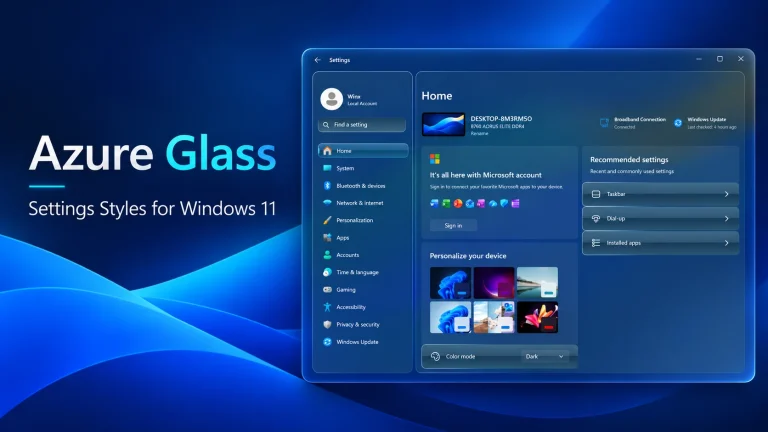
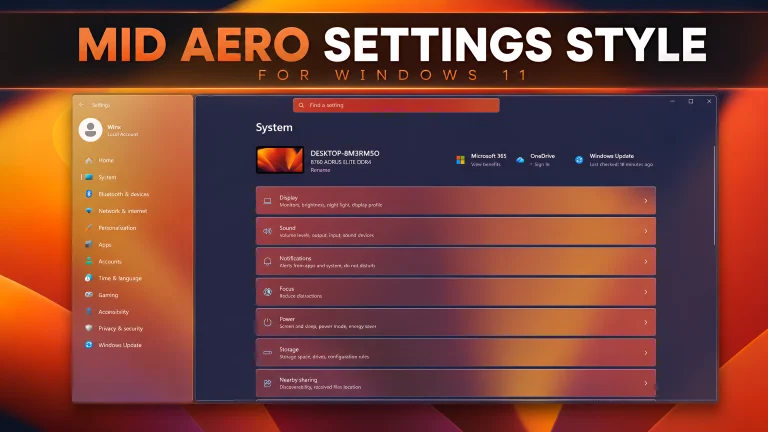
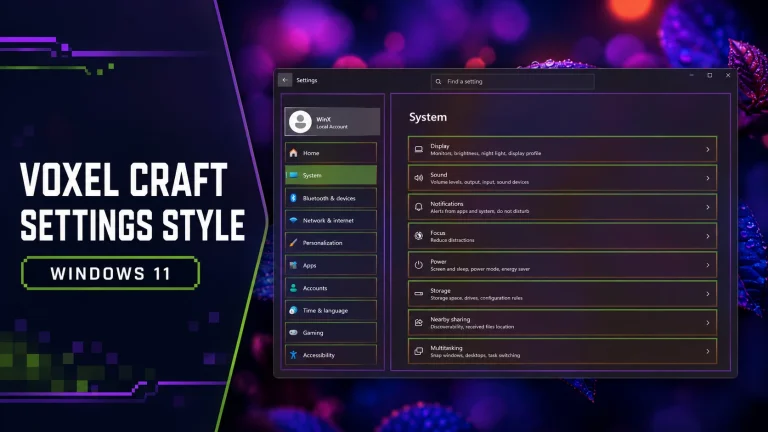
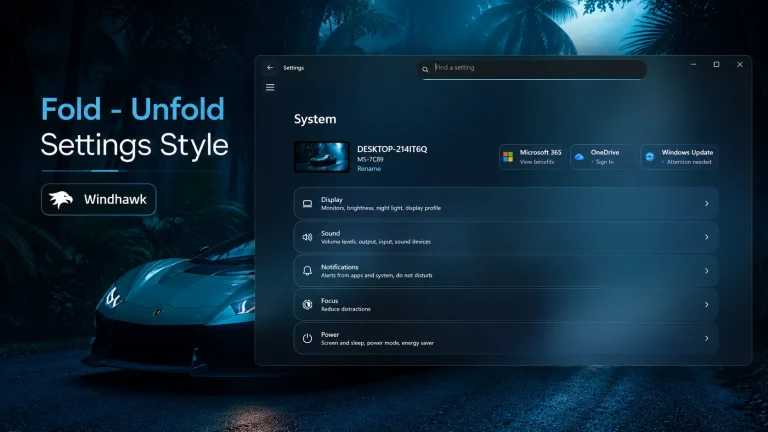
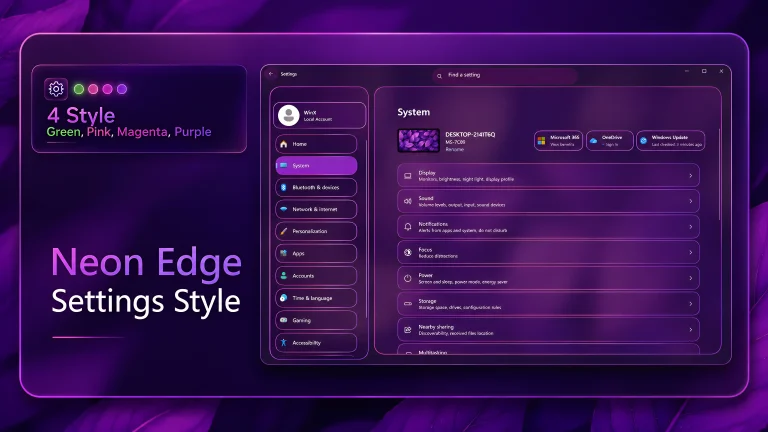
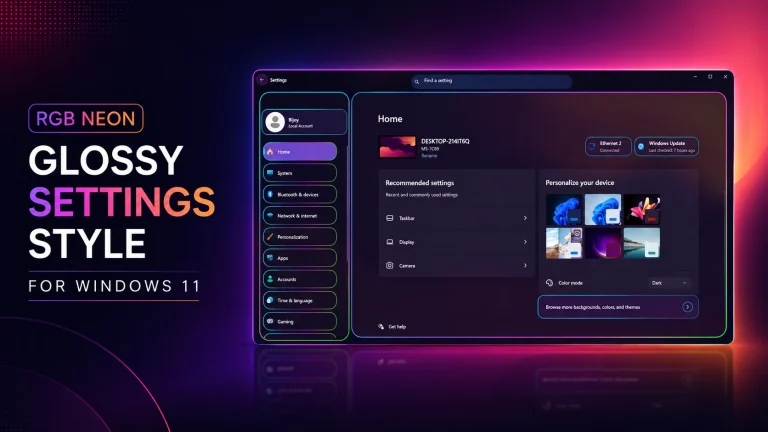
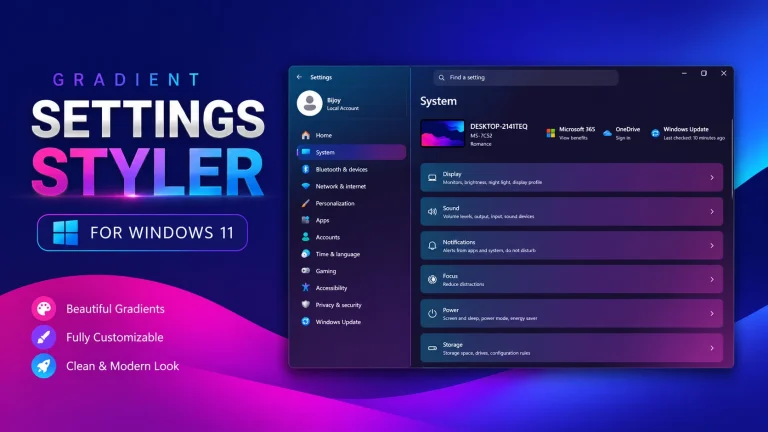
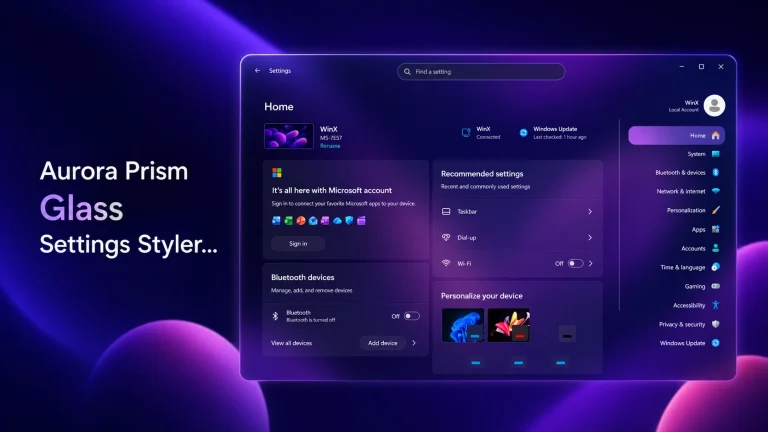
Disclaimer: All themes, visual styles, and concepts shared on this website are unofficial, fan-made creations built from imagination for customization purposes. We are not affiliated with, endorsed by, or sponsored by Microsoft or any other official brand.