

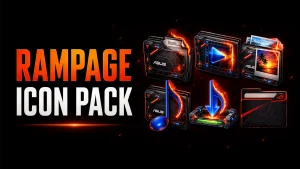
Rampage Icon Pack For Windows 11
Discover the Rampage Icon Pack For Resources Redirect and transform Windows 11 with a powerful gaming-inspired UI. Get high-definition ASUS ROG-style icons, smooth Resource Redirect compatibility, and a futuristic desktop look optimized for performance and customization.

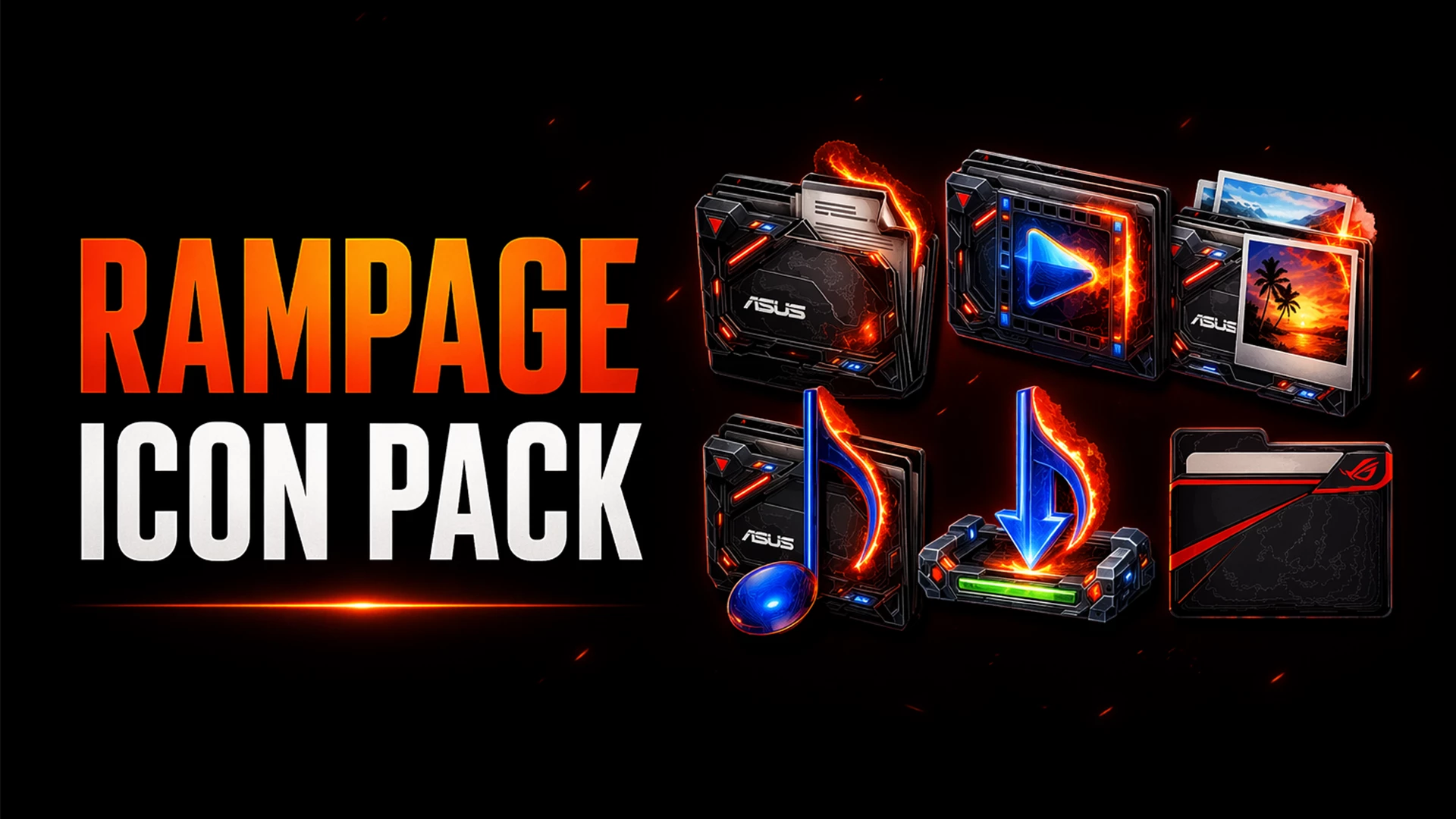
Rampage Icon Pack for Windows 11 – Resource Redirect
Rampage Icon Pack is a dark gaming-style icon set for Windows 11 built around black metallic surfaces, sharp red lighting, orange glow effects, and small blue highlights. The design feels much closer to high-end gaming hardware than the standard Windows icon set, making it a strong choice for desktops that already use darker wallpapers and RGB-inspired styling.
The folders and drive icons carry most of the visual weight. Angular frames, brushed black surfaces, glowing red lines, and fiery edges give them a heavy mechanical look. Media-related icons follow the same direction, ensuring the entire pack feels connected instead of looking like a random mix of gaming symbols.
This version is designed specifically for Resource Redirect in Windhawk. It changes supported Windows icon resources safely through the mod, meaning you do not have to manually replace protected Windows system files. Your wallpaper, taskbar, Start menu, and Windows theme remain completely separate customizations.
Features
- Black and graphite gaming-style icon surfaces
- Red and orange glow effects with electric blue accents
- Angular folder, drive, media, and download icon designs
- Detailed metallic frames inspired by gaming hardware aesthetics
- Designed safely for Resource Redirect in Windhawk
- Can be used separately from your wallpaper, taskbar, or Windows theme
Requirements & Included Files
- Platform: Windows 11
- Tool: Windhawk with the ‘Resource Redirect’ mod enabled
- Included: Rampage Resource Redirect Icon Pack files
Before You Install
Keep a copy of your current Resource Redirect settings before changing the icon path. This gives you a quick way to return to your previous setup later. After Rampage is active, leave the extracted pack folder in the exact same location. Resource Redirect loads the files from that saved path, so moving or renaming the folder will stop the icons from appearing.
How to Install the Rampage Icon Pack
- Install Windhawk: Download and install Windhawk if you haven’t already.
- Enable Resource Redirect: Open Windhawk, search for the Resource Redirect mod, and install it.
- Download Rampage: Download the ZIP archive using the button below.
- Extract the Pack: Extract the archive to a safe folder location on your PC that you won’t delete later.
- Copy the Folder Path: Open the extracted Rampage folder and copy its full Windows directory path.
- Apply in Windhawk: Go to the Resource Redirect mod settings and paste the Rampage folder path into the custom theme/resource folder field. (Remove quotation marks if Windows added them).
- Save & Refresh: Click Save. Restart Windows Explorer if the new icons do not appear immediately.
Download Rampage Icon Pack
Rampage Icon Pack 13 MB
Download Icon PackTroubleshooting: If Some Icons Do Not Change
Resource Redirect replaces only the resources covered by the pack. Some third-party applications keep their own custom icons, and folders displaying thumbnail previews (like picture folders) may ignore the custom folder design. If the path is correct in Windhawk but the old icons remain everywhere, try restarting Windows Explorer or clearing your Windows icon cache.
How to Remove
- Open Windhawk and go to the Resource Redirect mod settings.
- Remove the Rampage folder path and restore your previous configuration (or leave it blank for default Windows icons).
- Save the changes and restart Windows Explorer.
- You can now safely delete the extracted Rampage folder from your PC.
Disclaimer
The Rampage Icon Pack is an independently shared third-party Windows customization resource intended for personal desktop personalization. It features a hardware-inspired design but is not an official product of Microsoft, ASUS, Republic of Gamers, or Windhawk, and is not affiliated with or endorsed by any of these brands. All trademarks belong to their respective owners. Use customization tools at your own discretion.
You may also like
Disclaimer: All themes, visual styles, and concepts shared on this website are unofficial, fan-made creations built from imagination for customization purposes. We are not affiliated with, endorsed by, or sponsored by Microsoft or any other official brand.