Rampage Start Menu Style for Windows 11
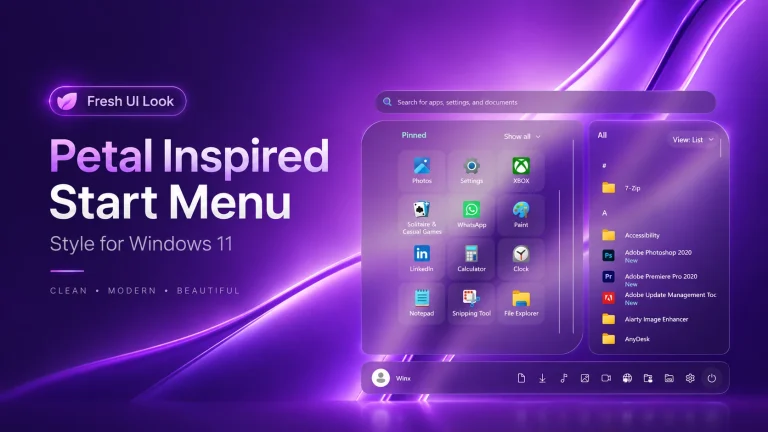
Give your Windows 11 desktop a fresh modern look with the Rampage Start Menu Style. This glass-inspired customization adds a transparent Start Menu, neon glowing borders, and a matching taskbar design using Windhawk while keeping the original Windows experience clean and familiar.

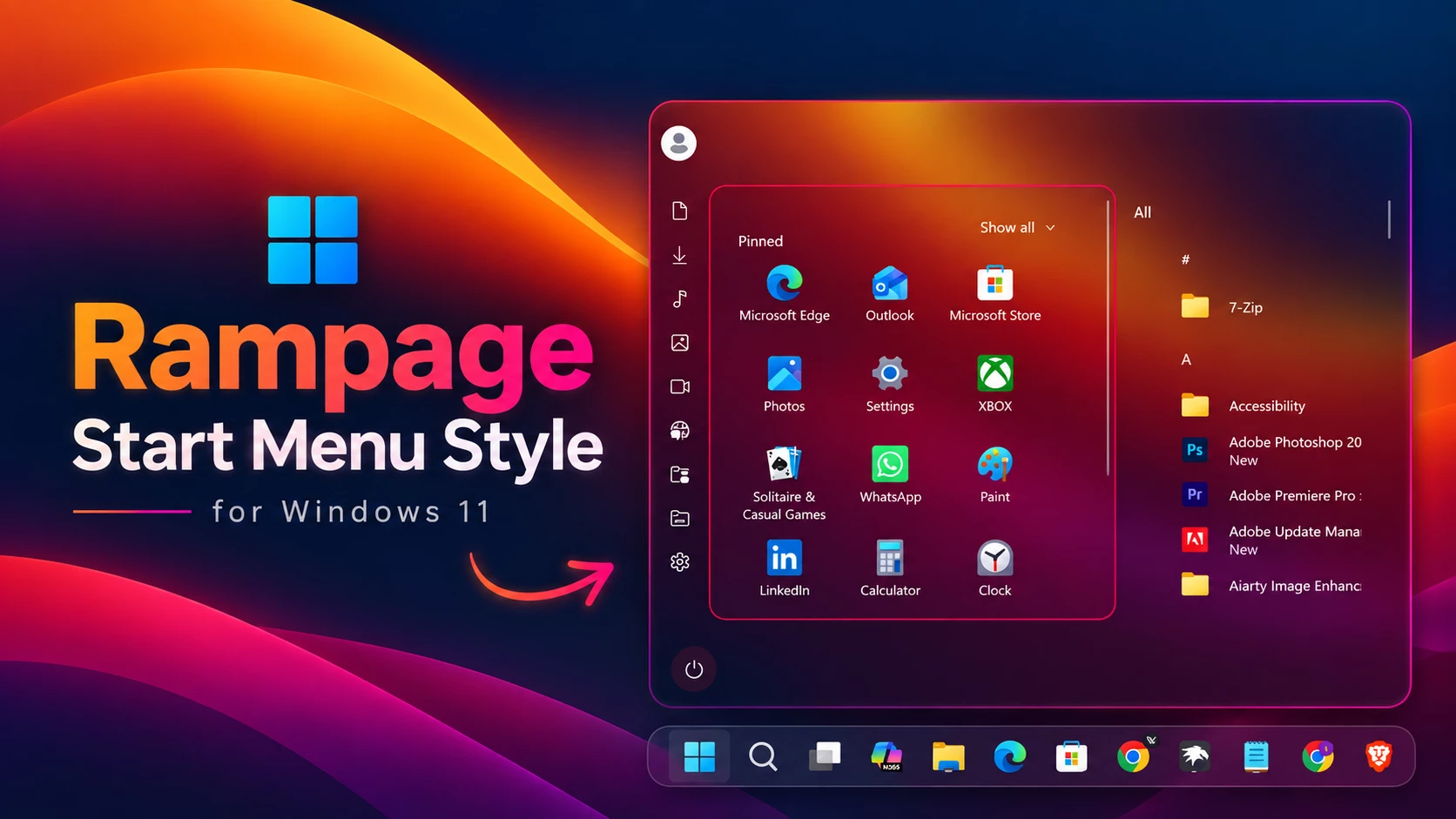
Rampage Start Menu Style for Windows 11 – Glass Gaming UI Customization
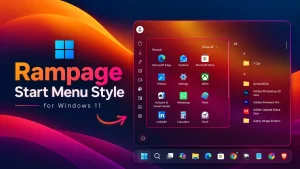
The Rampage Start Menu Style brings a modern glass-inspired interface to Windows 11 using Windhawk. Designed with a dark futuristic appearance, this customization gives your desktop a fresh visual upgrade while keeping the original Windows 11 experience clean and familiar.
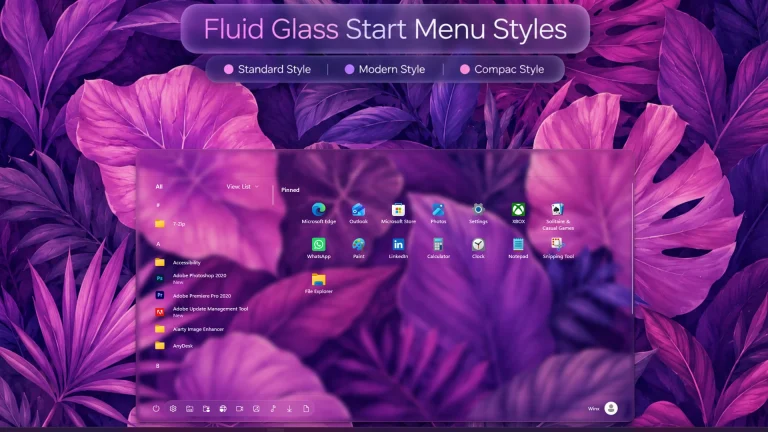
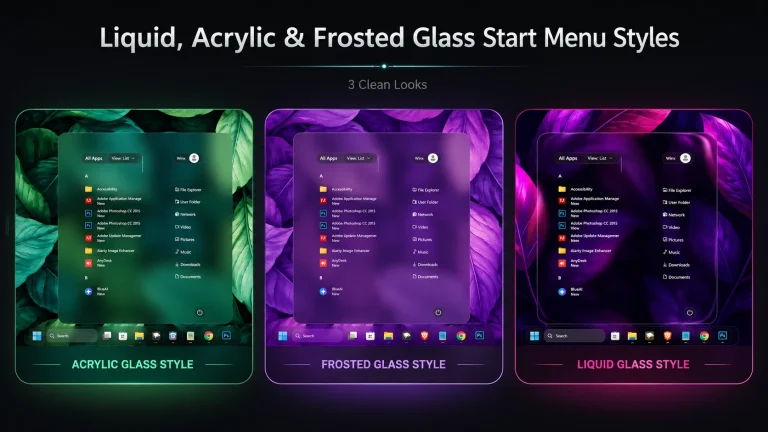
This style focuses on transparency, smooth gradients, and a minimal gaming-inspired look. The Start Menu uses a semi-transparent glass panel that allows your desktop wallpaper to remain visible through the interface. The combination of dark tones with neon pink and purple glowing borders creates a stylish and modern appearance without making the interface feel overloaded.
What is Rampage Start Menu Style?
The Rampage Start Menu Style is a custom Windows 11 interface modification created using Windhawk. It changes the appearance of the default Start Menu and taskbar by adding transparency effects, custom borders, and a cleaner layout while maintaining the familiar Windows navigation system.
Design Highlights
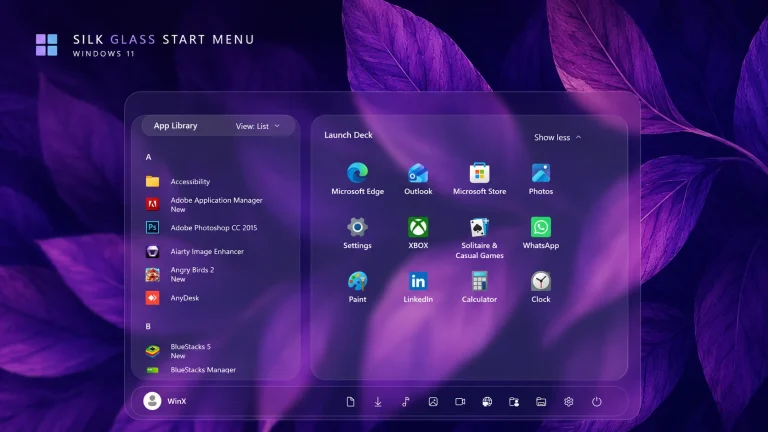
The main attraction of this customization is its glassmorphism-inspired design. The Start Menu features a transparent background where the original desktop wallpaper blends naturally with the interface. The dark glass panel is enhanced with subtle pink and purple edge lighting, giving the UI a premium futuristic feel.
The pinned applications section is arranged in a clean grid layout, while the application list remains organized for easy access. The matching taskbar follows the same transparent style with centered icons, creating a consistent look across the Windows desktop.
Key Features of Rampage Start Menu
- Modern glass-style transparent Start Menu
- Wallpaper visibility through transparent UI layers
- Neon pink and purple glowing border effects
- Dark futuristic Windows 11 interface design
- Clean pinned apps grid layout
- Lightweight customization using Windhawk
Compatibility
- Windows 11 21H2: Yes
- Windows 11 22H2: Yes
- Windows 11 23H2: Yes
- Windows 11 24H2: Yes
- Windows 11 25H2: No
Installation steps:
- Download & Install windhawk.
- install & Open the Windows 11 Start Menu Styler mod in Windhawk.
- Go to the “Advanced” tab.
- Copy the content below to the text box under “Mod settings” and click “Save”.
{ "theme": "Glance Taskbar by WinX - Fixed", "controlStyles[0].target": "Grid#RootGrid > Taskbar.TaskbarBackground > Grid", "controlStyles[0].styles[0]": "CornerRadius=20", "controlStyles[0].styles[1]": "BorderThickness=1", "controlStyles[0].styles[2]": "Margin=-20,0,-20,0", "controlStyles[0].styles[3]": "BorderBrush=#40FFFFFF", "controlStyles[0].styles[4]": "Padding=-1", "controlStyles[1].target": "Rectangle#BackgroundStroke", "controlStyles[1].styles[0]": "Fill=Transparent", "controlStyles[2].target": "Taskbar.TaskbarFrame", "controlStyles[2].styles[0]": "Width=Auto", "controlStyles[2].styles[1]": "HorizontalAlignment=Center", "controlStyles[3].target": "Taskbar.TaskbarFrame > Grid#RootGrid", "controlStyles[3].styles[0]": "Visibility=Visible", "controlStyles[3].styles[1]": "Margin=0,0,0,10", "controlStyles[3].styles[2]": "Padding=20,0,20,0", "controlStyles[4].target": "StackPanel#SystemTrayFrameGrid, Grid#SystemTrayFrameGrid", "controlStyles[4].styles[0]": "Margin=0,0,0,10", "controlStyles[4].styles[1]": "CornerRadius=20,0,0,20", "controlStyles[4].styles[2]": "BorderThickness=1,1,0,1", "controlStyles[4].styles[3]": "BorderBrush=#66FFFFFF", "controlStyles[4].styles[4]": "Padding=10,5,0,5", "controlStyles[4].styles[5]": "Background:=#12FFFFFF", "controlStyles[4].styles[6]": "Visibility=Visible", "controlStyles[5].target": "Taskbar.TaskbarFrame > Grid#RootGrid > Taskbar.TaskbarBackground > Grid > Rectangle#BackgroundFill", "controlStyles[5].styles[0]": "Fill:=<WindhawkBlur BlurAmount=\"5\" TintColor=\"#12FFFFFF\"/>", "controlStyles[6].target": "Taskbar.TaskListLabeledButtonPanel@RunningIndicatorStates > Grid > Border#BackgroundElement, Taskbar.TaskListLabeledButtonPanel@RunningIndicatorStates > Border#BackgroundElement, Grid#IconPanel@RunningIndicatorStates > Border#BackgroundElement", "controlStyles[6].styles[0]": "Background:=<AcrylicBrush TintColor=\"{ThemeResource SystemChromeAltHighColor}\" TintOpacity=\"0.9\" FallbackColor=\"{ThemeResource SystemChromeMediumColor}\" />", "controlStyles[6].styles[1]": "Margin=-1,5.5,1,4", "controlStyles[6].styles[2]": "CornerRadius=12", "controlStyles[6].styles[3]": "BorderThickness=2,1,0.5,2", "controlStyles[6].styles[4]": "BorderBrush:=<LinearGradientBrush StartPoint=\"0,0\" EndPoint=\"0.5,1\"><GradientStop Color=\"#0AB3A3A\" Offset=\"0\" /><GradientStop Color=\"#33AB3A3A\" Offset=\"1.5\" /></LinearGradientBrush>", "controlStyles[7].target": "Taskbar.TaskListButtonPanel#ExperienceToggleButtonRootPanel > Grid > Border#BackgroundElement, Taskbar.TaskListButtonPanel#ExperienceToggleButtonRootPanel > Border#BackgroundElement", "controlStyles[7].styles[0]": "Background:=<AcrylicBrush TintColor=\"{ThemeResource SystemChromeAltHighColor}\" TintOpacity=\"0.8\" FallbackColor=\"{ThemeResource SystemChromeLowColor}\" />", "controlStyles[7].styles[1]": "CornerRadius=12", "controlStyles[7].styles[2]": "Margin=-1,5.5,2.5,4", "controlStyles[7].styles[3]": "BorderThickness=2,1,0.5,2", "controlStyles[7].styles[4]": "BorderBrush:=<LinearGradientBrush StartPoint=\"0,0\" EndPoint=\"0.5,1\"><GradientStop Color=\"#0AB3A3A\" Offset=\"0\" /><GradientStop Color=\"#33AB3A3A\" Offset=\"1.5\" /></LinearGradientBrush>", "controlStyles[8].target": "Grid#IconPanel@CommonStates > Rectangle#RunningIndicator, Taskbar.TaskListLabeledButtonPanel@CommonStates > Rectangle#RunningIndicator, Taskbar.TaskListLabeledButtonPanel@RunningIndicatorStates > Rectangle", "controlStyles[8].styles[0]": "Margin=0,0,0,8", "controlStyles[9].target": "Border#MultiWindowElement", "controlStyles[9].styles[0]": "Height=0"}Final Words
The Rampage Start Menu Style is a simple yet stylish way to refresh the look of your Windows 11 desktop. With its transparent glass interface, dark theme, and subtle neon border effects, it creates a clean and modern appearance while keeping the original Windows experience familiar.
Whether you are customizing a gaming setup, a creative workspace, or simply looking for a fresh desktop design, this style offers a balanced combination of visual effects and everyday usability. You can also adjust the transparency, colors, and layout to match your own wallpaper and personal preference.
With Windhawk, customizing Windows 11 becomes easier and more flexible. The Rampage Start Menu Style gives your desktop a unique identity without adding unnecessary complexity.
Customization Disclaimer
This Windows 11 customization is an unofficial visual modification created using Windhawk. It changes the appearance of system elements only and does not modify or replace original Windows files. Always create a system restore point before applying any customization.Frequently Asked Questions
What is Rampage Start Menu Style?
Rampage Start Menu Style is a Windows 11 customization that changes the appearance of the Start Menu and taskbar with a transparent glass design, dark theme, and modern glowing border effects using Windhawk.
Does this customization work on Windows 10?
No. This style is designed specifically for Windows 11 interface elements and may not work correctly on Windows 10.
Does Rampage Start Menu Style slow down Windows?
The customization is lightweight, but the performance impact may depend on your system specifications and the number of other customizations running in the background.
Can I change the colors and transparency?
Yes. You can adjust different visual settings through Windhawk according to your preferred style, wallpaper, and desktop setup.
Is Windhawk safe to use?
Windhawk is a customization platform that allows users to modify Windows interface elements. Like any system customization tool, it is recommended to download modifications from trusted sources and create a restore point before making changes.
Will this remove my existing Windows apps or files?
No. This customization only changes the visual appearance of Windows interface elements. Your installed applications, files, and personal data remain unchanged.
Can I uninstall this Start Menu style?
Yes. You can disable or remove the applied Windhawk modification anytime to return to the default Windows 11 appearance.
Why does the wallpaper appear behind the Start Menu?
The Start Menu uses a transparent glass effect, allowing parts of your desktop wallpaper to remain visible through the interface. This creates the blended modern appearance shown in the design.