

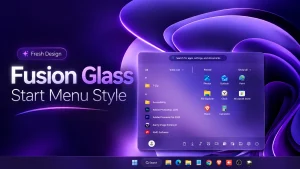
Fusion Glass Start Menu Style for Windows 11
Transform the Windows 11 Start Menu with a smooth glass-inspired interface using Fusion Glass Start Menu Style. Explore its features, setup steps, compatibility, and safe removal options

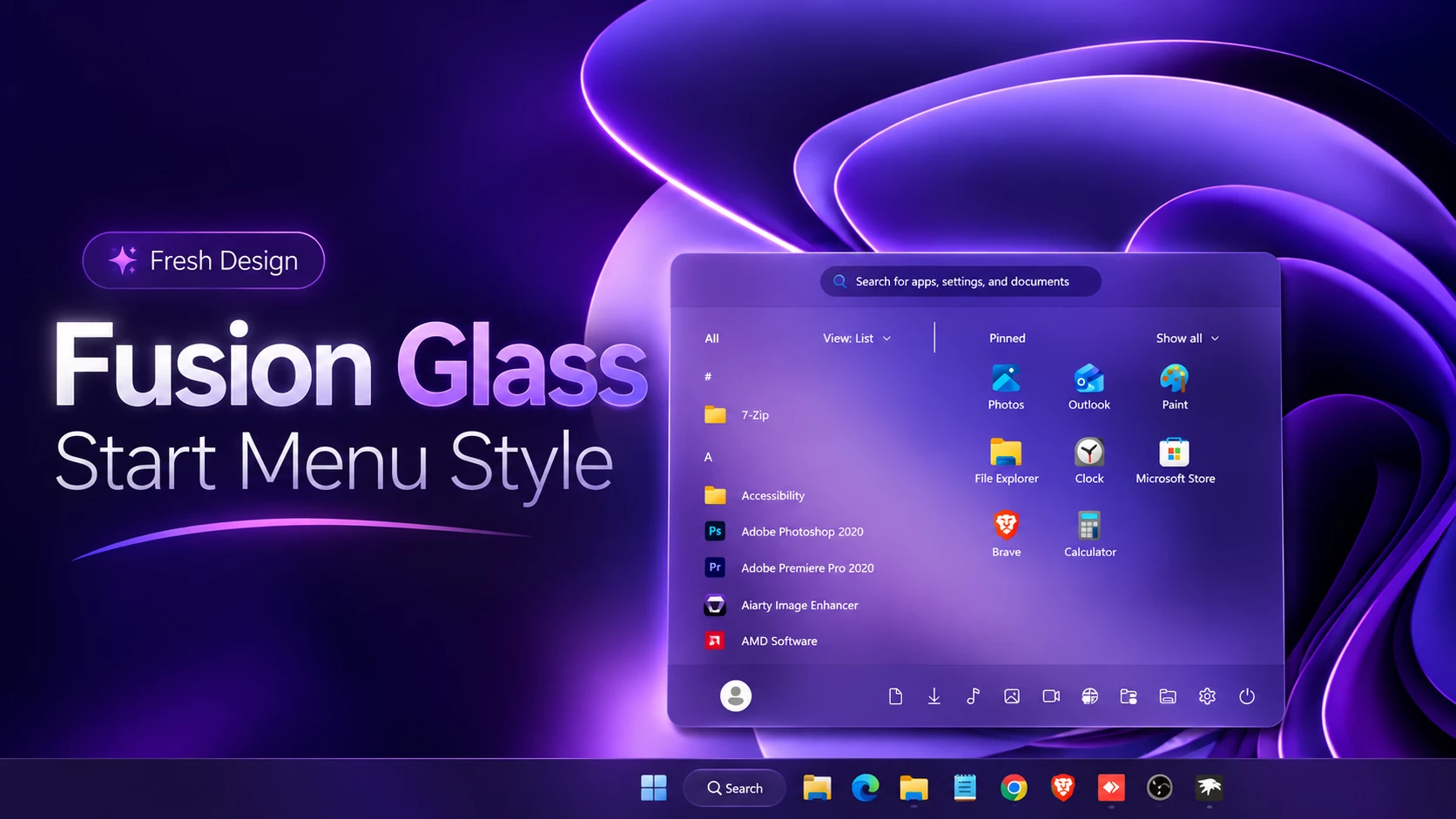
Fusion Glass Start Menu Style For Windows 11
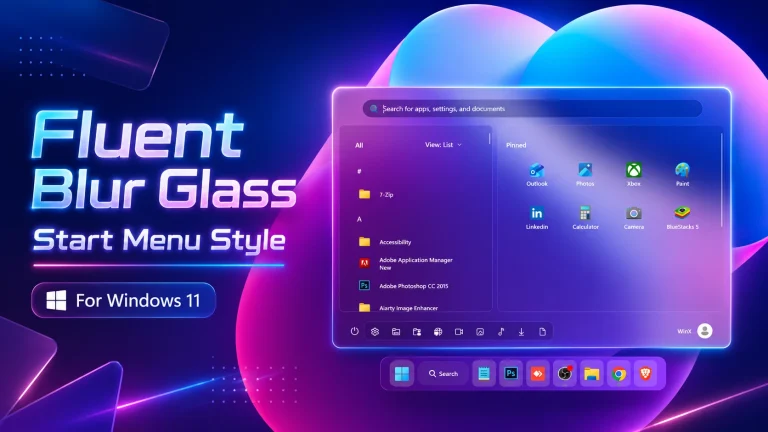
Fusion Glass Start Menu Style is a modern Windows 11 customization that gives the Start Menu a softer and more refined glass appearance. The design uses a frosted glass effect with transparency, subtle blur, rounded corners, and smooth spacing to create a clean desktop experience.
The glass appearance may show a purple tone depending on the wallpaper behind the Start Menu. This color effect does not come from a purple-colored interface layer; instead, the translucent frosted surface naturally reflects the colors of your desktop background.
Designed for users who enjoy minimal layouts and glass-inspired interfaces, Fusion Glass helps the Windows 11 Start Menu blend more naturally with modern wallpapers while keeping important elements such as search, pinned applications, user controls, and power options easily accessible.
What Is Fusion Glass Start Menu Style?
Fusion Glass Start Menu Style is a visual customization preset created for the Windows 11 Start Menu Styler mod in Windhawk. It focuses on improving the appearance of the existing Windows 11 Start Menu rather than replacing the Windows interface or changing installed applications.
The style uses a combination of translucent materials, frosted background effects, soft highlights, rounded edges, and balanced spacing. The final appearance can change depending on your wallpaper, Windows settings, display settings, and the configuration used with Start Menu Styler.
The goal of Fusion Glass is to create a modern glassmorphism-inspired Start Menu that feels connected with the overall desktop environment while maintaining the familiar Windows 11 experience.
Key Features
- Frosted glass-inspired Start Menu appearance with transparency and blur effects.
- Soft rounded corners and a clean Windows 11-style layout.
- Designed for Windows 11 Start Menu Styler customization through Windhawk.
- Allows wallpapers and desktop backgrounds to remain visible through the translucent surface.
- Works well with minimal, dark, gradient, and colorful desktop setups.
Compatibility
Compatibility depends on your Windows 11 build, Start Menu layout, Windhawk version, and the installed Start Menu Styler mod. Before applying the style, check your Windows version by pressing Windows + R, typing winver, and selecting OK.
- Windows 11 21H2: Not Tested
- Windows 11 22H2: Not Tested
- Windows 11 23H2: Not Tested
- Windows 11 24H2: Not Tested
- Windows 11 25H2: Yes Build 26200.9457
Windows updates may change internal Start Menu components, which can affect third-party customization styles. If the style stops working after an update, check for updated versions of Windhawk or the related mod configuration.
Before You Install
- Create a system restore point before applying interface modifications.
- Download Windhawk and required mods from trusted sources.
- Read the installation instructions before applying any configuration.
- Keep a backup of important files and personal data.
- Make sure your Windows 11 version is supported by the configuration.
How To Install Fusion Glass Start Menu Style
- Download and install Windhawk
- Open Windhawk and install the Windows 11 Start Menu Styler mod
- Go to the Advanced tab
- Paste the provided configuration code into the “Mod settings” box
- Click Save to apply the style
- For more details, visit this GitHub guide
{ "theme": "Blue Glass Start Menu by WinX Customization", "disableNewStartMenuLayout": "newLayoutSideBySide", "styleConstants[0]": "MenuBG=<WindhawkBlur BlurAmount=\"10\" TintColor=\"{ThemeResource SystemChromeMediumColor}\" TintOpacity=\"0.3\" />", "styleConstants[1]": "GlassLayer=<AcrylicBrush TintColor=\"{ThemeResource CardStrokeColorDefaultSolid}\" FallbackColor=\"{ThemeResource CardStrokeColorDefaultSolid}\" TintOpacity=\"0\" TintLuminosityOpacity=\".55\" Opacity=\"1\" BackgroundSource=\"Backdrop\"/>", "styleConstants[2]": "HoverBG=<SolidColorBrush Color=\"#45FFFFFF\"/>", "styleConstants[3]": "PressBG=<SolidColorBrush Color=\"#55FFFFFF\"/>", "styleConstants[4]": "BorderGlass=<AcrylicBrush TintColor=\"{ThemeResource SurfaceStrokeColorDefault}\" FallbackColor=\"{ThemeResource SurfaceStrokeColorDefault}\" TintOpacity=\"0\" TintLuminosityOpacity=\".0\" Opacity=\"1\" BackgroundSource=\"Backdrop\"/>", "styleConstants[5]": "SoftBorder=<AcrylicBrush TintColor=\"{ThemeResource SurfaceStrokeColorDefault}\" FallbackColor=\"{ThemeResource SurfaceStrokeColorDefault}\" TintOpacity=\"0\" TintLuminosityOpacity=\".0\" Opacity=\"1\" BackgroundSource=\"Backdrop\"/>", "styleConstants[6]": "MainRadius=20", "styleConstants[7]": "ItemRadius=12", "styleConstants[8]": "TextWhite=#FFFFFFFF", "styleConstants[9]": "TextSoft=#DDFFFFFF", "controlStyles[0].target": "StartDocked.StartSizingFrame", "controlStyles[0].styles[0]": "Width=740", "controlStyles[0].styles[1]": "MinWidth=740", "controlStyles[0].styles[2]": "MaxWidth=740", "controlStyles[1].target": "Grid#FrameRoot", "controlStyles[1].styles[0]": "Height=558", "controlStyles[1].styles[1]": "RequestedTheme=2", "controlStyles[2].target": "Grid#MainMenu", "controlStyles[2].styles[0]": "Width=730", "controlStyles[3].target": "Border#AcrylicOverlay", "controlStyles[3].styles[0]": "Visibility=Visible", "controlStyles[3].styles[1]": "Opacity=1", "controlStyles[4].target": "Border#AcrylicBorder", "controlStyles[4].styles[0]": "Background:=$MenuBG", "controlStyles[4].styles[1]": "BorderBrush:=$BorderGlass", "controlStyles[4].styles[2]": "BorderThickness=1.2", "controlStyles[4].styles[3]": "CornerRadius=$MainRadius", "controlStyles[5].target": "Windows.UI.Xaml.Controls.Grid#MainMenu > Windows.UI.Xaml.Controls.Border#AcrylicBorder", "controlStyles[5].styles[0]": "Background:=$MenuBG", "controlStyles[5].styles[1]": "BorderBrush:=$BorderGlass", "controlStyles[5].styles[2]": "BorderThickness=1.2", "controlStyles[5].styles[3]": "CornerRadius=$MainRadius", "controlStyles[6].target": "Windows.UI.Xaml.Controls.Border#DropShadowDismissTarget", "controlStyles[6].styles[0]": "Background:=$MenuBG", "controlStyles[6].styles[1]": "BorderBrush:=$BorderGlass", "controlStyles[6].styles[2]": "BorderThickness=1.2", "controlStyles[6].styles[3]": "CornerRadius=$MainRadius", "controlStyles[6].styles[4]": "Padding=0", "controlStyles[6].styles[5]": "Margin=0", "controlStyles[7].target": "Windows.UI.Xaml.Controls.TextBlock", "controlStyles[7].styles[0]": "Foreground=$TextWhite", "controlStyles[8].target": "StartDocked.SearchBoxToggleButton#StartMenuSearchBox", "controlStyles[8].styles[0]": "Width=338", "controlStyles[8].styles[1]": "Height=36", "controlStyles[8].styles[2]": "Margin=-185,12,0,4", "controlStyles[9].target": "StartDocked.SearchBoxToggleButton#StartMenuSearchBox > Windows.UI.Xaml.Controls.Grid > Windows.UI.Xaml.Controls.Border#BorderElement", "controlStyles[9].styles[0]": "Background:=$GlassLayer", "controlStyles[9].styles[1]": "BorderBrush:=$SoftBorder", "controlStyles[9].styles[2]": "BorderThickness=0.8", "controlStyles[9].styles[3]": "CornerRadius=18", "controlStyles[10].target": "StartDocked.SearchBoxToggleButton#StartMenuSearchBox > Windows.UI.Xaml.Controls.Grid > Windows.UI.Xaml.Controls.ContentPresenter#ContentPresenter > Windows.UI.Xaml.Controls.TextBlock#PlaceholderText", "controlStyles[10].styles[0]": "Text=Search for apps, settings, and documents", "controlStyles[10].styles[1]": "Foreground=$TextSoft", "controlStyles[10].styles[2]": "FontSize=12", "controlStyles[11].target": "Grid#SideBySidePinnedWrapper", "controlStyles[11].styles[0]": "ColumnDefinitions:=<ColumnDefinitionCollection><ColumnDefinition Width=\"350*\"/><ColumnDefinition Width=\"390*\"/></ColumnDefinitionCollection>", "controlStyles[12].target": "GridView#AllAppsGrid > Border > Grid#SideBySidePinnedWrapper > ScrollViewer#ScrollViewer", "controlStyles[12].styles[0]": "Grid.Column=0", "controlStyles[13].target": "ScrollViewer#SideBySidePinnedScrollViewer", "controlStyles[13].styles[0]": "Grid.Column=1", "controlStyles[14].target": "Grid#SideBySidePinnedWrapper > ScrollViewer > Border#Root > Grid > ScrollContentPresenter > ItemsPresenter > ItemsWrapGrid", "controlStyles[14].styles[0]": "Margin=25,0,25,10", "controlStyles[15].target": "Grid#AllListHeading > TextBlock#AllListHeadingText", "controlStyles[15].styles[0]": "Margin=38,8,12,8", "controlStyles[15].styles[1]": "FontSize=12", "controlStyles[15].styles[2]": "FontWeight=SemiBold", "controlStyles[15].styles[3]": "Foreground=$TextWhite", "controlStyles[16].target": "Windows.UI.Xaml.Controls.TextBlock#PinnedListHeaderText", "controlStyles[16].styles[0]": "FontSize=12", "controlStyles[16].styles[1]": "FontWeight=SemiBold", "controlStyles[16].styles[2]": "Foreground=$TextWhite", "controlStyles[17].target": "StartMenu.PinnedListHeader#PinnedListHeader", "controlStyles[17].styles[0]": "Margin=0,0,28,0", "controlStyles[18].target": "Button#ShowAllAppsButton", "controlStyles[18].styles[0]": "Background=Transparent", "controlStyles[18].styles[1]": "BorderThickness=0", "controlStyles[18].styles[2]": "Foreground=$TextWhite", "controlStyles[19].target": "Grid#NavPanePlaceholder", "controlStyles[19].styles[0]": "Margin=26,0,26,0", "controlStyles[19].styles[1]": "Height=58", "controlStyles[20].target": "StartDocked.NavigationPaneView#NavigationPane", "controlStyles[20].styles[0]": "Width=690", "controlStyles[20].styles[1]": "Height=58", "controlStyles[20].styles[2]": "Margin=0,0,0,0", "controlStyles[20].styles[3]": "RenderTransform:=<TranslateTransform X=\"0\" Y=\"0\" />", "controlStyles[21].target": "StartDocked.UserTileView", "controlStyles[21].styles[0]": "Visibility=Visible", "controlStyles[21].styles[1]": "Width=190", "controlStyles[21].styles[2]": "Height=48", "controlStyles[21].styles[3]": "Margin=0,0,0,0", "controlStyles[22].target": "StartDocked.UserTileView > Windows.UI.Xaml.Controls.Grid", "controlStyles[22].styles[0]": "Background=Transparent", "controlStyles[22].styles[1]": "CornerRadius=16", "controlStyles[23].target": "StartDocked.UserTileView > Windows.UI.Xaml.Controls.Grid@CommonStates", "controlStyles[23].styles[0]": "Background@PointerOver:=$HoverBG", "controlStyles[23].styles[1]": "Background@Pressed:=$PressBG", "controlStyles[24].target": "StartDocked.UserTileView Windows.UI.Xaml.Controls.TextBlock", "controlStyles[24].styles[0]": "Foreground=$TextWhite", "controlStyles[24].styles[1]": "FontSize=12", "controlStyles[24].styles[2]": "FontWeight=SemiBold", "controlStyles[25].target": "StartDocked.NavigationPaneButton", "controlStyles[25].styles[0]": "Width=38", "controlStyles[25].styles[1]": "Height=38", "controlStyles[25].styles[2]": "Margin=3,0,3,0", "controlStyles[25].styles[3]": "Padding=0", "controlStyles[26].target": "StartDocked.NavigationPaneButton > Windows.UI.Xaml.Controls.Grid", "controlStyles[26].styles[0]": "Background=Transparent", "controlStyles[26].styles[1]": "CornerRadius=11", "controlStyles[27].target": "StartDocked.NavigationPaneButton > Windows.UI.Xaml.Controls.Grid@CommonStates", "controlStyles[27].styles[0]": "Background@PointerOver:=$HoverBG", "controlStyles[27].styles[1]": "Background@Pressed:=$PressBG", "controlStyles[28].target": "StartDocked.NavigationPaneButton Windows.UI.Xaml.Controls.FontIcon", "controlStyles[28].styles[0]": "Foreground=$TextWhite", "controlStyles[28].styles[1]": "FontSize=16", "controlStyles[29].target": "StartDocked.NavigationPaneButton Windows.UI.Xaml.Controls.SymbolIcon", "controlStyles[29].styles[0]": "Foreground=$TextWhite", "controlStyles[29].styles[1]": "FontSize=16", "controlStyles[30].target": "StartDocked.NavigationPaneButton Windows.UI.Xaml.Controls.AnimatedIcon", "controlStyles[30].styles[0]": "Foreground=$TextWhite", "controlStyles[31].target": "StartDocked.PowerOptionsView#PowerButton", "controlStyles[31].styles[0]": "Width=42", "controlStyles[31].styles[1]": "Height=42", "controlStyles[31].styles[2]": "Margin=8,0,0,0", "controlStyles[32].target": "StartDocked.PowerOptionsView#PowerButton > Windows.UI.Xaml.Controls.Grid", "controlStyles[32].styles[0]": "Background=Transparent", "controlStyles[32].styles[1]": "CornerRadius=12", "controlStyles[33].target": "StartDocked.PowerOptionsView#PowerButton > Windows.UI.Xaml.Controls.Grid@CommonStates", "controlStyles[33].styles[0]": "Background@PointerOver:=$HoverBG", "controlStyles[33].styles[1]": "Background@Pressed:=$PressBG", "controlStyles[34].target": "StartDocked.PowerOptionsView#PowerButton Windows.UI.Xaml.Controls.FontIcon", "controlStyles[34].styles[0]": "Foreground=$TextWhite", "controlStyles[34].styles[1]": "FontSize=16", "controlStyles[35].target": "StartDocked.PowerOptionsView#PowerButton Windows.UI.Xaml.Controls.SymbolIcon", "controlStyles[35].styles[0]": "Foreground=$TextWhite", "controlStyles[35].styles[1]": "FontSize=16", "controlStyles[36].target": "StartMenu.PinnedList#StartMenuPinnedList", "controlStyles[36].styles[0]": "Margin=0,0,0,10", "controlStyles[36].styles[1]": "Height=405", "controlStyles[37].target": "StartMenu.PinnedList#StartMenuPinnedList > Windows.UI.Xaml.Controls.Grid#Root", "controlStyles[37].styles[0]": "Background=Transparent", "controlStyles[37].styles[1]": "BorderThickness=0", "controlStyles[37].styles[2]": "CornerRadius=$ItemRadius", "controlStyles[38].target": "Border#ContentBorder@CommonStates > Grid > Border#BackgroundBorder", "controlStyles[38].styles[0]": "Background@PointerOver:=$HoverBG", "controlStyles[38].styles[1]": "Background@Pressed:=$PressBG", "controlStyles[38].styles[2]": "BorderBrush@PointerOver:=$SoftBorder", "controlStyles[38].styles[3]": "BorderBrush@Pressed:=$SoftBorder", "controlStyles[38].styles[4]": "BorderThickness=0.8", "controlStyles[38].styles[5]": "CornerRadius=$ItemRadius", "controlStyles[39].target": "Button > Grid@CommonStates > Border#BackgroundBorder", "controlStyles[39].styles[0]": "Background@PointerOver:=$HoverBG", "controlStyles[39].styles[1]": "Background@Pressed:=$PressBG", "controlStyles[39].styles[2]": "BorderBrush@PointerOver:=$SoftBorder", "controlStyles[39].styles[3]": "BorderBrush@Pressed:=$SoftBorder", "controlStyles[39].styles[4]": "BorderThickness=0.8", "controlStyles[39].styles[5]": "CornerRadius=$ItemRadius", "controlStyles[40].target": "ListViewItem > Grid@CommonStates > Border#BorderBackground", "controlStyles[40].styles[0]": "Background@PointerOver:=$HoverBG", "controlStyles[40].styles[1]": "Background@Pressed:=$PressBG", "controlStyles[40].styles[2]": "BorderBrush@PointerOver:=$SoftBorder", "controlStyles[40].styles[3]": "BorderBrush@Pressed:=$SoftBorder", "controlStyles[40].styles[4]": "BorderThickness=0.8", "controlStyles[40].styles[5]": "CornerRadius=$ItemRadius", "controlStyles[41].target": "StartDocked.AppListViewItem > Grid@CommonStates > Border#BackgroundBorder", "controlStyles[41].styles[0]": "Background@PointerOver:=$HoverBG", "controlStyles[41].styles[1]": "Background@Pressed:=$PressBG", "controlStyles[41].styles[2]": "BorderBrush@PointerOver:=$SoftBorder", "controlStyles[41].styles[3]": "BorderBrush@Pressed:=$SoftBorder", "controlStyles[41].styles[4]": "BorderThickness=0.8", "controlStyles[41].styles[5]": "CornerRadius=$ItemRadius", "controlStyles[42].target": "StartMenu.CategoryControl > Grid > Border", "controlStyles[42].styles[0]": "Background:=$GlassLayer", "controlStyles[42].styles[1]": "BorderBrush:=$SoftBorder", "controlStyles[42].styles[2]": "BorderThickness=0.8", "controlStyles[42].styles[3]": "CornerRadius=$ItemRadius", "controlStyles[42].styles[4]": "Opacity=0.9", "controlStyles[43].target": "Windows.UI.Xaml.Controls.Grid#TopLevelSuggestionsListHeader", "controlStyles[43].styles[0]": "Visibility=Collapsed", "controlStyles[44].target": "Windows.UI.Xaml.Controls.Grid#NoTopLevelSuggestionsText", "controlStyles[44].styles[0]": "Visibility=Collapsed", "controlStyles[45].target": "Windows.UI.Xaml.Controls.Grid#TopLevelSuggestionsContainer", "controlStyles[45].styles[0]": "Visibility=Collapsed", "controlStyles[46].target": "Windows.UI.Xaml.Controls.Grid#ShowMoreSuggestions", "controlStyles[46].styles[0]": "Visibility=Collapsed", "controlStyles[47].target": "StartMenu.SearchBoxToggleButton#SearchBoxToggleButton", "controlStyles[47].styles[0]": "Height=36", "controlStyles[47].styles[1]": "Width=338", "controlStyles[47].styles[2]": "Margin=-20,8,-20,0", "controlStyles[48].target": "StartMenu.SearchBoxToggleButton#SearchBoxToggleButton > Windows.UI.Xaml.Controls.Grid > Windows.UI.Xaml.Controls.Border#BorderElement", "controlStyles[48].styles[0]": "Background:=$GlassLayer", "controlStyles[48].styles[1]": "BorderBrush:=$SoftBorder", "controlStyles[48].styles[2]": "BorderThickness=0.8", "controlStyles[48].styles[3]": "CornerRadius=18", "controlStyles[49].target": "Windows.UI.Xaml.Controls.MenuFlyoutPresenter > Windows.UI.Xaml.Controls.Border", "controlStyles[49].styles[0]": "Background:=$MenuBG", "controlStyles[49].styles[1]": "BorderBrush:=$BorderGlass", "controlStyles[49].styles[2]": "BorderThickness=1.2", "controlStyles[49].styles[3]": "CornerRadius=$MainRadius", "controlStyles[50].target": "StartMenu.FolderModal#StartFolderModal > Windows.UI.Xaml.Controls.Grid#Root > Windows.UI.Xaml.Controls.Border", "controlStyles[50].styles[0]": "Background:=$MenuBG", "controlStyles[50].styles[1]": "BorderBrush:=$BorderGlass", "controlStyles[50].styles[2]": "BorderThickness=1.2", "controlStyles[50].styles[3]": "CornerRadius=$MainRadius"}How To Remove
- Open Windhawk and disable the Windows 11 Start Menu Styler mod.
- Remove the Fusion Glass configuration code and click Save.
- Restart Windows Explorer to restore the default Start Menu appearance.
Recommended Setup
Fusion Glass looks best when combined with wallpapers that have smooth gradients, dark backgrounds, abstract shapes, or colorful lighting effects. Because the design uses a translucent frosted surface, the wallpaper behind the Start Menu naturally influences the final appearance.
For a complete desktop experience, you can combine it with matching Windows 11 customization elements such as transparent taskbar styles, custom icons, wallpapers, and File Explorer adjustments. Apply each customization separately to avoid conflicts between different modifications.
Customization Disclaimer
Fusion Glass Start Menu Style is an unofficial Windows 11 customization created for Windhawk Start Menu Styler. Compatibility may vary depending on your Windows version, system updates, and installed modifications. Always create a restore point before applying any customization.
Final Thoughts
Fusion Glass Start Menu Style provides a clean and modern way to refresh the Windows 11 Start Menu while keeping the original Windows experience familiar. Its frosted glass appearance, soft transparency, and rounded design create a smoother connection between the Start Menu and your desktop background.
The purple appearance shown in some setups comes from the interaction between the transparent glass surface and the purple wallpaper behind it, creating a natural tinted effect rather than a fixed purple theme.
Before applying any Windows customization, make sure your configuration matches your Windows version and create a restore point. With careful setup, Fusion Glass can help create a more personalized and visually balanced Windows 11 desktop.
FAQs
Do I need Windhawk for Fusion Glass Start Menu Style?
Yes. Fusion Glass is created for Windows 11 Start Menu customization through Windhawk and the required Start Menu Styler mod.
Why does the glass effect appear purple?
The purple appearance comes from the wallpaper visible through the transparent frosted glass layer. The style itself is not a fixed purple-colored theme.
Why is Fusion Glass not working correctly?
The style may not work if Windhawk, Start Menu Styler, or the configuration is not compatible with your Windows 11 version. Check that the required mod is installed correctly and that the configuration matches your system.
Is Fusion Glass safe to use?
Fusion Glass is a visual customization style. However, third-party Windows modifications should always be applied carefully. Use trusted sources, follow installation instructions, and create a restore point before making changes.
Can I use Fusion Glass with other desktop customizations?
Yes. It can be combined with wallpapers, icon packs, taskbar styles, and other desktop customization tools. Avoid using multiple modifications that change the same Windows component at the same time.
Will Windows updates affect Fusion Glass?
Some Windows updates may change Start Menu components and affect third-party styles. If this happens, check for updated Windhawk versions or updated configurations.
You may also like

Disclaimer: All themes, visual styles, and concepts shared on this website are unofficial, fan-made creations built from imagination for customization purposes. We are not affiliated with, endorsed by, or sponsored by Microsoft or any other official brand.