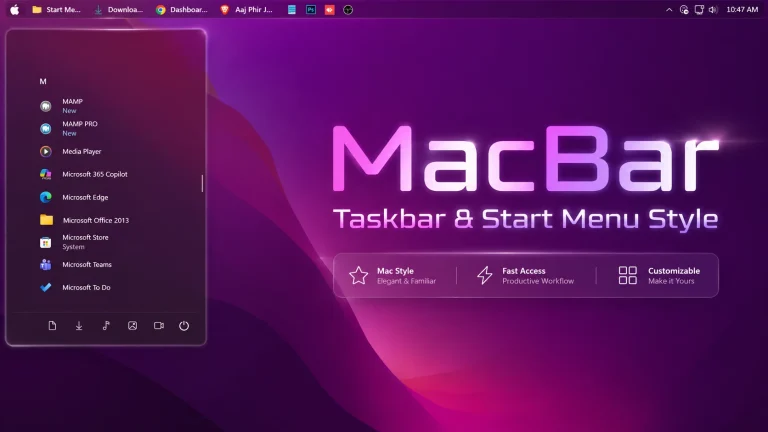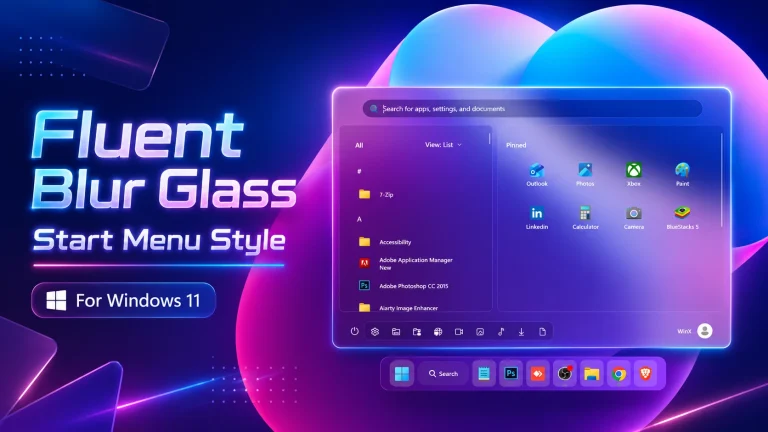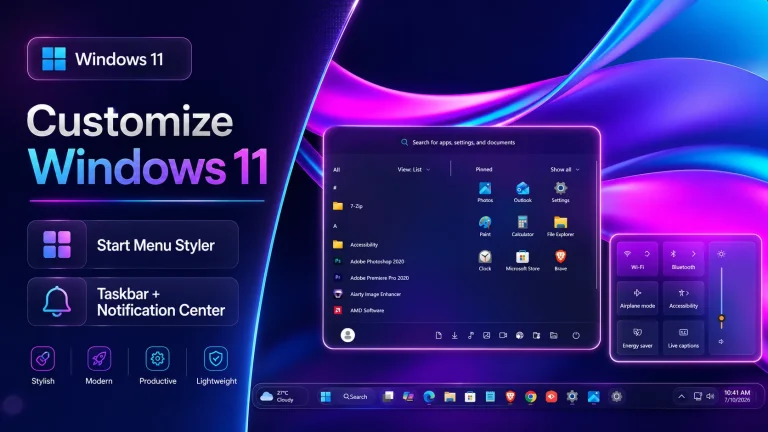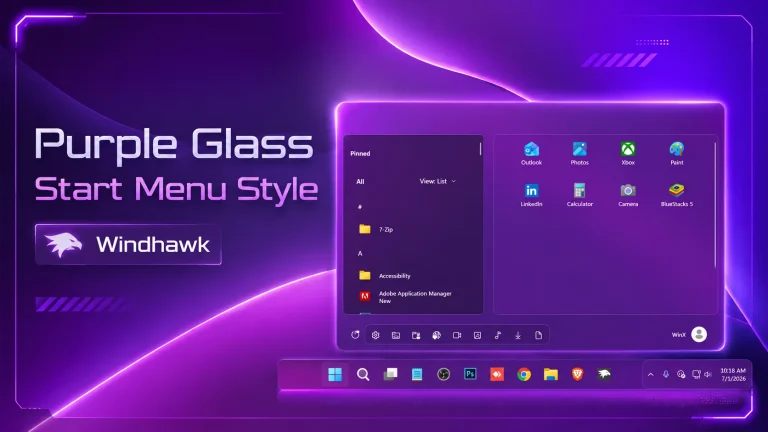
Velvet Start Menu & Taskbar For Windows 11
Upgrade your desktop with the Velvet Start Menu & Taskbar for Windows 11. This guide shows how to create a smooth, blurred, and modern UI using tools like Windhawk for a clean and premium look.

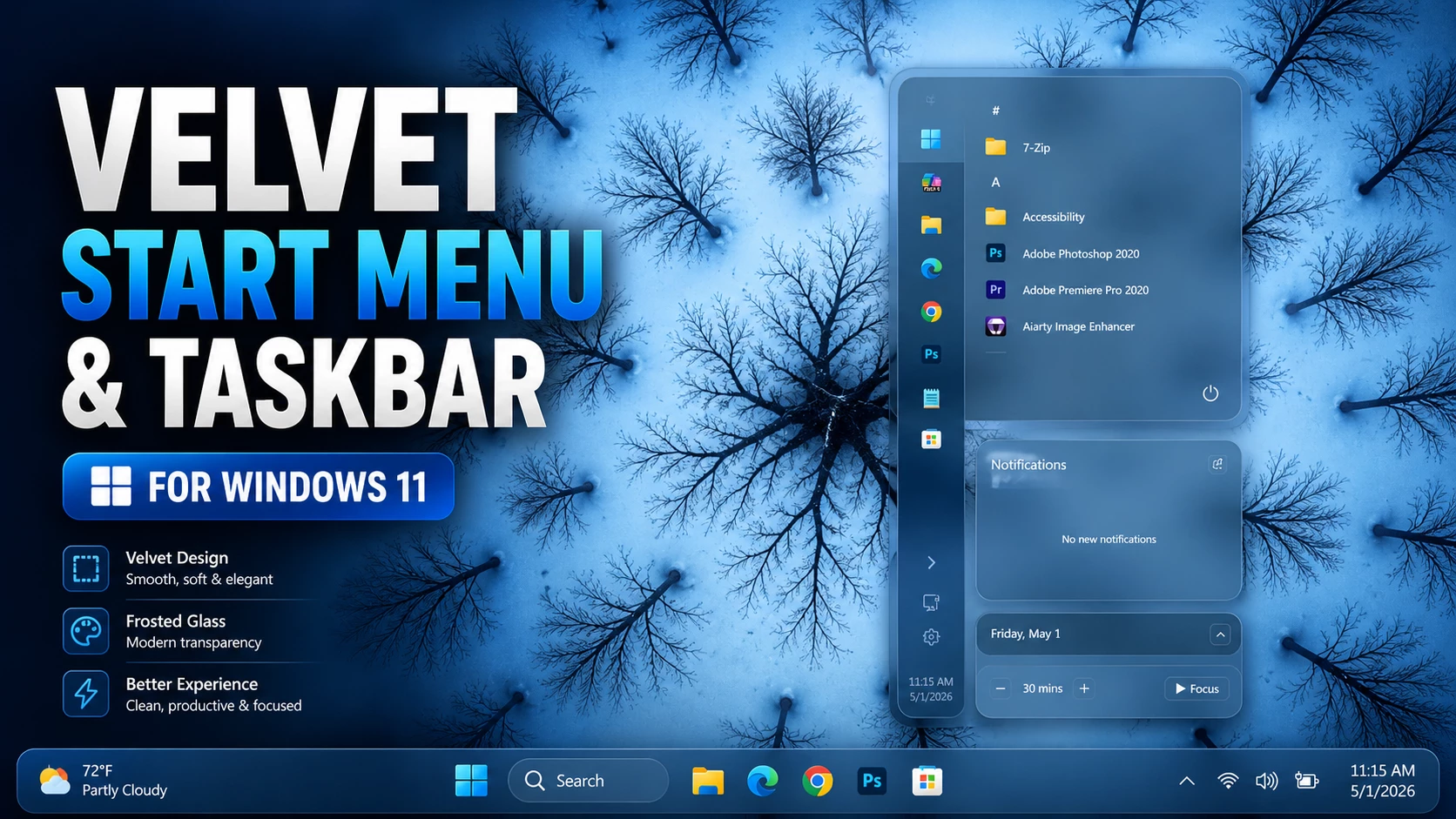
Velvet Start Menu & Taskbar For Windows 11: Elevate Your Desktop Experience
Windows 11 introduced a modern design language, but for many enthusiasts, the default customization options feel limited. If you are looking to achieve a premium, soft-glass aesthetic, the Velvet Start Menu & Taskbar for Windows 11 is the perfect solution. By utilizing the powerful Windhawk tool, you can transform your workspace into a sleek, professional environment that stands out.
Windows 11 brought a fresh look, but power users often find the stock taskbar and start menu too rigid. The Velvet Start Menu & Taskbar For Windows 11 setup aims to bridge the gap between functionality and high-end aesthetics. By utilizing Windhawk, we can inject custom code that modifies the desktop environment in real-time without the risk of system instability..
Why Choose the Velvet Start Menu?
The “Velvet” look focuses on subtle gradients, refined transparency, and a clean layout. Unlike heavy themes that can drain system resources, this customization uses modular injections to modify specific UI elements without replacing core system files.
- Dynamic Transparency
- Vertical & Floating Layouts
- Minimal and clean UI fans
- Soft-Glow Accents
- Minimalist System Tray
- Lightweight customization using Windhawk
Features of Velvet Start Menu Style For Windows 11
How Velvet Start Menu Style Improves Your Desktop
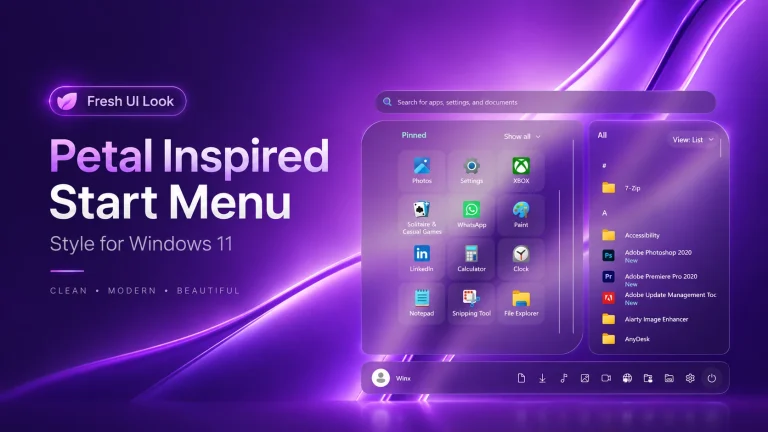
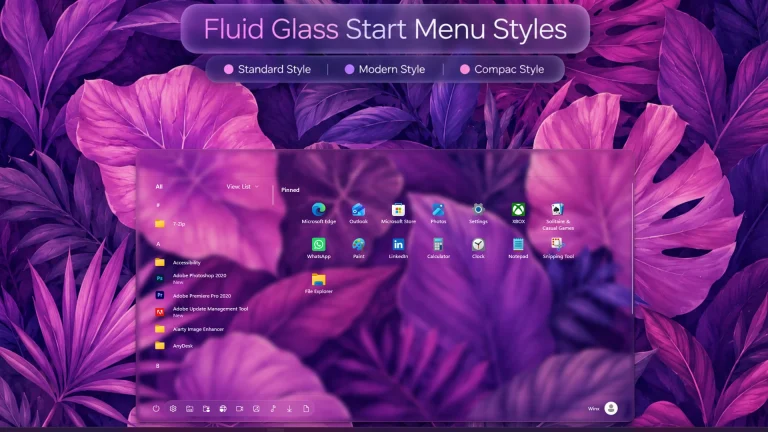
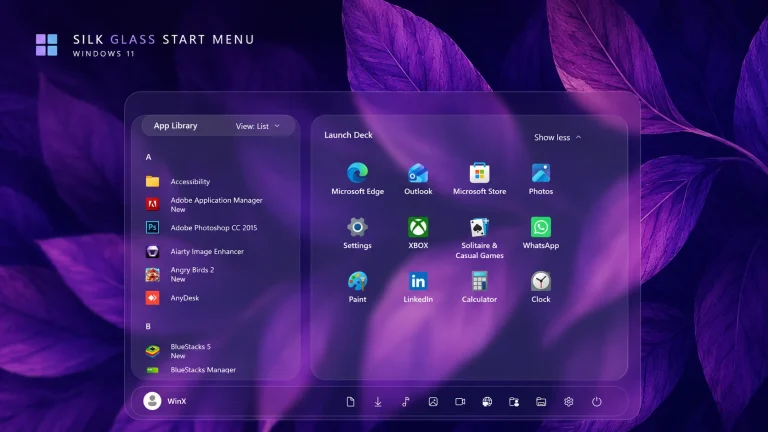
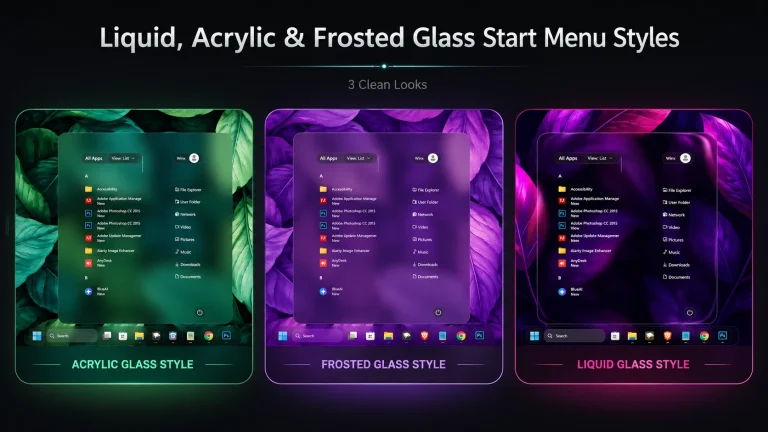
The interface features a sophisticated “Velvet” or “Liquid Glass” aesthetic, defined by its heavy acrylic transparency and soft, frosted-glass textures. The layout is designed to be immersive, using a vertical sidebar orientation that maximizes screen real estate while maintaining a clean, minimal look..
- Windows 11 installed
- Windhawk software
- Basic knowledge of Windows customization
- Download and install Windhawk
- Open Windhawk and install the Windows 11 Start Menu Styler mod
- Go to the Advanced tab
- Paste the provided configuration code into the “Mod settings” box
- Click Save to apply the style
- For more details, visit this GitHub guide
- Windhawk Start Menu configuration
- Taskbar customization settings
- Taskbar height and icon styling tweaks
- Wallpapers
{ "theme": "Velvet Start Menu by WinX Customization", "controlStyles[0].target": "Windows.UI.Xaml.Controls.Grid#UndockedRoot", "controlStyles[0].styles[0]": "MaxWidth=0", "controlStyles[0].styles[1]": "Margin=0", "controlStyles[1].target": "Windows.UI.Xaml.Controls.Grid#AllAppsRoot", "controlStyles[1].styles[0]": "Visibility=Visible", "controlStyles[1].styles[1]": "Width=540", "controlStyles[1].styles[2]": "Margin=-950,0,0,0", "controlStyles[2].target": "StartDocked.StartSizingFrame", "controlStyles[2].styles[0]": "MinWidth=380", "controlStyles[2].styles[1]": "MaxWidth=380", "controlStyles[2].styles[2]": "MaxHeight=370", "controlStyles[2].styles[3]": "Height=400", "controlStyles[3].target": "Windows.UI.Xaml.Controls.Grid#ShowMoreSuggestions", "controlStyles[3].styles[0]": "Visibility=Collapsed", "controlStyles[4].target": "Windows.UI.Xaml.Controls.Button#ShowAllAppsButton", "controlStyles[4].styles[0]": "Visibility=Collapsed", "controlStyles[5].target": "StartDocked.AllAppsGridListView#AppsList", "controlStyles[5].styles[0]": "Padding=220,3,6,16", "controlStyles[6].target": "Grid#AllAppsPaneHeader", "controlStyles[6].styles[0]": "Visibility=Collapsed", "controlStyles[7].target": "StartDocked.NavigationPaneView#NavigationPane", "controlStyles[7].styles[0]": "Margin=0,0,0,0", "controlStyles[7].styles[1]": "RenderTransform:=<TranslateTransform Y=\"-80\" X=\"30\" />", "controlStyles[8].target": "StartDocked.AppListView#NavigationPanePlacesListView", "controlStyles[9].target": "StartDocked.SearchBoxToggleButton#StartMenuSearchBox", "controlStyles[9].styles[0]": "Margin=23,-101,23,14", "controlStyles[10].target": "StartDocked.SearchBoxToggleButton", "controlStyles[10].styles[0]": "Height=0", "controlStyles[11].target": "Rectangle[4]", "controlStyles[11].styles[0]": "Margin=0,-20,0,0", "controlStyles[12].target": "StartMenu.ExpandedFolderList > Grid > Grid > Microsoft.UI.Xaml.Controls.PipsPager#PinnedListPipsPager", "controlStyles[12].styles[0]": "Margin=-20,0,20,0", "controlStyles[13].target": "StartMenu.StartInnerFrame", "controlStyles[13].styles[0]": "Visibility=Collapsed", "controlStyles[14].target": "Grid#RootContent", "controlStyles[14].styles[0]": "MinWidth=380", "controlStyles[15].target": "Grid#InnerContent", "controlStyles[15].styles[0]": "Margin=0,12,0,0", "controlStyles[16].target": "Border#AcrylicBorder", "controlStyles[16].styles[0]": "Background:=<AcrylicBrush TintColor=\"{ThemeResource CardStrokeColorDefaultSolid}\" FallbackColor=\"{ThemeResource CardStrokeColorDefaultSolid}\" TintOpacity=\"0\" TintLuminosityOpacity=\".45\" Opacity=\"1\"/>", "controlStyles[16].styles[1]": "BorderBrush:=<AcrylicBrush TintColor=\"{ThemeResource SurfaceStrokeColorDefault}\" FallbackColor=\"{ThemeResource SurfaceStrokeColorDefault}\" TintOpacity=\"0\" TintLuminosityOpacity=\".55\" Opacity=\"1\"/>", "controlStyles[16].styles[2]": "BorderThickness=1", "controlStyles[17].target": "Border#AppBorder", "controlStyles[17].styles[0]": "Background:=<AcrylicBrush TintColor=\"{ThemeResource CardStrokeColorDefaultSolid}\" FallbackColor=\"{ThemeResource CardStrokeColorDefaultSolid}\" TintOpacity=\"0\" TintLuminosityOpacity=\".85\" Opacity=\"1\"/>", "controlStyles[17].styles[1]": "BorderBrush:=<AcrylicBrush TintColor=\"{ThemeResource SurfaceStrokeColorDefault}\" FallbackColor=\"{ThemeResource SurfaceStrokeColorDefault}\" TintOpacity=\"0\" TintLuminosityOpacity=\".25\" Opacity=\"1\"/>", "controlStyles[18].target": "Border#LayerBorder", "controlStyles[18].styles[0]": "Visibility=1", "controlStyles[19].target": "StartDocked.NavigationPaneView", "controlStyles[19].styles[0]": "Transform3D:=<CompositeTransform3D RotationZ=\"270\" TranslateY=\"-480\" TranslateX=\"50\"/>", "controlStyles[20].target": "StartDocked.AppListViewItem > Grid > ContentPresenter", "controlStyles[20].styles[0]": "Transform3D:=<CompositeTransform3D RotationZ=\"90\" TranslateY=\"40\"/>", "controlStyles[21].target": "StartDocked.PowerOptionsView", "controlStyles[21].styles[0]": "Transform3D:=<CompositeTransform3D TranslateY=\"-240\" TranslateX=\"220\" RotationZ=\"90\" />", "controlStyles[21].styles[1]": "Margin=0,0,0,0", "controlStyles[22].target": "StartDocked.AppListView#NavigationPanePlacesListView > Windows.UI.Xaml.Controls.Border", "controlStyles[22].styles[1]": "CornerRadius=5", "controlStyles[22].styles[2]": "Margin=0,0,15,0", "controlStyles[23].target": "StartDocked.UserTileView#UserTile", "controlStyles[23].styles[0]": "Visibility=Collapsed", "controlStyles[24].target": "Border#AcrylicOverlay", "controlStyles[24].styles[0]": "Visibility=Collapsed", "controlStyles[25].target": "StartDocked.LauncherFrame > Grid#RootPanel > Grid#RootGrid", "controlStyles[25].styles[0]": "MinWidth=380", "controlStyles[25].styles[1]": "MaxWidth=380", "controlStyles[26].target": "StartDocked.LauncherFrame > Grid#RootPanel > Grid#RootGrid > Grid#RootContent", "controlStyles[26].styles[0]": "MinWidth=380", "controlStyles[26].styles[1]": "MaxWidth=380", "disableNewStartMenuLayout": 1}{ "theme": "Velvet Taskbar by WinX Customization", "styleConstants[0]": "themeColor={ThemeResource SystemAccentColorDark1}", "styleConstants[1]": "themeColorOpacity=0", "styleConstants[2]": "primaryColor={ThemeResource TextFillColorPrimary}", "styleConstants[3]": "activeColor=#33AAFF", "styleConstants[4]": "requestAttentionColor=#FF7788", "styleConstants[5]": "progressColor=#44CC66", "styleConstants[6]": "progressPausedColor=#EECC44", "styleConstants[7]": "taskbarBackground=<AcrylicBrush TintColor=\"{ThemeResource CardStrokeColorDefaultSolid}\" FallbackColor=\"{ThemeResource CardStrokeColorDefaultSolid}\" TintOpacity=\"0\" TintLuminosityOpacity=\"0.8\" Opacity=\"1\"/>", "styleConstants[8]": "taskbarBlurIncreace=0", "styleConstants[9]": "taskListMargin=2", "styleConstants[10]": "showDesktopWidth=10", "styleConstants[11]": "transparent=<SolidColorBrush Color=\"{ThemeResource TextFillColorPrimary}\" Opacity=\"0\"/>", "styleConstants[12]": "pointerOver=<SolidColorBrush Color=\"{ThemeResource TextFillColorPrimary}\" Opacity=\"0.075\"/>", "styleConstants[13]": "pressed=<SolidColorBrush Color=\"{ThemeResource TextFillColorPrimary}\" Opacity=\"0.05\"/>", "controlStyles[0].target": "Taskbar.TaskbarFrame > Grid#RootGrid", "controlStyles[0].styles[0]": "Background:=$taskbarBackground", "controlStyles[1].target": "Taskbar.TaskbarFrame > Grid#RootGrid > Taskbar.TaskbarBackground > Grid", "controlStyles[1].styles[0]": "Background:=<WindhawkBlur BlurAmount=\"$taskbarBlurIncreace\" TintColor=\"#00000000\" />", "controlStyles[2].target": "Taskbar.TaskbarFrame > Grid#RootGrid > Taskbar.TaskbarBackground > Grid > Rectangle#BackgroundFill", "controlStyles[2].styles[0]": "Fill:=<SolidColorBrush Color=\"$themeColor\" Opacity=\"$themeColorOpacity\"/>", "controlStyles[3].target": "Taskbar.TaskbarFrame > Grid#RootGrid > Taskbar.TaskbarBackground > Grid > Rectangle#BackgroundStroke", "controlStyles[3].styles[0]": "Visibility=Collapsed", "controlStyles[3].styles[1]": "Fill:=<SolidColorBrush Color=\"$primaryColor\" Opacity=\"0.05\"/>", "controlStyles[4].target": "Taskbar.TaskListButtonPanel@CommonStates", "controlStyles[4].styles[0]": "Padding=0", "controlStyles[4].styles[1]": "Margin=$taskListMargin,0,$taskListMargin,0", "controlStyles[4].styles[2]": "Background@ActiveNormal:=<SolidColorBrush Color=\"$activeColor\" Opacity=\"0.5\"/>", "controlStyles[4].styles[3]": "Background@ActivePointerOver:=<SolidColorBrush Color=\"$activeColor\" Opacity=\"0.5\"/>", "controlStyles[4].styles[4]": "Background@ActivePressed:=<SolidColorBrush Color=\"$activeColor\" Opacity=\"0.5\"/>", "controlStyles[5].target": "Taskbar.TaskListButtonPanel@CommonStates > Border#BackgroundElement", "controlStyles[5].styles[0]": "Background:=$transparent", "controlStyles[5].styles[1]": "Background@InactivePointerOver:=$pointerOver", "controlStyles[5].styles[2]": "Background@InactivePressed:=$pressed", "controlStyles[5].styles[3]": "Background@ActivePointerOver:=$pointerOver", "controlStyles[5].styles[4]": "Background@ActivePressed:=$pressed", "controlStyles[5].styles[5]": "BorderThickness=0", "controlStyles[5].styles[6]": "CornerRadius=0", "controlStyles[5].styles[7]": "Margin=0", "controlStyles[6].target": "Taskbar.TaskListButton > Taskbar.TaskListLabeledButtonPanel@RunningIndicatorStates", "controlStyles[6].styles[0]": "Padding=0", "controlStyles[6].styles[1]": "Margin=$taskListMargin,0,$taskListMargin,0", "controlStyles[6].styles[2]": "Background@NoRunningIndicator:=$transparent", "controlStyles[6].styles[3]": "Background@InactiveRunningIndicator:=<SolidColorBrush Color=\"$primaryColor\" Opacity=\"0.1\"/>", "controlStyles[6].styles[4]": "Background@ActiveRunningIndicator:=<SolidColorBrush Color=\"$activeColor\" Opacity=\"0.5\"/>", "controlStyles[6].styles[5]": "Background:=<SolidColorBrush Color=\"$requestAttentionColor\" Opacity=\"0.5\"/>", "controlStyles[7].target": "Taskbar.TaskListButton > Taskbar.TaskListLabeledButtonPanel@CommonStates > Border#BackgroundElement", "controlStyles[7].styles[0]": "Background:=$transparent", "controlStyles[7].styles[1]": "Background@InactivePointerOver:=$pointerOver", "controlStyles[7].styles[2]": "Background@InactivePressed:=$pressed", "controlStyles[7].styles[3]": "Background@ActivePointerOver:=$pointerOver", "controlStyles[7].styles[4]": "Background@ActivePressed:=$pressed", "controlStyles[7].styles[5]": "Background@MultiWindowPointerOver:=$pointerOver", "controlStyles[7].styles[6]": "Background@MultiWindowPressed:=$pressed", "controlStyles[7].styles[7]": "Background@RequestingAttentionPointerOver:=$pointerOver", "controlStyles[7].styles[8]": "Background@RequestingAttentionPressed:=$pressed", "controlStyles[7].styles[9]": "Background@RequestingAttentionMultiPointerOver:=$pointerOver", "controlStyles[7].styles[10]": "Background@RequestingAttentionMultiPressed:=$pressed", "controlStyles[7].styles[11]": "BorderThickness=0", "controlStyles[7].styles[12]": "CornerRadius=0", "controlStyles[7].styles[13]": "Margin=0", "controlStyles[8].target": "Taskbar.TaskListLabeledButtonPanel > Border#MultiWindowElement", "controlStyles[8].styles[0]": "Visibility=Collapsed", "controlStyles[9].target": "Taskbar.TaskListLabeledButtonPanel@CommonStates > Rectangle#RunningIndicator", "controlStyles[9].styles[0]": "Visibility=Collapsed", "controlStyles[9].styles[1]": "Fill:=<SolidColorBrush Color=\"$primaryColor\" Opacity=\"0.2\"/>", "controlStyles[9].styles[2]": "VerticalAlignment=0", "controlStyles[9].styles[3]": "HorizontalAlignment=Stretch", "controlStyles[9].styles[4]": "Margin=0,0,-4,0", "controlStyles[9].styles[5]": "Width=Auto", "controlStyles[9].styles[6]": "Height=3", "controlStyles[9].styles[7]": "RadiusX=0", "controlStyles[9].styles[8]": "RadiusY=0", "controlStyles[9].styles[9]": "Visibility@MultiWindowNormal=Visible", "controlStyles[9].styles[10]": "Visibility@MultiWindowActive=Visible", "controlStyles[9].styles[11]": "Visibility@MultiWindowPointerOver=Visible", "controlStyles[9].styles[12]": "Visibility@MultiWindowPressed=Visible", "controlStyles[9].styles[13]": "Visibility@RequestingAttentionMulti=Visible", "controlStyles[9].styles[14]": "Visibility@RequestingAttentionMultiPointerOver=Visible", "controlStyles[9].styles[15]": "Visibility@RequestingAttentionMultiPressed=Visible", "controlStyles[10].target": "Microsoft.UI.Xaml.Controls.ProgressBar#ProgressIndicator", "controlStyles[10].styles[0]": "VerticalAlignment=Stretch", "controlStyles[10].styles[1]": "HorizontalAlignment=Stretch", "controlStyles[10].styles[2]": "Margin=0,0,-4,0", "controlStyles[10].styles[3]": "Width=Auto", "controlStyles[10].styles[4]": "Height=Auto", "controlStyles[10].styles[5]": "CornerRadius=0", "controlStyles[11].target": "Border#ProgressBarRoot > Border > Grid", "controlStyles[11].styles[0]": "Height=Auto", "controlStyles[12].target": "Grid#LayoutRoot@CommonStates > Border#ProgressBarRoot > Border > Grid > Rectangle#ProgressBarTrack", "controlStyles[12].styles[0]": "Margin=0", "controlStyles[12].styles[1]": "RadiusX=0", "controlStyles[12].styles[2]": "RadiusY=0", "controlStyles[12].styles[3]": "Fill:=<SolidColorBrush Color=\"$progressColor\" Opacity=\"0.15\"/>", "controlStyles[12].styles[4]": "Fill@Paused:=<SolidColorBrush Color=\"$progressPausedColor\" Opacity=\"0.15\"/>", "controlStyles[13].target": "Grid#LayoutRoot@CommonStates > Border#ProgressBarRoot > Border > Grid > Rectangle#DeterminateProgressBarIndicator", "controlStyles[13].styles[0]": "RadiusX=0", "controlStyles[13].styles[1]": "RadiusY=0", "controlStyles[13].styles[2]": "Fill:=<SolidColorBrush Color=\"$progressColor\" Opacity=\"0.4\"/>", "controlStyles[13].styles[3]": "Fill@Paused:=<SolidColorBrush Color=\"$progressPausedColor\" Opacity=\"0.4\"/>", "controlStyles[14].target": "Taskbar.TaskListLabeledButtonPanel > Image", "controlStyles[14].styles[0]": "Transform3D:=<CompositeTransform3D TranslateX=\"2\" TranslateY=\"1\" />", "controlStyles[15].target": "Taskbar.TaskListLabeledButtonPanel > Rectangle#DefaultIcon", "controlStyles[15].styles[0]": "Visibility=Collapsed", "controlStyles[16].target": "Taskbar.TaskListButtonPanel > AnimatedVisualPlayer", "controlStyles[16].styles[0]": "Transform3D:=<CompositeTransform3D TranslateX=\"0\" TranslateY=\"1\" />", "controlStyles[17].target": "Taskbar.ExperienceToggleButton#LaunchListButton[AutomationProperties.AutomationId=StartButton] > Taskbar.TaskListButtonPanel", "controlStyles[17].styles[0]": "MinWidth=60", "controlStyles[17].styles[1]": "Margin=0,0,$taskListMargin,0", "controlStyles[18].target": "Taskbar.SearchBoxButton > Taskbar.TaskListButtonPanel@CommonStates", "controlStyles[18].styles[0]": "Padding=0", "controlStyles[18].styles[1]": "Margin=$taskListMargin,0,$taskListMargin,0", "controlStyles[18].styles[2]": "Background@ActiveNormal_SearchIcon:=<SolidColorBrush Color=\"$activeColor\" Opacity=\"0.5\"/>", "controlStyles[18].styles[3]": "Background@ActivePointerOver_SearchIcon:=<SolidColorBrush Color=\"$activeColor\" Opacity=\"0.5\"/>", "controlStyles[18].styles[4]": "Background@ActivePressed_SearchIcon:=<SolidColorBrush Color=\"$activeColor\" Opacity=\"0.5\"/>", "controlStyles[19].target": "Taskbar.SearchBoxLaunchListButton > Taskbar.TaskListButtonPanel", "controlStyles[19].styles[0]": "Padding=0", "controlStyles[19].styles[1]": "Margin=$taskListMargin,0,$taskListMargin,0", "controlStyles[20].target": "SearchUx.SearchUI.SearchButtonRootGrid@CommonStates", "controlStyles[20].styles[0]": "Padding=0", "controlStyles[20].styles[1]": "Margin=$taskListMargin,0,$taskListMargin,0", "controlStyles[20].styles[2]": "Background@ActiveNormal:=<SolidColorBrush Color=\"$activeColor\" Opacity=\"0.5\"/>", "controlStyles[20].styles[3]": "Background@ActivePointerOver:=<SolidColorBrush Color=\"$activeColor\" Opacity=\"0.5\"/>", "controlStyles[20].styles[4]": "Background@ActivePressed:=<SolidColorBrush Color=\"$activeColor\" Opacity=\"0.5\"/>", "controlStyles[21].target": "Taskbar.SearchBoxButton > Taskbar.TaskListButtonPanel@CommonStates > Border#BackgroundElement", "controlStyles[21].styles[0]": "BorderThickness=0", "controlStyles[21].styles[1]": "CornerRadius=0", "controlStyles[21].styles[2]": "Margin=0", "controlStyles[21].styles[3]": "Background@InactiveNormal_SearchIcon:=$transparent", "controlStyles[21].styles[4]": "Background@InactivePointerOver_SearchIcon:=$pointerOver", "controlStyles[21].styles[5]": "Background@InactivePressed_SearchIcon:=$pressed", "controlStyles[21].styles[6]": "Background@ActiveNormal_SearchIcon:=$transparent", "controlStyles[21].styles[7]": "Background@ActivePointerOver_SearchIcon:=$pointerOver", "controlStyles[21].styles[8]": "Background@ActivePressed_SearchIcon:=$pressed", "controlStyles[22].target": "Taskbar.SearchBoxLaunchListButton > Taskbar.TaskListButtonPanel > Border#BackgroundElement", "controlStyles[22].styles[0]": "BorderThickness=0", "controlStyles[22].styles[1]": "CornerRadius=0", "controlStyles[22].styles[2]": "Margin=0", "controlStyles[23].target": "SearchUx.SearchUI.SearchButtonRootGrid@CommonStates > Border#BackgroundElement", "controlStyles[23].styles[0]": "BorderThickness=0", "controlStyles[23].styles[1]": "CornerRadius=0", "controlStyles[23].styles[2]": "Margin=0", "controlStyles[23].styles[3]": "Background@InactiveNormal:=$transparent", "controlStyles[23].styles[4]": "Background@InactivePointerOver:=$pointerOver", "controlStyles[23].styles[5]": "Background@InactivePressed:=$pressed", "controlStyles[23].styles[6]": "Background@ActiveNormal:=$transparent", "controlStyles[23].styles[7]": "Background@ActivePointerOver:=$pointerOver", "controlStyles[23].styles[8]": "Background@ActivePressed:=$pressed", "controlStyles[24].target": "Border#SearchPillBackgroundElement", "controlStyles[24].styles[0]": "BorderThickness=0", "controlStyles[24].styles[1]": "CornerRadius=0", "controlStyles[24].styles[2]": "Margin=0", "controlStyles[25].target": "Grid#DynamicSearchBoxGleamContainer", "controlStyles[25].styles[0]": "Visibility=Collapsed", "controlStyles[26].target": "Grid@ > Border#BackgroundBorder", "controlStyles[26].styles[0]": "Padding=0", "controlStyles[26].styles[1]": "CornerRadius=0", "controlStyles[26].styles[2]": "Margin=0", "controlStyles[26].styles[3]": "BorderThickness=0", "controlStyles[26].styles[4]": "Background@PointerOver:=$pointerOver", "controlStyles[26].styles[5]": "Background@Pressed:=$pressed", "controlStyles[27].target": "SystemTray.OmniButton > Grid@CommonStates > Border#BackgroundBorder", "controlStyles[27].styles[0]": "Background@PointerOver:=$pointerOver", "controlStyles[27].styles[1]": "Background@Pressed:=$pressed", "controlStyles[28].target": "SystemTray.Stack#ShowDesktopStack", "controlStyles[28].styles[0]": "MinWidth=$showDesktopWidth", "controlStyles[28].styles[1]": "MaxWidth=$showDesktopWidth", "controlStyles[29].target": "SystemTray.Stack#ShowDesktopStack > Grid > SystemTray.StackListView > Windows.UI.Xaml.Controls.ItemsPresenter > Windows.UI.Xaml.Controls.StackPanel > Windows.UI.Xaml.Controls.ContentPresenter > SystemTray.IconView", "controlStyles[29].styles[0]": "MinWidth=$showDesktopWidth", "controlStyles[29].styles[1]": "MaxWidth=$showDesktopWidth", "controlStyles[30].target": "SystemTray.IconView#SystemTrayIcon > Grid#ContainerGrid@ > Rectangle#ShowDesktopPipe", "controlStyles[30].styles[0]": "VerticalAlignment=Stretch", "controlStyles[30].styles[1]": "HorizontalAlignment=Stretch", "controlStyles[30].styles[2]": "Height=Auto", "controlStyles[30].styles[3]": "Width=Auto", "controlStyles[30].styles[4]": "Fill@PointerOver:=$pointerOver", "controlStyles[30].styles[5]": "Fill@Pressed:=$pressed"}{ "TaskbarHeight": 40, "IconSize": 20, "TaskbarButtonWidth": 40, "IconSizeSmall": 20, "TaskbarButtonWidthSmall": 10}Final Thoughts
Customizing your OS doesn’t have to be complicated. With the Velvet Start Menu & Taskbar for Windows 11 and Windhawk, you can achieve a high-end look with just a few clicks. This setup not only improves aesthetics but also maintains the fluid performance Windows 11 users expect..