

Gradient Theme For Windows 11 24H2
Gradient Theme For Windows 11 24H2:The Gradient Theme for Windows 11 24H2 introduces a visually stunning and modern design aesthetic, blending smooth color transitions across UI elements for a more dynamic and immersive experience.

Gradient Theme For Windows 11 24H2
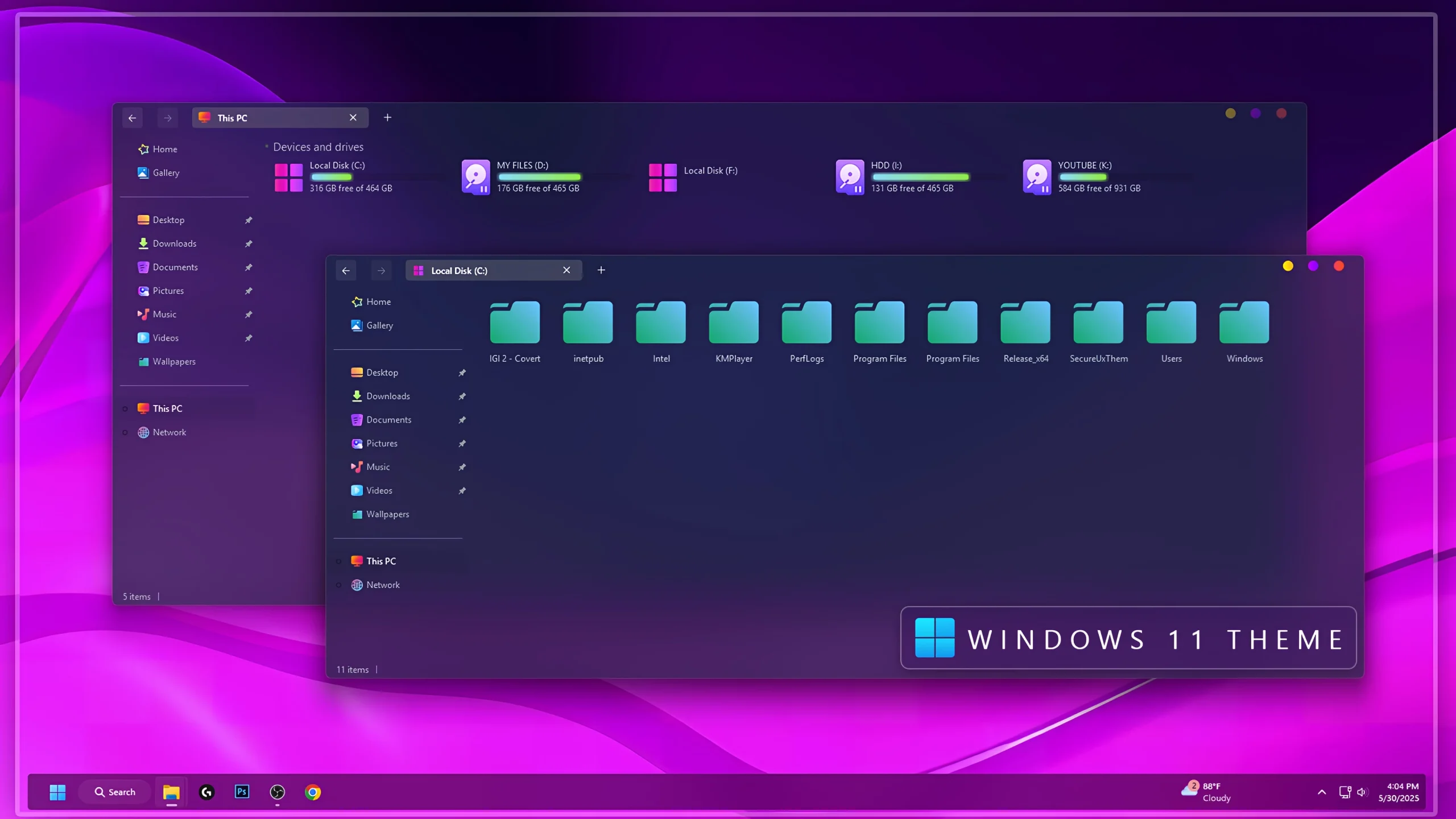
Gradient Theme For Windows 11 24H2 is a custom desktop setup built around deep purple, magenta, cyan, and teal tones. It gives Windows 11 a darker glass-style appearance with colorful accents, matching folder icons, and a vivid gradient wallpaper that makes the desktop feel noticeably different from the default Windows look.
The File Explorer uses a dark purple surface with soft transparency, while the folder icons stand out in bright aqua and teal. Magenta and violet accents appear across the interface, creating a strong contrast against the darker background without making the layout feel overloaded.
This is an independently created third-party customization package made only for Windows desktop personalization. It does not replace Windows 11, install another operating system, or add official Microsoft features. The changes are focused on supported visual elements of an existing Windows 11 installation.
Colorful Gradient Desktop Style
The main visual character comes from the mix of purple and pink gradients around the desktop, combined with a dark Explorer interface. Aqua folder icons add a cooler tone inside File Explorer, which helps balance the brighter magenta wallpaper and purple window surfaces.
The storage section also follows the same colorful direction. The hard drive level indicators use an aqua or cyan tone that shifts into bright lime green, while the drive icons use purple and magenta accents. These small color details give the Explorer layout more personality and help the storage information stand out clearly against the dark background.
Features
- Deep purple and magenta Windows 11 visual style
- Dark File Explorer with subtle glass-inspired transparency
- Aqua and teal folder icons for a brighter Explorer layout
- Hard drive level indicators with cyan, aqua, and lime green tones
- Purple and magenta drive icon accents
- Matching gradient wallpaper with vivid pink and violet colors
- Optional Explorer and Windhawk customization support
- Windows 11 Theme: Applies the main dark gradient visual style to supported Windows interface elements.
- Icon Pack: Gives compatible folders and system icons a look that fits the aqua, teal, and purple color palette.
- Explorer Mods: Optional files for users who want additional File Explorer styling.
- Wallpaper: Completes the setup with a vivid purple and magenta gradient background.
Optional Customization Tools
- SecureUxTheme – used to apply compatible third-party Windows visual styles.
- 7TSP GUI – useful for applying compatible icon packs.
- ExplorerBlurMica – can add compatible blur and transparency effects to File Explorer.
- Windhawk – supports additional Windows interface customization through compatible mods.
You do not need every optional tool to use the Gradient setup. Start with the main theme first, then add icons, Explorer changes, or other interface tweaks only if you want to recreate more of the complete desktop style.
Before You Install
- Create a System Restore Point before applying custom visual files.
- Check that the required tools support Windows 11 24H2.
- Keep your current Windows theme available for easy restoration.
- Back up original icons before applying a custom icon pack.
- Download third-party tools only from trusted project pages.
- Apply major customization components one at a time.
Installation Steps
- Create a System Restore Point before starting so you can easily revert if anything goes wrong.
- Download and run UltraUXThemePatcher Or SecureX Theme Tool as Administrator, then restart your computer to patch core system files.
- Download the theme package using the button below and extract the
.zipor.rarfile. - Copy both the
.themefile and the theme folder toC:\Windows\Resources\Themes. - Right-click your desktop, go to Settings > Personalization > Themes, and select your new custom theme to apply it.
- If you are new to Windows customization, follow this detailed guide first: How to Install Custom Themes on Windows 11.
- Once the main theme looks right, try optional icons, Start menu styling, or Explorer effects one at a time.
Compatibility
- Windows 11 21H2: Supported
- Windows 11 22H2: Supported
- Windows 11 23H2: Recommended
- Windows 11 24H2: Recommended
- Windows 11 25H2: Supported
Theme Files 48MB
DownloadHow to Remove
- Return to a Default Theme: Open Settings > Personalization > Themes and select one of the standard Windows 11 themes.
- Restore the Original Icons: If you applied the custom icon pack, use the restore or backup option in your icon tool.
- Disable Explorer Mods: Turn off any blur, Windhawk, or File Explorer modifications used with the setup.
- Restore Your Wallpaper: Choose your previous wallpaper or one of the standard Windows backgrounds.
- Restart Windows Explorer: Restart Explorer or reboot your PC. If anything remains changed, use the Restore Point created before installation.
Disclaimer
Gradient Theme is an independently created third-party customization package made only for Windows desktop personalization. It is not affiliated with, endorsed by, or officially connected to Microsoft, Windhawk, SecureUxTheme, 7TSP, ExplorerBlurMica, or any other company, developer, or project mentioned on this page. All trademarks and brand names belong to their respective owners. Compatibility may vary between Windows builds, so creating a System Restore Point before applying customization files is recommended.
Final Word
Gradient Theme gives Windows 11 a more colorful identity by mixing deep purple surfaces with magenta highlights, aqua folders, and bright storage indicators. The cyan-to-lime drive bars are a small detail, but they fit the rest of the color scheme surprisingly well and make the Explorer layout feel more complete.
The setup works especially well for users who like strong colors but still want a dark desktop underneath. You can keep it simple with the main theme or add the matching icons and Explorer effects for a fuller gradient look.
Frequently Asked Questions
What colors are used in the hard drive level indicators?
The storage bars use bright aqua and cyan tones that move into lime green, which makes them easy to notice against the dark purple Explorer background.
Do the aqua folder icons come with the main Windows theme?
The folder icons may be provided as a separate icon pack, so they can usually be applied independently from the main visual style.
Can I keep the default Windows wallpaper?
Yes. The included purple and magenta wallpaper helps complete the intended look, but you can use any background that works well with the darker interface.
Is Explorer blur required for this setup?
No. Blur effects are optional. The main theme can still be used without additional Explorer transparency tools.
Does this setup work best with bright or dark desktop colors?
It works especially well with darker purple backgrounds because the aqua folders, magenta accents, and lime storage bars stand out more clearly.







Disclaimer: All themes, visual styles, and concepts shared on this website are unofficial, fan-made creations built from imagination for customization purposes. We are not affiliated with, endorsed by, or sponsored by Microsoft or any other official brand.