Fluent Theme for Windows 11
Download Fluent Theme for Windows 11. A clean modern customization pack with theme files, wallpapers, optional icons, Start Menu tools, and safe installation steps.

Fluent Theme for Windows 11
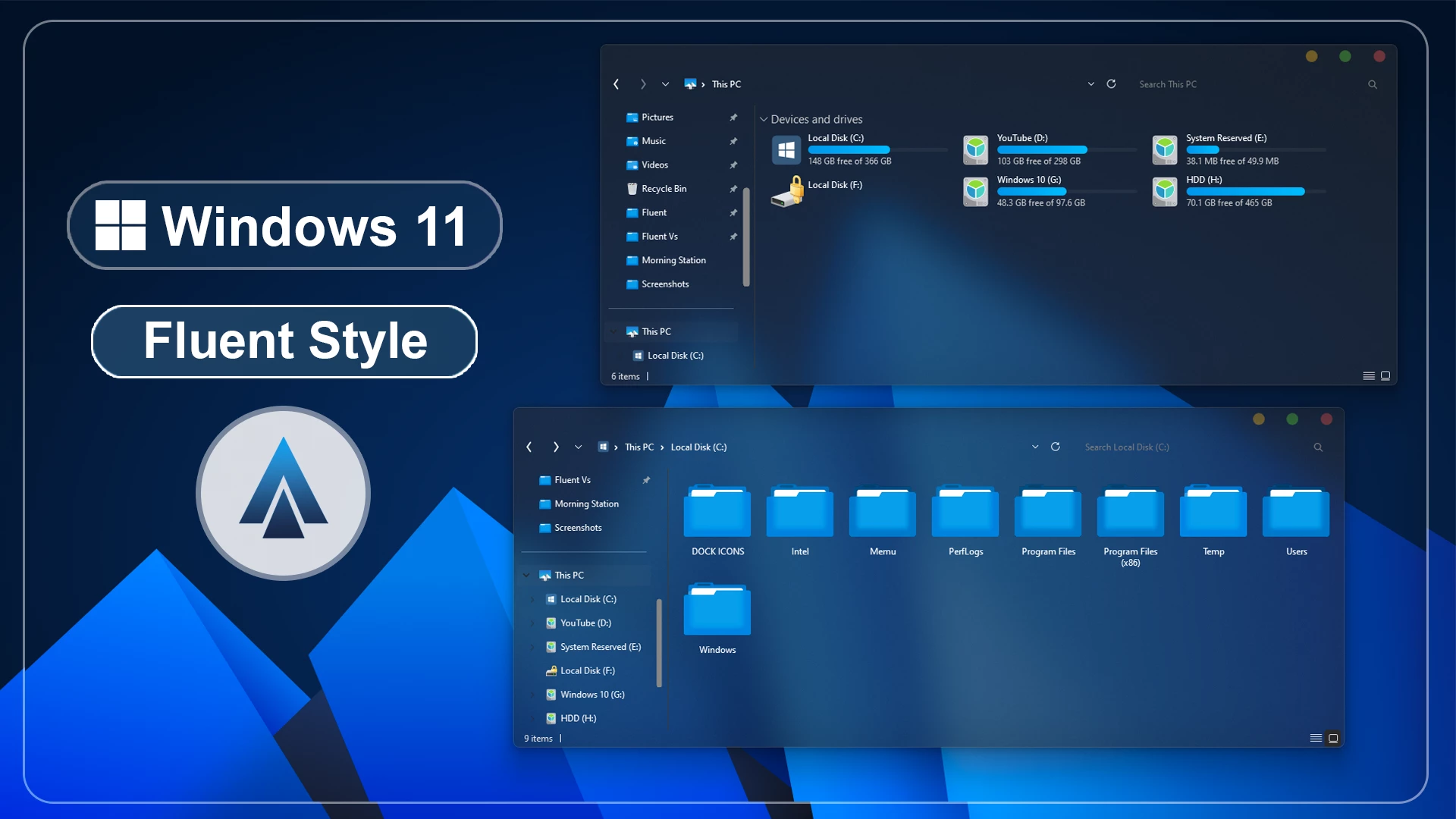
The Fluent Theme for Windows 11 gives the desktop a lighter transparent appearance with clean glass-style surfaces and a few carefully placed color accents. Supported Windows areas keep their familiar layout while replacing heavier solid backgrounds with a more open visual treatment.
The setup includes some distinctive details beyond transparency. Hard drive level indicators use bright cyan and aqua-blue accents, while the DWM minimize, maximize, and close buttons have their own colored appearance.
The theme is intended for Windows desktop customization only. It changes supported visual elements without replacing Windows 11, installing another operating system, or altering the normal Windows workflow.
Transparent Fluent-Style Interface
Transparency is the main part of the Fluent design. File Explorer and other supported interface areas use a cleaner glass-style treatment instead of heavy solid surfaces, allowing more of the desktop background to remain visible.
The custom DWM controls add a small but noticeable detail to supported windows. Rather than using the standard Windows appearance, the minimize, maximize, and close buttons follow a custom colored style that fits the rest of the setup.
Storage information also receives its own accent. Cyan and aqua-blue drive level indicators add color to the otherwise restrained interface while keeping disk usage easy to identify.
Features
- Transparent Windows 11 interface with a clean glass-style appearance
- Custom DWM minimize, maximize, and close buttons
- Cyan and aqua-blue hard drive level indicators
- Familiar File Explorer layout with transparent styling
- Matching wallpapers included
- Optional Fluent icon resources available separately
- Works with additional taskbar, Start Menu, and Explorer customization tools
What Is Included?
- Windows 11 Theme
- Wallpapers
Optional Tools
Compatibility
- Windows 11 21H2: Supported
- Windows 11 22H2: Supported
- Windows 11 23H2: Recommended
- Windows 11 24H2: Recommended
- Windows 11 25H2: Supported
Optional tools can behave differently between Windows builds, especially after a major Windows update. Check the compatibility of the tool you plan to use before applying additional icon, Explorer, taskbar, or Start Menu changes.
Installation Steps
- Download the Fluent Theme package and extract the ZIP file.
- Copy the extracted theme files and theme folder to
C:\Windows\Resources\Themes. - Right-click on the desktop, select Personalize, open the Themes section, and choose the Fluent theme to apply it.
- After the main theme is active, you can apply one of the included wallpapers and add the optional Fluent icon pack, StartAllBack, or Explorer customization separately if needed.
- For the complete installation process and additional setup details, follow this Windows 11 custom theme installation guide.
Removal Steps
- Right-click on the desktop, open Personalize, and switch back to one of the default Windows 11 themes.
- If you applied the optional Fluent icon pack, restore the default Windows icons using your icon customization tool.
- Disable StartAllBack, ExplorerBlurMica, or any other optional interface changes you added, and restore your previous wallpaper if needed.
- For the complete restoration process, follow this Windows 11 custom theme removal guide.
Theme Files 10MB
Download Where the Fluent Look Stands Out
The theme keeps most of the interface visually simple, so smaller details become more noticeable. The cyan drive indicators and colored DWM controls provide contrast without turning the entire desktop into a heavily accented setup.
That balance works particularly well with the transparent Explorer surfaces. Instead of adding color everywhere, Fluent lets the glass treatment remain the main feature and uses brighter accents only where they help define specific parts of the interface.
Wallpaper and Transparency
The included wallpapers can help bring out the transparent areas of the theme, but they are not required. Different backgrounds can change how the glass surfaces feel without changing the actual Windows theme files.
Darker wallpapers generally create more contrast behind transparent windows, while lighter or more colorful backgrounds can make the interface feel brighter and more open.
Disclaimer
Fluent Theme for Windows 11 is an independent third-party customization resource intended for personal desktop styling. It is not an official Microsoft product and is not affiliated with, sponsored by, or endorsed by Microsoft.
Windows, SecureUxTheme, 7TSP GUI, StartAllBack, ExplorerBlurMica, and other product or project names belong to their respective owners. Third-party themes and optional customization tools can behave differently across Windows builds or after major system updates.
Final Word
Fluent Theme keeps its design relatively simple. Transparent Windows surfaces provide most of the visual character, while the cyan drive indicators and custom DWM buttons add color without making the desktop feel overloaded.
The main theme already provides the core look, while the included wallpapers and optional icon or interface tools give you room to extend the setup only where you want additional customization.
Frequently Asked Questions
What is the main visual change in Fluent Theme?
The main change is the transparent interface styling applied to supported Windows areas, giving the desktop a cleaner glass-style appearance.
What colors are used in the hard drive level indicators?
The drive level bars use bright cyan and aqua-blue accents.
Are the DWM window buttons customized?
Yes. The minimize, maximize, and close buttons use a custom colored appearance instead of the standard Windows controls.
Is the Fluent icon pack included?
No. The supplied package information lists the Windows 11 theme and wallpapers. The Fluent icon pack is a separate optional resource.
Are wallpapers included?
Yes. Matching wallpapers are included with the main theme package.
Do I need StartAllBack or ExplorerBlurMica?
No. Both are optional and are only needed if you want additional Start Menu, taskbar, or Explorer changes.
Can I use another wallpaper?
Yes. Changing the wallpaper can noticeably alter how the transparent interface looks without changing the main theme files.