

New Modern Glass Theme For Windows 11
New Modern Glass Theme For Windows 11 : New Modern Windows 11 Theme is a sleek and futuristic customization pack designed to elevate your desktop experience with a refined

New Modern Glass Theme For Windows 11
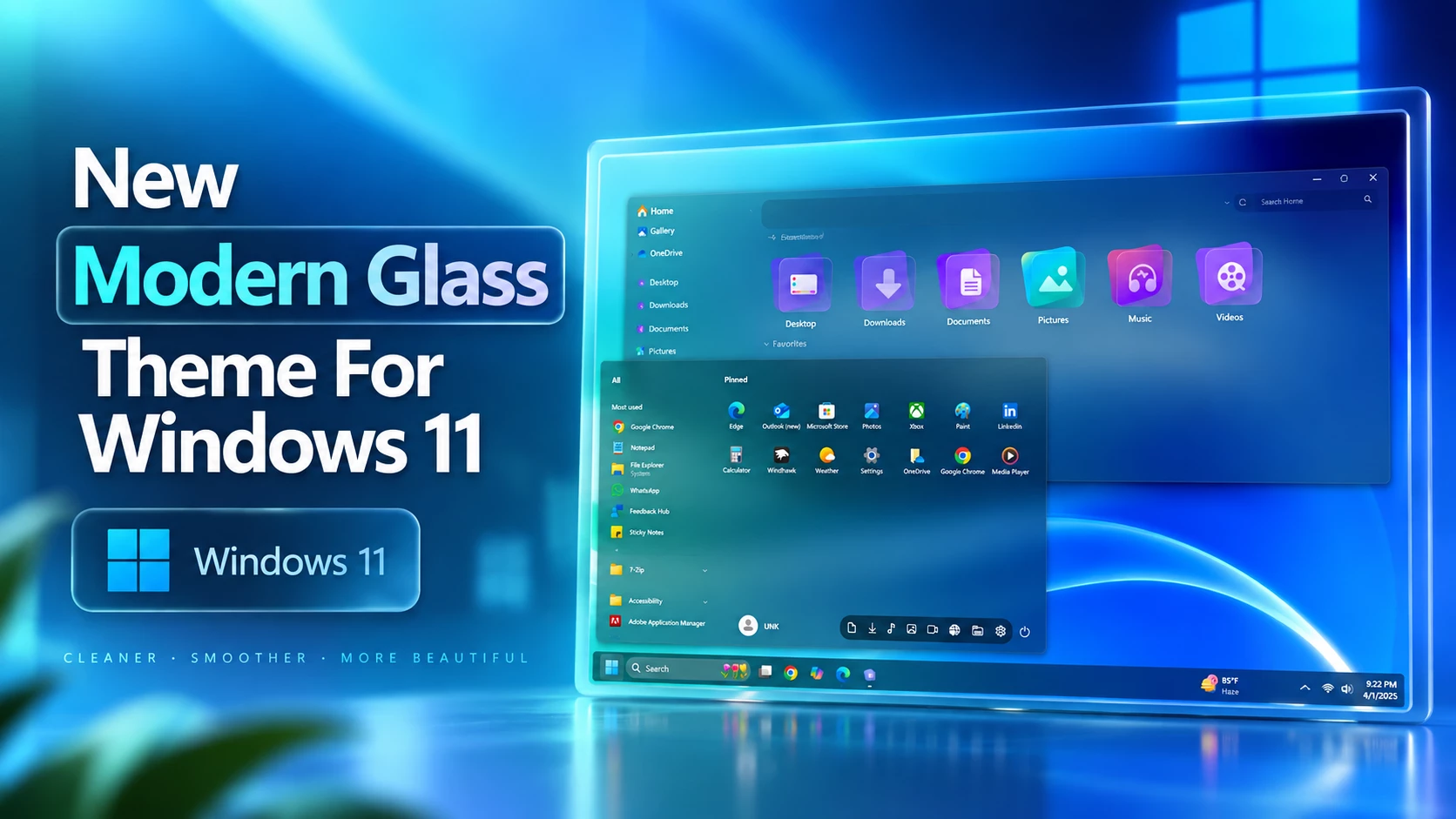
New Modern Glass Theme For Windows 11 is a custom desktop theme made for users who want to give Windows 11 a cleaner, more modern, and glass look. It combines smooth transparency, blue and cyan accents, matching wallpaper, and carefully styled interface elements to create a fresh desktop without losing the familiar Windows experience.
The glass effect is the main attraction here. Transparent and softly blurred surfaces help different parts of the interface feel lighter, while the blue and cyan tones add a cool modern character. The overall setup stays clean rather than overly decorated, making it suitable for users who like polished Windows customization with a simple visual direction.
What Is New Modern Glass Theme?
This is an independently created third-party custom theme designed for Windows 11 personalization. It changes selected visual parts of the operating system to create a more refined glass-style desktop. It doesn’t replace Windows, install another operating system, or add official Microsoft features.
The setup can be combined with Windhawk mods and other compatible customization tools to style areas such as the Start menu, taskbar, and File Explorer. You can use the complete setup or keep only the elements that fit your own desktop.
The final appearance can vary depending on your Windows build, screen resolution, display scaling, wallpaper, and the additional customization tools you choose to use.
Features
- Modern glass-inspired visual style for Windows 11
- Blue and cyan accents that pair naturally with transparent surfaces
- Soft blur and transparency for a cleaner desktop appearance
- Matching wallpaper included with the theme package
- Windhawk support for additional interface customization
- Works well with customized Start menu, taskbar, and File Explorer styles
- Designed for users who prefer a clean and modern Windows desktop
Inside the Theme Package
- Windows 11 Theme: Applies the main custom visual style and gives selected Windows interface elements their new appearance.
- Windhawk Mods: Lets you customize supported parts of Windows further, including interface areas that are not changed by the main theme alone.
- Wallpaper: Completes the setup with a background that matches the colors and glass-inspired design.
Extra Customization Options
- Theme Tool – used to apply compatible third-party Windows visual styles.
- Icon Pack – useful if you want matching custom icons across the setup.
- 7TSP GUI – can be used to apply compatible 7TSP icon packs.
- StartAllBack – provides additional Start menu and taskbar customization options.
- ExplorerBlurMica – can add blur and Mica-style effects to compatible File Explorer areas.
You don’t need to use every optional tool. Start with the main theme first, then add extra components only if you want a more complete setup. Applying customization in stages also makes it much easier to identify which tool or style is causing a problem if something doesn’t look right.
Installation Steps
- Create a System Restore Point before starting so you can easily revert if anything goes wrong.
- Download and run UltraUXThemePatcher as Administrator, then restart your computer to patch core system files.
- Download the theme package using the button below and extract the
.zipor.rarfile. - Copy both the
.themefile and the theme folder toC:\Windows\Resources\Themes. - Right-click your desktop, go to Settings > Personalization > Themes, and select your new custom theme to apply it.
- If you are new to Windows customization, follow this detailed guide first: How to Install Custom Themes on Windows 11.
- Once the main theme looks right, try optional icons, Start menu styling, or Explorer effects one at a time.
- Switch Back: Go to Settings > Personalization > Themes and choose a default Windows 11 theme.
- Undo Extra Customization: Disable Windhawk mods, restore 7TSP icons, and remove any Explorer, Start menu, taskbar, or wallpaper changes used with the setup.
- Restart and Recover: Restart Explorer or your PC. If anything still looks changed, use your System Restore Point or follow this theme removal guide.
Google Drive 123MB
DownloadRestore the Default Setup
My Thoughts
This theme is a great choice for anyone who prefers a modern glass look on Windows 11. The soft transparency, clean interface, and smooth visual details give the desktop a fresh appearance without making it feel too busy. It works especially well for users who like minimal layouts with a stylish glass-inspired finish.
You can keep the setup simple with just the theme and wallpaper, or build a fuller glass desktop using Windhawk, matching icons, and additional Explorer effects. That flexibility makes it useful for both new and experienced Windows customization users.
Customization Disclaimer
This third-party theme is shared only for Windows desktop customization. It is not affiliated with or endorsed by Microsoft, Windhawk, or any other tool or project mentioned here. All trademarks and brand names remain the property of their respective owners. Since compatibility may differ between Windows builds, creating a System Restore Point before applying any customization is recommended.
Final Word
New Modern Glass Theme For Windows 11 gives the desktop a noticeably different character without making the setup feel unnecessarily busy. The glass surfaces, blue and cyan details, matching wallpaper, and optional interface mods work together to create a cleaner and more personal Windows environment.
If you enjoy modern glass-style desktops, would you keep this setup simple with just the theme and wallpaper, or add the full Windhawk and icon customization as well?







Disclaimer: All themes, visual styles, and concepts shared on this website are unofficial, fan-made creations built from imagination for customization purposes. We are not affiliated with, endorsed by, or sponsored by Microsoft or any other official brand.