Teal Glass Windows 11 Taskbar Style
Customize your desktop with the Teal Glass Windows 11 Taskbar Style, a modern Windhawk Taskbar Styler mod featuring transparent effects, teal accents, and a clean glass-inspired appearance.

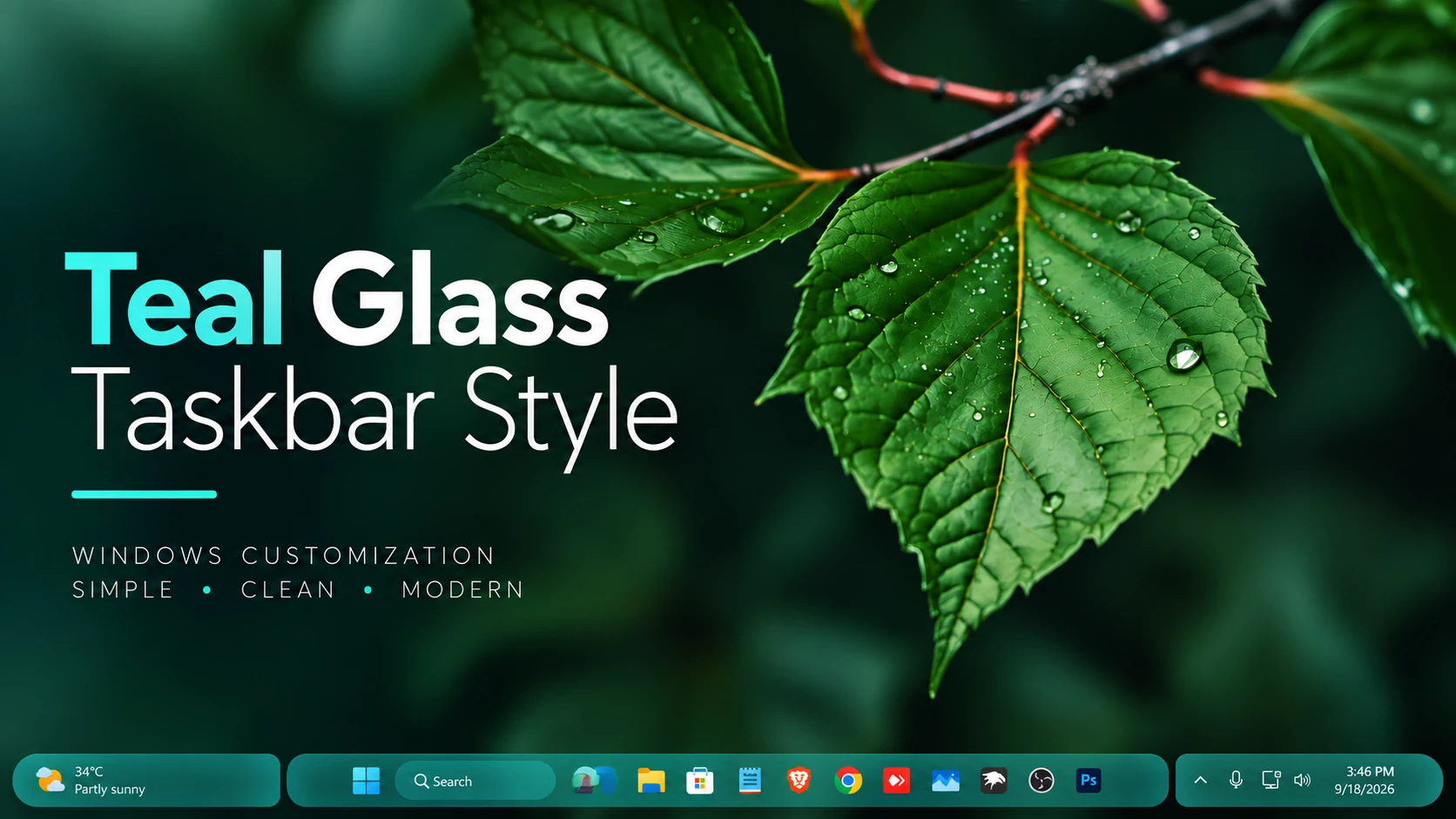
Teal Glass Windows 11 Taskbar Style – A Modern Windhawk Taskbar Mod
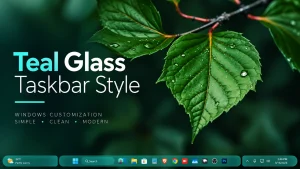
The Teal Glass Windows 11 Taskbar Style gives the standard Windows 11 taskbar a cleaner, more modern, and visually appealing appearance. It combines a teal color palette with a transparent glass effect, creating a desktop style that feels fresh without making the interface difficult to use.
This customization is designed for the Windhawk Taskbar Styler mod. It is not a complete Windows theme or a standalone application. Instead, it changes the appearance of the existing Windows 11 taskbar through Windhawk, allowing you to keep the familiar taskbar functions while improving its visual design.
About the Teal Glass Windows 11 Taskbar Style
The Teal Glass Windows 11 Taskbar Style uses transparent backgrounds, soft borders, rounded elements, and teal-inspired accents to create a glass-like taskbar. The design works well with ocean, nature, abstract, dark, and minimal desktop wallpapers.
The style is intended for users who enjoy customizing Windows 11 but still want a practical desktop layout. It focuses mainly on visual improvements, so your Start button, pinned applications, system tray, clock, and taskbar controls remain available as usual.
Main Features of This Windhawk Taskbar Style
- Modern teal and glass-inspired taskbar appearance
- Transparent or semi-transparent visual elements
- Clean rounded corners and smooth spacing
- Designed for the Windhawk Taskbar Styler mod
- Suitable for dark and colorful Windows wallpapers
- Maintains access to normal Windows 11 taskbar functions
- Can be removed by disabling the Windhawk mod
- No permanent Windows system-file replacement is intended
Download Windhawk To Use The Style
Compatibility
- 21H2 Yes
- 22H2 Yes
- 23H2 Yes
- 24H2 Yes
- Windows 11 25H2: YES work, but test carefully after Windows updates
Installation steps:
- Download and install Windhawk.
- Install and open the Windows 11 Taskbar Styler mod in Windhawk.
- Go to the Settings tab and select Textual mode.
- Copy the content below and paste it into the text box.
- Click Save settings to apply the Dox Taskbar Style.
# Teal Glass Taskbar Style by WinX Customization# Import in Windows 11 Taskbar Styler > Settings > Textual mode.# Uses descendant targets: install a mod version that supports > * >.theme: ''styleConstants:- TaskbarGlass=<AcrylicBrush TintColor="#1AABAB" FallbackColor="#991AABAB" TintOpacity="0.55" TintLuminosityOpacity="0.55" Opacity="1"/>- TrayGlass=<AcrylicBrush TintColor="#1AABAB" FallbackColor="#771AABAB" TintOpacity="0.42" TintLuminosityOpacity="0.66" Opacity="1"/>- WidgetGlass=<AcrylicBrush TintColor="#1AABAB" FallbackColor="#991AABAB" TintOpacity="0.55" TintLuminosityOpacity="0.55" Opacity="1"/>- HoverGlass=<SolidColorBrush Color="#331AABAB" />- PressGlass=<SolidColorBrush Color="#551AABAB" />- BorderSoft=<SolidColorBrush Color="#881AABAB" />- WhiteText=<SolidColorBrush Color="#FFFFFFFF" />- SoftWhite=<SolidColorBrush Color="#DDFFFFFF" />- TaskbarRadius=18- TrayRadius=18- ButtonRadius=12- WidgetRadius=10controlStyles:- target: Taskbar.TaskbarFrame > Grid#RootGrid > Taskbar.TaskbarBackground > Grid styles: - Margin=540,0,540,2 - Background:=$TaskbarGlass - BorderBrush:=$BorderSoft - CornerRadius=$TaskbarRadius - BorderThickness=1- target: StackPanel#SystemTrayFrameGrid styles: - Margin=0,0,275,2 - CornerRadius=5,25,25,5 - Background:=$TrayGlass - BorderBrush:=$BorderSoft - BorderThickness=1 - Padding=10,0,0,0 - Width=260- target: Grid#SystemTrayFrameGrid styles: - Margin=0,0,275,2 - CornerRadius=5,25,25,5 - Background:=$TrayGlass - BorderBrush:=$BorderSoft - BorderThickness=1 - Padding=10,0,0,0 - Width=260- target: Taskbar.TaskbarFrame > Grid#RootGrid > Taskbar.TaskbarBackground > Grid > Rectangle#BackgroundFill styles: - Fill=Transparent- target: Taskbar.TaskbarFrame > Grid#RootGrid > Taskbar.TaskbarBackground > Grid > Rectangle#BackgroundStroke styles: - Fill=Transparent- target: Taskbar.TaskListButtonPanel@CommonStates > Grid > Border#BackgroundElement styles: - Background=Transparent - Background@Normal=Transparent - Background@InactiveNormal=Transparent - Background@ActiveNormal=Transparent - Background@PointerOver:=$HoverGlass - Background@InactivePointerOver:=$HoverGlass - Background@ActivePointerOver:=$HoverGlass - Background@Pressed:=$PressGlass - Background@InactivePressed:=$PressGlass - Background@ActivePressed:=$PressGlass - CornerRadius=$ButtonRadius - BorderBrush:=$BorderSoft - BorderThickness=0- target: Taskbar.TaskListButtonPanel@CommonStates > Border#BackgroundElement styles: - Background=Transparent - Background@Normal=Transparent - Background@InactiveNormal=Transparent - Background@ActiveNormal=Transparent - Background@PointerOver:=$HoverGlass - Background@InactivePointerOver:=$HoverGlass - Background@ActivePointerOver:=$HoverGlass - Background@Pressed:=$PressGlass - Background@InactivePressed:=$PressGlass - Background@ActivePressed:=$PressGlass - CornerRadius=$ButtonRadius - BorderBrush:=$BorderSoft - BorderThickness=0- target: Grid#IconPanel@CommonStates > Border#BackgroundElement styles: - Background=Transparent - Background@Normal=Transparent - Background@InactiveNormal=Transparent - Background@ActiveNormal=Transparent - Background@PointerOver:=$HoverGlass - Background@InactivePointerOver:=$HoverGlass - Background@ActivePointerOver:=$HoverGlass - Background@Pressed:=$PressGlass - Background@InactivePressed:=$PressGlass - Background@ActivePressed:=$PressGlass - CornerRadius=$ButtonRadius - BorderBrush:=$BorderSoft - BorderThickness=0- target: Taskbar.TaskListLabeledButtonPanel@CommonStates > Border#BackgroundElement styles: - Background=Transparent - Background@Normal=Transparent - Background@InactiveNormal=Transparent - Background@ActiveNormal=Transparent - Background@PointerOver:=$HoverGlass - Background@InactivePointerOver:=$HoverGlass - Background@ActivePointerOver:=$HoverGlass - Background@Pressed:=$PressGlass - Background@InactivePressed:=$PressGlass - Background@ActivePressed:=$PressGlass - CornerRadius=$ButtonRadius - BorderBrush:=$BorderSoft - BorderThickness=0- target: Taskbar.AugmentedEntryPointButton#AugmentedEntryPointButton > Taskbar.TaskListButtonPanel#ExperienceToggleButtonRootPanel styles: - Margin=273,0,0,2 - Width=260 - Background:=$WidgetGlass - CornerRadius=25,5,5,25 - BorderBrush:=$BorderSoft - BorderThickness=1- target: Taskbar.AugmentedEntryPointButton#AugmentedEntryPointButton > Taskbar.TaskListButtonPanel#ExperienceToggleButtonRootPanel > Grid > Border#BackgroundElement styles: - Background:=$WidgetGlass - Margin=-4 - BorderBrush:=$BorderSoft - BorderThickness=1 - CornerRadius=25,5,5,25- target: Taskbar.AugmentedEntryPointButton#AugmentedEntryPointButton > Taskbar.TaskListButtonPanel#ExperienceToggleButtonRootPanel > Border#BackgroundElement styles: - Background:=$WidgetGlass - Margin=-4 - BorderBrush:=$BorderSoft - BorderThickness=1 - CornerRadius=25,5,5,25- target: Taskbar.AugmentedEntryPointButton#AugmentedEntryPointButton > Border#BackgroundElement styles: - Background:=$WidgetGlass - Margin=-4 - BorderBrush:=$BorderSoft - BorderThickness=1 - CornerRadius=25,5,5,25- target: Taskbar.ExperienceToggleButton#LaunchListButton > Taskbar.TaskListButtonPanel#ExperienceToggleButtonRootPanel styles: - Background:=$WidgetGlass - CornerRadius=$WidgetRadius - BorderBrush:=$BorderSoft - BorderThickness=1- target: Taskbar.ExperienceToggleButton#LaunchListButton > Taskbar.TaskListButtonPanel#ExperienceToggleButtonRootPanel > Grid > Border#BackgroundElement styles: - Background:=$WidgetGlass - CornerRadius=$WidgetRadius - BorderBrush:=$BorderSoft - BorderThickness=1- target: Taskbar.ExperienceToggleButton#LaunchListButton > Taskbar.TaskListButtonPanel#ExperienceToggleButtonRootPanel > Border#BackgroundElement styles: - Background:=$WidgetGlass - CornerRadius=$WidgetRadius - BorderBrush:=$BorderSoft - BorderThickness=1- target: Taskbar.StartButton > Taskbar.TaskListButtonPanel > Grid > Border#BackgroundElement styles: - Background:=$WidgetGlass - CornerRadius=$WidgetRadius - BorderBrush:=$BorderSoft - BorderThickness=1- target: Taskbar.StartButton > Taskbar.TaskListButtonPanel > Border#BackgroundElement styles: - Background:=$WidgetGlass - CornerRadius=$WidgetRadius - BorderBrush:=$BorderSoft - BorderThickness=1- target: Taskbar.TaskViewButton > Taskbar.TaskListButtonPanel > Grid > Border#BackgroundElement styles: - Background:=$WidgetGlass - CornerRadius=$WidgetRadius - BorderBrush:=$BorderSoft - BorderThickness=1- target: Taskbar.TaskViewButton > Taskbar.TaskListButtonPanel > Border#BackgroundElement styles: - Background:=$WidgetGlass - CornerRadius=$WidgetRadius - BorderBrush:=$BorderSoft - BorderThickness=1- target: Grid#AugmentedEntryPointContentGrid styles: - Margin=10,0,0,0 - HorizontalAlignment=Left- target: StackPanel#SystemTrayFrameGrid > * > TextBlock styles: - Foreground:=$WhiteText- target: StackPanel#SystemTrayFrameGrid > * > FontIcon styles: - Foreground:=$WhiteText- target: StackPanel#SystemTrayFrameGrid > * > SymbolIcon styles: - Foreground:=$WhiteText- target: StackPanel#SystemTrayFrameGrid > * > PathIcon styles: - Foreground:=$WhiteText- target: Grid#SystemTrayFrameGrid > * > TextBlock styles: - Foreground:=$WhiteText- target: Grid#SystemTrayFrameGrid > * > FontIcon styles: - Foreground:=$WhiteText- target: Grid#SystemTrayFrameGrid > * > SymbolIcon styles: - Foreground:=$WhiteText- target: Grid#SystemTrayFrameGrid > * > PathIcon styles: - Foreground:=$WhiteText- target: Taskbar.AugmentedEntryPointButton#AugmentedEntryPointButton > * > TextBlock styles: - Foreground:=$WhiteText- target: Taskbar.AugmentedEntryPointButton#AugmentedEntryPointButton > * > FontIcon styles: - Foreground:=$WhiteText- target: Taskbar.AugmentedEntryPointButton#AugmentedEntryPointButton > * > SymbolIcon styles: - Foreground:=$WhiteText- target: Taskbar.ExperienceToggleButton#LaunchListButton > * > TextBlock styles: - Foreground:=$WhiteText- target: Taskbar.ExperienceToggleButton#LaunchListButton > * > FontIcon styles: - Foreground:=$WhiteText- target: Taskbar.ExperienceToggleButton#LaunchListButton > * > SymbolIcon styles: - Foreground:=$WhiteText- target: Taskbar.StartButton > * > TextBlock styles: - Foreground:=$WhiteText- target: Taskbar.StartButton > * > FontIcon styles: - Foreground:=$WhiteText- target: Taskbar.StartButton > * > SymbolIcon styles: - Foreground:=$WhiteText- target: Taskbar.TaskViewButton > * > TextBlock styles: - Foreground:=$WhiteText- target: Taskbar.TaskViewButton > * > FontIcon styles: - Foreground:=$WhiteText- target: Taskbar.TaskViewButton > * > SymbolIcon styles: - Foreground:=$WhiteText- target: TextBlock#TimeInnerTextBlock styles: - Foreground:=$WhiteText - Visibility=Visible- target: TextBlock#DateInnerTextBlock styles: - Foreground:=$SoftWhite - Visibility=VisibleRequired Windhawk Mods Taskbar Height & Icon Size for similar results
To achieve similar results, install and configure the following Windhawk mods in addition to Taskbar Styler
Installation steps:
- Install and open the Taskbar height and icon size mod in Windhawk.
- Go to the Settings tab and select Textual mode.
- Copy the content below and paste it into the text box.
- Click Save settings to apply the Dox Taskbar Style.
TaskbarHeight: 55IconSize: 24TaskbarButtonWidth: 38IconSizeSmall: 20TaskbarButtonWidthSmall: 50Optional : Notification Center Style
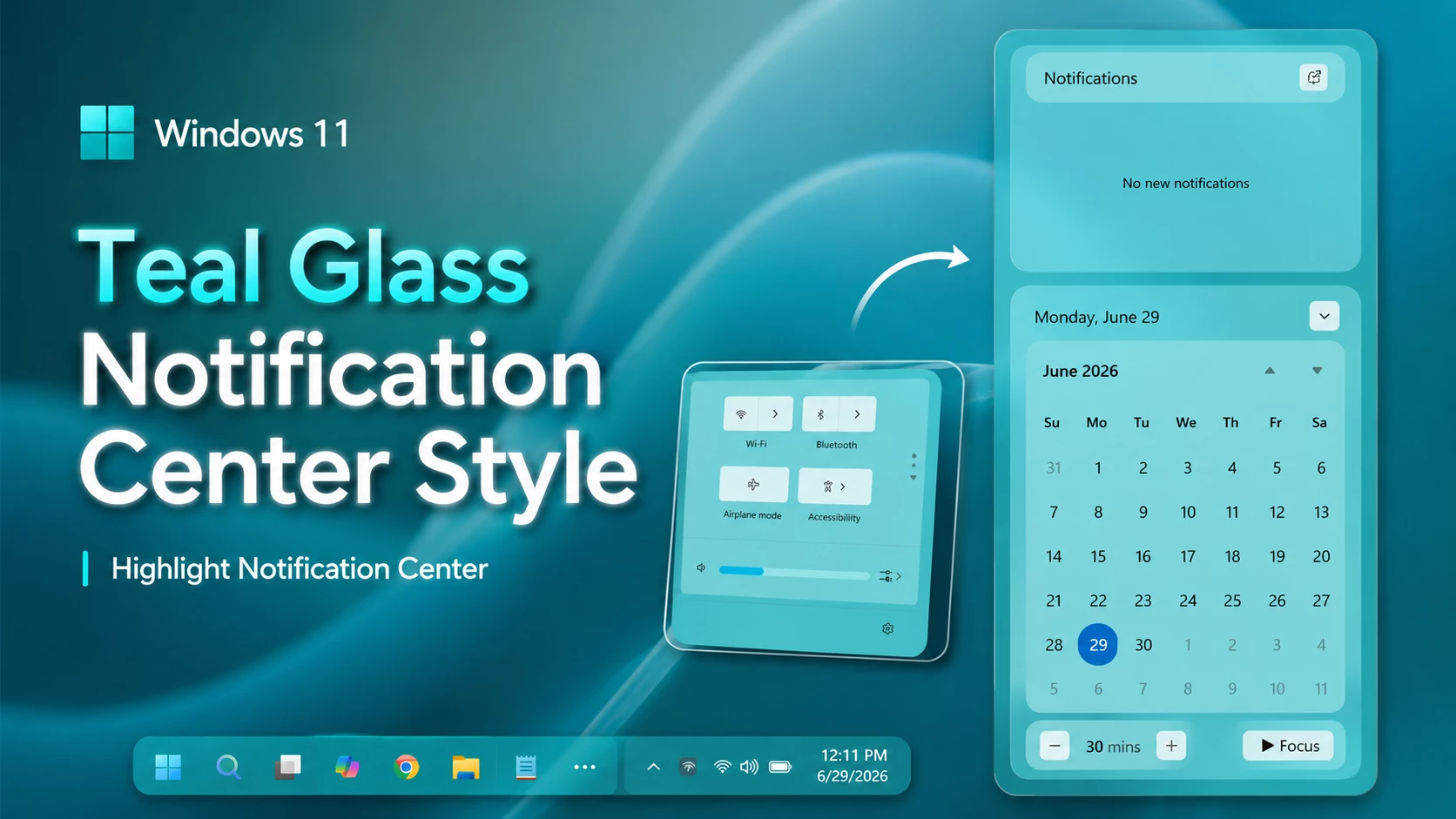
theme: ''styleConstants: - WinXBackground=<WindhawkBlur BlurAmount="28" TintColor="#54EAF5" TintOpacity="0.72" /> - WinXBackgroundSoft=<WindhawkBlur BlurAmount="24" TintColor="#7AF7F4" TintOpacity="0.55" /> - WinXCard=<WindhawkBlur BlurAmount="20" TintColor="#B9FFFF" TintOpacity="0.38" /> - WinXCardHover=<WindhawkBlur BlurAmount="22" TintColor="#D8FFFF" TintOpacity="0.55" /> - WinXBorder=<LinearGradientBrush StartPoint="0,0" EndPoint="1,1"><GradientStop Color="#A6FFFFFF" Offset="0"/><GradientStop Color="#3D00E5FF" Offset="0.5"/><GradientStop Color="#66FFFFFF" Offset="1"/></LinearGradientBrush> - BlackBrush=<SolidColorBrush Color="#FF000000"/> - WinXRadius=26 - WinXSmallRadius=16 - WinXBorderThickness=1.2controlStyles: - target: //Grid styles: - RequestedTheme=1 - target: //Border styles: - RequestedTheme=1 - target: //Button styles: - RequestedTheme=1 - Foreground:=$BlackBrush - target: //ToggleButton styles: - RequestedTheme=1 - Foreground:=$BlackBrush - target: //TextBlock styles: - RequestedTheme=1 - Foreground:=$BlackBrush - Opacity=1 - target: //FontIcon styles: - Foreground:=$BlackBrush - Opacity=1 - target: //SymbolIcon styles: - Foreground:=$BlackBrush - Opacity=1 - target: //PathIcon styles: - Foreground:=$BlackBrush - Opacity=1 - target: Grid#NotificationCenterGrid styles: - RequestedTheme=1 - Background:=$WinXBackground - CornerRadius=$WinXRadius - BorderBrush:=$WinXBorder - BorderThickness=$WinXBorderThickness - Padding=14 - Margin=0,0,14,14 - Shadow:= - target: Grid#CalendarCenterGrid styles: - RequestedTheme=1 - Background:=$WinXBackground - CornerRadius=$WinXRadius - BorderBrush:=$WinXBorder - BorderThickness=$WinXBorderThickness - Padding=12 - Margin=0,8,14,14 - Shadow:= - target: Grid#ControlCenterRegion styles: - RequestedTheme=1 - Background:=$WinXBackground - CornerRadius=$WinXRadius - BorderBrush:=$WinXBorder - BorderThickness=$WinXBorderThickness - Padding=14 - Margin=0,0,14,14 - Shadow:= - target: Grid#NotificationCenterTopBanner styles: - RequestedTheme=1 - Background:=$WinXCard - CornerRadius=$WinXSmallRadius - BorderBrush:=$WinXBorder - BorderThickness=1 - Margin=6 - Shadow:= - target: ActionCenter.FocusSessionControl#FocusSessionControl > Grid#FocusGrid styles: - RequestedTheme=1 - Background:=$WinXCard - CornerRadius=$WinXSmallRadius - BorderBrush:=$WinXBorder - BorderThickness=1 - Margin=6 - Shadow:= - target: ActionCenter.FlexibleToastView#FlexibleNormalToastView styles: - RequestedTheme=1 - Background:=Transparent - Shadow:= - target: Border#ToastBackgroundBorder2 styles: - RequestedTheme=1 - Background:=$WinXCard - CornerRadius=$WinXSmallRadius - BorderBrush:=$WinXBorder - BorderThickness=1 - Shadow:= - target: ScrollViewer#CalendarControlScrollViewer styles: - RequestedTheme=1 - Background:=$WinXCard - CornerRadius=$WinXSmallRadius - BorderBrush:=$WinXBorder - BorderThickness=1 - Margin=-8,8,-8,-10 - Shadow:= - target: Border#CalendarHeaderMinimizedOverlay styles: - RequestedTheme=1 - Background:=$WinXCard - CornerRadius=$WinXSmallRadius - BorderBrush:=$WinXBorder - BorderThickness=1 - Height=46 - Margin=-8,-4,-8,-6 - Shadow:= - target: QuickActions.AccessibleToggleButton#ToggleButton styles: - RequestedTheme=1 - Background@Normal:=$WinXCard - Background@PointerOver:=$WinXCardHover - Background@Pressed:=$WinXBackgroundSoft - Foreground:=$BlackBrush - Foreground@Normal:=$BlackBrush - Foreground@PointerOver:=$BlackBrush - Foreground@Pressed:=$BlackBrush - Foreground@Selected:=$BlackBrush - CornerRadius=$WinXSmallRadius - BorderBrush:=$WinXBorder - BorderThickness=1 - Padding=8 - Shadow:= - target: QuickActions.AccessibleToggleButton#SplitL2Button styles: - RequestedTheme=1 - Background@Normal:=$WinXCard - Background@PointerOver:=$WinXCardHover - Background@Pressed:=$WinXBackgroundSoft - Foreground:=$BlackBrush - Foreground@Normal:=$BlackBrush - Foreground@PointerOver:=$BlackBrush - Foreground@Pressed:=$BlackBrush - Foreground@Selected:=$BlackBrush - CornerRadius=$WinXSmallRadius - BorderBrush:=$WinXBorder - BorderThickness=1 - Margin=4,0,-4,0 - Shadow:= - target: QuickActions.AccessibleToggleButton#ToggleButton //TextBlock styles: - Foreground:=$BlackBrush - Opacity=1 - target: QuickActions.AccessibleToggleButton#SplitL2Button //TextBlock styles: - Foreground:=$BlackBrush - Opacity=1 - target: QuickActions.AccessibleToggleButton#ToggleButton //FontIcon styles: - Foreground:=$BlackBrush - Opacity=1 - target: QuickActions.AccessibleToggleButton#ToggleButton //SymbolIcon styles: - Foreground:=$BlackBrush - Opacity=1 - target: QuickActions.AccessibleToggleButton#ToggleButton //PathIcon styles: - Foreground:=$BlackBrush - Opacity=1 - target: Grid#FooterGrid styles: - RequestedTheme=1 - Background:=Transparent - Margin=4,8,4,0 - target: Windows.UI.Xaml.Controls.Button#FooterButton[AutomationProperties.Name = All settings] styles: - RequestedTheme=1 - Background:=$WinXCard - Foreground:=$BlackBrush - CornerRadius=14 - BorderBrush:=$WinXBorder - BorderThickness=1 - target: Windows.UI.Xaml.Controls.Button#FooterButton[AutomationProperties.Name = Edit quick settings] styles: - RequestedTheme=1 - Background:=$WinXCard - Foreground:=$BlackBrush - CornerRadius=14 - BorderBrush:=$WinXBorder - BorderThickness=1 - Margin=0,0,8,0 - target: Windows.UI.Xaml.Shapes.Rectangle#HorizontalTrackRect styles: - Height=10 - Fill:=$WinXCard - RadiusX=5 - RadiusY=5 - target: Windows.UI.Xaml.Shapes.Rectangle#HorizontalDecreaseRect styles: - Height=10 - Fill=#00B7E8 - RadiusX=5 - RadiusY=5 - target: Windows.UI.Xaml.Controls.Primitives.Thumb#HorizontalThumb styles: - Visibility=1 - Width=18 - Height=18 - target: Windows.UI.Xaml.Controls.Grid#MediaTransportControlsRegion styles: - RequestedTheme=1 - Background:=$WinXBackgroundSoft - CornerRadius=$WinXRadius - BorderBrush:=$WinXBorder - BorderThickness=1 - Padding=10 - Margin=0,0,0,12 - Shadow:= - target: Windows.UI.Xaml.Controls.Grid#MediaTransportControlsRegion //TextBlock styles: - Foreground:=$BlackBrush - Opacity=1 - target: MenuFlyoutPresenter styles: - RequestedTheme=1 - Background:=$WinXBackground - CornerRadius=18 - BorderBrush:=$WinXBorder - BorderThickness=1 - Shadow:= - target: MenuFlyoutItem styles: - RequestedTheme=1 - Foreground:=$BlackBrush - target: CalendarViewDayItem styles: - RequestedTheme=1 - Foreground:=$BlackBrush - target: CalendarViewDayItem //TextBlock styles: - Foreground:=$BlackBrush - Opacity=1 - target: CalendarViewDayItem > Border styles: - CornerRadius=12 - target: Control > Border styles: - CornerRadius=12themeResourceVariables: - ''Theme: Teal Notification Center Style by WinX CustomizationStart Menu Style
Explorer Style
⚠️ Disclaimer: This Windhawk Start Menu Style is provided for Windows UI personalization and educational purposes only. It is an unofficial customization and is not developed, endorsed, or supported by Microsoft. Compatibility may vary depending on your Windows version, Windhawk version, Start Menu Styler version, and system configuration. Windows updates may also affect how the style works. Please keep a backup of your current settings before applying any changes.
Final Thoughts
The Teal Glass Taskbar & Notification Center Style For Windows 11 is a modern and visually balanced customization option for users who want a cleaner desktop experience. This style redesigns the Windows 11 taskbar with a unique three-part layout, including a left section for quick access items, a centered section for main taskbar elements, and a dedicated system tray area for notifications and system icons.
With Windhawk Taskbar customization, you can give the default Windows 11 interface a more organized, floating, and glass-inspired appearance while keeping the familiar taskbar functionality. If you enjoy personalizing your desktop and want a fresh modern look, the Teal Glass style can be a great addition to your Windows setup.