

Acrylic Glass Theme For Windows 11
Windows 11 Acrylic Glass Theme:Transform your desktop with the Windows 11 Acrylic Glass Theme, designed for users who love sleek, modern aesthetics. This stunning customization brings the glossy, semi-transparent acrylic effect to your taskbar, Start Menu, and window backgrounds, giving your PC a futuristic glass-like look. Paired with a custom icon pack, this theme completely overhauls your interface, replacing default icons with high-resolution, stylistic alternatives that complement the acrylic visual style.

Acrylic Glass Theme For Windows 11
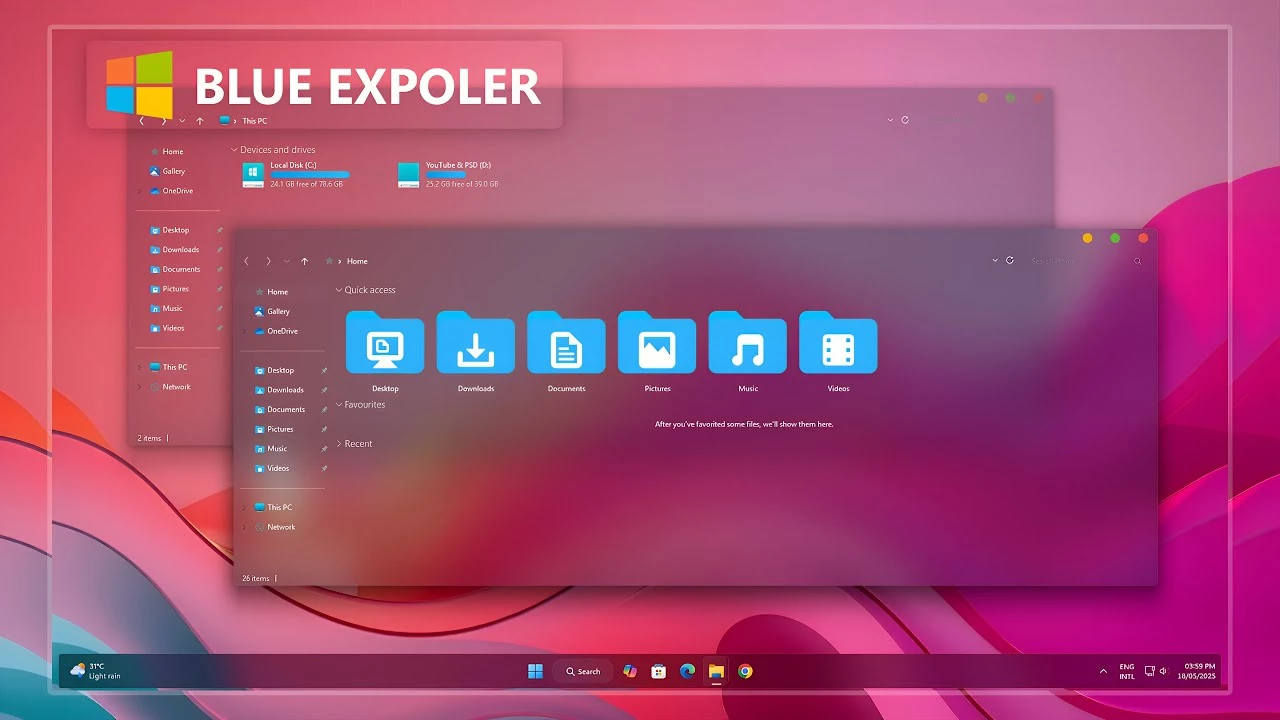
The Acrylic Glass Theme For Windows 11 is built around transparency, soft blur, and acrylic-style Windows surfaces. It is designed for users who want a lighter glass appearance across supported parts of Windows 11 without replacing the familiar layout or changing how the operating system works.
The main visual focus is the acrylic effect itself. Supported windows and interface areas use translucent surfaces with a softly blurred background, giving File Explorer and other customized sections more depth while keeping controls, text, and navigation familiar.
The package also includes an icon pack, Windhawk mods, and a wallpaper that can be used alongside the main theme. These additional resources make it possible to extend the same glass-inspired direction across more of the desktop without requiring every component to be applied.
Acrylic Glass Interface
Acrylic Glass combines transparency and background blur rather than relying on heavy colors or decorative effects. The result is a softer interface where desktop elements can remain partially visible behind supported Windows surfaces.
The design stays relatively restrained, allowing the transparency itself to provide most of the visual character. Matching icons and optional interface changes can add more detail without turning the desktop into a completely different environment.
Features
- Acrylic-style transparent Windows 11 interface
- Soft blur effects across supported visual areas
- Custom Windows theme for desktop personalization
- Matching icon pack included
- Windhawk mods included for additional interface styling
- Wallpaper included with the package
- Works with optional Explorer blur customization
- Individual components can be used separately
Package Contents
- Windows 11 Theme: Applies the main acrylic-inspired visual style to supported interface elements.
- Icon Pack: Provides matching custom icons that can be used alongside the main theme.
- Windhawk Mods: Adds optional interface changes for users who want to customize more areas of Windows.
- Wallpaper: Includes a background that can be paired with the acrylic-style setup.
Compatibility
- Windows 11 21H2: Supported
- Windows 11 22H2: Supported
- Windows 11 23H2: Recommended
- Windows 11 24H2: Recommended
- Windows 11 25H2: Supported
Theme tools, Explorer modifications, and optional interface mods can behave differently between Windows builds. Check compatibility again after a major Windows feature update before reapplying additional components.
Optional Tools
Installation Steps
- Download the Acrylic Glass Theme package and extract the ZIP file.
- Copy the extracted theme files and theme folder to
C:\Windows\Resources\Themes. - Right-click on the desktop, select Personalize, open the Themes section, and choose the Acrylic Glass theme to apply it.
- After the main theme is active, you can apply the included icon pack, wallpaper, and Windhawk mods separately if you want more of the complete glass-style setup.
- For the complete installation process and additional setup details, follow this Windows 11 custom theme installation guide.
Removal Steps
- Right-click on the desktop, open Personalize, and switch back to one of the default Windows 11 themes.
- If you applied the included icon pack, restore the default Windows icons using your icon customization tool.
- Disable the Windhawk mods, Explorer blur effects, or other optional changes you added, and restore your previous wallpaper if needed.
- For the complete restoration process, follow this Windows 11 custom theme removal guide.
What Is Included?
- Windows 11 Theme
- 7TSP Icon Pack
Theme Files 12 MB
Download Balancing Transparency and Blur
The strength of this setup comes from the balance between transparency and blur. A completely clear interface can make text harder to distinguish, while too much blur can hide the wallpaper almost entirely. Acrylic styling sits between those two extremes by keeping some background detail visible while softening it behind the interface.
If you use ExplorerBlurMica or compatible Windhawk mods, the final effect can vary depending on their individual settings. Keeping those changes subtle usually works better with the lighter acrylic direction of the main theme.
Who Is This Theme For?
Acrylic Glass is suited to users who prefer transparency and soft blur over heavily colored or highly decorative Windows themes. It keeps the basic Windows layout recognizable while giving supported interface areas a lighter glass-style treatment.
The setup can stay minimal with only the main theme, or the included icons, wallpaper, and Windhawk mods can be added gradually if you want more customization across the desktop.
Disclaimer
Acrylic Glass Theme For Windows 11 is an independent third-party customization resource intended for personal desktop styling. It is not an official Microsoft product and is not affiliated with, sponsored by, or endorsed by Microsoft.
Windows, Windhawk, 7TSP GUI, ExplorerBlurMica, and other product or project names belong to their respective owners. Third-party themes and optional customization tools can behave differently across Windows builds or after major system updates.
Final Word
Acrylic Glass keeps its idea straightforward: translucent Windows surfaces, soft blur, and a cleaner interface without relying on excessive decorative effects. The main visual style provides the glass character, while the additional resources let you extend it only where you want.
The included icons, wallpaper, and Windhawk mods can create a more complete setup, but none of them need to dominate the desktop. That flexibility suits users who want a glass-style Windows 11 appearance while keeping the interface familiar.
Frequently Asked Questions
What makes Acrylic Glass different from a fully transparent theme?
Acrylic styling combines transparency with background blur, so the interface keeps a softer frosted appearance instead of becoming completely clear.
Is the icon pack included?
Yes. The package includes an icon pack that can be applied separately from the main Windows theme.
Are Windhawk mods included?
Yes. Windhawk mods are listed as part of the package and can be used separately if you want additional interface changes.
Do I need ExplorerBlurMica for the main acrylic look?
No. ExplorerBlurMica is an optional tool. Use it only if you want compatible additional blur or Explorer effects.
Can I keep the normal Start Menu and taskbar?
Yes. Optional interface modifications do not have to be applied, so those parts of Windows can remain closer to their default appearance.
Can I use another wallpaper?
Yes. Different wallpapers can change how the translucent acrylic surfaces appear without changing the main theme files.
Can I install only the main theme?
Yes. The Windows theme, icon pack, Windhawk mods, and wallpaper can be treated as separate parts of the setup.







Disclaimer: All themes, visual styles, and concepts shared on this website are unofficial, fan-made creations built from imagination for customization purposes. We are not affiliated with, endorsed by, or sponsored by Microsoft or any other official brand.