

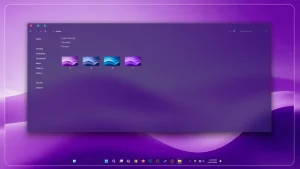
WinOS 2.0 Theme for Windows 11
WinOS 2.0 Theme for Windows 11: WinOS 2.0 is a sleek and modern custom theme designed for Windows 11,

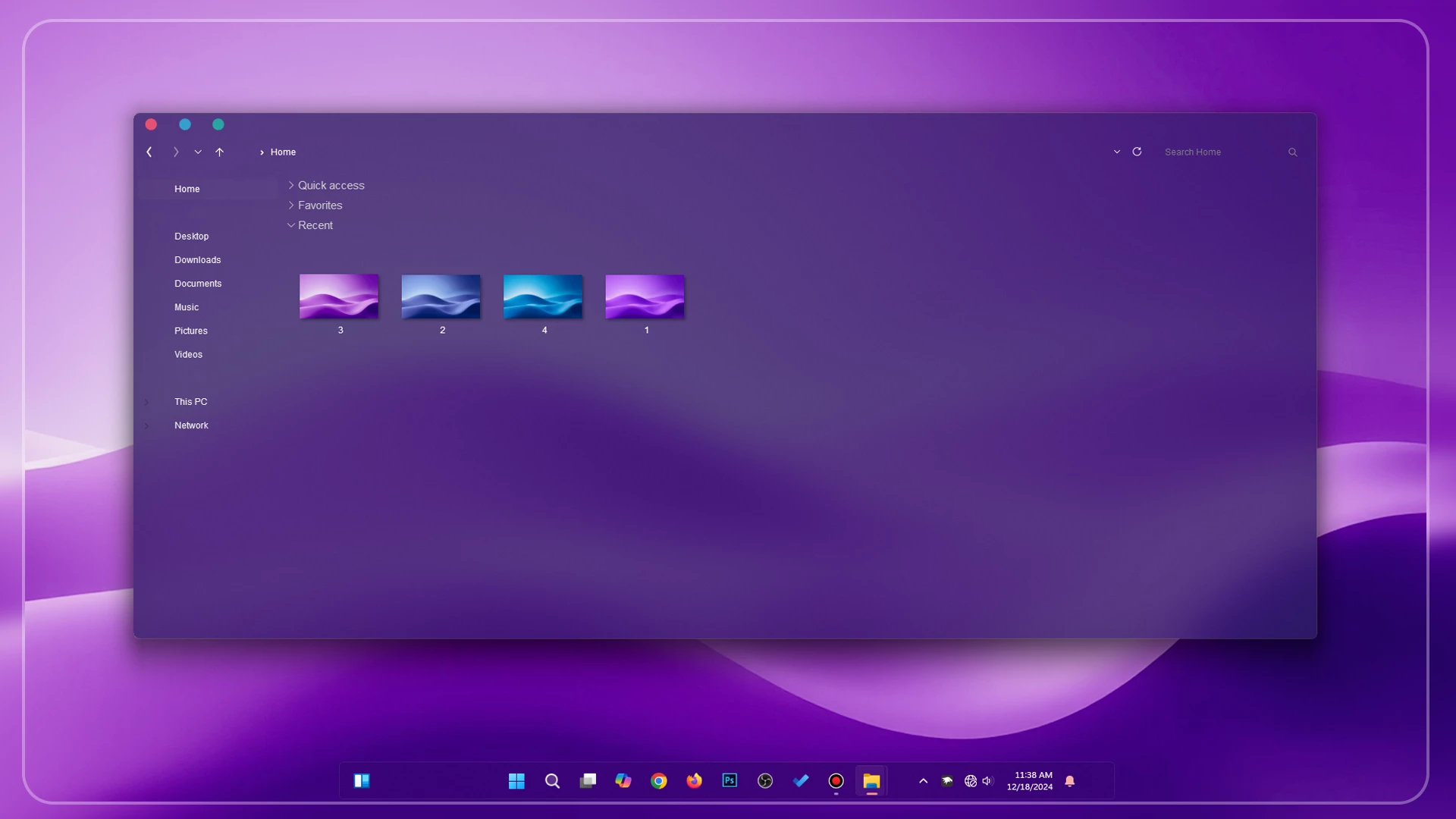
WinOS 2.0 Theme for Windows 11
WinOS 2.0 Theme for Windows 11 is a custom Windows theme made for users who want to give their desktop a more attractive, stylish, and personalized appearance. It offers a fresh alternative to the standard Windows 11 look and is a good choice for anyone who enjoys customizing their desktop and creating a setup that feels more unique.
This theme changes the visual style of Windows 11 and gives the desktop a more customized and appealing look. It works well as part of a complete Windows customization setup, especially for users who enjoy trying different themes and giving their PC a cleaner and more personal desktop appearance.
WinOS 2.0 is intended for personal Windows customization and visual styling. It focuses on changing the appearance of the desktop while allowing you to continue using the familiar features and functions of Windows 11.
About WinOS 2.0 Theme
WinOS 2.0 Theme is a third-party Windows 11 customization resource designed for users who want to personalize their desktop environment. The theme focuses on visual changes such as colors, backgrounds, and interface styling to create a more unique desktop appearance.
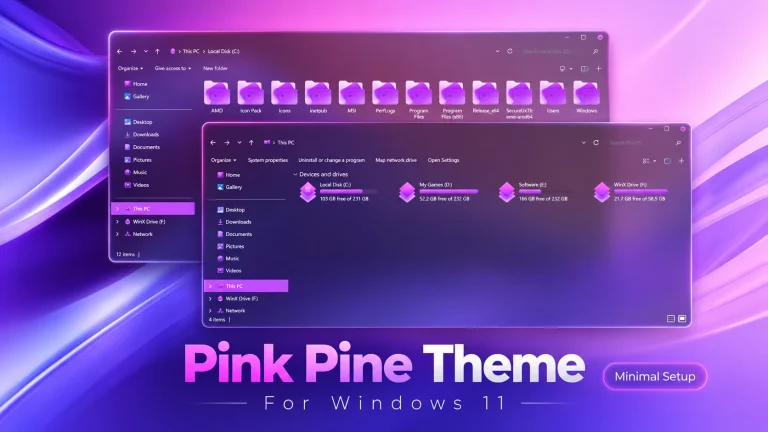
The clean layout and soft color combination make it suitable for users who prefer minimal, modern, and elegant desktop setups.
Theme Features
- Modern Windows 11 inspired visual style
- Clean purple gradient desktop appearance
- Minimal and organized interface design
- Transparent-style visual elements
- Suitable for aesthetic Windows 11 customization
- Works well with modern wallpapers and desktop layouts
- Simple and clean design approach
Compatibility & Included Files
This theme works across multiple versions of Windows 11 (including 21H2, 22H2, and 25H2). For the best experience, Windows 11 23H2 or 24H2 is highly recommended.
Included Files
- Theme: Custom Windows 11 Theme files
- Icons: 7TSP Icon Pack included
- Extras: Matching custom wallpaper
How to Install WinOS 2.0 Theme
- Create a System Restore Point before making any changes.
- Install Theme Patcher, as it is required for third-party Windows themes.
- Apply the theme following the included instructions.
- Need help? Read our Windows 11 theme installation guide or the theme setup guide by niivu.
WinOS 2.0 Theme 14 MB
Download ThemeHow to Restore the Default Look
- Switch Theme: Go to Settings > Personalization > Themes and choose a default Windows theme.
- Restore Icons: If 7TSP was used, restore the original Windows icons from its backup option.
- Remove Extra Changes: Disable any additional customization tools or resources used with the setup.
- Restart: Restart Windows Explorer or reboot your PC to apply the changes.
- Need More Help? Follow our complete theme removal guide.
Disclaimer
WinOS 2.0 Theme is an independently shared third-party Windows customization resource intended for desktop personalization. It is not an official Microsoft product and is not affiliated with, sponsored by, or endorsed by Microsoft Corporation. Modifying system files with third-party patchers carries inherent risks. Always create a system restore point before proceeding. Microsoft and Windows are trademarks of the Microsoft group of companies.
Final Thoughts
WinOS 2.0 Theme for Windows 11 is a desktop customization resource for users who want to refresh the visual appearance of their Windows setup. With its clean design style and matching customization elements, it provides a different look while keeping the familiar Windows 11 experience.
If you enjoy Windows customization and like experimenting with different desktop styles, WinOS 2.0 can be a useful addition to your collection. Apply customizations carefully and use compatible tools for the best experience.
Disclaimer: All themes, visual styles, and concepts shared on this website are unofficial, fan-made creations built from imagination for customization purposes. We are not affiliated with, endorsed by, or sponsored by Microsoft or any other official brand.