Windows 9 Theme for Windows 11
Windows 9 Theme for Windows 11 : The Windows 9 Minimal Theme for Windows 11 is a clean, retro-modern desktop makeover that blends the familiar simplicity of the classic Windows 9 concept with the sleek polish of today’s interface

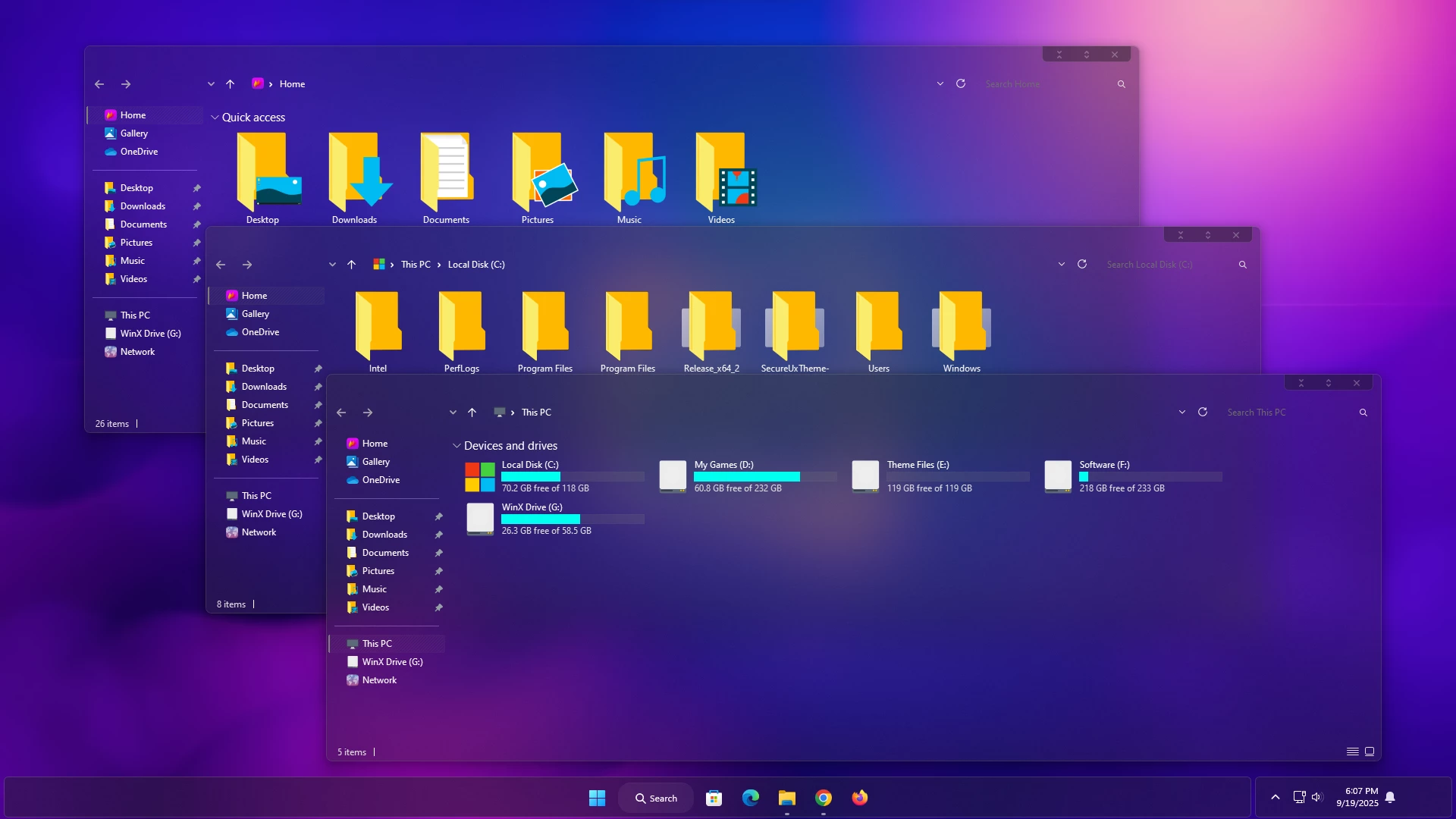
Windows 9 Theme for Windows 11
Windows 9 Theme for Windows 11 is a clean, retro-modern desktop customization theme designed for users who want a simple, smooth, and distraction-free Windows setup. It takes inspiration from the classic Windows 9 concept style and combines it with the polished look of Windows 11.
This theme is ideal for users who like minimal desktop layouts, soft color tones, flat interface elements, and a balanced visual experience. Instead of using heavy effects or crowded design elements, the Windows 9 Minimal Theme focuses on clarity, readability, and a modern classic appearance.
The overall design includes soft gray tones, clean white areas, muted blue highlights, refined taskbar styling, simple system icons, and matching wallpapers. These elements work together to create a desktop that feels familiar, lightweight, and visually comfortable for everyday use.
About Windows 9 Minimal Theme
The Windows 9 Minimal Theme for Windows 11 is made for users who enjoy classic Windows-inspired customization but still want a modern interface. It gives your desktop a calm and organized look without making the system feel overloaded.
The theme works well for productivity setups, study desktops, office computers, and personal workstations. Its simple color palette helps reduce visual noise while keeping important interface elements easy to see.
Key Features
- Clean retro-modern Windows style
- Minimal and distraction-free interface
- Soft gray, white, and muted blue color combination
- Refined taskbar and window appearance
- Minimal system icon style
- Matching desktop wallpaper support
- Suitable for productivity and daily use
- Optimized for high-resolution displays
Compatibility
This theme is designed for Windows 11 customization. Compatibility may vary depending on your Windows build, theme patcher, third-party tools, and system configuration. Always create a restore point before applying any custom Windows theme.
- Windows 11 21H2: Yes
- Windows 11 22H2: Yes
- Windows 11 23H2: Yes
- Windows 11 24H2: Yes
- Windows 11 25H2: Yes
What Is Included in This Theme?
- Windows 11 custom theme files
- Minimal visual style
- Matching theme resources
- Desktop customization files
Required Tools
To apply this custom Windows 11 theme properly, you may need additional customization tools. Download these tools only from trusted sources and follow the instructions carefully.
Installation Steps
- Create a system restore point before starting the customization process.
- Download the Windows 9 Minimal Theme for Windows 11 from the download button below.
- Extract the downloaded ZIP file using WinRAR, 7-Zip, or the built-in Windows extractor.
- Install a trusted theme tool such as SecureUxTheme if your system requires theme patching.
- Copy the theme files to the correct Windows theme directory if required by the theme instructions.
- Open Windows Settings and go to Personalization.
- Select the Windows 9 Minimal Theme from the available themes list.
- Apply the theme and wait for the desktop to refresh.
- Use optional tools such as 7TSP, StartAllBack, or ExplorerBlurMica if you want to complete the full desktop look.
- Restart your PC after applying major customization changes.
- For a detailed guide, check this Windows 11 custom theme installation tutorial.
How to Create a Restore Point Before Installing
Creating a restore point is strongly recommended before applying any custom Windows theme. It helps you return your system to a previous working state if something does not apply correctly.
- Press the Windows key and search for Create a restore point.
- Select your system drive, usually the C drive.
- Click Configure and make sure system protection is turned on.
- Click Create, enter a name, and save the restore point.
- Continue with the theme installation after the restore point is created.
Best Setup Tips
For the best result, use a clean wallpaper, simple desktop icons, and a balanced taskbar layout. This theme looks better when the desktop is not crowded with too many shortcuts or widgets.
- Use a minimal wallpaper that matches the theme color palette.
- Keep only important icons on the desktop.
- Use StartAllBack if you want a more classic taskbar and Start menu experience.
- Use 7TSP carefully if you want to apply matching system icons.
- Restart Windows Explorer after applying interface changes.
Performance and Usability
The Windows 9 Minimal Theme for Windows 11 is designed to keep the desktop simple and smooth. Since the theme focuses on minimal visuals, it should feel lightweight in normal daily use. However, performance may depend on your system specifications, Windows version, and the number of extra customization tools you use.
Safety Notice
This is an unofficial third-party Windows customization theme and is not an official Microsoft product. Always download tools from trusted sources, scan files before installation, and create a restore point before applying custom themes or system visual modifications.
How to Uninstall the Theme
- Open Windows Settings.
- Go to Personalization and choose a default Windows theme.
- Remove any extra theme files you copied during installation.
- Uninstall optional customization tools if you no longer need them.
- Restart your PC to fully refresh the desktop interface.
- If any issue appears, use the restore point you created before installation.
Theme Files 9MB
DownloadTroubleshooting
The theme is not showing in Personalization
Make sure the theme files are placed in the correct theme folder and that your theme tool is installed correctly. Restart your PC and check the Personalization settings again.
The theme does not look like the preview
The final appearance may depend on your Windows version, display scaling, wallpaper, icons, and optional tools. Apply the recommended tools and restart Windows Explorer for a better result.
Icons did not change
If the icon pack is separate, you may need to use 7TSP or another compatible icon customization tool. Always follow the icon installation instructions carefully.
Start menu or taskbar looks different
Some Start menu and taskbar changes may require StartAllBack or a similar customization tool. Without the optional tool, only the basic theme style may apply.
Windows Explorer effect is missing
If the blur or mica effect is not visible, check whether ExplorerBlurMica is installed and configured properly.
Frequently Asked Questions
What is Windows 9 Minimal Theme for Windows 11?
Windows 9 Minimal Theme for Windows 11 is a custom desktop theme that gives Windows 11 a clean, minimal, and retro-modern appearance inspired by the Windows 9 concept style.
Is this an official Microsoft theme?
No. This is an unofficial third-party customization theme made for personal desktop customization. It is not an official Microsoft product.
Do I need a theme patcher?
Yes, most third-party Windows themes require a trusted theme patcher or compatible customization tool before they can be applied properly.
Does this theme support Windows 11 24H2 and 25H2?
The theme package is listed as compatible with Windows 11 24H2 and 25H2. However, compatibility can vary depending on system updates, installed tools, and your Windows configuration.
Can I use this theme on a low-end PC?
Yes, the theme is designed to be minimal and lightweight. However, using many extra tools or visual effects may affect performance on low-end devices.
How can I go back to the default Windows theme?
Go to Windows Settings, open Personalization, and select a default Windows theme. You can also uninstall optional customization tools if you no longer want the modified look.
Final Words
Windows 9 Minimal Theme for Windows 11 is a great choice for users who want a simple, clean, and classic-inspired desktop setup. Its minimal colors, refined interface style, and retro-modern appearance make it suitable for productivity, daily use, and personal customization.
If you enjoy clean Windows themes and want your desktop to look more organized, this theme is worth trying.