New Victus Start Menu Style For Windows 11 25H2
Upgrade your desktop with the New Victus Start Menu Style For Windows 11 25H2 featuring elegant blue neon glow effects, glassmorphism transparency, and a premium futuristic UI design.

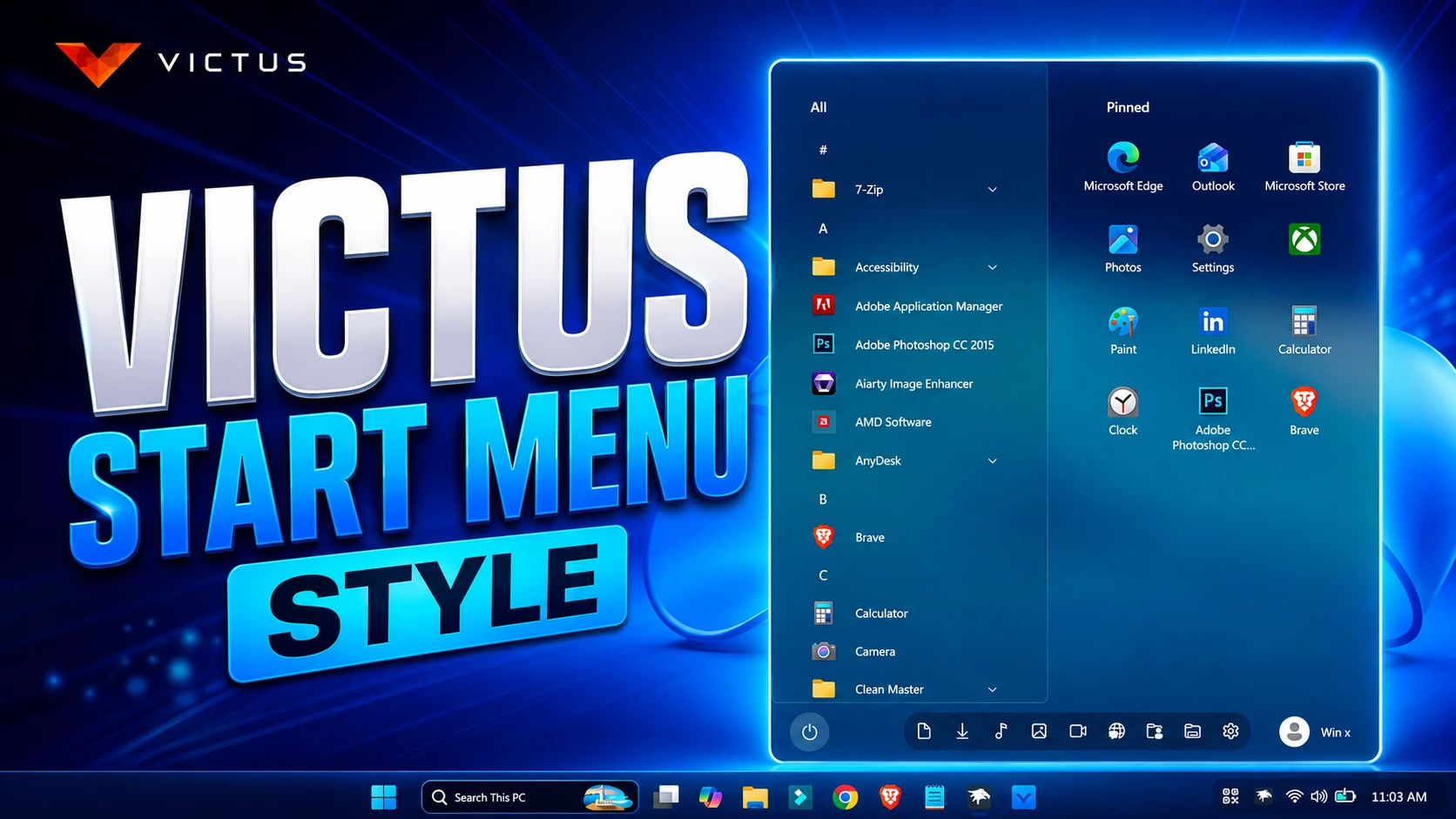
New Victus Start Menu Style For Windows 11 25H2
Transform your Windows 11 25H2 desktop into a futuristic and premium gaming-inspired workspace with the brand-new Victus Start Menu Style. This elegant customization gives your Start Menu a clean blue neon aesthetic with smooth transparency, glowing borders, and a modern centered layout that perfectly matches the latest Windows 11 design language.
The Victus Start Menu Style is specially designed for users who love minimal yet powerful desktop customization. Inspired by the sleek Victus gaming theme, this setup combines stylish glassmorphism effects, smooth icon spacing, modern app organization, and immersive glowing UI elements that instantly make your desktop feel more premium and visually attractive.
Unlike heavy customization packs, this Start Menu style keeps your Windows experience lightweight and responsive while delivering a completely refreshed look. The bright neon blue glow, elegant transparency, and clean layout create a futuristic desktop environment perfect for gamers, creators, and Windows customization enthusiasts.
Why Choose Victus Start Menu Style For Windows 11?
The Victus Start Menu Style For Windows 11 is designed for users who want a clean, futuristic, and premium desktop experience without making Windows feel heavy or cluttered. Its modern blue neon aesthetic instantly transforms the default Start Menu into a stylish gaming-inspired interface that looks elegant and professional.
- Elegant blue neon gaming inspired design
- Premium glassmorphism transparency effects
- Modern and minimal Windows 11 appearance
- Smooth rounded corner interface
- Perfectly matches Windows 11 25H2 aesthetics
- Clean and organized Start Menu layout
- Lightweight customization with immersive visuals
- Ideal for futuristic desktop setups
- Enhances overall desktop appearance instantly
- Great for gamers, creators, and customization lovers
- 21H2 Not Tested
- 22H2 Not Tested
- 22H3 Not Tested
- 24H2 Not Tested
- Windows 11 25H2: YES work, but test carefully after Windows updates
- Download & Install windhawk Windhawk
- install & Open the Windows 11 Start Menu Styler mod in Windhawk.
- Go to the “Advanced” tab.
- Copy the content below to the text box under “Mod settings” and click “Save”.
{ "controlStyles[0].target": "Windows.UI.Xaml.Controls.Grid#UndockedRoot", "controlStyles[0].styles[0]": "Visibility=Visible", "controlStyles[0].styles[1]": "Width=348", "controlStyles[0].styles[2]": "Margin=132,-42,-132,0", "controlStyles[1].target": "Windows.UI.Xaml.Controls.Grid#AllAppsRoot", "controlStyles[1].styles[0]": "Visibility=Visible", "controlStyles[1].styles[1]": "Width=320", "controlStyles[1].styles[2]": "Margin=0,-42,0,0", "controlStyles[1].styles[3]": "RenderTransform:=<TranslateTransform X=\"-188\"/>", "controlStyles[2].target": "Windows.UI.Xaml.Controls.Grid#ShowMoreSuggestions", "controlStyles[2].styles[0]": "Visibility=Collapsed", "controlStyles[3].target": "Windows.UI.Xaml.Controls.Grid#SuggestionsParentContainer", "controlStyles[3].styles[0]": "Visibility=Collapsed", "controlStyles[4].target": "Windows.UI.Xaml.Controls.Grid#TopLevelSuggestionsListHeader", "controlStyles[4].styles[0]": "Visibility=Collapsed", "controlStyles[5].target": "StartDocked.SearchBoxToggleButton", "controlStyles[5].styles[0]": "Height=0", "controlStyles[5].styles[1]": "Width=0", "controlStyles[6].target": "Windows.UI.Xaml.Controls.Grid#TopLevelRoot > Windows.UI.Xaml.Controls.Border", "controlStyles[6].styles[0]": "Visibility=Collapsed", "controlStyles[7].target": "Windows.UI.Xaml.Controls.Button#CloseAllAppsButton", "controlStyles[7].styles[0]": "Visibility=Collapsed", "controlStyles[8].target": "StartDocked.PowerOptionsView", "controlStyles[8].styles[0]": "Margin=-575,0,0,0", "controlStyles[9].target": "StartDocked.UserTileView", "controlStyles[9].styles[0]": "RenderTransform:=<TranslateTransform Y=\"1\" X=\"580\" />", "controlStyles[10].target": "StartMenu.PinnedList", "controlStyles[10].styles[0]": "Height=504", "controlStyles[11].target": "StartMenu.ExpandedFolderList > Grid > Border", "controlStyles[11].styles[0]": "Margin=-40,0,40,0", "controlStyles[11].styles[1]": "Width=325", "controlStyles[12].target": "StartMenu.ExpandedFolderList > Grid > Grid", "controlStyles[12].styles[0]": "CornerRadius=8", "controlStyles[12].styles[1]": "Margin=-85,0,0,0", "controlStyles[12].styles[2]": "Width=350", "controlStyles[13].target": "StartMenu.ExpandedFolderList > Grid > Grid > Microsoft.UI.Xaml.Controls.PipsPager#PinnedListPipsPager", "controlStyles[13].styles[0]": "Margin=-15,0,0,0", "controlStyles[14].target": "Rectangle[4]", "controlStyles[14].styles[0]": "Margin=0,-20,0,0", "controlStyles[15].target": "Grid#TopLevelSuggestionsContainer", "controlStyles[15].styles[0]": "Visibility=Collapsed", "controlStyles[16].target": "StartDocked.AppListView", "controlStyles[16].styles[0]": "Margin=38,0,-38,0", "controlStyles[17].target": "Border#AcrylicBorder", "controlStyles[17].styles[0]": "Background:=<AcrylicBrush TintColor=\"{ThemeResource CardStrokeColorDefaultSolid}\" FallbackColor=\"{ThemeResource CardStrokeColorDefaultSolid}\" TintOpacity=\"0\" TintLuminosityOpacity=\".55\" Opacity=\"1\"/>", "controlStyles[17].styles[1]": "BorderBrush:=<AcrylicBrush TintColor=\"{ThemeResource SurfaceStrokeColorDefault}\" FallbackColor=\"{ThemeResource SurfaceStrokeColorDefault}\" TintOpacity=\"0\" TintLuminosityOpacity=\".55\" Opacity=\"1\"/>", "controlStyles[17].styles[2]": "BorderThickness=1", "controlStyles[17].styles[3]": "CornerRadius=8", "controlStyles[17].styles[4]": "Margin=0", "controlStyles[17].styles[5]": "CornerRadius=5", "controlStyles[18].target": "Border#AcrylicOverlay", "controlStyles[18].styles[0]": "Background:=<AcrylicBrush TintColor=\"#401f4b58\" TintOpacity=\"0.8\" />", "controlStyles[18].styles[1]": "Width=280", "controlStyles[18].styles[2]": "RenderTransform:=<TranslateTransform Y=\"1\" X=\"-180\" />", "controlStyles[18].styles[3]": "CornerRadius=5", "controlStyles[18].styles[4]": "Margin=0,-1,0,0", "controlStyles[18].styles[5]": "BorderBrush=#30FFFFFF", "controlStyles[18].styles[6]": "BorderThickness=1", "controlStyles[19].target": "StartDocked.NavigationPaneView", "controlStyles[19].styles[0]": "RenderTransform:=<TranslateTransform Y=\"1\" X=\"-120\" />", "controlStyles[20].target": "StartDocked.PowerOptionsView", "controlStyles[20].styles[0]": "RenderTransform:=<TranslateTransform Y=\"1\" X=\"120\" />", "controlStyles[21].target": "StartDocked.NavigationPaneButton#PowerButton > Windows.UI.Xaml.Controls.Grid@CommonStates > Windows.UI.Xaml.Controls.Border#BackgroundBorder", "controlStyles[21].styles[0]": "Background:=#30ffffff", "controlStyles[21].styles[1]": "BorderBrush@Normal:=<AcrylicBrush TintColor=\"{ThemeResource SurfaceStrokeColorDefault}\" FallbackColor=\"{ThemeResource SurfaceStrokeColorDefault}\" TintOpacity=\"0\" TintLuminosityOpacity=\".1\" Opacity=\"1\"/>", "controlStyles[21].styles[2]": "CornerRadius=30", "controlStyles[21].styles[3]": "BorderThickness=5", "controlStyles[21].styles[4]": "Margin=0", "controlStyles[21].styles[5]": "BorderBrush@PointerOver:=<AcrylicBrush TintColor=\"{ThemeResource SystemAccentColor}\" FallbackColor=\"{ThemeResource SystemAccentColor}\" TintOpacity=\".8\" TintLuminosityOpacity=\".5\" Opacity=\".55\"/>", "controlStyles[22].target": "StartDocked.AppListView#NavigationPanePlacesListView > Windows.UI.Xaml.Controls.Border", "controlStyles[22].styles[0]": "Background:=<AcrylicBrush TintColor=\"{ThemeResource CardStrokeColorDefaultSolid}\" FallbackColor=\"{ThemeResource CardStrokeColorDefaultSolid}\" TintOpacity=\"0\" TintLuminosityOpacity=\".55\" Opacity=\"1\"/>", "controlStyles[22].styles[1]": "CornerRadius=17", "controlStyles[22].styles[2]": "Margin=0,0,15,0", "disableNewStartMenuLayout": "legacyClassicLayout"}Final Thoughts
The New Victus Start Menu Style gives your Windows 11 desktop a unique premium gaming look without sacrificing performance. The balanced blue lighting, clean icon placement, and modern UI structure create a highly aesthetic desktop experience that feels fresh and elegant every time you open the Start Menu.Whether you are creating a gaming setup, productivity workspace, or stylish minimal desktop, this Start Menu style enhances the overall visual experience of Windows 11 25H2 beautifully