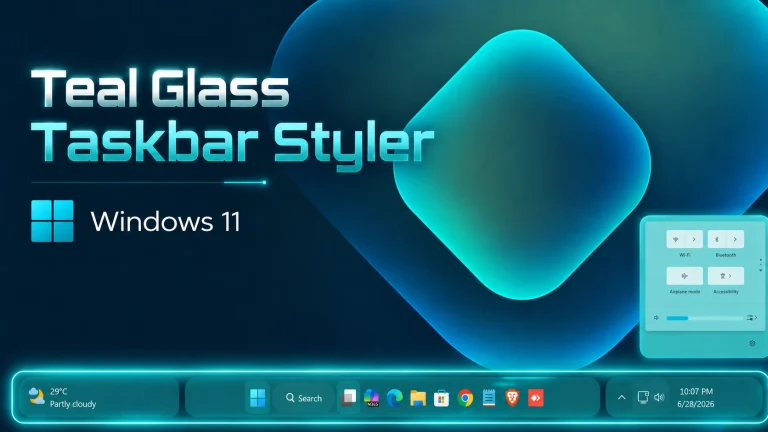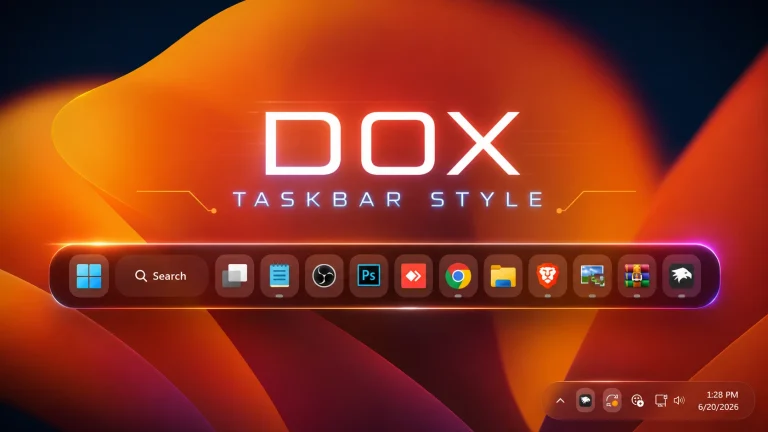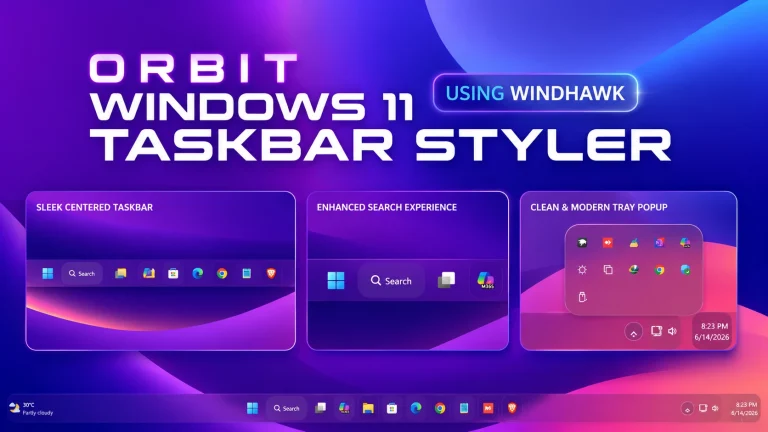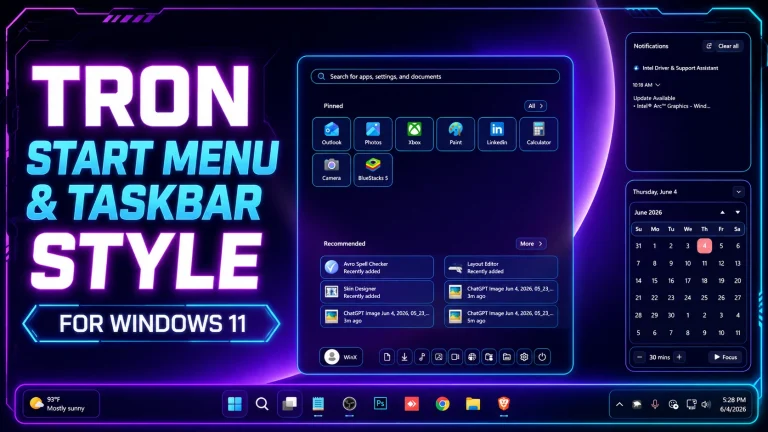
Glance 2.0 Taskbar Style (Windhawk) – Modern Windows Taskbar Customization
Upgrade your desktop with Glance 2.0 Taskbar Style using Windhawk. Enjoy a clean, modern, and minimal Windows taskbar with better design, spacing, and performance.

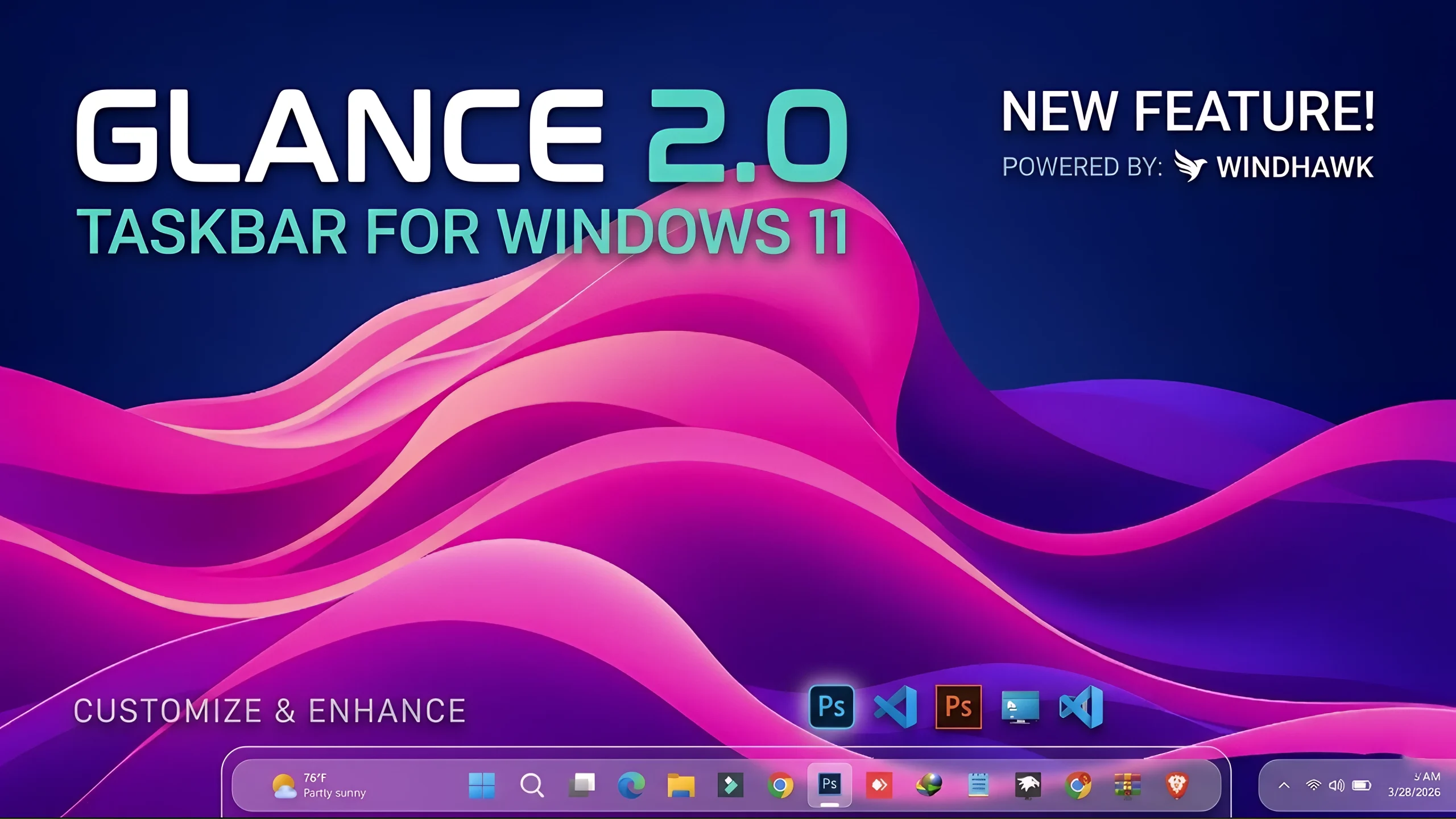
Glanace 2.0 Taskbar Style For Windows 11 ( Windhawk )
If you’re looking to elevate your Windows desktop experience with a sleek, modern touch, the *Glance 2.0 Taskbar Style (Windhawk)* is a powerful customization that deserves your attention. Designed for users who value both aesthetics and functionality, this taskbar mod reimagines the traditional Windows interface into something cleaner, smarter, and far more efficient.Glance 2.0 is built using Windhawk, a popular Windows customization platform that allows users to tweak system behavior and appearance without complex system modifications. With this setup, your taskbar transforms into a visually appealing, minimalistic bar that enhances productivity while maintaining smooth performance
What is Glance 2.0 Taskbar Style?
Glance 2.0 is a modern taskbar styling configuration that gives your desktop a refined, almost futuristic look. It focuses on simplicity, spacing, and clarity—removing clutter while highlighting essential elements like pinned apps, system icons, and notifications.Unlike traditional taskbars that often feel crowded, Glance 2.0 introduces a more balanced layout. Icons are centered, spacing is improved, and transparency effects give it a premium feel similar to high-end UI designs..
- Windows 11 21H2: May work, but not recommended for the best experience
- Windows 11 22H2: May work, but compatibility can vary
- Windows 11 23H2: Recommended
- Windows 11 24H2: Recommended
- Windows 11 25H2: YES work, but test carefully after Windows updates
- Download & Install windhawk.
- install & Open the Windows 11 taskbar Styler mod in Windhawk.
- Go to the “Advanced” tab.
- Copy the content below to the text box under “Mod settings” and click “Save”.
{ "theme": "Glance Taskbar by WinX", "controlStyles[0].target": "Grid#RootGrid > Taskbar.TaskbarBackground > Grid", "controlStyles[0].styles[0]": "CornerRadius=20", "controlStyles[0].styles[1]": "BorderThickness=1", "controlStyles[0].styles[2]": "Margin=-20,0,-20,0", "controlStyles[0].styles[3]": "BorderBrush=#40FFFFFF", "controlStyles[0].styles[4]": "Padding=-1", "controlStyles[1].target": "Rectangle#BackgroundStroke", "controlStyles[1].styles[0]": "Fill=Transparent", "controlStyles[2].target": "Taskbar.TaskbarFrame", "controlStyles[2].styles[0]": "Width=Auto", "controlStyles[2].styles[1]": "HorizontalAlignment=Center", "controlStyles[3].target": "Taskbar.TaskbarFrame > Grid#RootGrid", "controlStyles[3].styles[0]": "Visibility=Visible", "controlStyles[3].styles[1]": "Margin=0,0,0,10", "controlStyles[3].styles[2]": "Padding=20,0,20,0", "controlStyles[4].target": "Grid#SystemTrayFrameGrid", "controlStyles[4].styles[0]": "Margin=0,0,0,10", "controlStyles[4].styles[1]": "CornerRadius=20,0,0,20", "controlStyles[4].styles[2]": "BorderThickness=1,1,0,1", "controlStyles[4].styles[3]": "BorderBrush=#66FFFFFF", "controlStyles[4].styles[4]": "Padding=10,5,0,5", "controlStyles[4].styles[5]": "Background:=#12FFFFFF", "controlStyles[4].styles[6]": "Visibility=Visible", "controlStyles[5].target": "Taskbar.TaskbarFrame > Grid#RootGrid > Taskbar.TaskbarBackground > Grid > Rectangle#BackgroundFill", "controlStyles[5].styles[0]": "Fill:=<WindhawkBlur BlurAmount=\"5\" TintColor=\"#12FFFFFF\"/>", "controlStyles[6].target": "Taskbar.TaskListLabeledButtonPanel@RunningIndicatorStates > Border#BackgroundElement", "controlStyles[6].styles[0]": "Background:=<AcrylicBrush TintColor=\"{ThemeResource SystemChromeAltHighColor}\" TintOpacity=\"0.9\" FallbackColor=\"{ThemeResource SystemChromeMediumColor}\" />", "controlStyles[6].styles[1]": "Margin=-1,5.5,1,4", "controlStyles[6].styles[2]": "CornerRadius=12", "controlStyles[6].styles[3]": "BorderThickness=2,1,0.5,2", "controlStyles[6].styles[4]": "BorderBrush:=<LinearGradientBrush StartPoint=\"0,0\" EndPoint=\"0.5,1\"><GradientStop Color=\"#0AB3A3A\" Offset=\"0\" /><GradientStop Color=\"#33AB3A3A\" Offset=\"1.5\" /></LinearGradientBrush>", "controlStyles[7].target": "Taskbar.TaskListButtonPanel#ExperienceToggleButtonRootPanel > Border#BackgroundElement", "controlStyles[7].styles[0]": "Background:=<AcrylicBrush TintColor=\"{ThemeResource SystemChromeAltHighColor}\" TintOpacity=\"0.8\" FallbackColor=\"{ThemeResource SystemChromeLowColor}\" />", "controlStyles[7].styles[1]": "CornerRadius=12", "controlStyles[7].styles[2]": "Margin=-1,5.5,2.5,4", "controlStyles[7].styles[3]": "BorderThickness=2,1,0.5,2", "controlStyles[7].styles[4]": "BorderBrush:=<LinearGradientBrush StartPoint=\"0,0\" EndPoint=\"0.5,1\"><GradientStop Color=\"#0AB3A3A\" Offset=\"0\" /><GradientStop Color=\"#33AB3A3A\" Offset=\"1.5\" /></LinearGradientBrush>", "controlStyles[8].target": "Taskbar.TaskListLabeledButtonPanel@CommonStates > Rectangle#RunningIndicator", "controlStyles[8].styles[0]": "Margin=0,0,0,8", "controlStyles[9].target": "Border#MultiWindowElement", "controlStyles[9].styles[0]": "Height=0"}Required Windhawk Mods Taskbar Hight & Icon Size for similar results
To achieve similar results, install and configure the following Windhawk mods in addition to Taskbar Styler
{ "TaskbarHeight": 65, "IconSize": 28, "TaskbarButtonWidth": 52, "IconSizeSmall": 16, "TaskbarButtonWidthSmall": 32}While this might seem unrelated, a well-organized desktop can actually improve workflow efficiency, which indirectly boosts productivity—especially for bloggers, developers, and digital marketers working with platforms like WordPress.A distraction-free interface helps you focus on content creation, SEO optimization, and performance tracking, making tools like RankMath even more effective in your workflow.