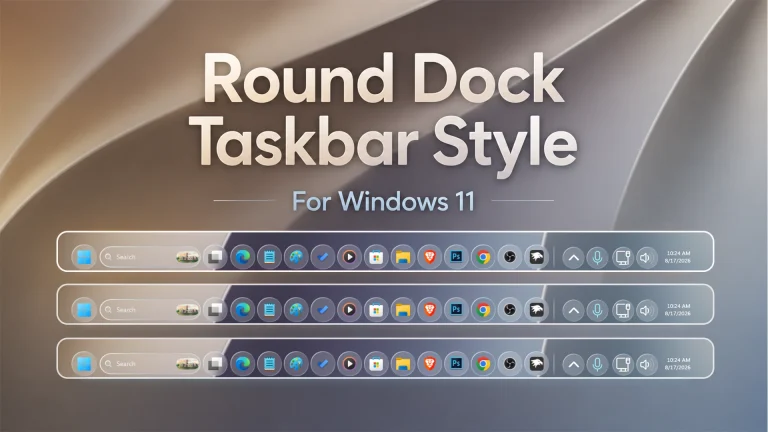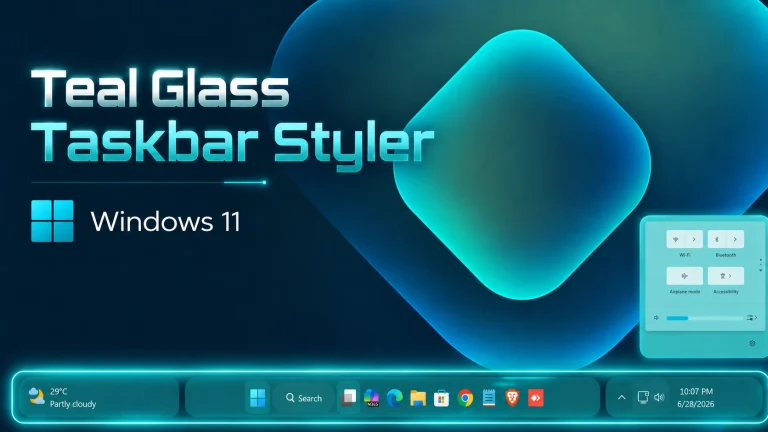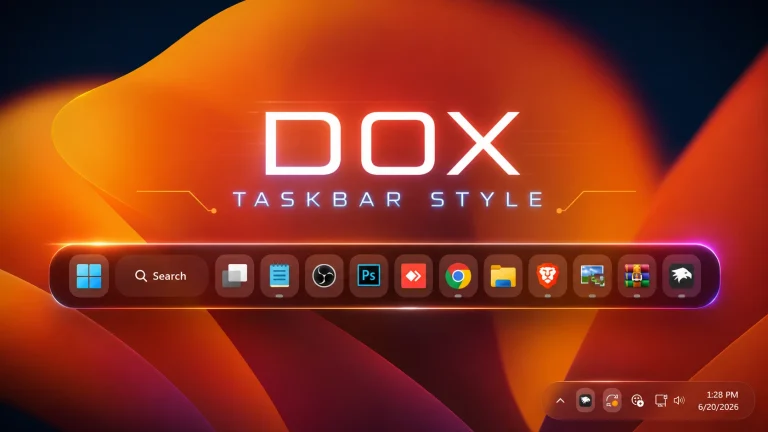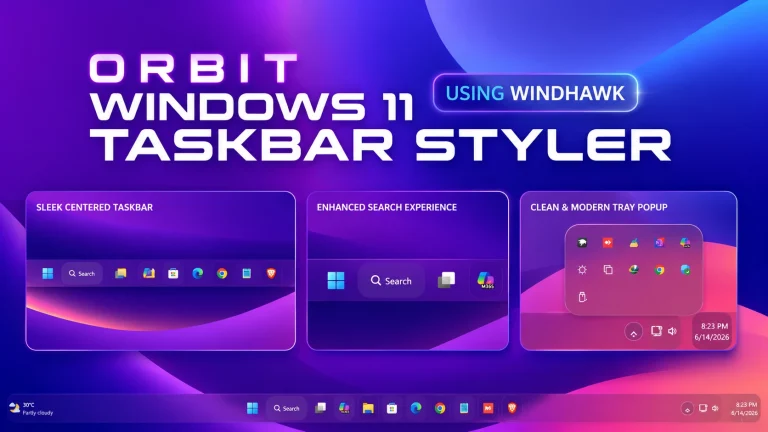
Liquid glass Taskbar Style For Windows 11
Liquid glass Taskbar Style For Windows 11: Liquid Glass Taskbar Style gives your Windows 11 desktop a clean, soft, and modern glass-style look using Windhawk. Learn how to install, remove, and fix common issues.

Liquid Glass Taskbar Style for Windows 11
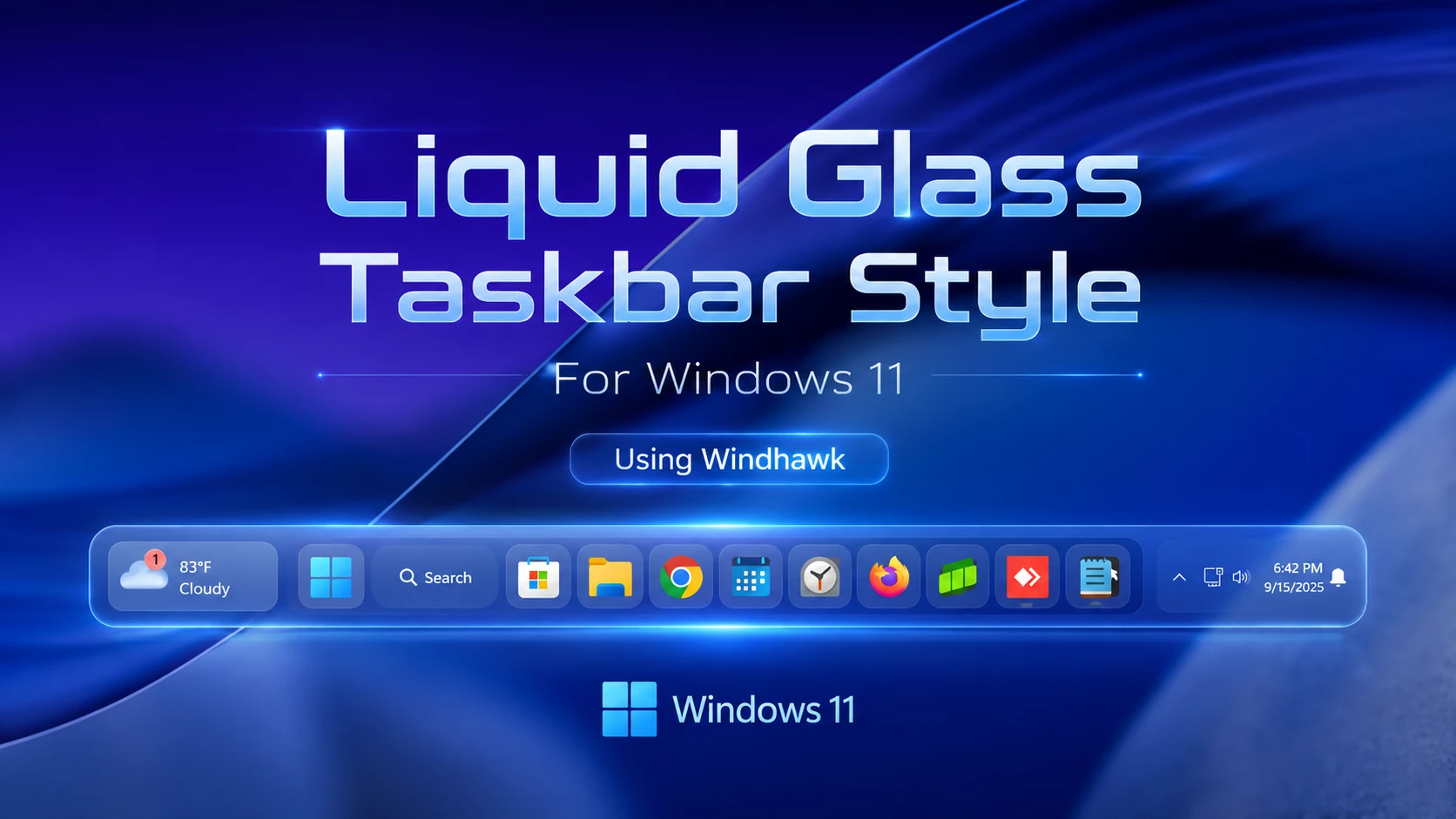
Liquid Glass Taskbar Style is a clean and modern Taskbar Style for Windows 11 users who want their desktop to look smoother, softer, and more premium. It gives the taskbar a glass-like feel, which works nicely with dark wallpapers, gradient backgrounds, and minimal desktop setups.
This style is made for people who enjoy Windows customization but do not want to completely change the whole system. It focuses mainly on the taskbar area, so your normal Windows 11 experience stays familiar. You still use your apps, Start Menu, pinned icons, and system tray the same way.
Please remember that this is not an official Microsoft theme. It is a third-party visual style that works with Windhawk and a compatible taskbar styling mod. The final look may be slightly different on each PC depending on Windows version, display scaling, screen size, and other customization tools.
What Is Liquid Glass Taskbar Style?
Liquid Glass Taskbar Style is a Windows 11 taskbar customization that creates a soft transparent or glass-inspired appearance. Instead of the regular solid-looking taskbar, this style helps the taskbar blend more naturally with your wallpaper.
The design looks best when the desktop is simple. A clean wallpaper, fewer pinned apps, and matching icons can make the glass effect look much better. If your desktop is full of shortcuts or very bright colors, the taskbar may not look as smooth as expected.
This style is a good choice for users who like modern desktop setups, YouTube customization videos, Windows theme previews, or personal productivity layouts. It gives the desktop a fresh look without making the setup too complicated.
Why This Style Looks Good on Windows 11
Windows 11 already has a clean design, but the default taskbar does not offer many deep styling options. You can change some basic settings from Windows personalization, but you cannot fully control the taskbar shape, blur, transparency, spacing, or glass effect from the normal Settings app.
That is why many users try Windhawk styles. With the right setup, the taskbar can look more modern and better matched with your wallpaper. Liquid Glass Taskbar Style is especially useful if you like a soft, minimal, and futuristic desktop look.
It also pairs well with other customization items such as icon packs, Rainmeter skins, wallpapers, Start Menu styles, and File Explorer themes. Just keep the setup balanced. Too many effects at the same time can make the desktop look messy.
Main Features
- Clean glass-inspired taskbar appearance for Windows 11
- Soft transparent look for modern desktop setups
- Good match for dark, gradient, and blurred wallpapers
- Works well with minimal icon packs and simple widgets
- Useful for desktop screenshots and theme preview videos
- Can be removed if you want to return to the default taskbar
- Designed for Windhawk-based taskbar customization
Before You Install
Before applying any Taskbar Style, take a few simple steps. This helps you avoid problems and makes it easier to go back if the style does not look right on your system.
- Use a stable Windows 11 version.
- Download Windhawk only from its official website.
- Avoid random installers or unknown download sources.
- Save your current Windhawk settings before changing anything.
- Disable other taskbar-related mods before testing this style.
- Create a restore point if you often test Windows customization tools.
No custom style should be described as guaranteed to work on every computer. Windows updates, display scaling, monitor size, and other active mods can affect the final result.
How to Install Liquid Glass Taskbar Style
Follow these steps to apply the Liquid Glass Taskbar Style on your Windows 11 PC.
- Download and install Windhawk from the official Windhawk website.
- Open Windhawk after installation.
- Go to the Mods section.
- Search for Windows 11 Taskbar Styler.
- Install and enable the taskbar styler mod.
- Copy or download the Liquid Glass Taskbar Style settings from this page.
- Open the settings area of the taskbar styler mod.
- Paste or import the style settings into the correct field.
- Apply the changes and wait a few seconds.
- If the taskbar does not update, restart Windows Explorer or restart your PC.
{ "theme": "liquid glass Taskbar", "controlStyles[0].target": "Taskbar.TaskbarFrame#TaskbarFrame > Grid#RootGrid", "controlStyles[0].styles[0]": "Background:=<WindhawkBlur BlurAmount=\"30\" TintColor=\"#10ffffff\" />", "controlStyles[0].styles[1]": "Margin=3", "controlStyles[0].styles[2]": "CornerRadius=15", "controlStyles[0].styles[3]": "BorderBrush:=<LinearGradientBrush StartPoint=\"0,0\" EndPoint=\"1,1\" Opacity=\"0.6\"><GradientStop Color=\"#80ffffff\" Offset=\"0.0\" /><GradientStop Color=\"{ThemeResource SurfaceStrokeColorDefault}\" Offset=\"0.55\" /><GradientStop Color=\"#80ffffff\" Offset=\"1\" /></LinearGradientBrush>", "controlStyles[0].styles[4]": "BorderThickness=1", "controlStyles[0].styles[5]": "Padding=10,0", "controlStyles[1].target": "Taskbar.TaskListButtonPanel@CommonStates > Border#BackgroundElement", "controlStyles[1].styles[0]": "CornerRadius=12", "controlStyles[1].styles[1]": "Background:=<WindhawkBlur BlurAmount=\"10\" TintColor=\"#40ffffff\" />", "controlStyles[1].styles[2]": "Background@InactivePointerOver:=<WindhawkBlur BlurAmount=\"10\" TintColor=\"#40ffffff\" />", "controlStyles[1].styles[3]": "Background@ActivePointerOver:=<WindhawkBlur BlurAmount=\"10\" TintColor=\"#40ffffff\" />", "controlStyles[1].styles[4]": "Background@ActiveNormal:=<WindhawkBlur BlurAmount=\"10\" TintColor=\"#30ffffff\" />", "controlStyles[1].styles[5]": "Background@InactiveNormal:=<WindhawkBlur BlurAmount=\"10\" TintColor=\"#30ffffff\" />", "controlStyles[1].styles[6]": "Background@InactivePressed:=<WindhawkBlur BlurAmount=\"10\" TintColor=\"#30ffffff\" />", "controlStyles[1].styles[7]": "Background@ActivePressed:=<WindhawkBlur BlurAmount=\"10\" TintColor=\"#20ffffff\" />", "controlStyles[1].styles[8]": "BorderBrush:=<LinearGradientBrush StartPoint=\"0,0\" EndPoint=\"1,1\"><GradientStop Color=\"#80ffffff\" Offset=\"0.0\" /><GradientStop Color=\"{ThemeResource SurfaceStrokeColorDefault}\" Offset=\"0.55\" /><GradientStop Color=\"#80ffffff\" Offset=\"1\" /></LinearGradientBrush>", "controlStyles[1].styles[9]": "BorderThickness=1", "controlStyles[2].target": "Grid#SystemTrayFrameGrid", "controlStyles[2].styles[0]": "Background:=<WindhawkBlur BlurAmount=\"10\" TintColor=\"#10ffffff\" />", "controlStyles[2].styles[1]": "CornerRadius=12", "controlStyles[2].styles[2]": "Margin=8,8,8,8", "controlStyles[2].styles[3]": "Padding=10,0,2,0", "controlStyles[2].styles[4]": "BorderBrush:=<LinearGradientBrush StartPoint=\"0,0\" EndPoint=\"1,1\"><GradientStop Color=\"#80ffffff\" Offset=\"0.0\" /><GradientStop Color=\"{ThemeResource SurfaceStrokeColorDefault}\" Offset=\"0.55\" /><GradientStop Color=\"#80ffffff\" Offset=\"1\" /></LinearGradientBrush>", "controlStyles[2].styles[5]": "BorderThickness=1", "controlStyles[3].target": "Taskbar.TaskListLabeledButtonPanel@RunningIndicatorStates > Rectangle#RunningIndicator", "controlStyles[3].styles[0]": "Fill:=#808080", "controlStyles[3].styles[1]": "RadiusX=4", "controlStyles[3].styles[2]": "RadiusY=4", "controlStyles[3].styles[3]": "Height=4", "controlStyles[3].styles[4]": "Width=10", "controlStyles[3].styles[5]": "Width@ActiveRunningIndicator=20", "controlStyles[3].styles[6]": "Fill@ActiveRunningIndicator=#60CDFF", "controlStyles[4].target": "Taskbar.TaskListLabeledButtonPanel > TextBlock#LabelControl", "controlStyles[4].styles[0]": "Margin=4,0,0,0", "controlStyles[4].styles[1]": "Foreground=White", "controlStyles[5].target": "Taskbar.SearchBoxButton", "controlStyles[5].styles[0]": "Foreground=White", "controlStyles[5].styles[1]": "Margin=-11,0,0,0", "controlStyles[6].target": "TextBlock#SearchBoxTextBlock", "controlStyles[6].styles[0]": "FontSize=12", "controlStyles[6].styles[1]": "Foreground=White", "controlStyles[7].target": "Grid", "controlStyles[7].styles[0]": "RequestedTheme=2", "controlStyles[8].target": "Taskbar.TaskListButton#TaskListButton[AutomationProperties.Name=Copilot] > Taskbar.TaskListLabeledButtonPanel#IconPanel > Border#BackgroundElement", "controlStyles[8].styles[0]": "Background:=<WindhawkBlur BlurAmount=\"10\" TintColor=\"#10ffffff\" />", "controlStyles[9].target": "Taskbar.AugmentedEntryPointButton#AugmentedEntryPointButton > Taskbar.TaskListButtonPanel#ExperienceToggleButtonRootPanel > Border#BackgroundElement@CommonStates", "controlStyles[9].styles[0]": "Background:=<WindhawkBlur BlurAmount=\"10\" TintColor=\"#30ffffff\" />", "controlStyles[9].styles[1]": "Background@InactivePointerOver:=<WindhawkBlur BlurAmount=\"10\" TintColor=\"#20ffffff\" />", "controlStyles[10].target": "Border#MultiWindowElement", "controlStyles[10].styles[0]": "Visibility=Collapsed", "controlStyles[11].target": "TextBlock#TimeInnerTextBlock", "controlStyles[11].styles[0]": "Foreground=White", "controlStyles[12].target": "TextBlock#DateInnerTextBlock", "controlStyles[12].styles[0]": "Foreground=White", "controlStyles[13].target": "SystemTray.TextIconContent > Grid > SystemTray.AdaptiveTextBlock#Base > TextBlock", "controlStyles[13].styles[0]": "Foreground=White", "controlStyles[14].target": "Taskbar.AugmentedEntryPointButton#AugmentedEntryPointButton", "controlStyles[14].styles[0]": "Margin=-12,0,0,0", "controlStyles[15].target": "Taskbar.ExperienceToggleButton#LaunchListButton[AutomationProperties.Name=Task View]", "controlStyles[15].styles[0]": "Margin=-12,0,0,0", "controlStyles[16].target": "taskbar:TaskListLabeledButtonPanel@RunningIndicatorStates > Border", "controlStyles[16].styles[0]": "Background@InactiveRunningIndicatorPointerOver:=<WindhawkBlur BlurAmount=\"40\" TintColor=\"#10ffffff\" />", "controlStyles[16].styles[1]": "CornerRadius=12", "controlStyles[16].styles[2]": "BorderBrush@InactiveRunningIndicatorPointerOver:=<LinearGradientBrush StartPoint=\"0,0\" EndPoint=\"1,1\"><GradientStop Color=\"#80ffffff\" Offset=\"0.0\" /><GradientStop Color=\"{ThemeResource SurfaceStrokeColorDefault}\" Offset=\"0.55\" /><GradientStop Color=\"#80ffffff\" Offset=\"1\" /></LinearGradientBrush>", "controlStyles[16].styles[3]": "BorderThickness@InactiveRunningIndicatorPointerOver=1", "controlStyles[17].target": "Taskbar.TaskListLabeledButtonPanel@CommonStates > Border#BackgroundElement", "controlStyles[17].styles[0]": "Background@InactivePointerOver:=<WindhawkBlur BlurAmount=\"10\" TintColor=\"#40ffffff\" />", "controlStyles[17].styles[1]": "Background@ActivePointerOver:=<WindhawkBlur BlurAmount=\"10\" TintColor=\"#40ffffff\" />", "controlStyles[17].styles[2]": "Background@InactiveNormal:=<WindhawkBlur BlurAmount=\"10\" TintColor=\"#30ffffff\" />", "controlStyles[17].styles[3]": "Background@ActiveNormal:=<WindhawkBlur BlurAmount=\"10\" TintColor=\"#30ffffff\" />", "controlStyles[17].styles[4]": "Background@ActivePressed:=<WindhawkBlur BlurAmount=\"10\" TintColor=\"#30ffffff\" />", "controlStyles[17].styles[5]": "Background@InactivePressed:=<WindhawkBlur BlurAmount=\"10\" TintColor=\"#20ffffff\" />", "controlStyles[17].styles[6]": "CornerRadius=12", "controlStyles[17].styles[7]": "Margin=0", "controlStyles[17].styles[8]": "BorderBrush:=<LinearGradientBrush StartPoint=\"0,0\" EndPoint=\"1,1\"><GradientStop Color=\"#80ffffff\" Offset=\"0.0\" /><GradientStop Color=\"{ThemeResource SurfaceStrokeColorDefault}\" Offset=\"0.55\" /><GradientStop Color=\"#80ffffff\" Offset=\"1\" /></LinearGradientBrush>", "controlStyles[17].styles[9]": "BorderThickness=1", "controlStyles[18].target": "Rectangle#BackgroundStroke", "controlStyles[18].styles[0]": "Visibility=Collapsed", "controlStyles[18].styles[1]": "Fill=#000000", "controlStyles[19].target": "Taskbar.TaskbarFrame#TaskbarFrame", "controlStyles[19].styles[0]": "Width=Auto", "controlStyles[19].styles[1]": "HorizontalAlignment=Center", "controlStyles[19].styles[2]": "Margin=250,0,250,0", "controlStyles[20].target": "Rectangle#BackgroundFill", "controlStyles[20].styles[0]": "Fill=Transparent", "controlStyles[21].target": "SystemTray.NotifyIconView#NotifyItemIcon", "controlStyles[21].styles[0]": "Background:=<WindhawkBlur BlurAmount=\"10\" TintColor=\"#40ffffff\" />", "controlStyles[21].styles[1]": "CornerRadius=12", "controlStyles[21].styles[2]": "Margin=2", "controlStyles[21].styles[3]": "Padding=4", "controlStyles[21].styles[4]": "BorderBrush:=<LinearGradientBrush StartPoint=\"0,0\" EndPoint=\"1,1\"><GradientStop Color=\"#80ffffff\" Offset=\"0.0\" /><GradientStop Color=\"{ThemeResource SurfaceStrokeColorDefault}\" Offset=\"0.55\" /><GradientStop Color=\"#80ffffff\" Offset=\"1\" /></LinearGradientBrush>", "controlStyles[21].styles[5]": "BorderThickness=1"}Compatibility
Liquid Glass Taskbar Style is made for Windows 11 customization through Windhawk. It is not a built-in Windows setting, so it may not look exactly the same on every device.
Your Windows 11 build, screen resolution, display scaling, taskbar alignment, and other installed customization tools can change how the style appears. If another taskbar mod is already active, it may conflict with this style.
For the cleanest result, test this style by itself first. Once it works properly, you can slowly add other customization tools if needed.
Safety Notes
This style is only for visual customization, but you should still be careful when changing system interface elements. Use trusted sources, avoid suspicious files, and do not install extra programs that are not needed for the taskbar style.
It is better to avoid claims like “100% safe” or “guaranteed working” because every Windows setup is different. A Windows update, another mod, or a display setting can affect how the style works. If you are new to customization, start slowly and keep your settings backed up.
How to Uninstall Liquid Glass Taskbar Style
If you want to go back to the normal Windows 11 taskbar, you can remove the style from Windhawk.
- Open Windhawk.
- Go to the Windows 11 Taskbar Styler mod.
- Remove the Liquid Glass Taskbar Style settings.
- Reset the mod settings if needed.
- Disable the taskbar styler mod if you no longer want custom styling.
- Restart Windows Explorer or restart your PC to refresh the taskbar.
If you saved your old settings before installing the style, you can restore them easily. This is helpful if you test different taskbar styles often.
Troubleshooting Common Problems
The Style Does Not Apply
Make sure Windhawk is running and the Windows 11 Taskbar Styler mod is enabled. Also check that the style settings were pasted into the correct place. If nothing changes, restart Windows Explorer from Task Manager.
The Glass Effect Is Not Clear
Your wallpaper may be too bright or too busy. Try a darker wallpaper, blurred background, or simple gradient. A cleaner background usually makes the glass effect easier to see.
The Taskbar Looks Misaligned
This can happen because of display scaling or another active taskbar mod. Try common scaling options like 100% or 125%, then apply the style again.
The Style Stopped Working After a Windows Update
Windows updates can change how the taskbar behaves. Open Windhawk, check for updates to the related mod, and reapply the style settings if needed.
FAQ
Is Liquid Glass Taskbar Style an official Microsoft theme?
No. It is a third-party visual customization style for Windows 11. It is not an official Microsoft theme or built-in Windows feature.
Do I need Windhawk to use this style?
Yes. This style is intended to work with Windhawk and a compatible Windows 11 taskbar styling mod.
Will it change my full Windows theme?
No. It mainly changes the taskbar appearance. Your apps, files, and normal Windows features stay the same.
Can I use it with icon packs and Rainmeter?
Yes, it can work well with matching icon packs, wallpapers, and Rainmeter skins. Just avoid using too many taskbar mods at the same time.
Can I remove it later?
Yes. You can remove the style settings, disable the related Windhawk mod, or uninstall the mod if you want the default taskbar back.
Final Thoughts
Liquid Glass Taskbar Style is a nice option if you want your Windows 11 desktop to feel cleaner and more modern. It gives the taskbar a soft glass-style look without changing your full Windows setup.
For the best result, use a clean wallpaper, keep your pinned apps organized, and apply one customization at a time. If you enjoy Windows desktop styling, visit Link Vegas Theme for more Windhawk styles, Windows 11 themes, icon packs, wallpapers, Start Menu styles, File Explorer styles, and desktop customization tutorials.