Windows 12 Inspired Start Menu for Windows 11
Give your Windows 11 desktop a modern and futuristic appearance with this Windows 12 inspired Start Menu style for Windhawk. Learn about its design, features, compatibility, installation process, and common troubleshooting steps

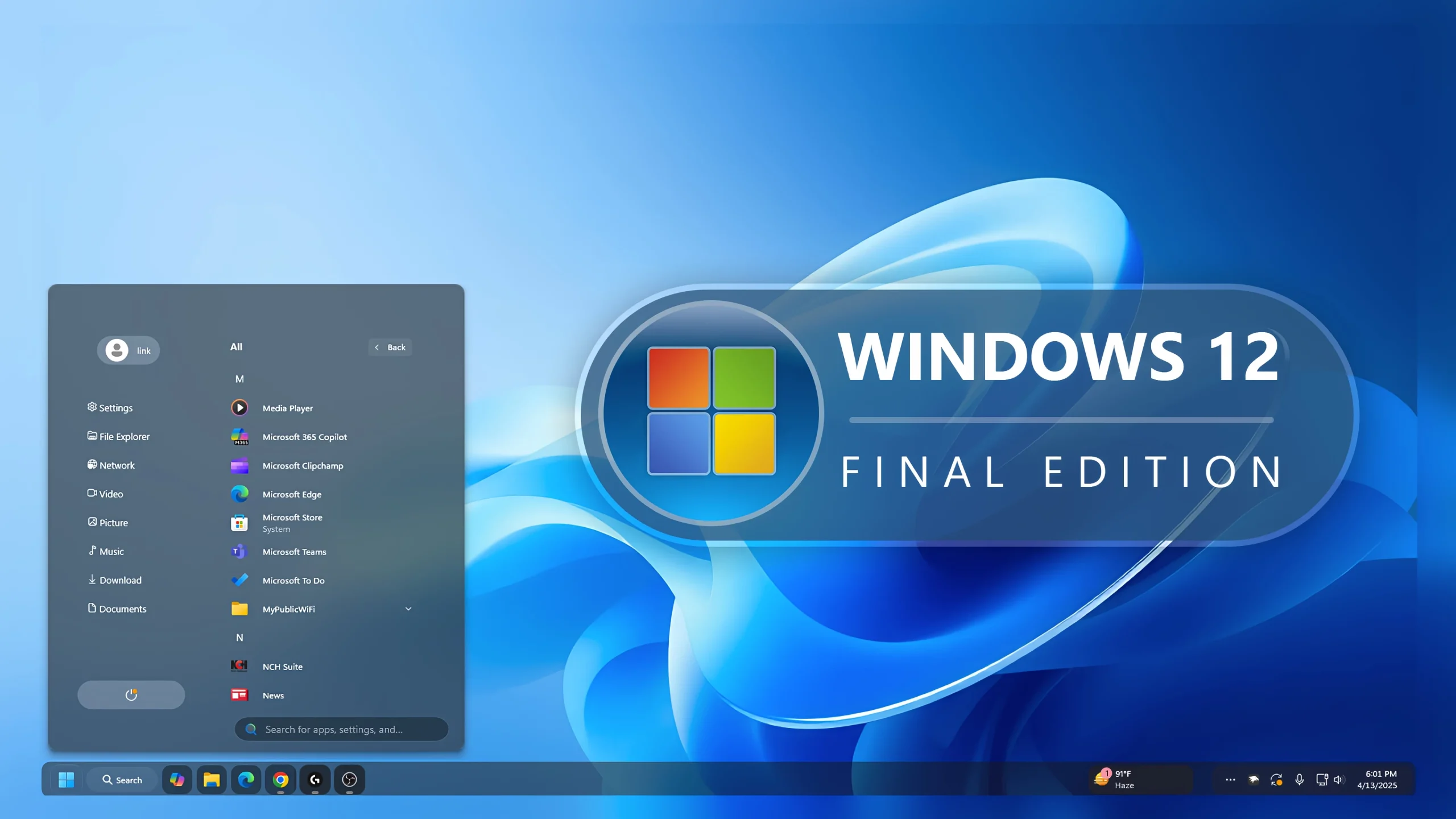
Windows 12 Inspired Start Menu for Windows 11
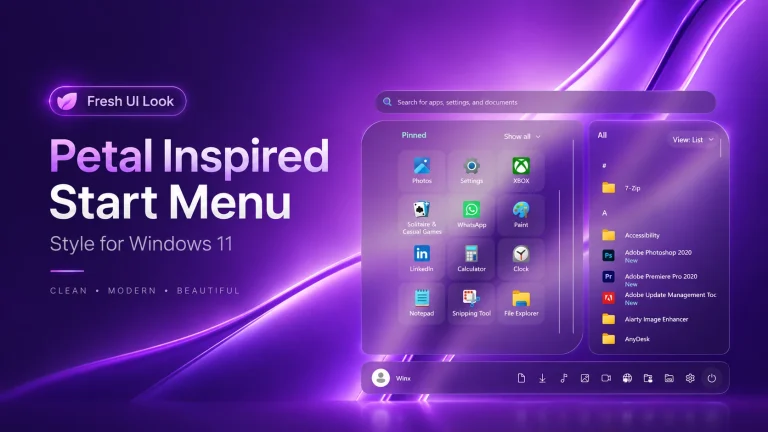
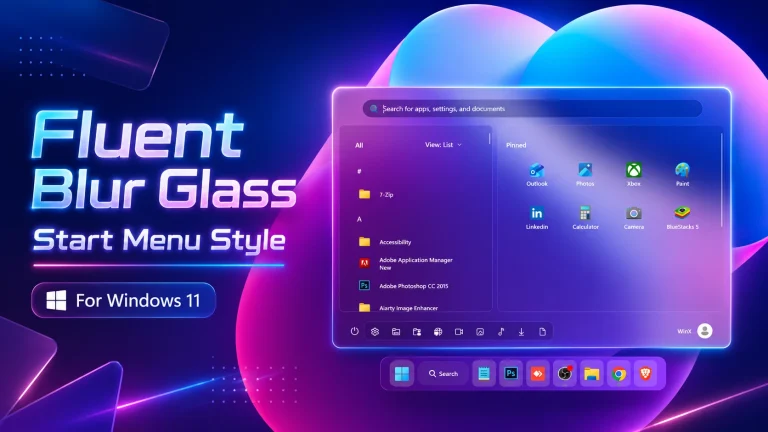
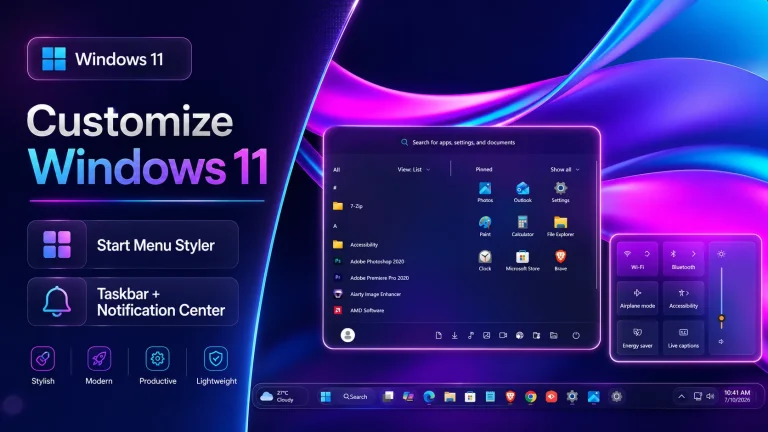
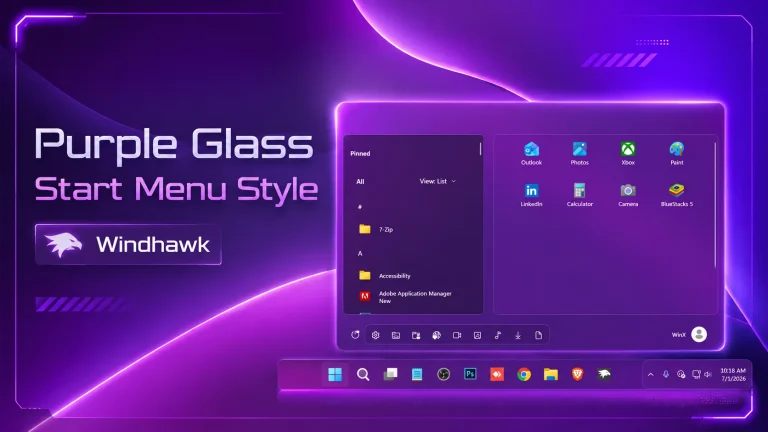
The Windows 12 Inspired Start Menu for Windows 11 is a concept-inspired Windhawk customization designed for users who want to give the Windows 11 Start Menu a cleaner and more futuristic appearance. It focuses on modern visual styling while keeping the familiar Windows 11 environment underneath.
This customization is intended for visual personalization only. It does not install a new version of Windows, upgrade Windows 11 to another operating system, or represent an official Microsoft Windows 12 Start Menu. Instead, it uses a compatible Windhawk Start Menu Styler configuration to customize supported Windows 11 interface elements.
The style can work well as part of a modern desktop setup with matching wallpapers, custom icons, taskbar styles, transparent surfaces, and complementary accent colors.
What Is This Windhawk Style?
This Windhawk style changes supported visual properties of the Windows 11 Start Menu. Depending on the configuration, it can adjust elements such as backgrounds, spacing, menu dimensions, pinned application areas, search elements, profile controls, power controls, borders, and corner styling.
The purpose is to create a more modern and concept-inspired appearance without claiming to replace the original Windows operating system. The underlying Start Menu remains part of Windows 11, although visual compatibility can vary depending on the Windows build and the configuration being used.
The style is intended to be applied with Windhawk and the Windows 11 Start Menu Styler mod. Always review the configuration and keep a copy of your current settings before applying a new style.
Design Overview
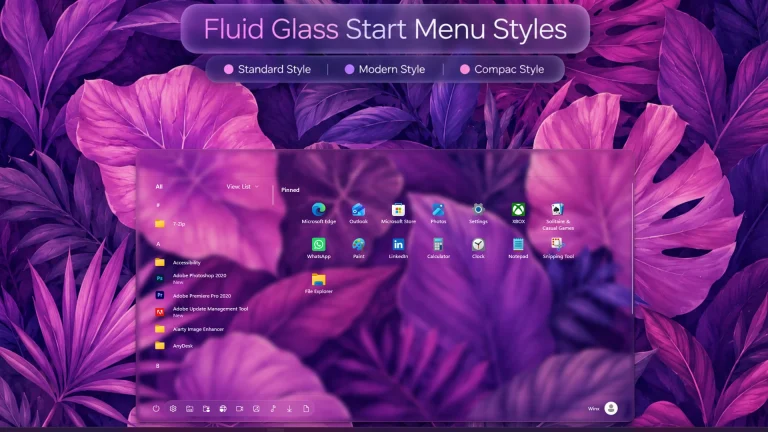
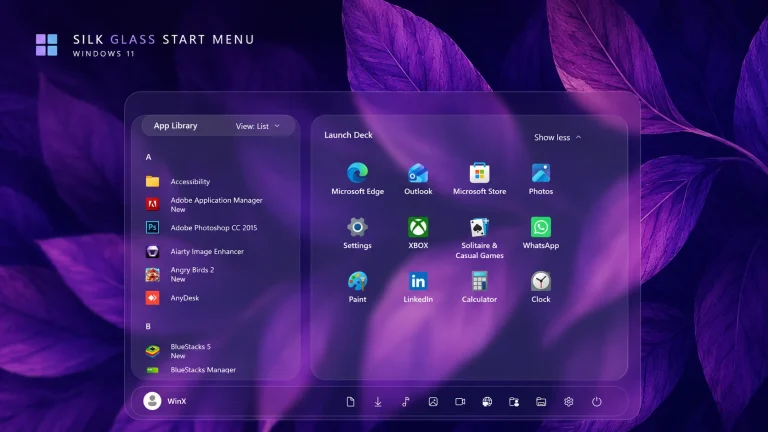
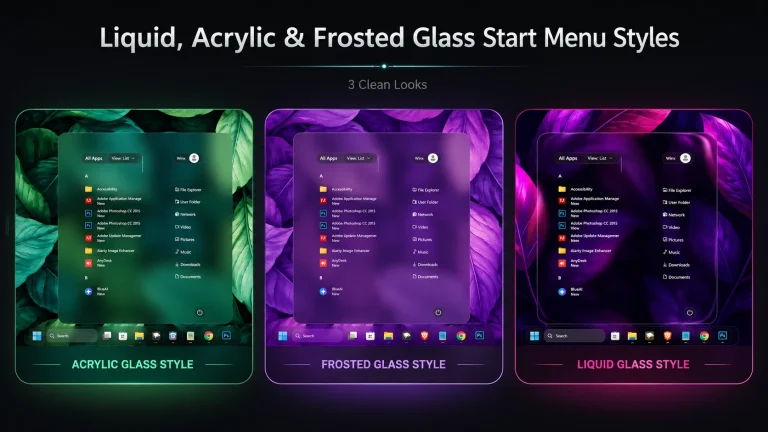
The design follows a clean and futuristic visual direction inspired by modern Windows concept designs. Depending on the supplied configuration, it may include transparent or glass-inspired backgrounds, rounded corners, organized application sections, subtle borders, and balanced spacing.
The style can pair particularly well with blue, dark, gradient, or glass-inspired wallpapers. Matching taskbar styles, modern icon packs, and carefully selected desktop colors can help create a more consistent overall setup.
The final appearance can vary depending on your Windows 11 build, display scaling, light or dark mode, Windhawk version, Start Menu Styler version, and other active customization mods. Some layouts may require adjustments to fit different displays correctly.
Key Features
- Windows 12-inspired concept appearance
- Designed for Windows 11 personalization
- Modern and futuristic Start Menu layout
- Glass-inspired and transparent visual styling
- Rounded interface elements
- Balanced spacing for Start Menu sections
- Works well with matching wallpapers and icons
- Designed for use with Windhawk Start Menu Styler
- Does not install or replace the Windows operating system
- Can be disabled or replaced through Windhawk settings
Compatibility
Compatibility depends on the Windows 11 Start Menu implementation, your Windows build, the installed Windhawk version, and the version of the Windows 11 Start Menu Styler mod.
Windows updates can change Start Menu interface components and layouts. Because of this, a configuration that works correctly on one Windows installation may require updates or adjustments after a Windows feature update.
The redesigned Windows 11 Start Menu can also require styling configurations specifically created for that layout. If the style does not display correctly, check whether an updated configuration is available for your current Start Menu version.
Display resolution and scaling can also affect layout positioning and dimensions. Users with 125%, 150%, or higher display scaling may see slightly different spacing compared with a setup using 100% scaling.
- Windows 11
- Windhawk
- Windows 11 Start Menu Styler mod
- A compatible Start Menu style configuration
- Download and install Windhawk
- Open Windhawk and install the Windows 11 Start Menu Styler mod
- Go to the Advanced tab
- Paste the provided configuration code into the “Mod settings” box
- Click Save to apply the style
- For more details, visit this GitHub guide
Customization Tips
For a visual appearance similar to the preview, consider using a blue or dark gradient wallpaper with matching desktop accent colors. A compatible glass-style taskbar and modern icon set can also help create a more consistent desktop theme.
If supported by the configuration, you may be able to adjust background colors, transparency, blur strength, menu dimensions, borders, corner radius, spacing, text colors, and hover states.
Make changes gradually and keep a copy of the original configuration. This makes it easier to identify which setting caused an unexpected visual result.
Troubleshooting
If the style does not apply, first confirm that Windhawk and the Windows 11 Start Menu Styler mod are installed and enabled. Also check that the configuration has been pasted into the correct settings area.
If only part of the design appears, the configuration may not match your current Windows Start Menu layout. Windows updates can change interface elements that styling configurations depend on.
If you experience an unexpected Start Menu appearance, restore your previous configuration or temporarily disable the Start Menu Styler mod while checking for an updated style.
Using several Start Menu customization tools at the same time may also create conflicting visual changes. Testing one Start Menu configuration at a time can make troubleshooting easier.
- Designed for Windows 11 Start Menu customization
- Compatibility varies by Windows build and Start Menu layout
- Windhawk and Windows 11 Start Menu Styler are required
- Major Windows updates may require an updated configuration
- Redesigned Start Menu layouts may require a compatible style variant
{ "controlStyles[0].target": "Windows.UI.Xaml.Controls.Grid#TopLevelSuggestionsListHeader", "controlStyles[0].styles[0]": "Visibility=Collapsed", "controlStyles[1].target": "Windows.UI.Xaml.Controls.Grid#NoTopLevelSuggestionsText", "controlStyles[1].styles[0]": "Height=0", "controlStyles[2].target": "Windows.UI.Xaml.Controls.Grid#TopLevelSuggestionsContainer", "controlStyles[2].styles[0]": "Height=0", "controlStyles[3].target": "Windows.UI.Xaml.Controls.Grid#ShowMoreSuggestions", "controlStyles[3].styles[0]": "RenderTransform:=<TranslateTransform Y=\"-560\" X=\"-120\" />", "controlStyles[4].target": "StartMenu.PinnedList", "controlStyles[4].styles[0]": "Height=293", "controlStyles[4].styles[1]": "RenderTransform:=<TranslateTransform Y=\"-10\" X=\"195\" />", "controlStyles[5].target": "Windows.UI.Xaml.Controls.Grid#ShowMoreSuggestions > Windows.UI.Xaml.Controls.Button > Windows.UI.Xaml.Controls.ContentPresenter > Windows.UI.Xaml.Controls.StackPanel > Windows.UI.Xaml.Controls.TextBlock", "controlStyles[5].styles[0]": "Text=Recommended", "controlStyles[6].target": "StartDocked.StartSizingFrame", "controlStyles[6].styles[0]": "MaxHeight=650", "controlStyles[6].styles[1]": "MaxWidth=580", "controlStyles[6].styles[2]": "MinWidth=580", "controlStyles[6].styles[3]": "Width=580", "controlStyles[7].target": "Windows.UI.Xaml.Controls.Grid#UndockedRoot", "controlStyles[7].styles[0]": "HorizontalAlignment=Left", "controlStyles[7].styles[1]": "Margin=0,0,0,0", "controlStyles[7].styles[2]": "Width=640", "controlStyles[8].target": "Border#AcrylicOverlay ", "controlStyles[8].styles[0]": "HorizontalAlignment=Right", "controlStyles[8].styles[1]": "Margin=0,0,0,-65", "controlStyles[8].styles[2]": "Width=125", "controlStyles[9].target": "StartMenu.PinnedList#StartMenuPinnedList", "controlStyles[9].styles[0]": "Height=450", "controlStyles[9].styles[1]": "Margin=-170,40,0,0", "controlStyles[9].styles[2]": "MaxWidth=405", "controlStyles[10].target": "StartDocked.NavigationPaneView", "controlStyles[10].styles[0]": "Height=180", "controlStyles[10].styles[1]": "Margin=0,-750,0,0", "controlStyles[10].styles[2]": "Transform3D:=<CompositeTransform3D TranslateX=\"215\" RotationZ=\"270\" />", "controlStyles[10].styles[3]": "VerticalAlignment=1", "controlStyles[11].target": "Windows.UI.Xaml.Controls.ItemsStackPanel > StartDocked.AppListViewItem", "controlStyles[11].styles[0]": "FlowDirection=0", "controlStyles[11].styles[1]": "Height=180", "controlStyles[12].target": "StartDocked.AppListViewItem > Grid#ContentBorder > Windows.UI.Xaml.Controls.ContentPresenter#ContentPresenter ", "controlStyles[12].styles[0]": "VerticalAlignment=2", "controlStyles[12].styles[1]": "Width=105", "controlStyles[13].target": "StartDocked.AppListViewItem > Grid#ContentBorder > Windows.UI.Xaml.Controls.ContentPresenter#ContentPresenter > Windows.UI.Xaml.Controls.FontIcon", "controlStyles[13].styles[0]": "Margin=20,0,-45,0", "controlStyles[13].styles[1]": "Transform3D:=<CompositeTransform3D TranslateX=\"-13\" RotationZ=\"90\" />", "controlStyles[13].styles[2]": "Width=125", "controlStyles[14].target": "StartDocked.AppListViewItem > Grid#ContentBorder > Windows.UI.Xaml.Controls.ContentPresenter#ContentPresenter > Windows.UI.Xaml.Controls.FontIcon > Grid > TextBlock", "controlStyles[14].styles[0]": "FontFamily=Segoe UI, Segoe Fluent Icons", "controlStyles[14].styles[1]": "FontSize=13", "controlStyles[14].styles[2]": "HorizontalAlignment=Left", "controlStyles[15].target": "StartDocked.NavigationPaneView > Grid#RootPanel", "controlStyles[15].styles[0]": "FlowDirection=1", "controlStyles[16].target": "StartDocked.NavigationPaneButton#PowerButton", "controlStyles[16].styles[0]": "Width=150", "controlStyles[16].styles[1]": "CornerRadius=40", "controlStyles[17].target": "StartDocked.PowerOptionsView", "controlStyles[17].styles[0]": "Margin=-300,0,0,-910", "controlStyles[17].styles[1]": "Transform3D:=<CompositeTransform3D TranslateX=\"-100\" TranslateY=\"-500\" RotationZ=\"-90\" />", "controlStyles[18].target": "StartDocked.NavigationPaneButton#UserTileButton > Grid > ContentPresenter", "controlStyles[18].styles[0]": "FlowDirection=0", "controlStyles[19].target": "Windows.UI.Xaml.Controls.TextBlock[Text=]", "controlStyles[19].styles[0]": "FontFamily=Segoe UI, Segoe Fluent Icons", "controlStyles[19].styles[1]": "Text= Power", "controlStyles[20].target": "Windows.UI.Xaml.Controls.TextBlock[Text=]", "controlStyles[20].styles[0]": "Text= Documents", "controlStyles[21].target": "Windows.UI.Xaml.Controls.TextBlock[Text=]", "controlStyles[21].styles[0]": "Text= Download", "controlStyles[22].target": "Windows.UI.Xaml.Controls.TextBlock[Text=]", "controlStyles[22].styles[0]": "Text= Music", "controlStyles[23].target": "Windows.UI.Xaml.Controls.TextBlock[Text=]", "controlStyles[23].styles[0]": "Text= Picture", "controlStyles[24].target": "Windows.UI.Xaml.Controls.TextBlock[Text=]", "controlStyles[24].styles[0]": "Text= Video", "controlStyles[25].target": "Windows.UI.Xaml.Controls.TextBlock[Text=]", "controlStyles[25].styles[0]": "Text= Network", "controlStyles[26].target": "Windows.UI.Xaml.Controls.Grid#MoreSuggestionsRoot", "controlStyles[26].styles[0]": "Margin=30,0,220,0", "controlStyles[27].target": "Windows.UI.Xaml.Controls.TextBlock[Text=]", "controlStyles[27].styles[0]": "Text= File Explorer", "controlStyles[28].target": "Windows.UI.Xaml.Controls.Grid#AllAppsRoot", "controlStyles[28].styles[0]": "Margin=190,0,70,0", "controlStyles[29].target": "Button#ShowAllAppsButton > ContentPresenter#ContentPresenter@CommonStates", "controlStyles[29].styles[0]": "RenderTransform:=<TranslateTransform Y=\"-6\" X=\"-30\" />", "controlStyles[30].target": "StartDocked.NavigationPaneButton#PowerButton > Grid > Border#BackgroundBorder", "controlStyles[30].styles[0]": "Background:=#46c9d8ed", "controlStyles[30].styles[1]": "CornerRadius=20", "controlStyles[31].target": "StartDocked.UserTileView#UserTile", "controlStyles[31].styles[0]": "Transform3D:=<CompositeTransform3D TranslateX=\"420\" TranslateY=\"100\" RotationZ=\"270\" />", "controlStyles[31].styles[1]": "Margin=300,-200,-300,0", "controlStyles[32].target": "Border#AcrylicBorder", "controlStyles[32].styles[0]": "Background:=<AcrylicBrush TintColor=\"#191919\" TintOpacity=\"0.5\" />", "controlStyles[32].styles[1]": "BorderBrush:=<AcrylicBrush TintColor=\"{ThemeResource SurfaceStrokeColorDefault}\" FallbackColor=\"{ThemeResource SurfaceStrokeColorDefault}\" TintOpacity=\"0\" TintLuminosityOpacity=\".0\" Opacity=\"1\"/>", "controlStyles[32].styles[2]": "BorderThickness=1", "controlStyles[32].styles[3]": "CornerRadius=10", "controlStyles[32].styles[4]": "Margin=0", "controlStyles[33].target": "StartDocked.SearchBoxToggleButton ", "controlStyles[33].styles[0]": "Height=35", "controlStyles[33].styles[1]": "Margin=175,-20,0,20", "controlStyles[33].styles[2]": "Width=300", "controlStyles[33].styles[3]": "RenderTransform:=<TranslateTransform Y=\"590\" X=\"0\" />", "controlStyles[34].target": "StartDocked.SearchBoxToggleButton > Grid > Windows.UI.Xaml.Controls.Border", "controlStyles[34].styles[0]": "Background:=<AcrylicBrush TintColor=\"{ThemeResource CardStrokeColorDefaultSolid}\" FallbackColor=\"{ThemeResource CardStrokeColorDefaultSolid}\" TintOpacity=\".3\" TintLuminosityOpacity=\".5\" Opacity=\"1\"/>", "controlStyles[34].styles[1]": "CornerRadius=5", "controlStyles[35].target": "Border#AcrylicOverlay", "controlStyles[35].styles[0]": "Visibility=Collapsed", "controlStyles[36].target": "Border#ContentBorder@CommonStates > Grid#DroppedFlickerWorkaroundWrapper > Border", "controlStyles[36].styles[0]": "CornerRadius=5", "controlStyles[36].styles[1]": "FocusVisualPrimaryBrush:=<SolidColorBrush Color=\"#b3cefd\" Opacity=\".10\"/>", "controlStyles[36].styles[2]": "Height=80", "controlStyles[36].styles[3]": "Width=92", "controlStyles[37].target": "Windows.UI.Xaml.Controls.Border#ContentBorder@CommonStates > Windows.UI.Xaml.Controls.Grid#DroppedFlickerWorkaroundWrapper > Border#BackgroundBorder", "controlStyles[38].target": "StartDocked.NavigationPaneButton#UserTileButton > Grid@CommonStates > Border ", "controlStyles[38].styles[0]": "CornerRadius=5", "controlStyles[38].styles[1]": "Height=40", "controlStyles[38].styles[2]": "Margin=-0,0,0,0", "controlStyles[39].target": "Windows.UI.Xaml.Controls.TextBlock[Text=]", "controlStyles[39].styles[0]": "Text= Settings", "controlStyles[40].target": "Windows.UI.Xaml.Controls.TextBlock[Text=]", "controlStyles[40].styles[0]": "Text= User Folder", "controlStyles[41].target": "Windows.UI.Xaml.Controls.TextBlock#PinnedListHeaderText", "controlStyles[41].styles[0]": "Margin=210,-10,0,0", "controlStyles[42].target": "StartDocked.LauncherFrame > Grid#RootGrid > Grid#RootContent > Grid#MainContent > Grid#InnerContent > Rectangle", "controlStyles[42].styles[0]": "Visibility=Collapsed", "controlStyles[43].target": "Windows.UI.Xaml.Controls.Grid#MoreSuggestionsRoot", "controlStyles[43].styles[0]": "Margin=240,0,80,0", "controlStyles[44].target": "StartDocked.UserTileView#UserTile > StartDocked.NavigationPaneButton#UserTileButton", "controlStyles[44].styles[0]": "Margin=-10,0,0,0", "controlStyles[45].target": "StartDocked.UserTileView#UserTile > StartDocked.NavigationPaneButton#UserTileButton > Grid > Border", "controlStyles[45].styles[0]": "Background:=#46c9d8ed", "controlStyles[45].styles[1]": "CornerRadius=20", "controlStyles[46].target": "Windows.UI.Xaml.Controls.Border#BorderElement", "controlStyles[46].styles[0]": "CornerRadius=20", "controlStyles[47].target": "Border#AcrylicBorder", "controlStyles[47].styles[0]": "CornerRadius=12", "controlStyles[47].styles[1]": "Width=580", "controlStyles[47].styles[2]": "HorizontalAlignment=Left", "controlStyles[48].target": "Microsoft.UI.Xaml.Controls.PipsPager#PinnedListPipsPager", "controlStyles[48].styles[0]": "Visibility=Collapsed", "controlStyles[49].target": "Windows.UI.Xaml.Controls.TextBlock#PinnedListHeaderText", "controlStyles[49].styles[0]": "Background=#46c9d8ed"} ⚠️ Disclaimer: This Windows 12-inspired Start Menu style is an unofficial Windows 11 UI customization provided for personalization and educational purposes. It is not an official Microsoft Windows 12 product, operating system, update, or Start Menu release, and it is not developed, endorsed, or supported by Microsoft. Compatibility may vary depending on your Windows build, Windhawk version, Start Menu Styler version, installed mods, display settings, and system configuration. Keep a backup of your current settings before applying changes.
Final Thoughts
The Windows 12 Inspired Start Menu for Windows 11 provides a concept-inspired way to give the Windows 11 desktop a more modern and futuristic visual appearance. Its design direction can include cleaner spacing, rounded interface elements, transparent surfaces, and a more personalized Start Menu layout.
It can work particularly well as part of a complete desktop setup with matching wallpapers, icons, taskbar styling, and accent colors. However, visual compatibility should always be checked against your current Windows build and Start Menu layout.
Keep your existing configuration backed up and apply new customization settings carefully. If a Windows update changes the Start Menu, the style may need an updated configuration before all visual elements display as intended.
FAQs
Do I need Windhawk for this style?
Yes. This style is intended to be applied through the Windows 11 Start Menu Styler mod in Windhawk.
Is this an official Windows 12 Start Menu?
No. This is a Windows 12-inspired concept customization for Windows 11. It should not be presented as an official Microsoft Windows release or official Start Menu design.
Why is the style not working on my PC?
Possible reasons include a different Windows Start Menu layout, an incompatible configuration, an outdated mod version, incorrect configuration formatting, or another active Start Menu customization affecting the same interface elements.
Can I remove the style later?
Yes. You can disable the related Start Menu Styler customization or restore your previous configuration. Keeping a backup before applying the style makes restoration easier.
Can a Windows update affect the style?
Yes. Windows feature updates can change Start Menu UI elements, which may require the style configuration or Windhawk mod to be updated.
Can I customize the colors?
If the supplied configuration exposes or contains editable color values, you can modify them to better match your wallpaper, taskbar, and overall desktop setup.