Cool Silica Glass Start Menu Style ( Windhawk )
Cool Silica Glass Start Menu Style ( Windhawk ) Upgrade your Windows experience with the Silica Glass Start Menu for Windhawk. This 2026 guide explores the features of the Silica UI, including its frosted glass sidebar, optimized app grid, and high-performance blur effects. Learn why this Windhawk module is the top choice for Windows 11 power users seeking a sleek, modern look.

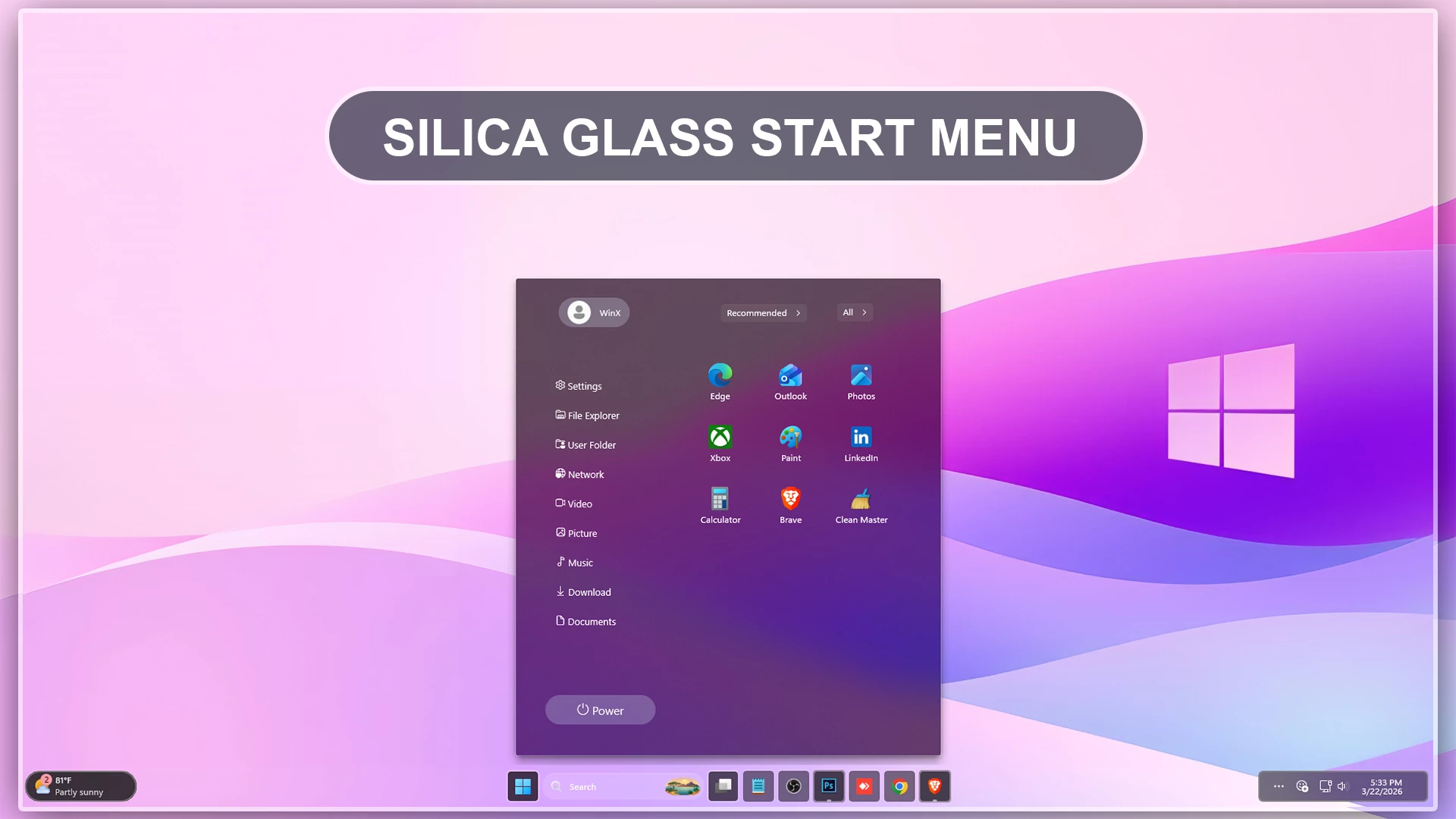
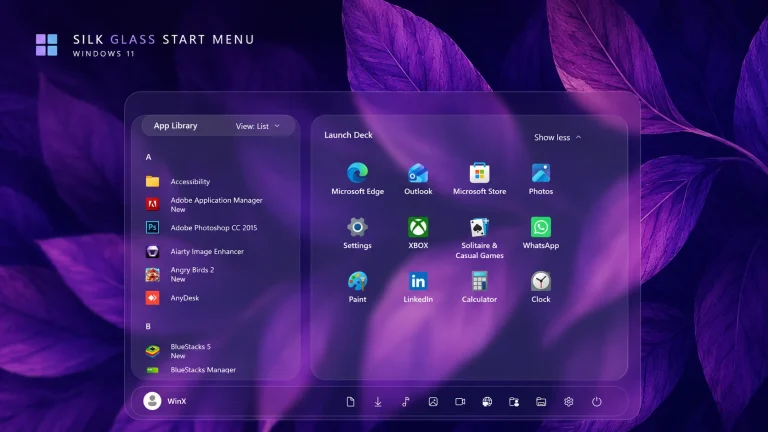
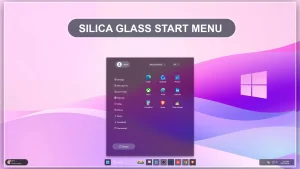
Silica Glass Start Menu Style for Windows 11
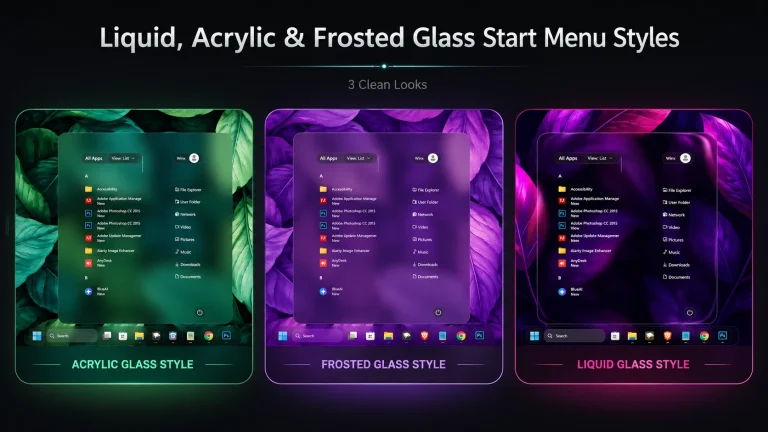
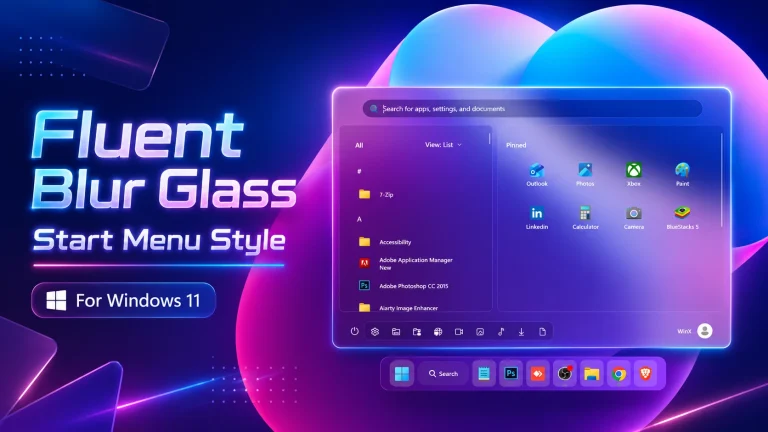
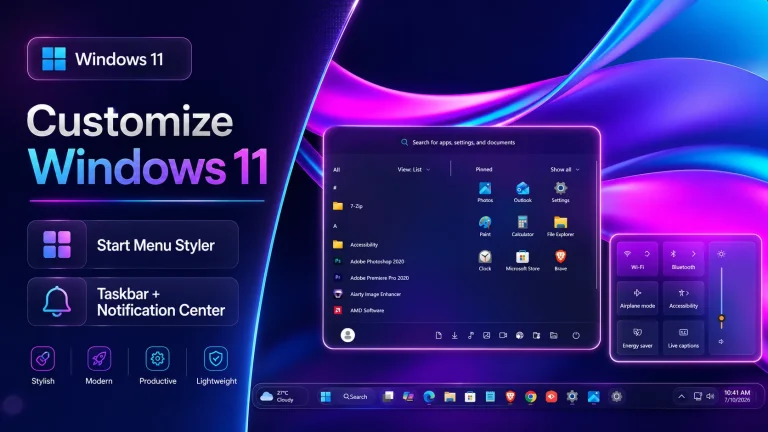
The Silica Glass Start Menu Style for Windows 11 is a beautifully crafted desktop customization designed for users who want a modern, elegant, and premium Start Menu experience. Developed for Windhawk Start Menu Styler, this customization transforms the default Windows 11 Start Menu into a smooth glass-inspired interface with transparency, acrylic blur, and a clean futuristic appearance. The design focuses on minimalism while still maintaining a visually rich and stylish look that perfectly matches the latest Windows 11 user interface.
Many Windows customization enthusiasts prefer a cleaner desktop environment that looks modern without being overly complicated. Silica Glass Start Menu Style achieves this balance perfectly by combining soft glass effects, refined layout spacing, rounded corners, and subtle transparency. The result is a professional desktop appearance that feels both lightweight and visually appealing.
Modern Glassmorphism Interface
Glassmorphism has become one of the most popular UI design trends in modern operating systems, and the Silica Glass Start Menu Style brings this design language directly into Windows 11. The Start Menu uses elegant acrylic blur effects with carefully adjusted transparency levels that create a smooth layered appearance. The polished glass effect blends naturally with Windows 11 wallpapers, themes, and desktop setups.
The modern layout improves the visual consistency of the desktop while maintaining excellent readability and usability. The smooth rounded corners, balanced shadows, and transparent elements create a premium interface that looks clean in both dark and light desktop environments.
Perfect for Windows 11 Customization Setups
If you enjoy customizing your Windows 11 desktop using Windhawk, Rainmeter, icon packs, custom taskbars, and visual themes, the Silica Glass Start Menu Style is an excellent addition to your setup. It works perfectly with modern desktop customization projects and helps create a unified aesthetic across the entire operating system.
Whether you are building a minimal workspace, a futuristic gaming desktop, or a professional productivity setup, this Start Menu style adds a refined and elegant touch. The clean interface helps reduce visual clutter while still providing a stylish premium appearance.
Optimized for Windhawk Start Menu Styler
The Silica Glass Start Menu Style is specifically designed for Windhawk Start Menu Styler, ensuring smooth performance and reliable compatibility with Windows 11. The lightweight configuration minimizes system impact while delivering advanced glass effects and modern UI improvements.
Users can easily integrate this Start Menu style into their existing Windhawk customization setup without affecting overall desktop responsiveness. The smooth animations, transparent layers, and polished UI elements make the desktop feel more dynamic and visually advanced.
Why Choose Silica Glass Start Menu Style
There are many Start Menu customization styles available for Windows 11, but the Silica Glass Start Menu Style stands out because of its balanced design philosophy. Instead of using excessive visual effects, it focuses on elegance, simplicity, and usability. The clean glassmorphism interface gives the desktop a premium look while maintaining smooth functionality.
The carefully designed transparency effects create depth without making the interface distracting. This makes the style ideal for users who want a modern desktop appearance that feels both beautiful and practical for daily use.
Main Features of Silica Glass Start Menu Style
- Premium glassmorphism Start Menu design for Windows 11
- Elegant acrylic blur and transparency effects
- Modern rounded corners with smooth shadows
- Minimal and clean desktop appearance
- Optimized for Windhawk Start Menu Styler
- Lightweight and performance-friendly configuration
- Futuristic user interface inspired by modern UI trends
- Perfect compatibility with Windows 11 customization setups
- Professional visual layout with balanced spacing
- Smooth and visually refined desktop experience
- Windows 11 21H2: May work, but not recommended for the best experience
- Windows 11 22H2: May work, but compatibility can vary
- Windows 11 23H2: Recommended
- Windows 11 24H2: Recommended
- Windows 11 25H2: NO
- Download & Install windhawk.
- install & Open the Windows 11 Start Menu Styler mod in Windhawk.
- Go to the “Advanced” tab.
- Copy the content below to the text box under “Mod settings” and click “Save”.
{ "theme": "Silica Glass Start Menu by WinX", "controlStyles[0].target": "Windows.UI.Xaml.Controls.Grid#TopLevelSuggestionsListHeader", "controlStyles[0].styles[0]": "Visibility=Collapsed", "controlStyles[1].target": "Windows.UI.Xaml.Controls.Grid#NoTopLevelSuggestionsText", "controlStyles[1].styles[0]": "Height=0", "controlStyles[2].target": "Windows.UI.Xaml.Controls.Grid#TopLevelSuggestionsContainer", "controlStyles[2].styles[0]": "Height=0", "controlStyles[3].target": "Windows.UI.Xaml.Controls.Grid#ShowMoreSuggestions", "controlStyles[3].styles[0]": "RenderTransform:=<TranslateTransform Y=\"-560\" X=\"-120\" />", "controlStyles[4].target": "StartMenu.PinnedList", "controlStyles[4].styles[0]": "Height=293", "controlStyles[4].styles[1]": "RenderTransform:=<TranslateTransform Y=\"-10\" X=\"195\" />", "controlStyles[5].target": "Windows.UI.Xaml.Controls.Grid#ShowMoreSuggestions > Windows.UI.Xaml.Controls.Button > Windows.UI.Xaml.Controls.ContentPresenter > Windows.UI.Xaml.Controls.StackPanel > Windows.UI.Xaml.Controls.TextBlock", "controlStyles[5].styles[0]": "Text=Recommended", "controlStyles[6].target": "StartDocked.StartSizingFrame", "controlStyles[6].styles[0]": "MaxHeight=650", "controlStyles[6].styles[1]": "MaxWidth=580", "controlStyles[6].styles[2]": "MinWidth=580", "controlStyles[6].styles[3]": "Width=580", "controlStyles[7].target": "Windows.UI.Xaml.Controls.Grid#UndockedRoot", "controlStyles[7].styles[0]": "HorizontalAlignment=Left", "controlStyles[7].styles[1]": "Margin=0,0,0,0", "controlStyles[7].styles[2]": "Width=580", "controlStyles[8].target": "Border#AcrylicOverlay ", "controlStyles[8].styles[0]": "Visibility=Collapsed", "controlStyles[9].target": "StartMenu.PinnedList#StartMenuPinnedList", "controlStyles[9].styles[0]": "Height=450", "controlStyles[9].styles[1]": "Margin=-170,40,0,0", "controlStyles[9].styles[2]": "MaxWidth=405", "controlStyles[10].target": "StartDocked.NavigationPaneView", "controlStyles[10].styles[0]": "Height=180", "controlStyles[10].styles[1]": "Margin=0,-800,0,0", "controlStyles[10].styles[2]": "Transform3D:=<CompositeTransform3D TranslateX=\"215\" RotationZ=\"270\" />", "controlStyles[10].styles[3]": "VerticalAlignment=1", "controlStyles[11].target": "Windows.UI.Xaml.Controls.ItemsStackPanel > StartDocked.AppListViewItem", "controlStyles[11].styles[0]": "FlowDirection=0", "controlStyles[11].styles[1]": "Height=180", "controlStyles[12].target": "StartDocked.AppListViewItem > Grid#ContentBorder > Windows.UI.Xaml.Controls.ContentPresenter#ContentPresenter ", "controlStyles[12].styles[0]": "VerticalAlignment=2", "controlStyles[12].styles[1]": "Width=105", "controlStyles[13].target": "StartDocked.AppListViewItem > Grid#ContentBorder > Windows.UI.Xaml.Controls.ContentPresenter#ContentPresenter > Windows.UI.Xaml.Controls.FontIcon", "controlStyles[13].styles[0]": "Margin=20,0,-45,0", "controlStyles[13].styles[1]": "Transform3D:=<CompositeTransform3D TranslateX=\"-13\" RotationZ=\"90\" />", "controlStyles[13].styles[2]": "Width=125", "controlStyles[14].target": "StartDocked.AppListViewItem > Grid#ContentBorder > Windows.UI.Xaml.Controls.ContentPresenter#ContentPresenter > Windows.UI.Xaml.Controls.FontIcon > Grid > TextBlock", "controlStyles[14].styles[0]": "FontFamily=Segoe UI, Segoe Fluent Icons", "controlStyles[14].styles[1]": "FontSize=13", "controlStyles[14].styles[2]": "HorizontalAlignment=Left", "controlStyles[15].target": "StartDocked.NavigationPaneView > Grid#RootPanel", "controlStyles[15].styles[0]": "FlowDirection=1", "controlStyles[16].target": "StartDocked.NavigationPaneButton#PowerButton", "controlStyles[16].styles[0]": "Width=150", "controlStyles[16].styles[1]": "CornerRadius=40", "controlStyles[17].target": "StartDocked.PowerOptionsView", "controlStyles[17].styles[0]": "Margin=-340,0,0,-910", "controlStyles[17].styles[1]": "Transform3D:=<CompositeTransform3D TranslateX=\"-100\" TranslateY=\"-500\" RotationZ=\"-90\" />", "controlStyles[18].target": "StartDocked.NavigationPaneButton#UserTileButton > Grid > ContentPresenter", "controlStyles[18].styles[0]": "FlowDirection=0", "controlStyles[19].target": "Windows.UI.Xaml.Controls.TextBlock[Text=]", "controlStyles[19].styles[0]": "FontFamily=Segoe UI, Segoe Fluent Icons", "controlStyles[19].styles[1]": "Text= Power", "controlStyles[20].target": "Windows.UI.Xaml.Controls.TextBlock[Text=]", "controlStyles[20].styles[0]": "Text= Documents", "controlStyles[21].target": "Windows.UI.Xaml.Controls.TextBlock[Text=]", "controlStyles[21].styles[0]": "Text= Download", "controlStyles[22].target": "Windows.UI.Xaml.Controls.TextBlock[Text=]", "controlStyles[22].styles[0]": "Text= Music", "controlStyles[23].target": "Windows.UI.Xaml.Controls.TextBlock[Text=]", "controlStyles[23].styles[0]": "Text= Picture", "controlStyles[24].target": "Windows.UI.Xaml.Controls.TextBlock[Text=]", "controlStyles[24].styles[0]": "Text= Video", "controlStyles[25].target": "Windows.UI.Xaml.Controls.TextBlock[Text=]", "controlStyles[25].styles[0]": "Text= Network", "controlStyles[26].target": "Windows.UI.Xaml.Controls.Grid#MoreSuggestionsRoot", "controlStyles[26].styles[0]": "Margin=30,0,220,0", "controlStyles[27].target": "Windows.UI.Xaml.Controls.TextBlock[Text=]", "controlStyles[27].styles[0]": "Text= File Explorer", "controlStyles[28].target": "Windows.UI.Xaml.Controls.Grid#AllAppsRoot", "controlStyles[28].styles[0]": "Margin=190,0,70,0", "controlStyles[29].target": "Button#ShowAllAppsButton > ContentPresenter#ContentPresenter@CommonStates", "controlStyles[29].styles[0]": "RenderTransform:=<TranslateTransform Y=\"-6\" X=\"-30\" />", "controlStyles[30].target": "StartDocked.NavigationPaneButton#PowerButton > Grid > Border#BackgroundBorder", "controlStyles[30].styles[0]": "Background:=#46c9d8ed", "controlStyles[30].styles[1]": "CornerRadius=20", "controlStyles[31].target": "StartDocked.UserTileView#UserTile", "controlStyles[31].styles[0]": "Transform3D:=<CompositeTransform3D TranslateX=\"440\" TranslateY=\"100\" RotationZ=\"270\" />", "controlStyles[31].styles[1]": "Margin=300,-200,-300,0", "controlStyles[32].target": "Border#AcrylicBorder", "controlStyles[32].styles[0]": "Background:=<AcrylicBrush TintColor=\"{ThemeResource CardStrokeColorDefaultSolid}\" FallbackColor=\"{ThemeResource CardStrokeColorDefaultSolid}\" TintOpacity=\"0\" TintLuminosityOpacity=\".75\" Opacity=\"1\"/>", "controlStyles[32].styles[1]": "BorderBrush:=<AcrylicBrush TintColor=\"{ThemeResource SurfaceStrokeColorDefault}\" FallbackColor=\"{ThemeResource SurfaceStrokeColorDefault}\" TintOpacity=\"0\" TintLuminosityOpacity=\".0\" Opacity=\"1\"/>", "controlStyles[32].styles[2]": "BorderThickness=1", "controlStyles[32].styles[3]": "CornerRadius=0", "controlStyles[32].styles[4]": "Margin=0", "controlStyles[32].styles[5]": "BorderBrush:=#40ffffff", "controlStyles[33].target": "StartDocked.SearchBoxToggleButton ", "controlStyles[33].styles[0]": "Visibility=Collapsed", "controlStyles[34].target": "StartDocked.SearchBoxToggleButton > Grid > Windows.UI.Xaml.Controls.Border", "controlStyles[34].styles[0]": "Background:=<AcrylicBrush TintColor=\"{ThemeResource CardStrokeColorDefaultSolid}\" FallbackColor=\"{ThemeResource CardStrokeColorDefaultSolid}\" TintOpacity=\".3\" TintLuminosityOpacity=\".5\" Opacity=\"1\"/>", "controlStyles[34].styles[1]": "CornerRadius=5", "controlStyles[35].target": "Border#AcrylicOverlay", "controlStyles[35].styles[0]": "Background:=<AcrylicBrush TintColor=\"#401f4b58\" TintOpacity=\"0.8\" />", "controlStyles[35].styles[1]": "Width=225", "controlStyles[35].styles[2]": "RenderTransform:=<TranslateTransform Y=\"2\" X=\"-415\" />", "controlStyles[35].styles[3]": "CornerRadius=12", "controlStyles[35].styles[4]": "Margin=0,-2,0,-62", "controlStyles[36].target": "Border#ContentBorder@CommonStates > Grid#DroppedFlickerWorkaroundWrapper > Border", "controlStyles[36].styles[0]": "CornerRadius=5", "controlStyles[36].styles[1]": "FocusVisualPrimaryBrush:=<SolidColorBrush Color=\"#b3cefd\" Opacity=\".10\"/>", "controlStyles[36].styles[2]": "Height=80", "controlStyles[36].styles[3]": "Width=92", "controlStyles[37].target": "Windows.UI.Xaml.Controls.Border#ContentBorder@CommonStates > Windows.UI.Xaml.Controls.Grid#DroppedFlickerWorkaroundWrapper > Border#BackgroundBorder", "controlStyles[38].target": "StartDocked.NavigationPaneButton#UserTileButton > Grid@CommonStates > Border ", "controlStyles[38].styles[0]": "CornerRadius=5", "controlStyles[38].styles[1]": "Height=40", "controlStyles[38].styles[2]": "Margin=-0,0,0,0", "controlStyles[39].target": "Windows.UI.Xaml.Controls.TextBlock[Text=]", "controlStyles[39].styles[0]": "Text= Settings", "controlStyles[40].target": "Windows.UI.Xaml.Controls.TextBlock[Text=]", "controlStyles[40].styles[0]": "Text= User Folder", "controlStyles[41].target": "Windows.UI.Xaml.Controls.TextBlock#PinnedListHeaderText", "controlStyles[41].styles[0]": "Visibility=Collapsed", "controlStyles[42].target": "StartDocked.LauncherFrame > Grid#RootGrid > Grid#RootContent > Grid#MainContent > Grid#InnerContent > Rectangle", "controlStyles[42].styles[0]": "Visibility=Collapsed", "controlStyles[43].target": "Windows.UI.Xaml.Controls.Grid#MoreSuggestionsRoot", "controlStyles[43].styles[0]": "Margin=240,0,80,0", "controlStyles[44].target": "StartDocked.UserTileView#UserTile > StartDocked.NavigationPaneButton#UserTileButton", "controlStyles[44].styles[0]": "Margin=-10,0,0,0", "controlStyles[45].target": "StartDocked.UserTileView#UserTile > StartDocked.NavigationPaneButton#UserTileButton > Grid > Border", "controlStyles[45].styles[0]": "Background:=#46c9d8ed", "controlStyles[45].styles[1]": "CornerRadius=20", "controlStyles[46].target": "Windows.UI.Xaml.Controls.Border#BorderElement", "controlStyles[46].styles[0]": "CornerRadius=20", "controlStyles[47].target": "Border#AcrylicBorder", "controlStyles[47].styles[0]": "CornerRadius=3", "controlStyles[47].styles[1]": "Width=580", "controlStyles[47].styles[2]": "HorizontalAlignment=Left", "controlStyles[48].target": "Microsoft.UI.Xaml.Controls.PipsPager#PinnedListPipsPager", "controlStyles[48].styles[0]": "Visibility=Collapsed", "controlStyles[49].target": "Windows.UI.Xaml.Controls.TextBlock#PinnedListHeaderText", "controlStyles[49].styles[0]": "Background=#46c9d8ed", "controlStyles[50].target": "Windows.UI.Xaml.Shapes.Rectangle", "controlStyles[50].styles[0]": "Visibility=Collapsed", "disableNewStartMenuLayout": 1}The Silica Glass Start Menu is more than just a skin; it’s a statement. It’s for the user who views their desktop as a digital sanctuary. By combining the transparency of the past with the sleek functionality of the future, it proves that Windows doesn’t have to be boring. If you’re ready to transform your PC into a masterpiece of glass and light, it’s time to install Windhawk and let Silica Glass take over.