

Nord Start Menu Style For Windows 11
Nord Start Menu Style For Windows 11:The **Nord Start Menu Style for Windows 11** offers a beautifully minimal and calming aesthetic, inspired by the popular Nord color palette.

Nord Start Menu Style For Windows 11 Windhawk
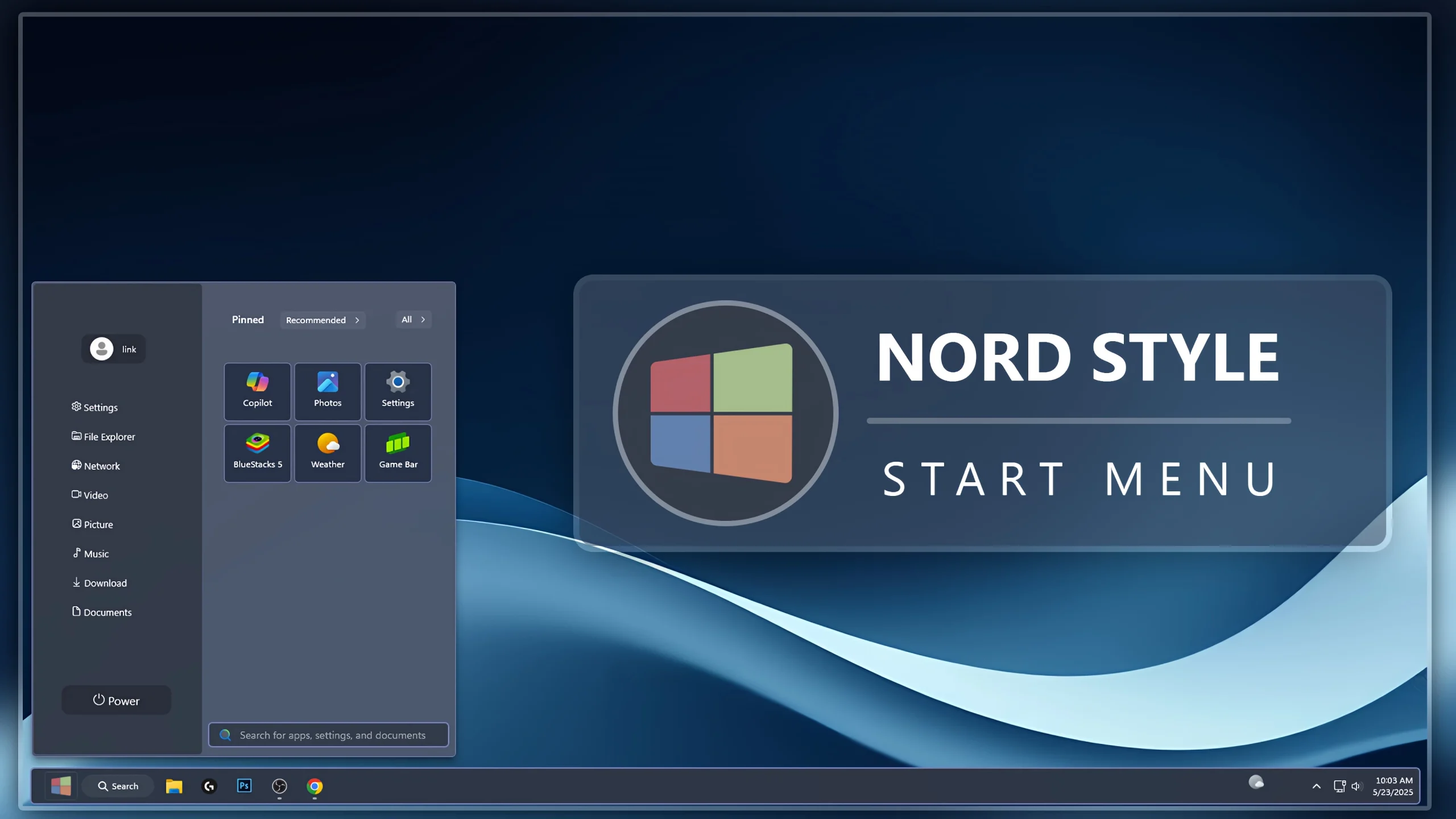
The Nord Start Menu Style For Windows 11 Windhawk gives the Windows 11 Start Menu a darker, more organized appearance built around a Nord-inspired blue-gray color palette. Instead of covering the interface with strong effects, the style uses restrained acrylic surfaces, cool borders, compact spacing, and repositioned Start Menu elements.
The configuration keeps the original Windows Start Menu underneath and changes supported interface properties through Windhawk. Separate configurations are included for Windows 11 24H2 and 25H2 because the Start Menu structure is different between those versions.
Design and Layout
The style uses deep blue-gray backgrounds with lighter cool-toned accents around important controls. Rounded corners and acrylic surfaces soften the menu without making it overly glossy, while the search area, pinned apps, navigation controls, and user-related elements are positioned to create a cleaner layout.
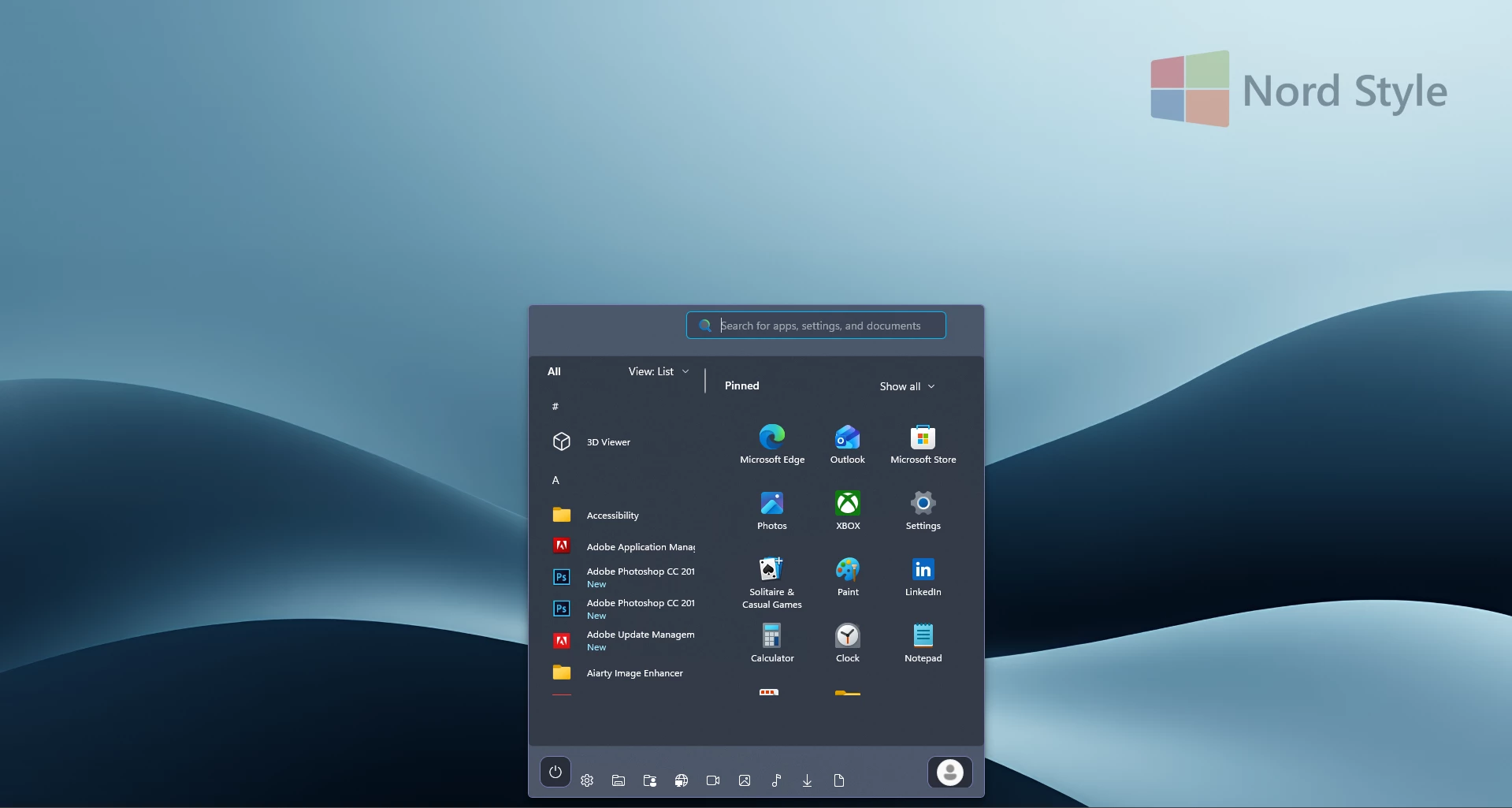
The 24H2 configuration uses a customized classic-style Start Menu layout with a fixed menu size, repositioned pinned apps, navigation shortcuts, and a compact search field. The 25H2 configuration uses the newer side-by-side Start Menu structure, placing the All Apps section and pinned area into separate columns while keeping the same Nord-inspired visual direction.
Key Features
- Nord-inspired dark blue-gray color palette
- Acrylic backgrounds with subtle border accents
- Custom Start Menu sizing and spacing
- Repositioned pinned apps and navigation controls
- Compact search area
- Separate configuration for Windows 11 24H2
- Separate configuration for Windows 11 25H2
- Optional matching taskbar styling
- Optional taskbar height and icon-size settings
Requirements
- Windows 11
- Windhawk
- Windows 11 Start Menu Styler mod
- A backup of your current Start Menu Styler configuration
- For the optional taskbar section, the corresponding Windhawk taskbar mods are required
Compatibility
This post includes separate Start Menu configurations for Windows 11 24H2 and Windows 11 25H2. Earlier Windows 11 versions are not verified here, so they should not be treated as confirmed compatibility.
Windows updates can change Start Menu elements and selectors. If a configuration stops applying correctly after an update, check that Windhawk and the related styling mod are up to date before changing the code.
How to Install the Start Menu Style
- Download and install Windhawk.
- Open Windhawk and install the Windows 11 Start Menu Styler mod.
- Open the mod settings and go to the Advanced tab.
- Back up your current configuration before replacing it.
- Choose the configuration that matches your Windows version below.
- Copy the complete JSON configuration and paste it into the appropriate Mod settings area.
- Click Save to apply the style.
Important: The Start Menu configurations below are in JSON format. Use the Advanced settings for these configurations rather than a YAML/Textual-mode workflow.
For additional information about Start Menu Styler configuration, visit the Windows 11 Start Menu Styling Guide.
Windows 11 24H2 Configuration
Use this configuration only for the 24H2 Start Menu layout. Keep a copy of your existing settings before replacing them.
{ "controlStyles[0].target": "Windows.UI.Xaml.Controls.Grid#TopLevelSuggestionsListHeader", "controlStyles[0].styles[0]": "Visibility=Collapsed", "controlStyles[1].target": "Windows.UI.Xaml.Controls.Grid#NoTopLevelSuggestionsText", "controlStyles[1].styles[0]": "Height=0", "controlStyles[2].target": "Windows.UI.Xaml.Controls.Grid#TopLevelSuggestionsContainer", "controlStyles[2].styles[0]": "Height=0", "controlStyles[3].target": "Windows.UI.Xaml.Controls.Grid#ShowMoreSuggestions", "controlStyles[3].styles[0]": "RenderTransform:=<TranslateTransform Y=\"-560\" X=\"-120\" />", "controlStyles[4].target": "StartMenu.PinnedList", "controlStyles[4].styles[0]": "Height=650", "controlStyles[4].styles[1]": "RenderTransform:=<TranslateTransform Y=\"-10\" X=\"195\" />", "controlStyles[4].styles[2]": "Margin=0,0,-590,0", "controlStyles[5].target": "Windows.UI.Xaml.Controls.Grid#ShowMoreSuggestions > Windows.UI.Xaml.Controls.Button > Windows.UI.Xaml.Controls.ContentPresenter > Windows.UI.Xaml.Controls.StackPanel > Windows.UI.Xaml.Controls.TextBlock", "controlStyles[5].styles[0]": "Text=Recommended", "controlStyles[6].target": "StartDocked.StartSizingFrame", "controlStyles[6].styles[0]": "MaxHeight=650", "controlStyles[6].styles[1]": "MaxWidth=580", "controlStyles[6].styles[2]": "MinWidth=580", "controlStyles[6].styles[3]": "Width=580", "controlStyles[7].target": "Windows.UI.Xaml.Controls.Grid#UndockedRoot", "controlStyles[7].styles[0]": "Width=640", "controlStyles[7].styles[1]": "Margin=0,-30,0,0", "controlStyles[8].target": "Border#AcrylicOverlay ", "controlStyles[8].styles[0]": "HorizontalAlignment=Right", "controlStyles[8].styles[1]": "Margin=0,0,0,-65", "controlStyles[9].target": "StartMenu.PinnedList#StartMenuPinnedList", "controlStyles[9].styles[0]": "Height=450", "controlStyles[9].styles[1]": "Margin=-170,40,0,0", "controlStyles[9].styles[2]": "MaxWidth=405", "controlStyles[10].target": "StartDocked.NavigationPaneView", "controlStyles[10].styles[0]": "Height=180", "controlStyles[10].styles[1]": "Margin=0,-750,0,0", "controlStyles[10].styles[2]": "Transform3D:=<CompositeTransform3D TranslateX=\"215\" RotationZ=\"270\" />", "controlStyles[10].styles[3]": "VerticalAlignment=1", "controlStyles[11].target": "Windows.UI.Xaml.Controls.ItemsStackPanel > StartDocked.AppListViewItem", "controlStyles[11].styles[0]": "FlowDirection=0", "controlStyles[11].styles[1]": "Height=180", "controlStyles[12].target": "StartDocked.AppListViewItem > Grid#ContentBorder > Windows.UI.Xaml.Controls.ContentPresenter#ContentPresenter ", "controlStyles[12].styles[0]": "VerticalAlignment=2", "controlStyles[12].styles[1]": "Width=105", "controlStyles[13].target": "StartDocked.AppListViewItem > Grid#ContentBorder > Windows.UI.Xaml.Controls.ContentPresenter#ContentPresenter > Windows.UI.Xaml.Controls.FontIcon", "controlStyles[13].styles[0]": "Margin=20,0,-45,0", "controlStyles[13].styles[1]": "Transform3D:=<CompositeTransform3D TranslateX=\"-13\" RotationZ=\"90\" />", "controlStyles[13].styles[2]": "Width=125", "controlStyles[14].target": "StartDocked.AppListViewItem > Grid#ContentBorder > Windows.UI.Xaml.Controls.ContentPresenter#ContentPresenter > Windows.UI.Xaml.Controls.FontIcon > Grid > TextBlock", "controlStyles[14].styles[0]": "FontFamily=Segoe UI, Segoe Fluent Icons", "controlStyles[14].styles[1]": "FontSize=13", "controlStyles[14].styles[2]": "HorizontalAlignment=Left", "controlStyles[15].target": "StartDocked.NavigationPaneView > Grid#RootPanel", "controlStyles[15].styles[0]": "FlowDirection=1", "controlStyles[16].target": "StartDocked.NavigationPaneButton#PowerButton", "controlStyles[16].styles[0]": "Width=150", "controlStyles[16].styles[1]": "CornerRadius=5", "controlStyles[17].target": "StartDocked.PowerOptionsView", "controlStyles[17].styles[0]": "Margin=-300,0,0,-910", "controlStyles[17].styles[1]": "Transform3D:=<CompositeTransform3D TranslateX=\"-100\" TranslateY=\"-500\" RotationZ=\"-90\" />", "controlStyles[18].target": "StartDocked.NavigationPaneButton#UserTileButton > Grid > ContentPresenter", "controlStyles[18].styles[0]": "FlowDirection=0", "controlStyles[19].target": "Windows.UI.Xaml.Controls.TextBlock[Text=]", "controlStyles[19].styles[0]": "FontFamily=Segoe UI, Segoe Fluent Icons", "controlStyles[19].styles[1]": "Text= Power", "controlStyles[20].target": "Windows.UI.Xaml.Controls.TextBlock[Text=]", "controlStyles[20].styles[0]": "Text= Documents", "controlStyles[21].target": "Windows.UI.Xaml.Controls.TextBlock[Text=]", "controlStyles[21].styles[0]": "Text= Download", "controlStyles[22].target": "Windows.UI.Xaml.Controls.TextBlock[Text=]", "controlStyles[22].styles[0]": "Text= Music", "controlStyles[23].target": "Windows.UI.Xaml.Controls.TextBlock[Text=]", "controlStyles[23].styles[0]": "Text= Picture", "controlStyles[24].target": "Windows.UI.Xaml.Controls.TextBlock[Text=]", "controlStyles[24].styles[0]": "Text= Video", "controlStyles[25].target": "Windows.UI.Xaml.Controls.TextBlock[Text=]", "controlStyles[25].styles[0]": "Text= Network", "controlStyles[26].target": "Windows.UI.Xaml.Controls.Grid#MoreSuggestionsRoot", "controlStyles[26].styles[0]": "Margin=30,0,220,0", "controlStyles[27].target": "Windows.UI.Xaml.Controls.TextBlock[Text=]", "controlStyles[27].styles[0]": "Text= File Explorer", "controlStyles[28].target": "Windows.UI.Xaml.Controls.Grid#AllAppsRoot", "controlStyles[28].styles[0]": "Margin=190,0,70,0", "controlStyles[29].target": "Button#ShowAllAppsButton > ContentPresenter#ContentPresenter@CommonStates", "controlStyles[29].styles[0]": "RenderTransform:=<TranslateTransform Y=\"-6\" X=\"-30\" />", "controlStyles[30].target": "StartDocked.NavigationPaneButton#PowerButton > Grid > Border#BackgroundBorder", "controlStyles[30].styles[0]": "Background:=#292e39", "controlStyles[30].styles[1]": "CornerRadius=10", "controlStyles[31].target": "StartDocked.UserTileView#UserTile", "controlStyles[31].styles[0]": "Transform3D:=<CompositeTransform3D TranslateX=\"420\" TranslateY=\"100\" RotationZ=\"270\" />", "controlStyles[31].styles[1]": "Margin=300,-200,-300,0", "controlStyles[32].target": "Border#AcrylicBorder", "controlStyles[32].styles[0]": "Background:=<AcrylicBrush TintColor=\"#4c566a\" TintOpacity=\"1\" />", "controlStyles[32].styles[1]": "BorderBrush:=<AcrylicBrush TintColor=\"{ThemeResource SurfaceStrokeColorDefault}\" FallbackColor=\"{ThemeResource SurfaceStrokeColorDefault}\" TintOpacity=\"0\" TintLuminosityOpacity=\".0\" Opacity=\"1\"/>", "controlStyles[32].styles[2]": "BorderThickness=1", "controlStyles[32].styles[3]": "CornerRadius=5", "controlStyles[32].styles[4]": "Margin=0", "controlStyles[32].styles[5]": "BorderBrush:=#777eb4", "controlStyles[33].target": "StartDocked.SearchBoxToggleButton ", "controlStyles[33].styles[0]": "Height=35", "controlStyles[33].styles[1]": "Margin=175,-20,0,20", "controlStyles[33].styles[2]": "Width=330", "controlStyles[33].styles[3]": "RenderTransform:=<TranslateTransform Y=\"590\" X=\"-3\" />", "controlStyles[33].styles[4]": "CornerRadius=5", "controlStyles[33].styles[5]": "BorderBrush=#01bbf8", "controlStyles[33].styles[6]": "BorderThickness=1", "controlStyles[34].target": "StartDocked.SearchBoxToggleButton > Grid > Windows.UI.Xaml.Controls.Border", "controlStyles[34].styles[0]": "Background:=<AcrylicBrush TintColor=\"{ThemeResource CardStrokeColorDefaultSolid}\" FallbackColor=\"{ThemeResource CardStrokeColorDefaultSolid}\" TintOpacity=\".3\" TintLuminosityOpacity=\".5\" Opacity=\"1\"/>", "controlStyles[34].styles[1]": "CornerRadius=5", "controlStyles[34].styles[2]": "BorderBrush=#777eb4", "controlStyles[34].styles[3]": "BorderThickness=2", "controlStyles[35].target": "Border#AcrylicOverlay", "controlStyles[35].styles[0]": "Background:=<AcrylicBrush TintColor=\"#2e3440\" TintOpacity=\"0.8\" />", "controlStyles[35].styles[1]": "Width=230", "controlStyles[35].styles[2]": "RenderTransform:=<TranslateTransform Y=\"0\" X=\"-408\" />", "controlStyles[35].styles[3]": "CornerRadius=5", "controlStyles[35].styles[4]": "Margin=0,2,0,-62", "controlStyles[36].target": "Border#ContentBorder@CommonStates > Grid#DroppedFlickerWorkaroundWrapper > Border", "controlStyles[36].styles[0]": "CornerRadius=5", "controlStyles[36].styles[1]": "FocusVisualPrimaryBrush:=<SolidColorBrush Color=\"#b3cefd\" Opacity=\".10\"/>", "controlStyles[36].styles[2]": "Height=80", "controlStyles[36].styles[3]": "Width=92", "controlStyles[37].target": "Windows.UI.Xaml.Controls.Border#ContentBorder@CommonStates > Windows.UI.Xaml.Controls.Grid#DroppedFlickerWorkaroundWrapper > Border#BackgroundBorder", "controlStyles[38].target": "StartDocked.NavigationPaneButton#UserTileButton > Grid@CommonStates > Border ", "controlStyles[38].styles[0]": "CornerRadius=5", "controlStyles[38].styles[1]": "Height=40", "controlStyles[38].styles[2]": "Margin=-0,0,0,0", "controlStyles[39].target": "Windows.UI.Xaml.Controls.TextBlock[Text=]", "controlStyles[39].styles[0]": "Text= Settings", "controlStyles[40].target": "Windows.UI.Xaml.Controls.TextBlock[Text=]", "controlStyles[40].styles[0]": "Text= User Folder", "controlStyles[41].target": "Windows.UI.Xaml.Controls.TextBlock#PinnedListHeaderText", "controlStyles[41].styles[0]": "Margin=210,-10,0,0", "controlStyles[42].target": "StartDocked.LauncherFrame > Grid#RootGrid > Grid#RootContent > Grid#MainContent > Grid#InnerContent > Rectangle", "controlStyles[42].styles[0]": "Visibility=Collapsed", "controlStyles[43].target": "Windows.UI.Xaml.Controls.Grid#MoreSuggestionsRoot", "controlStyles[43].styles[0]": "Margin=240,0,80,0", "controlStyles[44].target": "StartDocked.UserTileView#UserTile > StartDocked.NavigationPaneButton#UserTileButton", "controlStyles[44].styles[0]": "Margin=-10,0,0,0", "controlStyles[45].target": "StartDocked.UserTileView#UserTile > StartDocked.NavigationPaneButton#UserTileButton > Grid > Border", "controlStyles[45].styles[0]": "Background:=#292e39", "controlStyles[45].styles[1]": "CornerRadius=10", "controlStyles[46].target": "Windows.UI.Xaml.Controls.Border#BorderElement", "controlStyles[46].styles[0]": "CornerRadius=20", "controlStyles[47].target": "Border#AcrylicBorder", "controlStyles[47].styles[0]": "CornerRadius=5", "controlStyles[47].styles[1]": "Width=580", "controlStyles[47].styles[2]": "HorizontalAlignment=Left", "controlStyles[48].target": "Microsoft.UI.Xaml.Controls.PipsPager#PinnedListPipsPager", "controlStyles[48].styles[0]": "Visibility=Collapsed", "controlStyles[49].target": "Windows.UI.Xaml.Controls.TextBlock#PinnedListHeaderText", "controlStyles[49].styles[0]": "Background=#46c9d8ed", "controlStyles[50].target": "Windows.UI.Xaml.Controls.Border#ContentBorder@CommonStates > Windows.UI.Xaml.Controls.Grid#DroppedFlickerWorkaroundWrapper > Border#BackgroundBorder", "controlStyles[50].styles[0]": "Background@Normal:=<AcrylicBrush TintColor=\"{ThemeResource CardStrokeColorDefaultSolid}\" FallbackColor=\"{ThemeResource CardStrokeColorDefaultSolid}\" TintOpacity=\"0\" TintLuminosityOpacity=\".65\" Opacity=\"2\"/>", "controlStyles[50].styles[1]": "Background@PointerOver:=<AcrylicBrush TintColor=\"{ThemeResource CardStrokeColorDefaultSolid}\" FallbackColor=\"{ThemeResource CardStrokeColorDefaultSolid}\" TintOpacity=\"0\" TintLuminosityOpacity=\".0\" Opacity=\"1\"/>", "controlStyles[50].styles[2]": "BorderThickness=1", "controlStyles[50].styles[3]": "Height=80", "controlStyles[50].styles[4]": "Margin=0,0,0,0", "controlStyles[50].styles[5]": "BorderBrush=#777eb4", "controlStyles[51].target": "StartDocked.SearchBoxToggleButton > Grid > Windows.UI.Xaml.Controls.Border", "controlStyles[51].styles[0]": "Background:=<AcrylicBrush TintColor=\"{ThemeResource CardStrokeColorDefaultSolid}\" FallbackColor=\"{ThemeResource CardStrokeColorDefaultSolid}\" TintOpacity=\".3\" TintLuminosityOpacity=\".5\" Opacity=\"1\"/>", "controlStyles[51].styles[1]": "CornerRadius=5", "controlStyles[52].target": "Windows.UI.Xaml.Shapes.Rectangle", "controlStyles[52].styles[0]": "Visibility=Collapsed", "disableNewStartMenuLayout": "legacyClassicLayout"}Windows 11 25H2 Configuration
Windows 11 25H2 uses a different Start Menu structure, so it needs its own configuration. This version uses the newer side-by-side layout while keeping the same Nord-inspired colors and compact styling.
{ "theme": "", "controlStyles[0].target": "Grid#MainMenu", "controlStyles[0].styles[0]": "Width=580", "controlStyles[0].styles[1]": "MinWidth=580", "controlStyles[0].styles[2]": "MaxWidth=580", "controlStyles[1].target": "Grid#FrameRoot", "controlStyles[1].styles[0]": "Height=650", "controlStyles[1].styles[1]": "MaxHeight=650", "controlStyles[2].target": "Grid#SideBySidePinnedWrapper", "controlStyles[2].styles[0]": "ColumnDefinitions:=<ColumnDefinitionCollection><ColumnDefinition Width=\"230*\"/><ColumnDefinition Width=\"350*\"/></ColumnDefinitionCollection>", "controlStyles[3].target": "GridView#AllAppsGrid > Border > Grid#SideBySidePinnedWrapper > ScrollViewer#ScrollViewer", "controlStyles[3].styles[0]": "Grid.Column=0", "controlStyles[4].target": "ScrollViewer#SideBySidePinnedScrollViewer", "controlStyles[4].styles[0]": "Grid.Column=1", "controlStyles[4].styles[1]": "Margin=0", "controlStyles[5].target": "Grid#SideBySidePinnedWrapper > ScrollViewer > Border#Root > Grid > ScrollContentPresenter > ItemsPresenter > ItemsWrapGrid", "controlStyles[5].styles[0]": "Margin=18,0,18,14", "controlStyles[6].target": "Grid#AllListHeading", "controlStyles[6].styles[0]": "Margin=0,4,0,0", "controlStyles[7].target": "Grid#AllListHeading > TextBlock#AllListHeadingText", "controlStyles[7].styles[0]": "Margin=24,6,5,7", "controlStyles[7].styles[1]": "FontSize=14", "controlStyles[8].target": "Grid#AllListHeading > Microsoft.UI.Xaml.Controls.DropDownButton#ViewSelectionButton", "controlStyles[8].styles[0]": "Margin=0,0,14,0", "controlStyles[9].target": "GridView#AllAppsGrid", "controlStyles[9].styles[0]": "Margin=0,0,0,65", "controlStyles[10].target": "StartMenu.PinnedList#StartMenuPinnedList", "controlStyles[10].styles[0]": "Height=450", "controlStyles[10].styles[1]": "MaxHeight=450", "controlStyles[10].styles[2]": "MaxWidth=350", "controlStyles[10].styles[3]": "Margin=0,20,0,0", "controlStyles[11].target": "TextBlock#PinnedListHeaderText", "controlStyles[11].styles[0]": "Margin=20,5,0,0", "controlStyles[12].target": "Microsoft.UI.Xaml.Controls.PipsPager#PinnedListPipsPager", "controlStyles[12].styles[0]": "Visibility=Collapsed", "controlStyles[13].target": "Grid#TopLevelSuggestionsListHeader", "controlStyles[13].styles[0]": "Visibility=Collapsed", "controlStyles[13].styles[1]": "Height=0", "controlStyles[14].target": "Grid#TopLevelSuggestionsRoot", "controlStyles[14].styles[0]": "Visibility=Collapsed", "controlStyles[14].styles[1]": "Height=0", "controlStyles[14].styles[2]": "MaxHeight=0", "controlStyles[15].target": "Grid#ShowMoreSuggestions", "controlStyles[15].styles[0]": "Visibility=Collapsed", "controlStyles[15].styles[1]": "Height=0", "controlStyles[16].target": "Grid#MoreSuggestionsRoot", "controlStyles[16].styles[0]": "Visibility=Collapsed", "controlStyles[17].target": "Border#AcrylicBorder", "controlStyles[17].styles[0]": "Background:=<AcrylicBrush TintColor=\"#4c566a\" TintOpacity=\"1\" FallbackColor=\"#4c566a\"/>", "controlStyles[17].styles[1]": "BorderBrush:=<SolidColorBrush Color=\"#777eb4\"/>", "controlStyles[17].styles[2]": "BorderThickness=1", "controlStyles[17].styles[3]": "CornerRadius=5", "controlStyles[17].styles[4]": "Margin=0", "controlStyles[18].target": "Border#AcrylicOverlay", "controlStyles[18].styles[0]": "Background:=<AcrylicBrush TintColor=\"#2e3440\" TintOpacity=\"0.80\" FallbackColor=\"#2e3440\"/>", "controlStyles[18].styles[1]": "CornerRadius=5", "controlStyles[18].styles[2]": "Margin=0", "controlStyles[19].target": "Border#DropShadow", "controlStyles[19].styles[0]": "CornerRadius=5", "controlStyles[19].styles[1]": "Margin=0", "controlStyles[20].target": "Border#StartDropShadow", "controlStyles[20].styles[0]": "CornerRadius=5", "controlStyles[21].target": "StartMenu.SearchBoxToggleButton#SearchBoxToggleButton", "controlStyles[21].styles[0]": "Height=35", "controlStyles[21].styles[1]": "Width=330", "controlStyles[21].styles[2]": "HorizontalAlignment=Right", "controlStyles[21].styles[3]": "Margin=0,0,20,13", "controlStyles[21].styles[4]": "Canvas.ZIndex=10", "controlStyles[22].target": "StartMenu.SearchBoxToggleButton#SearchBoxToggleButton > Grid@CommonStates > Border#BorderElement", "controlStyles[22].styles[0]": "Background:=<AcrylicBrush TintColor=\"#2e3440\" TintOpacity=\".50\" FallbackColor=\"#2e3440\"/>", "controlStyles[22].styles[1]": "BorderBrush:=<SolidColorBrush Color=\"#01bbf8\"/>", "controlStyles[22].styles[2]": "BorderThickness=1", "controlStyles[22].styles[3]": "CornerRadius=5", "controlStyles[23].target": "Grid#NavPanePlaceholder", "controlStyles[23].styles[0]": "Margin=14,0,14,0", "controlStyles[24].target": "StartDocked.NavigationPaneView#UserControl > Grid#RootPanel", "controlStyles[24].styles[0]": "FlowDirection=1", "controlStyles[25].target": "StartDocked.PowerOptionsView#PowerButton", "controlStyles[25].styles[0]": "FlowDirection=0", "controlStyles[26].target": "ItemsStackPanel > ListViewItem", "controlStyles[26].styles[0]": "FlowDirection=0", "controlStyles[27].target": "TextBlock#UserTileNameText", "controlStyles[27].styles[0]": "Visibility=Collapsed", "controlStyles[28].target": "StartDocked.UserTileView", "controlStyles[28].styles[0]": "Height=42", "controlStyles[29].target": "StartDocked.NavigationPaneButton > Grid@CommonStates > ContentPresenter > Grid > Grid#UserTileIcon", "controlStyles[29].styles[0]": "Width=34", "controlStyles[29].styles[1]": "Height=34", "controlStyles[30].target": "StartDocked.NavigationPaneButton#UserTileButton > Grid@CommonStates > Border", "controlStyles[30].styles[0]": "Background:=<SolidColorBrush Color=\"#292e39\"/>", "controlStyles[30].styles[1]": "CornerRadius=10", "controlStyles[30].styles[2]": "BorderBrush:=<SolidColorBrush Color=\"#777eb4\"/>", "controlStyles[30].styles[3]": "BorderThickness=1", "controlStyles[31].target": "StartDocked.NavigationPaneButton#PowerButton > Grid@CommonStates > Border#BackgroundBorder", "controlStyles[31].styles[0]": "Background:=<SolidColorBrush Color=\"#292e39\"/>", "controlStyles[31].styles[1]": "CornerRadius=10", "controlStyles[31].styles[2]": "BorderBrush@Normal:=<SolidColorBrush Color=\"#777eb4\"/>", "controlStyles[31].styles[3]": "BorderBrush@PointerOver:=<SolidColorBrush Color=\"#01bbf8\"/>", "controlStyles[31].styles[4]": "BorderThickness=1", "controlStyles[32].target": "StartMenu.PinnedList#StartMenuPinnedList Border#ContentBorder@CommonStates > Grid#DroppedFlickerWorkaroundWrapper > Border", "controlStyles[32].styles[0]": "CornerRadius=5", "controlStyles[32].styles[1]": "Height=80", "controlStyles[32].styles[2]": "Width=92", "controlStyles[32].styles[3]": "FocusVisualPrimaryBrush:=<SolidColorBrush Color=\"#01bbf8\" Opacity=\".25\"/>", "controlStyles[33].target": "StartMenu.PinnedList#StartMenuPinnedList Border#ContentBorder@CommonStates > Grid#DroppedFlickerWorkaroundWrapper > Border#BackgroundBorder", "controlStyles[33].styles[0]": "Background@Normal:=<AcrylicBrush TintColor=\"#292e39\" TintOpacity=\".65\" FallbackColor=\"#292e39\"/>", "controlStyles[33].styles[1]": "Background@PointerOver:=<AcrylicBrush TintColor=\"#4c566a\" TintOpacity=\".70\" FallbackColor=\"#4c566a\"/>", "controlStyles[33].styles[2]": "BorderBrush:=<SolidColorBrush Color=\"#777eb4\"/>", "controlStyles[33].styles[3]": "BorderThickness=1", "controlStyles[33].styles[4]": "CornerRadius=5", "controlStyles[34].target": "Windows.UI.Xaml.Controls.Primitives.ToggleButton#ShowHideCompanion", "controlStyles[34].styles[0]": "Visibility=Collapsed", "controlStyles[35].target": "Grid#CompanionRoot", "controlStyles[35].styles[0]": "Visibility=Collapsed", "disableNewStartMenuLayout": "newLayoutSideBySide"}Optional Matching Taskbar Style
A matching taskbar configuration is also included for users who want the taskbar to follow the same dark blue-gray visual direction. This section is optional and is separate from the Start Menu configuration.
{ "controlStyles[0].target": "Taskbar.TaskbarFrame#TaskbarFrame", "controlStyles[0].styles[1]": "HorizontalAlignment=Center", "controlStyles[0].styles[2]": "Width=Auto", "controlStyles[1].target": "Taskbar.TaskbarFrame#TaskbarFrame > Grid#RootGrid", "controlStyles[1].styles[0]": "Padding=6,0,6,0", "controlStyles[1].styles[1]": "Margin=10,2,10,3", "controlStyles[1].styles[2]": "BorderThickness=2", "controlStyles[1].styles[3]": "BorderBrush:=#777eb4", "controlStyles[2].target": "Rectangle#BackgroundFill", "controlStyles[2].styles[0]": "Visibility=Collapsed", "controlStyles[3].target": "Rectangle#BackgroundStroke", "controlStyles[3].styles[0]": "Visibility=Collapsed", "controlStyles[4].target": "Taskbar.AugmentedEntryPointButton#AugmentedEntryPointButton > Taskbar.TaskListButtonPanel#ExperienceToggleButtonRootPanel", "controlStyles[4].styles[0]": "Margin=0", "controlStyles[5].target": "Grid#SystemTrayFrameGrid", "controlStyles[5].styles[0]": "Background:=#00000000", "controlStyles[5].styles[1]": "CornerRadius=5", "controlStyles[5].styles[2]": "BackgroundSizing=InnerBorderEdge", "controlStyles[5].styles[3]": "Margin=0,2,0,3", "controlStyles[5].styles[4]": "BorderThickness=5", "controlStyles[6].target": "SystemTray.ChevronIconView", "controlStyles[6].styles[0]": "Padding=0", "controlStyles[7].target": "SystemTray.NotifyIconView#NotifyItemIcon", "controlStyles[7].styles[0]": "Padding=0", "controlStyles[8].target": "SystemTray.OmniButton", "controlStyles[8].styles[0]": "Padding=0", "controlStyles[9].target": "SystemTray.CopilotIcon", "controlStyles[9].styles[0]": "Padding=0", "controlStyles[10].target": "SystemTray.OmniButton#NotificationCenterButton > Grid > ContentPresenter > ItemsPresenter > StackPanel > ContentPresenter > systemtray:IconView#SystemTrayIcon > Grid", "controlStyles[10].styles[0]": "Padding=0,0,0,0", "controlStyles[11].target": "SystemTray.IconView#SystemTrayIcon > Grid#ContainerGrid > ContentPresenter#ContentPresenter > Grid#ContentGrid > SystemTray.TextIconContent > Grid#ContainerGrid", "controlStyles[11].styles[0]": "Padding=0", "controlStyles[12].target": "SystemTray.StackListView#IconStack > ItemsPresenter > StackPanel > ContentPresenter > SystemTray.IconView#SystemTrayIcon", "controlStyles[12].styles[0]": "Padding=0", "controlStyles[13].target": "SystemTray.Stack#ShowDesktopStack", "controlStyles[13].styles[0]": "Margin=0,0,0,0", "controlStyles[14].target": "Taskbar.Gripper#GripperControl", "controlStyles[14].styles[0]": "Width=Auto", "controlStyles[14].styles[1]": "MinWidth=24", "controlStyles[1].styles[4]": "CornerRadius=5", "controlStyles[1].styles[5]": "Background:=<AcrylicBrush TintColor=\"#2e3440\" TintOpacity=\"1\" />"}Optional Taskbar Height and Icon Size
The following settings adjust the taskbar height, icon size, and taskbar button width. Use them only with the corresponding Windhawk taskbar sizing mod. They are not part of the Start Menu Styler configuration.
{ "IconSize": 22, "TaskbarHeight": 56, "TaskbarButtonWidth": 48}How to Remove the Style
- Open Windhawk and find the Windows 11 Start Menu Styler mod.
- Disable the mod if you want to return to the default Windows 11 Start Menu.
- If you want to keep the mod installed, restore your previous Start Menu Styler configuration instead.
- If you also applied the optional taskbar settings, disable or restore those taskbar mods separately.
- Close and reopen Start after saving the changes if the interface does not refresh immediately.
Disclaimer: This is an unofficial Windows customization and is not developed, endorsed, or supported by Microsoft. Windhawk styles can behave differently after Windows updates because interface elements may change. Keep a backup of your working configuration before applying or editing any of the settings in this post.
Final Thoughts
Nord Start Menu Style gives Windows 11 a darker and more structured Start Menu without replacing the original Windows component. The muted blue-gray palette, acrylic surfaces, compact search area, and reorganized sections create a distinctive look while keeping the main Windows controls familiar.
The separate 24H2 and 25H2 configurations are important because the Start Menu layout changed between those versions. Using the configuration that matches your Windows build is the simplest way to avoid unnecessary layout problems. The optional taskbar settings can then be added separately if you want the rest of the desktop to follow the same visual style.
Frequently Asked Questions
Do I need Windhawk for this style?
Yes. The Start Menu configuration is made for Windhawk and requires the Windows 11 Start Menu Styler mod.
Which configuration should I use?
Use the 24H2 configuration on Windows 11 24H2 and the separate 25H2 configuration on Windows 11 25H2. Earlier Windows versions are not verified in this post.
Is the configuration JSON or YAML?
The configurations in this post are JSON and should be applied through the appropriate Advanced settings.
Does this replace the Windows Start Menu?
No. It changes supported properties of the existing Windows 11 Start Menu through Windhawk.
Is the taskbar configuration required?
No. The taskbar sections are optional and can be skipped if you only want to change the Start Menu.
Can Windows updates affect the style?
Yes. Windows updates can change Start Menu or taskbar interface elements, so a configuration may need updated selectors after a major change.
How do I return to the default appearance?
Disable the related Windhawk styling mod or restore the configuration you backed up before applying this style.
You may also like
Disclaimer: All themes, visual styles, and concepts shared on this website are unofficial, fan-made creations built from imagination for customization purposes. We are not affiliated with, endorsed by, or sponsored by Microsoft or any other official brand.