

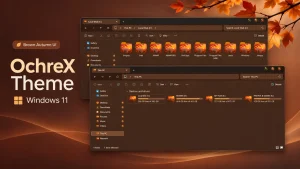
OchreX Theme For Windows 11
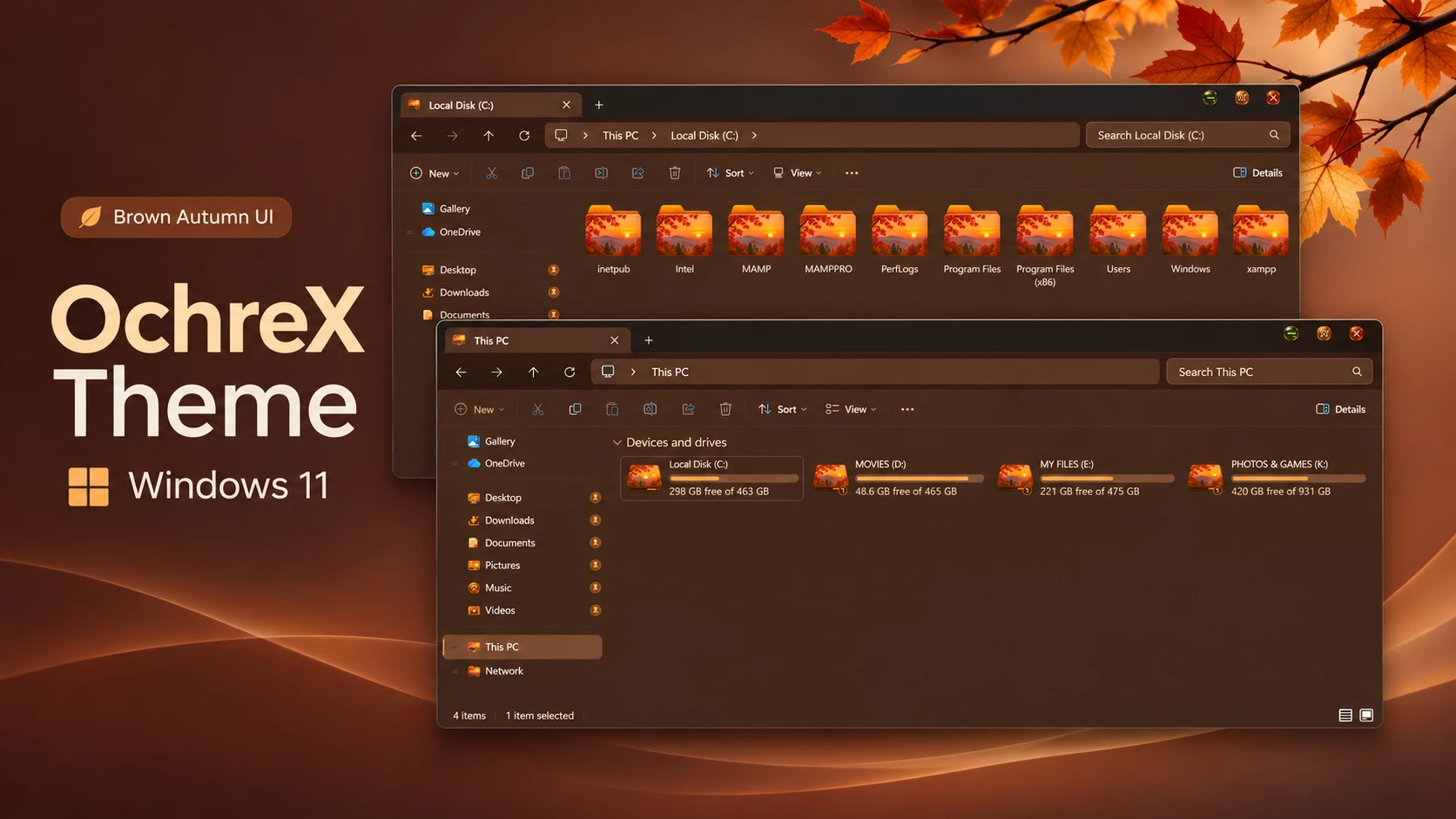
OchreX Theme For Windows 11 : Give Windows 11 a warm autumn-inspired look with OchreX. Enjoy rich cocoa-brown backgrounds, golden-orange accents, custom window buttons, and matching autumn icons that bring a fresh style to your desktop and File Explorer.

OchreX Theme for Windows 11 – An Autumn-Inspired Look
Most dark Windows themes stick to black, grey, or blue. OchreX Theme for Windows 11 takes a different approach, bringing warm cocoa-brown colors, soft amber highlights, and autumn-inspired icons to your desktop. It’s a nice change if you enjoy dark themes but want something a little warmer.
What makes OchreX appealing is how well everything fits together. The File Explorer colors, custom folder icons, and autumn wallpaper all follow the same earthy color scheme. Windows still feels familiar, but the overall appearance is noticeably different.
Warm Autumn Colors with a Rich Brown Finish
OchreX uses a rich cocoa-brown background with subtle orange and golden details. The darker title bar and toolbar provide a little contrast, while the softer highlights keep the interface from looking too flat or overly dark.
The colors work especially well with autumn wallpapers, though a simple dark background looks just as nice. You can keep the whole desktop seasonal or go for something more minimal.
A Warm and Refined File Explorer Experience
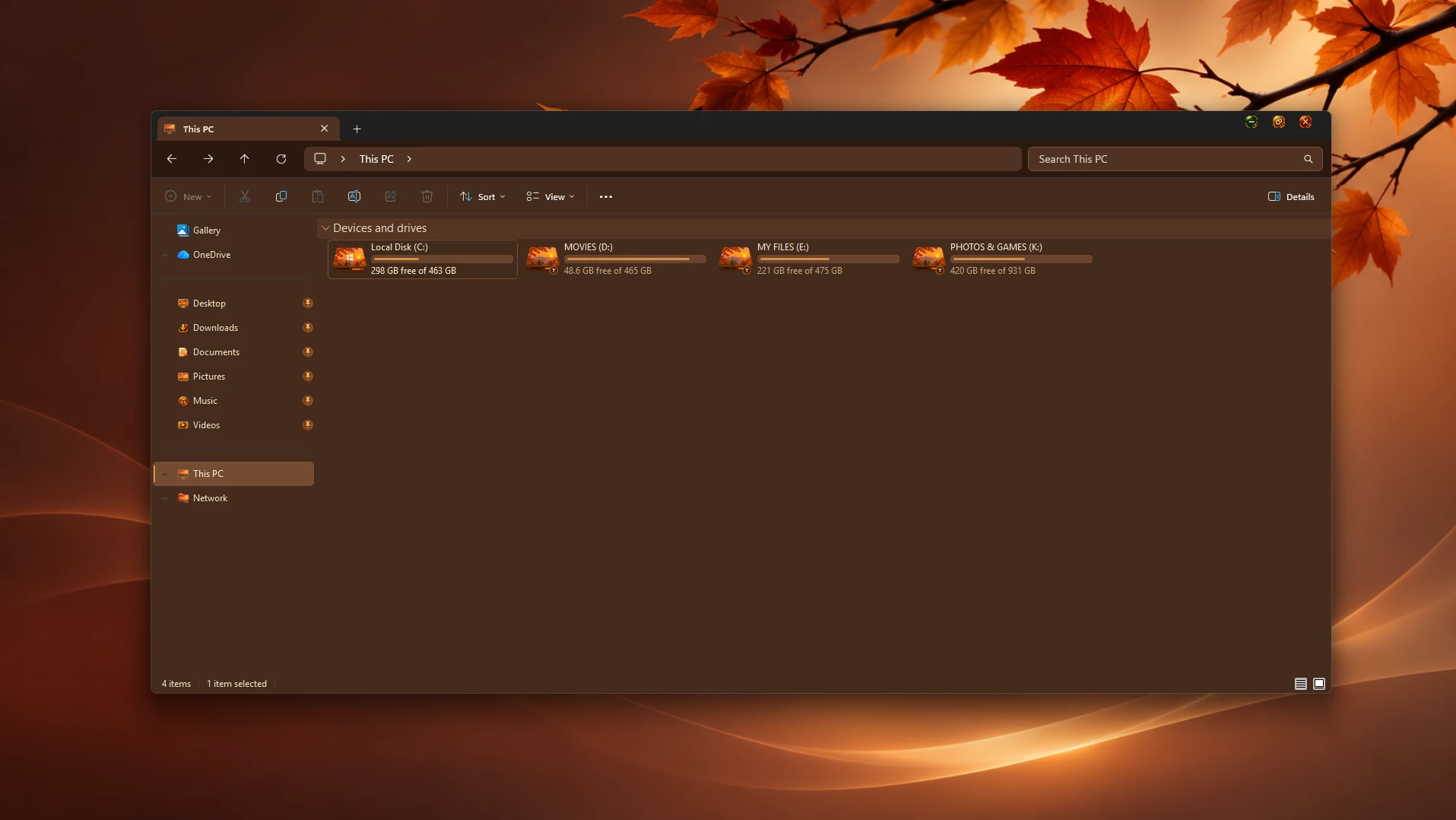
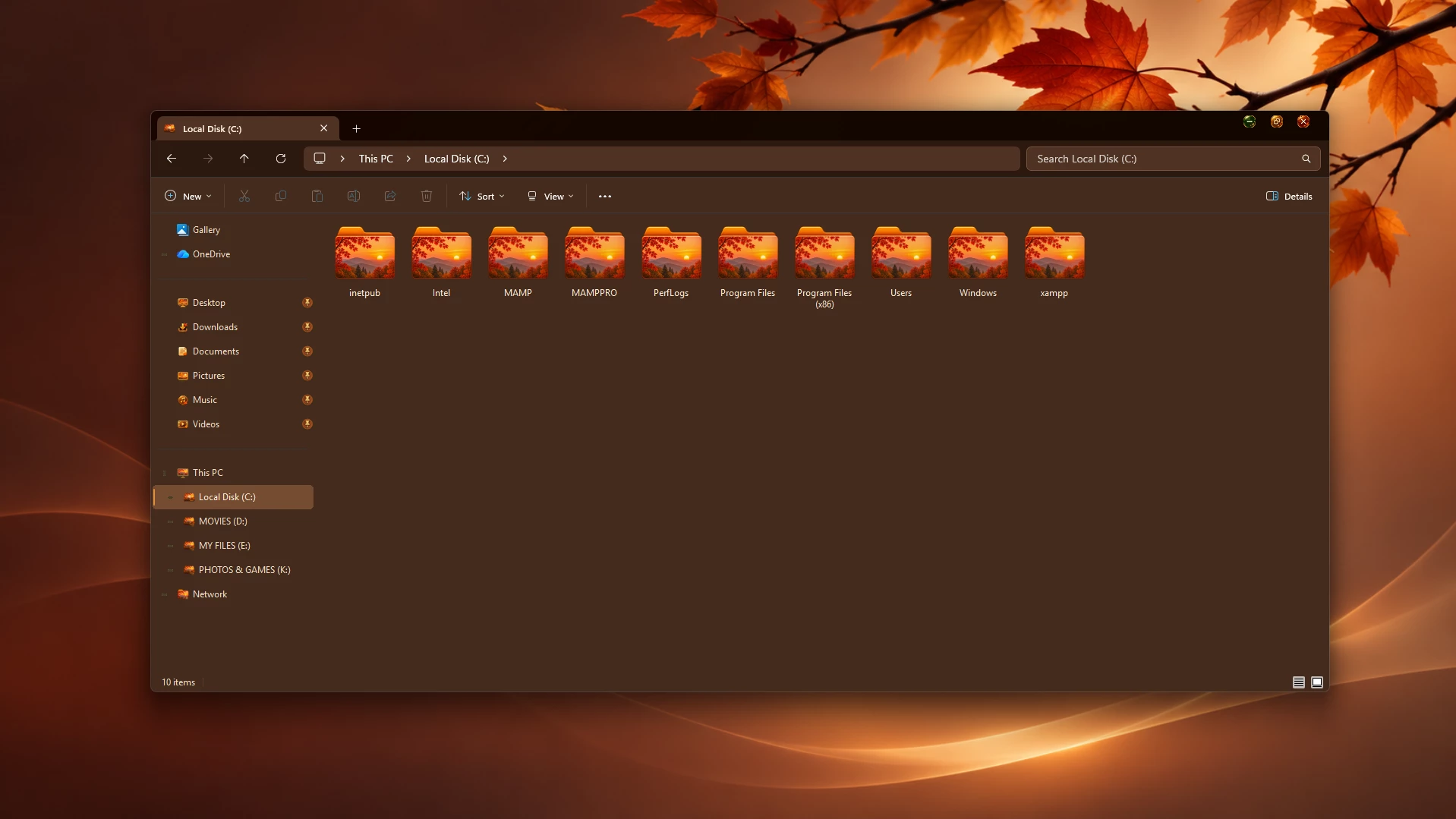
File Explorer is one of the nicest parts of OchreX. The main workspace and navigation panel share the same warm brown color, giving the window a clean, seamless appearance. Selected items have soft amber highlights, and the drive storage bars use matching golden-orange tones.
You’ll also notice the custom minimize, maximize, and close buttons, along with the matching autumn icons. These little touches make File Explorer feel different without changing how you normally browse folders, manage files, or access your drives.
Features of OchreX Theme
- Autumn-Inspired Colors: A warm mix of cocoa brown, soft amber, and orange gives Windows 11 a cozy seasonal appearance.
- Custom Window Buttons: Decorative circular minimize, maximize, and close buttons with green, golden, and orange-red accents.
- Dark Title Bar: A deep brown-black title bar with matching tabs that blend nicely with the rest of the theme.
- Seamless Explorer Background: The navigation panel and main file area share the same brown color for a cleaner look.
- Golden Drive Progress Bars: Storage indicators use warm golden-orange colors with subtle brown backgrounds.
- Soft Selection Highlights: Selected folders, files, and navigation items appear in a lighter brown shade.
- Matching Explorer Controls: The address bar, search box, and toolbar follow the same dark brown color scheme.
- Customized Control Panel: Classic Control Panel areas feature dark backgrounds and matching orange-gold details.
- Autumn Icon Pack: Matching folder, drive, and system icons help complete the seasonal look.
- Familiar Windows Layout: The theme changes the appearance while keeping everyday Windows controls easy to recognize.
Compatibility
OchreX is a third-party Windows customization theme, so it’s worth checking your Windows version before installing it. The latest confirmed test was on the following setup:
- Windows edition: Windows 11 Pro
- Last tested version: Windows 11 26H2
- OS build: 26300.9974
- Other Windows 11 builds: Not confirmed
- Future Windows updates: Compatibility unknown
Here’s the testing status for different Windows 11 versions:
- Windows 11 21H2: Not tested
- Windows 11 22H2: Not tested
- Windows 11 23H2: Not tested
- Windows 11 24H2: Not tested
- Windows 11 25H2: Not tested
- Windows 11 26H2 (OS Build 26300.9974): Tested
Important: Windows updates can affect custom themes and Windhawk mods. If OchreX still works after an update but the included File Explorer Styler doesn’t, you can disable that style and switch to another one that supports your updated Windows version.
Optional File Explorer Styling with Windhawk
For a cleaner, more minimal look, you can try the included File Explorer Styler configuration with Windows 11 File Explorer Styler. It lets you customize parts of File Explorer, including the tabs, toolbar, and address bar.
This extra styling is optional. Just remember that Windhawk mods may need updates when Windows changes, so it’s best to check compatibility before using them on a newer build.
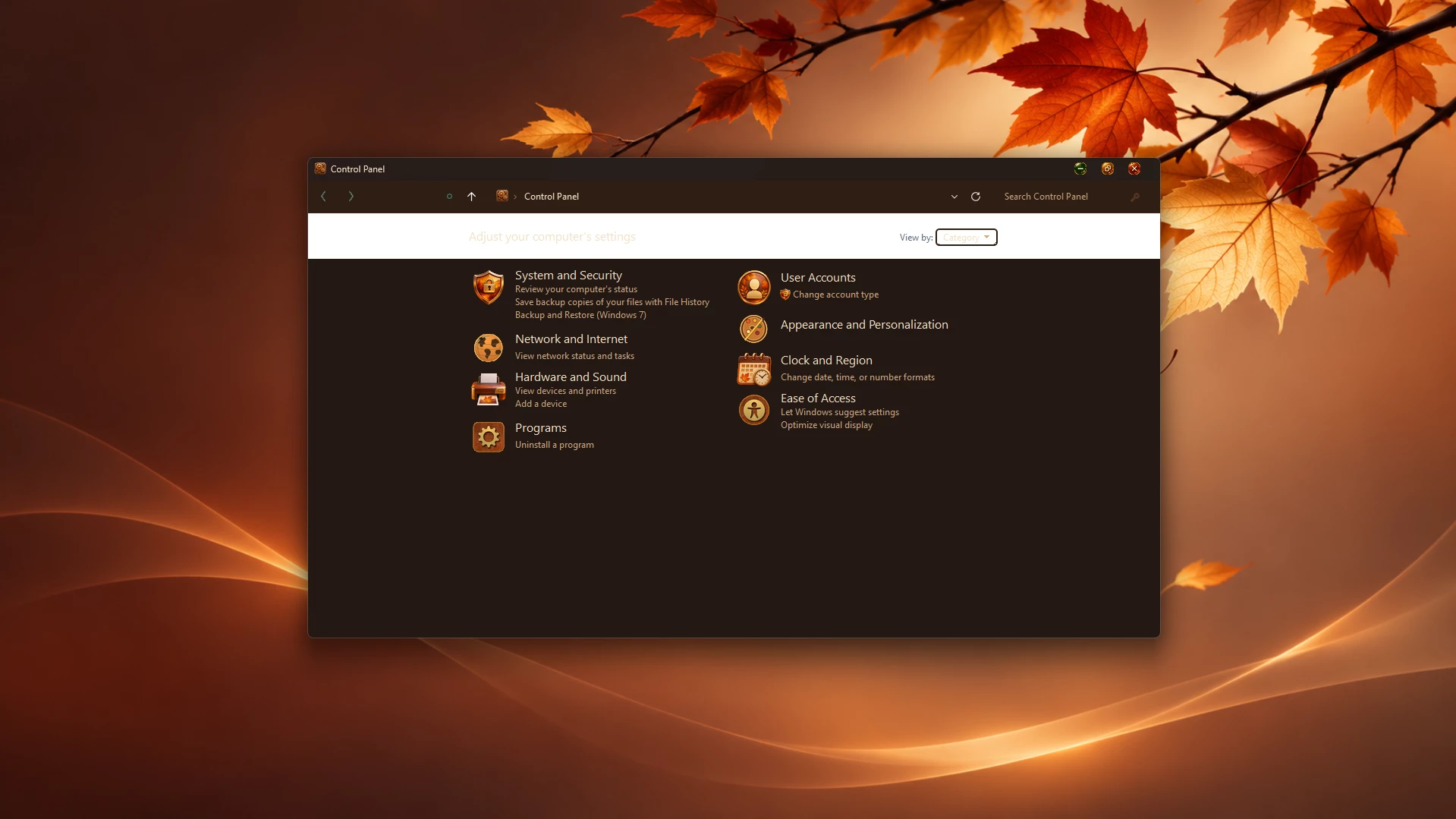
Theme Preview
How to Install OchreX Theme on Windows 11
- Create a Restore Point: Back up your current theme and create a system restore point before making changes.
- Check Your Windows Version: Press
Win + R, typewinver, and compare your build with the compatibility information above. - Install Windhawk: Download and install Windhawk from its official website.
- Enable UXTheme Hook: Find and install UXTheme hook in Windhawk. Follow the mod’s instructions and add
winlogon.exeandlogonui.exeto Windhawk’s process inclusion list. - Apply OchreX: Extract the package and copy the OchreX theme folder and matching
.themefile toC:\Windows\Resources\Themes. If required, patch the theme using SecureUxTheme’s ThemeTool, then apply OchreX from Settings > Personalization > Themes. - Install the Icon Pack: Install the Resource Redirect mod in Windhawk. Extract the included icon pack and add the path to the folder containing
theme.iniunder Settings > Theme paths. Save the settings and refresh the icon cache if needed. - Add the Finishing Touches: Apply the included wallpaper and, if you prefer a more minimal Explorer design, use the optional File Explorer Styler configuration.
Need more help? You can follow our step-by-step guide to installing custom themes on Windows 11 for more detailed instructions.
Note: Always check the latest Windhawk mod instructions before installing. Custom themes and Explorer modifications may behave differently after Windows updates. Keep your original theme files backed up in case you need to switch back.
What’s Included in the OchreX Theme Package?
- Windows 11 Theme: OchreX visual style and theme files.
- Icon Pack: Autumn-themed folder and system icons.
- Windhawk Explorer Style: Optional File Explorer configuration.
Google Drive 52.8 MB
DownloadHow to Remove OchreX Theme
- Switch to Default Theme: Open Settings > Personalization > Themes and select a default Windows theme.
- Remove the Icon Pack: Open Windhawk’s Resource Redirect settings and remove the OchreX icon pack path from Theme paths, or disable the mod if you no longer need it.
- Disable Windhawk Mods: Turn off the File Explorer Styler configuration and UXTheme Hook if you’re not using them for other themes.
- Remove Theme Files: Delete only the OchreX files you added to
C:\Windows\Resources\Themes. Keep the original Windows files untouched. - Restore and Restart: Restore your previous wallpaper and restart File Explorer or Windows if needed.
Final Thoughts
OchreX is a nice choice if you enjoy dark Windows themes but want something warmer than the usual black or grey. Its cocoa-brown backgrounds, autumn-inspired icons, and golden-orange details give Windows 11 a fresh look without changing the familiar layout.
If you like cozy, earthy colors, OchreX is worth trying. Just check your Windows build before installing, and keep in mind that future updates may affect the theme or its optional Windhawk styling.
Disclaimer
OchreX is an independent Windows customization project. It is not affiliated with or endorsed by Microsoft. Custom visual styles, icon modifications, and Windhawk mods may behave differently across Windows builds or stop working after updates. Check compatibility, use trusted software sources, and create a system restore point before making changes.
Frequently Asked Questions
1. Is OchreX an official Microsoft theme?
No. OchreX is an independent customization theme for Windows 11 and is not developed or officially supported by Microsoft.
2. Which Windows 11 version was OchreX last tested on?
The last confirmed test was on Windows 11 Pro, version 26H2, OS build 26300.9974. Other builds have not been confirmed.
3. Does OchreX change the folder and drive icons?
The OchreX design includes autumn-themed folder and drive artwork. Whether the icon files are included in a particular download depends on that package; check its contents and instructions.
4. Do I need Windhawk to use OchreX?
Windhawk is optional for additional File Explorer styling. The main custom Windows visual style has its own installation requirements.
5. What if the Explorer style stops working after an update?
Disable the incompatible Explorer styling mod and check for a newer version that supports your updated Windows build. If OchreX itself still works, you don’t necessarily need to remove the main theme.
6. Can I return to the standard Windows 11 appearance?
Yes. Select a default Windows theme, turn off any optional styling mods, and restore the original icons or wallpaper you changed. A restore point offers an additional recovery option if needed.
Disclaimer: All themes, visual styles, and concepts shared on this website are unofficial, fan-made creations built from imagination for customization purposes. We are not affiliated with, endorsed by, or sponsored by Microsoft or any other official brand.