

Futuristic & Sci-Fi Start Menu & Taskbar Style for Windows 11
Futuristic & Sci-Fi Start Menu & Taskbar Style : Give your Windows 11 desktop a futuristic sci-fi look with a custom violet Start Menu and matching taskbar. Explore the design, download the styles, and follow the easy Windhawk installation guide.

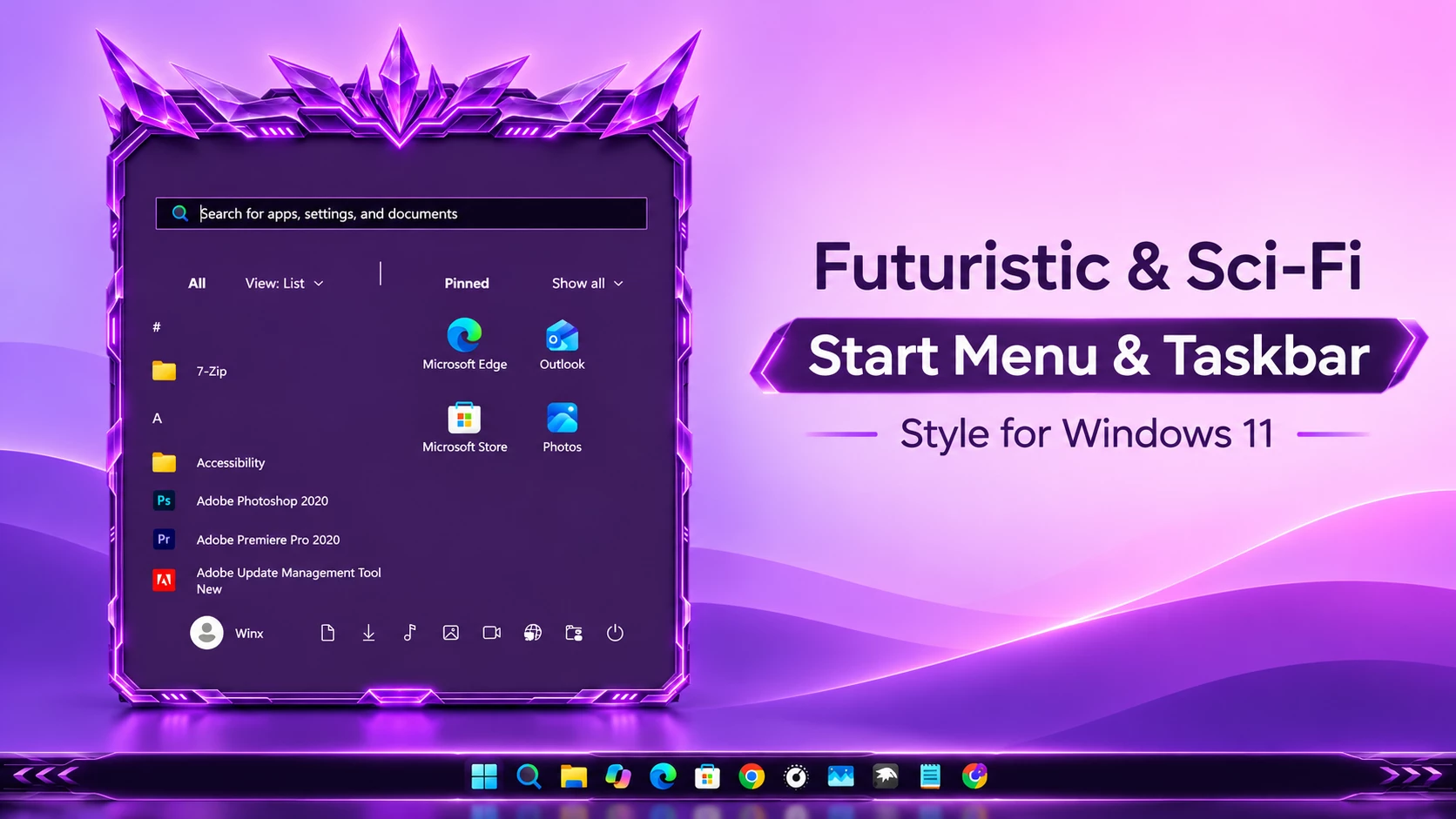
Futuristic & Sci-Fi Start Menu & Taskbar Style for Windows 11
Windows 11 has a clean and modern interface, but sometimes you want something that feels a little more unique. If you’re into futuristic desktop designs, dark interfaces, and vibrant violet accents, this customization offers an interesting way to refresh your Windows experience.
The Futuristic & Sci-Fi Start Menu & Taskbar Style for Windows 11 brings together a custom Start Menu and a matching taskbar, both designed around a dark violet color scheme. Sharp geometric borders, neon-style details, and a distinctive sci-fi appearance give the desktop a completely different character.
Created by Link Vegas Theme, this customization uses Windhawk to modify the appearance of supported Windows 11 interface elements. You can keep using your usual applications and Windows features while enjoying a more personalized desktop environment.
A Bold Futuristic Start Menu Design
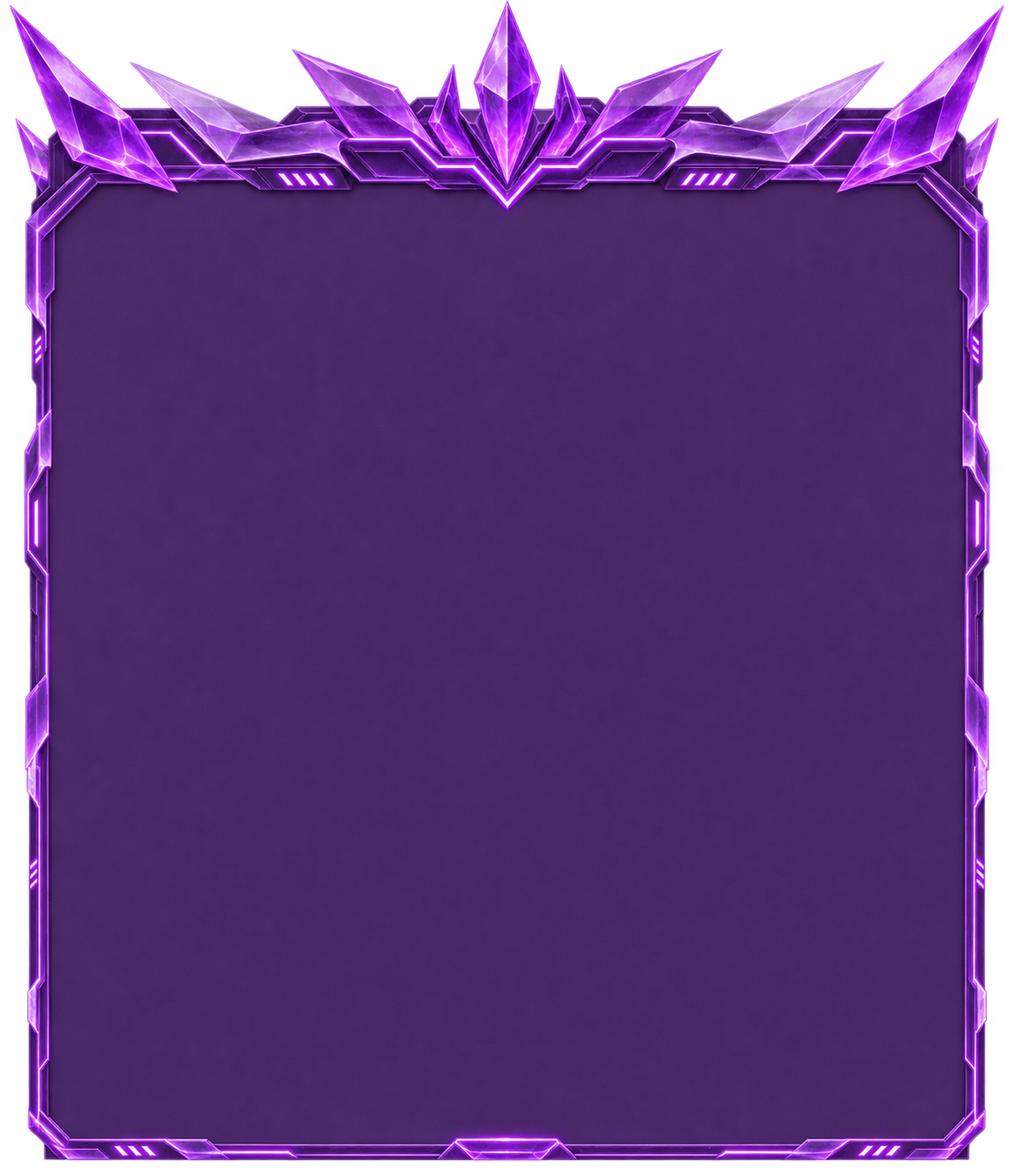
The Start Menu is where this style really stands out. Instead of the familiar rounded Windows 11 appearance, it introduces a bold sci-fi frame with angular shapes, layered geometric details, and vivid violet accents.
The upper border features an elaborate futuristic arrangement with pointed decorative elements and illuminated purple lines. Similar details continue along the sides and bottom, creating a consistent frame around the menu.
Inside, a deep violet background provides a comfortable contrast for app icons, search controls, and text. The darker interior also helps balance the brighter decorative elements around the edges.
One particularly useful part of this design is its side-by-side layout. The alphabetical application list appears on the left, while pinned applications remain accessible on the right. This arrangement makes it convenient to browse installed software without constantly switching between separate sections.
The search box also receives a matching dark background and thin violet border. Subtle hover highlights and coordinated text colors help the different elements feel connected.
Overall, the Start Menu has a distinctive futuristic personality while retaining the familiar functionality of Windows 11.
A Matching Sci-Fi Taskbar
To complement the Start Menu, the taskbar follows the same futuristic design language. It features a dark central background surrounded by thin violet accents, angular lines, and decorative details along the upper and lower edges.
The design keeps the area behind application icons relatively simple, allowing the taskbar to remain practical for everyday use. At the same time, the brighter purple borders give it a recognizable sci-fi appearance.
The Windhawk configuration also includes a dark violet blur setting, custom hover colors, and matching running application indicators. Supported taskbar buttons display purple highlights when you move the pointer over them.
Small interface details, including the clock and date text, use lighter colors that complement the overall violet palette.
When combined with the Start Menu, the taskbar completes a coordinated futuristic desktop setup without introducing unnecessary visual clutter around the application icons.
Features of This Futuristic & Sci-Fi Style
This customization focuses on creating a consistent appearance across the Start Menu and taskbar. Rather than simply changing the background color, it introduces decorative artwork and several smaller interface adjustments.
- Futuristic Start Menu frame: A custom design featuring sharp geometric shapes and sci-fi-inspired decorative borders.
- Violet color scheme: Deep purple surfaces with brighter violet and lavender accents.
- Side-by-side Start Menu layout: Installed applications and pinned shortcuts arranged in separate sections.
- Customized search box: Dark background with a subtle violet outline.
- Matching taskbar artwork: A dark futuristic background with coordinated purple border details.
- Taskbar blur styling: A dark violet blur effect configured through Windhawk.
- Custom hover effects: Purple highlights for supported Start Menu and taskbar controls.
- Matching application indicators: Lavender-colored running indicators for taskbar applications.
How to Install the Futuristic Start Menu & Taskbar
Follow these simple steps to customize your Windows 11 Start Menu and Taskbar using Windhawk and custom PNG backgrounds.
Step 1: Install Windhawk
- Download and install Windhawk.
- Open Windhawk and install these two mods:
Step 2: Prepare the Image Files
Extract the downloaded package and move the following PNG images to your Pictures folder or another permanent location:
Step 3: Update the Image Paths
Open Start Menu Style.txt and Taskbar Style.txt in Notepad. Find the corresponding lines and replace them with the examples below.
Start Menu Style.txt:
"controlStyles[2].styles[0]": "Background:=<ImageBrush Stretch=\"Fill\" ImageSource=\"C:\\Users\\YOUR_USERNAME\\Pictures\\Violet Start Menu.png\" />",Taskbar Style.txt:
"controlStyles[1].styles[0]": "Fill:=<ImageBrush Stretch=\"Fill\" ImageSource=\"C:\\Users\\YOUR_USERNAME\\Pictures\\Violet Taskbar.png\" />",Important: Replace YOUR_USERNAME with your Windows username. If the images are stored elsewhere, use their actual file paths. Keep the double backslashes, quotation marks, brackets, and commas exactly as shown.
Step 4: Apply the Configurations
- Open the corresponding Start Menu Styler or Taskbar Styler mod in Windhawk.
- Navigate to Advanced > Mod settings.
- Back up your existing settings, then paste the complete updated JSON code from the corresponding TXT file.
- Click Save to apply the style. Repeat for the other mod.
Step 5: Verify the Installation
Open the Start Menu and check the Taskbar. If the backgrounds do not appear, verify the image paths, filenames, and enabled mods. Restart Windows Explorer if necessary.
Note: Only modify the ImageSource paths. Keep all other JSON settings unchanged and avoid moving the PNG files after installation.
Additional Resources: Start Menu Styling Guide | More Taskbar Styles
{ "theme": "Futuristic & Sci-Fi Start Menu By Link Vegas", "disableNewStartMenuLayout": "newLayoutSideBySide", "controlStyles[0].target": "Grid#MainMenu", "controlStyles[0].styles[0]": "Width=620", "controlStyles[0].styles[1]": "MinWidth=620", "controlStyles[0].styles[2]": "MaxWidth=620", "controlStyles[0].styles[3]": "Background=#00040A12", "controlStyles[0].styles[4]": "RequestedTheme=2", "controlStyles[1].target": "Grid#FrameRoot", "controlStyles[1].styles[0]": "Height=720", "controlStyles[1].styles[1]": "MaxHeight=720", "controlStyles[2].target": "Grid#MainMenu > Border#AcrylicBorder", "controlStyles[2].styles[0]": "Background:=<ImageBrush Stretch=\"Fill\" ImageSource=\"C:\\Users\\WINX\\Pictures\\Violet Start Menu.png\" />", "controlStyles[2].styles[1]": "BorderThickness=0", "controlStyles[2].styles[2]": "CornerRadius=0", "controlStyles[3].target": "Border#AcrylicOverlay", "controlStyles[3].styles[0]": "Visibility=Collapsed", "controlStyles[4].target": "Grid#MainMenu > Grid#MainContent", "controlStyles[4].styles[0]": "Margin=32,158,32,50", "controlStyles[5].target": "Border#StartDropShadow, Border#RootGridDropShadow, Border#DropShadow", "controlStyles[5].styles[0]": "Visibility=Collapsed", "controlStyles[6].target": "Grid#SideBySidePinnedWrapper", "controlStyles[6].styles[0]": "ColumnDefinitions:=<ColumnDefinitionCollection><ColumnDefinition Width=\"280*\"/><ColumnDefinition Width=\"320*\"/></ColumnDefinitionCollection>", "controlStyles[7].target": "GridView#AllAppsGrid > Border > Grid#SideBySidePinnedWrapper > ScrollViewer#ScrollViewer", "controlStyles[7].styles[0]": "Grid.Column=0", "controlStyles[7].styles[1]": "MinWidth=0", "controlStyles[8].target": "ScrollViewer#SideBySidePinnedScrollViewer", "controlStyles[8].styles[0]": "Grid.Column=1", "controlStyles[8].styles[1]": "MinWidth=0", "controlStyles[9].target": "Grid#SideBySidePinnedWrapper > ScrollViewer > Border#Root > Grid > ScrollContentPresenter > ItemsPresenter > ItemsWrapGrid", "controlStyles[9].styles[0]": "Margin=14,0,14,8", "controlStyles[10].target": "Grid#TopLevelSuggestionsRoot", "controlStyles[10].styles[0]": "Visibility=Collapsed", "controlStyles[11].target": "Grid#RightCompanionContainerGrid, Windows.UI.Xaml.Controls.Primitives.ToggleButton#ShowHideCompanion", "controlStyles[11].styles[0]": "Visibility=Collapsed", "controlStyles[12].target": "Grid#MainMenu > * > TextBlock", "controlStyles[12].styles[0]": "Foreground=#FFEAD5FF", "controlStyles[13].target": "StartMenu.SearchBoxToggleButton > Grid > Border#BorderElement", "controlStyles[13].styles[0]": "Background=#FF130C23", "controlStyles[13].styles[1]": "BorderBrush=#FFB883FF", "controlStyles[13].styles[2]": "BorderThickness=1", "controlStyles[13].styles[3]": "CornerRadius=0", "controlStyles[14].target": "StartMenu.PinnedList#StartMenuPinnedList > Grid#Root", "controlStyles[14].styles[0]": "Background=Transparent", "controlStyles[15].target": "Border#ContentBorder@CommonStates > Grid > Border#HighContrastBorder", "controlStyles[15].styles[0]": "Background@PointerOver=#554E2183", "controlStyles[15].styles[1]": "BorderBrush@PointerOver=#FFD69FFF", "controlStyles[15].styles[2]": "BorderThickness=1", "controlStyles[15].styles[3]": "CornerRadius=0", "controlStyles[16].target": "MenuFlyoutPresenter > Border", "controlStyles[16].styles[0]": "Background=#FF110A20", "controlStyles[16].styles[1]": "BorderBrush=#FFC991FF", "controlStyles[16].styles[2]": "BorderThickness=1", "controlStyles[16].styles[3]": "CornerRadius=0"}Matching Taskbar Style
Complete your futuristic Windows 11 setup with a matching sci-fi taskbar. Featuring a dark background, sharp geometric borders, and vibrant violet neon-style accents, it blends perfectly with the Start Menu design. Subtle blur, purple hover effects, and matching app indicators create a sleek, coordinated look without sacrificing everyday usability.
{ "theme": "Sci-Fi Taskbar Style By Link Vegas", "controlStyles[0].target": "Taskbar.TaskbarFrame > Grid#RootGrid > Taskbar.TaskbarBackground > Grid", "controlStyles[0].styles[0]": "Background:=<WindhawkBlur BlurAmount=\"18\" TintColor=\"#B00E0618\" />", "controlStyles[1].target": "Taskbar.TaskbarFrame > Grid#RootGrid > Taskbar.TaskbarBackground > Grid > Rectangle#BackgroundFill", "controlStyles[1].styles[0]": "Fill:=<ImageBrush Stretch=\"Fill\" ImageSource=\"C:\\Users\\WINX\\Pictures\\Violet Taskbar.png\" />", "controlStyles[2].target": "Taskbar.TaskbarFrame > Grid#RootGrid > Taskbar.TaskbarBackground > Grid > Rectangle#BackgroundStroke", "controlStyles[2].styles[0]": "Fill=Transparent", "controlStyles[3].target": "Grid#IconPanel@CommonStates > Border#BackgroundElement, Taskbar.TaskListLabeledButtonPanel@CommonStates > Border#BackgroundElement, Taskbar.TaskListButtonPanel@CommonStates > Grid > Border#BackgroundElement, Taskbar.TaskListButtonPanel@CommonStates > Border#BackgroundElement", "controlStyles[3].styles[0]": "Background@InactivePointerOver=#554F2379", "controlStyles[3].styles[1]": "Background@ActivePointerOver=#554F2379", "controlStyles[3].styles[2]": "Background@InactivePressed=#88603995", "controlStyles[3].styles[3]": "Background@ActivePressed=#88603995", "controlStyles[3].styles[4]": "Background@ActiveNormal=#334E1C77", "controlStyles[3].styles[5]": "CornerRadius=3", "controlStyles[3].styles[6]": "BorderThickness=1", "controlStyles[3].styles[7]": "BorderBrush=Transparent", "controlStyles[3].styles[8]": "BorderBrush@InactivePointerOver=#FFD390FF", "controlStyles[3].styles[9]": "BorderBrush@ActivePointerOver=#FFD390FF", "controlStyles[4].target": "Grid#IconPanel@RunningIndicatorStates > Rectangle#RunningIndicator, Taskbar.TaskListLabeledButtonPanel@RunningIndicatorStates > Rectangle#RunningIndicator", "controlStyles[4].styles[0]": "Fill=#FFD390FF", "controlStyles[4].styles[1]": "Fill@ActiveRunningIndicator=#FFEAD5FF", "controlStyles[4].styles[2]": "Height=3", "controlStyles[4].styles[3]": "Width=12", "controlStyles[4].styles[4]": "Width@ActiveRunningIndicator=22", "controlStyles[5].target": "TextBlock#TimeInnerTextBlock, TextBlock#DateInnerTextBlock, TextBlock#SearchBoxTextBlock", "controlStyles[5].styles[0]": "Foreground=#FFEAD5FF", "controlStyles[6].target": "SystemTray.OmniButton > Grid@CommonStates > Border#BackgroundBorder", "controlStyles[6].styles[0]": "Background@PointerOver=#554F2379", "controlStyles[6].styles[1]": "Background@Pressed=#88603995", "controlStyles[6].styles[2]": "CornerRadius=3"}How to Remove This Style
If you want to return to the default Windows 11 appearance, you can easily remove this customization through Windhawk.
- Open Windhawk on your computer.
- Go to Windows 11 Start Menu Styler and disable the mod to restore the default Start Menu appearance.
- Open Windows 11 Taskbar Styler and disable it to restore the original taskbar style.
- If the changes don’t disappear immediately, restart Windows Explorer or sign out and back in.
Note: If you use these Windhawk mods for other custom styles, restore your previous configurations instead of disabling them. Once the custom style is no longer in use, you can also delete its PNG images and configuration files.
Frequently Asked Questions
Does this style require Windhawk?
Yes. You need Windows 11 Start Menu Styler and Windows 11 Taskbar Styler to apply the supplied configurations.
Why isn’t the Start Menu background showing?
Check that the ImageSource path points to the correct PNG file. Make sure the path uses double backslashes in the JSON configuration and that the Windhawk mod is enabled.
Why isn’t the taskbar style appearing?
Check the taskbar PNG path and confirm that Windows 11 Taskbar Styler is enabled. Other taskbar customization tools may cause conflicts. Try restarting Windows Explorer if needed.
Why doesn’t the Start Menu frame fit correctly?
The design uses specific dimensions and margins. Keep the original configuration values unchanged. Windows display scaling or updates may also affect the alignment.
Can I install only the Start Menu style?
Yes. Both configurations work separately, so you can use the Start Menu or taskbar style independently.
Does this replace the original Windows 11 Start Menu?
No. It changes supported visual elements of the existing Windows 11 interface rather than installing a separate Start Menu replacement.
Can I change the violet color scheme?
Yes, some text, hover, and border colors can be adjusted in Windhawk. However, changing the colors built into the PNG artwork requires editing the images.
Are the neon-style effects animated?
No. The neon-style accents are part of the static artwork and styling configuration. Animated lighting effects are not included.
Will this customization improve Windows performance?
No performance improvement is claimed. This style focuses on appearance, and resource usage may vary depending on your system.
How do I restore the default Windows appearance?
Disable the Start Menu Styler and Taskbar Styler mods in Windhawk or restore your previous settings. Restart Windows Explorer if the changes remain visible.
Is this an official Windows 11 theme?
No. This is an independent Windows 11 customization by Link Vegas Theme and is not officially supported or endorsed by Microsoft.
Disclaimer
This Windows customization style is independently created by Link Vegas Theme and is not affiliated with, endorsed by, or officially associated with Microsoft Corporation. Windows and Windows 11 are trademarks of Microsoft Corporation. This customization is intended for personal desktop customization purposes only.
Final Thoughts
The Futuristic & Sci-Fi Start Menu and Taskbar Style gives Windows 11 a distinctive new personality with sharp geometric borders, dark violet surfaces, and coordinated neon-style accents. Both elements follow the same futuristic design language, creating a consistent look across your desktop.
Whether you’re building a sci-fi-inspired setup or simply exploring new ways to personalize Windows 11, this style offers a creative alternative to the default interface. Remember to use the correct image paths, keep a backup of your settings, and check compatibility with your Windows version before applying the customization.
You may also like

Disclaimer: All themes, visual styles, and concepts shared on this website are unofficial, fan-made creations built from imagination for customization purposes. We are not affiliated with, endorsed by, or sponsored by Microsoft or any other official brand.