

Next-Gen Windows 11 Theme
Next-Gen Windows 11 Theme is a concept-based customization pack featuring a custom visual style, 7TSP icons, wallpaper, and optional Windhawk mods for a modern desktop setup.

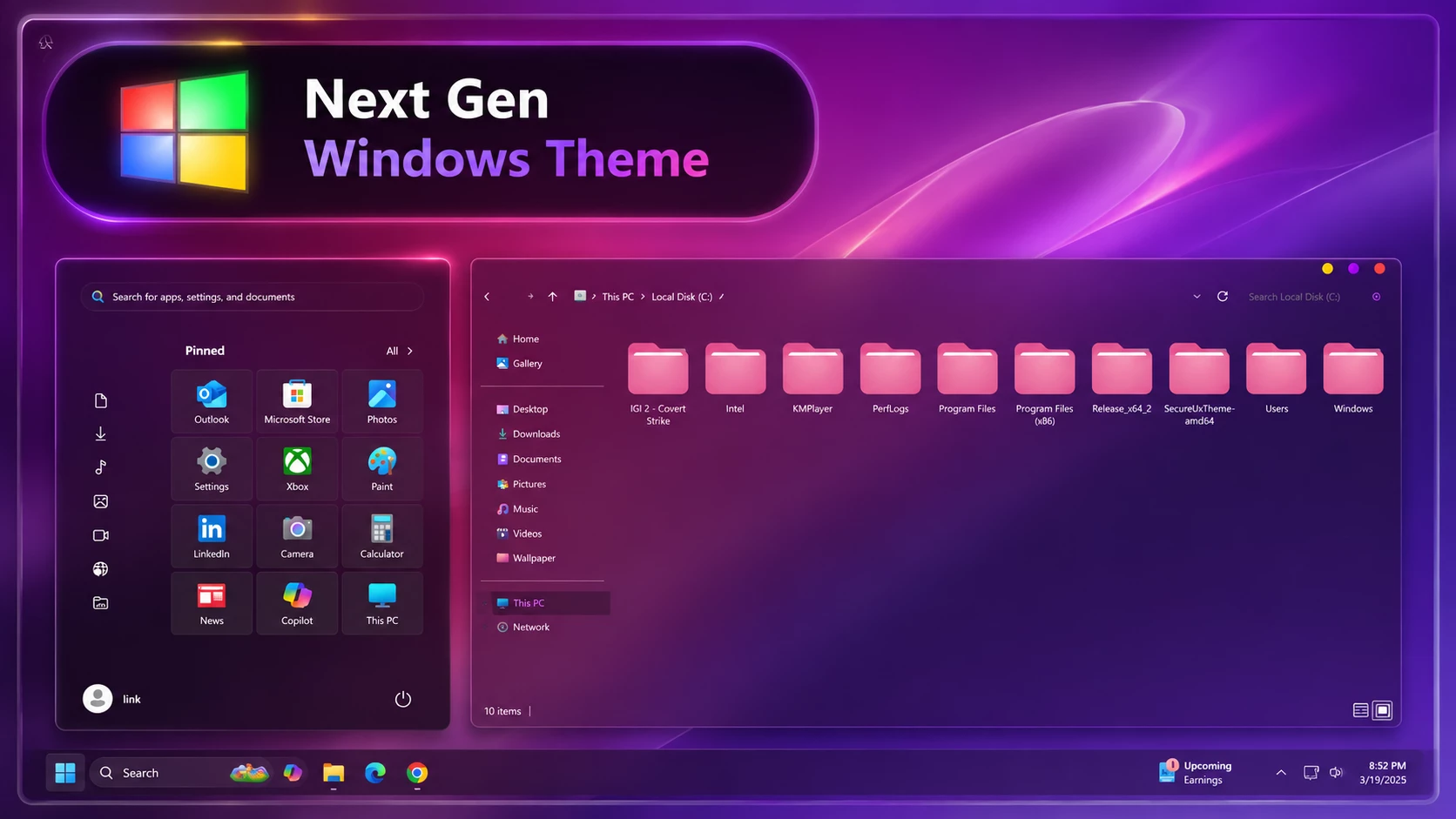
Next-Gen Windows 11 Theme
Next-Gen Windows 11 Theme is a concept-based desktop customization pack created for users who want to give Windows 11 a cleaner, more futuristic, and visually distinctive appearance.
The setup combines a custom Windows visual style, matching wallpaper, a 7TSP icon pack, and optional Windhawk modifications. When these elements are configured carefully, they can create a consistent desktop appearance while keeping the familiar functions of Windows 11.
This package does not represent a future Windows version. It is not Windows 25, a Windows upgrade, or an official Microsoft product. The name and design are based entirely on a creative next-generation Windows concept.
The theme is intended for personal desktop customization, screenshots, videos, workspace styling, and users who enjoy experimenting with different Windows interface designs.
What Is the Next-Gen Windows 11 Theme?
The Next-Gen Windows 11 Theme is a collection of visual customization files designed to change the appearance of selected Windows interface elements.
Instead of claiming to be a new version of Windows, the theme presents an artistic interpretation of how a modern Windows desktop could look. It focuses on clean shapes, updated icons, matching colors, modern wallpapers, and optional interface adjustments.
The final appearance will depend on your Windows build, display resolution, theme settings, installed tools, selected Windhawk mods, icon configuration, and wallpaper placement.
Modern and Futuristic Desktop Design
The theme uses a modern visual direction inspired by current desktop interface trends. It is designed to make Windows 11 feel more organized and visually consistent without turning the desktop into an overly complicated workspace.
The included wallpaper and icon pack help create a unified design, while optional Windhawk mods can be used to adjust supported parts of the taskbar, Start menu, File Explorer, or other interface elements.
You can use the complete setup or apply only the individual components you prefer.
Main Features
- Concept-based futuristic Windows 11 appearance
- Custom Windows 11 visual style
- Matching 7TSP icon pack
- High-quality desktop wallpaper
- Optional Windhawk customization files
- Modern and organized interface design
- Suitable for light or dark desktop setups
- Works well with minimal desktop layouts
- Individual customization components can be used separately
- Designed for personal Windows 11 customization
- No claim of being an official or unreleased Windows version
What Is Included in This Pack?
- Windows 11 visual theme files
- 7TSP icon pack
- Matching desktop wallpaper
- Optional Windhawk mod configurations
The package contains customization resources only. It does not include Windows, a Windows license, Microsoft software, or any unofficial operating-system upgrade.
Why Choose This Windows 11 Theme?
This theme is suitable for users who want more than a simple wallpaper change. Its components are designed to work together and create a more complete desktop setup.
You may find it useful for:
- Creating a clean personal workspace
- Building a futuristic Windows desktop setup
- Recording Windows customization videos
- Taking desktop showcase screenshots
- Matching icons with a custom wallpaper
- Experimenting with supported Windhawk modifications
- Refreshing the default Windows 11 appearance
Windows Compatibility
- Designed for Windows 11 desktop customization
- Compatibility may vary between Windows 11 builds
- Some components may require updates after a major Windows update
- Theme patchers and icon tools must match your installed Windows build
- Testing in a restore-point-protected environment is recommended
- This package is not intended for Windows 10, macOS, or Linux
Windows feature updates can change system files and interface behavior. A theme, icon pack, or customization mod that works on one Windows build may not work identically on another build.
Do not assume compatibility based only on a version number. Check your current Windows build and the compatibility information provided by each customization tool before applying changes.
Important Steps Before Installation
Custom visual styles and icon packs may modify or replace some Windows appearance resources. Complete the following safety steps before starting:
- Create a Windows system restore point.
- Back up important personal files.
- Check your current Windows 11 build number.
- Use customization tools that support your Windows build.
- Download required tools only from reputable sources.
- Scan downloaded files with Windows Security.
- Keep a copy of the default Windows theme and icons.
- Close important applications before applying system-level changes.
- Do not install several system customization tools at the same time.
How to Create a System Restore Point
- Open the Windows Start menu.
- Search for Create a restore point.
- Open the matching System Properties option.
- Select your Windows system drive.
- Choose Configure.
- Make sure system protection is enabled.
- Select Create.
- Enter a name such as Before Next-Gen Theme.
- Wait for Windows to complete the restore point.
A restore point provides a recovery option if a theme tool, icon pack, or interface modification causes an unexpected problem.
Installation Steps
- Create a system restore point before applying any files.
- Download the theme package using the button below.
- Scan the downloaded archive with Windows Security.
- Extract the ZIP file into a new folder.
- Read any instructions included with the downloaded files.
- Check whether the visual style requires a compatible theme patching tool.
- Use only a theme patcher that supports your current Windows 11 build.
- Apply the included Windows 11 visual style according to the provided instructions.
- Install the 7TSP icon pack only after confirming tool compatibility.
- Apply the included wallpaper through Windows Personalization settings.
- Import or configure only the Windhawk mods you need.
- Restart Windows Explorer or restart the computer after major appearance changes.
- Check that Windows, File Explorer, the Start menu, and the taskbar are working normally.
Applying the Visual Style
Standard Windows settings do not normally allow every third-party visual style to be applied directly. Some visual styles may require a compatible theme patching tool.
Theme patchers can interact with Windows appearance files, so compatibility is important. Do not use an outdated patcher or one intended for a different Windows build.
After applying the visual style, inspect common interface areas such as:
- Desktop context menus
- File Explorer windows
- Window title bars
- Settings pages
- Taskbar elements
- Light and dark application modes
If text becomes unreadable or interface elements appear incorrectly, return to the default Windows theme before trying another configuration.
Installing the 7TSP Icon Pack
The included 7TSP pack is designed to change the appearance of supported Windows icons. It may affect folders, drives, libraries, system shortcuts, and other interface icons.
Before using a 7TSP tool:
- Confirm that the tool supports your Windows build.
- Create a restore point.
- Back up the original icon resources when the option is available.
- Close File Explorer windows before patching.
- Allow the icon cache to rebuild after installation.
- Restart the computer if icons do not refresh correctly.
Do not interrupt the computer while an icon patch is actively being applied.
Using the Included Windhawk Mods
Windhawk can apply modular interface customizations to supported Windows components. The exact result depends on the installed Windhawk version, the selected mod, and your Windows build.
Use only the mods that are necessary for your preferred setup. Installing too many overlapping mods may cause layout conflicts or inconsistent interface behavior.
Before enabling a Windhawk mod:
- Read its description and compatibility information.
- Review the settings before applying changes.
- Enable one mod at a time.
- Check the taskbar, Start menu, and File Explorer after each change.
- Disable the most recently installed mod if a problem appears.
Applying the Wallpaper
- Open the folder containing the included wallpaper.
- Right-click the wallpaper image.
- Select Set as desktop background.
- Open Windows Settings.
- Go to Personalization and then Background.
- Choose the most suitable fit option for your display.
The Fill option usually works well for standard desktop monitors. Multi-monitor users may prefer Span, depending on the wallpaper resolution.
Tips for the Best Experience
- Use the included wallpaper for a consistent appearance.
- Keep desktop icons organized.
- Avoid combining several unrelated visual styles.
- Use matching icon and interface accent colors.
- Enable Windhawk mods individually.
- Keep your original Windows theme available.
- Check compatibility again after major Windows updates.
- Disable system-level customizations before installing a major feature update.
- Keep your restore point until the setup has been tested properly.
Download Next-Gen Windows 11 Theme
Use the button below to download the customization package. Scan the ZIP file with Windows Security before extracting or applying any included files.
Next-Gen Theme Pack 35 MB
DownloadImportant Safety Note
The Next-Gen Windows 11 Theme is an unofficial third-party customization pack created for personal desktop styling. It is not developed, published, supported, or endorsed by Microsoft.
The package does not represent Windows 25 or any other official future version of Windows. It does not upgrade the operating system or add official Windows features.
Visual styles, theme patchers, icon tools, and interface mods can behave differently after Windows updates. Create a restore point, confirm tool compatibility, and avoid applying unfamiliar system modifications without understanding how to reverse them.
No third-party customization package can be guaranteed to work perfectly on every computer. The final result may vary depending on your Windows build, system settings, display scaling, installed applications, and enabled modifications.
Frequently Asked Questions
Is This an Official Microsoft Theme?
No. This is a third-party Windows 11 customization pack. It is not created, supported, or endorsed by Microsoft.
Is This Theme a Version of Windows 25?
No. The package is not an operating system and does not represent an official Windows version. It is a creative next-generation design concept made for Windows 11 customization.
Does This Package Upgrade Windows?
No. It only changes supported visual elements such as the theme, icons, wallpaper, and optional interface modifications. It does not upgrade Windows or add a new Windows edition.
Do I Need a Theme Patcher?
Some third-party Windows visual styles require a compatible theme patcher. The requirement depends on the visual style and your current Windows build.
Only use a patcher that clearly supports your installed version of Windows 11.
Are Custom Icons Included?
Yes. The package includes a 7TSP icon pack intended to create a more consistent desktop appearance.
Is a Wallpaper Included?
Yes. A matching wallpaper is included to complement the theme and icon design.
Are Windhawk Mods Included?
The package includes optional Windhawk customization resources. Available mods and compatibility may vary depending on the package version and your Windows build.
Can I Apply Only the Wallpaper and Icons?
Yes. You can use individual components separately. You do not need to apply every customization file included in the package.
Will It Work After a Windows Update?
Compatibility may change after a major Windows update. Some theme files, icon patches, or Windhawk mods may need to be updated or reapplied.
How Can I Return to the Default Windows Appearance?
Switch back to a default Windows theme, restore the original icons through the icon tool, disable the installed Windhawk mods, and use your restore point if necessary.
Is It Safe to Use?
The package is intended for desktop customization, but third-party visual styles and system appearance tools should always be used carefully. Scan downloaded files, use compatible tools, and create a restore point before installation.
Check Out This Category




Downloading issue
Ad-Blocker Detected!
Oops! unable to access the file download link. It seems that your ad blocker is removing the download link. Please try again or consider whitelisting our site in your ad blocker to resolve this issue.
We have detected that an ad blocker is active in your browser. This can lead to conflicts with our site, blocking many important scripts, and affecting downloads.
The revenue we generate from ads is vital for maintaining and managing this website. Therefore, we kindly request that you whitelist our website in your ad-blocker. Please rest assured that we won't inundate you with an excessive number of ads, nor will we inconvenience you or slow down your browsing experience. Your support is immensely appreciated!