Everforest Theme for Windows 11
Everforest Theme for Windows 11 : Everforest Theme for Windows 11 gives the desktop a muted, nature-inspired appearance built around smoky green, charcoal, soft beige, and subdued pastel accents

Everforest Theme for Windows 11
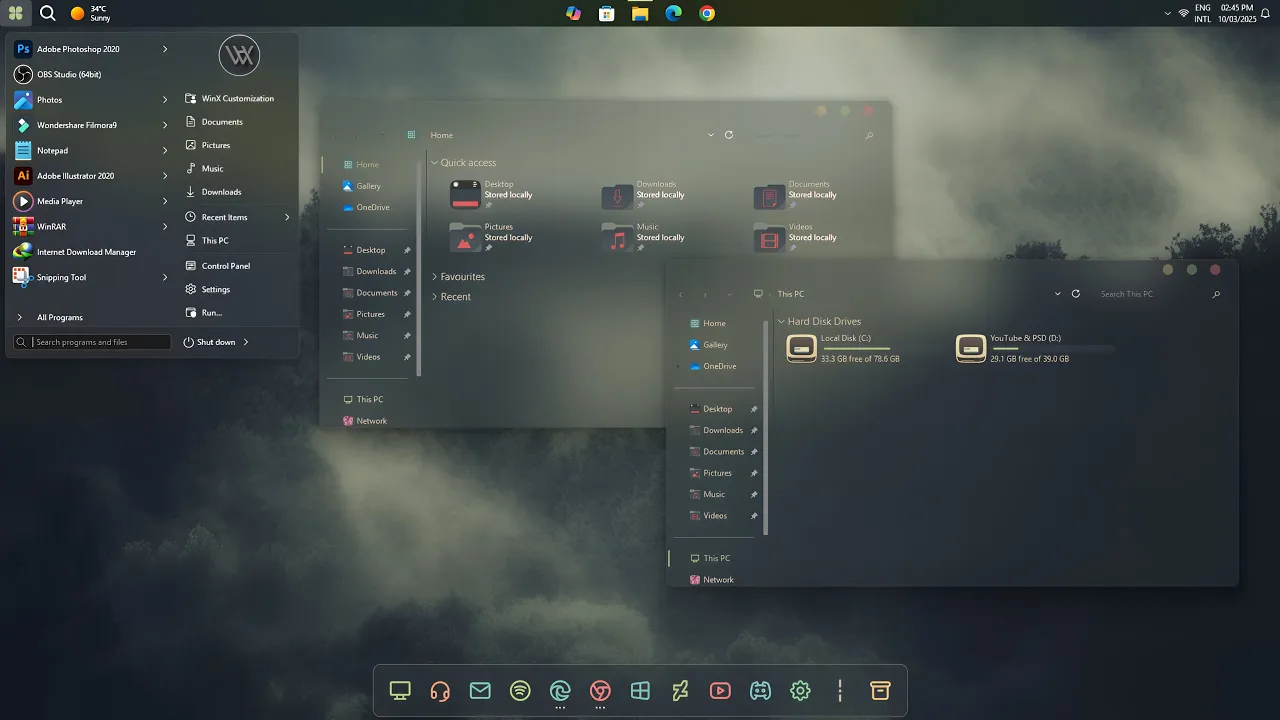
The Everforest Theme for Windows 11 gives the desktop a muted, nature-inspired appearance built around smoky green, charcoal, soft beige, and subdued pastel accents. File Explorer uses dark translucent surfaces that allow parts of the wallpaper to remain visible while keeping folders, navigation items, and text clearly separated.
The interface avoids bright, saturated colors in favor of softer tones. Explorer icons use restrained pink, teal, green, and warm neutral accents, while the drive icons have a beige outline that fits naturally with the darker background. The drive usage indicators use a pale yellow-green tone instead of the standard Windows blue.
Everforest works especially well with darker forest, cloudy, misty, or muted landscape wallpapers. Because some interface areas are translucent, the wallpaper can influence the overall color seen through File Explorer without becoming part of the theme itself.
Everforest Visual Style
The theme uses a dark gray-green Explorer base with semi-transparent panels and soft background blur. The navigation area remains slightly darker than the main Explorer surface, helping different sections stay easy to distinguish without introducing heavy borders.
Folder and system resources follow the same restrained color direction. Instead of using vivid neon colors, the included icon styling relies on muted reds, soft greens, beige, and cool blue details that match the natural tone of the interface.
The overall result is calmer than a highly colorful Windows theme. Dark glass surfaces, low-saturation icons, and subtle accent colors give Everforest its identity while keeping the Windows 11 interface familiar underneath.
Features
- Dark forest-green and charcoal interface styling
- Semi-transparent File Explorer surfaces
- Soft blurred background treatment
- Muted pastel folder and system icons
- Beige outlined drive icons
- Pale yellow-green drive usage indicators
- Darker translucent navigation panel
- Works naturally with darker and nature-inspired wallpapers
Drive and Icon Styling
The storage section follows the same subdued color palette as the rest of the setup. Beige outlined drive resources sit naturally against the darker Explorer surface, while pale yellow-green usage indicators provide contrast without becoming too bright.
The included 7TSP icon pack extends the Everforest look to supported Windows icons. It can be applied separately after the main theme is working correctly, so you can use the visual theme with or without the icon changes.
Compatibility
- Windows 11 21H2: May work, but not recommended for the best experience
- Windows 11 22H2: May work, but compatibility can vary
- Windows 11 23H2: Recommended
- Windows 11 24H2: Recommended
- Windows 11 25H2: Supported, but test carefully after Windows updates
Included Files
- Windows 11 Theme
- 7TSP Icon Pack
Optional Customization Tools
Optional Tools
How to Install the Theme
Installation Steps
- Download the Everforest Theme package and extract the ZIP file.
- Copy the extracted theme files and theme folder to
C:\Windows\Resources\Themes. - Right-click on the desktop, select Personalize, open the Themes section, and choose the Everforest theme to apply it.
- After the main theme is active, you can use 7TSP GUI to apply the included icon pack and add optional StartAllBack or Explorer customizations separately.
- For the complete installation process and additional setup details, follow this Windows 11 custom theme installation guide.
Theme Files 9MB
Download How to Remove the Theme
Removal Steps
- Right-click on the desktop, open Personalize, and switch back to one of the default Windows 11 themes.
- If you applied the included Everforest icon pack, use the restore or backup option in 7TSP GUI to return to the default Windows icons.
- Disable or restore any optional StartAllBack, Blur Mica, or other interface customizations that were added separately.
- For the complete restoration process, follow this Windows 11 custom theme removal guide.
Disclaimer
Everforest Theme for Windows 11 is an independent third-party customization resource intended for personal desktop styling. It is not an official Microsoft product and is not affiliated with, sponsored by, or endorsed by Microsoft. Windows and related trademarks belong to their respective owners.
Third-party themes, icon packs, and optional customization tools can behave differently across Windows builds or after major system updates. Check compatibility before applying additional interface modifications.
Final Word
Everforest takes a restrained approach to Windows 11 customization. Its smoky dark Explorer surfaces, muted system icons, beige drive resources, and pale yellow-green indicators work together without relying on strong neon colors or heavy visual effects.
The theme fits naturally into darker nature-inspired setups, but its subdued color palette also works well when you want File Explorer to feel different without making every part of the desktop overly bright.
Frequently Asked Questions
What colors are used in the Everforest Theme?
Everforest mainly uses smoky green, charcoal, beige, and muted pastel accents. The overall appearance can also shift depending on the wallpaper behind the translucent interface.
What color are the drive usage bars?
The drive usage indicators use a pale yellow-green tone that matches the theme’s subdued natural color palette.
Is the 7TSP icon pack included?
Yes. The package includes both the Windows 11 theme and a 7TSP icon pack.
Do I have to install the icon pack?
No. The main Everforest theme can be used without changing the Windows icons. The included 7TSP pack is an additional customization.
Are the Start Menu and dock part of the main theme?
No. Start Menu, taskbar, dock, and other interface modifications should be treated as separate customizations unless they are specifically included in the package.
Why can Everforest look different with another wallpaper?
The Explorer surfaces use transparency, so some wallpaper color remains visible through the interface. A different background can therefore change the overall color impression without changing the theme files.
Can I restore the default Windows icons later?
Yes. If the Everforest icons were applied through 7TSP, use its restore or backup option to return to the default Windows icon resources.