Liquid Glass Theme for Windows 11
Liquid Glass Theme for Windows 11 : The Liquid Glass Theme for Windows 11 is a striking custom desktop style that gives your PC a sleek, translucent, and futuristic appearance

Liquid Glass Theme for Windows 11
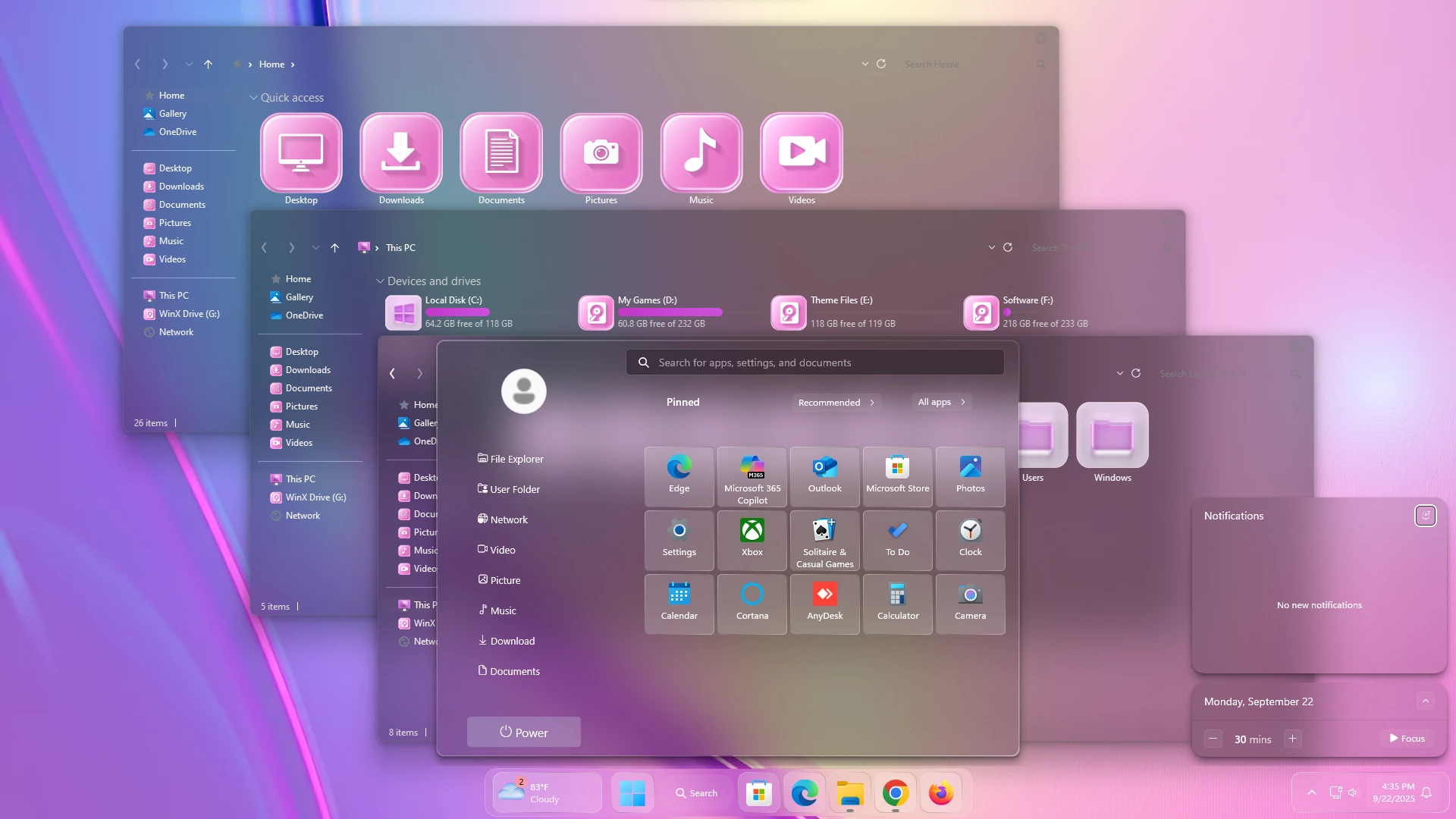
The Liquid Glass Theme for Windows 11 gives the desktop a soft translucent appearance with blurred surfaces, rounded interface elements, and a darker glass treatment across File Explorer. Instead of using solid window backgrounds, the theme allows part of the desktop color to remain visible through the interface while keeping folders, navigation items, and controls easy to distinguish.
File Explorer uses a dark semi-transparent surface with subtle pink and violet tinting. Much of that color comes from the wallpaper behind the glass panels, so changing the desktop background can noticeably alter the overall appearance without changing the theme itself.
The setup also uses softly rounded interface elements and small colored window controls. Large folder and library resources can be paired with bright pink icon styling, while compatible Start Menu, taskbar, and notification customizations can extend the same glass direction across other parts of Windows 11.
Liquid Glass Visual Style
Transparency is the main part of this design. Explorer windows remain dark enough for text and icons to stay readable, but the blurred desktop background is still visible through the larger surfaces. The navigation panel uses a slightly deeper tint, creating separation without relying on heavy borders.
The interface combines muted dark glass with brighter pink accents. Folder and library icons can use rounded pink tiles with simple white symbols, giving locations such as Desktop, Downloads, Documents, Pictures, Music, and Videos a more coordinated appearance when a matching icon pack is applied.
Small colored controls in the upper corner of the windows add another visual detail, while the overall structure of File Explorer remains familiar. The result is a softer Windows 11 layout rather than a completely different desktop environment.
- Dark semi-transparent File Explorer surfaces
- Soft background blur through glass-style panels
- Pink and violet tinted interface appearance
- Rounded window and panel styling
- Darker translucent navigation area
- Small colored window controls
- Works with matching pink icon resources
- Can be paired with separate Start Menu and taskbar customizations
- Designed for Windows 11 desktop personalization
What the Theme Changes
Liquid Glass focuses mainly on the visual appearance of supported Windows 11 interface elements. It changes the look of window surfaces, Explorer backgrounds, borders, and other themeable areas while Windows 11 remains the operating system underneath.
Custom icons, Start Menu styling, taskbar changes, notification panels, and other interface modifications should be treated as separate customizations unless they are specifically included in the downloaded package.
- Windows 11 21H2: Supported
- Windows 11 22H2: Supported
- Windows 11 23H2: Supported
- Windows 11 24H2: Supported
- Windows 11 25H2: Supported
- Windows 11 Theme
Optional Customization Tools
Before You Apply Liquid Glass
Create a System Restore Point before installing third-party Windows themes or changing system visual resources. If another custom theme is already active, keep a copy of your current setup so you can return to it later if necessary.
Apply the main Liquid Glass theme first and check File Explorer before adding optional icon packs, Start Menu styling, taskbar changes, or additional blur tools. Testing each component separately makes it easier to identify conflicts if something does not display correctly.
How to Install Liquid Glass Theme
- Create a Windows System Restore Point before starting.
- Install the compatible theme patcher required for your Windows 11 build.
- Download the Liquid Glass Theme package using the button below.
- Extract the downloaded theme files.
- Copy the required theme files to the appropriate Windows theme folder.
- Open Windows Personalization and apply the Liquid Glass theme.
- Restart Windows Explorer or your PC if the visual changes do not appear immediately.
- Add optional icon, Start Menu, taskbar, or Explorer customizations only after the main theme is working correctly.
If you are new to third-party Windows themes, you can follow the Windows custom theme installation guide before applying the files.
Theme Files 88MB
Download How to Remove Liquid Glass Theme
- Open Windows Settings and go to Personalization > Themes.
- Select one of the default Windows 11 themes.
- Restore the default Windows icons if a separate 7TSP icon pack was applied.
- Disable or remove optional StartAllBack, Explorer blur, or other interface customizations used with the setup.
- Restart Windows Explorer or reboot your PC.
- Use the System Restore Point if any unwanted visual changes remain.
Using Liquid Glass With Other Customizations
The theme can be combined with matching icon packs, Start Menu presets, taskbar styles, and Explorer modifications, but those additions are separate from the main Windows theme unless the package specifically includes them.
Because the interface is translucent, wallpaper choice has a noticeable effect on the final desktop appearance. Pink, violet, blue, or gradient backgrounds can add stronger color through the glass surfaces, while darker wallpapers produce a more restrained result.
Disclaimer
Liquid Glass Theme for Windows 11 is an independent third-party customization resource intended for personal desktop customization. It is not an official Microsoft product and is not affiliated with, sponsored by, or endorsed by Microsoft. Windows and related trademarks belong to their respective owners.
Third-party themes and customization tools can behave differently across Windows builds. Create a System Restore Point before applying theme files or modifying Windows visual resources, and check tool compatibility after major Windows updates.
Final Word
Liquid Glass changes the Windows 11 desktop mainly through transparency, blur, and softer panel styling. Dark translucent Explorer surfaces keep the interface readable while allowing wallpaper color to pass through, and rounded details give the theme a gentler appearance than the standard Windows design.
The main theme can be kept simple or combined with matching icons and separate interface customizations. Since the glass surfaces react visually to the background behind them, changing the wallpaper alone can give the same theme a noticeably different character.
Frequently Asked Questions
Is the Liquid Glass Theme fully transparent?
No. The interface uses semi-transparent surfaces with blur, so the wallpaper remains partially visible while Explorer still has enough contrast for its content.
Are the pink and purple colors fixed into the theme?
Not completely. The translucent surfaces allow wallpaper colors to influence the interface, so the overall tint can change when you use a different background.
Are the large pink folder icons included with the Windows theme?
They should be treated as a separate icon customization unless the downloaded package specifically includes them. A compatible 7TSP icon pack can be used alongside the theme.
Is the glass-style Start Menu part of the main theme?
Start Menu styling can require a separate customization tool or configuration. The main Liquid Glass package listed here contains the Windows 11 theme.
Can I use another wallpaper with Liquid Glass?
Yes. Different wallpapers can noticeably change the colors visible through the semi-transparent windows without changing the theme files themselves.
Do I need to use every optional customization tool?
No. The optional tools can be added separately depending on which parts of the desktop you want to customize.