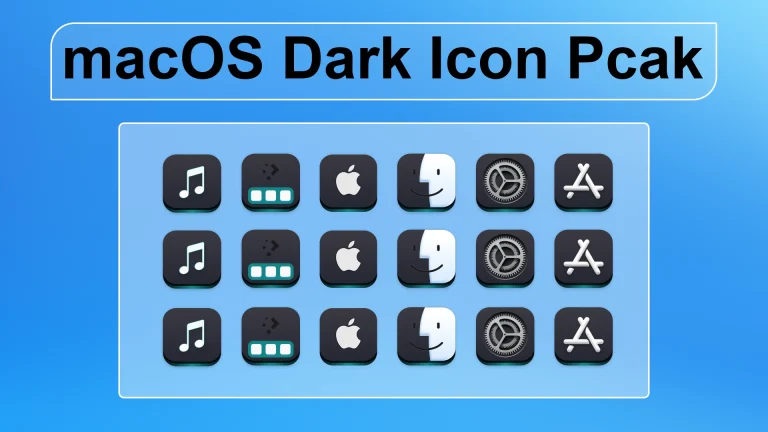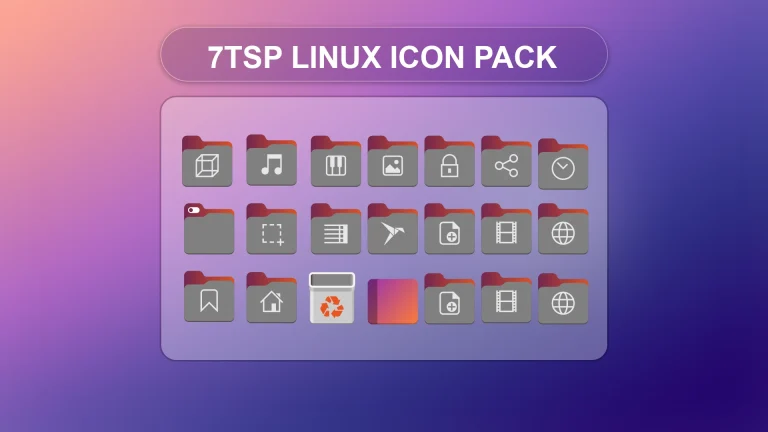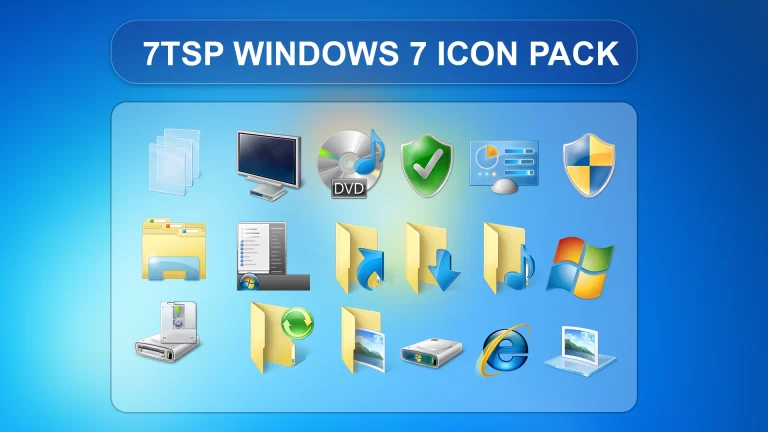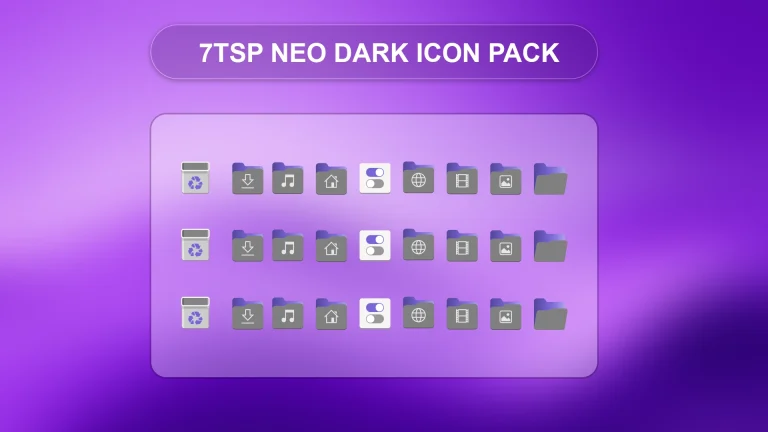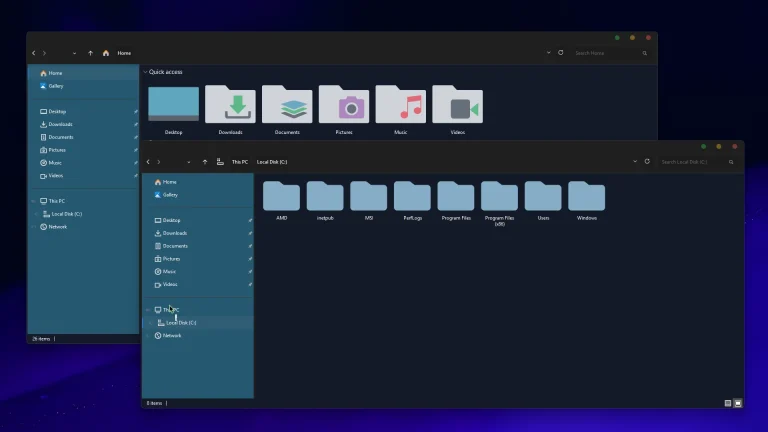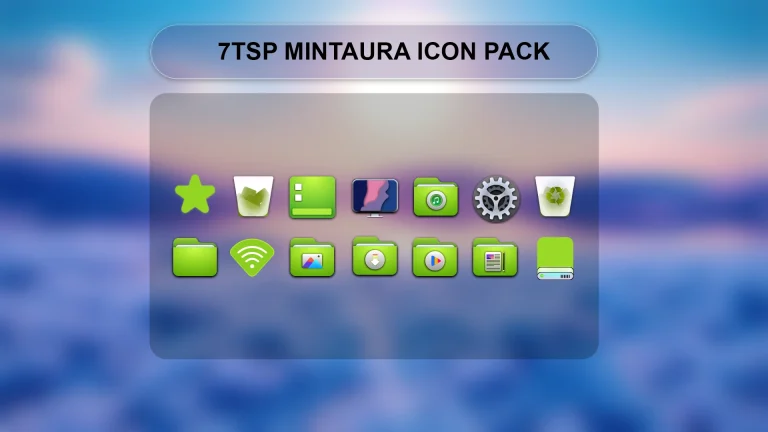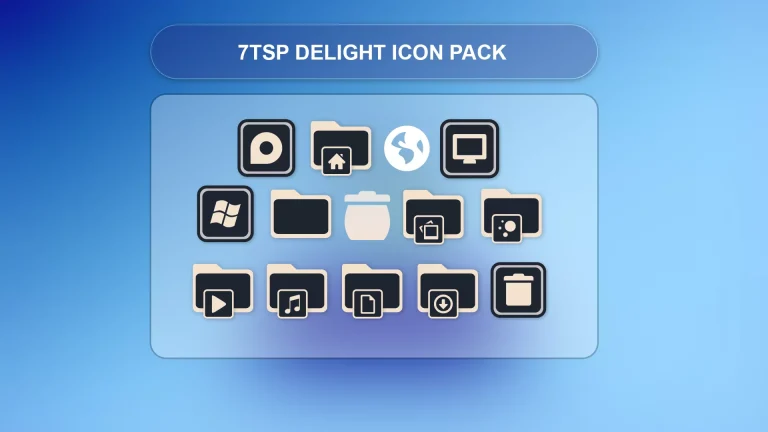
7TSP Liquid Glass Icon Pack
7TSP Liquid Glass Icon Pack : The Liquid Glass Icon Pack is a premium desktop customization set that gives your operating system a sleek, translucent look inspired by modern glass and fluid design trends.

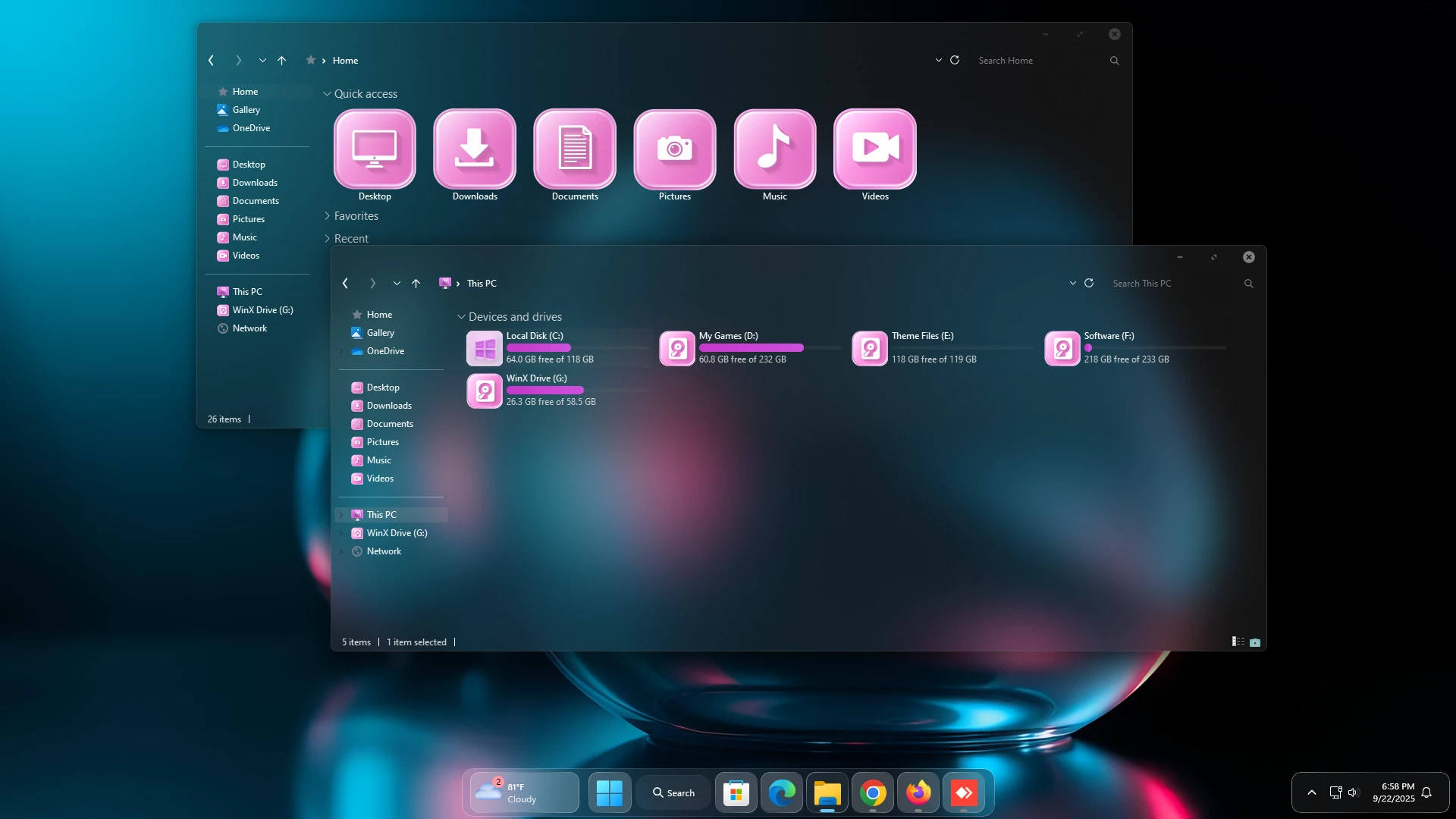
7TSP Liquid Glass Icon Pack for Windows
The 7TSP Liquid Glass Icon Pack for Windows is a modern desktop customization pack that gives standard Windows icons a clean, glossy, and transparent glass-style appearance. It is suitable for users who want to refresh the look of Windows 10 or Windows 11 without changing the entire operating system interface.
Disclaimer & Trademark Notice:
Windows, the Windows logo, and all related brand assets are registered trademarks of Microsoft Corporation. This website and the featured 7tsp icon packs are independent third-party projects and are not affiliated with, endorsed by, sponsored by, or officially connected to Microsoft Corporation.
7tsp (Seven Theme Source Patcher) theme packs modify system resources for customization. All content and downloads are provided strictly for educational, informational, and personal preview purposes only. Users apply these system modifications at their own risk.
The pack replaces supported system icons with designs featuring smooth gradients, soft reflections, rounded shapes, and liquid-glass effects. It works especially well with transparent taskbars, glass-style Start menus, minimal wallpapers, and modern Windows customization setups.
Modern Liquid Glass Design
Each icon is designed with transparent-looking layers, soft shadows, and subtle light reflections. The combination of blue, purple, silver, and neutral tones creates a polished visual style that looks attractive on both light and dark desktop backgrounds.
The icons are designed to remain clear on Full HD, 2K, and 4K screens. However, the final appearance may vary depending on your display resolution, Windows scaling settings, wallpaper, and system theme.
Compatible Windows Versions
The 7TSP Liquid Glass Icon Pack is intended for Windows 8, Windows 8.1, Windows 10, and Windows 11. Compatibility may vary between different Windows builds because Microsoft updates can change system files and icon resources.
Before applying the icon pack, make sure the version of 7TSP you are using supports your current Windows version. Major Windows updates may restore some default icons, requiring you to apply the pack again.
What Icons May Be Changed?
Depending on the Windows version and the contents of the pack, it may replace several commonly used system icons.
- Standard folder icons
- Desktop and user folders
- Hard disk and removable drive icons
- Recycle Bin icons
- File Explorer locations
- Network and computer icons
- Supported Windows system utilities
Third-party application icons may not be changed unless they are specifically included in the icon pack.
How to Install the Icon Pack
First, download the icon pack using the button below. Extract the downloaded ZIP file to a separate folder using the built-in Windows extraction option or another trusted archive utility.
Open a compatible version of the 7TSP utility and choose the option to add or select a custom icon pack. Browse to the extracted pack file, confirm your selection, and begin the patching process.
Allow the tool to complete the installation without closing the application or turning off your computer. Restart Windows after the process is finished to apply the new icons properly.
Create a Restore Point First
It is strongly recommended to create a Windows restore point before applying any 7TSP icon pack. Since the tool may modify system icon resources, a restore point can help you return to the previous state if something does not work correctly.
You should also keep any backup files created by 7TSP. These files may be required if you decide to restore the original Windows icons later.
How to Restore Default Icons
To remove the Liquid Glass icon pack, open 7TSP and use its restore or backup recovery option. Select the backup created before installation and follow the on-screen instructions.
Restart your computer after restoring the original files. If some customized icons are still visible, restarting File Explorer or rebuilding the Windows icon cache may help refresh them.
Best Desktop Setup for This Pack
The Liquid Glass Icon Pack looks best with clean wallpapers, transparent taskbars, blurred Start menus, modern widgets, and minimal desktop themes. A dark or softly blurred wallpaper can make the transparent edges and glossy details more visible.
Avoid using an extremely colorful wallpaper behind the desktop icons, as this may reduce visibility. A balanced background will help the glass-style icons remain clear and attractive.
Important Information
This pack is created for visual customization only. It does not improve Windows performance or add new system features. After installation, the icons should not use significant additional RAM or CPU resources because they replace existing visual resources.
Results may vary depending on your Windows build, customization software, system settings, and previous modifications. Scan downloaded files with Windows Security and create a backup before applying the pack.
Compatibility
- Windows 8 and Windows 8.1
- Windows 10
- Windows 11
What Is Included in This Pack?
- 7TSP Liquid Glass Icon Pack
- Download and install Windhawk
- Enable the Resource Redirect mod inside Windhawk
- Download the Icon Pack ZIP file
- Extract the icon pack to a folder on your system
- Copy the folder path and paste it into Resource Redirect settings
- Apply changes and restart Windows Explorer
For a detailed guide, you can also check:
7TSP Icon Pack 4 MB
“` Download “`Final Words
The 7TSP Liquid Glass Icon Pack is a good choice for users who want to give Windows a modern and polished appearance. Its transparent surfaces, soft gradients, and glossy details can make folders, drives, and supported system icons look more consistent.
For the safest installation, use a compatible version of 7TSP, create a restore point, and keep the original backup files. Combine the icons with a clean wallpaper and matching desktop theme for the best overall result.