Color Verse Windows 11 Theme 24h2
Color Verse Windows 11 Theme 24h2:Color Verse Windows 11 Theme 24H2 brings a vibrant and modern aesthetic to your desktop, perfectly blending Windows 11’s clean interface with a burst of colorful gradients.

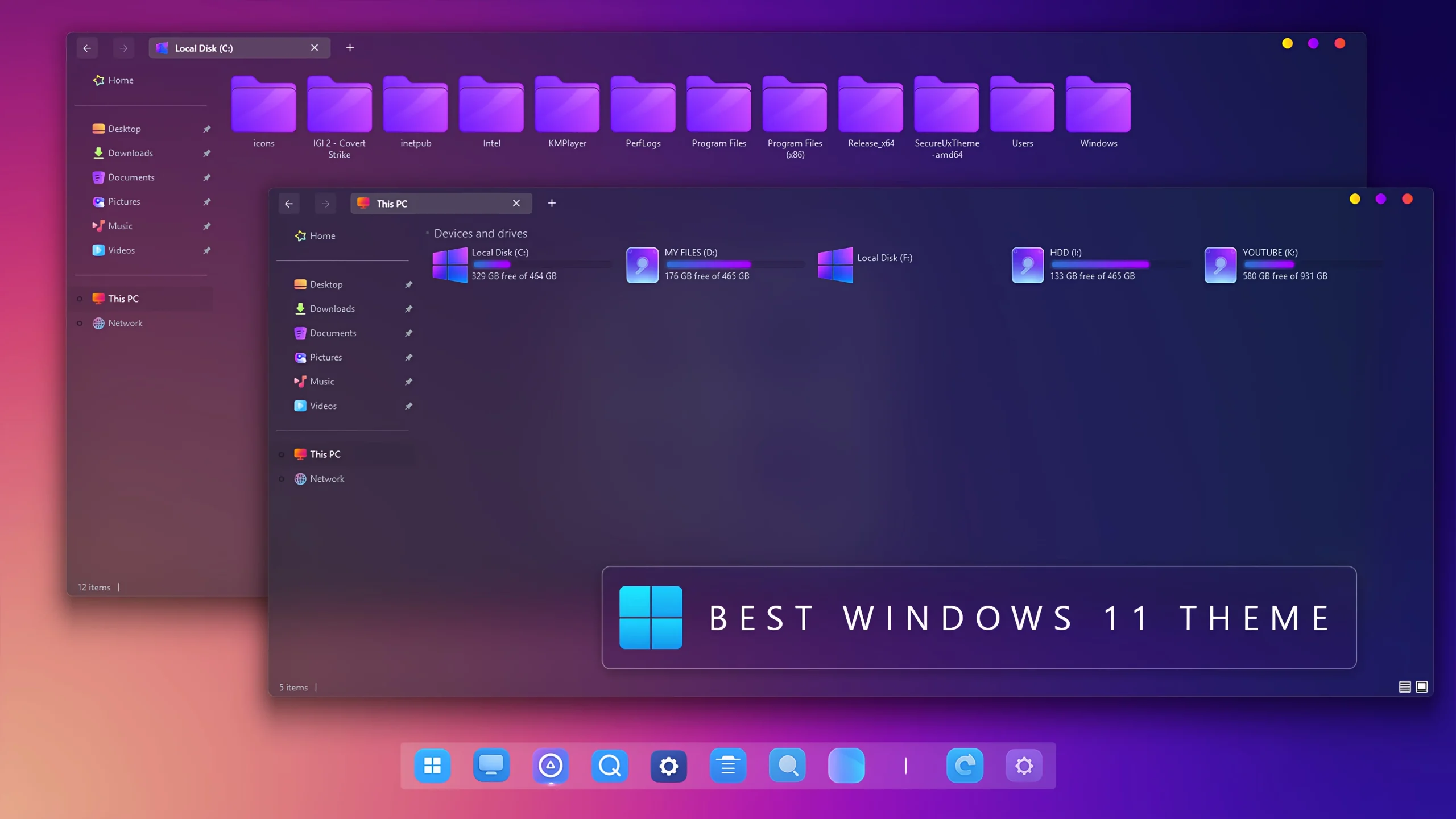
Color Verse Windows 11 Theme 24H2: A Colorful Modern Desktop Experience
Color Verse Windows 11 Theme 24H2 is a vibrant desktop customization pack designed for users who want to give their Windows 11 setup a more colorful, modern, and visually attractive appearance. The theme combines a stylish Windows interface, colorful gradients, modern icons, Windhawk customization, and matching wallpaper to create a fresh desktop experience.
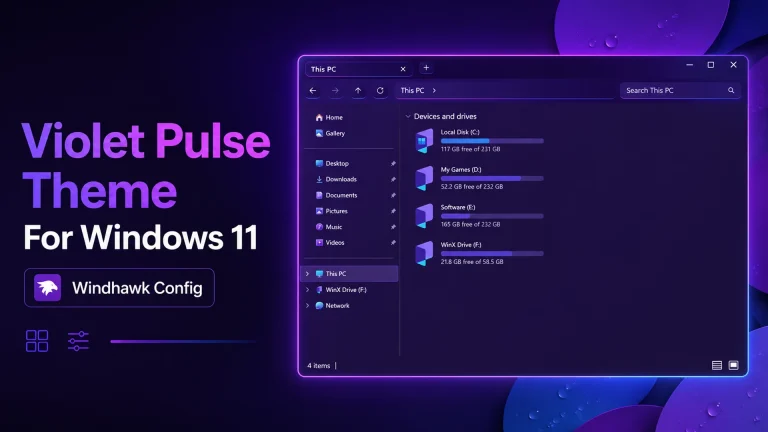
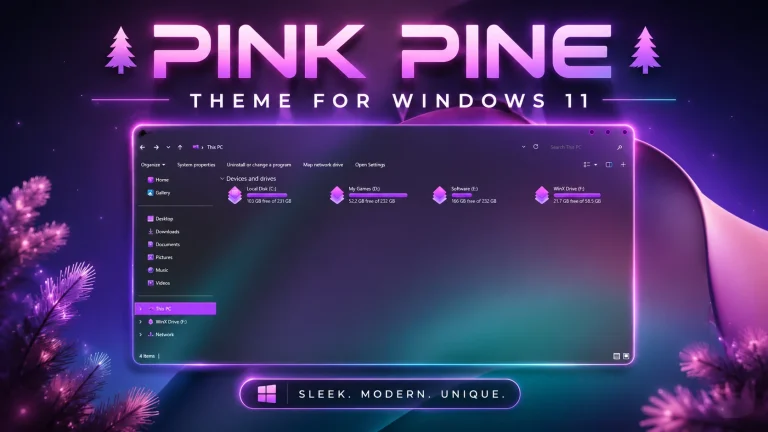
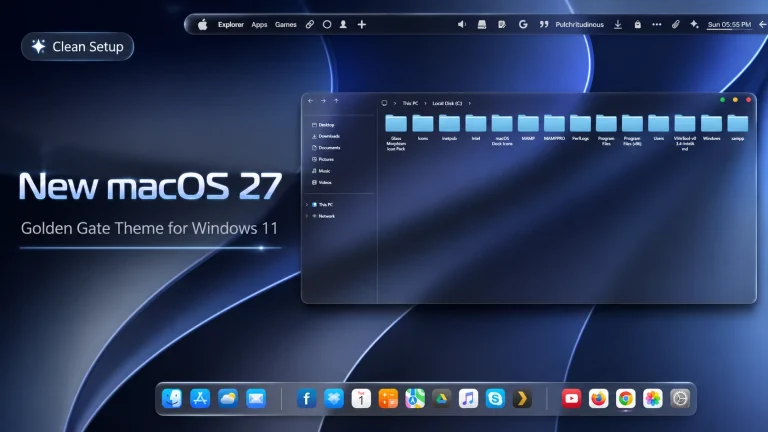
As shown in the preview, Color Verse features a dark glass-inspired interface with purple and blue gradients, transparent windows, customized icons, and a modern Windows 11 layout. The combination of soft colors, smooth visual elements, and clean spacing creates a premium-looking desktop setup.
This theme is suitable for users who enjoy colorful UI designs, glass effects, modern layouts, and personalized Windows customization. It can be used for daily work, gaming setups, creative projects, or desktop showcase content.
What Is Color Verse Windows 11 Theme 24H2?
Color Verse Windows 11 Theme 24H2 is a third-party customization package created to enhance the visual appearance of Windows 11. It does not replace Windows or install a different operating system. Instead, it modifies selected visual elements to provide a more personalized desktop style.
The theme focuses on colorful gradients, modern interface elements, smooth transparency effects, and a balanced desktop design. It is created for users who want a fresh alternative to the default Windows 11 appearance while keeping the familiar Windows workflow.
The final appearance may vary depending on your Windows version, display settings, scaling options, and the customization tools used during installation.
- Colorful gradient-based Windows 11 design
- Modern glass-inspired interface style
- Purple and blue visual accents
- Custom Windows theme included
- Matching icon pack support
- Windhawk customization support
- Wallpaper included for a complete setup
- Compatible with modern Windows 11 customization layouts
What You Can Customize
Color Verse Windows 11 Theme allows you to customize different parts of your desktop appearance. Depending on the included resources, you can apply the visual theme, icons, wallpaper, Windhawk modifications, and additional interface elements.
You can use the complete Color Verse setup for a consistent colorful desktop style or apply selected components separately according to your preferred customization needs.
Compatibility
Color Verse Windows 11 Theme is designed for Windows 11 customization. Compatibility may depend on your Windows build, theme tools, and additional software required for applying the included resources.
- Windows 11 21H2: Check compatibility
- Windows 11 22H2: Check compatibility
- Windows 11 23H2: Recommended
- Windows 11 24H2: Recommended
- Windows 11 25H2: YES
Before applying the theme, confirm that your Windows version supports the required customization tools.
- Create a system restore point before applying the theme.
- Backup important files and current desktop settings.
- Use trusted customization tools only.
- Check compatibility of all required software.
- Keep the default Windows theme available for recovery.
Installation Steps
- Create a restore point before starting the customization.
- Download the Color Verse Theme package.
- Extract the downloaded files into a new folder.
- Install a compatible theme tool if required.
- Apply the Color Verse Windows 11 visual style.
- Install the included icon pack and apply the wallpaper.
- Configure Windhawk mods and additional customization tools if included.
- Restart Windows Explorer or restart your PC after completing major changes.
What’s Included in This Theme?
- Windows 11 Theme
- Icon Pack
- Windhawk Mods
- Wallpaper
Color Verse Theme Files 55 MB
DownloadHow to Remove Color Verse Windows 11 Theme?
If you want to restore your Windows 11 desktop to its original appearance, you can remove the Color Verse Theme by reversing the customization changes applied during installation. Follow the steps below carefully.
- Open Windows Settings and go to Personalization → Themes.
- Select the default Windows theme to restore the original Windows appearance.
- If you applied the included icon pack, use your icon customization tool to restore the default Windows icons.
- Remove any Windhawk mods, dock settings, transparency tools, or additional customization files applied with the theme.
- Restart Windows Explorer or restart your PC to complete the changes.
- If any problem remains, use the system restore point created before installing the theme.
Removing Color Verse Theme will not affect your personal files or installed applications. It only restores the visual elements modified during the customization process.
Who Should Use This Theme?
Color Verse Windows 11 Theme 24H2 is a good choice for users who enjoy colorful desktop designs, modern UI concepts, and creative Windows customization.
This theme is suitable for:
- Windows customization enthusiasts
- Users who prefer colorful gradient-based interfaces
- People who enjoy glass-style and modern UI designs
- Content creators making desktop showcase videos
- Gamers and users creating personalized PC setups
- Anyone who wants a fresh alternative to the default Windows 11 look
If you prefer a simpler desktop, you can also use selected components such as the wallpaper, icons, or individual customization tools without applying the complete setup.
Disclaimer
Disclaimer: Color Verse Windows 11 Theme 24H2 is shared for Windows customization purposes only. Link Vegas Theme is not affiliated with Microsoft or the original creators of any theme files, icons, wallpapers, or third-party customization tools.
This is not an official Microsoft theme, Windows update, or Microsoft product. It does not replace Windows or add new operating system features. It only changes selected visual elements of an existing Windows 11 installation.
Third-party themes, icon tools, Windhawk mods, and customization software may behave differently depending on your Windows version and system configuration. Always create a restore point and use trusted tools before applying changes.
Final Thoughts
Color Verse Windows 11 Theme 24H2 brings a vibrant and modern visual style to the Windows desktop with colorful gradients, glass-inspired effects, custom icons, and additional customization resources.
Its balanced combination of colors and modern interface elements makes it a great option for users who want a more personalized Windows 11 experience without moving away from the familiar system layout.
For the best result, apply each customization component carefully, keep your restore point available, and enjoy a refreshed Windows 11 desktop with the Color Verse theme.
Frequently Asked Questions
What is Color Verse Windows 11 Theme 24H2?
Color Verse Windows 11 Theme 24H2 is a third-party customization package designed to give Windows 11 a colorful, modern, and glass-inspired desktop appearance.
Is Color Verse Theme an official Microsoft theme?
No. It is an unofficial third-party customization package and is not created, supported, or endorsed by Microsoft.
Does Color Verse Theme install Windows 11 24H2?
No. The theme does not install or update Windows. It only changes selected visual elements of your existing Windows 11 system.
Do I need additional tools to use this theme?
Some parts of the customization may require tools such as a theme tool, icon tool, Windhawk, Explorer customization tools, or dock software depending on the included setup.
What is included in Color Verse Theme?
The package includes a Windows 11 theme, icon pack, Windhawk mods, and wallpaper resources.
Can I use only the wallpaper or icon pack?
Yes. You can apply individual components separately if they are compatible with your Windows version and required tools.
Will this theme work after Windows updates?
Compatibility may change after major Windows updates. Some customization files or tools may require updates or reapplication.
How can I restore the default Windows appearance?
Switch back to the default Windows theme, restore original icons, remove additional customization tools, or use your system restore point if required.
Is Color Verse Theme safe to use?
The theme is intended for desktop customization. Use trusted files, scan downloads, create a restore point, and confirm compatibility before installation.