Fluent Pink Theme For windows 11
Download Fluent Pink Theme for Windows 11 and give your desktop a soft, modern, and clean pink Fluent-style customization look.

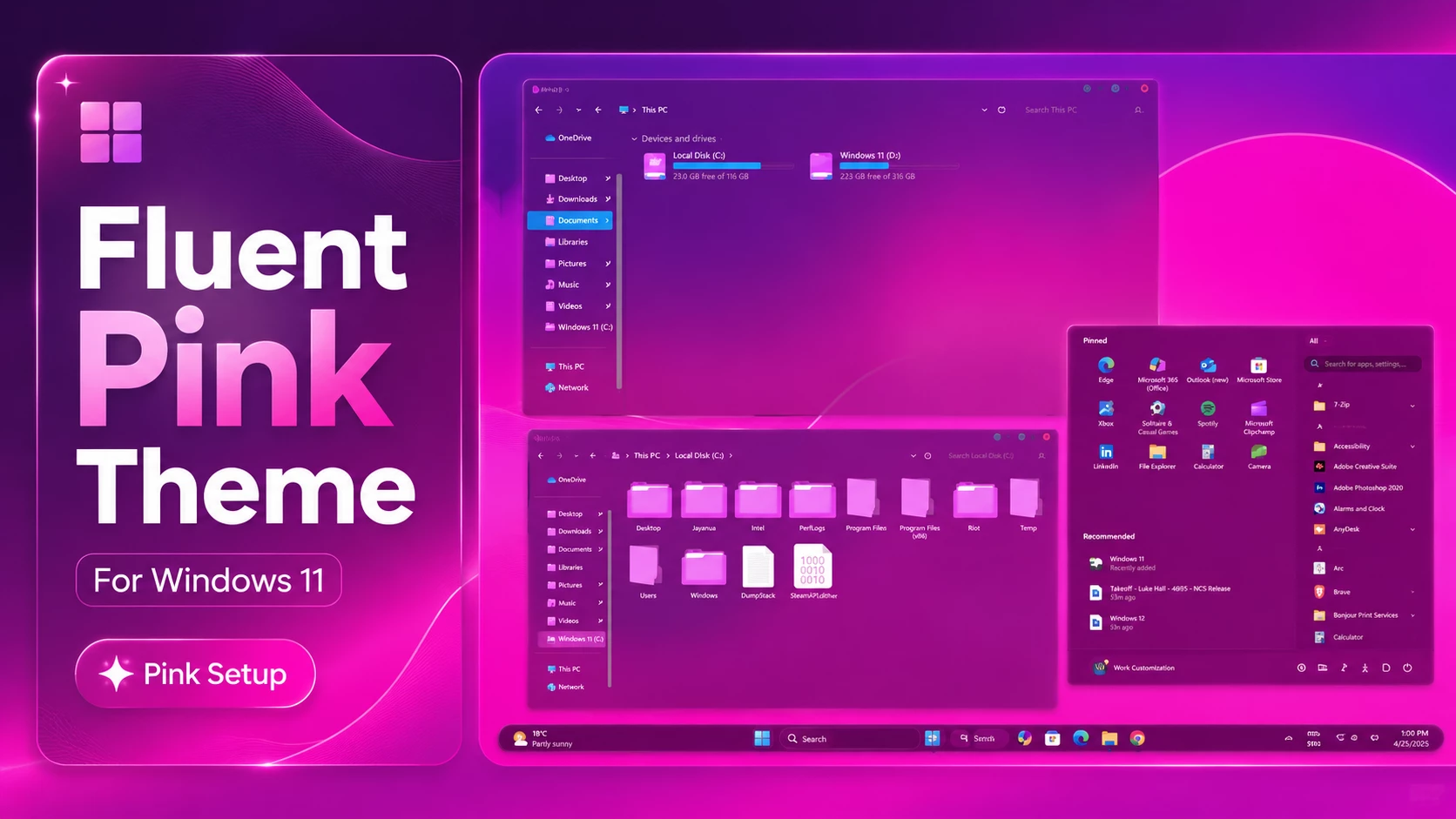
Fluent Pink Theme For Windows 11
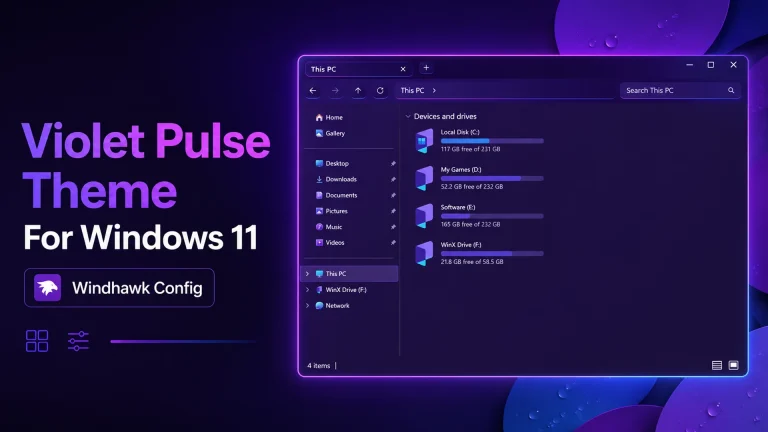
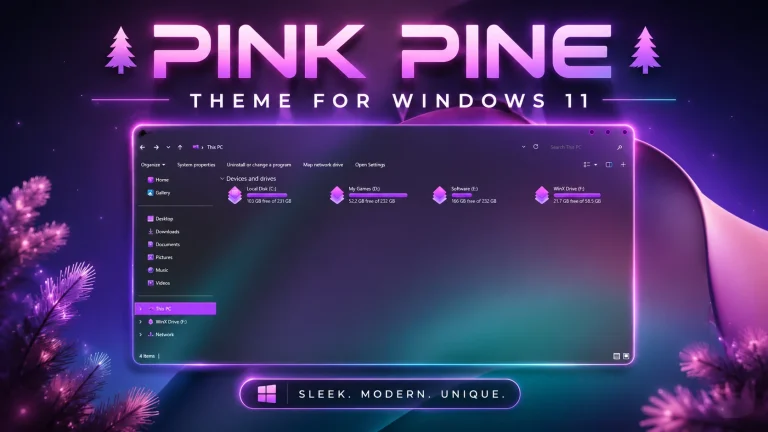
Fluent Pink Theme for Windows 11 is a soft, modern, and stylish desktop customization theme made for users who want a clean pink-inspired Windows setup. It brings a fresh Fluent-style look to your desktop with a smooth color tone, modern visual balance, and a more personal appearance than the default Windows 11 theme.
If you like elegant pink colors, minimal layouts, and soft desktop designs, the Fluent Pink Theme can be a great choice for your Windows 11 customization setup. It is suitable for users who want their desktop to look clean, friendly, and visually refreshing without making the interface feel too crowded.
Fluent Pink Theme works best when paired with matching wallpapers, simple icons, and a clean taskbar style. With the right setup, the Fluent Pink Theme can make your Windows 11 desktop feel more polished, cozy, and personal.
Overview
The Fluent Pink Theme is inspired by the modern Fluent design style of Windows, combined with a soft pink color mood. It focuses on a smooth and clean visual experience rather than a heavy or complicated desktop look.
This theme is designed for users who enjoy light, elegant, and modern desktop customization. The pink color tone gives the desktop a warm and stylish feel, while the Fluent-style design keeps the overall look simple and comfortable for daily use.
Design and Visual Style
The main attraction of the Fluent Pink Theme is its soft pink visual style. It can give windows, desktop elements, and the overall interface a more gentle and modern appearance. The design works well with light wallpapers, pastel backgrounds, minimal icons, and clean desktop layouts.
The Fluent Pink Theme can also match nicely with transparent taskbar styles, glass-style widgets, pink icon packs, and aesthetic Rainmeter skins. The overall desktop feel is smooth, calm, and visually pleasing, making it suitable for both work and personal use.
Main Features
- Modern Windows 11 visual style with a pink Fluent-inspired look
- Soft and clean desktop appearance
- Custom wallpaper support for matching setups
- Works well with pink, pastel, and light wallpapers
- Matching icon or dock setup can be used if available
- Suitable for personal Windows 11 customization
- Good for minimal, aesthetic, and cozy desktop setups
Compatibility Details
Before applying the Fluent Pink Theme, check your Windows 11 version and system build carefully. Custom themes may depend on the Windows build, theme method, and any required customization tools included with the package.
Windows updates can sometimes change how custom themes work, so it is important to read the included instructions before applying the theme. For the best result, use the theme only on a compatible Windows 11 build and avoid mixing too many theme tools at the same time.
Installation Guide
- Create a system restore point before applying the Fluent Pink Theme.
- Download the theme package from the provided download section.
- Extract the theme files carefully using a file extraction tool.
- Read the included guide or instructions before making any changes.
- Apply the Fluent Pink Theme using the recommended method from the package.
- Restart Windows or restart File Explorer if required.
- Check the desktop appearance and adjust wallpaper, icons, or taskbar settings if needed.
Safety Tips
- Create a system restore point before installing any custom Windows theme.
- Use theme files only from trusted sources.
- Do not skip the compatibility check before applying the theme.
- Keep the default Windows 11 theme available as a backup.
- Do not apply multiple visual styles at the same time if they conflict.
- Read all included instructions before changing system appearance settings.
How to Restore the Default Windows 11 Look
If you want to remove the Fluent Pink Theme and return to the default Windows 11 look, first switch back to a default Windows theme from the Personalization settings. You can do this by going to Settings > Personalization > Themes and selecting a default Windows theme.
If the theme package uses any extra customization tool, disable the related theme or style from that tool as well. After restoring the default look, restart File Explorer or restart your PC. If something does not return properly, use the restore point you created before installing the Fluent Pink Theme.
Best Setup Combination
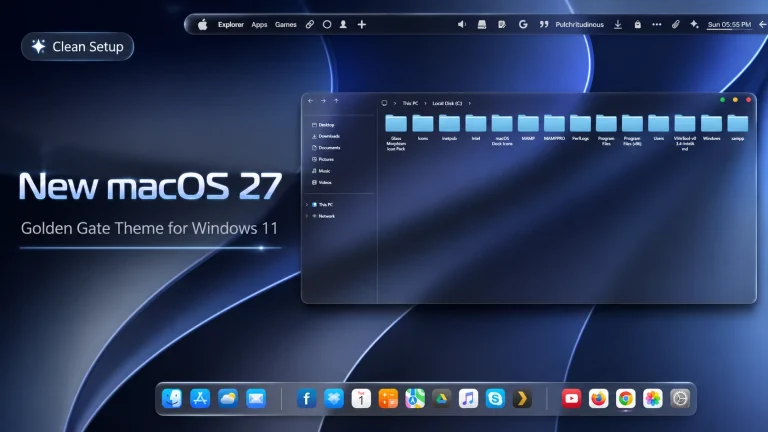
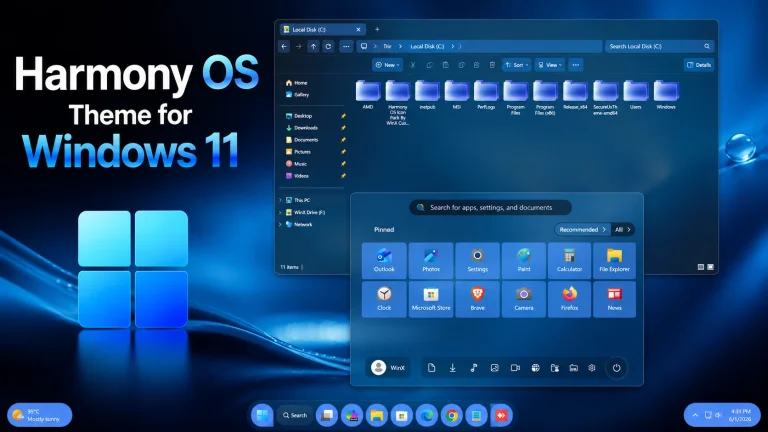
The Fluent Pink Theme looks best with soft wallpapers, pastel backgrounds, pink icon packs, clean dock icons, and minimal Rainmeter widgets. You can also pair it with a transparent or rounded taskbar style for a more complete Fluent-style desktop setup.
For a cleaner look, keep your desktop icons organized and choose widgets that match the pink color theme. A simple clock widget, minimal system monitor, and matching wallpaper can make the Fluent Pink Theme look more balanced and professional.
- Windows 11 Theme
- Icon Pack
- Wallpaper
- Windows 11 21H2 ✅
- Windows 11 22H2 ✅
- Windows 11 23H2 ✅
- Windows 11 24H2 ✅
- I recommend creating a restore point before starting your customization.
- This third-party theme will only work if you install Theme Patcher, so definitely install Theme Patcher.
- If you’re new to customization, check out this page that explains in detail how to install Windows custom themes.
- Theme support: Windows 11
Theme Files 96MB
DownloadFinal Verdict
Fluent Pink Theme for Windows 11 is a good option for users who want a soft, clean, and modern desktop customization style. It brings a pink Fluent-inspired look that feels fresh without making the Windows interface too complex.
If you enjoy aesthetic desktop setups, pastel colors, and simple Windows customization, the Fluent Pink Theme can be a nice addition to your collection. Just remember to check compatibility, create a restore point, and follow the included instructions before applying the theme.