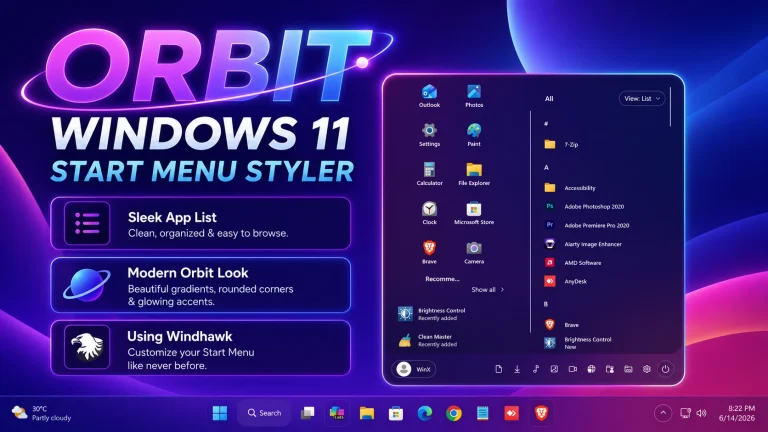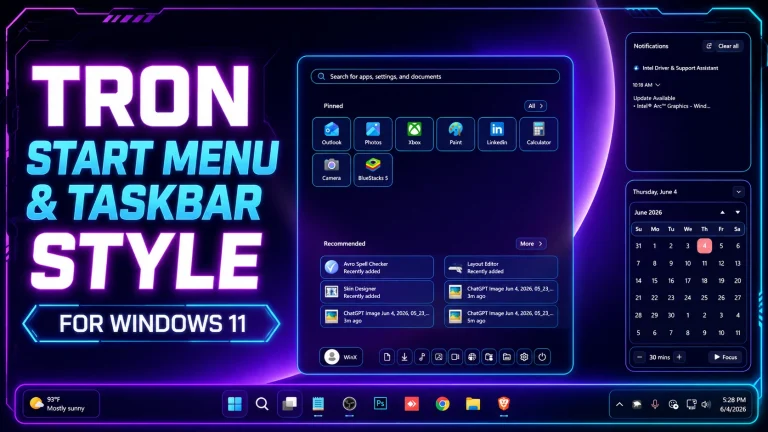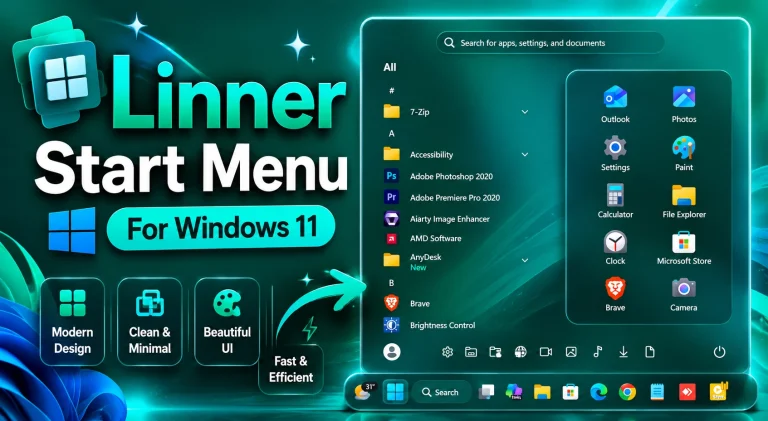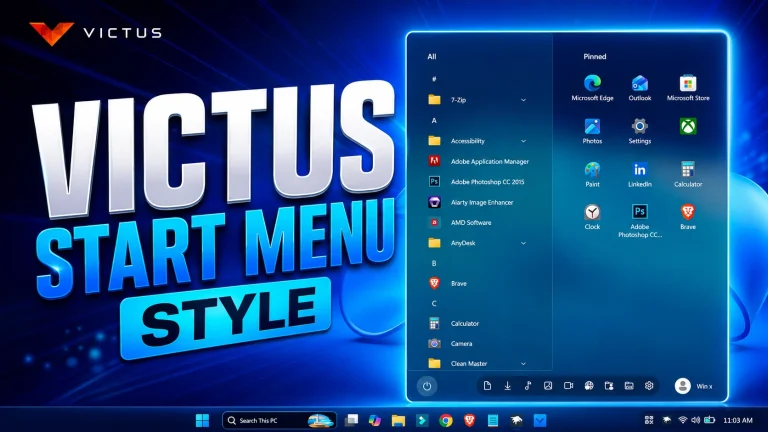
Windows 20 Start Menu Style – Futuristic UI Design
Windows 20 Start Menu Style : Transform your Windows 11 experience with Windows 20 Start Menu Mods for Windhawk – a futuristic Start Menu styling concept that blends minimalism, transparency, and advanced UI dynamics

Windows 20 Start Menu Style for Windows 11
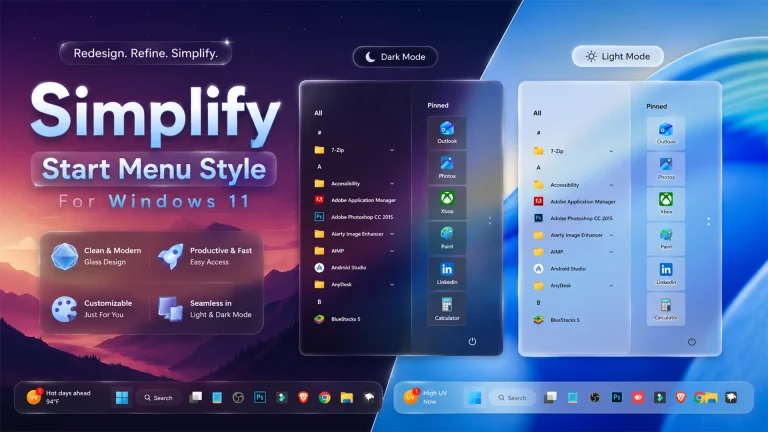
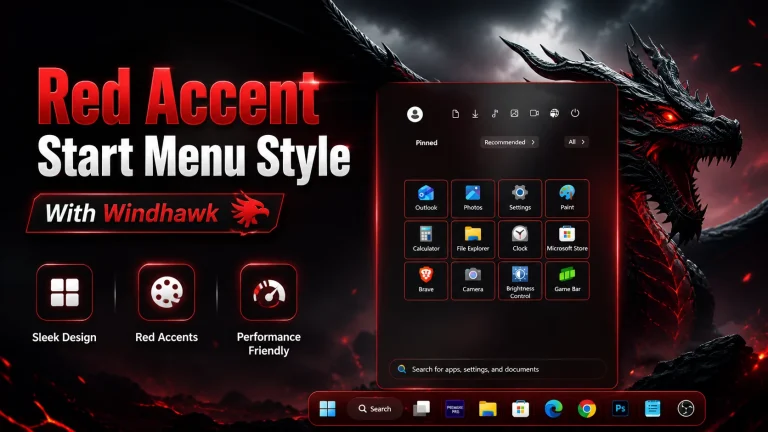
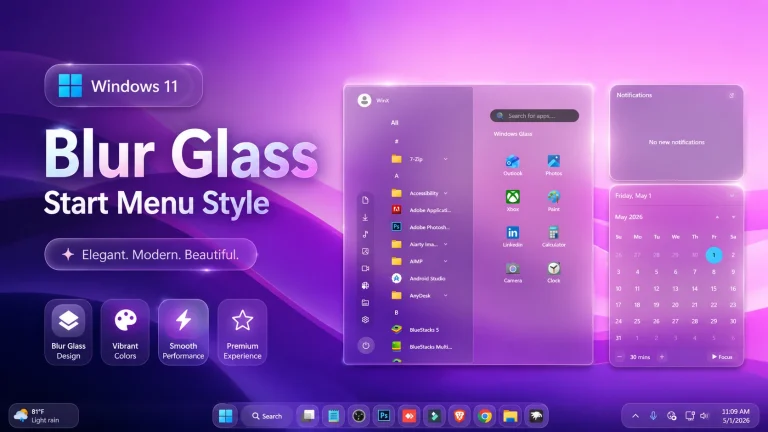
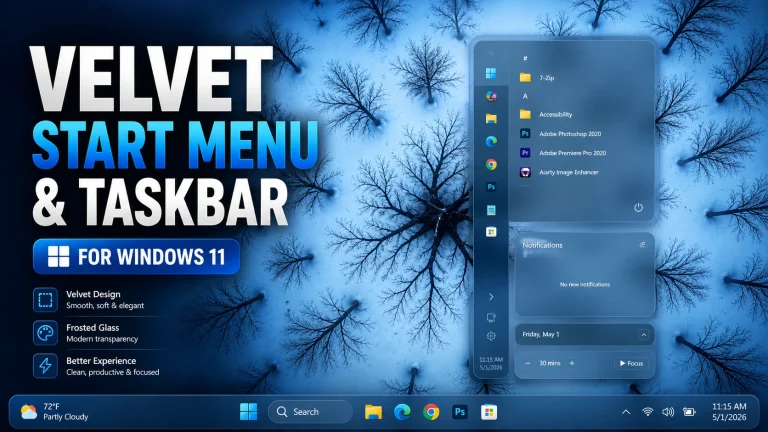
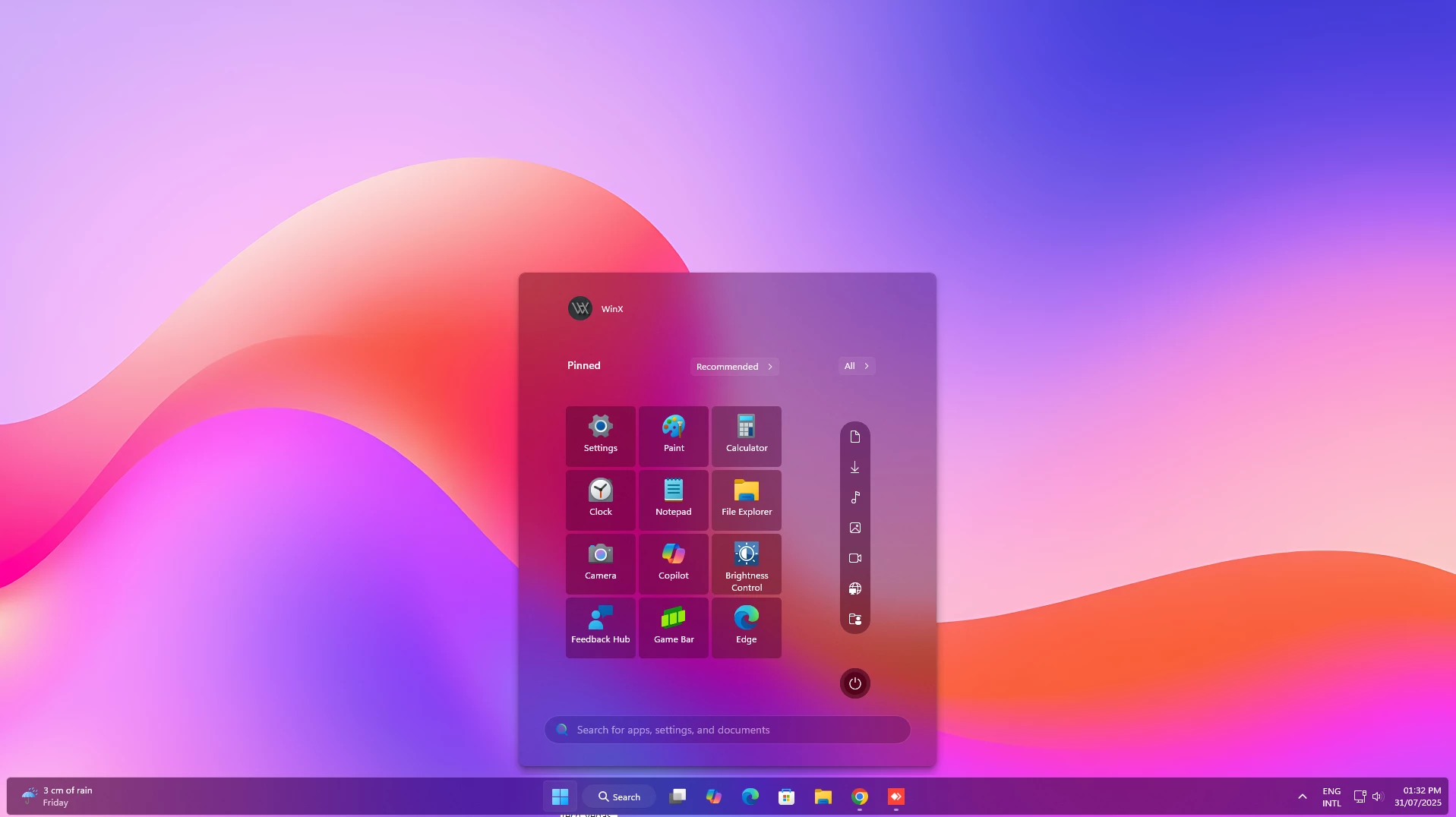
Windows 20 Start Menu Style for Windows 11 is a futuristic desktop customization style designed for users who want a modern, clean, and next-generation Start Menu look. This style gives your Windows 11 interface a fresh visual upgrade with smooth gradients, glassmorphism effects, rounded corners, and a minimal centered layout.
If you are bored with the default Windows 11 Start Menu and want something more stylish, the Windows 20 Start Menu Style can be a great choice. It is made for users who enjoy modern UI customization, futuristic desktop setups, and clean Windows themes. The design keeps the Start Menu simple and easy to use while adding a premium visual appearance.
Futuristic Windows 20 Inspired Design
The main concept of this style is inspired by a futuristic version of Windows. It does not change the full operating system, but it gives the Start Menu a more advanced and modern look. The clean layout, soft transparency, gradient background, and smooth spacing make the desktop feel more polished and visually appealing.
The Windows 20 Start Menu Style works especially well with colorful wallpapers, glass-style taskbars, modern icon packs, and minimal desktop setups. When combined properly, it can give your Windows 11 desktop a unique and eye-catching appearance without making the interface difficult to use.
Features of Windows 20 Start Menu Style
- Futuristic Windows 20 inspired Start Menu design
- Clean and centered Start Menu layout
- Smooth gradient background integration
- Glassmorphism and transparency effects
- Modern rounded corners and soft visual styling
- Lightweight design for smooth performance
- Suitable for dark, colorful, and futuristic desktop themes
- Easy to apply using Windhawk customization mods
Why Choose Windows 20 Start Menu Style?
The Windows 20 Start Menu Style is perfect for users who want to make their Windows 11 desktop look different from the standard design. It improves the visual appearance of the Start Menu while keeping the interface familiar and practical. You can still access your apps, settings, and power options easily, but the overall look becomes more stylish and modern.
This style is also useful for users who create Windows customization videos, desktop showcase setups, or personal productivity workspaces. It adds a futuristic feeling to the system without using heavy software or complicated customization methods.
Best For Modern Desktop Customization
This Start Menu style is a good option for anyone who likes clean and aesthetic Windows customization. The layout is minimal, but the glass and gradient effects make it visually attractive. It can match many desktop styles, including gaming setups, productivity themes, neon themes, glass UI designs, and futuristic Windows concepts.
For the best result, you can use this style with a matching taskbar design, modern folder icons, and a high-quality gradient wallpaper. A well-matched wallpaper can make the transparency and blur effects look even better.
How to Install
- Download and install Windhawk.
- Open Windhawk and install the Windows 11 Start Menu Styler mod.
- Go to the Advanced tab.
- Paste the provided configuration code into the Mod settings box.
- Click Save to apply the style.
- Restart Windows Explorer if the style does not apply instantly.
- For more details, visit this GitHub guide.
System Requirements
- Windows 11 operating system
- Windhawk customization tool
- Windows 11 Start Menu Styler mod
- Basic knowledge of Windows customization
- Latest Windows version recommended for better compatibility
Tips for Best Experience
- Use colorful gradient or futuristic wallpapers.
- Enable transparency effects from Windows Settings.
- Combine this style with modern icon packs.
- Use a matching glass or transparent taskbar style.
- Keep the desktop clean for a more premium look.
{ "theme": "Windows 20 Start Menu by Link Vegas", "controlStyles[0].target": "Windows.UI.Xaml.Controls.Grid#TopLevelSuggestionsListHeader", "controlStyles[0].styles[0]": "Width=450", "controlStyles[1].target": "Windows.UI.Xaml.Controls.Grid#NoTopLevelSuggestionsText", "controlStyles[1].styles[0]": "Height=0", "controlStyles[2].target": "Windows.UI.Xaml.Controls.Grid#TopLevelSuggestionsContainer", "controlStyles[2].styles[0]": "Height=0", "controlStyles[3].target": "Windows.UI.Xaml.Controls.Grid#ShowMoreSuggestions", "controlStyles[3].styles[0]": "RenderTransform:=<TranslateTransform Y=\"-474\" X=\"-142\" />", "controlStyles[4].target": "StartMenu.PinnedList", "controlStyles[4].styles[0]": "Height=504", "controlStyles[4].styles[1]": "RenderTransform:=<TranslateTransform Y=\"30\" X=\"215\" />", "controlStyles[5].target": "Windows.UI.Xaml.Controls.Grid#ShowMoreSuggestions > Windows.UI.Xaml.Controls.Button > Windows.UI.Xaml.Controls.ContentPresenter > Windows.UI.Xaml.Controls.StackPanel > Windows.UI.Xaml.Controls.TextBlock", "controlStyles[5].styles[0]": "Text=Recommended", "controlStyles[6].target": "StartDocked.StartSizingFrame", "controlStyles[6].styles[0]": "MaxWidth=550", "controlStyles[6].styles[1]": "MinWidth=550", "controlStyles[6].styles[2]": "MaxHeight=650", "controlStyles[7].target": "Grid#RootContent", "controlStyles[7].styles[0]": "MinWidth=550", "controlStyles[8].target": "Border#AcrylicOverlay", "controlStyles[8].styles[0]": "Visibility=Collapsed", "controlStyles[9].target": "Border#AcrylicBorder", "controlStyles[9].styles[0]": "Background:=<AcrylicBrush TintColor=\"{ThemeResource CardStrokeColorDefaultSolid}\" FallbackColor=\"{ThemeResource CardStrokeColorDefaultSolid}\" TintOpacity=\"0\" TintLuminosityOpacity=\".40\" Opacity=\"1\"/>", "controlStyles[9].styles[1]": "BorderBrush:=<AcrylicBrush TintColor=\"{ThemeResource SurfaceStrokeColorDefault}\" FallbackColor=\"{ThemeResource SurfaceStrokeColorDefault}\" TintOpacity=\"0\" TintLuminosityOpacity=\".0\" Opacity=\"1\"/>", "controlStyles[9].styles[2]": "BorderThickness=1", "controlStyles[9].styles[3]": "CornerRadius=8", "controlStyles[9].styles[4]": "Margin=0", "controlStyles[10].target": "Border#DropShadow", "controlStyles[10].styles[0]": "CornerRadius=8", "controlStyles[10].styles[1]": "Margin=0", "controlStyles[11].target": "StartDocked.SearchBoxToggleButton#StartMenuSearchBox", "controlStyles[12].target": "StartDocked.SearchBoxToggleButton", "controlStyles[12].styles[0]": "Height=38", "controlStyles[12].styles[2]": "CornerRadius=20", "controlStyles[12].styles[1]": "RenderTransform:=<TranslateTransform Y=\"550\" X=\"0\" />", "controlStyles[13].target": "StartDocked.SearchBoxToggleButton > Grid > Border", "controlStyles[13].styles[0]": "Background:=<AcrylicBrush TintColor=\"{ThemeResource CardStrokeColorDefaultSolid}\" FallbackColor=\"{ThemeResource CardStrokeColorDefaultSolid}\" TintOpacity=\"0\" TintLuminosityOpacity=\".30\" Opacity=\"1\"/>", "controlStyles[13].styles[1]": "RenderTransform:=<TranslateTransform Y=\"0\" X=\"0\" />", "controlStyles[14].target": "StartDocked.LauncherFrame > Grid#RootGrid > Grid#RootContent > Grid#MainContent > Grid#InnerContent > Rectangle", "controlStyles[14].styles[0]": "RenderTransform:=<TranslateTransform Y=\"555\" X=\"0\" />", "controlStyles[15].target": "StartDocked.SearchBoxToggleButton", "controlStyles[15].styles[0]": "Canvas.ZIndex=1", "controlStyles[15].styles[1]": "RenderTransform:=<TranslateTransform Y=\"550\" X=\"0\" />", "controlStyles[16].target": "StartDocked.NavigationPaneView", "controlStyles[16].styles[0]": "Transform3D:=<CompositeTransform3D RotationZ=\"270\" TranslateY=\"-510\" TranslateX=\"410\"/>", "controlStyles[17].target": "StartDocked.UserTileView#UserTile", "controlStyles[17].styles[0]": "Transform3D:=<CompositeTransform3D RotationZ=\"90\" TranslateY=\"410\" TranslateX=\"-60\"/>", "controlStyles[18].target": "StartDocked.AppListViewItem > Grid > ContentPresenter", "controlStyles[18].styles[0]": "Transform3D:=<CompositeTransform3D RotationZ=\"90\" TranslateY=\"40\"/>", "controlStyles[19].target": "StartDocked.PowerOptionsView", "controlStyles[19].styles[0]": "Transform3D:=<CompositeTransform3D TranslateY=\"40\" TranslateX=\"30\" RotationZ=\"90\" />", "controlStyles[20].target": "StartDocked.LauncherFrame > Grid#RootGrid > Grid#RootContent > Grid#MainContent > Grid#InnerContent > Rectangle", "controlStyles[20].styles[0]": "Visibility=Collapsed", "controlStyles[21].target": "Windows.UI.Xaml.Controls.Grid#AllAppsRoot", "controlStyles[21].styles[0]": "Margin=0,0,130,0", "controlStyles[22].target": "Windows.UI.Xaml.Controls.TextBlock#PinnedListHeaderText", "controlStyles[23].target": "Border#ContentBorder@CommonStates > Grid#DroppedFlickerWorkaroundWrapper > Border", "controlStyles[23].styles[0]": "FocusVisualPrimaryBrush:=<SolidColorBrush Color=\"#b3cefd\" Opacity=\".10\"/>", "controlStyles[23].styles[1]": "CornerRadius=5", "controlStyles[23].styles[2]": "Height=80", "controlStyles[23].styles[3]": "Width=92", "controlStyles[24].target": "StartMenu.PinnedList#StartMenuPinnedList", "controlStyles[24].styles[0]": "MaxWidth=375", "controlStyles[24].styles[1]": "Margin=-550,0,0,0", "controlStyles[24].styles[2]": "Height=410", "controlStyles[25].target": "Windows.UI.Xaml.Controls.Border#ContentBorder@CommonStates > Windows.UI.Xaml.Controls.Grid#DroppedFlickerWorkaroundWrapper > Border#BackgroundBorder", "controlStyles[25].styles[0]": "Background@Normal:=<AcrylicBrush TintColor=\"{ThemeResource CardStrokeColorDefaultSolid}\" FallbackColor=\"{ThemeResource CardStrokeColorDefaultSolid}\" TintOpacity=\"0\" TintLuminosityOpacity=\".45\" Opacity=\"2\"/>", "controlStyles[25].styles[1]": "Background@PointerOver:=<AcrylicBrush TintColor=\"{ThemeResource CardStrokeColorDefaultSolid}\" FallbackColor=\"{ThemeResource CardStrokeColorDefaultSolid}\" TintOpacity=\"0\" TintLuminosityOpacity=\".30\" Opacity=\"1\"/>", "controlStyles[26].target": "Windows.UI.Xaml.Controls.Grid#MoreSuggestionsRoot", "controlStyles[26].styles[0]": "Margin=50,0,150,0", "controlStyles[27].target": "StartDocked.AppListView#NavigationPanePlacesListView > Windows.UI.Xaml.Controls.Border", "controlStyles[27].styles[0]": "Background:=<AcrylicBrush TintColor=\"{ThemeResource CardStrokeColorDefaultSolid}\" FallbackColor=\"{ThemeResource CardStrokeColorDefaultSolid}\" TintOpacity=\"0\" TintLuminosityOpacity=\".55\" Opacity=\"1\"/>", "controlStyles[27].styles[1]": "CornerRadius=18", "controlStyles[27].styles[2]": "Margin=0,0,15,0", "controlStyles[28].target": "StartDocked.NavigationPaneButton#PowerButton > Windows.UI.Xaml.Controls.Grid@CommonStates > Windows.UI.Xaml.Controls.Border#BackgroundBorder", "controlStyles[28].styles[0]": "Background:=<AcrylicBrush TintColor=\"{ThemeResource CardStrokeColorDefaultSolid}\" FallbackColor=\"{ThemeResource CardStrokeColorDefaultSolid}\" TintOpacity=\"0\" TintLuminosityOpacity=\"1\" Opacity=\"1\"/>", "controlStyles[28].styles[1]": "BorderBrush@Normal:=<AcrylicBrush TintColor=\"{ThemeResource SurfaceStrokeColorDefault}\" FallbackColor=\"{ThemeResource SurfaceStrokeColorDefault}\" TintOpacity=\"0\" TintLuminosityOpacity=\".1\" Opacity=\"1\"/>", "controlStyles[28].styles[2]": "CornerRadius=30", "controlStyles[28].styles[3]": "BorderThickness=5", "controlStyles[28].styles[4]": "Margin=0", "controlStyles[28].styles[5]": "BorderBrush@PointerOver:=<AcrylicBrush TintColor=\"{ThemeResource SystemAccentColor}\" FallbackColor=\"{ThemeResource SystemAccentColor}\" TintOpacity=\".8\" TintLuminosityOpacity=\".5\" Opacity=\".55\"/>", "controlStyles[29].target": "Button#ShowAllAppsButton > ContentPresenter@CommonStates", "controlStyles[29].styles[0]": "Margin=0,0,15,0", "controlStyles[30].target": "StartDocked.LauncherFrame > Grid#RootPanel > Grid#RootGrid", "controlStyles[30].styles[0]": "MinWidth=550", "controlStyles[30].styles[1]": "MaxWidth=550", "controlStyles[31].target": "StartDocked.LauncherFrame > Grid#RootPanel > Grid#RootGrid > Grid#RootContent", "controlStyles[31].styles[0]": "MinWidth=550", "controlStyles[31].styles[1]": "MaxWidth=550", "disableNewStartMenuLayout": "legacyClassicLayout"}Important Safety Note
This is an unofficial Windows customization style created for personalization purposes only. It is not developed, supported, or endorsed by Microsoft. Before applying any customization mod, it is recommended to create a system restore point or keep a backup of your current settings. This helps you restore your system if any setting does not work as expected.
Performance and appearance may vary depending on your Windows version, installed Windhawk mods, theme settings, accent color, and system configuration. Always download customization tools and files from trusted sources.