Classy Modern Xp Start Menu Style
Modern Xp Start Menu Style : The Modern XP Start Menu Mod for Windhawk brings back the nostalgic charm of Windows XP while blending it perfectly with the sleek design of Windows 11

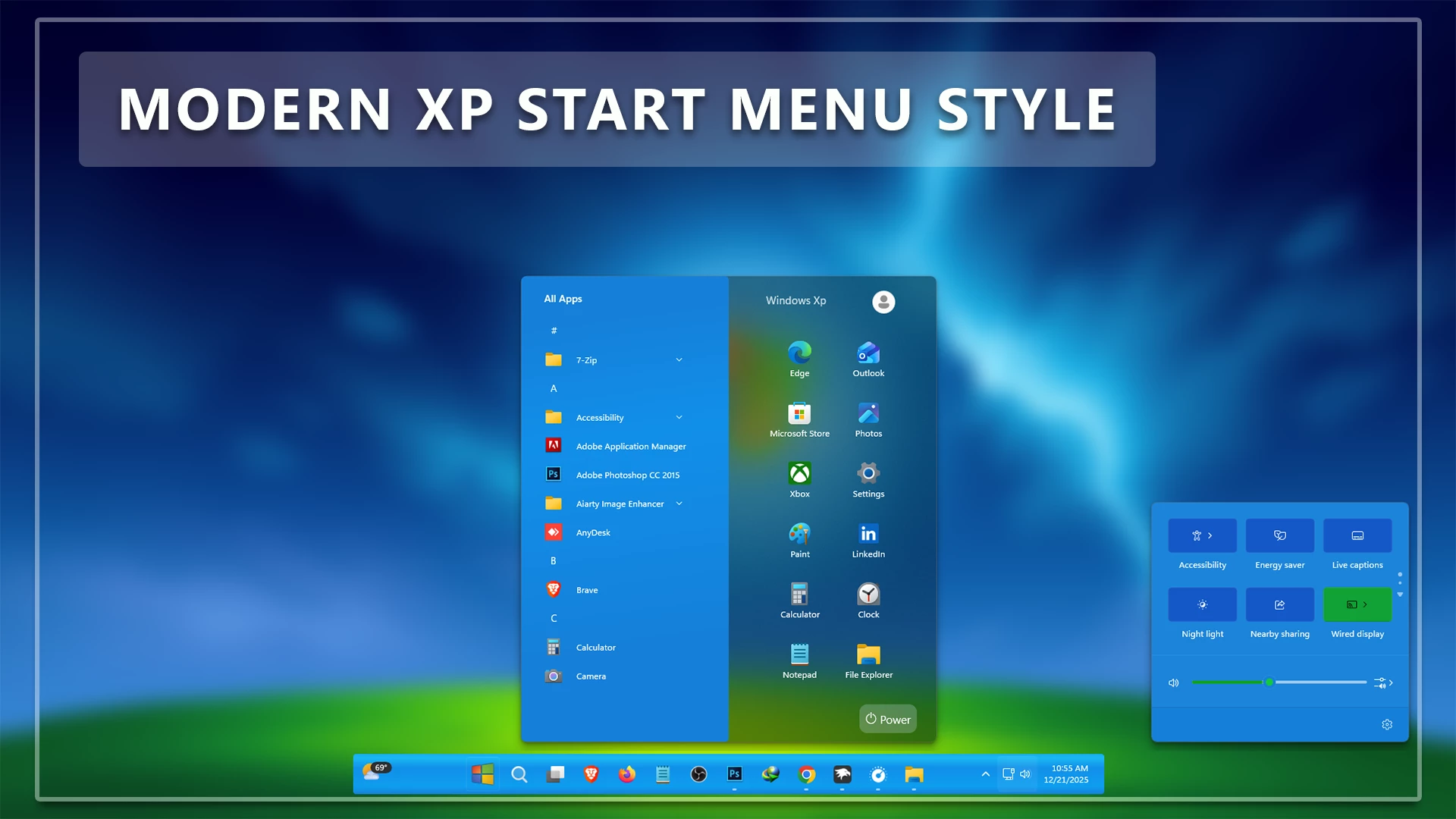
Modern XP Start Menu Style for Windows 11
There is something about the “Luna” blue aesthetic of Windows XP that just feels like home for many of us. Modern Xp Start Menu Style was friendly, colorful, and incredibly easy to navigate. However, we live in 2026, and we need the security and speed of a modern OS. That is where the Modern XP Start Menu style for Windows 11 comes in—it’s the perfect blend of nostalgic design and contemporary power.
What is the Modern XP Aesthetic?
The Modern XP Start Menu style for Windows 11 isn’t just a low-resolution skin from twenty years ago. Instead, Modern Xp Start Menu Style reimagines the classic two-column layout using modern “Fluent” design principles. You get the iconic blue and orange color palette, but with the added benefits of Acrylic transparency, rounded corners, and high-definition system icons that look crisp on a 4K monitor.
I’ve found that many users are moving back to this layout because it’s actually more efficient. The left side handles your pinned apps, while the right side gives you quick, clear access to your user folders and system settings—something the default Windows 11 menu often hides behind extra clicks.Try This Modern Xp Start Menu Style
Key Features of the Modern XP Style
- Classic Two-Column Layout: Seperate your apps from your system locations just like the original 2001 design.
- Mica & Acrylic Effects: The “Luna” blue now features subtle transparency that reacts to your desktop wallpaper.
- Modernized Taskbar Integration: Pairs perfectly with a centered or left-aligned taskbar while maintaining the XP vibe.
- Enhanced Search: Even with a classic look, you still get the lightning-fast Windows 11 search bar integrated at the bottom.
- 21H2 YES
- 22H2 YES
- 22H3 YES
- 24H2 YES
- 25H2 Yes
- Download & Install windhawk.
- install & Open the Windows 11 Start Menu Styler mod in Windhawk.
- Go to the “Advanced” tab.
- Copy the content below to the text box under “Mod settings” and click “Save”.
{ "theme": "Modern Xp by Link Vegas", "controlStyles[0].target": "Windows.UI.Xaml.Controls.Grid#UndockedRoot", "controlStyles[0].styles[0]": "Visibility=Visible", "controlStyles[0].styles[1]": "Width=428", "controlStyles[0].styles[2]": "Transform3D:=<CompositeTransform3D TranslateX=\"178\" />", "controlStyles[0].styles[3]": "Margin=-80,-10,0,0", "controlStyles[0].styles[4]": "Padding=0,0,0,0", "controlStyles[1].target": "Windows.UI.Xaml.Controls.Grid#AllAppsRoot", "controlStyles[1].styles[0]": "Visibility=Visible", "controlStyles[1].styles[1]": "Width=320", "controlStyles[1].styles[2]": "Margin=-650,-20,830,0", "controlStyles[2].target": "Windows.UI.Xaml.Controls.Grid#ShowMoreSuggestions", "controlStyles[2].styles[0]": "Visibility=Collapsed", "controlStyles[3].target": "Windows.UI.Xaml.Controls.Grid#SuggestionsParentContainer", "controlStyles[3].styles[0]": "Visibility=Collapsed", "controlStyles[4].target": "Windows.UI.Xaml.Controls.Grid#TopLevelSuggestionsListHeader", "controlStyles[4].styles[0]": "Visibility=Collapsed", "controlStyles[5].target": "StartDocked.SearchBoxToggleButton", "controlStyles[5].styles[0]": "Visibility=Collapsed", "controlStyles[6].target": "Windows.UI.Xaml.Controls.Grid#TopLevelRoot > Windows.UI.Xaml.Controls.Border", "controlStyles[6].styles[0]": "Visibility=Collapsed", "controlStyles[7].target": "Windows.UI.Xaml.Controls.Button#CloseAllAppsButton", "controlStyles[7].styles[0]": "Visibility=Collapsed", "controlStyles[8].target": "StartDocked.PowerOptionsView", "controlStyles[8].styles[0]": "Margin=,0,0,0", "controlStyles[9].target": "StartDocked.UserTileView", "controlStyles[9].styles[0]": "Margin=-25,0,0,0", "controlStyles[10].target": "StartMenu.PinnedList", "controlStyles[10].styles[0]": "Height=504", "controlStyles[11].target": "StartMenu.ExpandedFolderList > Grid > Border", "controlStyles[11].styles[0]": "Margin=-40,0,40,0", "controlStyles[11].styles[1]": "Width=325", "controlStyles[12].target": "StartMenu.ExpandedFolderList > Grid > Grid", "controlStyles[12].styles[0]": "CornerRadius=8", "controlStyles[12].styles[1]": "Margin=-85,0,0,0", "controlStyles[12].styles[2]": "Width=350", "controlStyles[13].target": "StartMenu.ExpandedFolderList > Grid > Grid > Microsoft.UI.Xaml.Controls.PipsPager#PinnedListPipsPager", "controlStyles[13].styles[0]": "Margin=-15,0,0,0", "controlStyles[14].target": "StartDocked.StartSizingFrame", "controlStyles[14].styles[0]": "MaxWidth=580", "controlStyles[14].styles[1]": "MinWidth=580", "controlStyles[14].styles[2]": "MaxHeight=650", "controlStyles[15].target": "Grid#RootContent", "controlStyles[15].styles[0]": "MinWidth=580", "controlStyles[15].styles[1]": "CornerRadius=10", "controlStyles[16].target": "Border#AcrylicOverlay", "controlStyles[16].styles[0]": "Visibility=Visible", "controlStyles[17].target": "Border#ContentBorder@CommonStates > Grid#DroppedFlickerWorkaroundWrapper > Border", "controlStyles[17].styles[0]": "FocusVisualPrimaryBrush:=<SolidColorBrush Color=\"#b3cefd\" Opacity=\".10\"/>", "controlStyles[17].styles[1]": "CornerRadius=4", "controlStyles[17].styles[2]": "Height=80", "controlStyles[17].styles[3]": "Width=92", "controlStyles[18].target": "StartMenu.PinnedList#StartMenuPinnedList", "controlStyles[18].styles[0]": "MaxWidth=345", "controlStyles[18].styles[1]": "Margin=95,15,0,0", "controlStyles[18].styles[2]": "Height=504", "controlStyles[19].target": "Windows.UI.Xaml.Controls.Border#ContentBorder@CommonStates > Windows.UI.Xaml.Controls.Grid#DroppedFlickerWorkaroundWrapper > Border#BackgroundBorder", "controlStyles[20].target": "Border#AcrylicBorder", "controlStyles[20].styles[0]": "Background:=<AcrylicBrush TintColor=\"{ThemeResource CardStrokeColorDefaultSolid}\" FallbackColor=\"{ThemeResource CardStrokeColorDefaultSolid}\" TintOpacity=\"0\" TintLuminosityOpacity=\".55\"/>", "controlStyles[20].styles[2]": "BorderThickness=1", "controlStyles[20].styles[3]": "CornerRadius=8", "controlStyles[20].styles[4]": "Margin=0", "controlStyles[21].target": "StartMenu.ExpandedFolderList > Grid > Grid > Microsoft.UI.Xaml.Controls.PipsPager#PinnedListPipsPager", "controlStyles[21].styles[0]": "Margin=-15,0,0,0", "controlStyles[22].target": "Border#AcrylicOverlay", "controlStyles[22].styles[0]": "Background:=<LinearGradientBrush StartPoint=\"0.2,0\" EndPoint=\"0.5,1\"> <GradientStop Color=\"#1580D9\" Offset=\"0.0\" /> <GradientStop Color=\"#1580D9\" Offset=\"0.1\" /> <GradientStop Color=\"#118FE9\" Offset=\"0.35\" /> <GradientStop Color=\"#1580D9\" Offset=\"0.8\" /> <GradientStop Color=\"#1580D9\" Offset=\"1.0\" /></LinearGradientBrush>", "controlStyles[22].styles[1]": "Width=290", "controlStyles[22].styles[2]": "Margin=-290,0,0,-65", "controlStyles[22].styles[3]": "CornerRadius=5", "controlStyles[23].target": "Border#AcrylicBorder", "controlStyles[23].styles[0]": "Background:= <AcrylicBrush BackgroundSource=\"Backdrop\" TintColor=\"{ThemeResource SystemChromeAltHighColor}\" TintOpacity=\"0\" TintLuminosityOpacity=\".5\" />", "controlStyles[24].target": "Windows.UI.Xaml.Controls.TextBlock#PinnedListHeaderText", "controlStyles[24].styles[0]": "Margin=20,25,0,0", "controlStyles[25].target": "TextBlock#AppDisplayName", "controlStyles[25].styles[0]": "Foreground=#ffffff", "controlStyles[26].target": "TextBlock#AllAppsHeading", "controlStyles[26].styles[0]": "Foreground:=#ffffff", "controlStyles[27].target": "TextBlock#FolderGlyph", "controlStyles[27].styles[0]": "Foreground:=#ffffff", "controlStyles[28].target": "TextBlock#StatusMessage", "controlStyles[28].styles[0]": "Foreground:=#ffffff", "controlStyles[29].target": "TextBlock#FolderGlyph", "controlStyles[29].styles[0]": "Foreground:=#ffffff", "controlStyles[30].target": "TextBlock#Text ", "controlStyles[30].styles[0]": "Foreground:=#ffffff", "controlStyles[31].target": "TextBlock#AppDisplayName", "controlStyles[31].styles[0]": "Foreground:=#ffffff", "controlStyles[32].target": "StartMenu.ExpandedFolderList > Grid > Border", "controlStyles[32].styles[0]": "Background=#34294f", "controlStyles[33].target": "TextBlock#DisplayName", "controlStyles[33].styles[0]": "Foreground:=#ffffff", "controlStyles[34].target": "StartDocked.LauncherFrame > Grid#RootGrid > Grid#RootContent > Grid#MainContent > Grid#InnerContent > Rectangle", "controlStyles[34].styles[0]": "Visibility=Collapsed", "controlStyles[9].styles[1]": "Visibility=Visible", "controlStyles[9].styles[2]": "Transform3D:=<CompositeTransform3D TranslateX=\"450\" TranslateY=\"-580\" />", "controlStyles[35].target": "TextBlock#PinnedListHeaderText", "controlStyles[35].styles[0]": "Text=Windows Xp", "controlStyles[35].styles[1]": "FontSize=15", "controlStyles[35].styles[2]": "Opacity=.75", "controlStyles[35].styles[3]": "FontWeight=500", "controlStyles[35].styles[4]": "Transform3D:=<CompositeTransform3D TranslateX=\"45\" TranslateY=\"-20\" />", "controlStyles[36].target": "TextBlock#AllAppsHeading", "controlStyles[36].styles[0]": "Text=All Apps", "controlStyles[37].target": "StartDocked.AppListView#NavigationPanePlacesListView", "controlStyles[37].styles[0]": "Transform3D:=<CompositeTransform3D TranslateX=\"0\"/>", "controlStyles[38].target": "Windows.UI.Xaml.Controls.TextBlock[Text=]", "controlStyles[38].styles[0]": "Text= Power", "controlStyles[38].styles[1]": "FontFamily=Segoe UI, Segoe MDL2 Assets", "controlStyles[38].styles[2]": "Foreground=#ffffff", "controlStyles[39].target": "StartDocked.NavigationPaneButton#PowerButton", "controlStyles[39].styles[0]": "Width=80", "controlStyles[39].styles[1]": "Margin=0,0,-25,0", "controlStyles[40].target": "TextBlock#UserTileNameText", "controlStyles[40].styles[0]": "Visibility=Collapsed", "controlStyles[41].target": "StartDocked.NavigationPaneButton#PowerButton > Grid > Border#BackgroundBorder", "controlStyles[41].styles[0]": "Background:=#46c9d8ed", "controlStyles[41].styles[1]": "CornerRadius=10", "controlStyles[42].target": "StartDocked.LauncherFrame > Grid#RootPanel > Grid#RootGrid", "controlStyles[42].styles[0]": "MinWidth=580", "controlStyles[42].styles[1]": "MaxWidth=580", "controlStyles[43].target": "StartDocked.LauncherFrame > Grid#RootPanel > Grid#RootGrid > Grid#RootContent", "controlStyles[43].styles[0]": "MinWidth=580", "controlStyles[43].styles[1]": "MaxWidth=580", "controlStyles[44].target": "Windows.UI.Xaml.Shapes.Rectangle", "controlStyles[44].styles[0]": "Visibility=Collapsed", "disableNewStartMenuLayout": "legacyClassicLayout"}Performance and Reliability
Don’t worry about this slowing down your PC. Because this Modern XP Start Menu style for Windows 11 is built on modern code, it uses less than 1% of your CPU. It’s as snappy as the stock menu, but it looks a whole lot better. I’ve been running this setup on my main workstation for months with zero crashes.
Conclusion
The Modern XP Start Menu style for Windows 11 is the ultimate proof that you don’t have to give up your favorite designs just because software evolves. It’s colorful, it’s productive, and it makes using your PC fun again. If you’re tired of the flat, grey designs of modern tech, give this retro-modern hybrid a shot.