Modern XP Taskbar Style For Windows 11
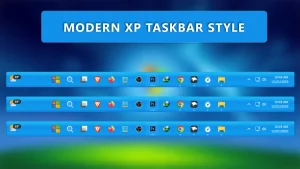
Modern XP Taskbar Style : The Modern XP Taskbar Mod for Windhawk is designed for users who love the classic Windows XP taskbar style but want it upgraded for modern Windows 11 systems. This mod recreates the iconic XP-era taskbar look while adding smooth animations, transparency effects, and improved responsiveness for today’s hardware.


Modern XP Taskbar Style For Windows 11
Modern XP Taskbar Style for Windows 11 is a clean and nostalgic taskbar customization style made for users who enjoy the classic Windows XP feeling but still want the smooth look of a modern Windows 11 desktop. It brings a familiar old-school taskbar mood with a refreshed design, making your desktop feel different without making it look outdated.
This style is especially useful for Windows users who like retro-inspired customization, clean taskbar layouts, and unique desktop setups. With the help of Windhawk taskbar customization, the Modern XP style can give your Windows 11 taskbar a more personal and visually interesting appearance.
Taskbar Style Overview
The Modern XP taskbar style is inspired by the simple and recognizable look of the classic Windows XP taskbar, but it is adjusted for a modern Windows 11 setup. Instead of looking too old or heavy, it keeps the nostalgic idea and blends it with cleaner spacing, smoother edges, and a more polished desktop feel.
The style may include a more solid taskbar appearance, classic-style button spacing, a simplified layout, and a desktop-friendly visual balance. Depending on your Windhawk configuration, it can work nicely with light wallpapers, retro icon packs, minimal themes, and clean Windows 11 setups.
Design Features
- Custom taskbar appearance inspired by the classic XP look
- Modern Windows 11 desktop look with a nostalgic touch
- Works with Windhawk taskbar customization
- Matches themes, icons, and wallpapers
- Good for users who want a retro-modern desktop setup
- Helps make the taskbar look more unique and personal
Best For
The Modern XP taskbar style is best for users who want to make Windows 11 feel more personal without making the desktop too complicated. If you like classic Windows designs, retro UI elements, or a taskbar that looks different from the default Windows 11 style, this setup can be a good choice.
It also works well for users who create themed desktop setups, such as retro Windows layouts, productivity desktops, minimal home screens, and custom icon-based designs. If you already use Windhawk, Rainmeter, custom wallpapers, or icon packs, this taskbar style can help complete the overall look.
Compatibility
Before applying the Modern XP taskbar style, make sure your Windows version, Windhawk version, and required taskbar mod are compatible with the style code or settings. Windows updates can sometimes change taskbar behavior, so a style that works on one build may need adjustment on another build.
For the best result, use the latest stable version of Windhawk and read the instructions provided with the style. If you are using other taskbar-related tools or mods at the same time, check for conflicts before applying this setup.
How to Apply This Taskbar Style
- Create a system restore point before making any customization changes.
- Open Windhawk on your Windows 11 PC.
- Install the required taskbar customization mod.
- Apply the Modern XP style code or settings carefully.
- Restart Windows Explorer if the taskbar does not update immediately.
- Check the taskbar layout and adjust the settings if needed.
Safety Tips Before Applying
- Always create a restore point before applying custom taskbar styles.
- Use Windhawk and customization files only from trusted sources.
- Do not apply multiple taskbar styles at the same time unless you know they are compatible.
- Keep a backup of your previous style code or settings.
- Disable the style first if you notice taskbar layout issues after a Windows update.
{ "theme": "Modern XP by Link Vegas", "controlStyles[0].target": "Taskbar.TaskbarFrame#TaskbarFrame", "controlStyles[0].styles[1]": "HorizontalAlignment=Center", "controlStyles[0].styles[2]": "Width=Auto", "controlStyles[1].target": "Taskbar.TaskbarFrame#TaskbarFrame > Grid#RootGrid", "controlStyles[1].styles[0]": "Padding=6,0,6,0", "controlStyles[1].styles[1]": "Margin=0,2,0,3", "controlStyles[1].styles[2]": "BorderThickness=2", "controlStyles[1].styles[3]": "Background:=<AcrylicBrush TintColor=\"{ThemeResource CardStrokeColorDefaultSolid}\" FallbackColor=\"{ThemeResource CardStrokeColorDefaultSolid}\" TintOpacity=\"0\" TintLuminosityOpacity=\".5\" Opacity=\"1\"/>", "controlStyles[2].target": "Rectangle#BackgroundFill", "controlStyles[2].styles[0]": "Visibility=Collapsed", "controlStyles[3].target": "Rectangle#BackgroundStroke", "controlStyles[3].styles[0]": "Visibility=Collapsed", "controlStyles[4].target": "Taskbar.AugmentedEntryPointButton#AugmentedEntryPointButton > Taskbar.TaskListButtonPanel#ExperienceToggleButtonRootPanel", "controlStyles[4].styles[0]": "Margin=0", "controlStyles[5].target": "Grid#SystemTrayFrameGrid", "controlStyles[5].styles[0]": "Background:=#00000000", "controlStyles[5].styles[1]": "CornerRadius=5", "controlStyles[5].styles[2]": "BackgroundSizing=InnerBorderEdge", "controlStyles[5].styles[3]": "Margin=0,2,0,3", "controlStyles[5].styles[4]": "BorderThickness=5", "controlStyles[6].target": "SystemTray.ChevronIconView", "controlStyles[6].styles[0]": "Padding=0", "controlStyles[7].target": "SystemTray.NotifyIconView#NotifyItemIcon", "controlStyles[7].styles[0]": "Padding=0", "controlStyles[8].target": "SystemTray.OmniButton", "controlStyles[8].styles[0]": "Padding=0", "controlStyles[9].target": "SystemTray.CopilotIcon", "controlStyles[9].styles[0]": "Padding=0", "controlStyles[10].target": "SystemTray.OmniButton#NotificationCenterButton > Grid > ContentPresenter > ItemsPresenter > StackPanel > ContentPresenter > systemtray:IconView#SystemTrayIcon > Grid", "controlStyles[10].styles[0]": "Padding=4,0,4,0", "controlStyles[11].target": "SystemTray.IconView#SystemTrayIcon > Grid#ContainerGrid > ContentPresenter#ContentPresenter > Grid#ContentGrid > SystemTray.TextIconContent > Grid#ContainerGrid", "controlStyles[11].styles[0]": "Padding=0", "controlStyles[12].target": "SystemTray.StackListView#IconStack > ItemsPresenter > StackPanel > ContentPresenter > SystemTray.IconView#SystemTrayIcon", "controlStyles[12].styles[0]": "Padding=0", "controlStyles[13].target": "SystemTray.Stack#ShowDesktopStack", "controlStyles[13].styles[0]": "Margin=0,-4,-12,-4", "controlStyles[14].target": "Taskbar.Gripper#GripperControl", "controlStyles[14].styles[0]": "Width=Auto", "controlStyles[14].styles[1]": "MinWidth=24", "controlStyles[15].target": "SystemTray.SystemTrayFrame", "controlStyles[15].styles[0]": "HorizontalAlignment=1", "controlStyles[1].styles[4]": "CornerRadius=5", "controlStyles[1].styles[5]": "Background:=<AcrylicBrush TintColor=\"{ThemeResource CardStrokeColorDefaultSolid}\" FallbackColor=\"{ThemeResource CardStrokeColorDefaultSolid}\" TintOpacity=\"0\" TintLuminosityOpacity=\".55\" Opacity=\"1\"/>", "controlStyles[1].styles[6]": "Background:=<LinearGradientBrush StartPoint=\"0.5,0\" EndPoint=\"0.5,1\"> <GradientStop Color=\"#16ADF0\" Offset=\"0.0\" /> <GradientStop Color=\"#19B9F3\" Offset=\"0.1\" /> <GradientStop Color=\"#118FE9\" Offset=\"0.35\" /> <GradientStop Color=\"#0E9EF0\" Offset=\"0.8\" /> <GradientStop Color=\"#1580D9\" Offset=\"1.0\" /></LinearGradientBrush>", "controlStyles[0].styles[0]": "MaxWidth=1050", "controlStyles[0].styles[3]": "MinWidth=1050", "controlStyles[15].styles[1]": "Margin=850,0,0,0", "controlStyles[16].target": "Taskbar.ExperienceToggleButton#LaunchListButton[AutomationProperties.AutomationId=StartButton] > Taskbar.TaskListButtonPanel > Microsoft.UI.Xaml.Controls.AnimatedVisualPlayer#Icon", "controlStyles[16].styles[0]": "Visibility=Collapsed", "controlStyles[17].target": "Taskbar.ExperienceToggleButton#LaunchListButton[AutomationProperties.AutomationId=StartButton] > Taskbar.TaskListButtonPanel > Border#BackgroundElement", "controlStyles[17].styles[0]": "Background:=<ImageBrush Stretch=\"none\" ImageSource=\"https://www.linkvegastheme.com/wp-content/uploads/2025/12/XP-Modern-2.png\" />"}Required Windhawk Mods for similar results
To achieve similar results, install and configure the following Windhawk mods in addition to Taskbar Styler
{ "TaskbarHeight": 65, "IconSize": 25, "TaskbarButtonWidth": 50, "IconSizeSmall": 16, "TaskbarButtonWidthSmall": 32}Notification Style Mods for Windhawk let you completely transform the look and feel
Notification Style Mods for Windhawk let you completely transform the look and feel of Windows notifications, giving your desktop a fresh and personalized appearance. These mods are perfect for users who want to move beyond the default Windows 11 notification design and create something more stylish, minimal, or retro
{ "controlStyles[0].target": "Grid#NotificationCenterGrid", "controlStyles[0].styles[0]": "Background=#1580D9", "controlStyles[1].target": "Grid#CalendarCenterGrid", "controlStyles[1].styles[0]": "Background=#1580D9", "controlStyles[2].target": "Grid#ControlCenterRegion", "controlStyles[2].styles[0]": "Background=#1580D9", "controlStyles[3].target": "ActionCenter.NotificationListViewItem > Windows.UI.Xaml.Controls.Primitives.ListViewItemPresenter > Border", "controlStyles[3].styles[0]": "Background:=#1580D9", "controlStyles[3].styles[1]": "CornerRadius=5", "controlStyles[4].target": "ControlCenter.PaginatedToggleButton > Windows.UI.Xaml.Controls.ContentPresenter#ContentPresenter@CommonStates", "controlStyles[4].styles[0]": "Background:=#1458c7", "controlStyles[4].styles[1]": "Background@PointerOver:=#2e76ea", "controlStyles[4].styles[2]": "Background@Checked:=#10a235", "controlStyles[4].styles[3]": "Background@CheckedPointerOver:=#10a212", "controlStyles[5].target": "Rectangle#HorizontalDecreaseRect", "controlStyles[5].styles[0]": "Fill:=#10a212", "controlStyles[6].target": "Windows.UI.Xaml.Shapes.Ellipse#SliderInnerThumb", "controlStyles[6].styles[0]": "Fill:=#14c741", "controlStyles[7].target": "Windows.UI.Xaml.Controls.Primitives.Thumb#HorizontalThumb > Border", "controlStyles[7].styles[0]": "Background:=#1580D9", "controlStyles[8].target": "Grid", "controlStyles[8].styles[0]": "RequestedTheme=2"} ⚠️ Disclaimer: This Windhawk Start Menu Style is provided for Windows UI personalization and educational purposes only. It is an unofficial customization and is not developed, endorsed, or supported by Microsoft. Compatibility may vary depending on your Windows version, Windhawk version, Start Menu Styler version, and system configuration. Windows updates may also affect how the style works. Please keep a backup of your current settings before applying any changes.
Troubleshooting
- Restart Windows Explorer if the taskbar style does not appear after applying the settings.
- Check if another taskbar mod is conflicting with the Modern XP style.
- Update Windhawk if the style is not working correctly.
- Make sure the required taskbar mod is enabled.
- Review the style code or settings to confirm everything was pasted correctly.
- Disable the style if it causes spacing, icon, or layout issues.
How to Restore the Default Taskbar
If you want to return to the default Windows 11 taskbar, open Windhawk and disable the taskbar style or the related mod. After disabling it, restart Windows Explorer or restart your PC. If the taskbar still does not look normal, use your saved settings backup or restore point to return the system to its previous state.
Final Thoughts
Modern XP Taskbar Style for Windows 11 is a nice option for users who want a retro-inspired taskbar without leaving the modern Windows experience. It keeps the familiar feeling of the classic XP era while still fitting into a cleaner Windows 11 desktop setup.
If you enjoy customizing your desktop with Windhawk, icons, wallpapers, and themes, this taskbar style can be a great addition to your setup. Just make sure to check compatibility, follow the steps carefully, and keep a restore point before applying any major customization.
FAQs
Can I use this taskbar style with any Windows theme?
Yes, you can usually use this taskbar style with many Windows themes, but the final look depends on your wallpaper, icon pack, taskbar settings, and other active customization tools. For the best result, use a theme that matches the retro-modern look of the Modern XP style.
Why is my taskbar style not showing?
The style may not show if the required Windhawk mod is not installed, the style code was not applied correctly, Windows Explorer needs to be restarted, or another taskbar mod is causing a conflict. You should also check whether your Windows build is compatible with the current version of the mod.
Do I need Windhawk to use the Modern XP taskbar style?
Yes, this style is made for Windhawk taskbar customization. You need to install Windhawk and the required taskbar mod before applying the style settings.
Can I remove the Modern XP taskbar style later?
Yes, you can remove it by disabling the related Windhawk style or mod. After that, restart Windows Explorer or restart your computer to bring back the default taskbar look.
Will this taskbar style slow down my PC?
A simple taskbar style usually should not cause major performance issues on a normal Windows 11 PC. However, performance can depend on your system, active mods, Windows build, and how many customization tools you are using at the same time.